How to connect Glen to Grok Bot

Connect Grok Bot to Glen MCP. Search glen for recent project decisions, find onboarding context for the acme account, and more using natural language, with authentication handled for you.

Glen MCP logoGlen MCP
Dcr Oauth

Glen MCP is an organizational memory service that gives teams access to shared knowledge and context. It helps users find trusted workspace information without digging through scattered sources.

22 Tools

Introduction

Grok is xAI's assistant, and its bot builder lets you create a personal agent that holds context, runs skills, and connects to the apps you already use through plugins.

This guide explains how to connect Glen to a Grok bot using Composio Connect, which handles OAuth, token refresh, and reliability so you do not have to. You add Composio as a plugin, authenticate once, then ask your bot to work with Glen in plain language.

For exact tool slugs and parameter tables, see the tool catalog in the Composio docs.

Also integrate Glen MCP with

Why use Composio?

Composio exposes 1,700+ apps to your Grok bot through a single connection, so you get:

  • Connect to 1,700+ apps with on-demand tool loading, so you do not fill your context window with unnecessary tool definitions.
  • Use programmatic tool calling through a remote workbench, letting the model write its own code to handle complex tool chaining. This reduces back-and-forth for frequent tool calls.
  • Handle large tool responses outside the model context to keep conversations lean.

Connecting Glen to Grok Bot

Once Grok Bot is set up, you connect Glen entirely from its interface, and the whole flow takes under a minute.

Set up Grok Bot

Get access. Grok Bot is included with Cursor Ultra, Cursor Premium Teams, and SuperGrok Heavy. Get the desktop app for macOS or Windows from x.ai/bot and sign in. An iPhone companion app is also available, and your bots sync across devices.

Create a bot. Pick a suggested role or define your own, then give it a short name, one primary job, and a short description of how it should work. Focused bots work best, because a clear role gives the bot more useful context over time.

Connect Glen

1. Add the Composio plugin

Click the button. The Composio listing on x.ai opens and launches Grok Bot for you. If the app does not open on its own, click Add to Grok Bot.

Add to Grok Bot
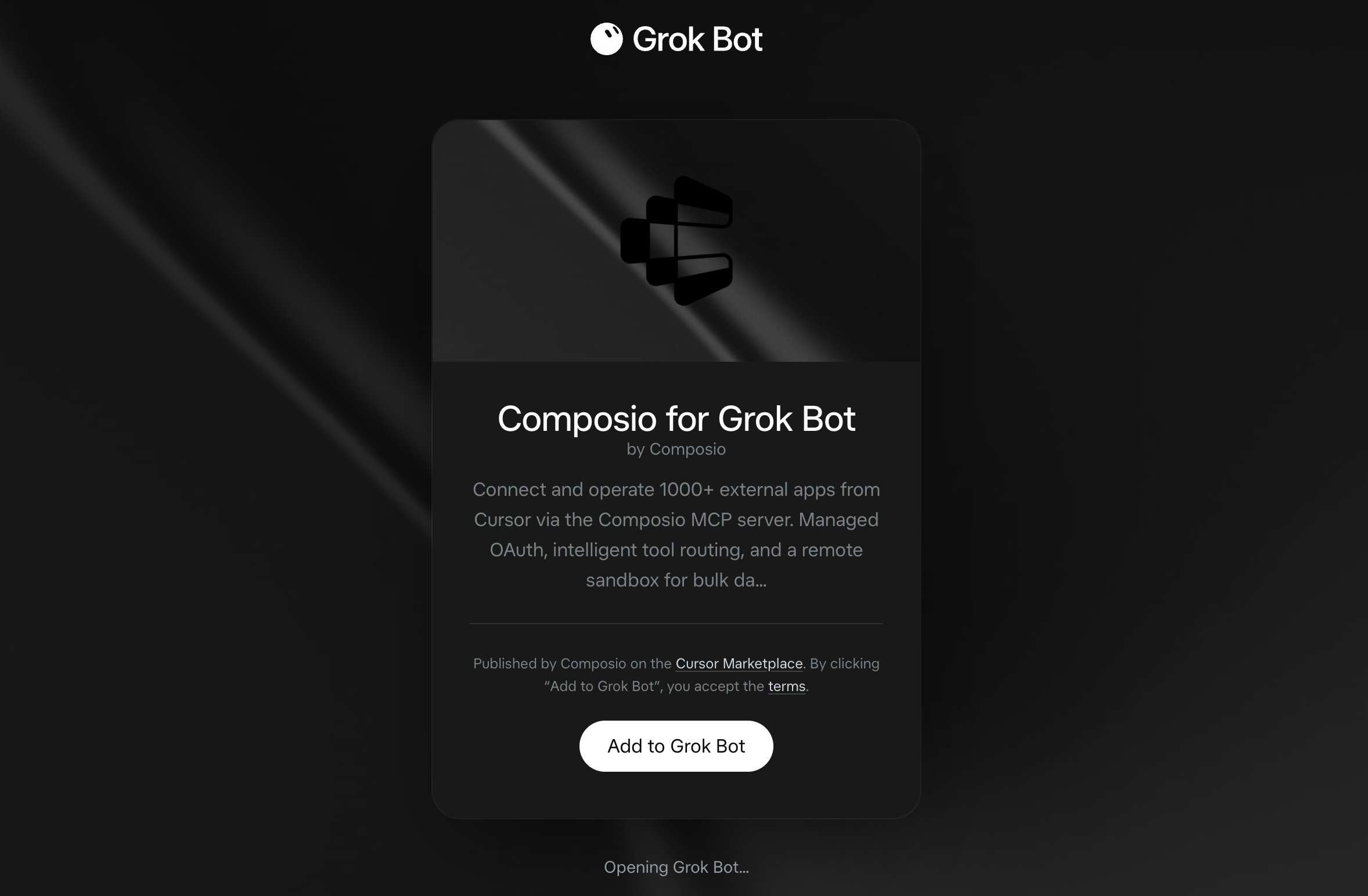
Composio for Grok Bot listing on x.ai with the Add to Grok Bot button

Grok Bot opens the Composio plugin, showing its connector and skills. Click Add.
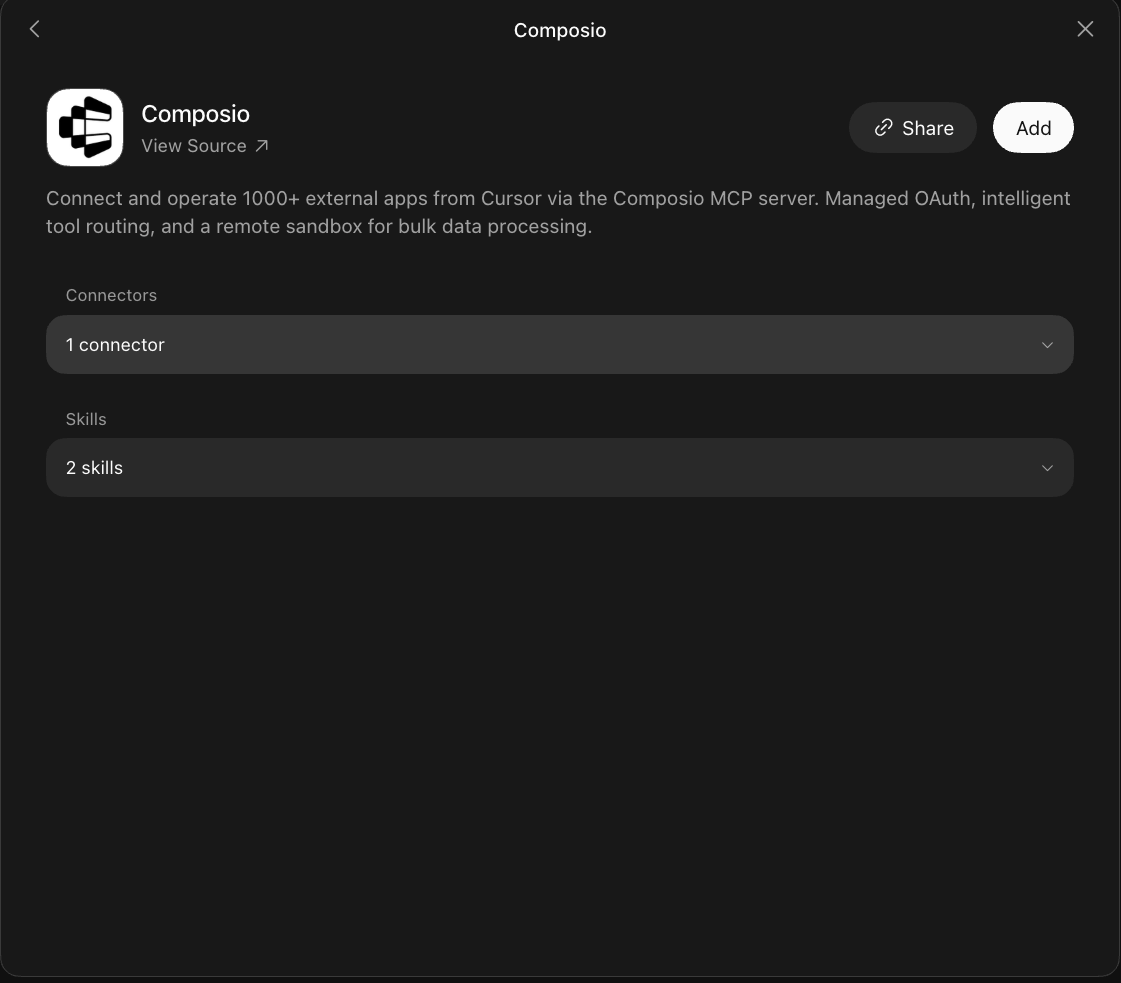
Composio plugin sheet in Grok Bot with the Add button

2. Authenticate

Go to the Installed section and click the Composio entry. You'll see its connector and skills listed.
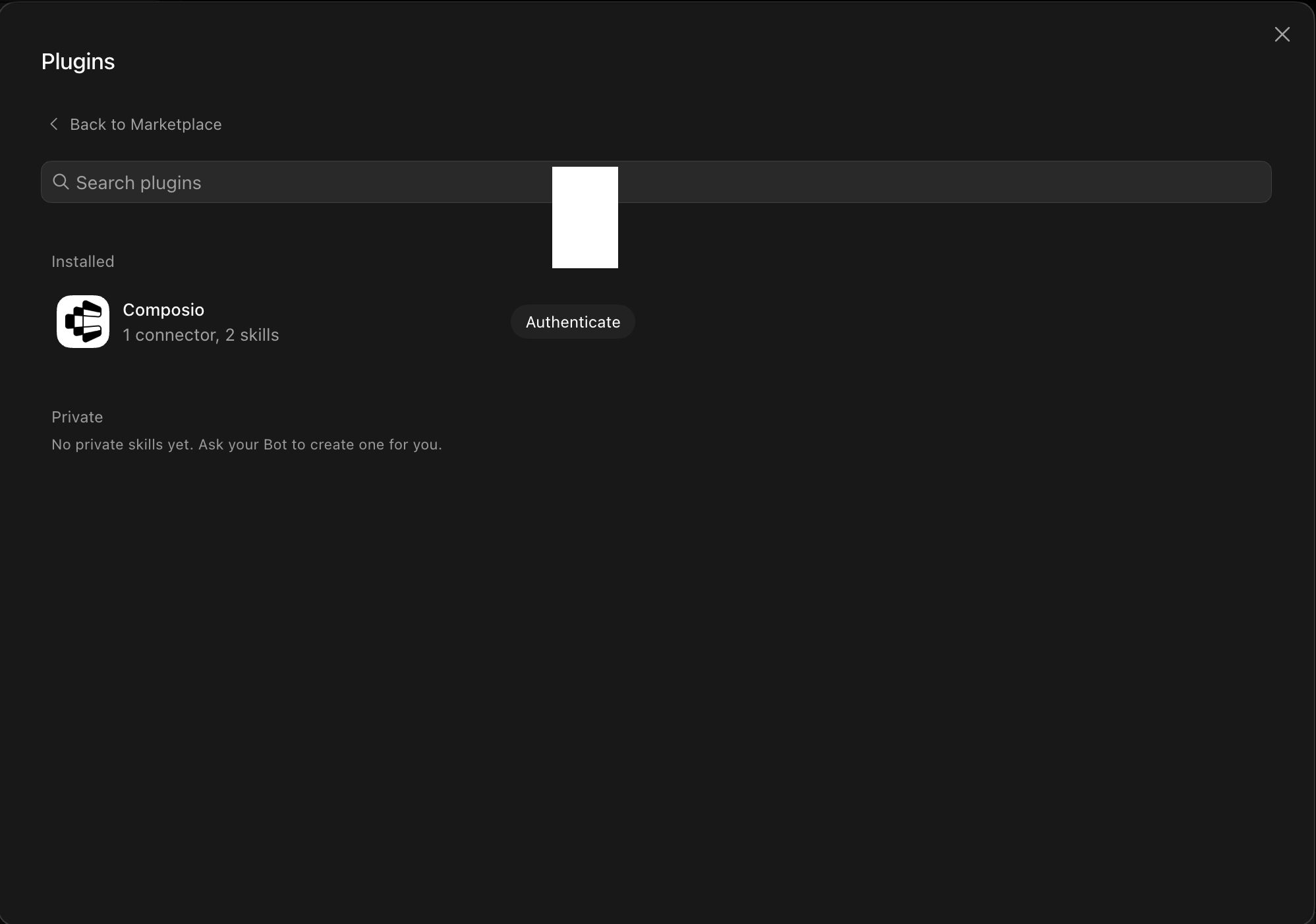
Installed Composio plugin showing the Authenticate button

Click Authenticate. You'll be taken to the Composio consent screen. Review the access it requests and click Authorize. Composio handles the OAuth handshake for you, so you never touch API keys or tokens.

Composio authorization screen with Authorize and Deny

3. Connect your Glen account

Back in the chat, ask your bot to connect to Glen or give it any Glen task.

For example, ask it to:

  • "Search Glen for recent project decisions"
  • "Find onboarding context for the Acme account"
  • "Summarize Glen notes about product launch risks"

It will prompt you to authenticate and authorize access.

That's it. Composio's tools are now available in your Grok bot, and your Glen account is ready to use.

What is Grok Bot?

Grok is xAI's assistant, available as a chat interface and a bot builder for creating personal agents that run skills and connect to external apps.

With Composio Connect, your Grok bot can securely access apps like Glen through MCP without you sharing account credentials directly with the agent.

What is the Glen MCP server, and what's possible with it?

The Glen MCP server is an implementation of the Model Context Protocol that connects your AI agent and assistants like Claude, Cursor, etc directly to your Glen account. It provides structured and secure access to your organization's shared memory, artifacts, reusable skills, and Glen settings, so your agent can search team knowledge, save and retrieve documents, create and use reusable skills, trace code to past conversations, and manage sharing and recording preferences on your behalf.

  • Search organizational memory: Have your agent search Glen for past decisions, context, and team knowledge, then exclude outdated evidence or restore it later.
  • Manage shared artifacts: Let the agent find, retrieve, create, share, or delete Markdown and HTML documents in your organization's artifact library.
  • Create and use team skills: Direct your agent to find reusable skills, fetch their instructions, save new skills, share them with teammates, or delete skills you authored.
  • Trace code and preserve conversations: Instruct your agent to connect specific code lines to the conversations that produced them or import a past coding-agent conversation into shared memory.
  • Manage Glen workspace settings: Have your agent check organizations, invite teammates, change recording and skill suggestion settings, and send feedback or bug reports to Glen.

Way Forward

Now that Glen is connected, extend your setup by connecting the other apps you already use every day, so your Grok bot can run true cross-app workflows end to end.

  • Connect Calendar to turn threads into scheduled meetings automatically.
  • Connect Slack or Teams to post summaries, approvals, and alerts where your team works.
  • Connect Notion, Linear, Jira, or Asana to convert requests into tickets, tasks, and docs.
  • Connect Drive, Dropbox, or OneDrive to fetch, file, and share attachments without manual steps.

Start with one workflow you do repeatedly, then keep adding apps as you find new handoffs. With everything behind a single connection, your bot can coordinate multiple tools safely and reliably in one conversation.

TOOLS

Supported Tools

Every Glen MCP action and event your agent gets out of the box.

Glen artifact create

Save a document (Markdown or HTML+CSS, no JavaScript) to the org's artifact library.

Glen artifact delete

Permanently delete an artifact you authored, by its exact slug.

Glen artifact get

Fetch a saved artifact (document) from the org's artifact library by its exact slug.

Glen artifact search

Find a saved document in the org's artifact library by intent or keywords.

Glen artifact share

Share an artifact you authored: add teammates by email and/or set org:true to make it visible to the whole org (org:false turns whole-org visibility off).

Glen code search

Trace specific lines of code back to the agent conversations that produced them.

Glen dependency search

Search the org's existing dependencies (tools/runtimes a skill needs) before creating a new one, so you reuse a match instead of duplicating.

Glen feedback

Send a bug report (kind:"bug") or product feedback (kind:"feedback") about glen itself to the Glen team.

Glen forget

Exclude one or more verified wrong, stale, or irrelevant evidence items from future Glen recall.

Glen import

Import one turn of a past coding-agent conversation into the org's shared memory.

Glen invite

Invite one or more teammates by email to the active organization so they share its memory.

Glen list orgs

List the organizations the user belongs to; active:true marks the one this connection reads and writes.

Glen restore

Restore one or more previously forgotten Glen evidence references.

Glen search

Search the organization's shared memory for a query.

Glen set recording

Set the user's glen mode, account-wide on every machine and agent: on (recall and record), off (recall nothing, record nothing), incognito (off the record: keep recalling, record nothing to team memory), silent (keep recording, surface nothing).

Glen set suggestions

Turn glen's skill suggestions on or off for the user, account-wide: skillCreation (offers to save your work as a new team skill) and skillUse (offers existing team skills).

Glen skill create

Save a new reusable skill (a markdown prompt) to your Glen skill library.

Glen skill delete

Permanently delete a skill you authored, by its exact slug, for you and everyone it's shared with.

Glen skill search

Find a reusable skill in the org's shared library by intent and/or author.

Glen skill share

Share a skill you authored: add teammates by email and/or set org:true to make it visible to the whole org (org:false turns whole-org visibility off).

Glen skill use

Fetch a skill's instructions by its exact slug.

Glen status

Show the user's current glen settings: mode (on, off, incognito or silent) and whether skill-creation and skill-use suggestions are on.

FAQ

Frequently asked questions

Start with Glen MCP.It takes 30 seconds.

Managed auth, hosted MCP servers, and every Glen MCP tool your agent needs.Free to start.

Start building

