How to integrate Excel MCP with Claude Code

Connect Claude Code to Excel MCP. Add sales data row to q2 table, create bar chart from revenue column, and more using natural language, with authentication handled for you.

Excel logoExcel
Oauth2S2s Oauth2

Microsoft Excel is a robust spreadsheet application for organizing, analyzing, and visualizing data. It's the go-to tool for calculations, reporting, and flexible data management.

125 Tools

Introduction

Manage your Excel directly from Claude Code with zero worries about OAuth hassles, API-breaking issues, or reliability and security concerns.

You can do this in two different ways:

  1. Via Composio Connect - Direct and easiest approach
  2. Via Composio SDK - Programmatic approach with more control

For exact tool slugs and parameter tables, see the tool catalog in the Composio docs.

Also integrate Excel with

Why use Composio?

  • Only one MCP URL to connect multiple apps with Claude Code with zero auth hassles.
  • Programmatic tool calling allows LLMs to write its code in a remote workbench to handle complex tool chaining. Reduces to-and-fro with LLMs for frequent tool calling.
  • Handling Large tool responses out of LLM context to minimize context rot.
  • Dynamic just-in-time access to 20,000 tools across 1700+ other Apps for cross-app workflows. It loads the tools you need, so LLMs aren't overwhelmed by tools you don't need.

Connecting Excel to Claude Code using Composio

1. Add the Composio MCP to Claude

Terminal

2. Start Claude Code

bash
claude

3. Open your MCP list

bash
/mcp

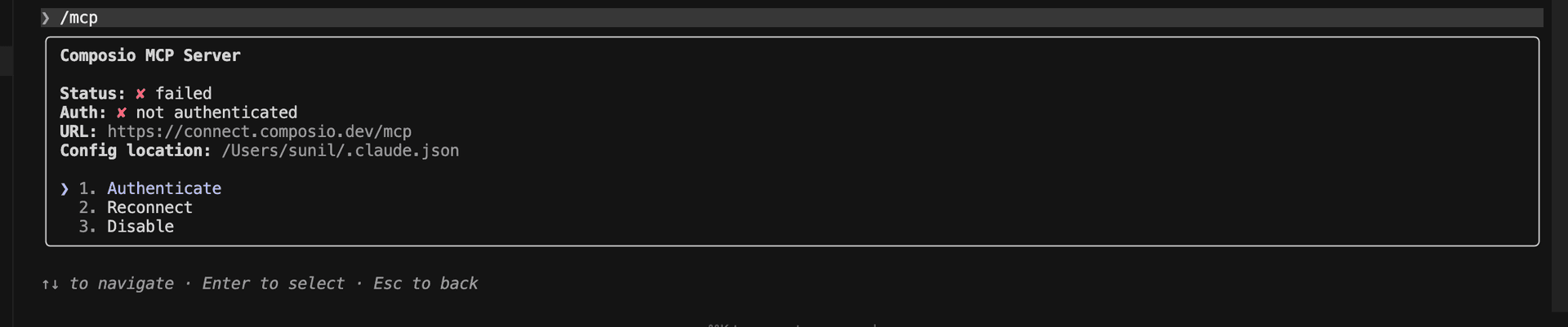
4. Select Composio and click on Authenticate

Select Composio and click Authenticate

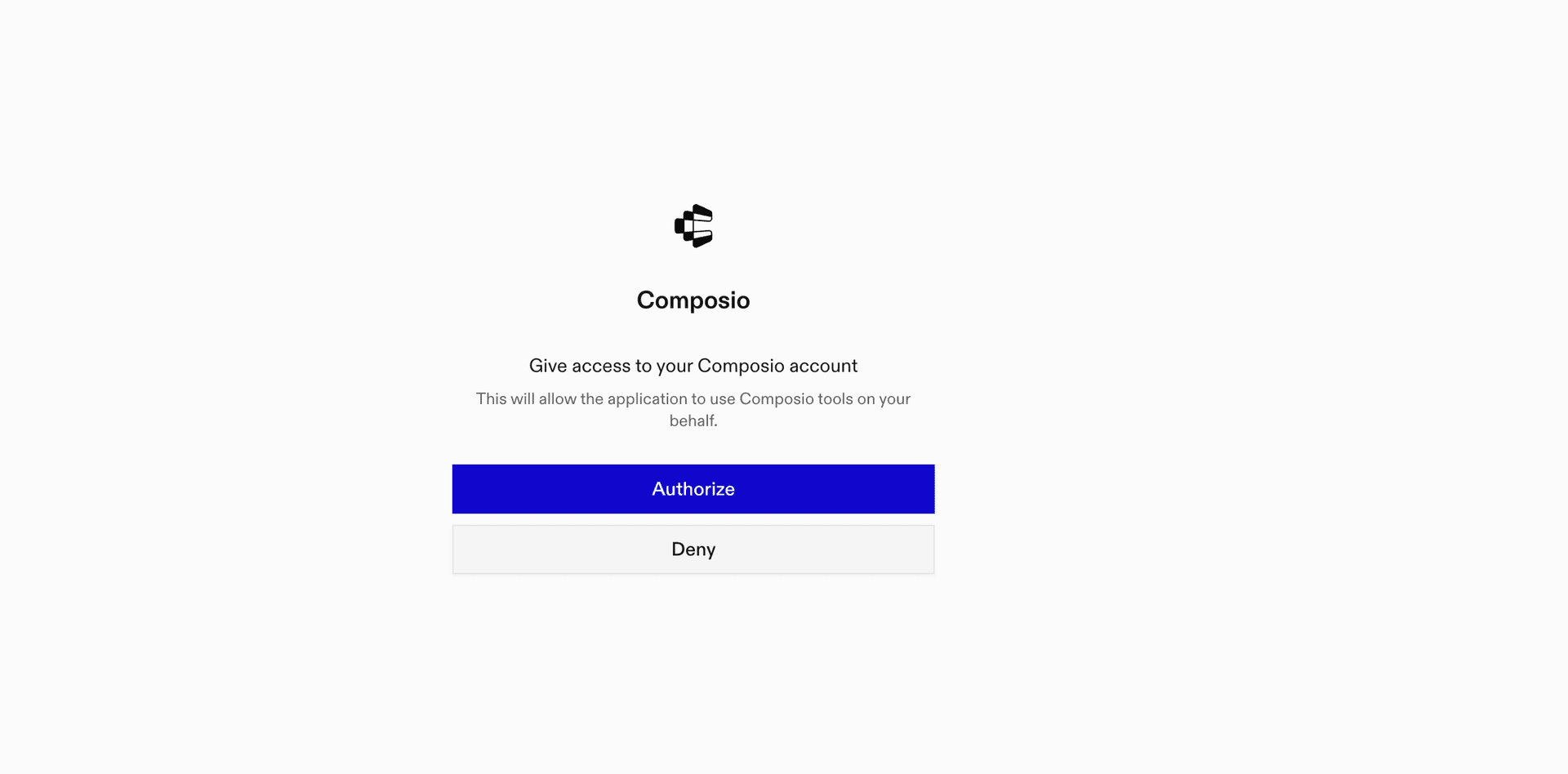
5. This will redirect you to the Composio OAuth page. Complete the flow by authorizing Composio and you're all set.

Composio OAuth authorization page
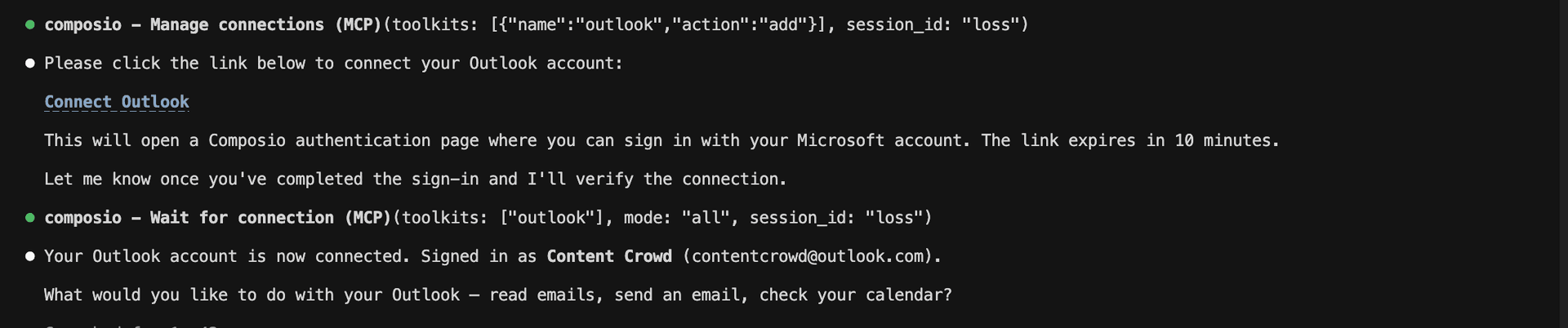
Composio authorization complete
Ask Claude to connect to your account and authenticate via the link

What is the Excel MCP server, and what's possible with it?

The Excel MCP server is an implementation of the Model Context Protocol that connects your AI agent and assistants like Claude, Cursor, etc directly to your Excel account. It provides structured and secure access to your spreadsheets, so your agent can perform actions like adding data, creating tables, managing worksheets, generating charts, and sharing workbooks on your behalf.

  • Automated data entry and updates: Let your agent add rows, columns, or clear specific ranges in any worksheet—keeping your data fresh, organized, and accurate.
  • Effortless table and worksheet management: Direct your agent to create tables, add new worksheets, or organize data structures for seamless tracking and reporting.
  • Dynamic chart generation: Have your agent visualize your data instantly by adding charts to any worksheet for quick insights and analysis.
  • Advanced filtering and sorting: Ask your agent to apply filters or custom sorts to tables, making it easy to focus on what matters most in your datasets.
  • Secure sharing and permission control: Empower your agent to grant access or update permissions on workbooks, ensuring your team can collaborate safely and efficiently.

Connecting Excel via Composio SDK

Composio SDK is the underlying technology that powers these integrations. It provides a universal gateway with full programmatic control. You can programmatically generate an MCP URL with the app you need (here Excel) for even more tool search precision. It's secure and reliable.

How the Composio SDK works

The Composio SDK follows a three-phase workflow:

  1. Discovery: Searches for tools matching your task and returns relevant toolkits with their details.
  2. Authentication: Checks for active connections. If missing, creates an auth config and returns a connection URL via Auth Link.
  3. Execution: Executes the action using the authenticated connection.

Step-by-step Guide

Step by step10 STEPS
1

Prerequisites

Before starting, make sure you have:
  • Claude Pro, Max, or API billing enabled Anthropic account
  • Composio API Key
  • A Excel account
  • Basic knowledge of Python or TypeScript
2

Install Claude Code

bash
# macOS, Linux, WSL
curl -fsSL https://claude.ai/install.sh | bash

# Windows PowerShell
irm https://claude.ai/install.ps1 | iex

# Windows CMD
curl -fsSL https://claude.ai/install.cmd -o install.cmd && install.cmd && del install.cmd

To install Claude Code, use one of the following methods based on your operating system:

3

Set up Claude Code

bash
cd your-project-folder
claude

Open a terminal, go to your project folder, and start Claude Code:

  • Claude Code will open in your terminal
  • Follow the prompts to sign in with your Anthropic account
  • Complete the authentication flow
  • Once authenticated, you can start using Claude Code
Claude Code initial setup showing sign-in prompt
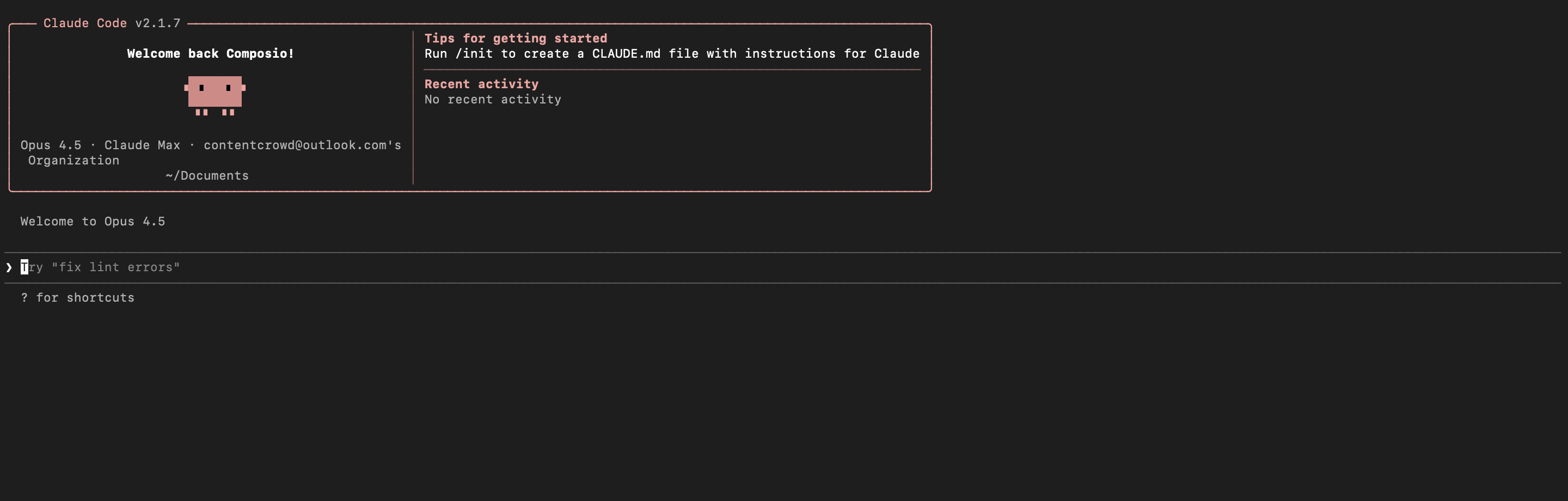
Claude Code terminal after successful login
4

Set up environment variables

bash
COMPOSIO_API_KEY=your_composio_api_key_here
USER_ID=your_user_id_here

Create a .env file in your project root with the following variables:

  • COMPOSIO_API_KEY authenticates with Composio (get it from Composio dashboard)
  • USER_ID identifies the user for session management (use any unique identifier)
5

Install Composio library

npm install @composio/core dotenv

Install the Composio TypeScript library to create MCP sessions.

  • @composio/core provides the core Composio functionality
  • dotenv loads environment variables from your .env file
6

Generate Composio MCP URL

import 'dotenv/config';
import { Composio } from '@composio/core';

const { COMPOSIO_API_KEY, USER_ID } = process.env;

if (!COMPOSIO_API_KEY || !USER_ID) {
  throw new Error('COMPOSIO_API_KEY and USER_ID required in .env');
}

const composioClient = new Composio({ apiKey: COMPOSIO_API_KEY });

const composioSession = await composioClient.create(USER_ID, {
  toolkits: ['excel'],
});

const composioMcpUrl = composioSession?.mcp.url;

console.log(`MCP URL: ${composioMcpUrl}`);
console.log(`\nUse this command to add to Claude Code:`);
console.log(`claude mcp add --transport http excel-composio "${composioMcpUrl}" --headers "X-API-Key:${COMPOSIO_API_KEY}"`);

Create a script to generate a Composio MCP URL for Excel. This URL will be used to connect Claude Code to Excel.

What's happening

  • We import the Composio client and load environment variables
  • Create a Composio instance with your API key
  • Call create() to create a Tool Router session for Excel
  • The returned mcp.url is the MCP server URL that Claude Code will use
  • The script prints this URL so you can copy it
7

Run the script and copy the MCP URL

node --loader ts-node/esm generate_mcp_url.ts
# or if using tsx
tsx generate_mcp_url.ts

Run your TypeScript script to generate the MCP URL.

  • The script connects to Composio and creates a Tool Router session
  • It prints the MCP URL and the exact command you need to run
  • Copy the entire claude mcp add command from the output
8

Add Excel MCP to Claude Code

bash
claude mcp add --transport http excel-composio "YOUR_MCP_URL_HERE" --headers "X-API-Key:YOUR_COMPOSIO_API_KEY"

# Then restart Claude Code
exit
claude

In your terminal, add the MCP server using the command from the previous step. The command format is:

  • claude mcp add registers a new MCP server with Claude Code
  • --transport http specifies that this is an HTTP-based MCP server
  • The server name (excel-composio) is how you'll reference it
  • The URL points to your Composio Tool Router session
  • --headers includes your Composio API key for authentication

After running the command, close the current Claude Code session and start a new one for the changes to take effect.

9

Verify the installation

bash
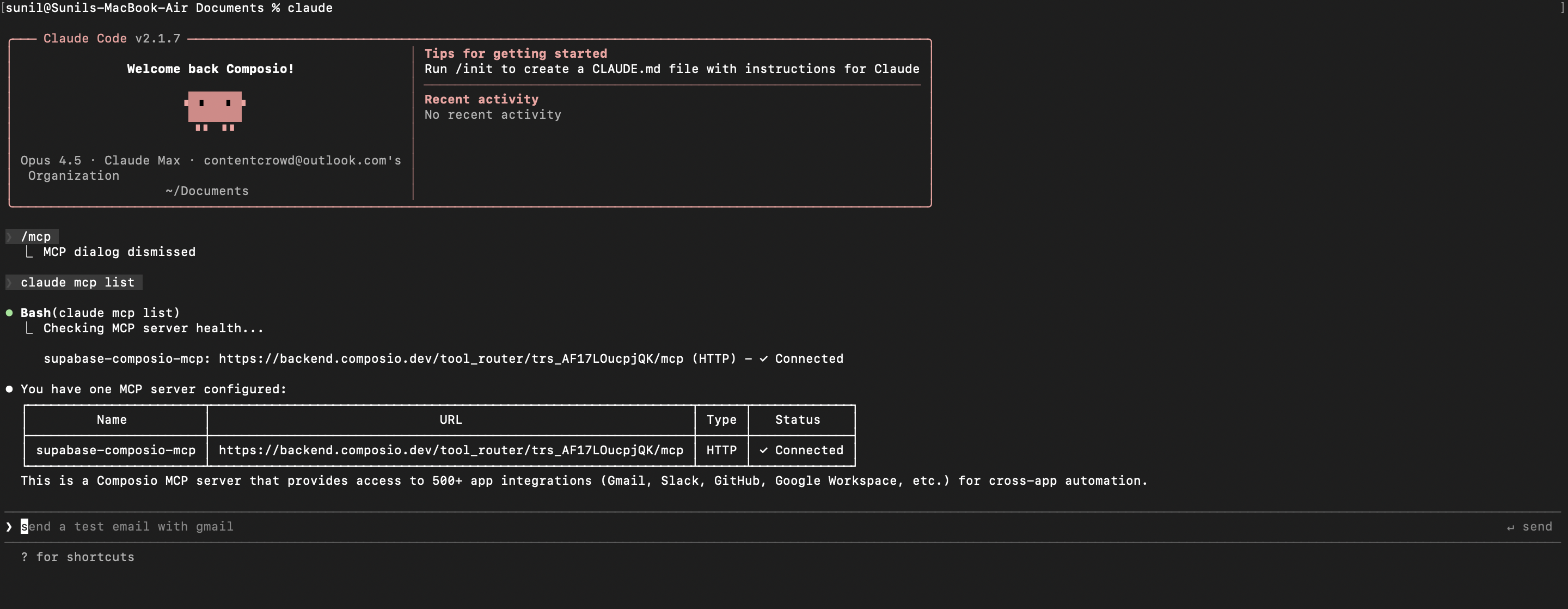
claude mcp list

Check that your Excel MCP server is properly configured.

  • This command lists all MCP servers registered with Claude Code
  • You should see your excel-composio entry in the list
  • This confirms that Claude Code can now access Excel tools

If everything is wired up, you should see your excel-composio entry listed:

Claude Code MCP list showing the toolkit MCP server
10

Authenticate Excel

The first time you try to use Excel tools, you'll be prompted to authenticate.

  • Claude Code will detect that you need to authenticate with Excel
  • It will show you an authentication link
  • Open the link in your browser (or copy/paste it)
  • Complete the Excel authorization flow
  • Return to the terminal and start using Excel through Claude Code

Once authenticated, you can ask Claude Code to perform Excel operations in natural language. For example:

  • "Add sales data row to Q2 table"
  • "Create bar chart from revenue column"
  • "Share this workbook with my manager"

Complete Code

Here's the complete code to get you started with Excel and Claude Code:

import 'dotenv/config';
import { Composio } from '@composio/core';

const { COMPOSIO_API_KEY, USER_ID } = process.env;

if (!COMPOSIO_API_KEY || !USER_ID) {
  throw new Error('COMPOSIO_API_KEY and USER_ID required in .env');
}

const composioClient = new Composio({ apiKey: COMPOSIO_API_KEY });

const composioSession = await composioClient.create(USER_ID, {
  toolkits: ['excel'],
});

const composioMcpUrl = composioSession?.mcp.url;

console.log(`MCP URL: ${composioMcpUrl}`);
console.log(`\nUse this command to add to Claude Code:`);
console.log(`claude mcp add --transport http excel-composio "${composioMcpUrl}" --headers "X-API-Key:${COMPOSIO_API_KEY}"`);

Conclusion

You've successfully integrated Excel with Claude Code using Composio's MCP server. Now you can interact with Excel directly from your terminal using natural language commands.

Key features of this setup:

  • Terminal-native experience without switching contexts
  • Natural language commands for Excel operations
  • Secure authentication through Composio's managed MCP
  • Tool Router for dynamic tool discovery and execution

Next steps:

  • Try asking Claude Code to perform various Excel operations
  • Add more toolkits to your Tool Router session for multi-app workflows
  • Integrate this setup into your development workflow for increased productivity

You can extend this by adding more toolkits, implementing custom workflows, or building automation scripts that leverage Claude Code's capabilities.

TOOLS

Supported Tools

Every Excel action and event your agent gets out of the box.

Add Chart

Add a chart to a worksheet using Microsoft Graph API.

Add Named Item

Add a workbook- or worksheet-scoped named item using an invariant reference or a local formula.

Add SharePoint Worksheet

Add a new worksheet to an Excel workbook in a SharePoint site's default drive using Microsoft Graph.

Add Table

Create a new table in a worksheet using the Microsoft Graph API.

Add Table Column

Add a column to a table using Microsoft Graph API.

Add Table Row

Add a row to a table using Microsoft Graph API.

Add Workbook Permission

Tool to grant access to a workbook via invite.

Add Worksheet

Add a new worksheet to an Excel workbook using Microsoft Graph API.

Apply Table Filter

Apply a filter to a table column using Microsoft Graph API.

Apply Table Sort

Apply a sort to a table using Microsoft Graph API.

Autofit Range

Autofit columns or rows intersecting a workbook range.

Calculate Workbook Function

Run one allowlisted Microsoft Graph v1.

Calculate Excel Workbook

Calculate Excel Workbook

Clear Range

Tool to clear values, formats, or contents in a specified worksheet range.

Clear Table Filter

Clear a filter from a table column using Microsoft Graph API.

Clear All Table Filters

Clear All Table Filters

Clear Table Sort

Clear Table Sort

Close Excel Session

Tool to close an existing Excel workbook session.

Convert Table To Range

Convert a table to a range using Microsoft Graph API.

Copy Drive Item

Create a non-destructive asynchronous copy of a file or folder.

Create Comment

Create a plain-text Excel cell comment through Microsoft Graph beta.

Create Folder

Create a folder under a parent Microsoft Graph drive item.

Create Upload Session

Create a resumable upload session at a drive-root path.

Create Workbook

Tool to create a new Excel workbook file at a specified drive path.

Create Workbook Sharing Link

Create or retrieve an application-owned sharing link for a workbook.

Delete Drive Item

Move a OneDrive or SharePoint drive item to the recycle bin by item ID.

Delete Named Item

Permanently delete a workbook-scoped named item; this cannot be undone.

Delete Range

Delete worksheet cells and shift the remaining cells up or left.

Delete Table

Permanently delete an Excel table by its ID or name.

Delete Table Column

Delete a column from a table using Microsoft Graph API.

Delete Table Row

Delete a row from a table using Microsoft Graph API.

Delete Worksheet

Tool to delete a worksheet from the workbook.

Download Workbook

Download an Excel workbook in its original file format.

Export Workbook to PDF

Export an Excel workbook to PDF using Microsoft Graph format conversion, returning a download URL.

Get Excel Application

Get Excel Application

Get chart

Get chart

Get Chart Axis

Tool to retrieve a specific axis from a chart.

Get chart component

Retrieve one Excel chart component: chart title, axis title, supported gridlines, axis font, or supported line format.

Get Chart Data Labels

Tool to retrieve the data labels object of a chart.

Get chart image

Render an Excel chart as a base64-encoded image.

Get Chart Legend

Tool to retrieve the legend object of a chart.

Get chart point

Get chart point

Get chart series

Get chart series

Get Comment

Retrieve one workbook comment by its exact ID.

Get Comment Reply

Retrieve one reply to a workbook comment by its exact ID.

Get Derived Range

Return a range derived from another range by navigation or geometry.

Get Drive Item

Retrieve OneDrive or SharePoint drive item metadata by exact ID or path.

Get Named Item

Retrieve a workbook-scoped named item by exact name.

Get Named Item Range

Retrieve the Excel range of a range-valued workbook-scoped named item.

Get Excel Operation Status

Get the status of an asynchronous Excel workbook operation by its operation ID.

Get Pivot Table

Get Pivot Table

Get Projected Worksheet Subresource

Read selected properties from a worksheet range, its used range, or worksheet protection.

Get Range

Get a range from a worksheet using Microsoft Graph API.

Get Range Format

Read one formatting component from a workbook range.

Create Excel Session

Create a session for an Excel workbook using Microsoft Graph API.

Get SharePoint Range

Get a range from a worksheet in SharePoint using Microsoft Graph Sites API.

Get SharePoint Worksheet

Get a worksheet by name or ID from an Excel workbook in a SharePoint site's default drive using Microsoft Graph.

Get Table

Retrieve one workbook- or worksheet-addressed table by ID or exact name.

Get table column

Tool to retrieve a specific column from a workbook table.

Get Table Column Cell

Read one cell by row within a selected table column's data body.

Get Table Column Range

Get Table Column Range

Get Table Range

Get Table Range

Get Table Row

Get Table Row

Get Table Row Range

Get Table Row Range

Get Table Sort

Get Table Sort

Get Visible Range

Read cells visible after worksheet filtering.

Get workbook

Retrieve a workbook's relationships, including comments, named items, operations, tables, and worksheets, with optional relationship expansion.

Get Worksheet

Get a worksheet by name or ID from an Excel workbook using Microsoft Graph API.

Get Worksheet Protection

Get Worksheet Protection

Get Worksheet Row Range

Read a zero-based worksheet row across the column bounds of the worksheet's values-only used range.

Get Worksheet Used Range

Tool to retrieve a worksheet's used range (active data region) without specifying a fixed range address.

Insert Range

Tool to insert a new cell range into a worksheet, shifting existing cells down or right.

List chart points

List chart points

List Charts

List charts in a worksheet using Microsoft Graph API.

List Chart Series

List a page of data series names in a chart, with a next-page link when more results are available.

List Comment Replies

List replies to one workbook comment.

List Comments

List a page of comments in an Excel workbook using Microsoft Graph.

List Drive Item Children

Tool to list immediate children (files/folders) of a folder DriveItem using driveId and itemId.

List Drive Item Versions

List retained versions of a OneDrive or SharePoint workbook file.

List Drive Files

List files and folders in a drive root or specified path.

List Named Items

List named items in a workbook using Microsoft Graph.

List Pivot Tables

List Pivot Tables

List SharePoint Tables

List tables in a worksheet of an Excel workbook stored in a SharePoint site's default drive using Microsoft Graph.

List SharePoint Worksheets

List worksheets in an Excel workbook stored in SharePoint using Microsoft Graph Sites API.

List Site Lists

List SharePoint lists in a known Microsoft Graph site.

List Table Columns

List columns in a table using Microsoft Graph API.

List Table Rows

List rows in a table using Microsoft Graph API.

List Tables

List tables in a specified Excel worksheet using Microsoft Graph API.

List Workbook Permissions

Tool to list permissions set on the workbook file.

List Workbook Tables

List tables across a workbook without requiring a worksheet identifier.

List Worksheets

List worksheets in an Excel workbook using Microsoft Graph API.

Merge Cells

Merge cells in a worksheet range using Microsoft Graph API.

Protect Worksheet

Tool to protect a worksheet using optional protection options.

Reapply All Table Filters

Reapply All Table Filters

Reapply Table Sort

Reapply Table Sort

Refresh Pivot Tables

Refresh Pivot Tables

Refresh Excel Session

Refresh Excel Session

Resolve Shared Workbook

Resolve a Microsoft Graph share token, shareId, or raw sharing URL to DriveItem metadata.

Revoke Workbook Permission

Remove a non-inherited sharing permission from a workbook.

Run Graph Mutation Batch

Create, update, or delete drive or workbook resources in up to 20 requests; inspect every subresponse status because individual mutations can fail.

Run Graph Read Batch

Read drive or workbook data in up to 20 GET requests; inspect every subresponse status because individual requests can fail.

Search Drive Files

Search OneDrive drive items by query and return files, optionally filtered by extension, to discover Excel workbook IDs.

Search Microsoft 365 Content

Search OneDrive and SharePoint content using Microsoft Search.

Search Sites

Search SharePoint sites by free-text query for workbook discovery.

Set chart data

Replace an Excel chart's source range and optionally choose whether rows or columns define its series.

Set chart position

Set chart position

Sort Range

Sort a range in a worksheet using Microsoft Graph API.

Unmerge Range

Split a merged worksheet range back into separate cells.

Unprotect Worksheet

Remove protection from a worksheet so it can be edited again.

Update Chart

Update a chart in a worksheet using Microsoft Graph API.

Update chart component

Update one Excel chart component: an axis, data labels, chart title, axis title, supported gridlines, axis font, fill, or supported line format.

Update Chart Legend

Update a chart legend's visibility, position, or overlay setting.

Update chart series

Rename one Excel chart series by ID or zero-based collection position.

Update Drive Item

Rename, move within the same drive, or update client timestamps for a DriveItem by stable ID.

Update Named Item

Update a workbook named item's visibility or comment.

Update Range

Update cell values in a specified worksheet range using Microsoft Graph API.

Update Range Format

Update exactly one formatting component on a workbook range.

Update SharePoint Range

Update values in a worksheet range in an Excel workbook stored in a SharePoint site's default drive using Microsoft Graph.

Update Table

Update an Excel workbook table's name, header visibility, totals visibility, or style using Microsoft Graph.

Update Table Column

Update the name or values of an Excel table column.

Update Table Column Range

Update raw values in a table column's data-body cells by zero-based index.

Update Table Row

Update Table Row

Update Worksheet

Update worksheet properties (name, position) in an Excel workbook using Microsoft Graph API.

Upload Workbook from URL

Tool to upload an external Excel file from a URL into OneDrive/SharePoint.

Who Am I

Return the identity (email, name) of the connected Excel (Microsoft) account.

FAQ

Frequently asked questions

Start with Excel.It takes 30 seconds.

Managed auth, hosted MCP servers, and every Excel tool your agent needs.Free to start.

Start building