


How to integrate Dropcontact MCP with Antigravity

How to integrate Dropcontact MCP with Antigravity Antigravity IDE is Google's agentic IDE, built on a VS Code-style editor and powered by models like Gemini 3.5 Flash, Gemini 3.1 Pro, Opus 4.6, and more. It treats the AI agent as a first-class teammate, planning, coding, and validating work through an Agent Manager dashboard with deep browser connectivity. In this guide, I will explain the easiest and most secure way to connect your Dropcontact account to Antigravity IDE via Composio Connect, so it can enrich a list of LinkedIn contacts, validate work emails for your leads, retrieve enrichment results for last upload, and more without ever putting your account credentials at risk.
Dropcontact logoDropcontact
Api Key

Dropcontact is a B2B email finder and data enrichment service for professionals. It delivers verified email addresses and enriches contact info with up-to-date data.

7 Tools

How to integrate Dropcontact MCP with Antigravity

Antigravity IDE is Google's agentic IDE, built on a VS Code-style editor and powered by models like Gemini 3.5 Flash, Gemini 3.1 Pro, Opus 4.6, and more. It treats the AI agent as a first-class teammate, planning, coding, and validating work through an Agent Manager dashboard with deep browser connectivity.

In this guide, I will explain the easiest and most secure way to connect your Dropcontact account to Antigravity IDE via Composio Connect, so it can enrich a list of LinkedIn contacts, validate work emails for your leads, retrieve enrichment results for last upload, and more without ever putting your account credentials at risk.
Also integrate Dropcontact with

Why use Composio?

Composio provides:

  • Access to 1,000+ managed apps from a single MCP endpoint. This makes it convenient for agents to run cross-app workflows.
  • Programmatic tool calling. Allows LLMs to write code in a remote workbench to handle complex tool chaining. Reduces to-and-fro with LLMs for frequent tool calling.
  • Large tool response handling outside the LLM context. This minimizes context bloat from large tool responses.
  • Dynamic just-in-time access to thousands of tools across hundreds of apps. Composio loads the tools your agent needs, so LLMs are not overwhelmed by tools they do not need.

Connect Dropcontact to Antigravity

Antigravity does not ship with one-click custom MCP install links yet, so configuration goes through the IDE's raw config file. The process takes under a minute.

1. Open the MCP Config

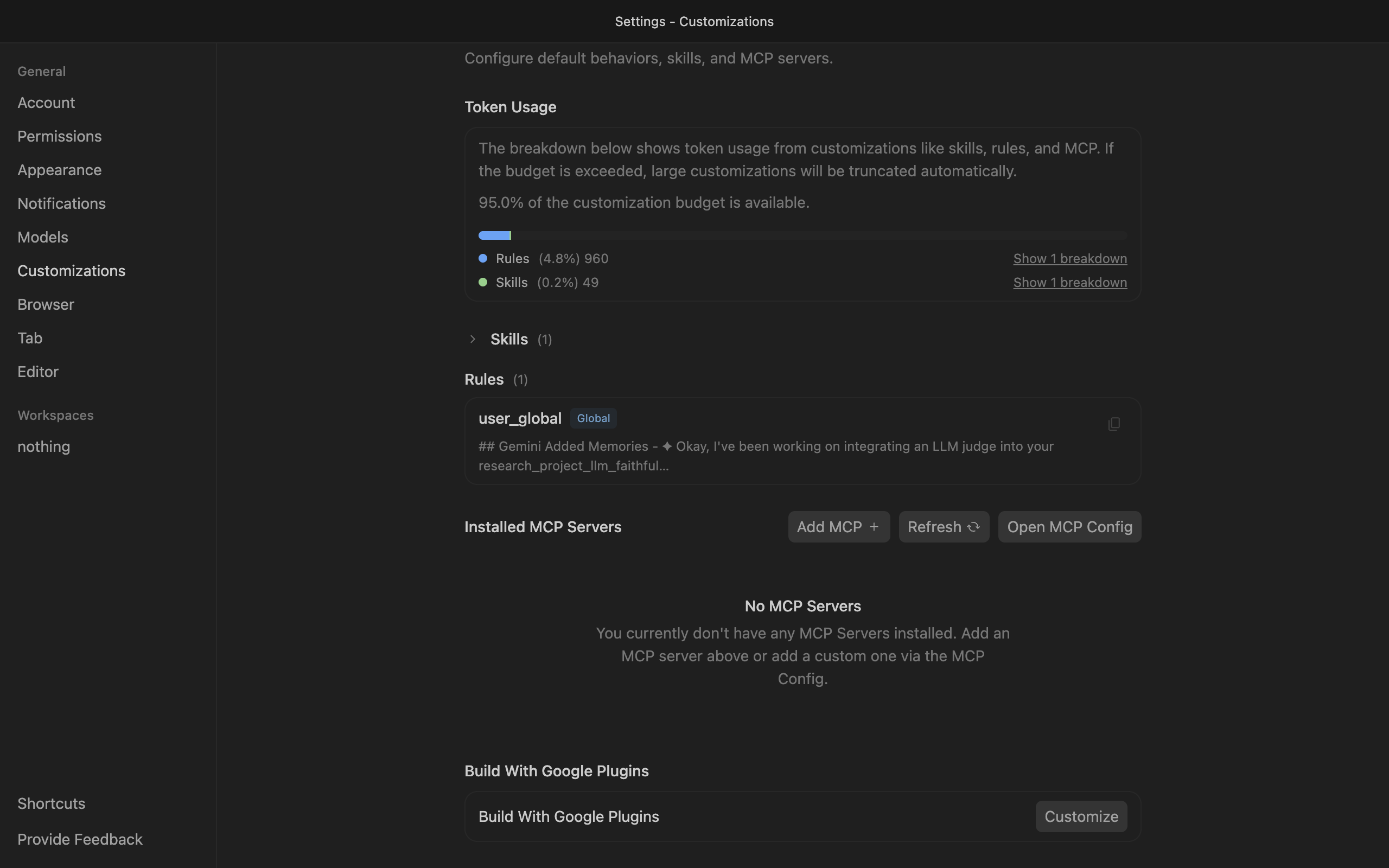
Go to Antigravity Settings, open the Customizations tab, then click Open MCP Config to open mcp_config.json in the editor.

Antigravity Customizations settings with Open MCP Config button

2. Get your API key

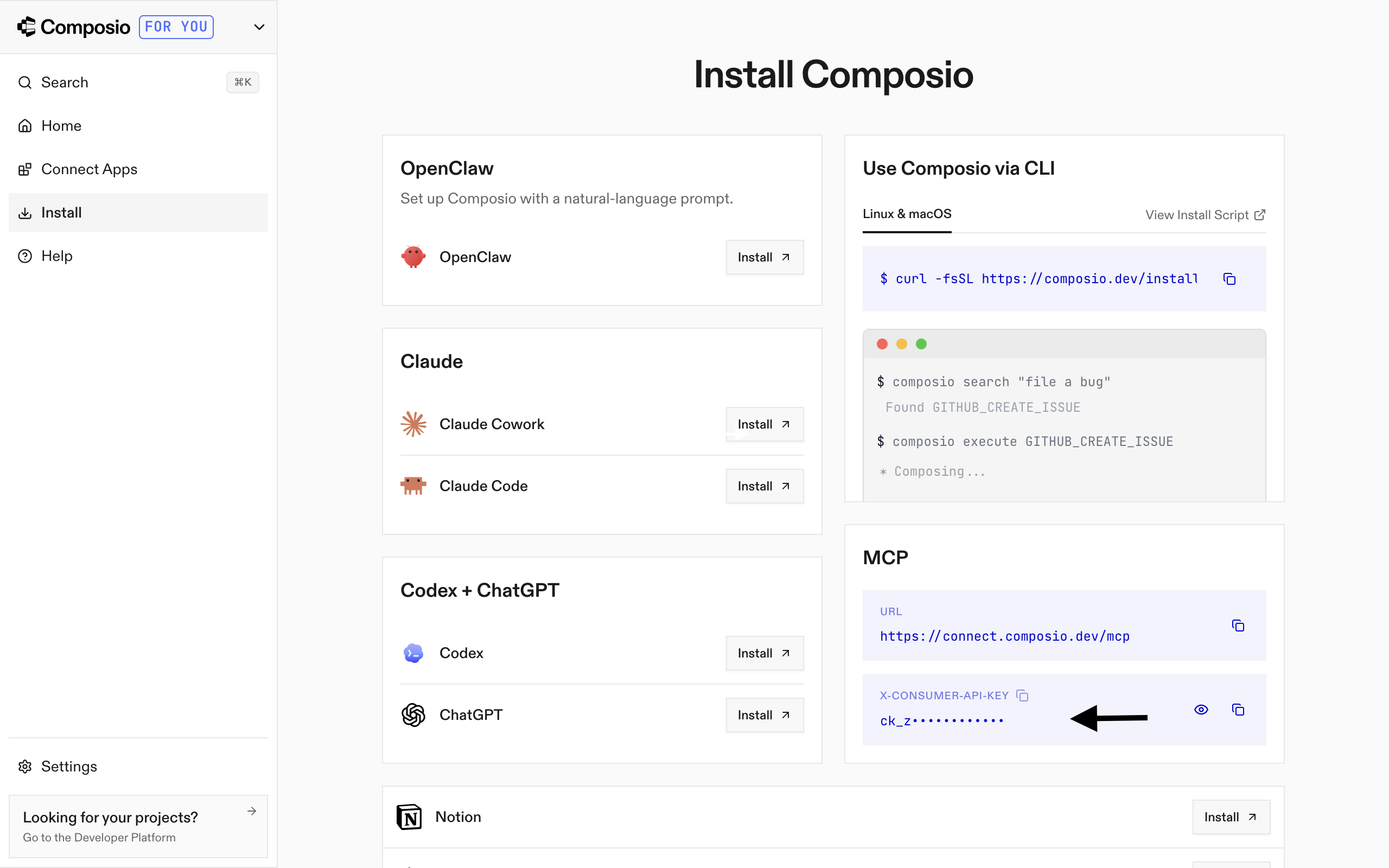
Go to the Composio Dashboard and copy your API key.

Composio Dashboard showing where to get the API key

3. Add Composio to mcp_config.json

Paste the following configuration into the file:

bash
{
  "mcpServers": {
    "remote-composio": {
      "serverUrl": "https://connect.composio.dev/mcp",
      "headers": {
        "x-consumer-api-key": "your-composio-api-key"
      }
    }
  }
}

Note: Antigravity uses serverUrl, not url, for remote HTTP-based MCP servers. This differs from the url key used in Cursor and VS Code configs.

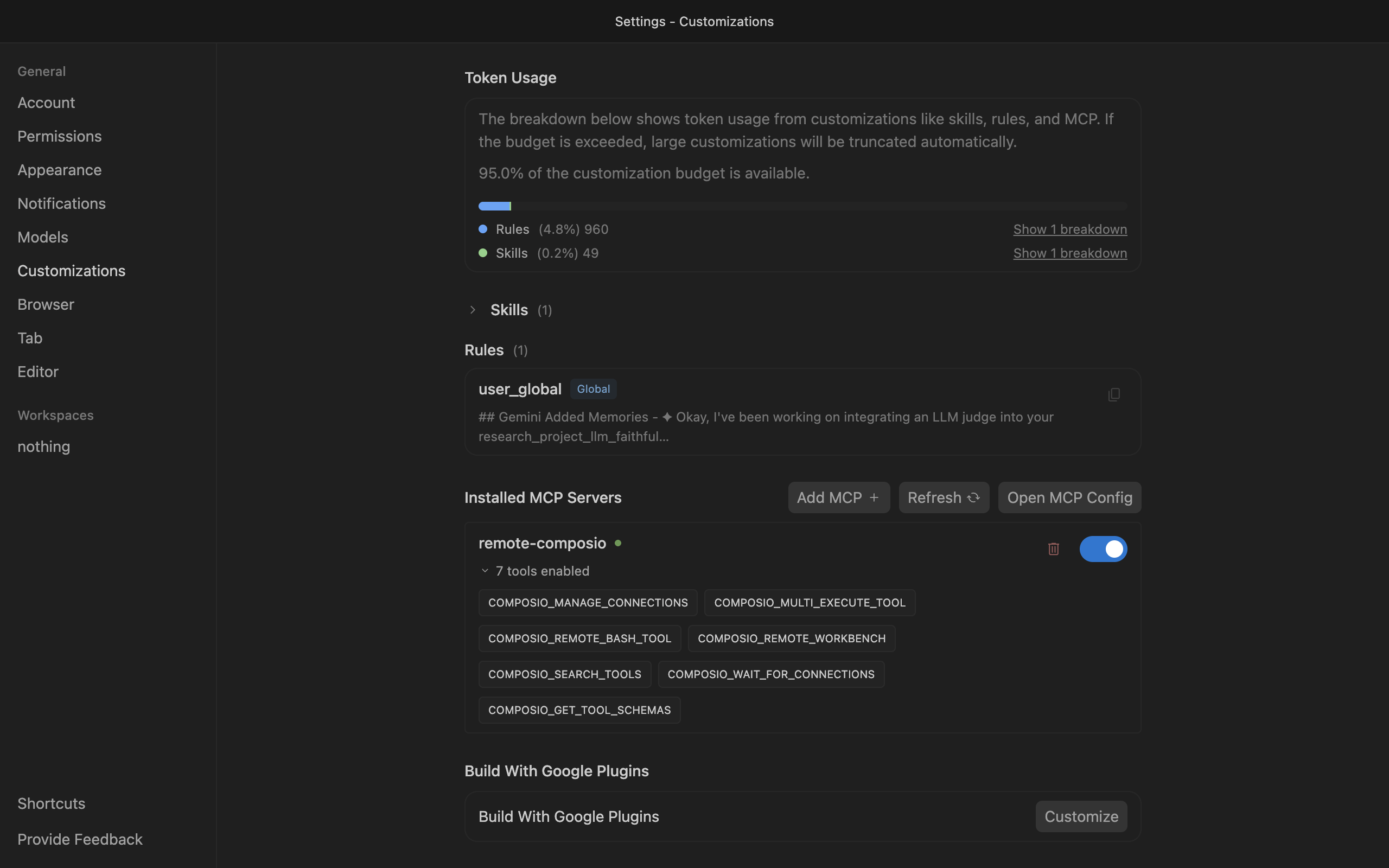
Save the file and click refresh in the Installed MCP Servers section.

Antigravity showing Composio tools after MCP setup

Connect your Dropcontact account

Back in the Antigravity agent panel, ask the agent to connect to Dropcontact or give it any Dropcontact-related task.

For example, ask it to:

  • "Enrich a list of LinkedIn contacts"
  • "Validate work emails for your leads"
  • "Retrieve enrichment results for last upload"

It will prompt you to authenticate and authorize access to Dropcontact.

That is it. Composio tools are now available in Antigravity, and your Dropcontact account is ready to use.

Conclusion

You have successfully connected Dropcontact to Antigravity using Composio Connect. Your agent can now use Dropcontact securely without exposing credentials in prompts or local scripts.

TOOLS

Supported Tools

Every Dropcontact action and event your agent gets out of the box.

Create Webhook Subscription

Tool to create a new webhook subscription for receiving automatic notifications when enrichment results are ready.

Delete Webhook Subscription

Tool to delete a webhook subscription.

Initiate Contact Enrichment

Initiates asynchronous batch enrichment for up to 250 contacts with email finding, validation, and company information.

List Webhook Subscriptions

Tool to list webhook subscriptions.

List Webhook Subscriptions V2

Tool to list all webhook subscriptions configured for the account.

Retrieve Enrichment Results

Retrieves enriched contact data by request ID after submitting contacts for enrichment.

Update Webhook Subscription

Tool to update an existing webhook subscription.

FAQ

Frequently asked questions

With a standalone Dropcontact MCP server, the agents and LLMs can only access a fixed set of Dropcontact tools tied to that server. However, with the Composio Tool Router, agents can dynamically load tools from Dropcontact and many other apps based on the task at hand, all through a single MCP endpoint.

Yes, you can. Antigravity fully supports MCP integration. You get structured tool calling, message history handling, and model orchestration while Tool Router takes care of discovering and serving the right Dropcontact tools.

Yes, absolutely. You can configure which Dropcontact scopes and actions are allowed when connecting your account to Composio. You can also bring your own OAuth credentials or API configuration so you keep full control over what the agent can do.

All sensitive data such as tokens, keys, and configuration is fully encrypted at rest and in transit. Composio is SOC 2 Type 2 compliant and follows strict security practices so your Dropcontact data and credentials are handled as safely as possible.

Start with Dropcontact.It takes 30 seconds.

Managed auth, hosted MCP servers, and every Dropcontact tool your agent needs.Free to start.

Start building

