How to connect Discord MCP with VS Code

Trusted by
AWS
Glean
Zoom
Airtable

30 min · no commitment · see it on your stack

Discord logo
VS Code logo
divider

How to connect Discord MCP with VS Code

VS Code is the most popular code editor out there. With its recent AI makeover, it can do more than just help you write code. You can connect your applications to it and let LLMs automate many of the mundane tasks in your workflow.

In this guide, I will explain how to connect Discord with VS Code in the most secure and robust way possible via Composio.

Also integrate Discord with

Why use Composio?

Composio provides:

  • Access to 1,000+ managed apps from a single MCP endpoint. This makes it convenient for agents to run cross-app workflows.
  • Programmatic tool calling. Allows LLMs to write its code in a remote workbench to handle complex tool chaining. Reduces to-and-fro with LLMs for frequent tool calling.
  • Large tool response handling outside the LLM context. This minimizes context bloat from large tool responses.
  • Dynamic just-in-time access to thousands of tools across hundreds of apps. Composio loads the tools your agent needs, so LLMs are not overwhelmed by tools they do not need.

Integrate Discord MCP with VS Code

1. Install with one click

Click the button below to add Composio to VS Code. You will be prompted to authorize. This requires VS Code 1.99+ with GitHub Copilot.

+Install in VS Code

2. Or add manually

Open or create .vscode/mcp.json in your project root and add the following configuration:

bash
{
  "servers": {
    "composio": {
      "type": "http",
      "url": "https://connect.composio.dev/mcp"
    }
  }
}

3. Authorize

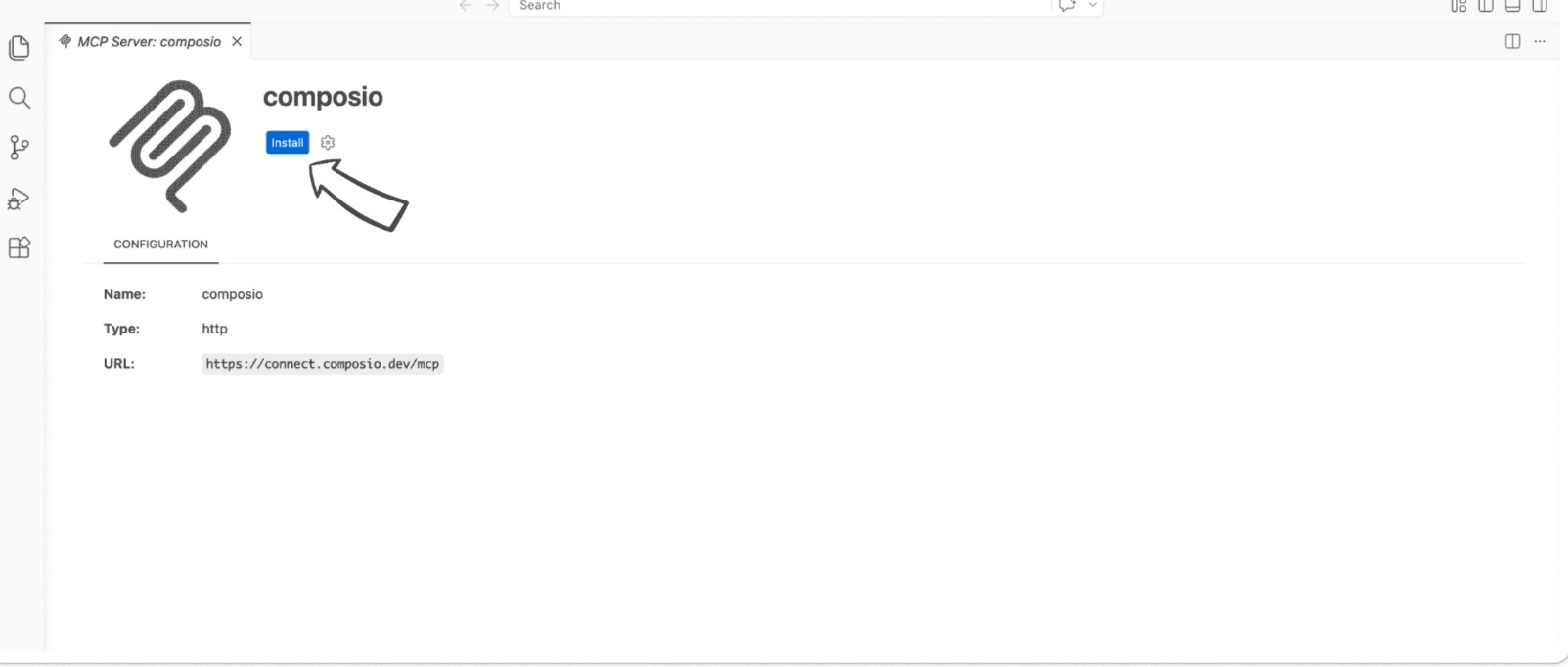
Click the install button to authorize VS Code to connect to Composio. VS Code will detect OAuth and prompt you to sign in.

VS Code MCP server install screen for Composio

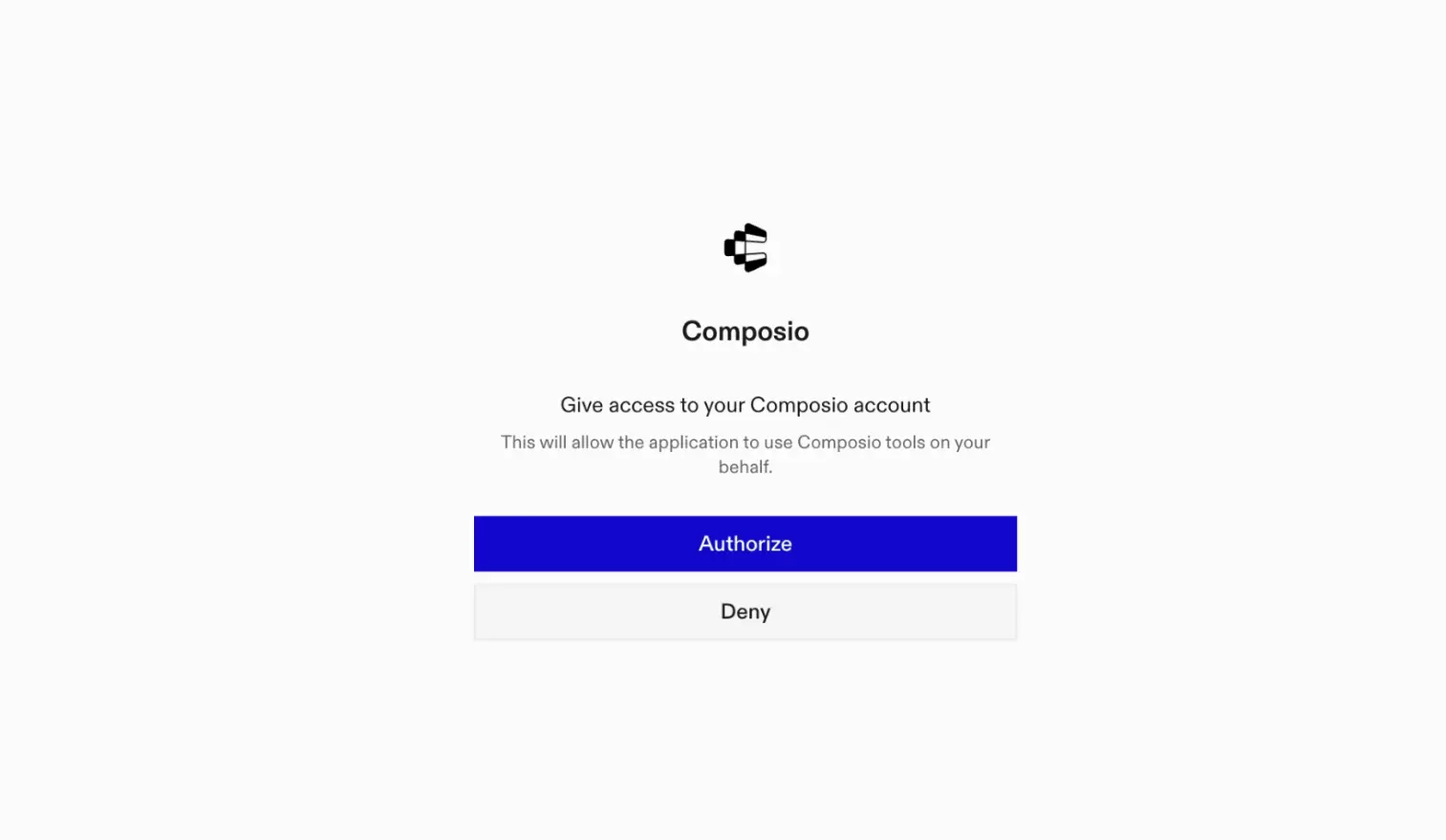
A browser window will open to authorize.

Composio authorization browser window

4. Authenticate Discord and start working

Back in VS Code chat, ask the agent to connect to Discord or give it any Discord-related task.

For example, ask it to:

  • "List all Discord servers I belong to"
  • "Show your connected accounts on Discord"
  • "Fetch your Discord profile information"

It will prompt you to authenticate and authorize access to Discord.

That is it. Composio tools are now available in VS Code, and your Discord account is ready to use.

Supported Tools & Triggers

Tools
Triggers
Consume EntitlementMarks a one-time purchase consumable entitlement as consumed for a given application.
Delete Test EntitlementDeletes a currently active test entitlement for a given application.
Delete User Application Role ConnectionDeletes the current user's application role connection for the specified application.
Edit Application Command PermissionsEdits the permissions for a specific application command in a guild.
Get Application Command PermissionsRetrieves the permissions for a specific application command in a guild.
Get Batch Application Command PermissionsRetrieves permissions for all commands of an application in a guild.
Get Current User Application EntitlementsTool to retrieve entitlements for the current user for a given application.
Get GatewayTool to retrieve a valid WebSocket (wss) URL for establishing a Gateway connection to Discord.
Get Guild TemplateTool to retrieve information about a Discord guild template using its unique template code.
Get Guild WidgetTool to retrieve the guild widget in JSON format.
Get Guild Widget PNGTool to retrieve a PNG image widget for a Discord guild.
Get my guild memberRetrieves the guild member object for the currently authenticated user within a specified guild, including roles, nickname, join date, and permissions.
Get my OAuth2 authorizationRetrieves current OAuth2 authorization details for the application, including app info, scopes, token expiration, and user data (contingent on scopes like 'identify').
Get My UserFetches comprehensive profile information for the currently authenticated Discord user, including email if the 'email' scope is granted.
Get OpenID Connect userinfoRetrieve OpenID Connect compliant user information for the authenticated user.
Get Public KeysTool to retrieve Discord OAuth2 public keys.
Get SKU SubscriptionRetrieves a specific subscription by ID for a given SKU.
Get UserRetrieve information about a Discord user.
Get User Application Role ConnectionRetrieves the application role connection for the currently authenticated user for a specified application.
Resolve InviteTool to resolve and retrieve information about a Discord invite code.
Leave GuildLeaves a Discord guild (server) on behalf of the currently authenticated user.
List My ConnectionsRetrieves a list of the authenticated user's connected third-party accounts on Discord.
List My GuildsLists the current user's guilds, returning partial data for each; primarily used for displaying server lists or verifying memberships.
List SKU SubscriptionsLists all subscriptions for a given SKU.
List Sticker PacksTool to retrieve all available Discord Nitro sticker packs.
Modify Current UserModifies the currently authenticated Discord user's profile.
Update User Application Role ConnectionUpdates the application role connection for the currently authenticated user for a specified application.

Way Forward

Now that Discord is connected, extend your setup by connecting the other apps you already use every day, so your agent can run true cross-app workflows end to end.

  • Connect Calendar to turn threads into scheduled meetings automatically.
  • Connect Slack or Teams to post summaries, approvals, and alerts where your team works.
  • Connect Notion, Linear, Jira, or Asana to convert requests into tickets, tasks, and docs.
  • Connect Drive, Dropbox, or OneDrive to fetch, file, and share attachments without manual steps.
  • Connect HubSpot or Salesforce to log customer context, update records, and draft follow-ups.

Start with one workflow you do repeatedly, then keep adding apps as you find new handoffs. With everything behind a single MCP endpoint, your agent can coordinate multiple tools safely and reliably in one conversation.

How to build Discord MCP Agent with another framework

FAQ

What are the differences in Tool Router MCP and Discord MCP?

With a standalone Discord MCP server, the agents and LLMs can only access a fixed set of Discord tools tied to that server. However, with the Composio Tool Router, agents can dynamically load tools from Discord and many other apps based on the task at hand, all through a single MCP endpoint.

Can I use Tool Router MCP with VS Code?

Yes, you can. VS Code fully supports MCP integration. You get structured tool calling, message history handling, and model orchestration while Tool Router takes care of discovering and serving the right Discord tools.

Can I manage the permissions and scopes for Discord while using Tool Router?

Yes, absolutely. You can configure which Discord scopes and actions are allowed when connecting your account to Composio. You can also bring your own OAuth credentials or API configuration so you keep full control over what the agent can do.

How safe is my data with Composio Tool Router?

All sensitive data such as tokens, keys, and configuration is fully encrypted at rest and in transit. Composio is SOC 2 Type 2 compliant and follows strict security practices so your Discord data and credentials are handled as safely as possible.

Used by agents from

Context
Letta
glean
HubSpot
Agent.ai
Altera
DataStax
Entelligence
Rolai
Context
Letta
glean
HubSpot
Agent.ai
Altera
DataStax
Entelligence
Rolai
Context
Letta
glean
HubSpot
Agent.ai
Altera
DataStax
Entelligence
Rolai

Never worry about agent reliability

We handle tool reliability, observability, and security so you never have to second-guess an agent action.