How to integrate Context7 MCP with Pi

Connect Pi to Context7 MCP. Get documentation for requests.get in python 3.11, show code example for async file read in node.js, and more using natural language, with authentication handled for you.

Context7 MCP logoContext7 MCP
Api Key

Context7 MCP delivers live, version-specific code docs and examples right from the source. It helps developers and AI agents instantly retrieve authoritative programming info—no more out-of-date docs.

Introduction

Pi is a minimal, self-extensible coding agent that lives in your terminal — one agent loop over Claude, GPT-5, Gemini, Grok, DeepSeek, and 20+ other providers, with maximum extension surface and minimum product opinion. Its core ships four tools (read, write, edit, bash) and self-extends at runtime through skills, extensions, and packages.

This guide explains the easiest and most robust way to connect your Context7 account to Pi. You can do this through either Composio Connect CLI or Composio Connect MCP. Because Pi already runs shell commands as first-class tools and ships no built-in MCP, the CLI is the recommended path — it's faster to set up, needs no server config, and chains multi-step tasks more reliably. The MCP path is also fully supported through Pi's official pi-mcp-adapter extension.
Also integrate Context7 MCP with

What is Composio Connect?

Composio Connect is a consumer offering that lets anyone plug 1,000+ applications directly into their agent harness — including Pi. It can:

  • Search and load tools from relevant toolkits on-demand, reducing context usage.
  • Chain multiple tools to accomplish complex workflows via a remote workbench, without excessive back-and-forth with the LLM.
  • Manage app authentication end-to-end with zero manual overhead.

Connect Context7 MCP to Pi with Composio

Prerequisites: Install Pi

Pi needs Node.js 18+ (Node 22 recommended). Install the agent globally with npm:

bash
npm install -g --ignore-scripts @earendil-works/pi-coding-agent

On Linux or macOS you can use the installer script instead:

bash
curl -fsSL https://pi.dev/install.sh | sh

Then run pi in any project directory and authenticate your model provider — use /login inside Pi for subscription providers (Claude Pro/Max, ChatGPT, GitHub Copilot), or set an API key such as ANTHROPIC_API_KEY before starting. Confirm it's working:

bash
pi --version

Full first-run details are in the Pi Quickstart.

Option 1: Composio CLI (recommended)

Pi runs shell commands as first-class tools, so the Composio Universal CLI is the most natural fit — no MCP server to configure and reliable multi-step tool chaining. Install and authenticate:

bash
# Install the Composio CLI
curl -fsSL https://composio.dev/install | bash

# Log in to Composio
composio login

Connect to Context7

Ask Pi to connect to Context7, or simply request any Context7-related task. Under the hood Pi calls Composio commands like any other shell tool:

bash
composio search "what can I do with Context7?"
composio link context7_mcp

On the first Context7 call, composio link context7_mcp opens an OAuth prompt so you can authorize access. After that, every Context7 command works with your stored credentials automatically — just talk to Pi and it will search, execute, and chain Context7 tools as needed.

Option 2: Composio MCP

Pi's core intentionally ships no built-in MCP, but the official pi-mcp-adapter extension adds full MCP support — exposing every server through a single lightweight proxy tool (~200 tokens) instead of loading hundreds of tool definitions into context.

1. Install the MCP adapter extension

bash
pi install npm:pi-mcp-adapter

Restart Pi after installation.

2. Add the Composio MCP server

Create (or edit) a .mcp.json file in your project root, or ~/.config/mcp/mcp.json for a user-global setup:

bash
{
  "mcpServers": {
    "composio": {
      "url": "https://connect.composio.dev/mcp"
    }
  }
}

The adapter connects lazily by default — the server won't start until Pi actually calls one of its tools, and cached metadata keeps search and describe working without a live connection.

3. Authenticate

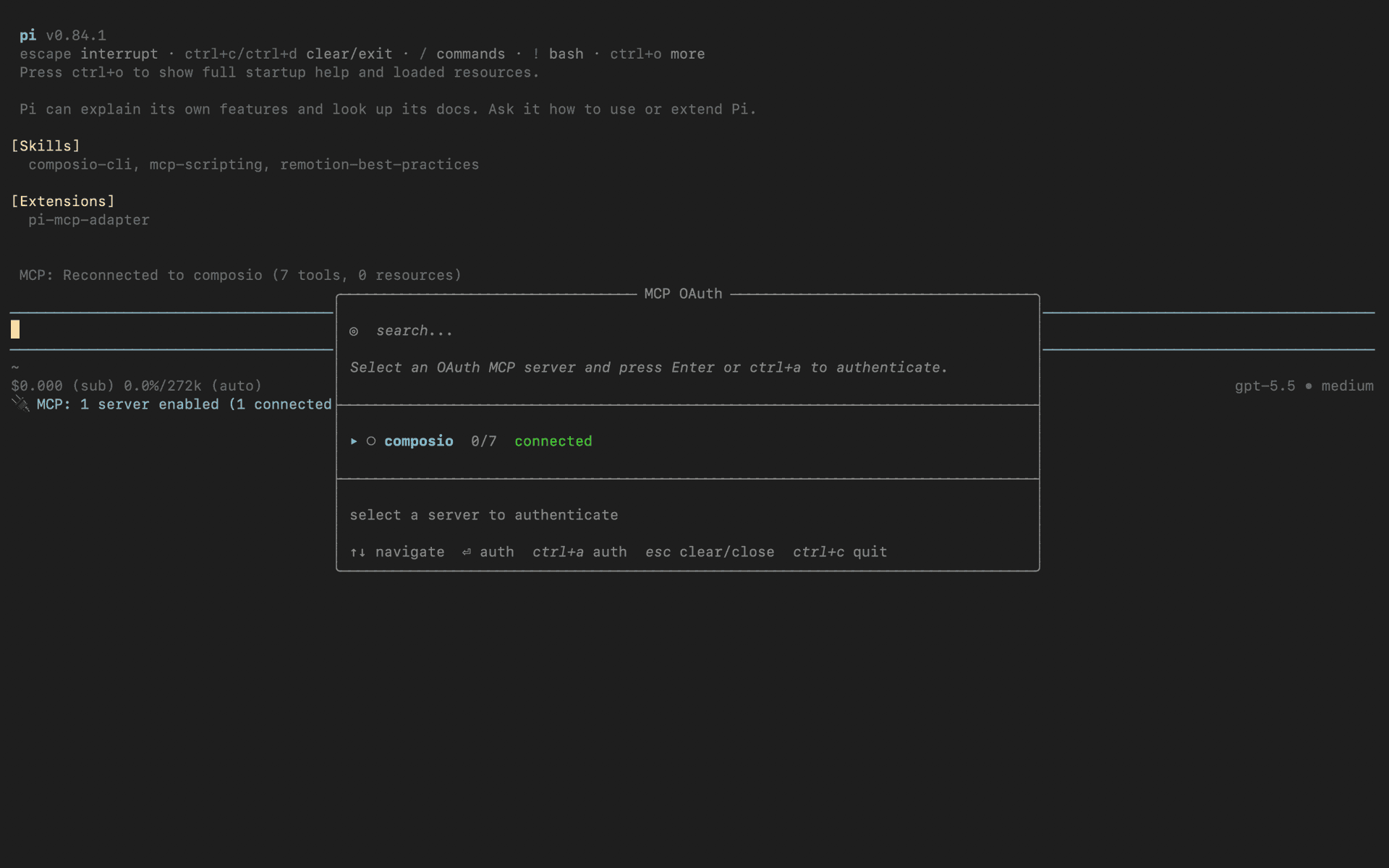
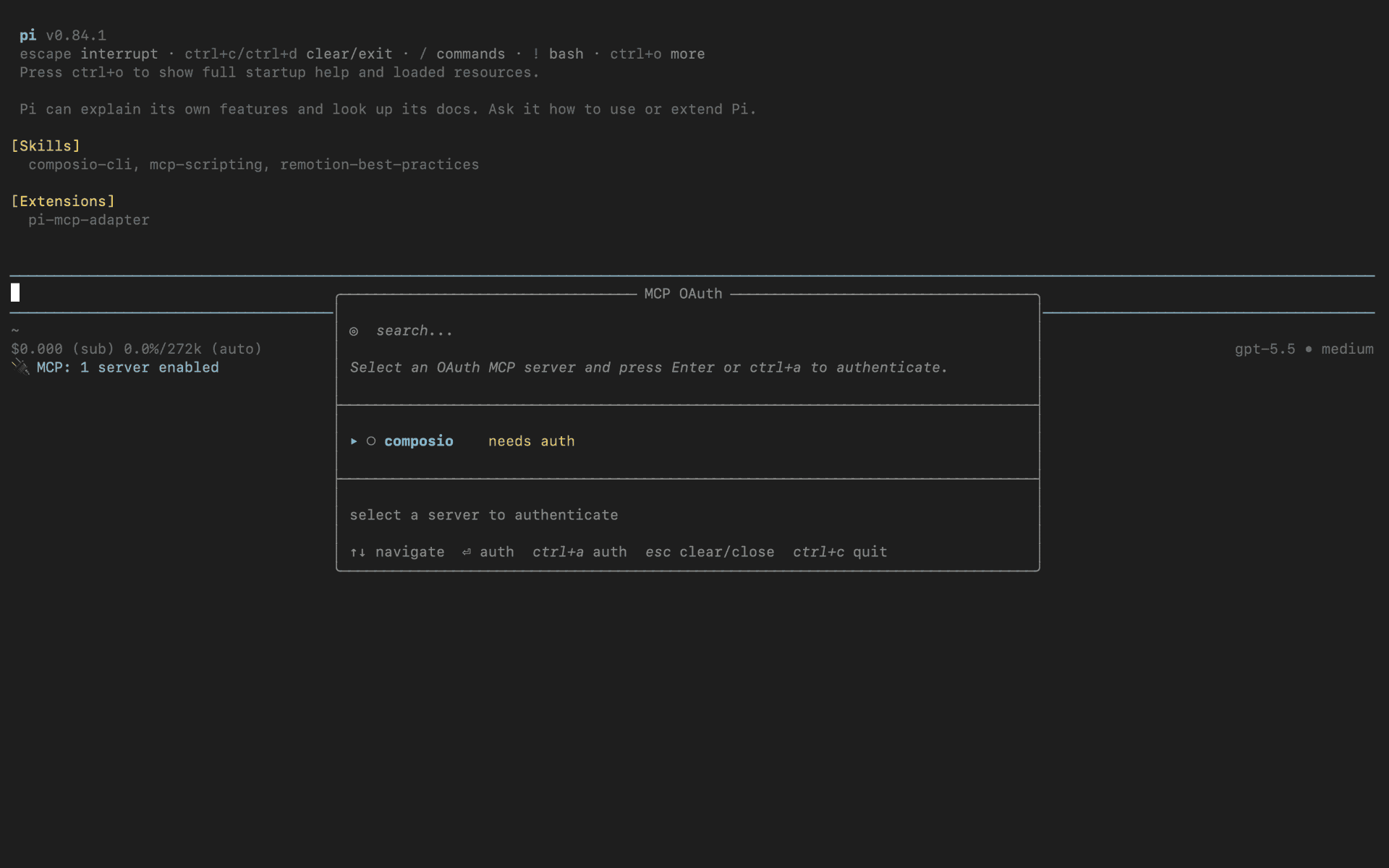
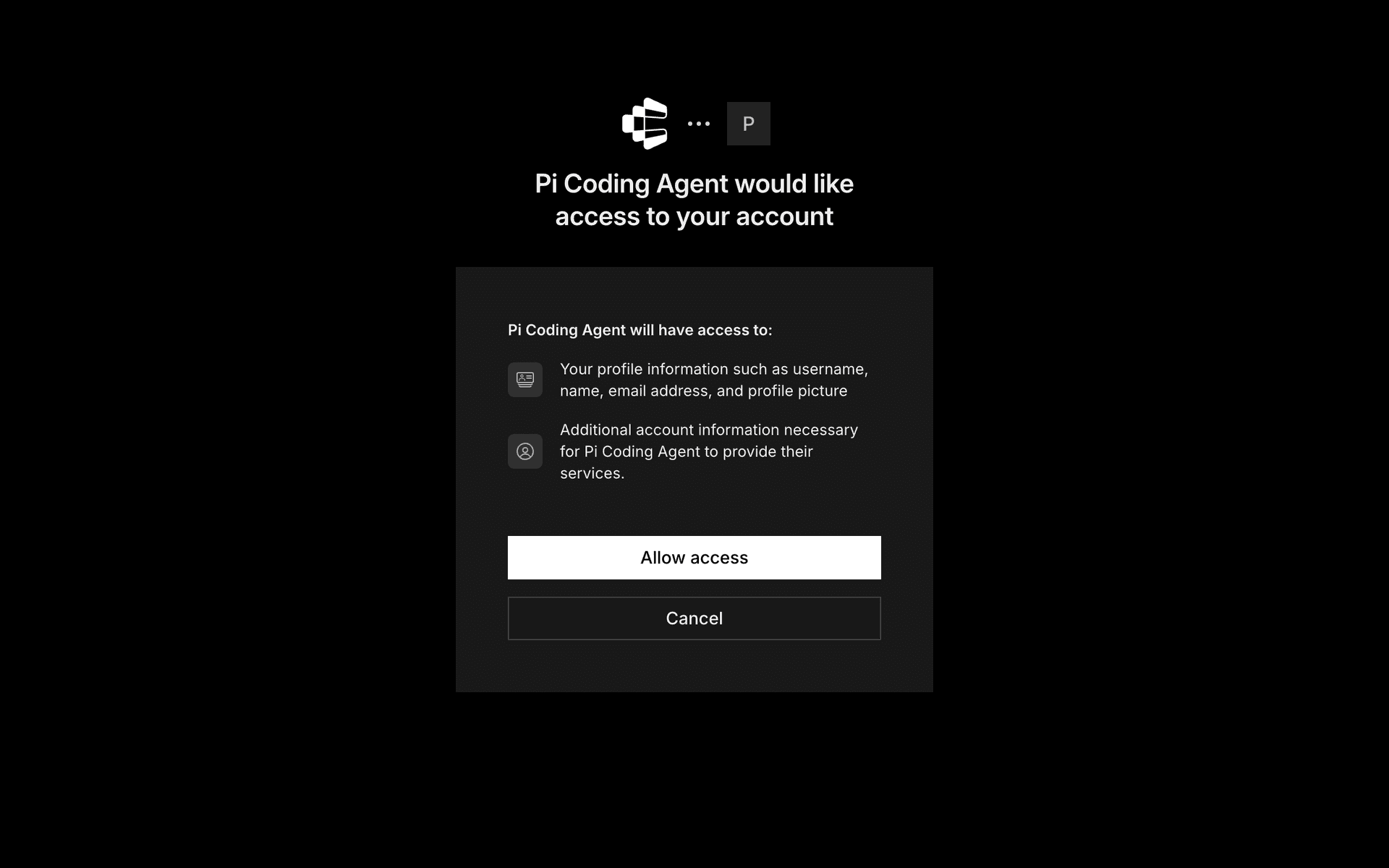
Run /mcp-auth inside Pi to open the authentication modal and select composio from the list. Complete the sign-in in your browser, then on the consent screen click Allow access to authorize Composio. Once approved, the server shows as connected inside Pi:

Pi /mcp-auth modal listing the composio MCP server
Composio OAuth consent screen with the Allow access button
Composio MCP server connected inside Pi

4. Done!

Confirm the server is live with /mcp to open the interactive panel, then ask Pi to connect to Context7 or request any Context7-related task — it will prompt you to authorize Context7 on first use.

What is the Context7 MCP server, and what's possible with it?

The Context7 MCP server is an implementation of the Model Context Protocol that connects your AI agent and assistants like Claude, Cursor, etc directly to your Context7 account. It provides structured and secure access so your agent can perform Context7 operations on your behalf.

Way Forward

With Context7 connected, Pi can now act on your behalf whenever you ask it to.

From here, you can extend Pi further:

  • Connect more apps: Calendar, Slack, Notion, Linear, and hundreds of others are available through the same Composio Connect setup. Each new integration compounds what Pi can do for you.
  • Build workflows across tools: Once multiple apps are connected, Pi can chain actions together — turn an email into a calendar invite, a Slack message into a Linear ticket, or a meeting note into a follow-up draft.
  • Lean into Pi's extension surface: Wrap common Context7 flows as Pi skills or prompt templates so recurring tasks become one-line commands, and use directTools in the MCP adapter to promote your most-used Context7 tools into Pi's tool list directly.

If you run into trouble or want to share what you've built, join the community or check out the Docs for deeper configuration options.

FAQ

Frequently asked questions

With a standalone Context7 MCP server, the agents and LLMs can only access a fixed set of Context7 tools tied to that server. However, with the Composio Tool Router, agents can dynamically load tools from Context7 and many other apps based on the task at hand, all through a single MCP endpoint.

Yes, you can. Pi fully supports MCP integration. You get structured tool calling, message history handling, and model orchestration while Tool Router takes care of discovering and serving the right Context7 tools.

Yes, absolutely. You can configure which Context7 scopes and actions are allowed when connecting your account to Composio. You can also bring your own OAuth credentials or API configuration so you keep full control over what the agent can do.

All sensitive data such as tokens, keys, and configuration is fully encrypted at rest and in transit. Composio is SOC 2 Type 2 compliant and follows strict security practices so your Context7 data and credentials are handled as safely as possible.

Start with Context7 MCP.It takes 30 seconds.

Managed auth, hosted MCP servers, and every Context7 MCP tool your agent needs.Free to start.

Start building