How to integrate Composio MCP with Kimi Code

Trusted by
AWS
Glean
Zoom
Airtable

30 min · no commitment · see it on your stack

Composio logo
Kimi Code logo
divider

How to integrate Composio MCP with Kimi Code

Kimi Code is Moonshot AI's open-source coding agent, powered by Kimi K2.6. It runs in your terminal, reads and edits code, executes shell commands, and plans multi-step tasks, with native MCP support for extending it to outside tools.

In this guide, I will explain the easiest and most secure way to connect your Composio account to Kimi Code via Composio Connect, so it can generate a step-by-step workflow plan, check active connections for all toolkits, download public S3 file to local path, and more without ever putting your account credentials at risk.
Also integrate Composio with

Why use Composio?

Composio provides:

  • Access to 1,000+ managed apps from a single MCP endpoint. This makes it convenient for agents to run cross-app workflows.
  • Managed OAuth. You do not have to worry about authentication and authorization flows for every app.
  • Programmatic tool calling. Allows LLMs to write code in a remote workbench to handle complex tool chaining. This reduces back-and-forth for frequent tool calls.
  • Large tool response handling outside the LLM context. This minimizes context bloat from large tool responses.
  • Dynamic just-in-time access to thousands of tools across hundreds of apps. Composio loads the tools your agent needs, so LLMs are not overwhelmed by tools they do not need.

Connect Composio to Kimi Code

Kimi Code is a TypeScript agent distributed through npm. It acts as an MCP client and reads server definitions from an mcp.json file, and it can also add and authenticate servers conversationally through /mcp-config. Composio is a remote HTTP server that authenticates with OAuth, so no API key is stored anywhere.

1. Install Kimi Code

The quickest way is the official install script, which requires no pre-installed Node.js and places the kimi executable on your PATH.

bash
# macOS or Linux
curl -fsSL https://code.kimi.com/kimi-code/install.sh | bash

# Windows PowerShell
irm https://code.kimi.com/kimi-code/install.ps1 | iex

# Confirm the installation
kimi --version

2. Log in

Start Kimi Code in your project directory, then sign in from the interactive UI:

bash
kimi

Run /login and choose Kimi Code OAuth using the device-code flow, or use a Moonshot API key.

3. Add Composio with /mcp-config

In current versions of Kimi Code, MCP servers are managed inside the app, not with a shell subcommand. From the interactive UI, run:

bash
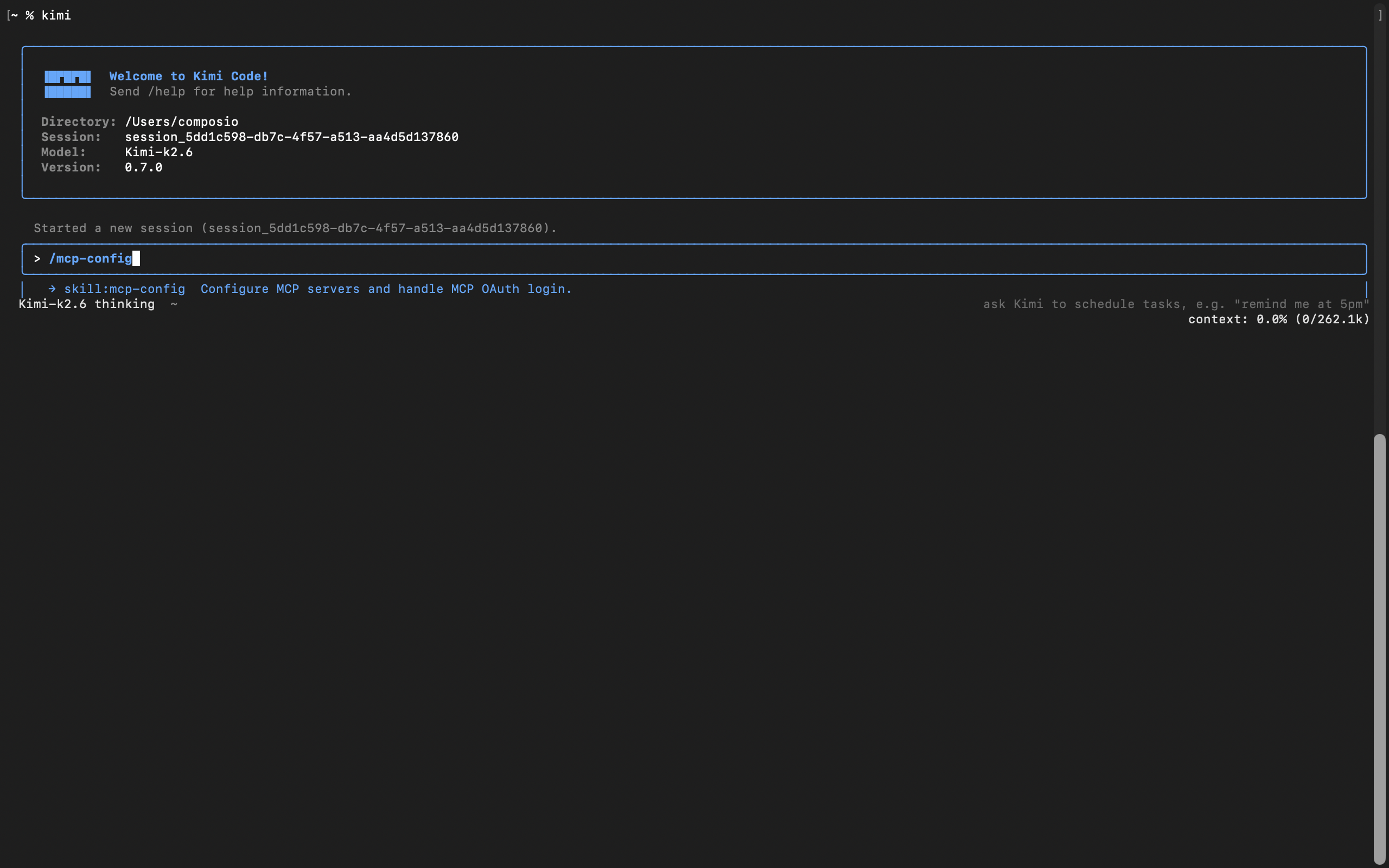
/mcp-config
Kimi Code MCP config flow for adding the Composio MCP server

Tell it the server name and URL in plain language. For example:

Server name is Composio, and here is the server URL: https://connect.composio.dev/mcp

Kimi Code asks whether to add it globally, at ~/.kimi-code/mcp.json, or project-local for the current checkout, then writes the entry for you:

bash
{
  "mcpServers": {
    "Composio": {
      "url": "https://connect.composio.dev/mcp"
    }
  }
}

There is no transport field to set. Kimi Code infers HTTP from the url.

4. Restart the session

The new server is picked up on a fresh session, not the current one. Start a new session:

bash
/new

On the new session, Kimi Code detects that the server needs authorization and prompts you to run:

bash
/mcp-config login Composio

5. Authorize with OAuth

Run the command Kimi suggests:

bash
/mcp-config login composio

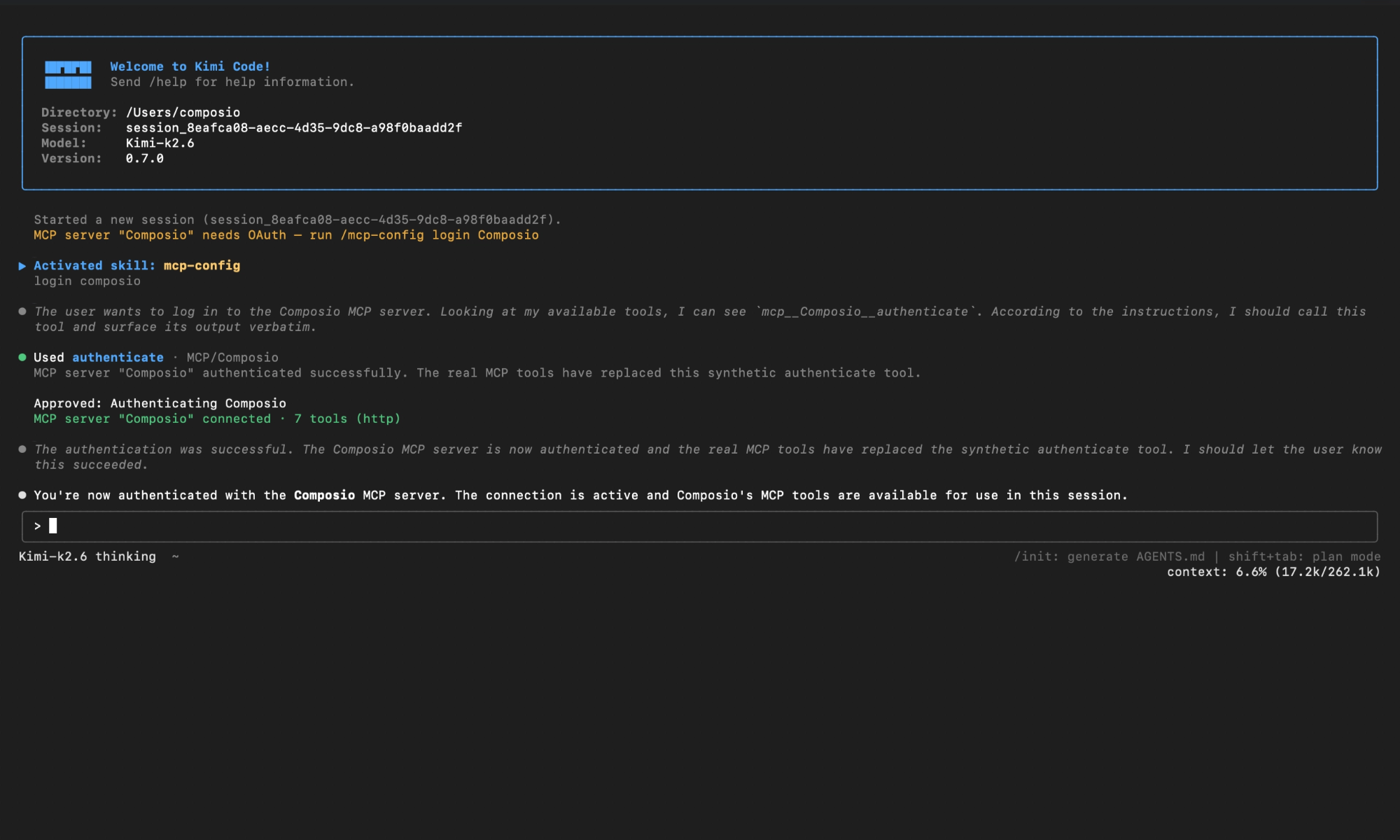
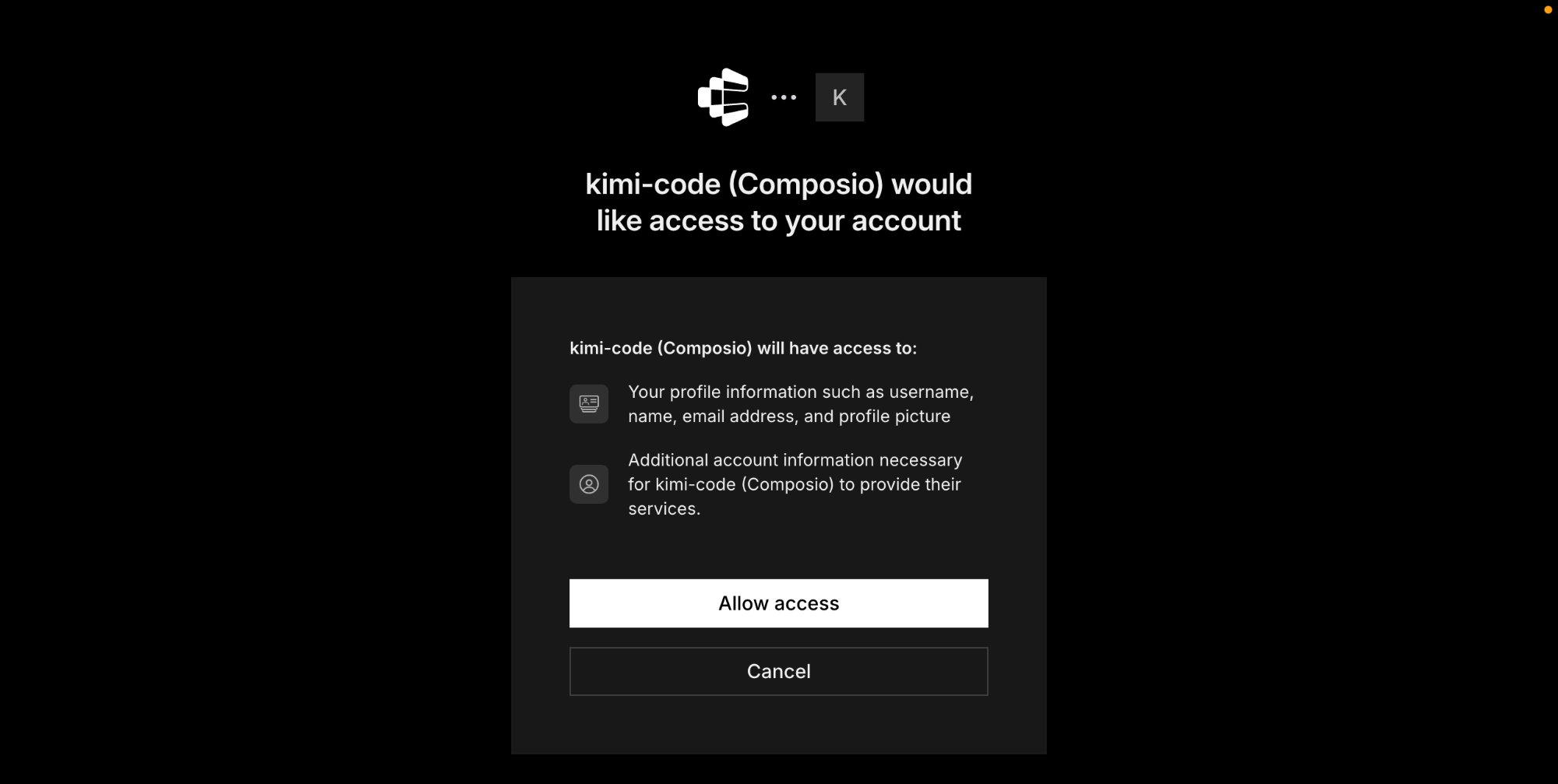
Kimi Code opens Composio's authorization page or surfaces a URL. Approve access, then return to the session. You should see confirmation that the Composio MCP server is connected.

Composio authorization page for Kimi Code MCP setup

Check the connection status any time with /mcp. Composio should appear as connected with its tools listed.

Kimi Code showing Composio connected after OAuth authorization

Connect your Composio account

Back in a Kimi Code session, ask the agent to connect to Composio or give it any Composio-related task.

For example, ask it to:

  • "Generate a step-by-step workflow plan"
  • "Check active connections for all toolkits"
  • "Download public S3 file to local path"

It will prompt you to authenticate and authorize access to Composio.

That is it. Composio tools are now available in Kimi Code, and your Composio account is ready to use.

Supported Tools & Triggers

Tools
Check multiple active connectionsCheck active connection status for multiple toolkits or specific connected account ids.
Create PlanThis is a workflow builder that ensures the LLM produces a complete, step-by-step plan for any use case.
Download S3 FileDownload a file from a public s3 (or r2) url to a local path.
Enable triggerEnable a specific trigger for the authenticated user.
Execute Composio ToolExecute a tool using the composio api.
Get Tool Dependency GraphGet the dependency graph for a given tool, showing related parent tools that might be useful.
Get required parameters for connectionGets the required parameters for connecting to a toolkit via initiate connection.
Get response schemaRetrieves the response schema for a specified composio tool.
Initiate connectionInitiate a connection to a toolkit with comprehensive authentication support.
List toolkitsList all the available toolkits on composio with filtering options.
List triggersList available triggers and their configuration schemas.
Manage connectionsCreate or manage connections to user's apps.
Multi Execute Composio ToolsFast and parallel tool executor for tools discovered through COMPOSIO_SEARCH_TOOLS.
Run bash commandsExecute bash commands in a REMOTE sandbox for file operations, data processing, and system tasks.
Execute Code remotely in work benchProcess **REMOTE FILES** or script BULK TOOL EXECUTIONS using Python code IN A REMOTE SANDBOX.
Search Composio ToolsTool Server Info: Composio connects 500+ apps—Slack, GitHub, Notion, Google Workspace (Gmail, Sheets, Drive, Calendar), Microsoft (Outlook, Teams), X/Twitter, Figma, Web Search / Deep research, Browser tool (scrape URLs, browser automation), Meta apps (Instagram, Meta Ads), TikTok, AI tools like Nano Banana & Veo3, and more—for seamless cross-app automation.
Wait for connectionWait for connections to be established for given toolkits.
Check active connection (deprecated)Deprecated: use check active connections instead for bulk operations.
Create / Update Recipe from WorkflowConvert executed workflow into a reusable notebook.
Execute RecipeExecutes a Recipe
Create / Update Recipe from WorkflowConvert the executed workflow into a recipe using Python Pydantic code.
Get Recipe Details by SlugGet the details of an existing recipe by its slug.
Get Existing Recipe DetailsGet the details of the existing recipe for a given recipe id.
Wait for connectionWait for user auth to finish.
Get Tool SchemasRetrieve input schemas for tools by slug.

Conclusion

You have successfully connected Composio to Kimi Code using Composio Connect. Your agent can now manage Composio from the terminal with natural language, without exposing credentials in prompts or local scripts.

Since the same Composio endpoint exposes 1,000+ apps, you can add Slack, Calendar, Linear, and more to the same server and chain them into cross-app workflows.

How to build Composio MCP Agent with another framework

FAQ

What are the differences in Tool Router MCP and Composio MCP?

With a standalone Composio MCP server, the agents and LLMs can only access a fixed set of Composio tools tied to that server. However, with the Composio Tool Router, agents can dynamically load tools from Composio and many other apps based on the task at hand, all through a single MCP endpoint.

Can I use Tool Router MCP with Kimi Code?

Yes, you can. Kimi Code fully supports MCP integration. You get structured tool calling, message history handling, and model orchestration while Tool Router takes care of discovering and serving the right Composio tools.

Can I manage the permissions and scopes for Composio while using Tool Router?

Yes, absolutely. You can configure which Composio scopes and actions are allowed when connecting your account to Composio. You can also bring your own OAuth credentials or API configuration so you keep full control over what the agent can do.

How safe is my data with Composio Tool Router?

All sensitive data such as tokens, keys, and configuration is fully encrypted at rest and in transit. Composio is SOC 2 Type 2 compliant and follows strict security practices so your Composio data and credentials are handled as safely as possible.

Used by agents from

Context
Letta
glean
HubSpot
Agent.ai
Altera
DataStax
Entelligence
Rolai
Context
Letta
glean
HubSpot
Agent.ai
Altera
DataStax
Entelligence
Rolai
Context
Letta
glean
HubSpot
Agent.ai
Altera
DataStax
Entelligence
Rolai

Never worry about agent reliability

We handle tool reliability, observability, and security so you never have to second-guess an agent action.