How to connect Clueso to Grok Bot

Connect Grok Bot to Clueso MCP. Create a clueso product demo video, add captions to your clueso clip, and more using natural language, with authentication handled for you.

Clueso MCP logoClueso MCP
Dcr Oauth

Clueso is a product video and documentation platform for creating polished visual content. It brings video editing, voiceovers, captions, animations, and exports into one hosted workspace.

53 Tools

Introduction

Grok is xAI's assistant, and its bot builder lets you create a personal agent that holds context, runs skills, and connects to the apps you already use through plugins.

This guide explains how to connect Clueso to a Grok bot using Composio Connect, which handles OAuth, token refresh, and reliability so you do not have to. You add Composio as a plugin, authenticate once, then ask your bot to work with Clueso in plain language.

For exact tool slugs and parameter tables, see the tool catalog in the Composio docs.

Also integrate Clueso MCP with

Why use Composio?

Composio exposes 1,700+ apps to your Grok bot through a single connection, so you get:

  • Connect to 1,700+ apps with on-demand tool loading, so you do not fill your context window with unnecessary tool definitions.
  • Use programmatic tool calling through a remote workbench, letting the model write its own code to handle complex tool chaining. This reduces back-and-forth for frequent tool calls.
  • Handle large tool responses outside the model context to keep conversations lean.

Connecting Clueso to Grok Bot

Once Grok Bot is set up, you connect Clueso entirely from its interface, and the whole flow takes under a minute.

Set up Grok Bot

Get access. Grok Bot is included with Cursor Ultra, Cursor Premium Teams, and SuperGrok Heavy. Get the desktop app for macOS or Windows from x.ai/bot and sign in. An iPhone companion app is also available, and your bots sync across devices.

Create a bot. Pick a suggested role or define your own, then give it a short name, one primary job, and a short description of how it should work. Focused bots work best, because a clear role gives the bot more useful context over time.

Connect Clueso

1. Add the Composio plugin

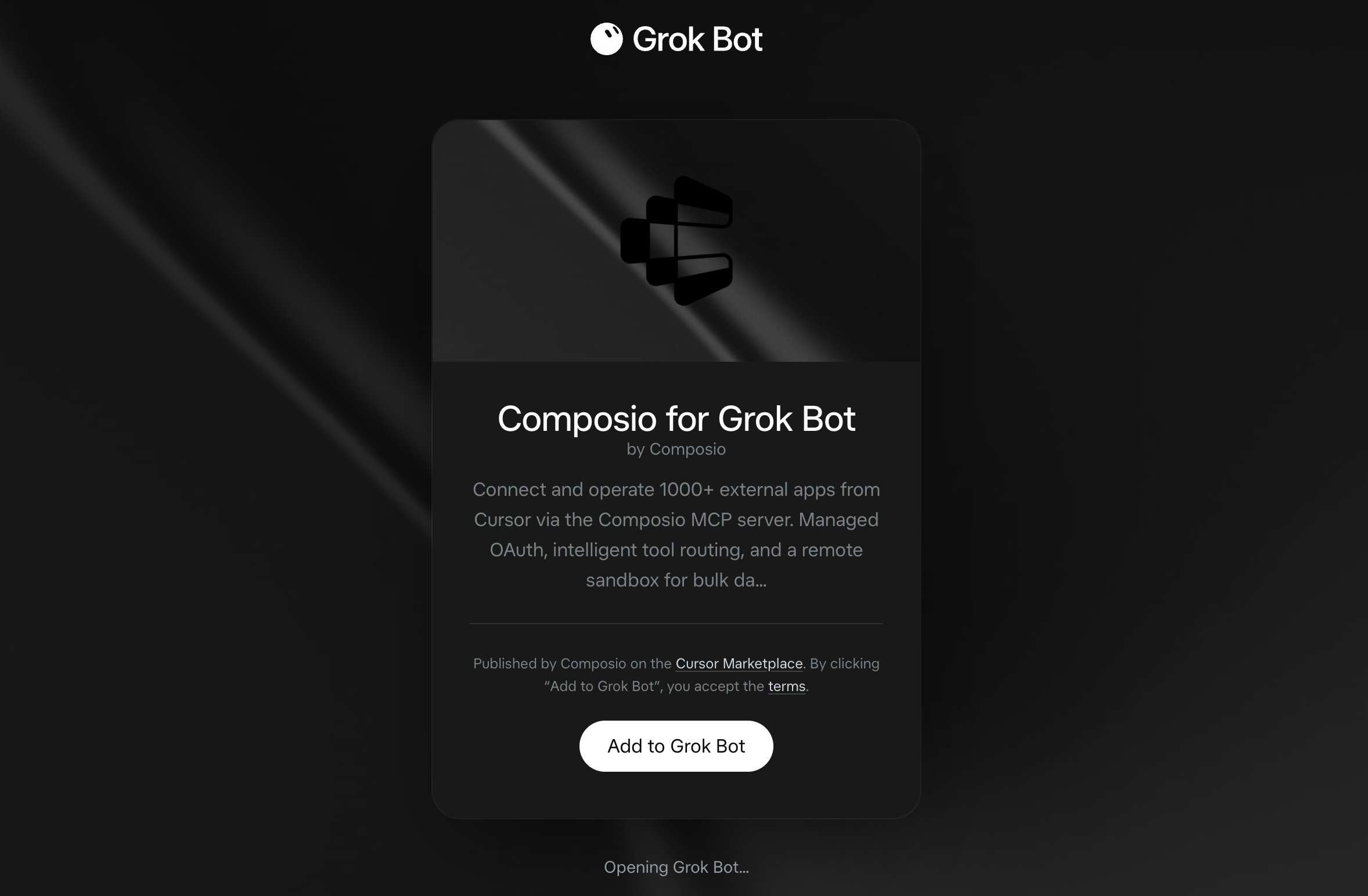
Click the button. The Composio listing on x.ai opens and launches Grok Bot for you. If the app does not open on its own, click Add to Grok Bot.

Add to Grok Bot

Composio for Grok Bot listing on x.ai with the Add to Grok Bot button

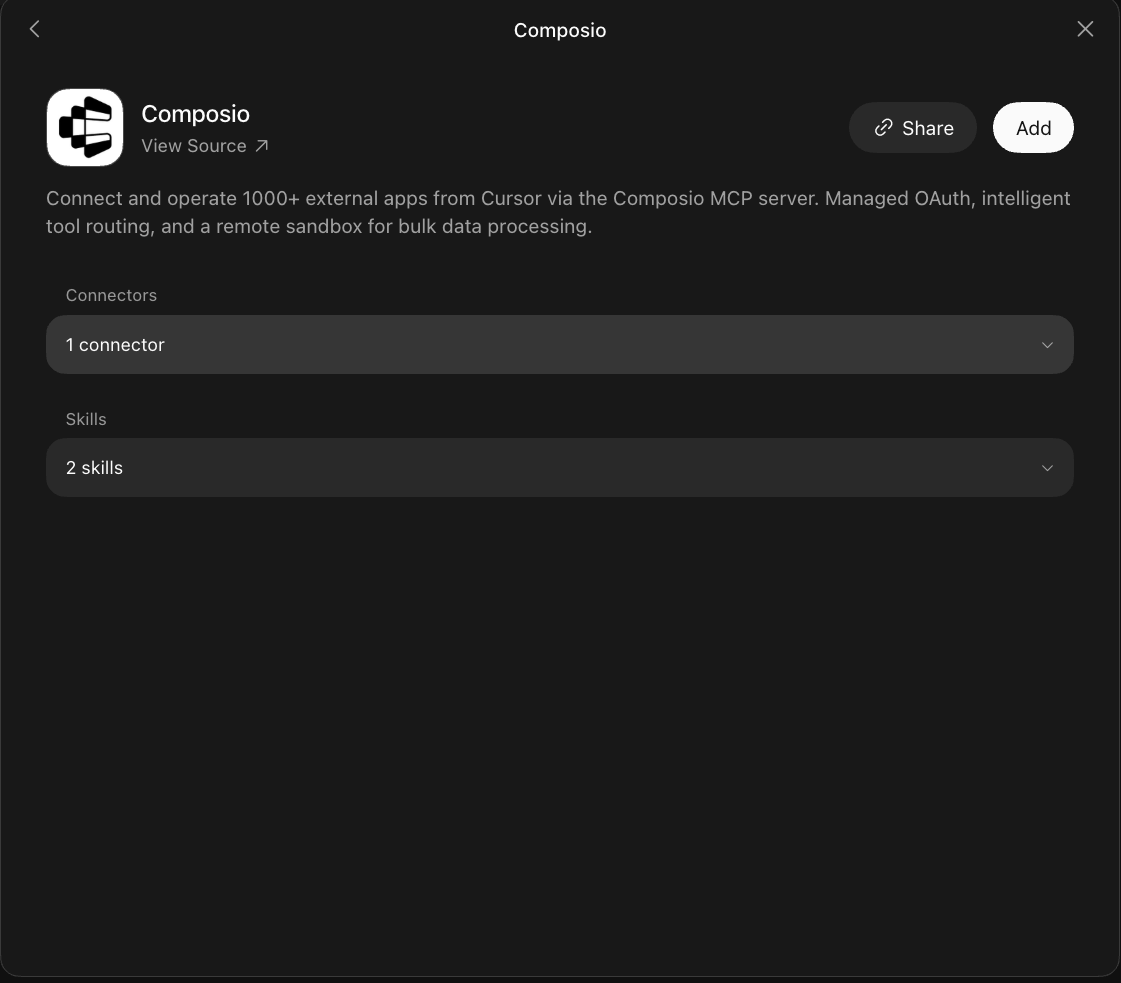
Grok Bot opens the Composio plugin, showing its connector and skills. Click Add.

Composio plugin sheet in Grok Bot with the Add button

2. Authenticate

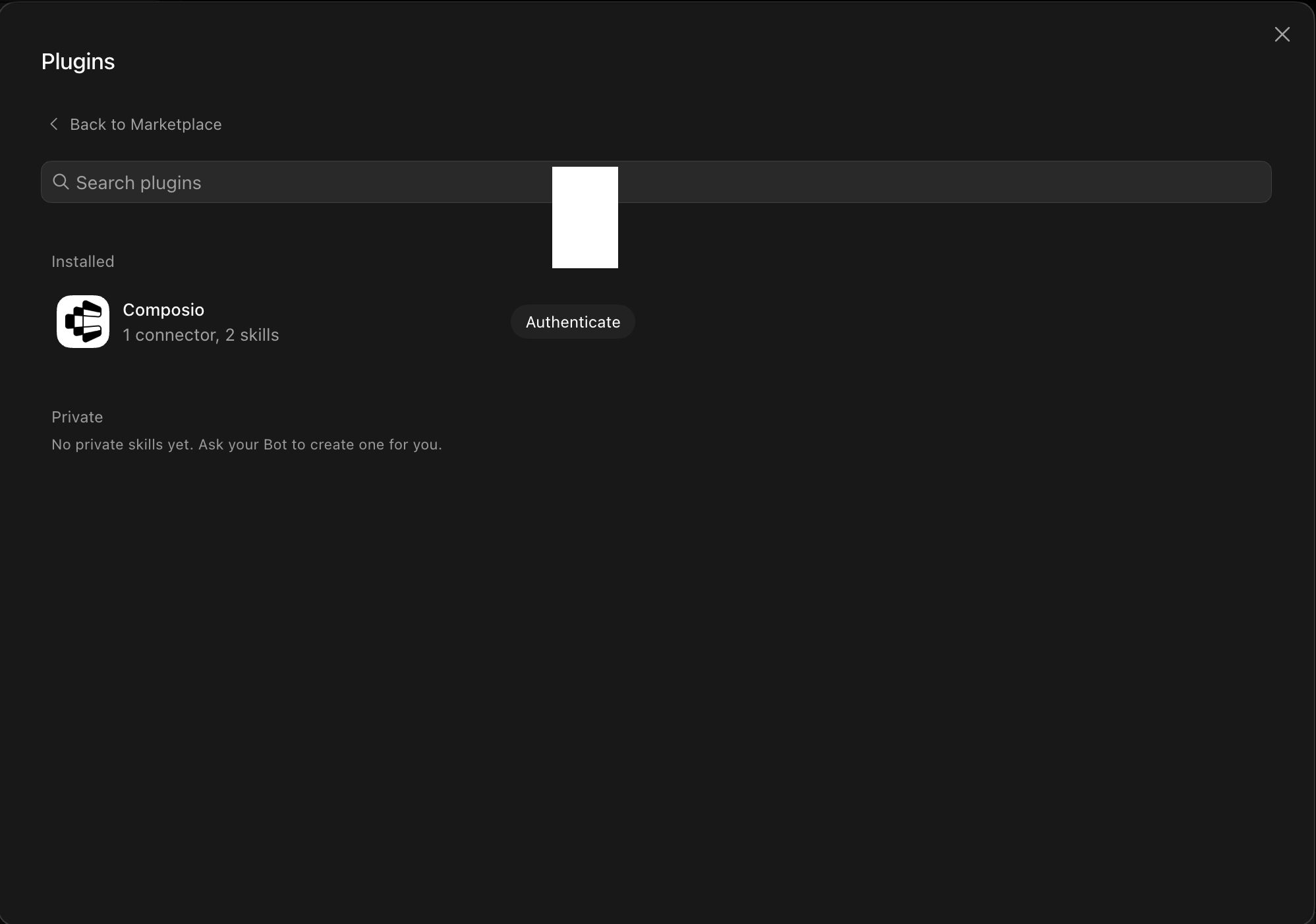
Go to the Installed section and click the Composio entry. You'll see its connector and skills listed.

Installed Composio plugin showing the Authenticate button

Click Authenticate. You'll be taken to the Composio consent screen. Review the access it requests and click Authorize. Composio handles the OAuth handshake for you, so you never touch API keys or tokens.

Composio authorization screen with Authorize and Deny

3. Connect your Clueso account

Back in the chat, ask your bot to connect to Clueso or give it any Clueso task.

For example, ask it to:

  • "Create a Clueso product demo video"
  • "Add captions to your Clueso clip"
  • "Export your Clueso documentation article"

It will prompt you to authenticate and authorize access.

That's it. Composio's tools are now available in your Grok bot, and your Clueso account is ready to use.

What is Grok Bot?

Grok is xAI's assistant, available as a chat interface and a bot builder for creating personal agents that run skills and connect to external apps.

With Composio Connect, your Grok bot can securely access apps like Clueso through MCP without you sharing account credentials directly with the agent.

What is the Clueso MCP server, and what's possible with it?

The Clueso MCP server is an implementation of the Model Context Protocol that connects your AI agent and assistants like Claude, Cursor, etc directly to your Clueso account. It provides structured and secure access to Clueso projects, product videos, documentation articles, clips, audio, voiceovers, captions, animations, and exports, so your agent can create, edit, organize, and publish video and documentation content on your behalf.

  • Project and clip creation: Have your agent create Clueso projects, add or duplicate clips, record product screens, and organize work into folders.
  • Video and audio editing: Let the agent add elements, images, GIFs, music, sound effects, voiceovers, animations, transitions, and sync points to your clips.
  • Captions and documentation: Direct your agent to edit captions and translations, retrieve article content as Markdown, and add screenshots or GIFs to documentation articles.
  • Brand and review management: Instruct your agent to manage brand kits, update pronunciation settings, add project comments, and read review feedback.
  • Exports and sharing: Have your agent start video exports, check export status and links, and retrieve embeddable players for completed projects.

Way Forward

Now that Clueso is connected, extend your setup by connecting the other apps you already use every day, so your Grok bot can run true cross-app workflows end to end.

  • Connect Calendar to turn threads into scheduled meetings automatically.
  • Connect Slack or Teams to post summaries, approvals, and alerts where your team works.
  • Connect Notion, Linear, Jira, or Asana to convert requests into tickets, tasks, and docs.
  • Connect Drive, Dropbox, or OneDrive to fetch, file, and share attachments without manual steps.

Start with one workflow you do repeatedly, then keep adding apps as you find new handoffs. With everything behind a single connection, your bot can coordinate multiple tools safely and reliably in one conversation.

TOOLS

Supported Tools

Every Clueso MCP action and event your agent gets out of the box.

Add article media

Add a screenshot or GIF to the article.

Add audio

Add a music track or sound effect that plays as a project-level audio layer over all clips.

Add clips

Create new clips on a project.

Add comment

Post a review comment on a project, attributed to "Clueso AI".

Add elements

Add many elements across one or more clips in a single tool call.

Add sync point

Insert one sync marker on a clip's transcript.

Analyze audio

Analyze an audio file.

Auto sync

Run the agentic auto-sync pipeline on a clip with a source recording: detects natural sync points (UI changes, narrated steps) and inserts sync-marker nodes into its transcript.

Captions

Read and edit a clip's CAPTIONS (subtitles) — what they say, where one caption ends and the next begins, when each shows, captions not tied to the voiceover, and translation.

Check uploads

Fetch all files the user uploaded via the hosted upload page.

Create clueprint

Create a new clueprint (reusable video template).

Create folder

Create a folder in the workspace, optionally inside another folder, to organize projects.

Create project

Create a new blank Clueso project.

Duplicate clip

Clone one clip — within the same project, or **from another project** — into a target project.

Duplicate project

Clone an entire project — every clip, voiceover, asset, and metadata field — into a fresh project.

Edit animation

Change an animation's code: ONE revision, checked and probed in a sandbox.

Export project

Start a video export of the project.

Extract audio

The editor's "Extract Audio": a clip's own audio — the recording's sound on a video clip, or its generated voiceover — becomes a separate audio track (returns music_id), and the clip goes silent.

Find

Find any resource in Clueso by type, optionally filtered by name or exact id.

Generate media

Generate an AI image or a canvas-code-based animation directly into a clip.

Get article

Get the article content as markdown.

Get clip

Read one clip: its elements (positions/sizes in canvas pixels), voiceover (text, voice, duration, voiceover_volume), background and transition.

Get clueprint

Fetch clueprint data.

Get comments

Read the review comments on a project — the other half of `add_comment`, which could post but never read.

Get design guide

Clueso's design guide, animation guide and animation stdlib.

Get element schema

Return the schema for an element type's type_data, as TypeScript declarations.

Get embed

Get a project's embeddable video player: `embed_url` (permanent) and `embed_code` (a ready-to-paste , the same snippet the editor's Share → Embed copies).

Get export

Read a project's video export: its status and, once done, its link.

Get project

Get a summary of a project: canvas dimensions, per-clip summary (ids, indices, durations, element counts, voiceover_volume), and `audio_tracks` — every music/SFX entry on the project flattened to the same wire shape `add_audio` accepts (id, src, name, source_duration, guide_start_time/end_time, music_start_time/end_time, volume, loop, fade_in, fade_out).

Get recording activity

Status of this workspace's auto-recordings, and how many recording generations this billing cycle has used.

Get script job

Fetch the outcome of a run_script that did not finish inline.

Manage brand kit

Create and change the workspace's brand kits (editors and admins).

Pronunciation

Read and edit the workspace pronunciation dictionary (Settings → Team → Pronunciation Dictionary).

Read animation

Read an animation's files like a repository.

Record screen

Records the product on a mock (Code record) as a screen-recording clip in a project.

Remove clip

Remove a clip from the project by index.

Remove elements

Remove many elements across one or more clips in a single tool call.

Remove from project

Remove an element, a group or an audio track from a project.

Reorder elements

Reorder the elements inside a clip.

Run script

Write a JavaScript program that calls this server's other tools.

Set voice

Set the voiceover voice for every clip in a project, or only for the clips in `clip_ids`.

Split clip

Split a video clip into two clips at the given timestamp.

Switch workspace

Switch the active workspace.

Update article

Update article text content from markdown.

Update article media

Update an article image/GIF (screenshot), or inspect its current state.

Update audio

Mutate fields on an existing music/SFX track by id.

Update clips

Update one or more clips in a single call — background, transition, duration, title, visibility, position, and (video clips) the footage transform via video_styling.

Update clueprint

Update a clueprint's metadata and/or file contents in one call.

Update elements

Update many elements across one or more clips in a single tool call.

Update groups

Transform, keyframe, rename, nest or lock GROUPS.

Update project

Update a project's metadata: rename, change description, move to a different folder, or change aspect ratio.

Upload file

Upload one or more files to Clueso.

Voiceover batch

Set voiceover text and/or trigger speech generation for any number of clips in a single call.

FAQ

Frequently asked questions

Start with Clueso MCP.It takes 30 seconds.

Managed auth, hosted MCP servers, and every Clueso MCP tool your agent needs.Free to start.

Start building