How to integrate Appointo MCP with Codex

Connect Codex to Appointo MCP. List all upcoming appointments for today, reschedule a customer booking to next week, and more using natural language, with authentication handled for you.

Appointo logoAppointo
Api Key

Appointo is an appointment booking platform for Shopify stores. It lets businesses add online scheduling to their websites with zero coding.

11 Tools

Introduction

Codex is one of the most popular coding harnesses out there. And MCP makes the experience even better. With the Appointo MCP integration, Codex can create and cancel bookings, reschedule appointments, check availability, list appointments and products, and update booking settings, all without leaving the terminal or the app, whichever you prefer.

For exact tool slugs and parameter tables, see the tool catalog in the Composio docs.

Also integrate Appointo with

Why use Composio?

Apart from a managed and hosted MCP server, you will get:

  • CodeAct: A dedicated workbench that allows GPT to write its code to handle complex tool chaining. Reduces to-and-fro with LLMs for frequent tool calling.
  • Large tool responses: Handle them to minimise context rot.
  • Dynamic just-in-time access to 20,000 tools across 1700+ other Apps for cross-app workflows. It loads the tools you need, so GPTs aren't overwhelmed by tools you don't need.

How to install Appointo MCP in Codex

Run the setup command

Run this command in your terminal to add the Composio MCP server to Codex.

Terminal

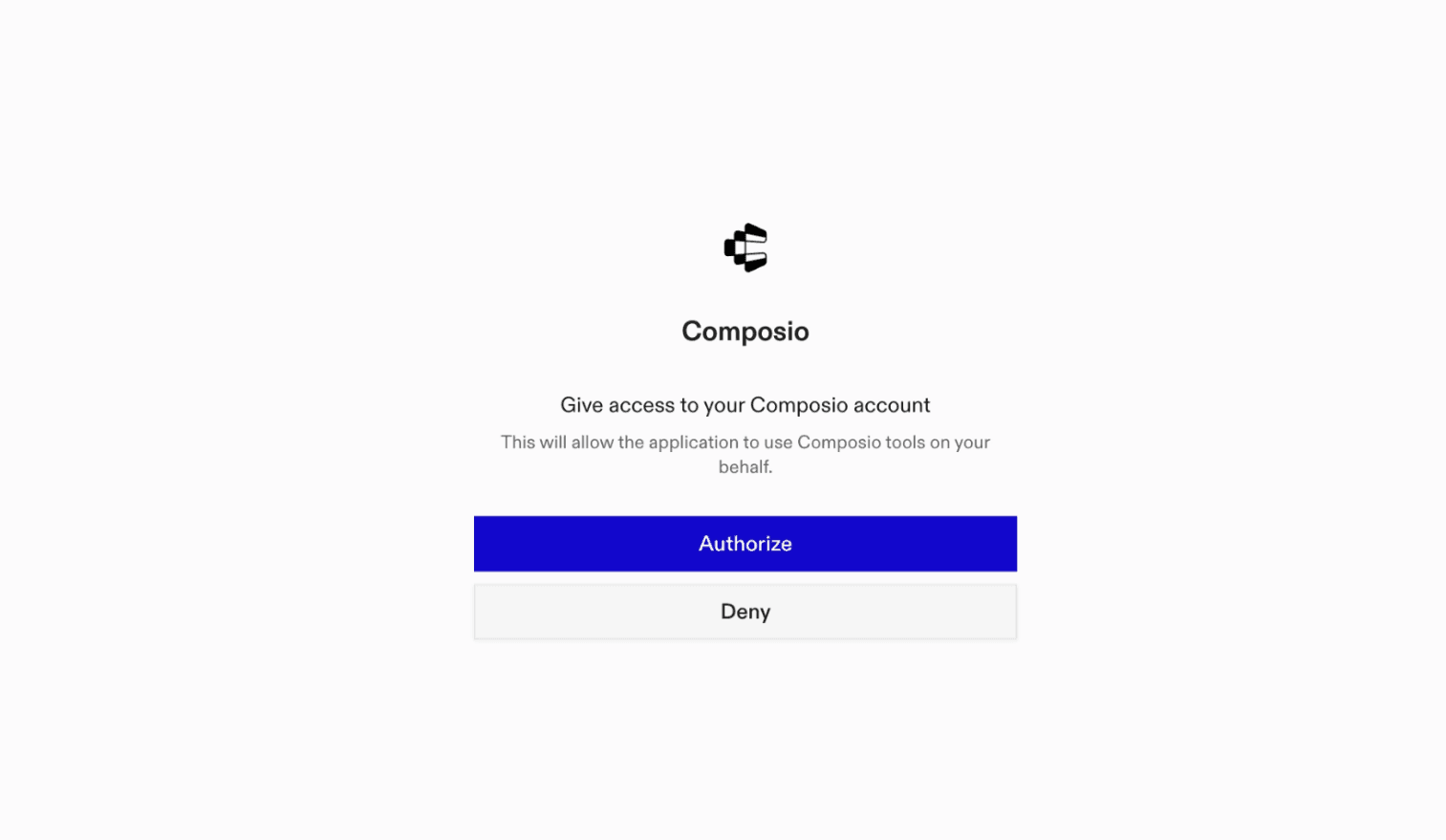
It will initiate the authentication in a browser window, authorize Codex to access your Composio account.

Composio authentication page

(Optional) Authenticate with OAuth

To authenticate manually, run the login command to open a browser window and authorize Codex to access your Composio account.

bash
codex mcp login composio

Verify the connection

Run codex mcp list to confirm Composio appears as a registered MCP server.

bash
codex mcp list

Codex App

Codex App follows the same approach as VS Code.

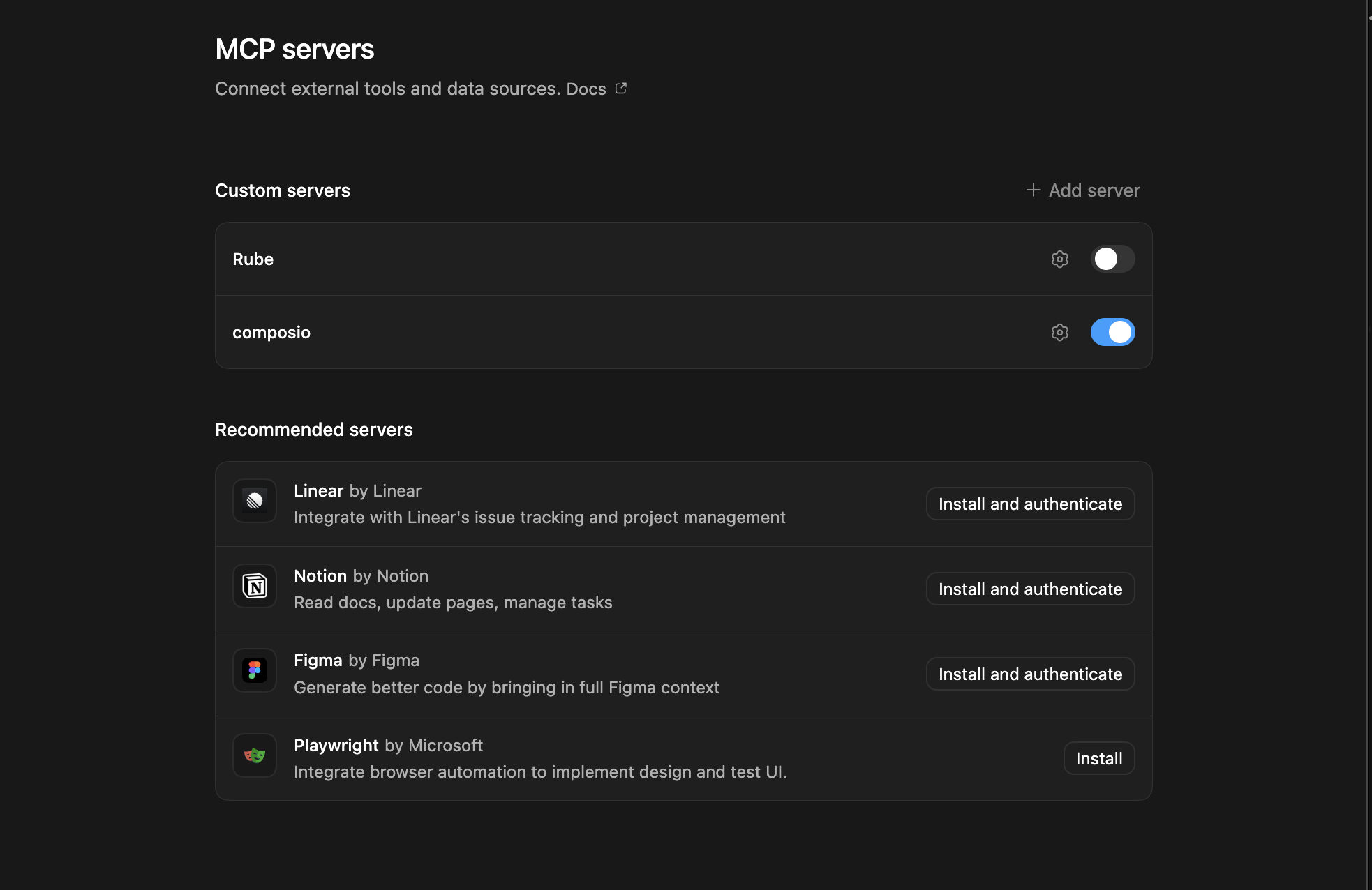
  1. Click ⚙️ on the bottom left → MCP Servers → + Add servers → Streamable HTTP:
  2. Fill the header and Key fields with { "x-consumer-api-key" = "ck_*******" }.
  3. The Key is the Composio API key, that you can find on dashboard.composio.dev
  4. Click on Authenticate and authorize Codex to your Composio account and you're all set.
Codex App MCP setup
  1. Restart and verify if it's there in .codex/config.toml
bash
[mcp_servers.composio]
url = "https://connect.composio.dev/mcp"
http_headers = { "x-consumer-api-key" = "ck_*******" }

Try it

Ask Codex for a Appointo task. The first time, Composio asks you to connect your Appointo account.

For example, ask it to:

  • "List all upcoming appointments for today"
  • "Reschedule a customer booking to next week"
  • "Create a new appointment for a client"

What is the Appointo MCP server, and what's possible with it?

The Appointo MCP server is an implementation of the Model Context Protocol that connects your AI agent and assistants like Claude, Cursor, etc directly to your Appointo account. It provides structured and secure access to your appointments, bookings, and calendar availability, so your agent can check open times, create bookings, reschedule appointments, update booking buffers, and cancel bookings on your behalf.

  • Appointment and booking lookup: Have your agent list appointments and bookings whenever you need a clear view of the schedule.
  • Availability checks: Let the agent check calendar availability for a specific appointment before choosing a time.
  • Booking creation: Direct your agent to create a new booking for an available appointment.
  • Booking changes: Instruct your agent to reschedule an existing booking or update its buffer times when plans change.
  • Booking cancellations: Have your agent cancel an entire booking or cancel it for selected customers.

Conclusion

You've successfully integrated Appointo with Codex using Composio's MCP server. Now you can interact with Appointo directly from your terminal, VS Code, or the Codex App using natural language commands.

Key benefits of this setup:

  • Seamless integration across CLI, VS Code, and standalone app
  • Natural language commands for Appointo operations
  • Managed authentication through Composio
  • Access to 20,000+ tools across 1700+ apps for cross-app workflows
  • CodeAct workbench for complex tool chaining

Next steps:

  • Try asking Codex to perform various Appointo operations
  • Explore cross-app workflows by connecting more toolkits
  • Build automation scripts that leverage Codex's AI capabilities
TOOLS

Supported Tools

Every Appointo action and event your agent gets out of the box.

Authenticate Appointo API Token

Tool to authenticate with the Appointo API by validating the APPOINTO-TOKEN header.

Cancel Booking

Cancel an Appointo booking or cancel selected customers from it.

Create Booking

Create a customer booking for an appointment and timeslot.

Get Appointment Availability

Fetch calendar availability for a specific Appointo appointment from a start date, optionally through an end date.

List Appointments

List Appointo appointments, optionally filtering by appointment ID or product ID.

List Bookings

List Appointo bookings or retrieve a booking by ID.

List Products

List products added in Appointo, optionally filtering by product name.

List Subscription Contracts

List Appointo subscription contracts, optionally searching by product name, variant name, order number, or customer name.

Reschedule Booking

Reschedule an entire booking or selected customers to a new timeslot, optionally forcing the reschedule.

Update Booking Buffers

Update buffer times for an existing booking.

Upsert Appointment Configuration

Create or update an Appointo appointment's configuration, weekly availability, and date-specific overrides.

FAQ

Frequently asked questions

Start with Appointo.It takes 30 seconds.

Managed auth, hosted MCP servers, and every Appointo tool your agent needs.Free to start.

Start building