




Slackbot recently added support for MCP, which means you can now connect it with external apps and let it take actions across your work tools directly from Slack
But the native app list is still limited. By the time of writing this post, there are just about 20 apps that you can connect from the Slack marketplace.
And for most teams, that's not enough.
But luckily, Slack allows you to set up or use your custom MCP servers without being limited by the number of apps available in the marketplace.
That's where Composio helps you. It can connect your slack bots to 1000+ apps that you can use.
In this guide, we’ll show you how to connect Slackbot to Composio’s MCP server in 3 steps.
ℹ️ The steps will be pretty much the same with other remote HTTP MCP servers as well.
Related: Connect MCP servers to Claude Tag
What We're Building
Once this is set up, you can ask Slackbot things like:
Find my latest unread Gmail emails.
Search my Notion workspace for launch notes.
Check my Google Calendar for meetings tomorrow.
And a bunch more. Imagine all the stuff you can do with 1000+ apps. 😵💫
I'll leave the rest to your imagination...
Slackbot sends the request to Composio Connect, Composio finds the right tool, asks you to connect the app if needed (one time), and then executes the action.
Prerequisites
Before we begin, make sure you have:
A Slack workspace with Slackbot MCP client access (comes with Business+ and Enterprise plans)
Permission to create or configure a Slack app.
A Composio account.
That's it.
Step 1: Get the Composio Connect MCP URL
First, you need the MCP server URL from Composio.
For this setup, use Composio Connect:
https://connect.composio.dev/mcp
This is Composio’s hosted MCP server that gives your AI agent access to 1,000+ apps with just 7 meta-tools, letting the slackbot discover what's available, authorise apps on demand, and execute tools across apps in parallel through a single connection.
You don’t need to create a custom MCP server for this guide.
Composio also supports custom MCP servers for more scoped, project-specific use cases, but those may require API key-based auth. For Slackbot, Composio Connect is the simpler path because it works with OAuth-based MCP client flows.

Step 2: Add Composio Connect to a Slack App
Now, we need to register the Composio MCP server inside a Slack app.
Go to the Slack developer dashboard and create a new app.
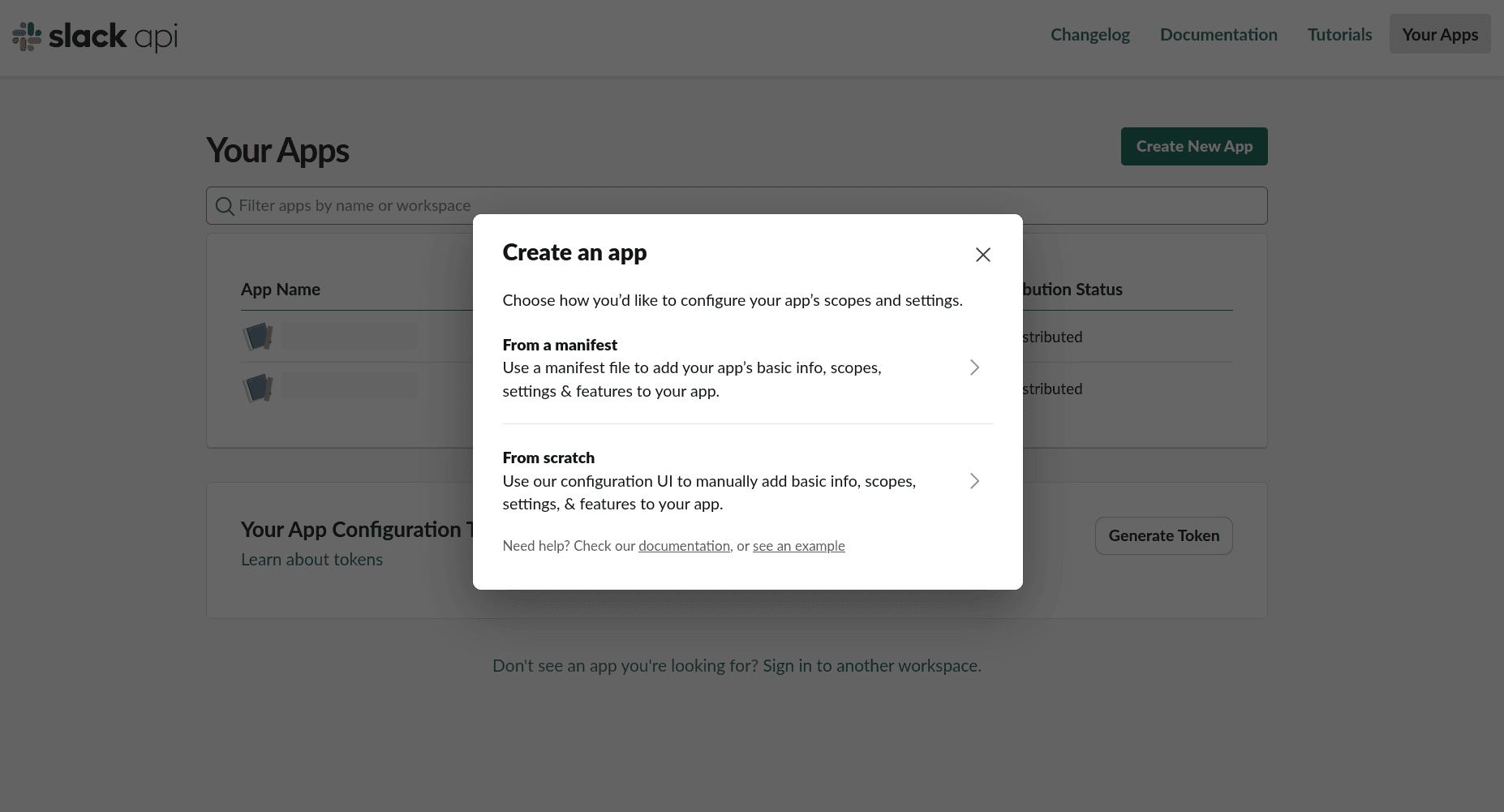
Once the app is created:
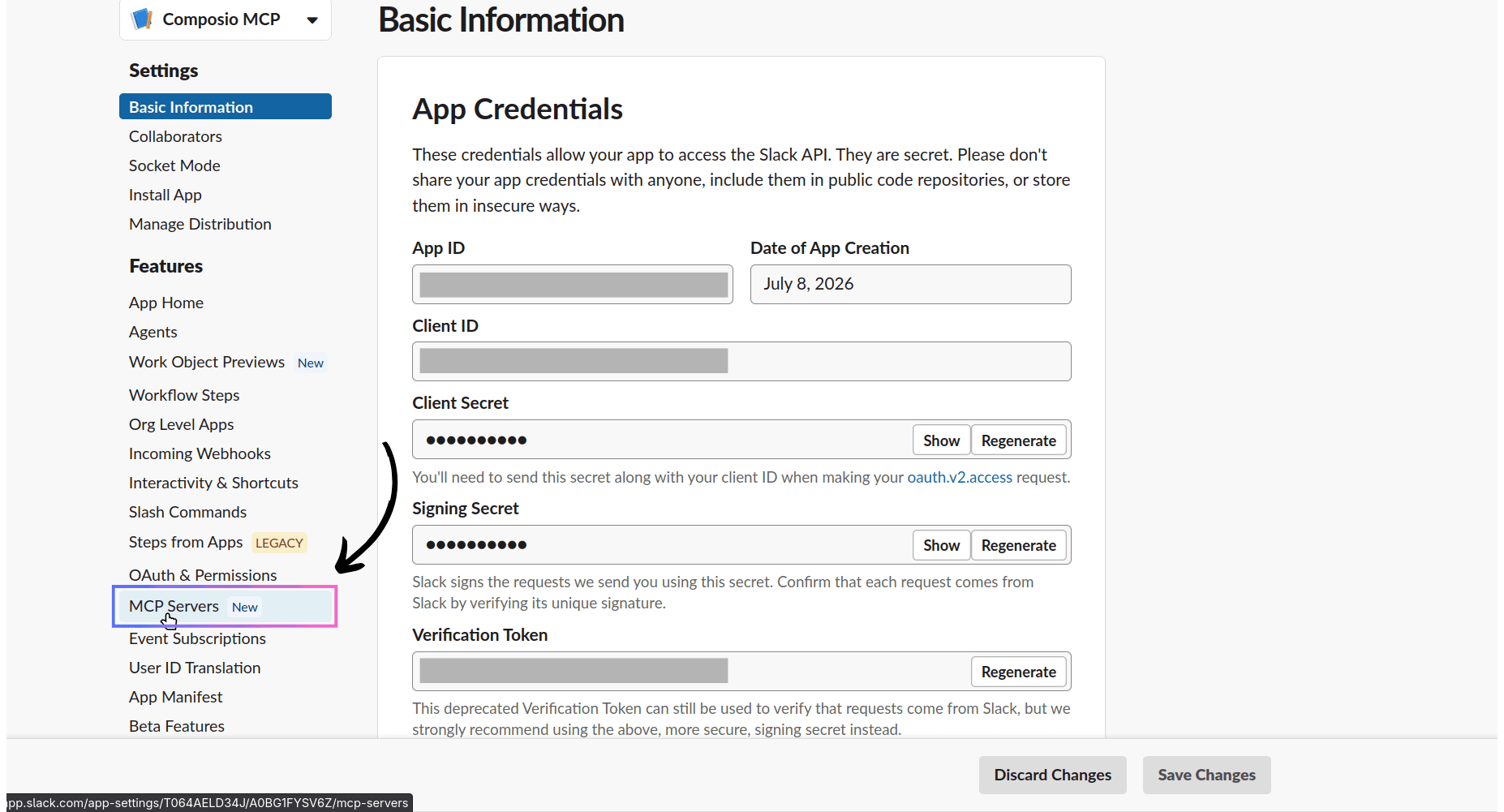
Open your Slack app.
In the left sidebar, go to Features.
Click MCP Servers.
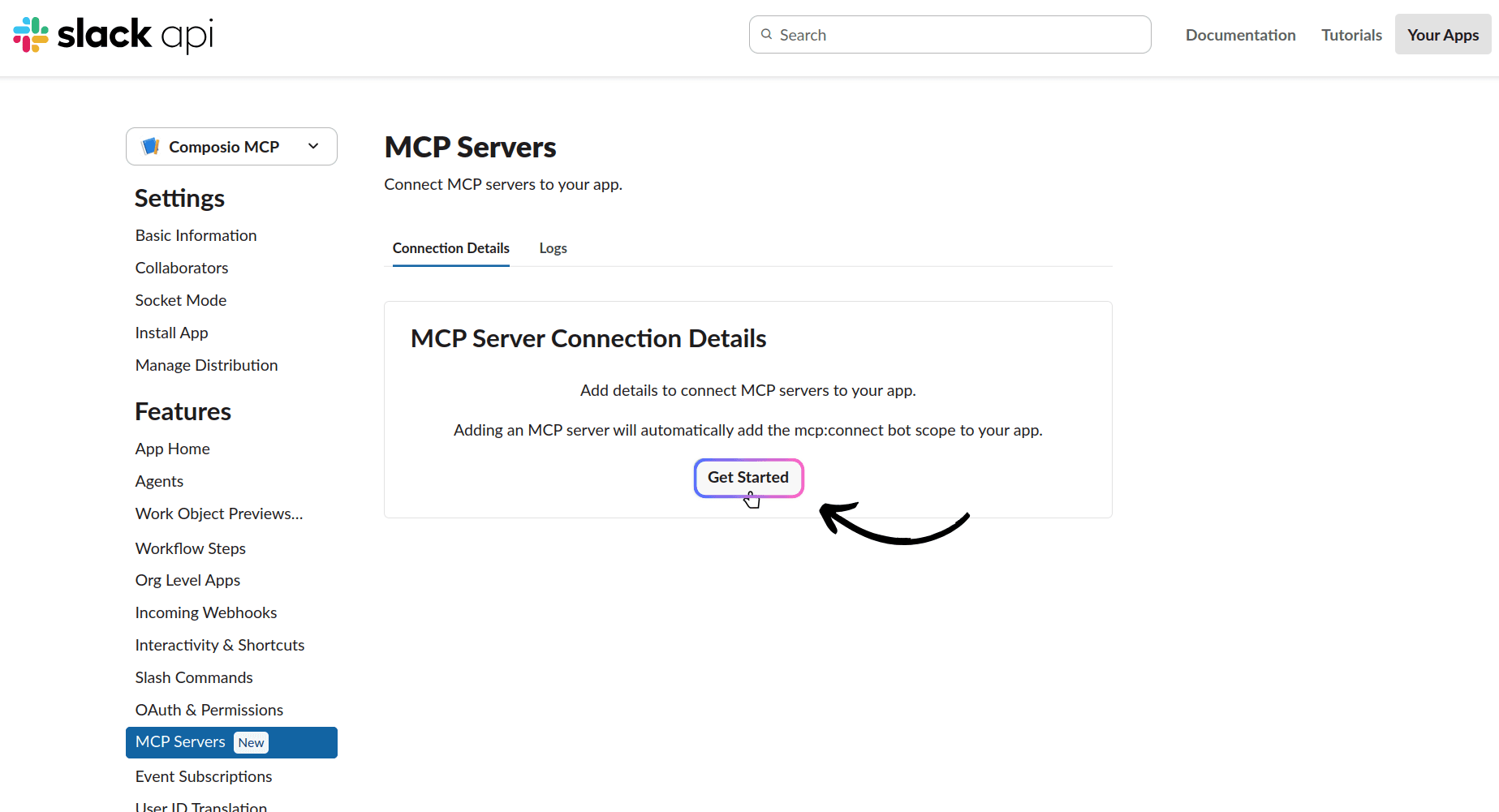
Click Get Started.
Now fill in the MCP server details.
Use:
Name: Composio (or anything you wish)
Auth Type: Dynamic Client Registration
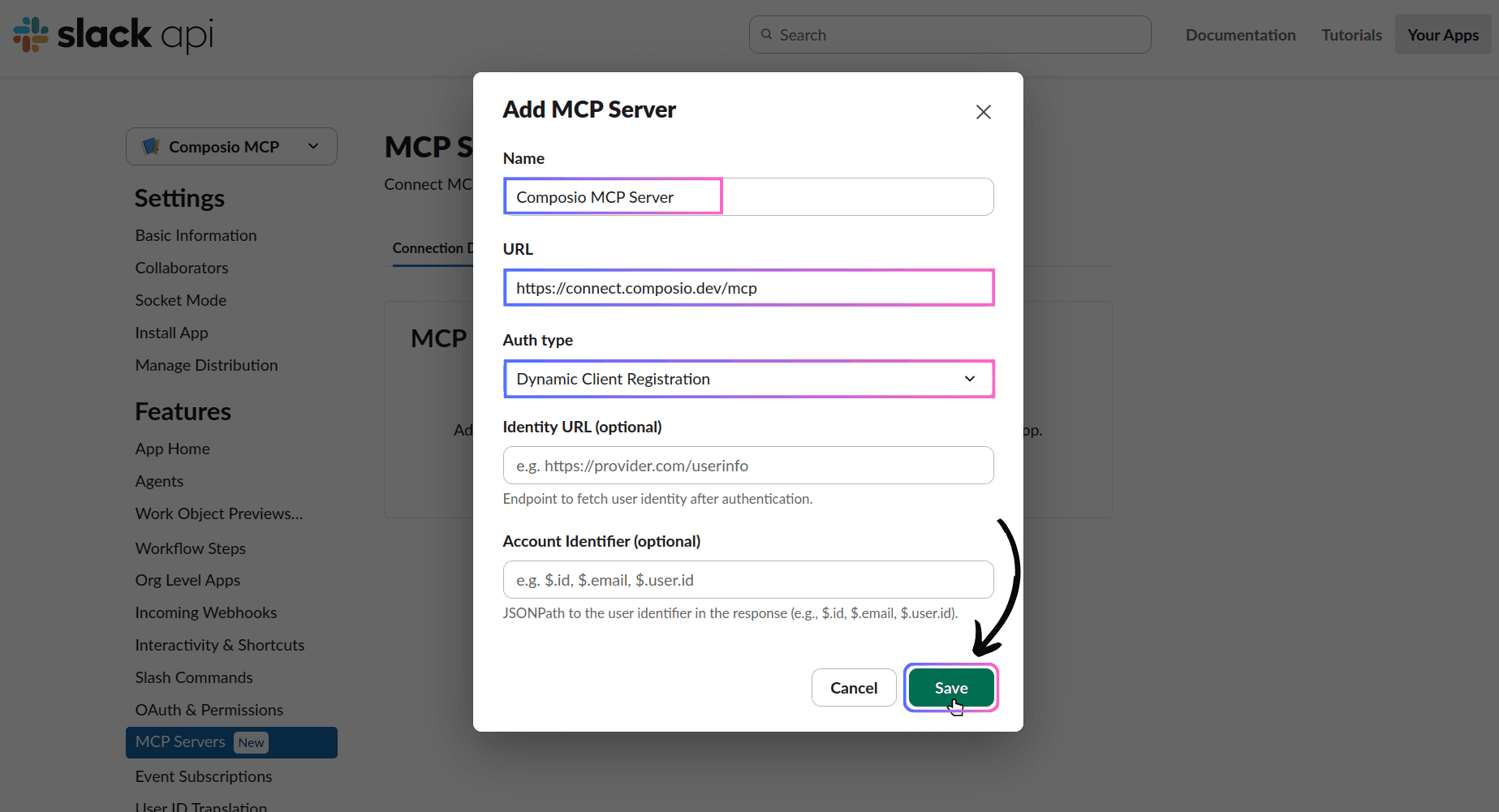
For the auth type, select Dynamic Client Registration.
ℹ️ This is the right option for MCP servers that support OAuth discovery and client registration. Slack handles the client registration automatically, so you don’t need to manually create OAuth credentials first.
Now, if you click the three dots and then Tools, you should see that it currently cannot fetch the tools because the MCP server uses a dynamic connection and must be installed in your workspace first.
So, now head over to the Install App tab and install it to the workspace you selected when creating the app.
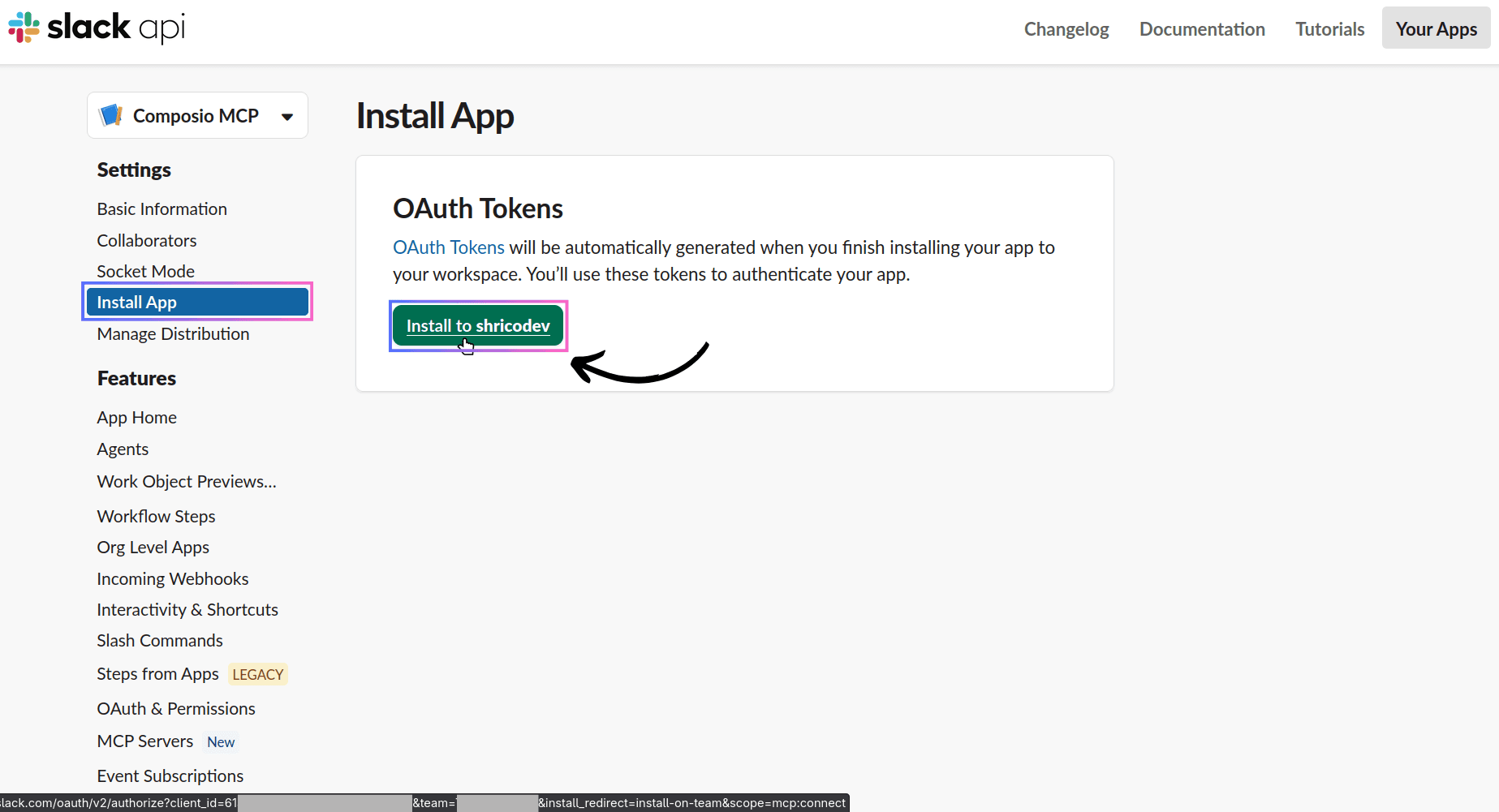
If your workspace requires approval, send the app request to your admin.
Step 3: Connect Composio inside Slackbot
Once your Slack app is installed and approved, open a DM with Slackbot.
Then just type a prompt that requires the app; Slack will automatically use the correct app for you.
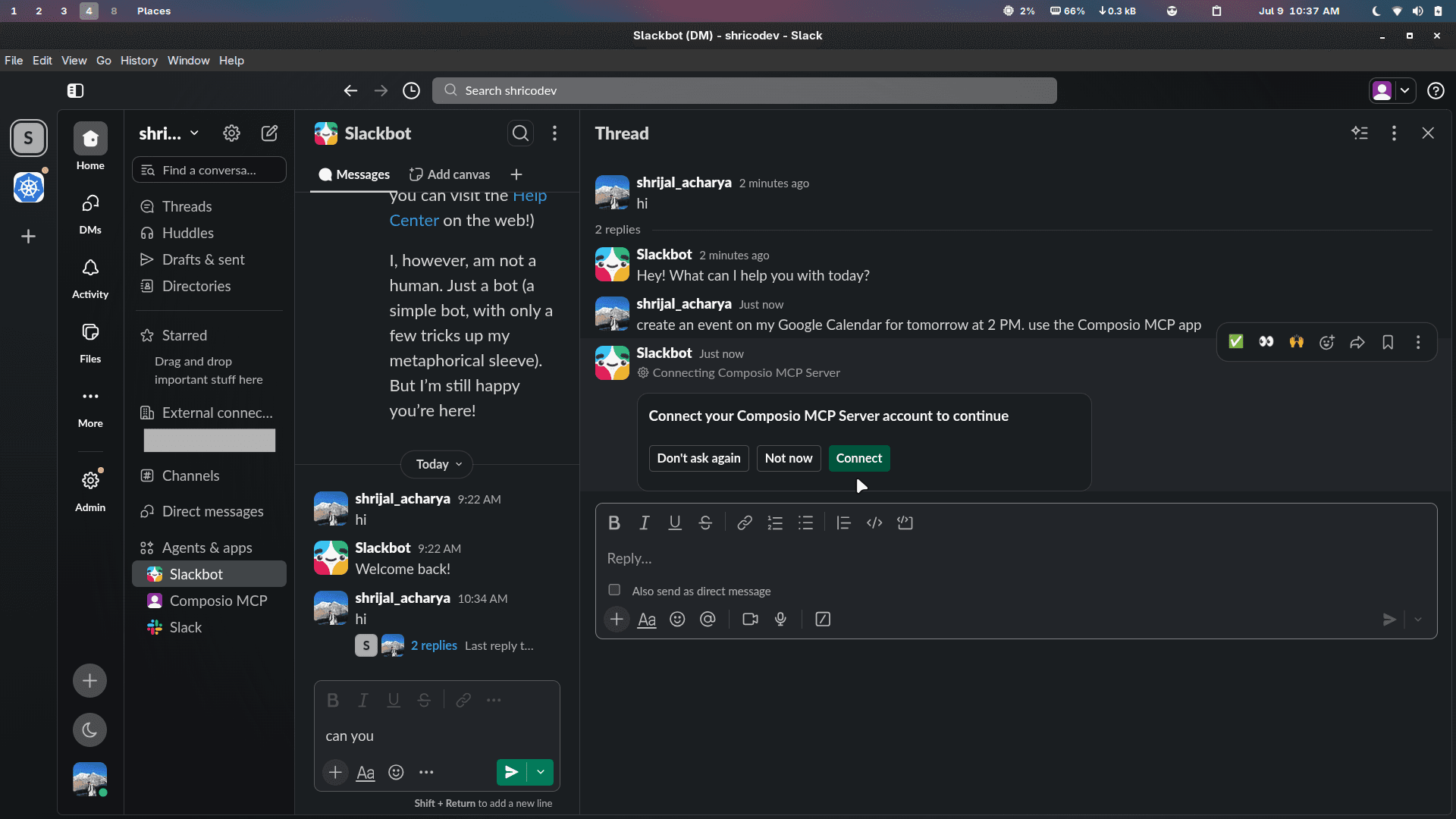
Click Connect, and you’ll be taken to a confirmation page.
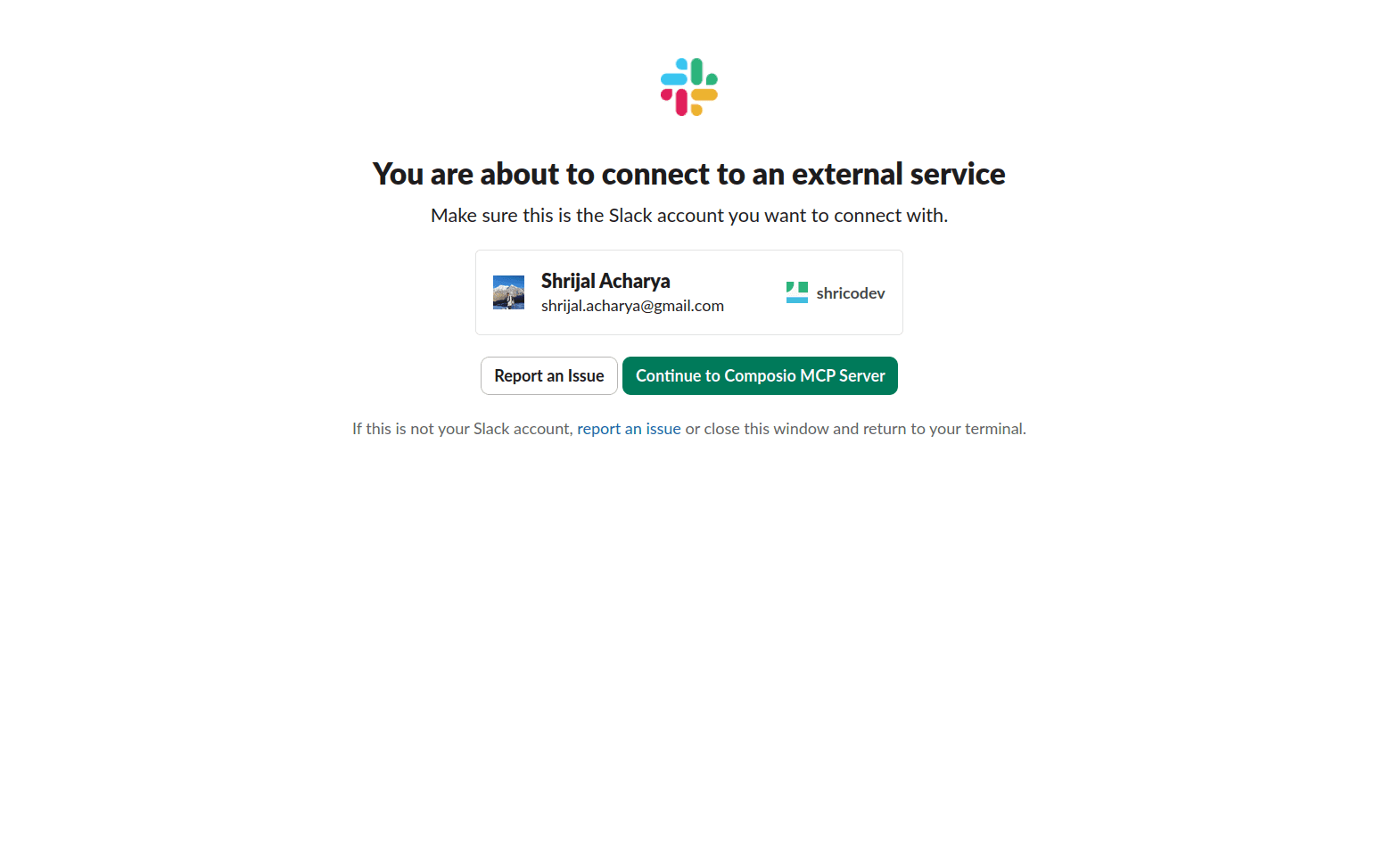
Click on Continue, and then confirm it on the Composio end.
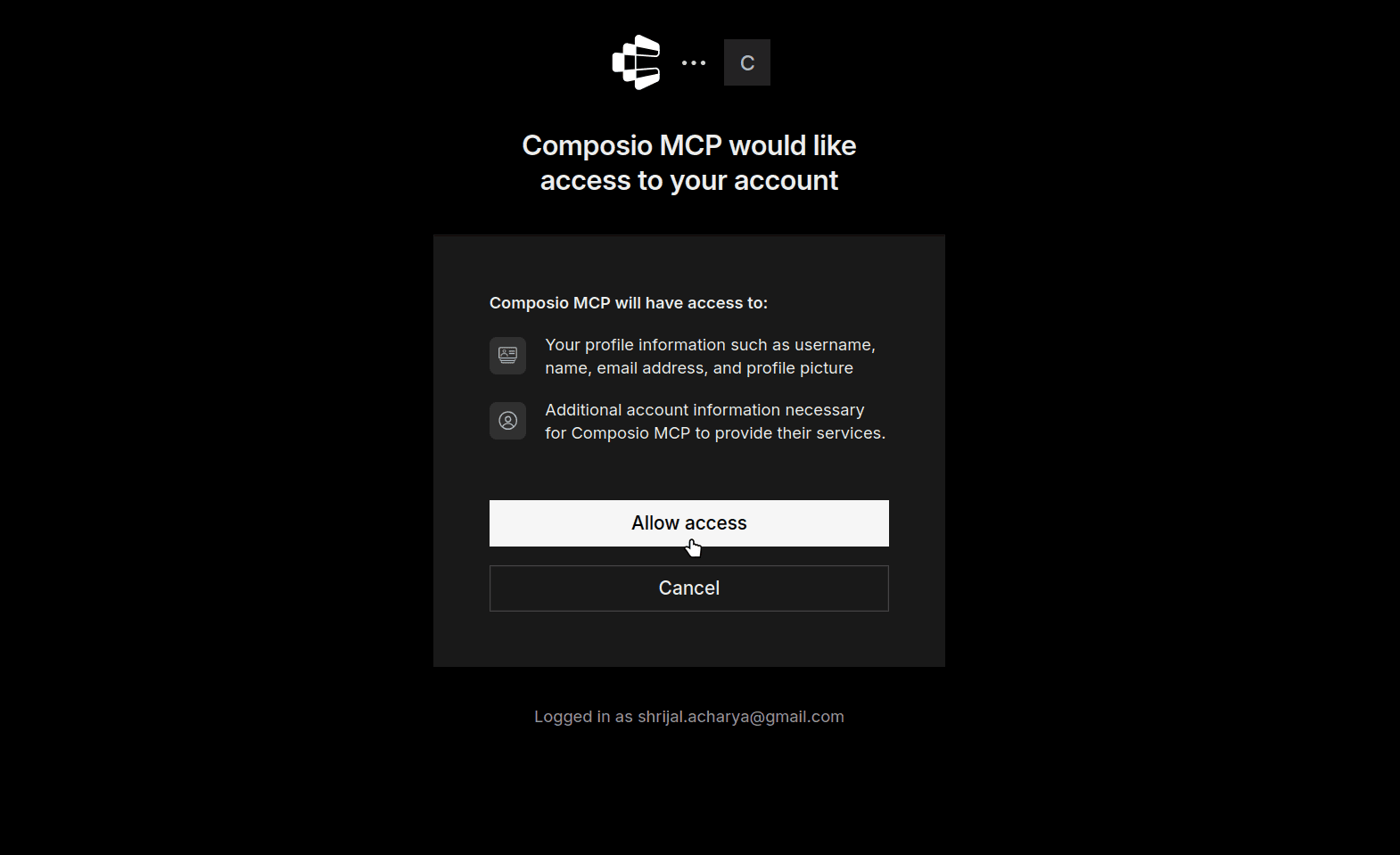
If everything went well, you should see that your account is connected.

After that, Slackbot should be able to discover Composio’s MCP tools.
Start with a simpler test:
What tools are available from Composio?Once that goes through, now try an actual app action.
For example:
Send a mail to x@y.com saying 'Hi, from Composio 👋 inside Slackbot'If Gmail is not yet connected, Composio should generate an OAuth link to connect it. Once you approve it, the connection persists for future use. So, you don't have to repeat this step again and again.

Slackbot may ask you to approve the action before it writes data to another app.
That's expected. Once connected, Slackbot can use that app through Composio.
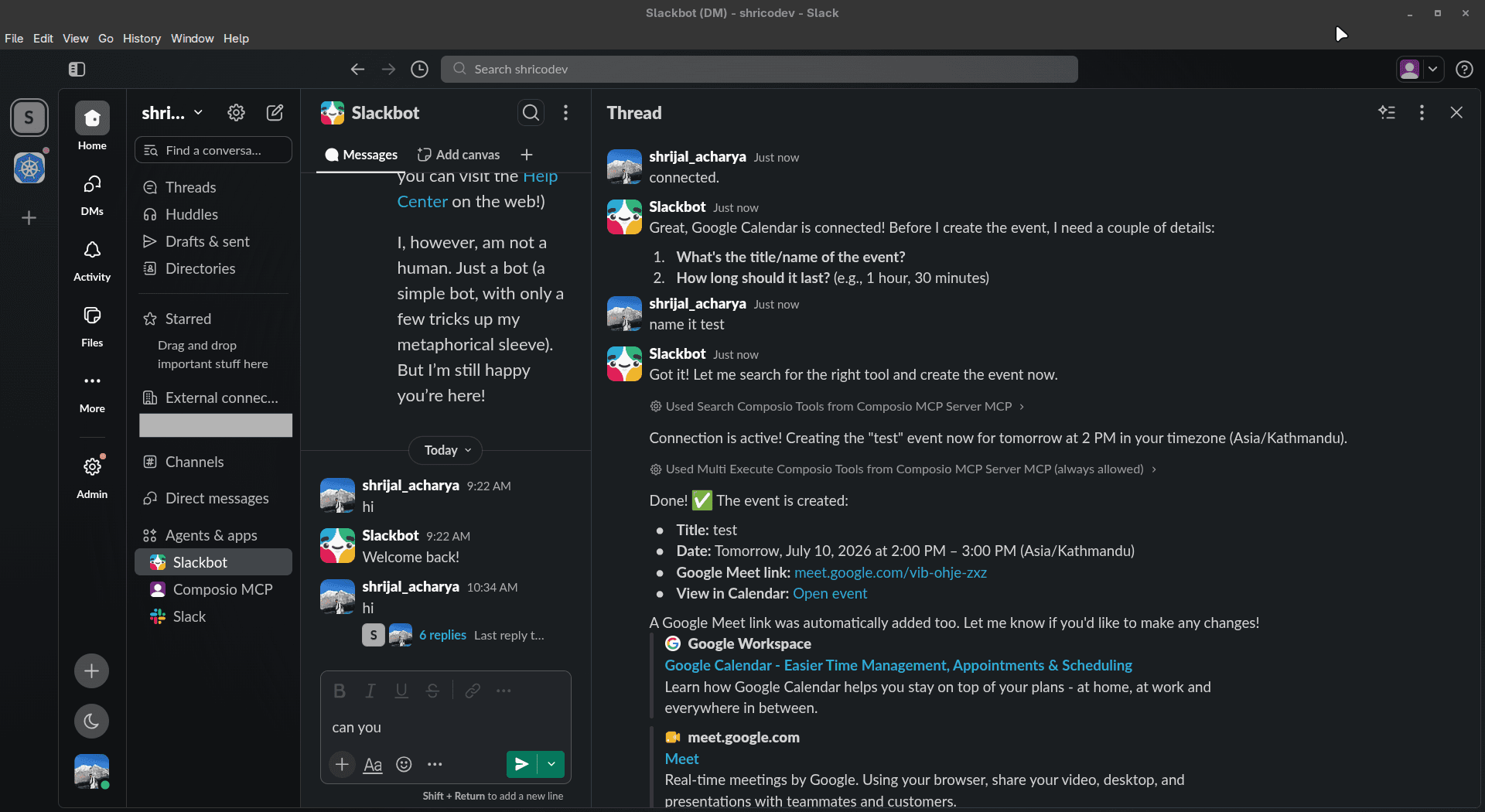
Voilà, you've successfully connected Slackbot to Composio MCP. 🎊
Here’s a quick workflow for initiating a connection and running an actual app action:
Final Thoughts
Slack's own marketplace is good, and if it covers all the tools you need, you can stick with it.
But for some of you, that's simply not enough. I hope this helps overcome that problem.
So instead of jumping between different tools, you can ask Slackbot to find information, create tasks, update records, and run actions across your apps from inside Slack.
This is a much-needed quality-of-life improvement for teams that already live in Slack.
Slackbot gives you the interface. MCP gives you the protocol.
And Composio gives you the app layer. 👌

 Get started



