




TL;DR
Jira MCP lets Claude Code read and write your Jira tickets from the terminal, using plain language instead of the Jira UI.
There are two routes. Atlassian's official remote MCP server connects Jira and Confluence only. Composio Connect covers Jira alongside 1,000 other apps through one connection.
Setup takes a single command or a couple of clicks, plus a browser sign-in. No local server to run and no config file to hand-edit.
Once connected you can create issues, bulk-create, comment, transition status, assign work and query sprints by asking for them.
Most setup failures come from three things: a stale cached credential, the wrong transport, or a deprecated endpoint. All three are fixable in under a minute.
As a developer, I just get mad when I have to manage my projects manually. When I first started juggling multiple projects, things were okay at first, but as the workload grew, so did the time I spent updating tickets, searching for status reports, and clarifying project requirements. I often found myself wishing for a smarter way to bridge the gap between project management and the development process, where I could simply ask an AI agent to handle the tedious tasks for me.
And if you're working in a team, you may face the same problem.
So… what if we could just ask an AI agent to handle project management while we focus on the things that actually matter?
In this article, I'll show you how to connect Jira MCP to Claude Code for effortless project management. We will cover both ways to do it, the tools you get once it is connected, the prompts that actually work, and the errors people hit most often.
What is the Model Context Protocol?
Think of MCP as a bridge that connects all your SaaS tools to your AI agent. It acts like an adapter, enabling your AI agent (client) to understand and interact with your tools.
According to Anthropic (the team behind Claude and MCP):
“MCP is an open protocol that standardizes how applications provide context to LLMs…”
What is Jira MCP?
Jira MCP is a layer that enables AI agents to interact with Jira. It allows your agent to perform actions like creating issues, updating tickets, managing sprints, and more by translating natural language into structured API calls.
In practice that means you stop context-switching. Instead of leaving your editor, opening a board, finding the ticket and typing into a form, you describe what you want in the terminal where you are already working, and Claude Code makes the call for you.
Which Jira MCP server should you use?
There is more than one way to give Claude Code access to Jira, and they are not interchangeable. Pick based on how many tools you need to connect, not just on Jira.
Option | What it connects | Hosting | Best for |
|---|---|---|---|
Atlassian Rovo MCP Server (official) | Jira, Confluence, Jira Service Management, Bitbucket, Compass | Remote, hosted by Atlassian | Teams who only need Atlassian products in Claude Code |
Composio Connect | Jira plus 1,000+ other apps through one connection | Remote, fully managed | Teams whose agent also needs GitHub, Slack, Linear, Notion and the rest |
Community servers (for example mcp-atlassian) | Jira and Confluence, Cloud plus Server and Data Center | Self-hosted, you run it | Self-hosted Jira, or teams who need to modify the server |
If Jira is the only thing your agent will ever touch, the official Atlassian server is the shortest path, and we cover it below. The moment you want the same agent to also open a pull request or post to Slack, running one connection through Composio Connect beats maintaining a separate server per tool.
What can you do with Jira MCP?
If you're working in an Agile team, Jira MCP can simplify many of your workflows. These are the tool calls your agent has available once the connection is live:
Tool | What it does | Ask for it like this |
|---|---|---|
JIRA_CREATE_ISSUE | Creates a single issue in a project | "Create a bug in PROJ for the broken login redirect" |
JIRA_BULK_CREATE_ISSUE | Creates several issues in one call | "Create sub-tasks in PROJ for each item in this list" |
JIRA_ADD_COMMENT | Adds a comment to an existing issue | "Comment on PROJ-412 that the fix is on staging" |
JIRA_ASSIGN_ISSUE | Assigns an issue to a user | "Assign PROJ-412 to me" |
JIRA_GET_PROJECTS | Lists the projects you can access | "Which Jira projects can you see?" |
JIRA_LIST_SPRINTS | Lists sprints on a board | "What is in the current sprint on board 67?" |
Available tools differ slightly by server. The official Atlassian server also exposes Confluence and Bitbucket tools, and community servers vary. Check the tool list for whichever route you pick.
What’s covered
How to connect Jira with Claude Code
How to manage Jira tickets using natural language
How to automate common project management tasks
How to fix the errors that stop the connection working
Connect Jira to Claude Code with Composio
We’ll be using the following tools:
With Composio Connect, you no longer need to configure MCP servers manually or run CLI commands. The same connection also covers the other apps your agent needs, which is the reason to pick this route over a Jira-only server.
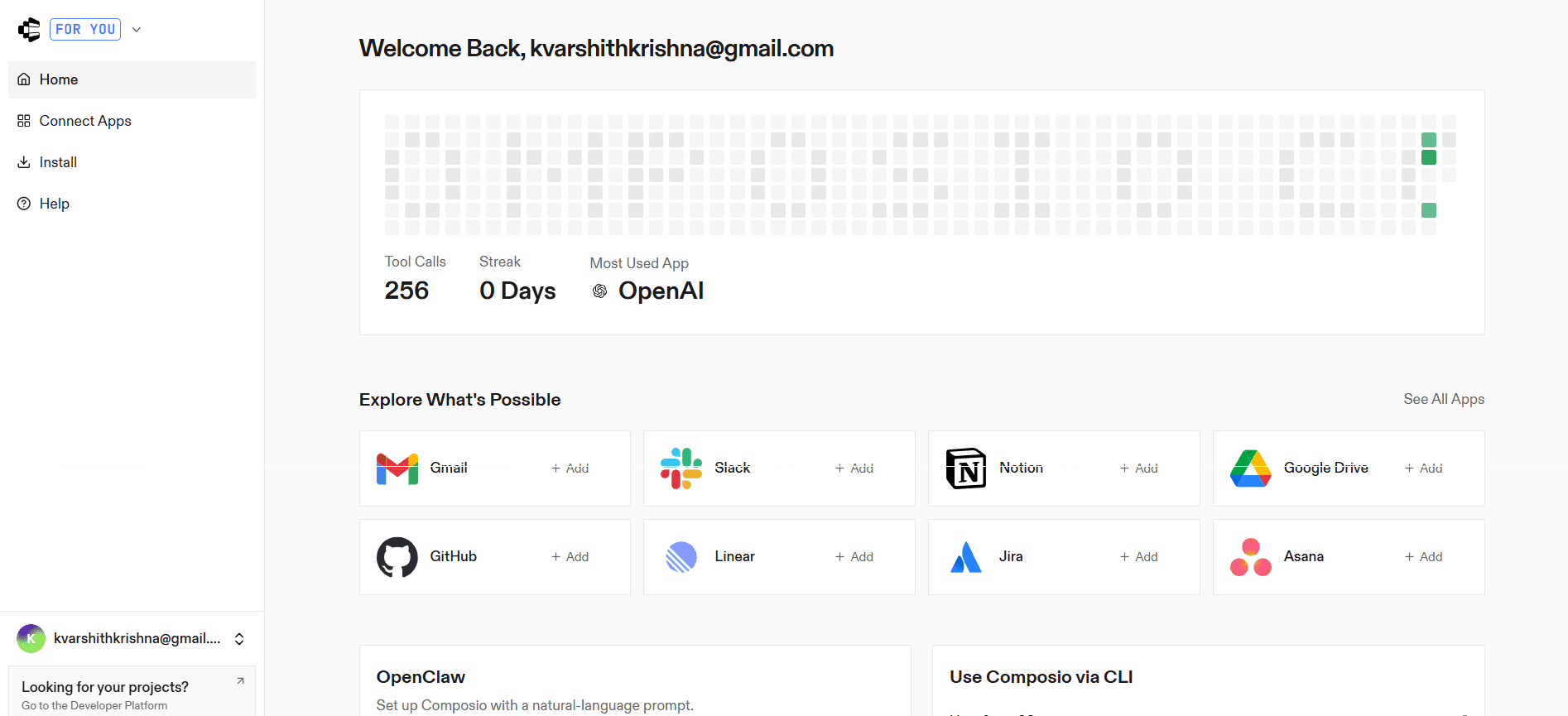
Step 1: Open Composio Connect
Go to: https://connect.composio.dev/
Step 2: Enable Jira integration
Search for Jira
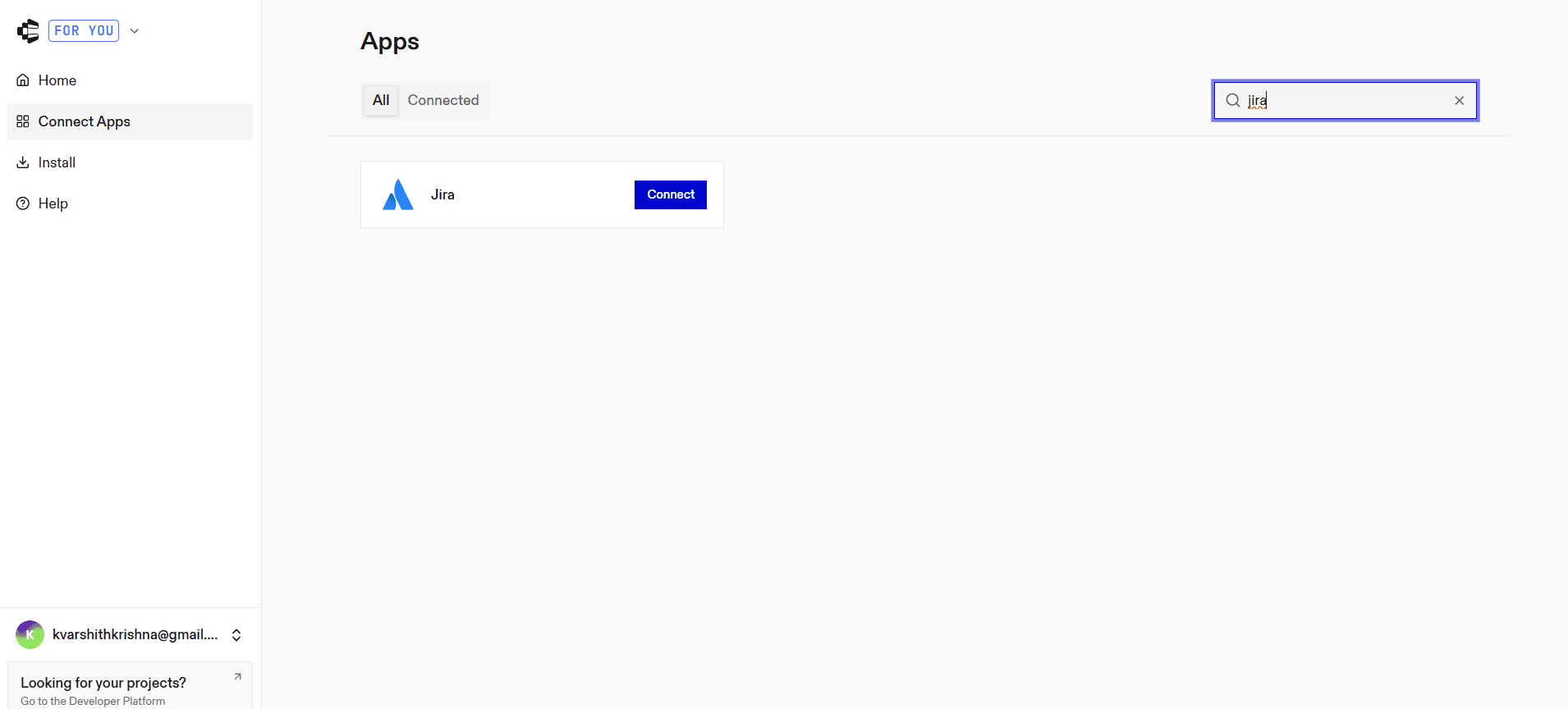
Click Integrate
Authenticate your Jira account
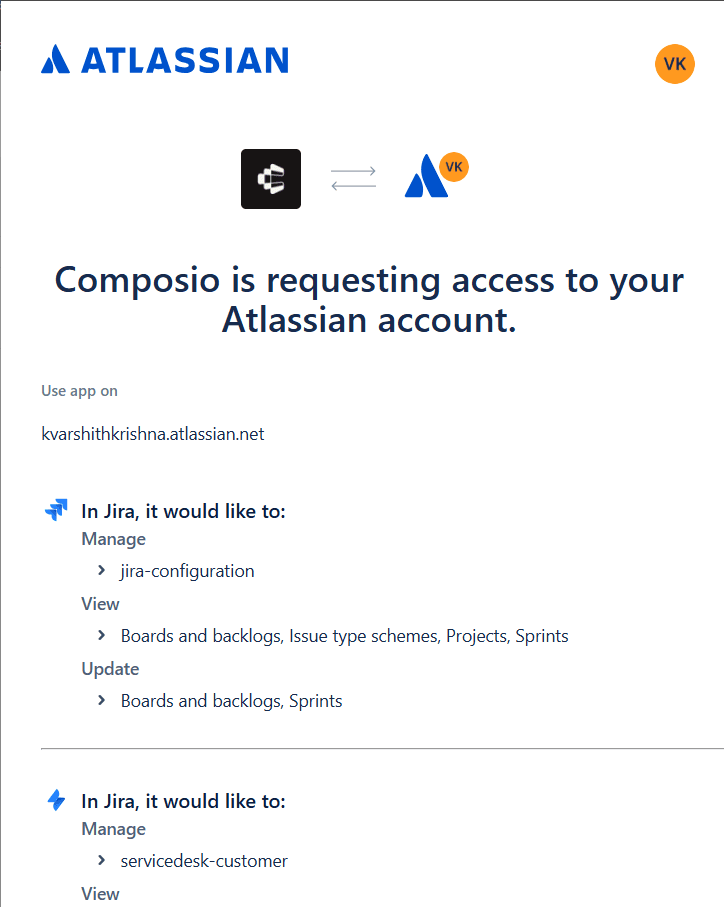
With Composio Connect, the MCP layer is fully managed and hosted, and is accessed via authentication (OAuth or API key), so no local setup is required.
Step 3: Add the MCP server
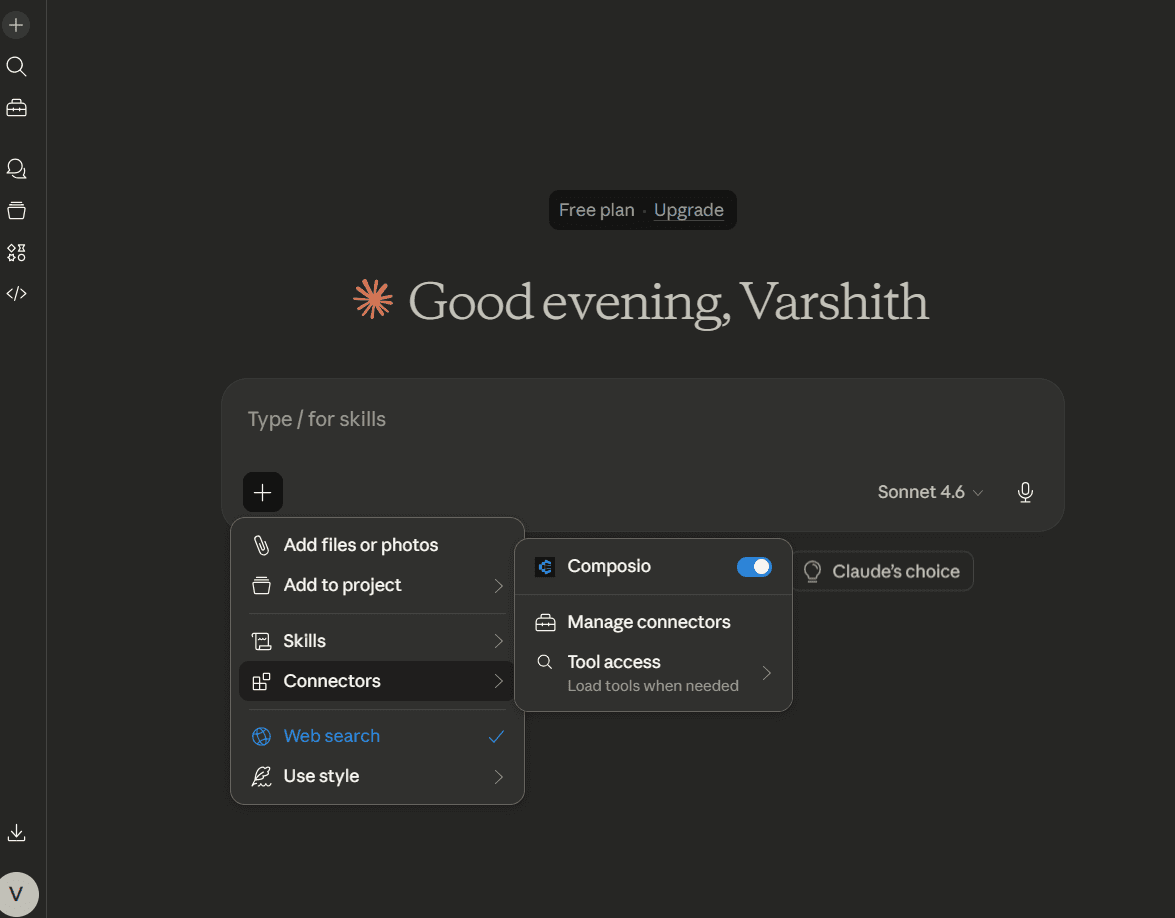
In Claude Code, add the Composio Connect endpoint and then run /mcp to authenticate.
Using Claude Desktop instead? Open Claude Desktop, go to Settings, select Connectors, click Add custom connector and enter the same URL. The rest of this guide works identically once the connection is live.
The endpoint is https://connect.composio.dev/mcp.
This connects Claude to all applications linked through Composio.
Step 4: Authorize access
A browser window will open. Sign in to your Composio account and approve the connection. Once completed, the integration becomes active.
Managing Jira tickets with Claude Code
Once your Jira integration is connected via Composio Connect, you can start managing your Jira tickets directly using Claude Code.
For example, you can prompt:
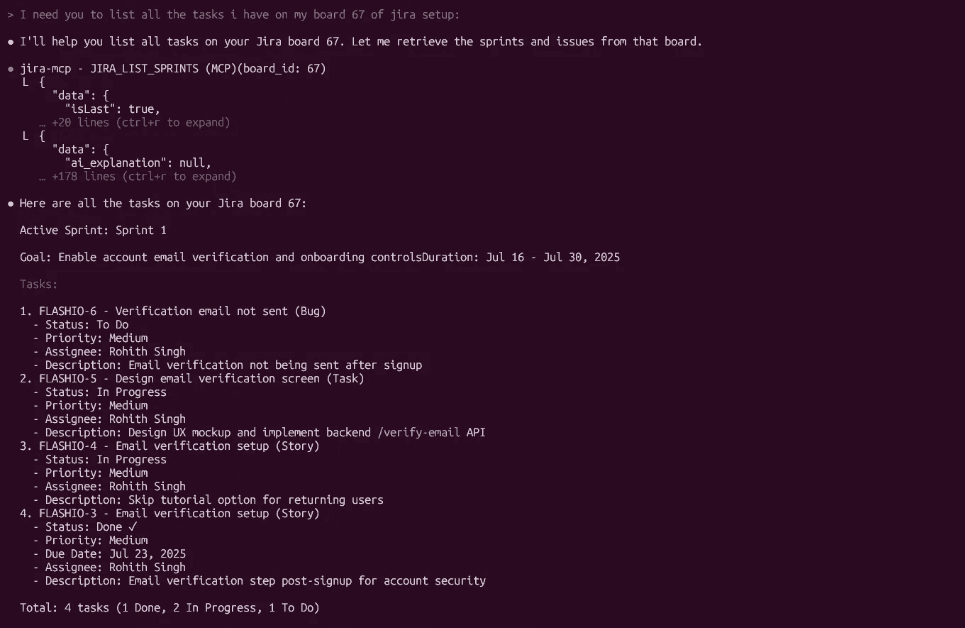
“List all tasks in my Jira board”
“Create a new task for fixing login issues”
“Update the status of task XYZ to In Progress”
“Add a comment to issue ABC”
Claude will automatically handle the interaction with Jira and return structured results.
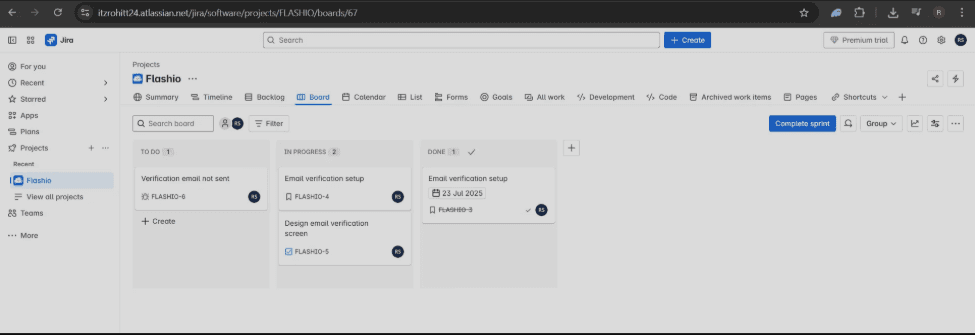
Prompt:
I need you to list all the tasks I have on my board 67 of Jira setup.
A few prompts that do more than list tickets:
Turn a spec into work. "Read this file and create a Jira epic with one sub-task per requirement in PROJ."
Close the loop after a commit. "I just pushed the fix for PROJ-412. Move it to In Review and comment with the branch name."
Triage a sprint. "List everything in the current sprint on board 67 that has been open more than five days and is unassigned."
Write the standup. "Summarize what changed on my Jira issues since yesterday."
One habit worth forming: name the project key. Claude Code will guess when you leave it out, and on a large Jira instance it guesses wrong.
Troubleshooting common Jira MCP errors
The server authenticates but never connects
Usually a cached credential from an earlier connection. Remove the server, clear the cached client ID or .well-known credentials for the endpoint, then add it again and re-authenticate.
Connection fails with the sse transport
Atlassian retired the https://mcp.atlassian.com/v1/sse endpoint on 30 June 2026. If you copied a command using --transport sse, switch to the HTTP endpoint at https://mcp.atlassian.com/v2/mcp.
Claude cannot see your project
Check the account you authorized actually has access to that project, and name the project key explicitly in the prompt. Permissions are inherited from the Jira user you signed in as, so the agent can never see more than you can.
The tools are listed but the calls fail
Run /mcp to confirm the session is still authenticated. Tokens expire, and a session started before the token refreshed will list tools it can no longer call.
Frequently asked questions
Does Jira have an MCP server?
Yes. Atlassian ships an official one, the Rovo MCP Server, which went generally available in February 2026. It covers Jira, Confluence, Jira Service Management, Bitbucket and Compass. There are also community servers and managed options such as Composio Connect.
How do I set up Jira MCP and Claude Code?
Add the MCP server to Claude Code, then authenticate in the browser. With the official Atlassian server that is one terminal command followed by /mcp. With Composio Connect you enable the Jira integration in the dashboard and add the Composio endpoint. Either way there is nothing to install locally.
Can Claude connect to Atlassian?
Yes, through MCP. Claude Code, Claude Desktop and Claude on the web can all reach Jira and Confluence once an MCP server is connected and authorized.
What can Jira MCP actually do?
Create issues, bulk-create issues, comment, assign, transition status, list projects and query sprints, all from natural language. It works within the permissions of the Jira account you authenticated with, so it cannot reach anything you could not reach yourself.
Do I need to self-host a Jira MCP server?
No. Both the official Atlassian server and Composio Connect are remote and hosted, so there is nothing to run. Self-hosting only matters if you are on Jira Server or Data Center, or you need to modify the server yourself.
Conclusion
Managing Jira projects manually can be time-consuming and repetitive. With an MCP server connected, you can eliminate manual setup and drive Jira directly from Claude Code.
By simply connecting your account and authenticating, you can automate project management tasks and focus on what truly matters, building and shipping faster.
If your agent needs more than Jira, Composio Connect puts Jira and 1,000 other apps behind a single connection, so you are not maintaining a separate MCP server for every tool your team uses

 Get started



