




Airtable is a great app for tracking projects, tasks, collaboration, CRM, inventory management, and more. It keeps things clear and organised. But what if you don’t have to navigate the dashboards to get things done and do things from a single Chat interface?
Airtable MCP makes it possible. It connects your base to tools that understand your tables and fields. You can fetch records, update values, and generate summaries using real data.
In this post, you will see how to set up Airtable MCP with Claude or Cursor and use it to manage updates, track work, and speed things up.
What is MCP?
Think of MCP as a bridge that connects all your SaaS tools to your AI agent. It acts like an adapter, enabling your AI agent (Client) to understand and interact with your tools.
According to Anthropic (the team behind Claude and MCP),
“MCP is an open protocol that standardizes how applications provide context to LLMs. Think of MCP like a USB-C port for AI applications. Just as USB-C provides a standardized way to connect your devices to various peripherals and accessories, MCP provides a standardized way to connect AI models to different data sources and tools.”
credits: modelcontextprotocol.io
For more, check out this detailed post or the MCP components: MCP Explained
What is Airtable MCP
Airtable MCP is a secure connection between your Airtable workspace and tools like Claude and Cursor. It lets large language models interact with your Airtable data directly via a defined set of supported actions.
Once connected, these tools can do much more than just look at your data; they can actually work with it.
What can you do with Airtable MCP?
Read from your base: They can list records, pull details from tables, check field values, and even understand the base structure.
Create new content: You can ask them to create tables, fields, records, or even leave comments on existing entries.
Update records: They can change task statuses, fill in missing fields, or batch-update rows across your base.
Delete what you do not need: They can remove records, clear comments, or delete multiple rows at once, if you want them to.
Understand how your base is built: They can fetch the schema and get a sense of your setup, so you do not need to explain every column in your prompt.
With this setup, your Airtable becomes more than a place to store data. It becomes something your tools can actually understand and help you manage, using real structure.\
🛠 Setting Up Airtable MCP with Claude
Claude Cowork is Anthropic’s desktop-based AI system designed to handle multi-step knowledge work. It connects to local files and external tools, enabling it to complete end-to-end tasks. Airtable integration happens through Composio using a guided flow, so setup stays simple and direct.
Prerequisites
Claude Desktop: Install it from claude.ai/download. Cowork is available inside the app alongside Chat and Code.
Claude Pro or Max plan: Required to access Cowork; higher limits are available in Max.
Composio account: Create an account at dashboard.composio.dev to manage integrations
Airtable account: Required to connect and access your bases and records
Step 1: Link Airtable in Composio
Log in to your Composio dashboard: https://dashboard.composio.dev/
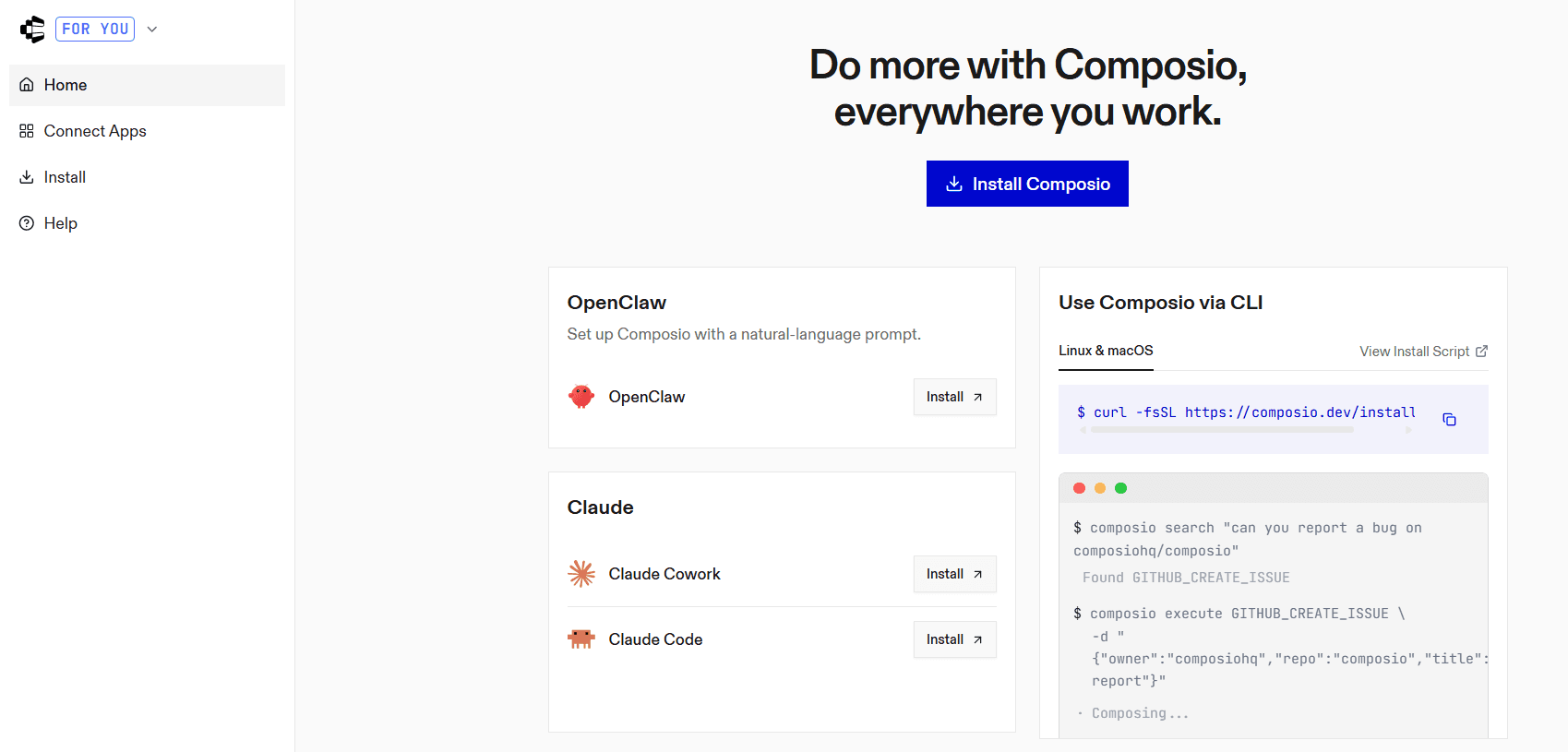
Open Connect Apps from the sidebar
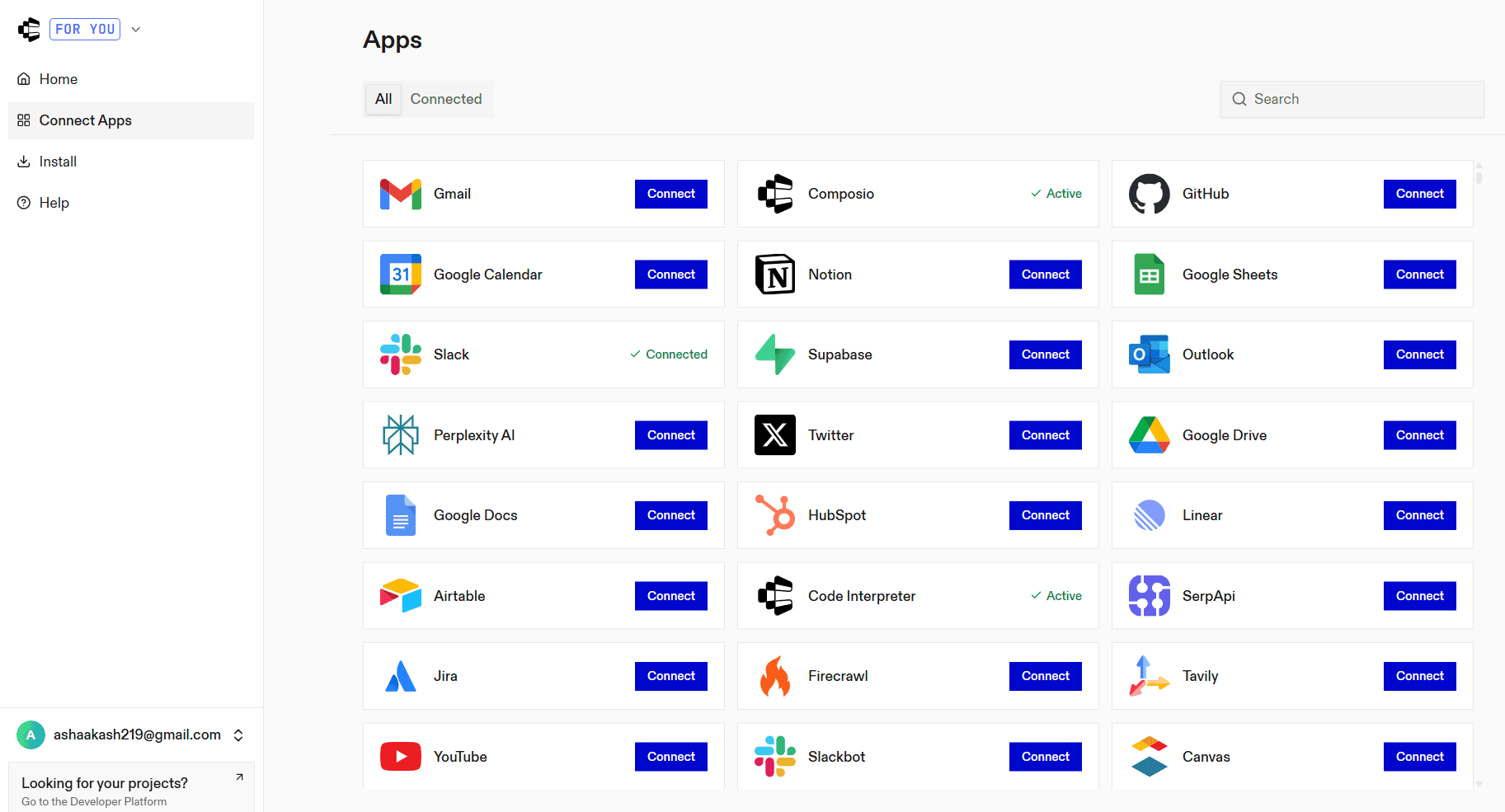
Search for Airtable and select it
Complete the authentication process to grant access to your Airtable workspace
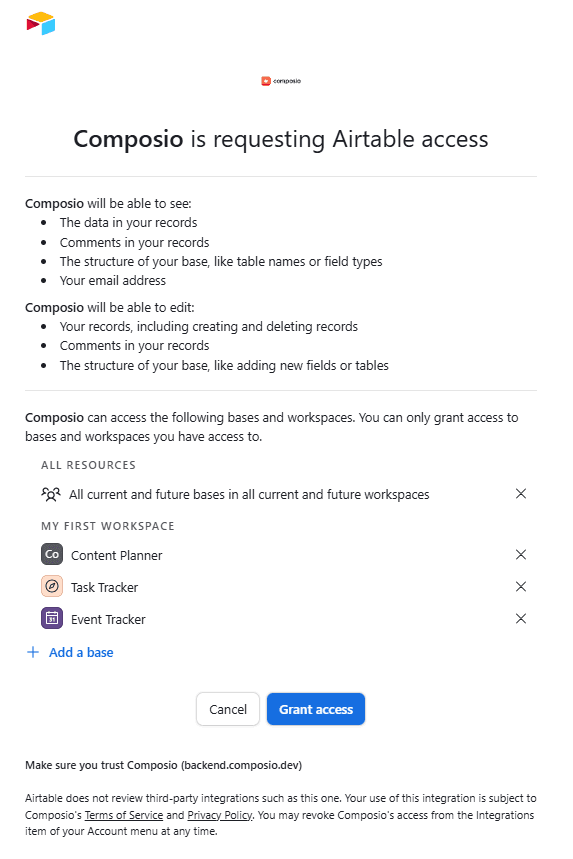
Airtable will then appear in your list of connected apps.
Step 2: Open Connectors in Claude Desktop
Launch Claude Desktop
Go to Settings
Select Connectors
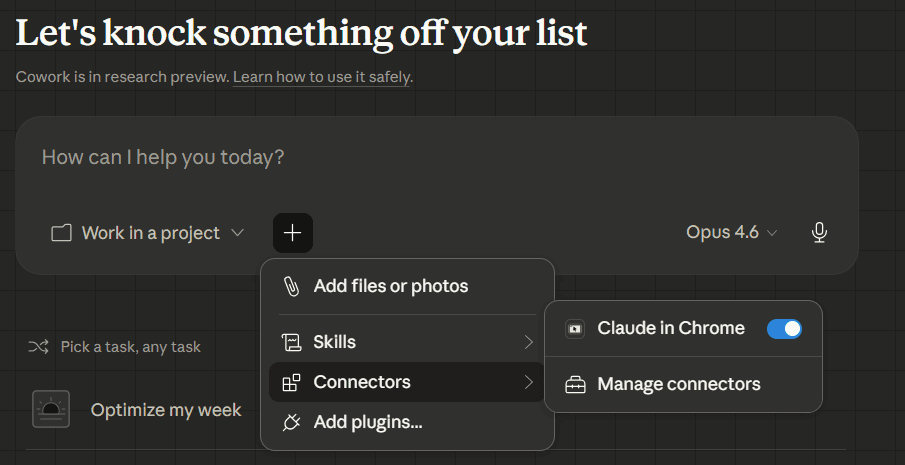
Step 3: Add the MCP server
Click Add custom connector
Enter the URL:
https://connect.composio.dev/mcp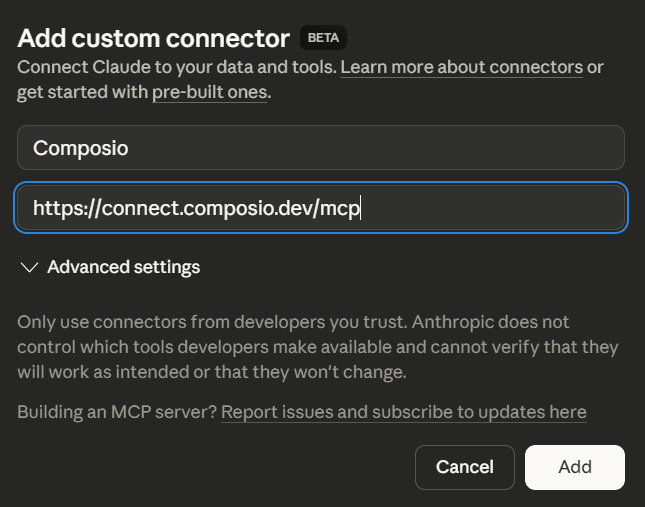
This connects Claude to all applications linked through Composio.
Step 4: Authorise access
A browser window will open. Sign in to your Composio account and approve the connection. Once completed, the integration becomes active.
Step 5: Start using Airtable in Claude
Airtable is now available within Claude Cowork. You can query records, update fields, create new entries, and analyse data directly using live base information.
Use Case: View and Filter Bases Without Leaving Your Workflow
When working across different projects, it can be hard to remember which Airtable base holds what. With Airtable MCP connected, you can ask Claude or Cursor to list all your bases, filter them by name, and get the base IDs you need. Everything stays in one place, so you can keep your focus.
Prompt Example
Show me all Airtable bases I have access to and highlight the ones with "content" in the name. Include their base IDs.
🔧 What Happens Behind the Scenes
When you run this prompt, the tool uses the List Bases action from Airtable MCP. It fetches all bases linked to your account, reads their names, and passes them to the model so it can sort or filter them based on your request.
▶️ Watch It in Action
This video shows how Claude or Cursor lists your Airtable bases using live data and helps you select the one you need, all from inside the prompt.
Summary
Airtable MCP gives Claude direct access to your bases, so they can actually work with the data. You can list records, update fields, create tables, or even pull schema details to help the model understand what it is looking at.
With a quick setup through Composio, your Airtable workspace becomes something your tools can use in real time. No more copying rows or explaining columns. Once connected, Claude can help you review updates, track work, and make smarter decisions, right from your existing Airtable setup.
FAQs
1. What can Claude do with Airtable after the connection?
Claude can read records, update fields, create new entries, and analyse data across bases using live Airtable information.
2. How does Claude access Airtable data securely?
Access is managed through Composio authentication, which ensures Claude only interacts with the data you have permitted.
3. Can Claude work across multiple Airtable bases?
Yes. Once connected, Claude can query and operate across different bases depending on your access permissions.
4. Do changes made by Claude reflect instantly in Airtable?
Yes. Any updates or new records created are applied directly to your Airtable workspace in real time.
5. Is this setup useful for team workflows or only individual use?
It supports both. Teams can manage shared data and workflows, while individuals can automate personal tracking and updates.

 Get started



