




Linear with CC
In my previous posts, I showed how I used Claude with Composio to skip dashboards and manage tools like Neon and Supabase directly from the terminal.
This time, let’s talk about Linear.
Linear is already fast and developer-friendly, but even then, opening the UI every time to create issues, assign tasks, or update statuses can break your flow.
So instead, I connected Linear with Claude Code using Composio.
Now, I can manage my entire Linear workspace using simple prompts, no UI, no context switching.
What is MCP?
This time, let’s briefly explain MCPs with a use-case lens:
Think of MCPs as a way to turn APIs into something that Claude can “understand” and “use”, like plugging tools into some AI Agent’s brain.
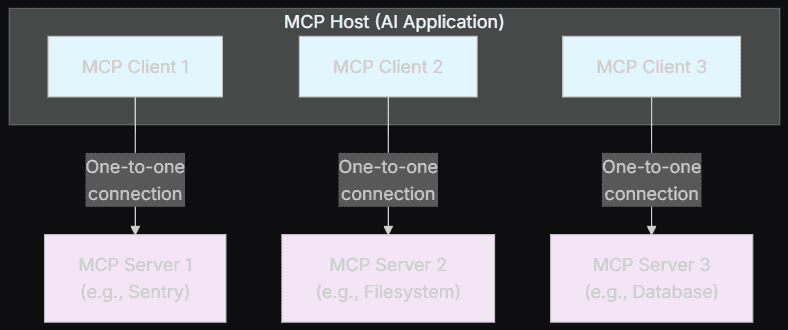
For more background information, refer to my Jira blog or Anthropic’s MCP overview. Also, check out Airtable and the Asana MCP server.
What can a Linear MCP Server do?
Let’s say you’re in a flow, ideating or writing code, and you suddenly think:
“I should create a bug ticket and assign it to someone in the frontend team.”
With Linear MCP and Claude, you type:
“Create a bug in the Payments project called “Fix refund edge case crash” and assign it to @alex.”
… and it’s done.
No switching tabs. No forms, no remembering project IDs.
Things you can do with Linear MCP Server:
Create issues using
LINEAR_CREATE_LINEAR_ISSUEUpdate issue status, title, and priority with
LINEAR_UPDATE_ISSUEDelete issues when no longer relevant using
LINEAR_DELETE_LINEAR_ISSUEFetch issue details on demand with
LINEAR_GET_LINEAR_ISSUE
There are many tools available; follow this documentation page.
Why use Composio for this?
If you connect directly to Linear’s API, you’d have to handle:
OAuth flows or API tokens
Session and token management
API updates and tool definitions
Composio handles all of that for you.
It acts as an integration layer that manages authentication and tool access, so you can just connect Linear and start prompting.
What we’ll cover
What Linear MCP is and how it works
How to connect Linear with Claude Code
How to automate issue tracking using prompts
Set up using Composio Connect (Recommended)
With the new setup, you no longer need to configure MCP servers manually or run CLI commands.
Step 1: Open Composio Connect
Go to: https://connect.composio.dev/
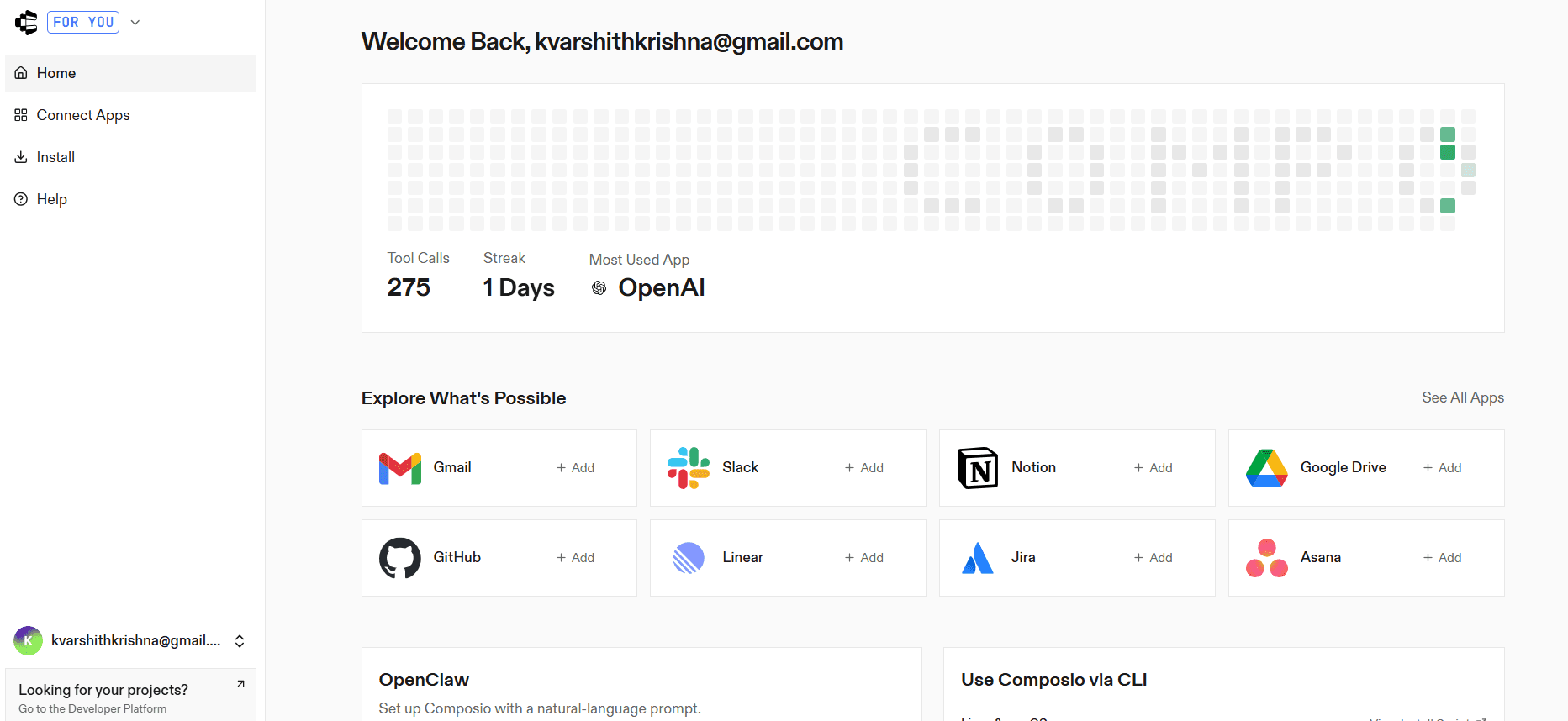
Step 2: Enable Linear Integration
Search for Linear
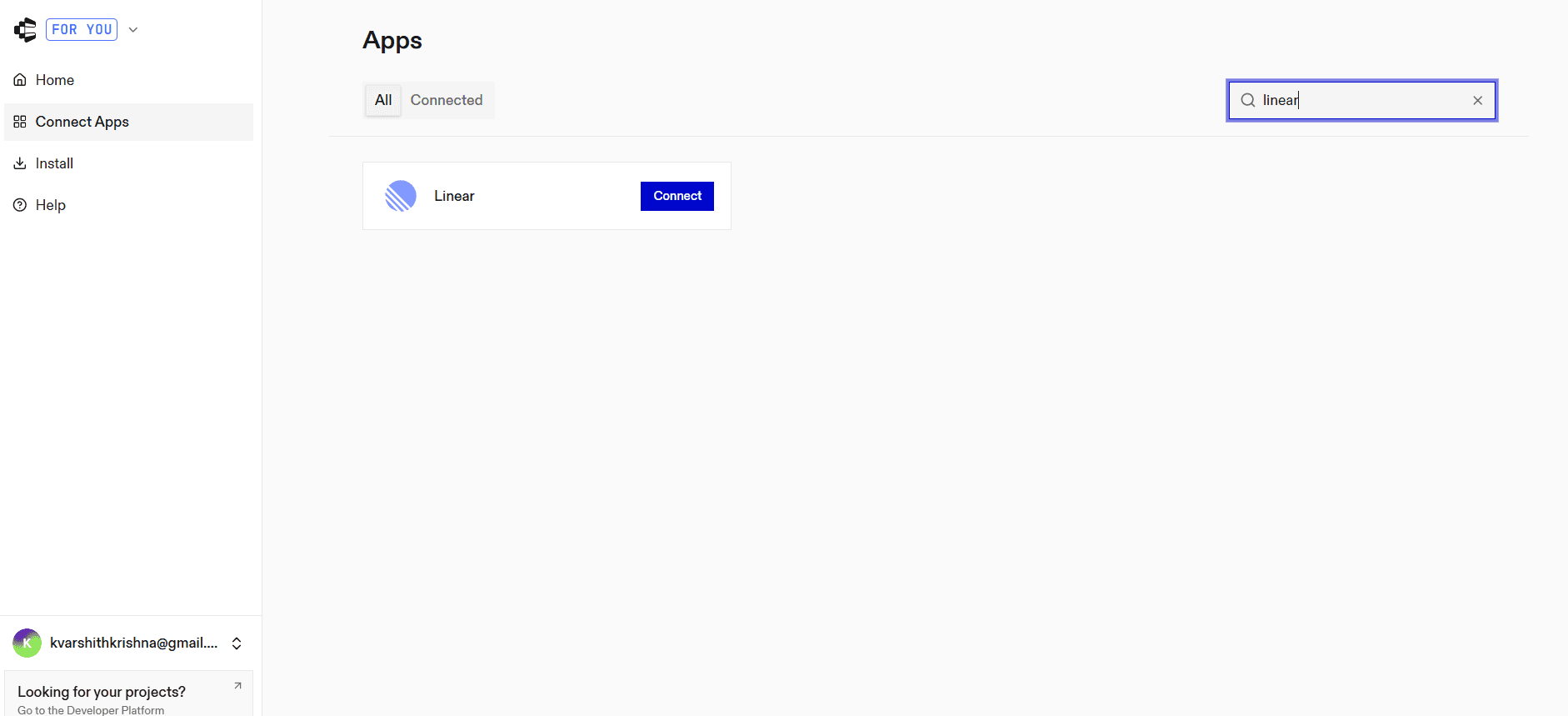
Click Integrate
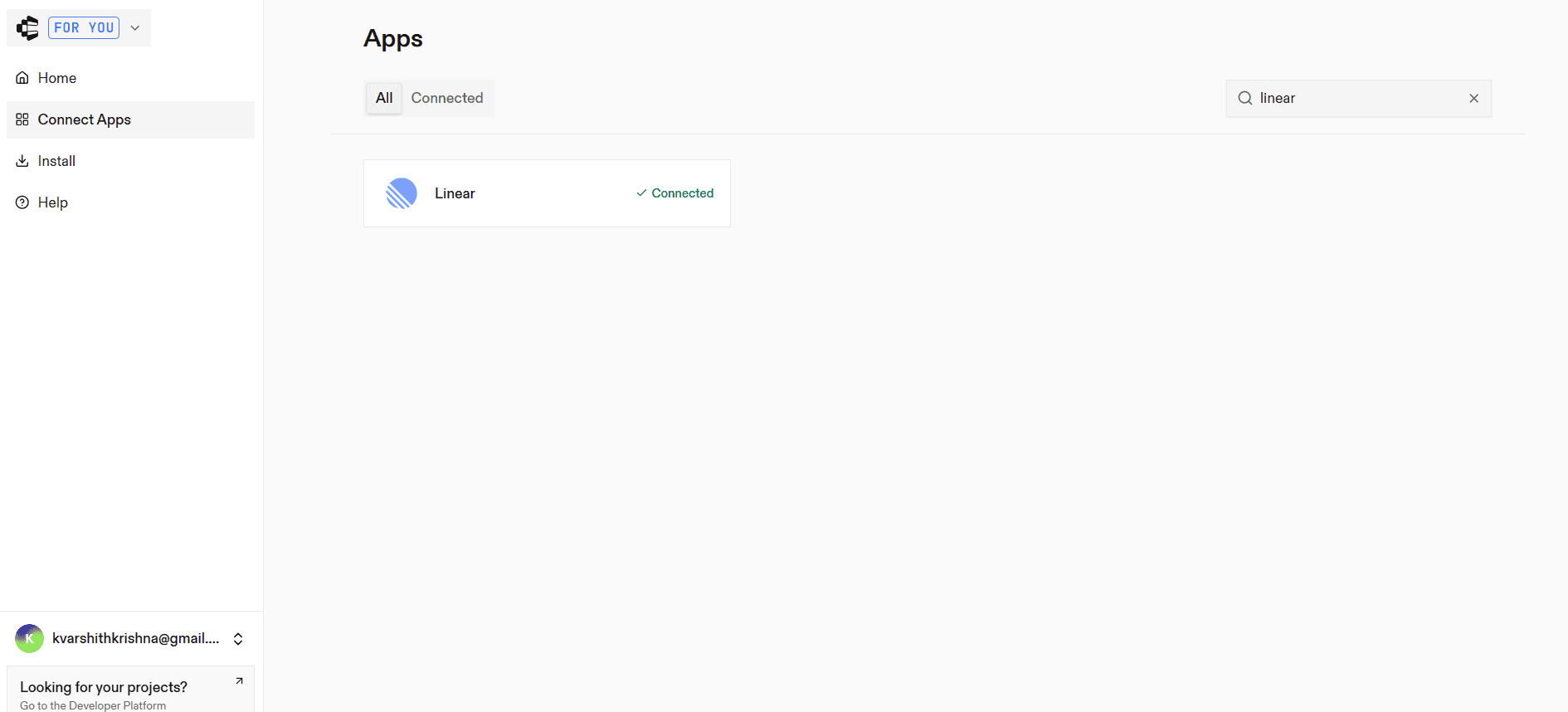
Authenticate your Linear account
Once connected, your integration is ready to use.
Open Connectors in Claude Desktop
Launch Claude Desktop
Go to Settings
Select Connectors
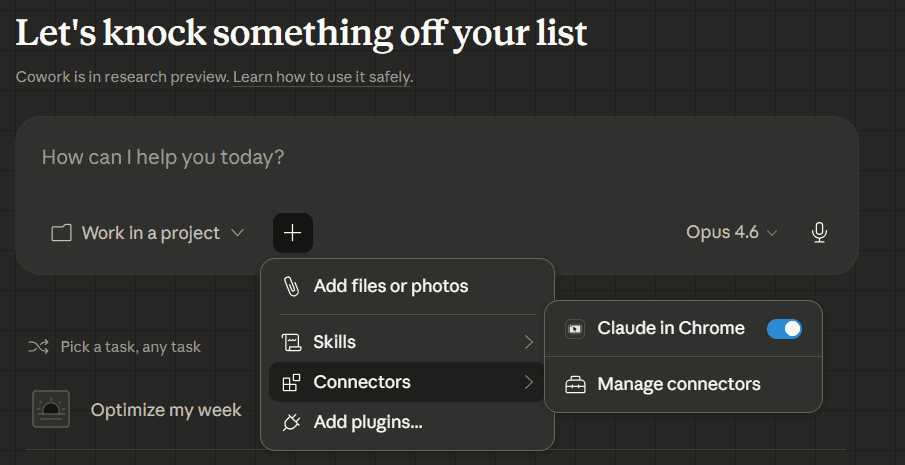
Step 3: Add the MCP server
Click Add custom connector
Enter the URL:
https://connect.composio.dev/mcp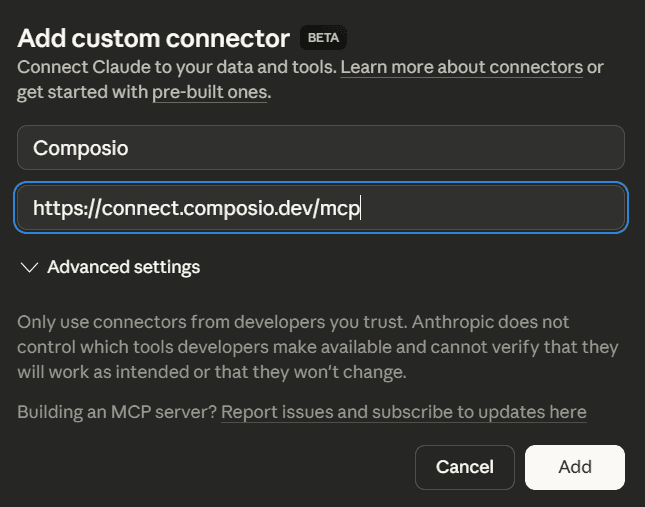
This connects Claude to all applications linked through Composio.
Step 4: Authorise access
A browser window will open. Sign in to your Composio account and approve the connection. Once completed, the integration becomes active.
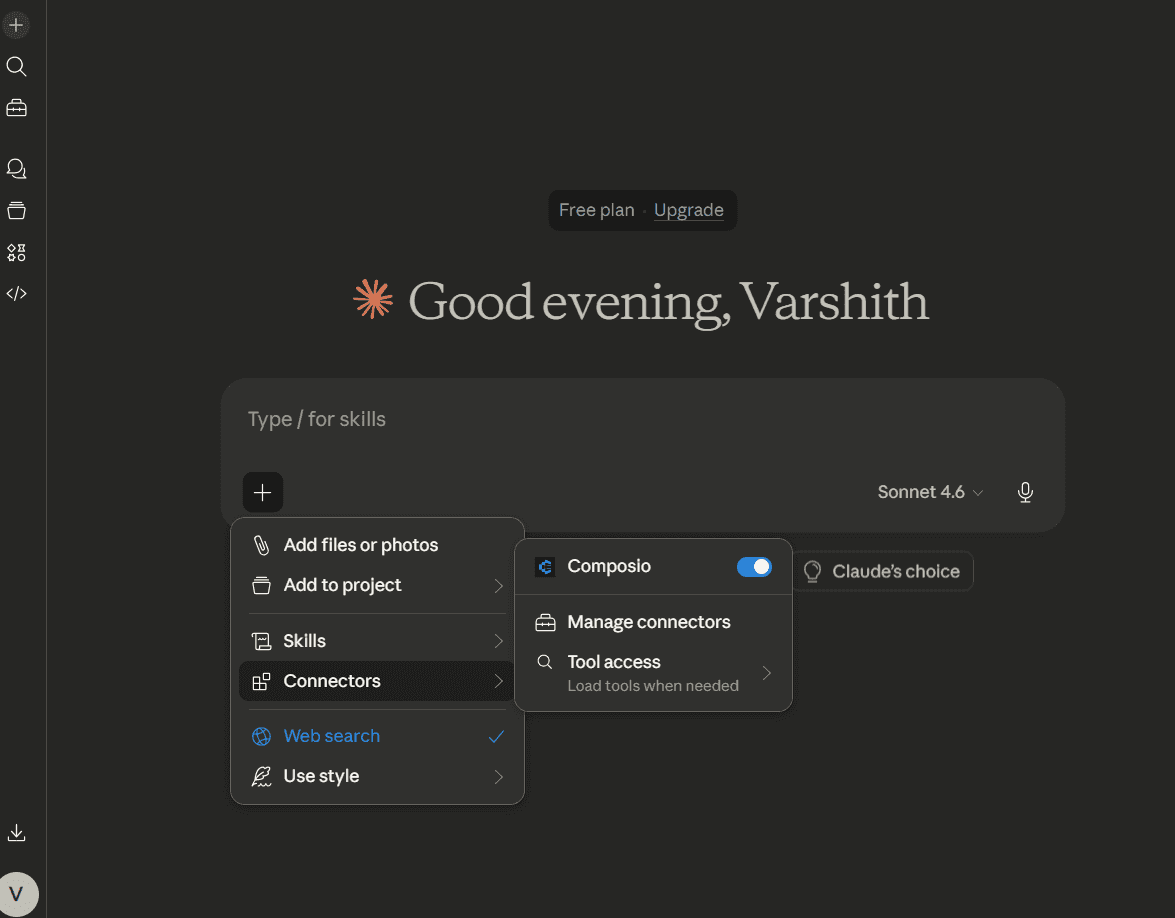
Using Linear with Claude Code
Once your Linear integration is connected via Composio Connect, you can start managing your issues directly using Claude Code.
For example, you can prompt:
“Create a bug in the Billing project with priority High.”
“Assign this issue to Emily and label it urgent.”
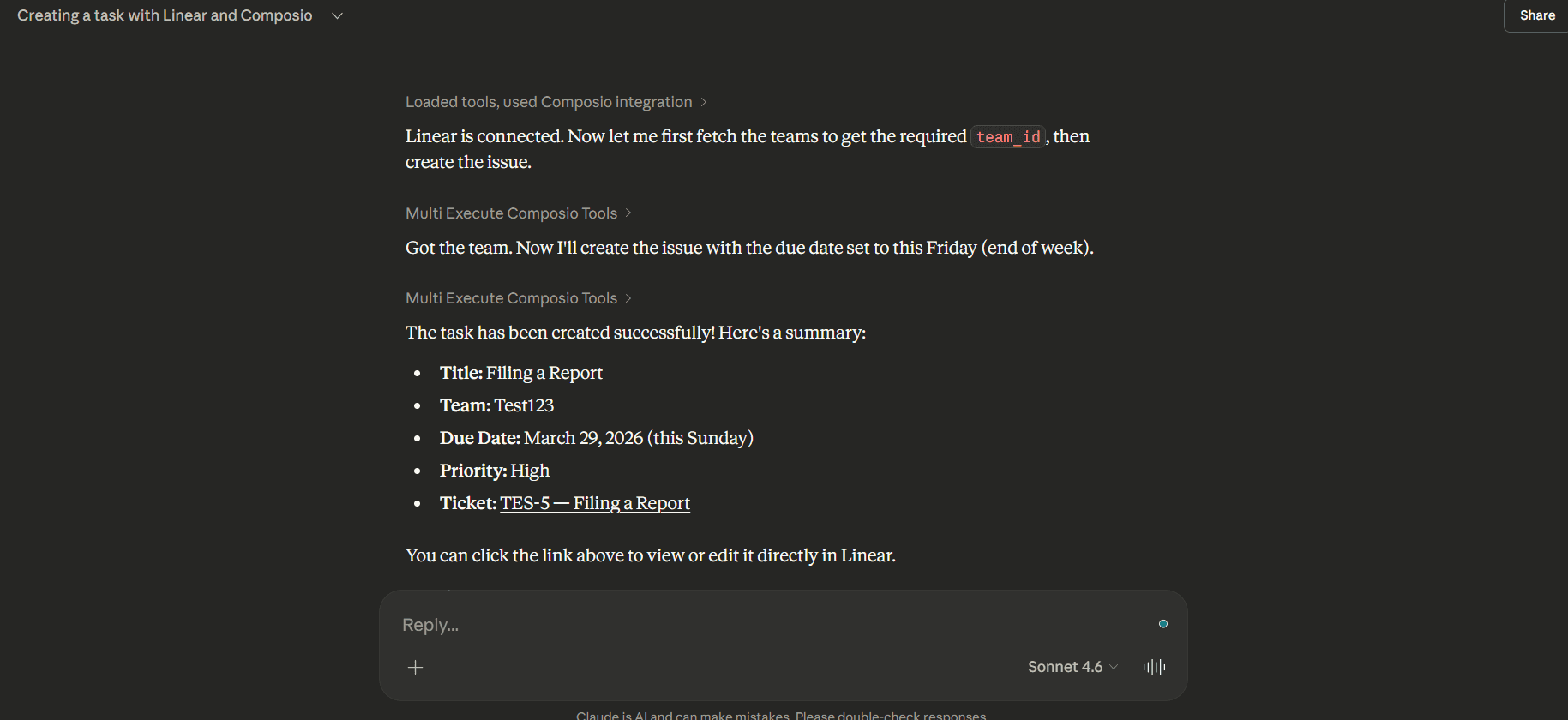
“Create a new task due this week.”
“Update the status of issue XYZ to Done.”
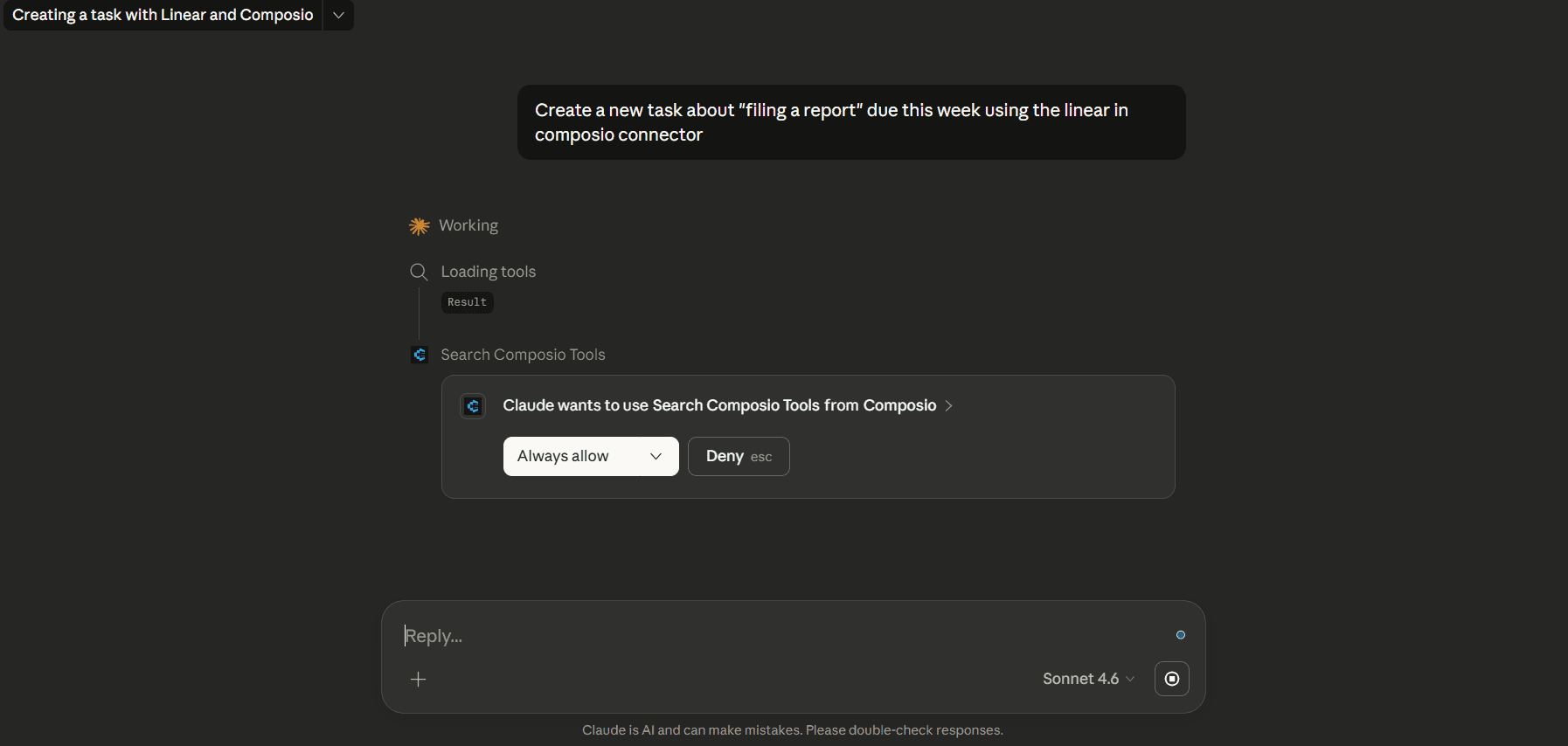
Claude will automatically execute these actions and return structured results.
Conclusion
Linear already provides a great developer experience, but combining it with Claude Code and Composio makes it even more powerful.
With Composio Connect, you can skip manual setup entirely and start managing your issues using natural language.
This lets you stay focused, move faster, and automate repetitive project management tasks effortlessly.

 Get started



