




When I first set up MCP servers, I installed everything. I added GitHub, Postgres, a browser, two doc servers, and a few others I never used. Then I asked my agent to rename a variable, and it took much longer than it should have. I removed most of the servers that day.
I learned one thing from this: more servers don't make your agent better, and they can slow it down.
OpenCode has built-in MCP support. You can connect local servers running on your machine or remote servers via a URL. These servers give OpenCode access to external tools, documentation, browsers, databases, and other services.
You also need to know how to turn off servers and control which agents can use their tools. I show you how to do both later in this article. All configs in this article use the V2 format. V2 is in beta, and it runs as opencode2. If you use V1, ask OpenCode to migrate your config, or check the migration guide.
Below are the 12 MCP servers that I think are the most useful in OpenCode in 2026.
TL;DR
Here is the full list, one line per server.
Composio MCP: OpenCode gets access to 1,500+ apps. Composio manages the sign-in for each app, and it loads tools only when OpenCode needs them.
Context7: OpenCode gets the current docs and code examples for the library version that you use.
Grep by Vercel: OpenCode searches public GitHub repositories for real code examples.
Playwright MCP: OpenCode controls and tests real browsers, and it reads each page through accessibility data.
Chrome DevTools MCP: OpenCode reads console output, network requests, and performance traces from Chrome.
Figma Dev Mode MCP: OpenCode gets design context from Figma, so it can turn a design into code.
Filesystem MCP: OpenCode reads and writes files in folders outside your project, but only in the folders that you allow.
Memory MCP: OpenCode stores facts in a knowledge graph and reuses them in later sessions.
Sequential Thinking MCP: OpenCode breaks a hard task into steps and can change a step when it finds a problem.
Git MCP: OpenCode examines and changes your local Git working tree.
Kubernetes MCP: OpenCode does Kubernetes and Helm operations within the limits that you set.
Docker MCP Gateway: OpenCode runs MCP servers in isolated containers, and Docker manages their secrets and lifecycle.
You do not need all 12. I suggest starting with Composio and Context7. After that, add a server only when it solves a real problem in your workflow.
For more on OpenCode’s extension ecosystem, see OpenCode Plugins and OpenCode Skills.
How MCP Servers Work With OpenCode
OpenCode reads MCP servers from the mcp.servers section of your config. You can keep this config in your project as opencode.json or opencode.jsonc, or keep shared servers in:
~/.config/opencode/opencode.jsonOpenCode supports two server types.
A local server runs a command on your machine:
{
  "$schema": "https://opencode.ai/config.json",
  "mcp": {
    "servers": {
      "chrome-devtools": {
        "type": "local",
        "command": ["npx", "-y", "chrome-devtools-mcp@latest"]
      }
    }
  }
}
The command is an array containing the executable and its arguments. Other agents may use separate command and args fields, so you cannot always copy their config into OpenCode as it is.
A remote server connects through an MCP endpoint:
{
  "$schema": "https://opencode.ai/config.json",
  "mcp": {
    "servers": {
      "context7": {
        "type": "remote",
        "url": "<https://mcp.context7.com/mcp>"
      }
    }
  }
}
OpenCode handles OAuth for compatible remote servers. If a server needs sign-in, open OpenCode, run /mcps, select the server, and complete authentication.
You can also start the sign-in manually:
opencode2 mcp auth <server-name>To see your MCP servers and their connection status, run:
opencode2 mcp listIf a remote server fails to connect, run /mcps to check its status and retry authentication. You can also reset stored OAuth credentials before signing in again:
opencode2 mcp logout <server-name>
opencode2 mcp auth <server-name>
You can add a remote server directly from your terminal:
opencode2 mcp add context7 --url <https://mcp.context7.com/mcp>This adds the server to your project configuration. To make it available across projects, add --global:
opencode2 mcp add context7 --global --url <https://mcp.context7.com/mcp>For a local server, pass its command after --:
opencode2 mcp add everything -- npx -y @modelcontextprotocol/server-everythingKeep your context small
This matters more than any single MCP server on this list.
OpenCode v2 uses Code Mode by default for MCP servers. Instead of exposing every MCP tool individually to the model, it groups them behind a code execution interface.
This reduces tool-definition overhead, but connected servers can still provide instructions, resources, and tool results that consume context. You should keep only the integrations you need and control which agents can access them.
There are three ways to do this.
1. Turn off servers when you do not need them.
Set disabled to true. OpenCode keeps the configuration but does not connect to the server.
{
  "$schema": "https://opencode.ai/config.json",
  "mcp": {
    "servers": {
      "playwright": {
        "type": "local",
        "command": ["npx", "-y", "@playwright/mcp@latest"],
        "disabled": true
      }
    }
  }
}
Remove disabled or set it to false to enable the server again.
2. Restrict MCP tools globally.
OpenCode names MCP tools using the server name followed by the tool name. You can use wildcard patterns to deny access to all tools from a particular server.
{
  "$schema": "https://opencode.ai/config.json",
  "permissions": [
    {
      "action": "playwright_*",
      "resource": "*",
      "effect": "deny"
    }
  ]
}
This restricts access to matching tools without disconnecting the server.
3. Allow MCP tools for one agent only.
You can deny a server's tools globally and allow them for a specific agent using an agent-level permission override.
{
  "$schema": "https://opencode.ai/config.json",
  "mcp": {
    "servers": {
      "playwright": {
        "type": "local",
        "command": ["npx", "-y", "@playwright/mcp@latest"]
      }
    }
  },
  "permissions": [
    {
      "action": "playwright_*",
      "resource": "*",
      "effect": "deny"
    }
  ],
  "agents": {
    "frontend": {
      "description": "Frontend development and browser testing",
      "mode": "subagent",
      "permissions": [
        {
          "action": "playwright_*",
          "resource": "*",
          "effect": "allow"
        }
      ]
    }
  }
}
Now your frontend agent can use the matching Playwright tools, while other agents remain restricted by the global rule.
OpenCode applies agent-specific permissions after global permissions, so the agent's allow rule takes precedence. The MCP server can remain connected, but only agents with the right permissions can use its tools.
For servers that use Code Mode, you can also control access to the execute action. If you want a server's tools exposed individually instead, set codemode to false in that server's configuration. Keep the default unless you have a specific reason to change it.
Note: These examples use the native OpenCode v2 configuration format as documented on October 16, 2026. OpenCode v2 still supports valid v1 MCP configurations, but the native v2 format uses
mcp.servers,disabled,permissions, andagents. If you are migrating an existing setup, check the official migration guide before changing other configuration fields.
Sources
Best MCP servers for OpenCode in 2026
1. Composio MCP
Connects OpenCode to 1,500+ apps with managed authentication, tool discovery, and multi-app execution.
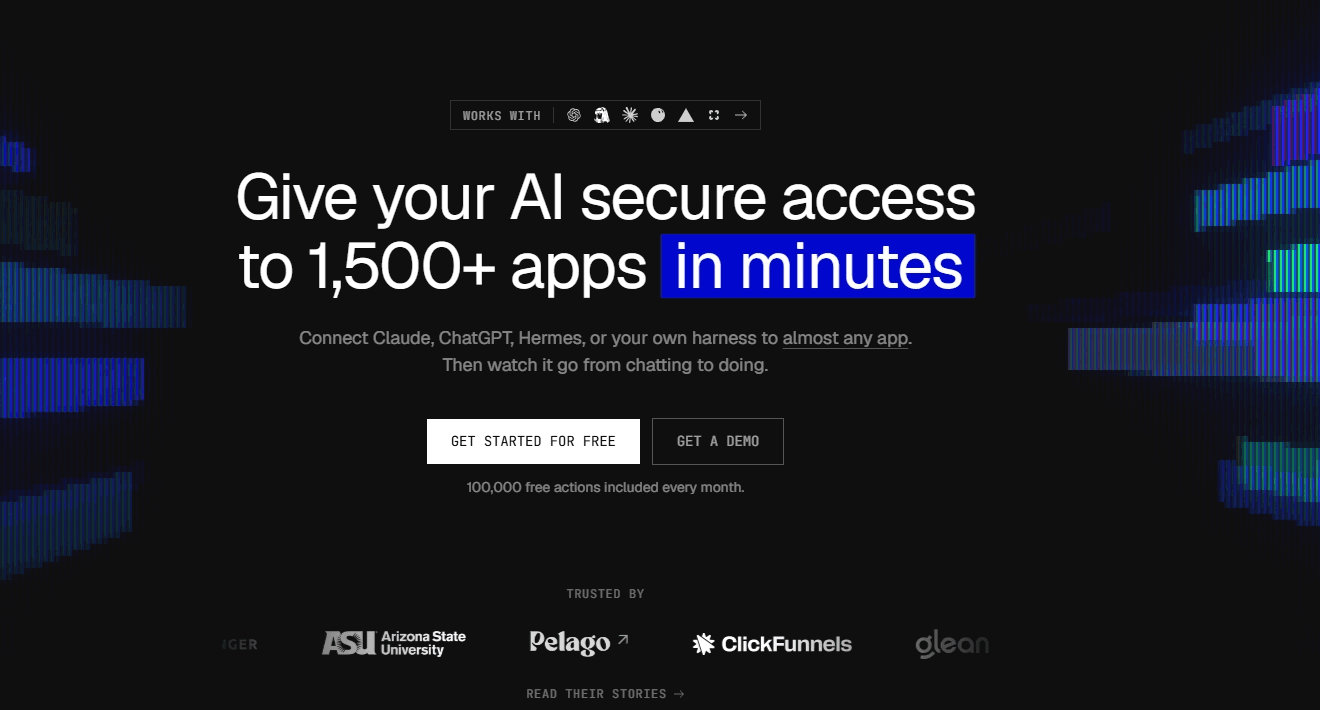
If I set up OpenCode from scratch, I would start with app integrations.
Most developer workflows leave the repository at some point. You need GitHub issues, Figma, Linear tickets, Slack messages, Gmail, Notion docs, Sentry errors, Supabase, Stripe, or another external system.
Composio gives OpenCode one managed way to use all of these services. You don't need a separate MCP server or sign-in for each app.
It also keeps your setup small. A direct GitHub MCP server can add many tool definitions on its own, but Composio finds the tools OpenCode needs when it needs them.
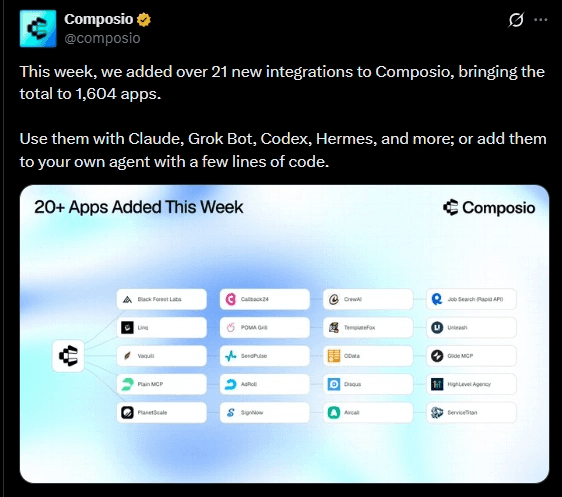
What it does
Connects OpenCode to 1,500+ external apps
Manages OAuth, API keys, refresh tokens, and scopes
Finds the relevant tools when OpenCode needs them
Runs workflows across many tools and apps
Keeps large tool context out of the model context
Works through the CLI or through MCP
Install
You can use the Composio CLI or the MCP server.
For the CLI, install it:
curl -fsSL <https://composio.dev/install> | shThe installer adds composio to your PATH, and it edits your shell startup file. If you do not want that, set COMPOSIO_INSTALL_SHELL=none.
Then log in:
composio loginAfter you sign in, you can use the Composio CLI to search for tools, connect accounts, and run actions. OpenCode can use the CLI through its shell tools.
For the MCP route, add the server from your project:
opencode2 mcp add composio --url <https://connect.composio.dev/mcp>Or add it to your config yourself:
{
  "$schema": "https://opencode.ai/config.json",
  "mcp": {
    "servers": {
      "composio": {
        "type": "remote",
        "url": "https://connect.composio.dev/mcp"
      }
    }
  }
}
Then sign in. Open OpenCode, run /mcps, select composio, and complete the sign-in. You can also start it from the CLI:
opencode2 mcp auth composioThen check the connection:
opencode2 mcp listCheck Composio before you install an app-specific MCP server. If Composio already has a managed toolkit for that app, use it, and you have one less server to maintain.
For a hands-on example, see How to integrate Gmail MCP with OpenCode.
Resources
Documentation: Composio Docs
Toolkits: Composio Toolkits
OpenCode integration: Composio with OpenCode
2. Context7
Gives OpenCode current, version-specific documentation, so it does not rely only on its training data.
This is one of the easiest MCP servers to recommend for coding. It appears in almost every “top MCP servers” list I write, for Claude Code, Codex, Pi, and now OpenCode.
The OpenCode docs also use it as their own example.
Models know a lot about React, Next.js, MongoDB, Cloudflare, Supabase, and thousands of other libraries. The problem is that APIs change quickly.
Context7 pulls the latest docs and examples and adds the relevant parts to the agent’s context. So you can tell OpenCode to check the docs for the version you use, and it doesn't have to guess from its training data.
What it does
Gets current library documentation
Supports version-specific queries
Returns code examples
Resolves libraries into Context7 IDs
Reduces outdated API suggestions
Works through MCP or through its own CLI and skills
Install
The basic remote setup needs no key:
opencode2 mcp add context7 --url <https://mcp.context7.com/mcp>Or in your config:
{
  "$schema": "<https://opencode.ai/config.json>",
  "mcp": {
    "servers": {
      "context7": {
        "type": "remote",
        "url": "<https://mcp.context7.com/mcp>"
      }
    }
  }
}
If you sign up for a free account, you can add an API key and get higher rate limits:
{
  "$schema": "<https://opencode.ai/config.json>",
  "mcp": {
    "servers": {
      "context7": {
        "type": "remote",
        "url": "<https://mcp.context7.com/mcp>",
        "oauth": false,
        "headers": {
          "CONTEXT7_API_KEY": "{env:CONTEXT7_API_KEY}"
        }
      }
    }
  }
}
The {env:...} syntax reads the value from an environment variable, so your key stays out of the file. Set oauth to false when you use a key, because OpenCode V2 tries OAuth on every remote server by default. Context7 also accepts the key as "Authorization": "Bearer {env:CONTEXT7_API_KEY}".
You can also add the key from the CLI:
opencode2 mcp add context7 --url <https://mcp.context7.com/mcp> --header 'CONTEXT7_API_KEY={env:CONTEXT7_API_KEY}'Then add use context7 to your prompt, or add this line to your AGENTS.md:
When you need to search docs, use `context7` tools.⚠️ Context7 docs can include content from the community. The project says it cannot guarantee the accuracy or security of every library entry, so verify anything that affects security.
Resources
GitHub: Context7
Documentation: Context7 MCP Server
Website: Context7
3. Grep by Vercel
Lets OpenCode search real code from public GitHub repositories.

Context7 tells OpenCode what the docs say, and Grep shows OpenCode how real projects use the code.
These two work well together. Docs often show the simple case, while real code shows edge cases, config options, and production patterns.
What it does
Searches code across public GitHub repositories
Finds real usage examples for APIs and libraries
Supports exact and pattern-based searches
Helps when the docs are thin or out of date
Needs no API key
Runs as a remote server, so you install nothing
Install
{
  "$schema": "https://opencode.ai/config.json",
  "mcp": {
    "servers": {
      "gh_grep": {
        "type": "remote",
        "url": "<https://mcp.grep.app>"
      }
    }
  }
}
Then add use the gh_grep tool to your prompt, or add this line to your AGENTS.md:
If you are unsure how to do something, use `gh_grep` to search code examples from GitHub.Public code is not always good code. Use Grep to find patterns, and then check them against the official docs before you trust them.
Resources
4. Playwright MCP
Gives OpenCode repeatable browser automation through structured page data.
If you use OpenCode for frontend work, Playwright MCP is one of the most useful servers on this list.
It controls a real browser and gives the agent the page as accessibility snapshots. The agent can understand elements, forms, buttons, text, and page structure, so it does not have to rely only on screenshots.
This makes it useful for test workflows, where OpenCode must interact with the browser many times and check each result.
What it does
Automates Chromium, Firefox, and WebKit
Reads structured accessibility snapshots
Clicks, types, navigates, and fills forms
Captures screenshots
Supports end-to-end test workflows
Helps agents write or repair browser tests
Install
{
  "$schema": "<https://opencode.ai/config.json>",
  "mcp": {
    "servers": {
      "playwright": {
        "type": "local",
        "command": ["npx", "-y", "@playwright/mcp@latest"]
      }
    }
  }
}
Playwright adds many tools, so it is a good server to allow only for a frontend agent. I show how to do this in the section above.
Use Playwright when OpenCode needs a long browser session and structured page interaction. For simple browser tasks, Microsoft now points developers to its CLI and skills workflow, because it can use fewer tokens.
There is also a security detail that you should know.
A reported Playwright MCP issue showed a password field's contents in accessibility snapshots. Browser agents can see sensitive page data, so keep test accounts separate from your personal or production accounts.
Resources
GitHub: Microsoft Playwright MCP
Documentation: Playwright MCP Setup
Playwright: Official Playwright Documentation
5. Chrome DevTools MCP
Lets OpenCode inspect, debug, and profile a real Chrome browser.

Playwright and Chrome DevTools look similar at first, but I use them for different jobs.
Playwright is better when OpenCode needs repeatable browser interaction and tests across many browsers.
Chrome DevTools MCP is better when you want to know why the app is slow, why a request failed, what the console shows, or what Chrome did when it rendered the page.
What it does
Reads browser console output
Inspects network requests
Captures screenshots and page state
Records performance traces
Helps you examine metrics such as LCP and CLS
Controls a live Chrome browser
Install
{
  "$schema": "https://opencode.ai/config.json",
  "mcp": {
    "servers": {
      "chrome-devtools": {
        "type": "local",
        "command": ["npx", "-y", "chrome-devtools-mcp@latest"]
      }
    }
  }
}
For a clean, temporary browser session, add --isolated:
{
  "$schema": "https://opencode.ai/config.json",
  "mcp": {
    "servers": {
      "chrome-devtools": {
        "type": "local",
        "command": [
          "npx",
          "-y",
          "chrome-devtools-mcp@latest",
          "--isolated"
        ]
      }
    }
  }
}
⚠️ Chrome DevTools MCP can see everything in the browser session that it connects to, and this includes sensitive page data. Do not connect it to your normal Chrome profile unless the task needs that access.
Resources
GitHub: Chrome DevTools MCP
Documentation: Chrome DevTools MCP Announcement
Chrome DevTools: Official Documentation
6. Figma Dev Mode MCP
Gives OpenCode structured Figma design context for design-to-code work.
Composio already has a Figma toolkit, but I kept Figma’s own MCP server on this list because the two do different jobs.
The Composio toolkit covers normal Figma API actions. Figma’s MCP server gives coding agents design context, such as components, variables, layout data, screenshots, and Code Connect mappings.
This makes it much more useful when OpenCode builds an interface from a real design.
If you prefer to connect Figma through Composio, see How to Connect Figma MCP to OpenCode.
What it does
Extracts structured design context
Reads components and variables
Gets screenshots for visual reference
Works with Code Connect mappings
Helps generate code from selected frames
Before you install
Figma has two MCP servers, and this matters for OpenCode.
The remote server is Figma's recommended option for supported clients. However, remote access depends on Figma's client compatibility requirements, and you should check OpenCode support against the current Figma MCP Catalogue.
The desktop server runs locally through the Figma desktop app. It uses http://127.0.0.1:3845/mcp and is a practical alternative for OpenCode when remote authentication is unavailable.
Install
For the desktop server, first turn on the MCP server in the Figma desktop app. Then add the local address that Figma shows to your config. In current versions, the address is http://127.0.0.1:3845/mcp, but check Figma’s desktop server guide to confirm it.
{
  "$schema": "https://opencode.ai/config.json",
  "mcp": {
    "servers": {
      "figma-desktop": {
        "type": "remote",
        "url": "<http://127.0.0.1:3845/mcp>",
        "oauth": false
      }
    }
  }
}
If OpenCode appears in the Figma MCP Catalog later, you can use the remote server:
{
  "$schema": "https://opencode.ai/config.json",
  "mcp": {
    "servers": {
      "figma": {
        "type": "remote",
        "url": "<https://mcp.figma.com/mcp>"
      }
    }
  }
}
Then run /mcps in OpenCode, select figma, and sign in.
💡 If you use a design system, connect your Figma components to your codebase with Code Connect. Figma recommends this, because the agent can then reuse your real components, and it does not have to guess how the design maps to code.
⚠️ Check your Figma plan before you depend on this server. The MCP rate limits change by plan.
Resources
GitHub: Figma MCP Server Guide
Documentation: Guide to the Figma MCP Server
Supported clients: Figma MCP Catalog
7. Filesystem MCP
Gives OpenCode controlled access to the local directories that you allow.
OpenCode can already read and edit files in your project. It can also reach files outside your project, but by default, it asks you first each time.
So why add another filesystem tool?
For me, the useful part is a fixed scope. The server touches only the directories that you list. You can give OpenCode access to docs, exported designs, notes, generated files, or a shared workspace, and the server enforces that list.
This server does not change OpenCode’s own rules for external directories. If you changed that rule to allow before, set it back to ask:
{"permissions": [{ "action": "external_directory", "resource": "*", "effect": "ask" } ]}What it does
Reads and writes files
Creates and lists directories
Moves files and directories
Searches local files
Reads file metadata
Limits access to the allowed directories
It is part of the official modelcontextprotocol/servers reference repository.
Install
{
  "$schema": "https://opencode.ai/config.json",
  "mcp": {
    "servers": {
      "filesystem": {
        "type": "local",
        "command": [
          "npx",
          "-y",
          "@modelcontextprotocol/server-filesystem",
          "/path/to/allowed/directory"
        ]
      }
    }
  }
}
To allow more directories, add more paths to the command array.
💡 Do not point this server at your full home directory. Give OpenCode the smallest scope that solves the task.
Resources
GitHub: Filesystem MCP Server
Documentation: Official MCP Reference Servers
MCP specification: Model Context Protocol
8. Memory MCP
Gives OpenCode persistent knowledge-graph memory across sessions.
OpenCode sessions end, and you lose useful project context unless something stores it.
Memory MCP gives the agent a simple knowledge graph that stays after the session ends. It stores entities, relations, and observations.
So OpenCode can keep facts such as architecture decisions, ownership, naming rules, and project rules, and reuse them later.
What it does
Stores entities that persist
Records relations between entities
Adds observations to known entities
Searches stored knowledge
Keeps the data in a local JSONL file
Keeps useful context across sessions
Like Filesystem, it is part of the official modelcontextprotocol/servers repository.
Install
{
  "$schema": "https://opencode.ai/config.json",
  "mcp": {
    "servers": {
      "memory": {
        "type": "local",
        "command": [
          "npx",
          "-y",
          "@modelcontextprotocol/server-memory"
        ]
      }
    }
  }
}
You can also choose where the memory file lives:
{
  "$schema": "https://opencode.ai/config.json",
  "mcp": {
    "servers": {
      "memory": {
        "type": "local",
        "command": [
          "npx",
          "-y",
          "@modelcontextprotocol/server-memory"
        ],
        "environment": {
          "MEMORY_FILE_PATH": "/absolute/path/to/memory.jsonl"
        }
      }
    }
  }
}
OpenCode uses environment for environment variables, while many other agents use env. Use a full absolute path here, because older versions of the server do not expand ~.
⚠️ This memory is simple on purpose. It does not keep users apart, and it does not reason about time. You still decide what OpenCode should remember. For fixed project rules, a plain
AGENTS.mdfile is often enough.
Resources
GitHub: Memory MCP Server
Documentation: Official MCP Reference Servers
9. Sequential Thinking MCP
Gives OpenCode a structured way to break down and revise hard, multi-step reasoning.
I would not keep this on for every small coding task.
It helps when a task has many steps. OpenCode can work through them one at a time, change earlier assumptions, try other options, and then continue.
Use it for architecture changes, migrations, hard debugging, or any work where one wrong assumption can affect many later steps.
What it does
Breaks problems into ordered steps
Lets the agent revise earlier steps
Supports other lines of reasoning
Changes the expected number of steps during the work
Helps with planning and debugging
Works without an external API
It is another official reference server in the modelcontextprotocol/servers repository.
Install
{
  "$schema": "<https://opencode.ai/config.json>",
  "mcp": {
    "servers": {
      "sequential-thinking": {
        "type": "local",
        "command": [
          "npx",
          "-y",
          "@modelcontextprotocol/server-sequential-thinking"
        ]
      }
    }
  }
}
You can also run it through Docker:
{
  "$schema": "<https://opencode.ai/config.json>",
  "mcp": {
    "servers": {
      "sequential-thinking": {
        "type": "local",
        "command": [
          "docker",
          "run",
          "--rm",
          "-i",
          "mcp/sequentialthinking"
        ]
      }
    }
  }
}
💡 OpenCode already has a built-in Plan agent that explores and plans without editing your project files. Try it first, and add Sequential Thinking only when the problem needs more structure. This server adds work and tokens, so it does not make sense for a small edit.
Resources
GitHub: Sequential Thinking MCP Server
Documentation: Official MCP Reference Servers
10. Git MCP
Lets OpenCode work directly with the local Git repository that it edits.
Composio gives OpenCode access to GitHub, but GitHub and Git cover different parts of the workflow.
The GitHub integration works with the remote service for issues, pull requests, workflows, and repository APIs.
Git MCP works with your local checkout. So it helps when OpenCode needs to examine changes, review history, stage files, or make commits before anything goes to GitHub.
What it does
Reads repository status
Shows diffs
Searches commit history
Stages changes
Creates commits
Works directly on the local repository
It is part of the official MCP reference server repository.
Install
This server uses Python, and it works well through uvx:
{
  "$schema": "https://opencode.ai/config.json",
  "mcp": {
    "servers": {
      "git": {
        "type": "local",
        "command": [
          "uvx",
          "mcp-server-git",
          "--repository",
          "/path/to/repository"
        ]
      }
    }
  }
}
You can also install it with pip.
💡 OpenCode already has a shell tool, so it can run Git commands by itself. Add Git MCP when you want explicit Git tools and closer control. You can also make OpenCode ask before it runs Git commands in the shell:
{"permissions": [{ "action": "shell", "resource": "git *", "effect": "ask" }]}In V2, the permission action for shell commands is shell. V1 used bash.
Resources
GitHub: Git MCP Server
Documentation: Official MCP Reference Servers
11. Kubernetes MCP
Lets OpenCode examine and manage Kubernetes clusters through MCP tools.
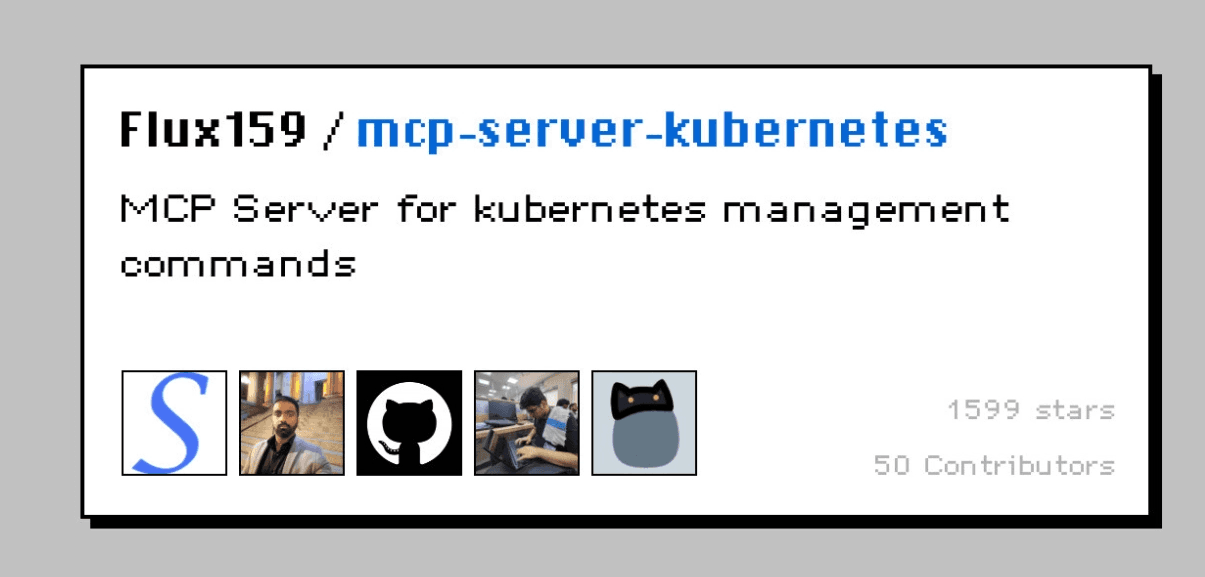
From here, the list gets much more specific to your stack.
If you do not run Kubernetes, skip this one.
If you do, it gives OpenCode structured tools for cluster operations, so OpenCode does not have to build every kubectl or Helm command by hand.
What it does
Lists and examines Kubernetes resources
Manages pods and deployments
Applies manifests
Supports Helm operations
Handles port forwarding
Uses your configured kubeconfig
Install
First, make sure that kubectl works:
kubectl get podsThen add the server. I suggest that you start in read-only mode:
{
  "$schema": "<https://opencode.ai/config.json>",
  "mcp": {
    "servers": {
      "kubernetes": {
        "type": "local",
        "command": [
          "npx",
          "-y",
          "mcp-server-kubernetes@3.9.0"
        ],
        "environment": {
          "ALLOW_ONLY_READONLY_TOOLS": "true"
        }
      }
    }
  }
}
Read-only mode allows only the tools that cannot change cluster state.
The server also has a non-destructive mode, ALLOW_ONLY_NON_DESTRUCTIVE_TOOLS. It blocks deletes, but it still lets OpenCode create and change resources, for example when it applies manifests. Use it only when you want OpenCode to make changes.
⚠️ Use version 3.9.0 or later. The config above pins 3.9.0, so update the version number when a new release comes out. This server uses your real Kubernetes permissions. The restriction modes are a filter inside the server, and they do not replace real access control. Give the server a kubeconfig with limited RBAC permissions before you let an agent near an important cluster.
Resources
GitHub: Kubernetes MCP Server
Documentation: Kubernetes MCP Installation and Configuration
Security: GitHub Security Advisories
12. Docker MCP Gateway
Runs and manages MCP servers in isolated Docker containers.

Docker MCP Gateway is a different kind of entry.
It does not add features such as memory or browser debugging. It lets you run your MCP servers through Docker.
The Gateway manages server lifecycle, credentials, routing, OAuth, and isolated containers. This helps when you run many local MCP servers and don't want every package running directly on your machine.
It can also keep your OpenCode config short. You connect one Gateway, and it manages the servers behind it.
What it does
Runs MCP servers in isolated containers
Manages the lifecycle of each server
Manages secrets and credentials
Supports OAuth flows
Finds tools as the agent needs them
Adds central logs and call traces
Install
You need Docker Desktop 4.59 or later. Turn on MCP Toolkit in Docker Desktop settings, and then check that the MCP CLI works:
docker mcp --helpWith MCP Toolkit enabled, Docker Desktop runs the Gateway for you. So the easiest way is to let Docker connect OpenCode:
docker mcp client connect opencodeAdd --global to change your global OpenCode config. After that, run opencode2 mcp list to check the connection.
You can also add the Gateway to your config yourself. OpenCode then starts it as a local server:
{
  "$schema": "<https://opencode.ai/config.json>",
  "mcp": {
    "servers": {
      "docker-gateway": {
        "type": "local",
        "command": [
          "docker",
          "mcp",
          "gateway",
          "run"
        ]
      }
    }
  }
}
To run only one group of servers, add "--profile", "<profile-name>" to the command array.
💡 Look at Docker MCP Gateway when your setup grows past a few simple local servers. Containers also give you a cleaner boundary than
npxanduvxpackages that run directly on your machine.
Resources
GitHub: Docker MCP Gateway
Documentation: Docker MCP Toolkit
MCP Catalog: Docker MCP Catalog
Wrapping Up
I would not install all 12 on day one.
Each server adds tools, instructions, setup work, and security risk. Keep your main setup small, turn off the servers you don't need, and use agent permissions for the rest.
Here is the order that I suggest:
When you need | Add |
|---|---|
External apps | Composio |
Current library docs | Context7 |
Real code examples | Grep |
Frontend testing and debugging | Playwright and Chrome DevTools (allow them only for a frontend agent) |
More local context | Filesystem, Memory, and Git |
Cluster or container work | Kubernetes or Docker MCP Gateway |
Start with the first two rows, and add the others only when your workflow needs them.
You also do not need a separate server for each app. GitHub, Notion, Stripe, Sentry, Firecrawl, Exa, Slack, Jira, and similar apps are already available through Composio, which supports over 1,500 apps. Each extra server adds another sign-in, more config, and another thing to maintain.
Keep security in mind too. An MCP server runs with the access that you give it:
Filesystem can read your files.
Chrome DevTools can see your browser state.
Kubernetes can change your clusters.
Docker can run containers.
So give each server the smallest permissions that it needs. Then use OpenCode’s permissions config to make the agent ask before it does anything risky.
That is pretty much it.

 Get started



