




Plugins have become an important part of my workflow with coding agents.
I use Cursor for day-to-day development, and for a while my main workflow used to look like: context7, superpowers, mem0, playwright - basically separate tools for docs, memory, browser testing, and coding workflows.
That setup worked, but agent workflows are getting more complex.
So I started looking at how I could organise it better, and I found that Cursor now has a much larger plugin ecosystem than I expected.
I went through the current Cursor Marketplace, Cursor's plugin repository, and the docs for each project.
I removed tools that overlapped too much or solved problems I rarely have, and I kept the ones that I think are worth installing as of September 2026.
TL;DR
Composio: Best when Cursor needs to work across several external apps such as GitHub, Slack, Gmail, Linear, Notion, Jira, and Google Workspace through one managed integration layer.
Context7: Best for pulling current, version-specific library documentation into coding tasks.
pstack: Best for structured engineering workflows, planning, parallel work, verification, and larger changes.
Compound Engineering: Best for running a full engineering flow from brainstorming and planning to implementation, review, and saved project learnings.
Chrome DevTools for Agents: Best for debugging and verifying a real web application through console, network, performance, and browser state.
Continual Learning: Best for turning repeated project knowledge and preferences into durable
AGENTS.mdguidance.Thermos: Best for deep branch reviews focused on correctness, security, and maintainability.
1Password: Best for projects where agents need environment configuration without moving secret values into the conversation.
Honcho: Best when you want personal context and previous work to carry across Cursor sessions.
X: Best when X data is part of the task, such as searching posts, reading timelines, checking trends, or building with the X API.
What are Cursor Plugins?
Cursor introduced its plugin system in February 2026.
A plugin can package several agent features together, so you can install rules, MCP servers, skills, hooks, commands, or other components through one reusable package. You can learn more at: https://cursor.com/changelog/2-5
Cursor supports two plugin formats.
Agent Plugins follow the open Agent Plugins standard and can include skills and MCP servers,
Cursor Plugins use Cursor's own manifest format and can also include rules, agents, commands, hooks, and variables.
Each part has a different role.
In fact, a plugin can group several of these parts into one package, say:
An MCP server gives the agent tools,
A skill teaches it how or when to do a task,
And a rule gives it instructions that stay active.
This makes setup much easier because you don't have to configure each part separately.
How to install Cursor Plugins
There are 2 ways to install Cursor plugins
Desktop
For plugins available through Cursor, the general flow is simple:
Open Customise in Cursor Agent in the sidebar
Find the plugin you want.
Select Install / Add (loads globally)
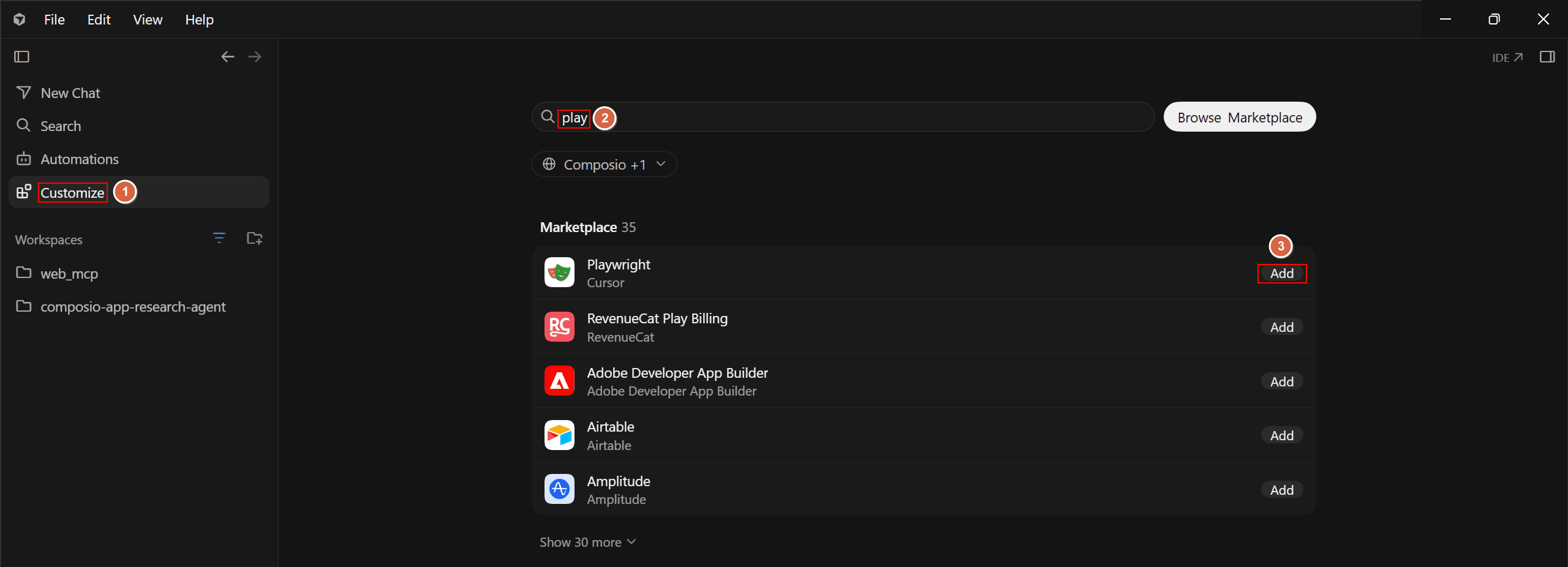
Pro Tip: You can choose whether you want it for the current project or at user scope by clicking the V drop-down and selecting the project
Cursor Chat
You can also install listed plugins directly from Cursor chat:
/add-plugin <plugin-name>And if you do :
/add-plugin <plugin-name> setup this up in my project
/add-plugin <plugin-name> setup this up a project level only
This creates a new file inside settings.jsoninside the cursor folder:
{
  "plugins": {
    "plugin": {
      "enabled": true
    }
  }
}
This lets Cursor recognise that the plugin is active and available.
Do note: Some plugins need one more setup step because they depend on an external service, local application, or account. I will mention those steps only where they are required.
One important caveat: Cursor uses the same installation interface for Agent Plugins and Cursor Plugins. Marketplace plugins are open source and go through review before they are listed.
Learn more at: Cursor Plugins documentation
With that covered, these are the plugins I would actually keep around.
Best plugins for Cursor
1. Composio
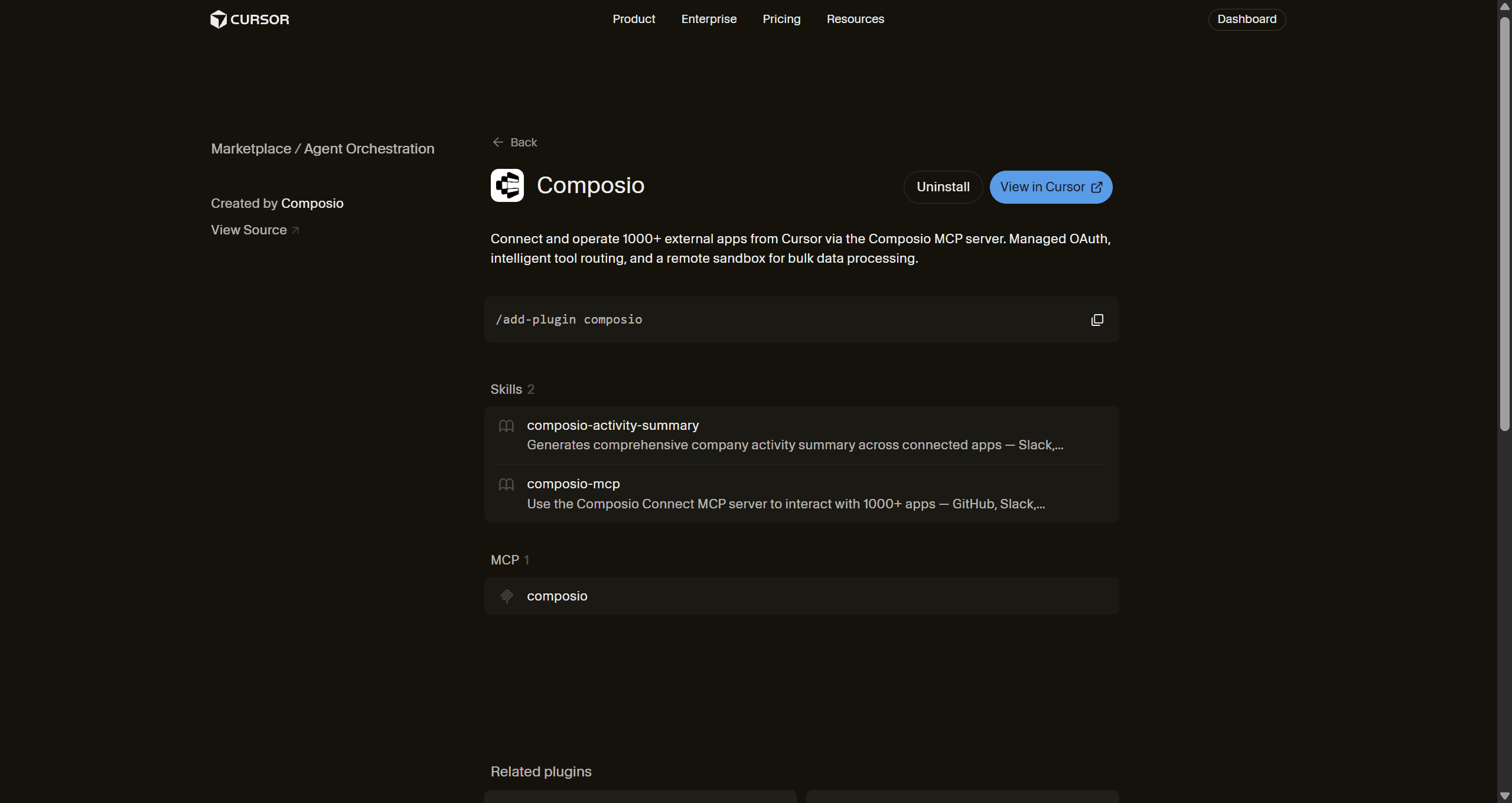
A coding task can start in the repository and continue into other tools. This adds a lot of manual plumbing and back-and-forth between tool setup and work.
Composio Cursor plugin fixes that by connecting Cursor to more than 1,500 apps through a hosted MCP layer.
The current setup uses a small set of meta-tools. Cursor uses them to find and run the action a task needs.
It also includes skills that teach Cursor how to find the required tool, connect an account, run an action, and process larger results when needed.
So your workflow can easily handle a flow like:
Repo Changes → Linear Issue → Slack Message Push → Notion Blog Update → Send instructions to the client through Gmail → schedule a meet in calendar based on response.
You can even run similar actions using 15,000+ other supported services.
How to install
/add-plugin composioThe full plugin also provides Cursor-specific skills for the MCP connection.
However, you can also connect only the remote MCP server:
{
  "mcpServers": {
    "composio": {
      "url": "https://connect.composio.dev/mcp"
    }
  }
}
Once you do, a new OAuth window appears, and you just need to log in to your composio account.
When to use
One coding workflow needs actions across several external apps.
Cursor needs authenticated access to GitHub, Slack, Gmail, Linear, Jira, Notion, or Google Workspace.
You want one place to manage authentication and MCP access for several services.
The task needs to continue after the code is complete.
One interesting thing is that with Composio you can use multiple accounts of the same apps. This means you can use your personal and work account tools simultaneously.
Once Cursor can act across the external apps I use, the next problem is making sure it works with the right technical information.
2. Context7
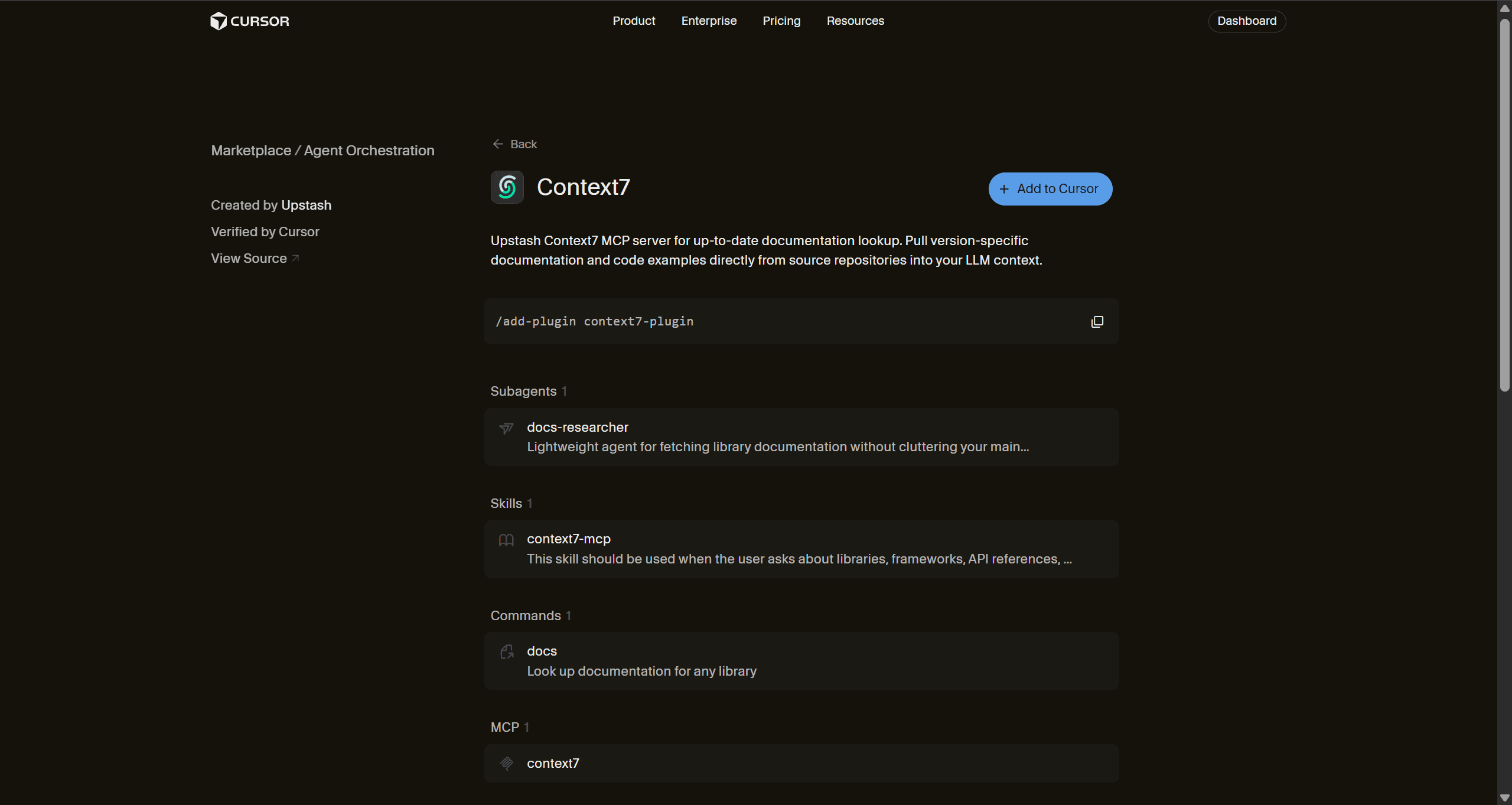
Library docs change fast, but agents don’t follow. Context7 fixes this.
A model can know React or Next.js well and still suggest an API from an older version, which often leads to errors.
Context7 helps with this by pulling current docs and examples when Cursor needs them.
Its Cursor plugin includes:
the Context7 MCP server,
documentation lookup features,
a documentation researcher agent,
and a
/docscommand.
It can also find docs for specific library versions. This helps when your project uses a version that is different from the one the model already knows.
How to install
In the composer/chat window, write.
/add-plugin context7-pluginAnd then reload. In the next run, the agent automatically fetches it. If it doesn't, just mention its name.
The current plugin uses Context7's hosted MCP integration internally.
When to use
You work with libraries that change often.
You are doing a major framework upgrade.
Cursor starts suggesting old APIs.
You want examples based on current docs.
Current docs help the agent work with the right information. The next plugin helps it organise the work itself.
Learn more at the Context7 Cursor plugin
3. Pstack

pstack is Lauren Tan's plugin in Cursor's official plugin repository.
It provides structured workflows for investigation, architecture, implementation, parallel work, verification, review, and longer agent tasks.
Its main entry point is /poteto-mode. You give it a goal and explain what proves the task is complete, and it selects a suitable workflow.
Yup, that’s it!
I would use it when a task needs more planning or verification. Small edits usually do not need that extra process.
How to install
/add-plugin pstack
/setup-pstack
/setup-pstack Lets you configure available models for roles such as coding, judgment, review, and parallel workers. Refer to the pstack setup guide for details.
I recently started using this, and it totally changed my workflow; it might become my daily driver for fun, structured vibe coding sessions on weekends.
When to use
You are building a feature across several files.
You want the agent to verify its work before it reports completion.
You want parallel agents with clear roles.
You are working on a refactor, investigation, or migration.
pstack helps when one needs more structure around a large engineering task.
But sometimes one wants that structure to continue through planning, implementation, review, and what the project should remember after the work is done.
This is where next plugin comes in.
4. Compound Engineering
Compound Engineering is a Cursor plugin from Every. (open source)
It gives Cursor a full engineering workflow for brainstorming, planning, implementation, code cleanup, review, and saving useful project learnings.
The main workflow uses commands such as:
/ce-brainstorm- to explore the problem, possible approaches, trade-offs, and requirements/ce-plan- to turn the chosen approach into a clear implementation plan with ordered steps./ce-work- to execute the plan and work through the implementation./ce-simplify-code- to review the implementation and simplify code that is more complex than needed./ce-code-review- review the changes for bugs, regressions, security issues, and code quality./ce-compound- save useful learnings from the work so future tasks can reuse that context.
At the last step, the plugin saves useful learnings into docs/solutions/, so future work can use that context.
You can also use /lfg when you want the agent to run more of the workflow on its own. It can work through the plan, simplify the code, review it, run browser tests, open a PR, and check CI.
How to install
/add-plugin compound-engineeringYou can also search for Compound Engineering in the Cursor plugin marketplace. After installation, run /ce-setup inside your project to configure it.
When to use
You want one workflow from idea to implementation and review.
You need a detailed plan before the agent starts writing code.
You want the agent to simplify and review its own changes before a PR.
You want to save useful project learnings for future work.
You want a more autonomous workflow for a larger feature.
Compound Engineering covers more of the engineering cycle itself.
But once that code is running, I still want Cursor to inspect what is actually happening in the browser, and that is where Chrome DevTools for Agents fits next.
5. Chrome DevTools for Agents
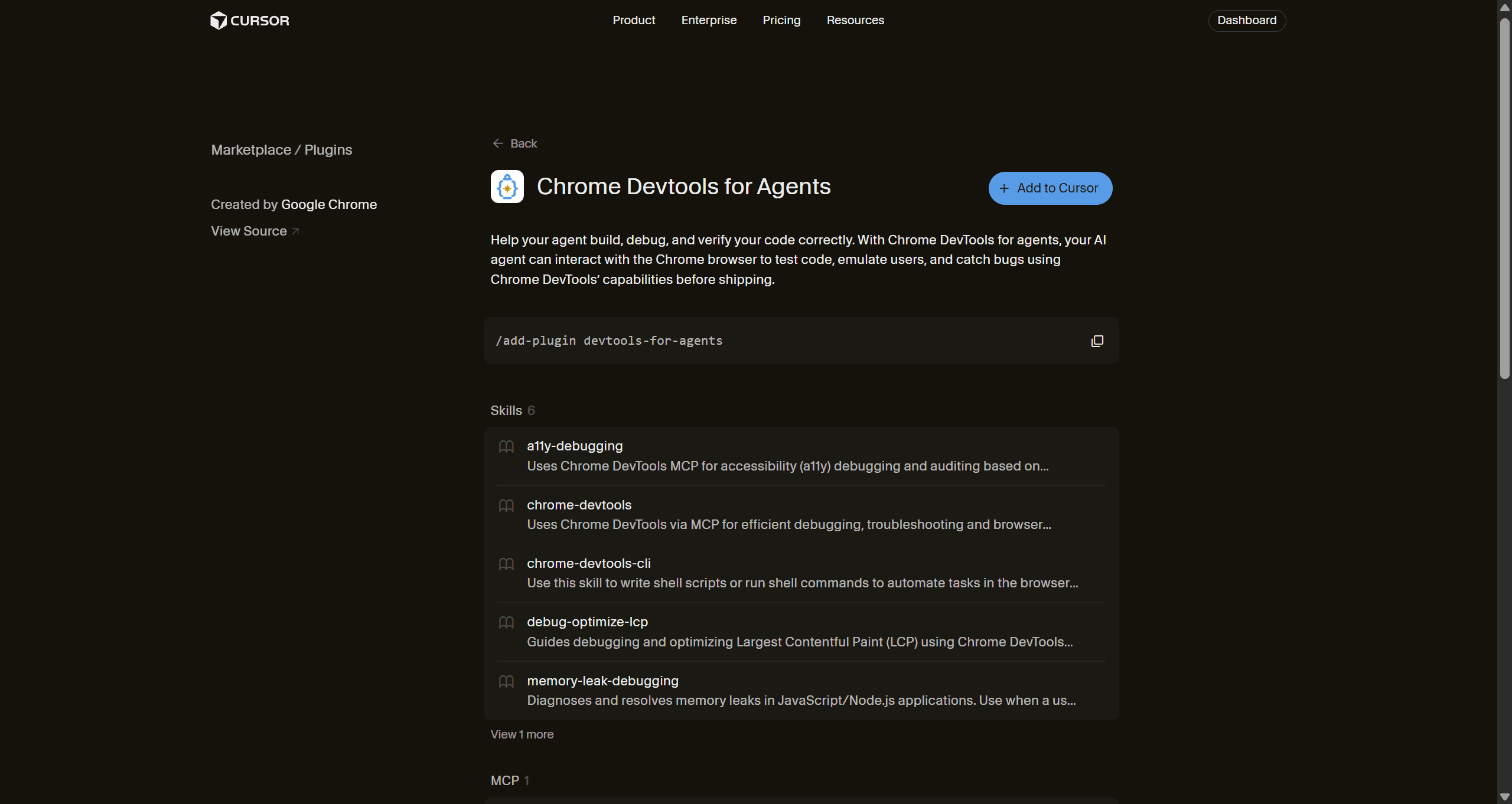
Google's Chrome DevTools integration gives Cursor access to a running Chrome browser through chrome-devtools-mcp.
The agent can inspect console output, network requests, screenshots, performance traces, and browser state. It can also interact with the page while it debugs a problem. (Chrome DevTools MCP)
This is useful for me when the code looks correct, but the application still has a problem.
This means I don't have to copy every console error or failed network request back into Cursor. The agent can inspect the running page directly.
How to install
/add-plugin devtools-for-agentsThe Cursor plugin includes the Chrome DevTools MCP integration and browser debugging workflows.
When to use
A frontend change causes console errors.
An API request fails in the browser.
You want Cursor to check a real UI flow.
You are checking browser performance.
The browser gives Cursor useful runtime context. The next problem is keeping project context after a session ends.
6. Continual Learning
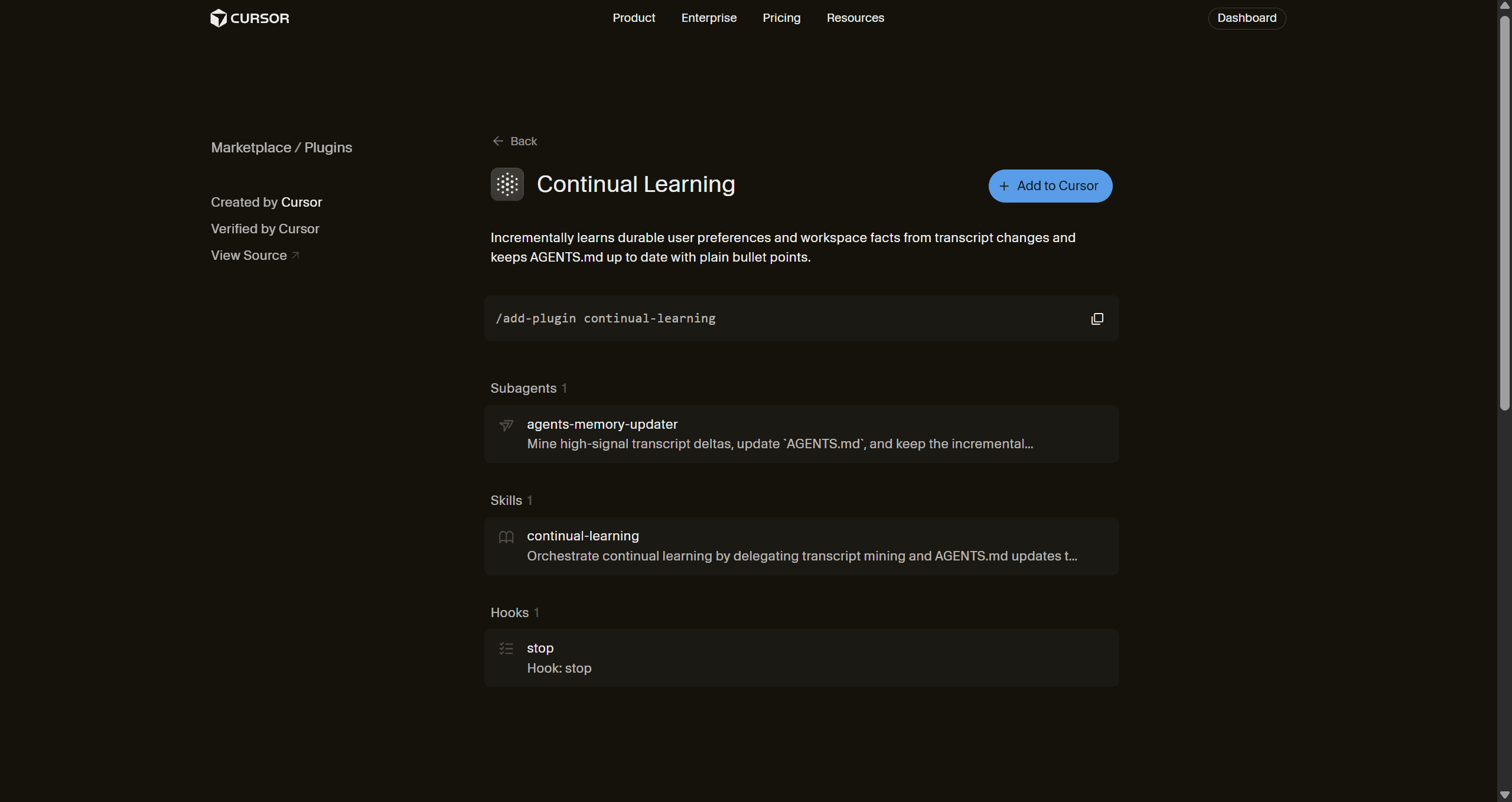
Continual Learning is for those who forget to update their agents.md mid-session.
It's an official Cursor plugin that finds useful information from previous work and writes short updates into AGENTS.md.
It uses Cursor hooks and a learning workflow to find information that is worth keeping. It also avoids extra updates when it finds nothing useful.
This helps with project details that you may otherwise repeat again and again, such as commands, folder rules, architecture decisions, and corrections.
How to install
/add-plugin continual-learningNo separate MCP service to configure.
When to use
You keep repeating the same repository rules.
Cursor keeps making the same project-specific mistake.
A repo has commands or architecture details that should stay available.
You want project knowledge in a file that your team can inspect.
As Cursor learns more about the project, it can also make larger changes. Those changes still need a proper review.
7. Thermos
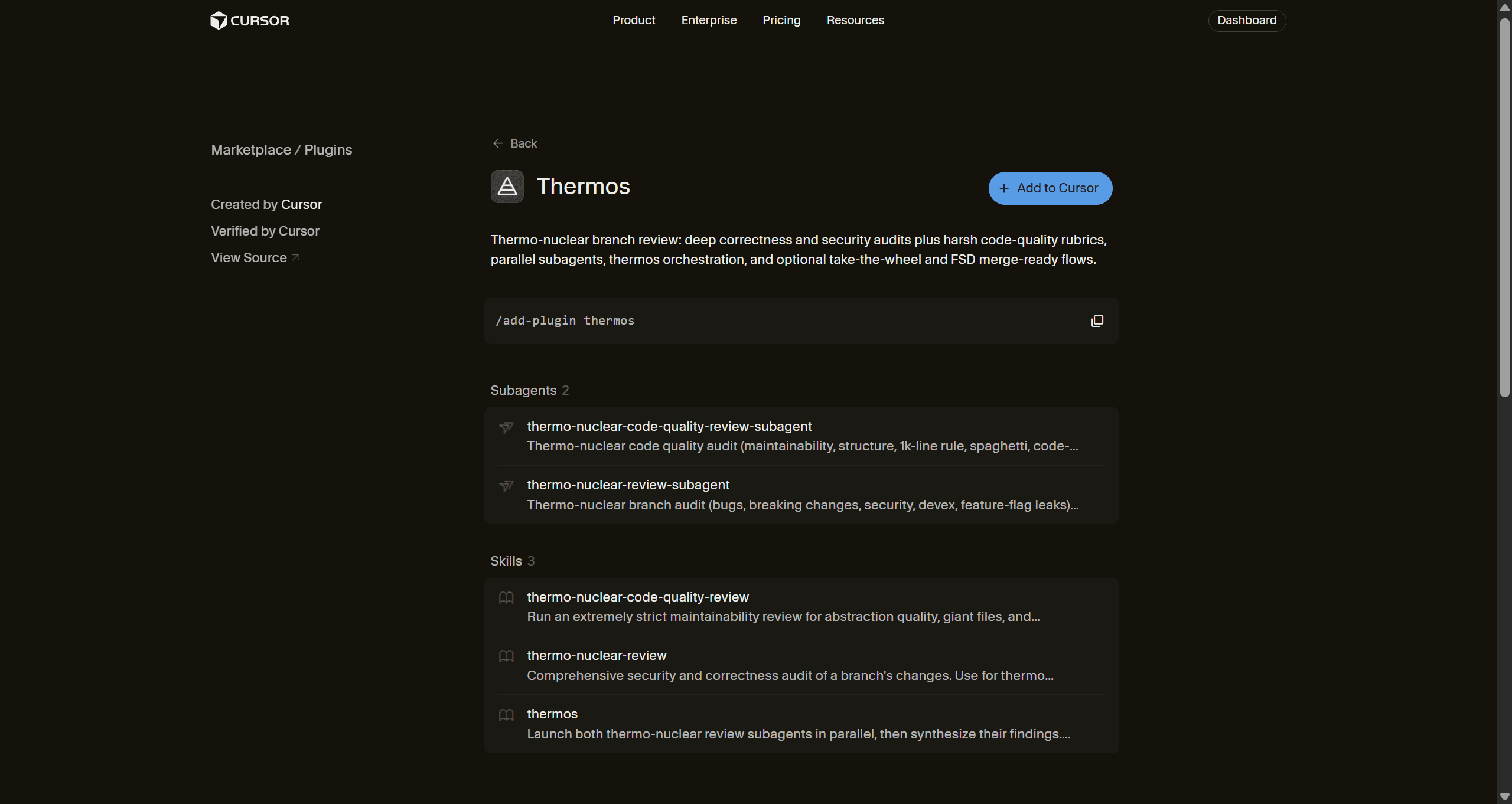
Thermos is an official Cursor plugin for deeper branch review.
It runs two review agents in parallel:
One checks correctness, bugs, security issues, breaking changes, and related problems.
The other checks maintainability, structure, complexity, and code boundaries.
It then combines both results into one review.
I use it when a branch already contains a meaningful change, and I want another review before I open or merge a PR.
Quite useful if you are regularly orchestrating agents.
How to install
/add-plugin thermosThen run:
/thermosWhen to use
A branch contains a meaningful feature or refactor.
You want a separate correctness and security review.
You want maintainability checked with functionality.
A long agent session creates a large diff.
Review helps with code quality. Credentials need their own controls too.
8. 1Password
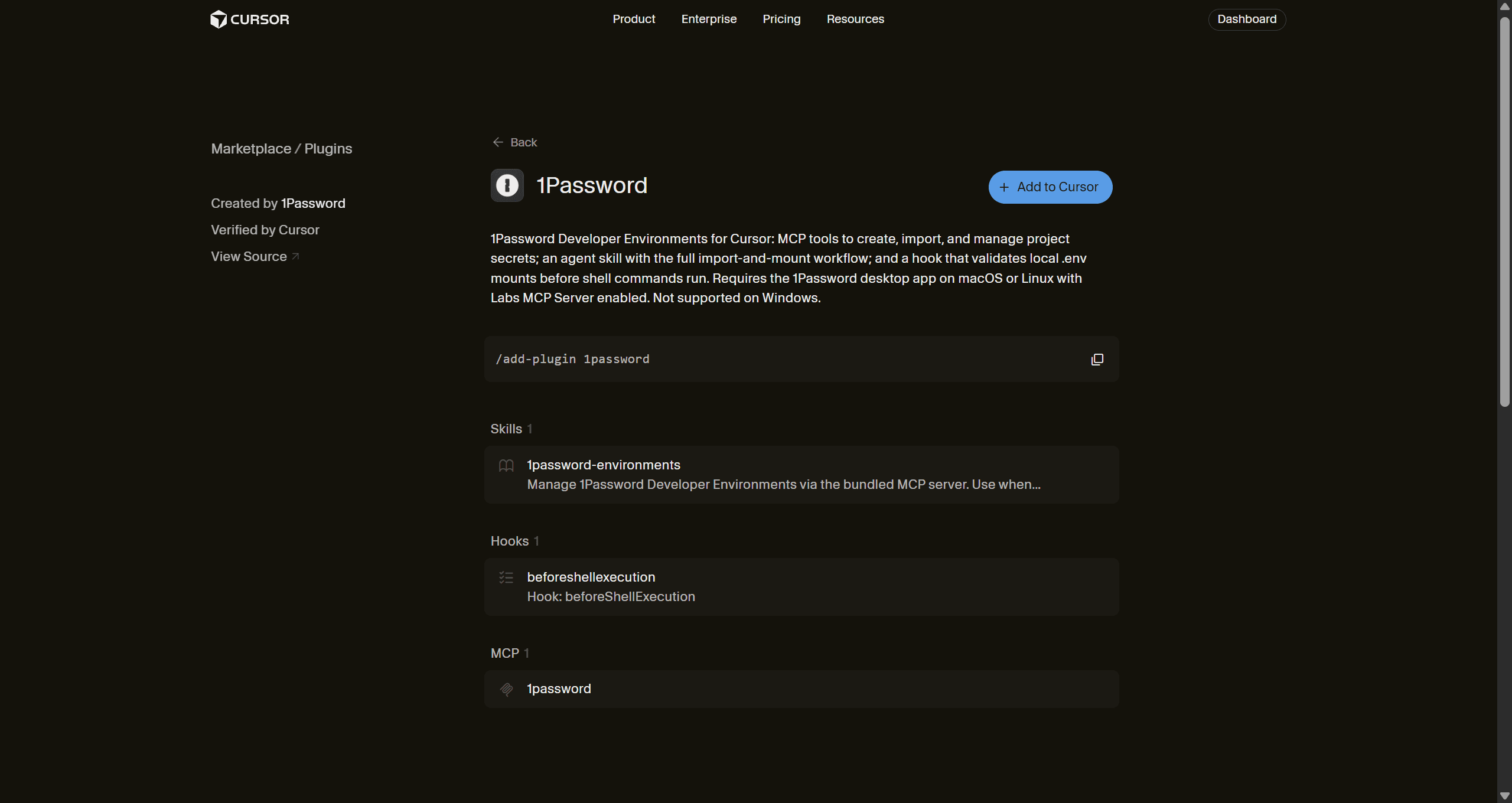
The official 1Password Cursor plugin connects Cursor to 1Password Developer Environments.
Its MCP integration lets Cursor work with environment configuration while 1Password controls the secret values.
The agent can work with variable names and mounted environments, so you do not have to paste secret values into the conversation.
The plugin can also check locally mounted environment files before agent shell commands run.
How to install
/add-plugin 1passwordYou also need the 1Password desktop application and its MCP Server enabled. The current Cursor workflow supports its local environment integration on macOS and Linux. (Cursor Marketplace)
When to use
A project needs API credentials.
You want to keep secret values out of agent conversations.
Your team already manages developer credentials through 1Password.
Agents need controlled access to local development environments.
Learn More at: 1Password Cursor plugin
Project context and credentials now have clear places. But some useful context belongs to you and your previous sessions, not the repository.
9. Honcho
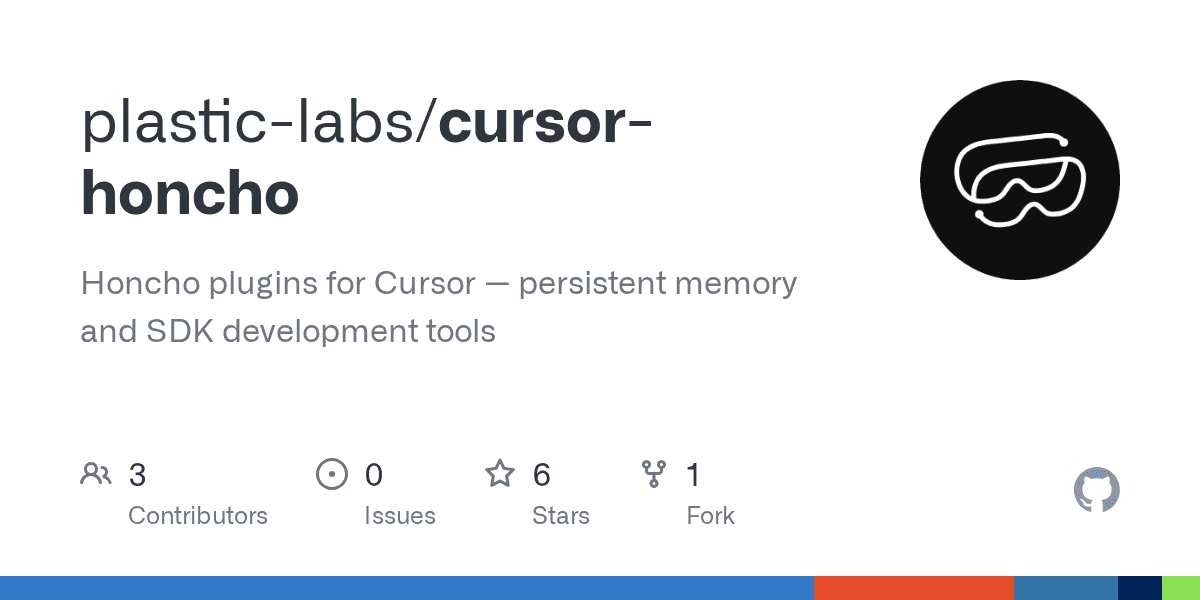
Honcho is a community Cursor plugin from Plastic Labs that adds persistent user and session memory.
It uses Cursor lifecycle hooks with Honcho to store and retrieve context about previous work, preferences, sessions, and conclusions. It also provides MCP tools to search memory and create new conclusions.
Commands such as /recall, /remember, and /honcho: interview let you control what it retrieves or learns.
Don’t mistake Continual Learning for Honcho; they serve different purposes
I use Continual Learning and Honcho for different kinds of memory.
Continual Learning keeps useful repository knowledge,
Honcho keeps context about you and your previous sessions.
How to install
The current repository provides an installer for macOS and Linux:
curl -fsSL https://raw.githubusercontent.com/plastic-labs/cursor-honcho/main/install.sh | bashAfter installation, you can use:
/honcho:setupWhen to use
You often lose useful context between Cursor sessions.
Previous decisions or preferences should stay available.
You work across several projects.
You want to find context from older agent sessions.
Learn more at: Honcho Cursor plugin
For now, most of the setup helps Cursor work better in your development workflow.
Honcho helps when you want Cursor to remember context across sessions. But sometimes the context you need lives outside your own projects and conversations.
That is where the official X plugin can help.
10. X
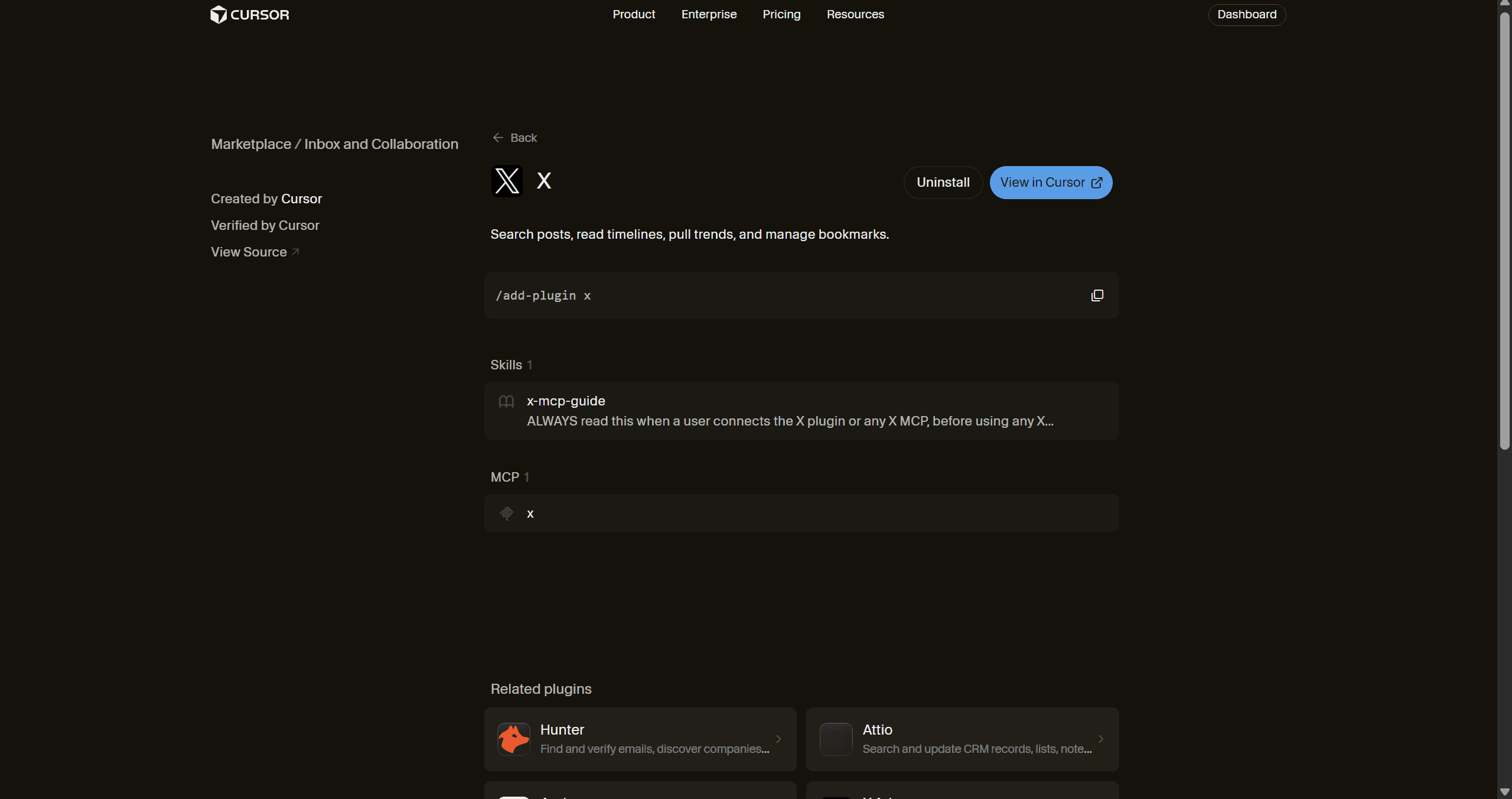
X Plugin connects Cursor to X through its hosted MCP server.
It can:
search posts and users,
read timelines and mentions,
pull trends and news,
and work with bookmarks when your account permissions allow it.
This is useful when X data is part of the development task. You can bring posts, timelines, trends, or user data into Cursor without leaving your coding workflow.
Personally, I use it to research, find interesting problems to work on and keep the data and workflow relevant.
The best part is that you don’t need to pay for the X API and still get some of its main functionality.
How to install
/add-plugin xThe plugin connects to X's hosted MCP.
X also provides a separate Docs MCP that you can add when you need current X API documentation.
{
  "mcpServers": {
    "x-docs": {
      "url": "https://docs.x.com/mcp"
    }
  }
}
When to use
You are building a product that uses the X API.
You want to search posts or pull a user timeline into a coding task.
You need trends, mentions, news, or bookmark data inside Cursor.
You want Cursor to check current X API docs while you build.
This works well when X is one of the main services your task depends on.
But once the same workflow needs X, GitHub, Slack, Gmail, Linear, or several other apps, managing each connection separately adds more setup. This is why I use composio
How Composio fits into Cursor Plugins
Composio has almost every app you can ask for.
Context7 helps with docs.
Chrome DevTools helps with browser debugging.
Continual Learning and Honcho help with memory.
Thermos reviews code
1Password helps manage development credentials.
So you can easily add these and get done. However, that only works till you add more apps.
As you add more apps, you also have to manage more MCP configurations, authentication flows, scopes, and tools.
Composio gives Cursor one managed integration layer for this part of the workflow. It also manages OAuth connections for those external services.
Its current Cursor plugin uses a hosted MCP server and a small set of meta-tools to find and run actions across more than 1,500+ supported apps.
I add Composio when I need a workflow that uses several external products, and I don’t want to manage each connection on its own.
That's also a simple way to think about the full plugin setup.
Learn more at: Composio Cursor Plugin GitHub
Conclusion
Cursor plugins let you add useful capabilities without setting up every part again for each project.
However, I would still keep the setup small, since loading everything in context at once wastes a lot of tokens.
A simple flow I generally follow:
I start with Context7 if stale documentation is the main problem,
then add pstack if the agent needs more engineering discipline,
and Chrome DevTools for Agents if frontend verification keeps pulling me out of Cursor.
Next, I add Continual Learning or Honcho when context keeps disappearing,
then Thermos when large branches need another review layer,
and 1Password when the project needs controlled development credentials.
Finally, add Composio as my work involves agents that need to move beyond the repository and work across authenticated external applications.
You can create your own stack, keep the plugins you need, and remove the ones that don’t matter.
But the core always remains the same
A good Cursor setup has plugins that each solve a clear problem. If you cannot explain why you use a plugin, you probably do not need to keep it enabled.
Happy coding

 Get started