Mar 9, 2026

Mar 9, 2026

How to use Composio MCP with OpenClaw

How to use Composio MCP with OpenClaw

Mar 9, 2026

Mar 9, 2026

Ship powerful agents fast

Add 10K+ tools to your AI Agent

This guide shows how to connect Composio with OpenClaw to unlock access to 860+ tools beyond the default set, along with some practical use cases.

The focus is simple: expand capabilities while keeping authentication secure and data under your control. No fluff, no complex infrastructure - just plug in, connect your tools, and start building things that actually matter.

So let's get started with the setup!

Adding Composio MCP to OpenClaw

Assuming you already have Open Claw installed, there are 3 ways to enable composio in OpenClaw. I have listed all of them, though I prefer the 1st one the most!

In case you don’t have openclaw install you, check out the Docker Install Section of Install OpenClaw

Get it done and then follow along.

1. Using a direct prompt with your API Key

Before setting up OpenClaw, we need to configure the MCP server

For configuring mcp server:

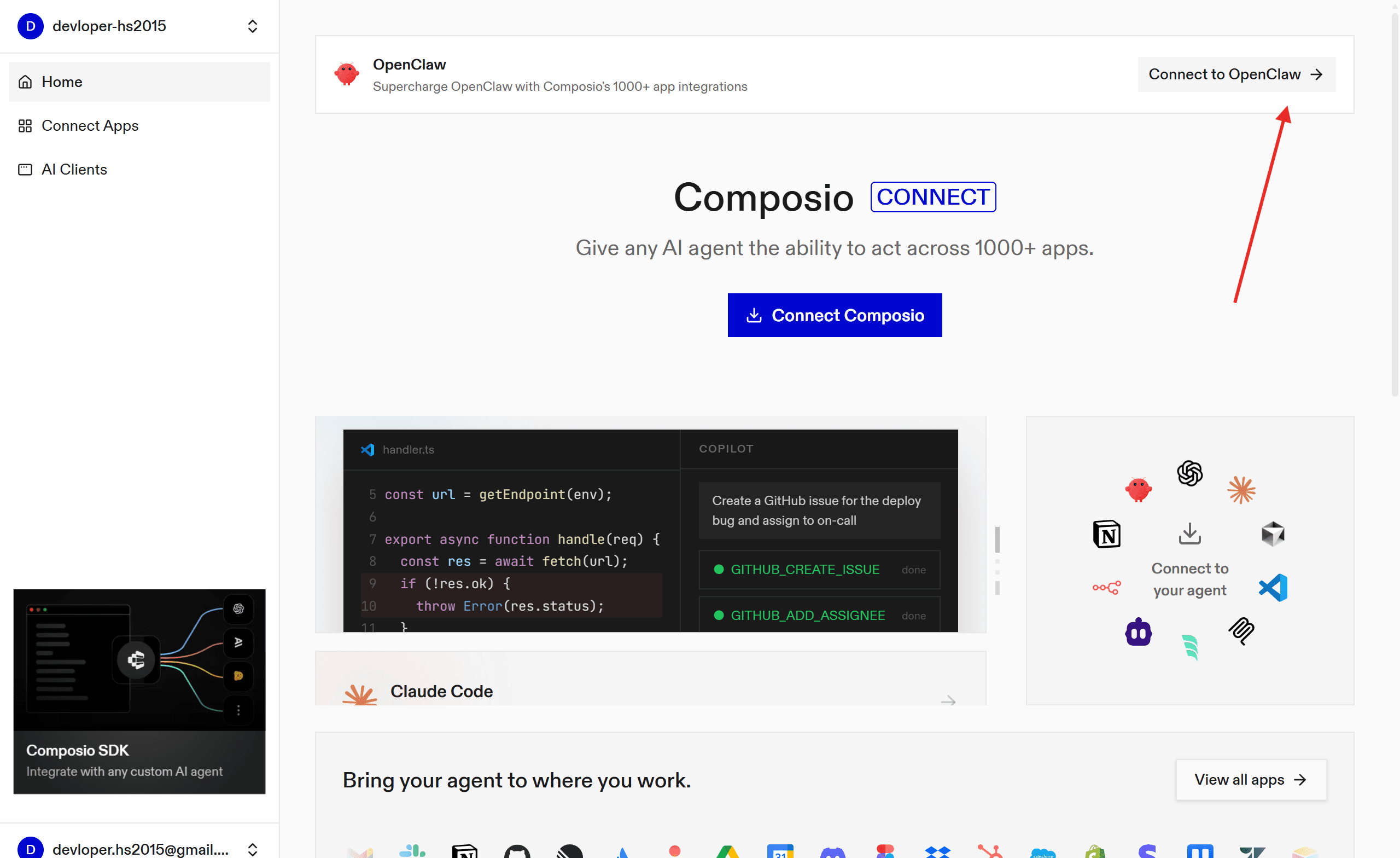
Composio Dashboard
  • Head to OpenClaw and paste the prompt:

If it's your first time logging in and authenticating, you are done!

2. Using Composio npm Plugin

Composio recently allowed support for the Open Claw plugin, i.e. no headache of configuration, simple one liner command set it all!

So, head to the terminal and type

openclaw plugins install @composio/openclaw-plugin

Once done, set up your api key, following the steps:

  • Log in at dashboard.composio.dev.

  • Choose your preferred client (OpenClaw, Claude Code, Cursor, etc.).

  • Copy your consumer key (ck_...).

In terminal run:

openclaw config set plugins.entries.composio.config.consumerKey "ck_your_key_here"

Finally, restart the gateway:

openclaw gateway restart

All this does is set up the open claw configuration with the consumer key in the Composio MCP.

Alternatively, you can set up the MCP server directly for more granular control.

3. Using MCP Porter

As a secondary measure, you can activate MCP support through mcp_porter and then add composio. This keeps things organised and simple.

→ Head to the Skills section, search for the MCP Portal and click install.

→ Now go to the terminal and restart the containers (openclaw & socat-proxy) using:

 cd /home/devloper_hs/openclaw && docker compose restart openclaw-gateway
 cd /home/devloper_hs/openclaw && docker compose restart openclaw-gateway
 cd /home/devloper_hs/openclaw && docker compose restart openclaw-gateway

→ Then again, go to skills and in MCP Porter, refresh the page. Make sure it shows eligible

→ Now go to the home folder where OpenCalW is installed: /home/username/.openclaw/workspace/config

→ Open the mcporter.json In any IDE, paste the following & save:

{
  "mcpServers": {
    "composio": {
      "baseUrl": "url_from",
      "headers": {
        "x-api-key": "api_key"
      }
    }
  },
  "imports": []
}
{
  "mcpServers": {
    "composio": {
      "baseUrl": "url_from",
      "headers": {
        "x-api-key": "api_key"
      }
    }
  },
  "imports": []
}
{
  "mcpServers": {
    "composio": {
      "baseUrl": "url_from",
      "headers": {
        "x-api-key": "api_key"
      }
    }
  },
  "imports": []
}

The url and **api **key are the one from the pre-require step.

Or if you want a stdio server setup, you can use (might cause issues):

npm install -g composio-mcp
{
  "mcpServers": {
    "composio": {
      "command": "composio-mcp",
      "args": ["--api-key", "api_key"],
      "transport": "stdio"
    }
  }
}
{
  "mcpServers": {
    "composio": {
      "command": "composio-mcp",
      "args": ["--api-key", "api_key"],
      "transport": "stdio"
    }
  }
}
{
  "mcpServers": {
    "composio": {
      "command": "composio-mcp",
      "args": ["--api-key", "api_key"],
      "transport": "stdio"
    }
  }
}
# usage
npx mcporter call --stdio "npx @composio/mcp@latest setup https://backend.composio.dev/tool_router/<api-key>/mcp" <tool_name> <arg1>=<value1>
# usage
npx mcporter call --stdio "npx @composio/mcp@latest setup https://backend.composio.dev/tool_router/<api-key>/mcp" <tool_name> <arg1>=<value1>
# usage
npx mcporter call --stdio "npx @composio/mcp@latest setup https://backend.composio.dev/tool_router/<api-key>/mcp" <tool_name> <arg1>=<value1>

Now, to make sure the agent picks up the MCP servers perfectly, let’s top the setup with the skills file!

Now we are all set up to experience OpenCLaw seamlessly.

💡Fact: You can do all the steps in the section through a prompt in OpenCLAW, but as it stores logs that are accessible to others, it causes a security concern, so the CLI approach is better.

Using OpenClaw

Head back to the dashboard and go to chat.

The nicest thing about Clawd Bot is that you can chat with it to get things done, rather than prompting, and it understands you pretty well.

However, for this test, I just want it to fetch hackathon emails for me, so here is my chat session!

Note: It might hallucinate, as it's a personal project, however, take care of security as these chats are visible to anyone if they know your token.

You can even try it with Telegram. Steps are simple:

  • Head to the telegram BotFather channel and select your bot

  • Click Start and copy the pairing code

  • Head to the terminal and paste:

cd /home/devloper_hs/openclaw && docker compose run --rm openclaw-cli pairing approve telegram pairing-code

Replace the pairing-code with one you copied.

In a few seconds, you will see an output like:

Container openclaw-openclaw-cli-run-58c012ca9af1 Creating
Container openclaw-openclaw-cli-run-58c012ca9af1 Created

🦞 OpenClaw 2026.2.17 (4134875)  Your AI assistant, now without the $3,499 headset.

Approved telegram sender [bot_id

Container openclaw-openclaw-cli-run-58c012ca9af1 Creating
Container openclaw-openclaw-cli-run-58c012ca9af1 Created

🦞 OpenClaw 2026.2.17 (4134875)  Your AI assistant, now without the $3,499 headset.

Approved telegram sender [bot_id

Container openclaw-openclaw-cli-run-58c012ca9af1 Creating
Container openclaw-openclaw-cli-run-58c012ca9af1 Created

🦞 OpenClaw 2026.2.17 (4134875)  Your AI assistant, now without the $3,499 headset.

Approved telegram sender [bot_id

Now you can easily interact with OpenClaw.

I even tried using it to get some trendy tweets:

Prompt


Output

and even to create my own task board (inspired by AlexFinn).

Prompt:

Output:

The best thing I like about it is that, if done right, it can do things!

I hope you enjoy your days with open-claw securely using Docker and have fun.

Make sure to stop the session once done using:

cd /home/devloper_hs/openclaw && docker compose down

With this, let’s end this article with a key takeaway.

Key Takeaway!

Tools like OpenClaw seem amazing at first glance, but can easily become a nightmare if not handled right - especially around security.

The moment you hand broad permissions or API keys to an agent, you've opened a door you might forget, but it is still there. It doesn't know what's sensitive, it just acts.

That’s where tools like Composio sidestep this quietly by handling scoped access and managed credentials under the hood, so the agent does its job without holding the master keys to everything.

This guide shows how to connect Composio with OpenClaw to unlock access to 860+ tools beyond the default set, along with some practical use cases.

The focus is simple: expand capabilities while keeping authentication secure and data under your control. No fluff, no complex infrastructure - just plug in, connect your tools, and start building things that actually matter.

So let's get started with the setup!

Adding Composio MCP to OpenClaw

Assuming you already have Open Claw installed, there are 3 ways to enable composio in OpenClaw. I have listed all of them, though I prefer the 1st one the most!

In case you don’t have openclaw install you, check out the Docker Install Section of Install OpenClaw

Get it done and then follow along.

1. Using a direct prompt with your API Key

Before setting up OpenClaw, we need to configure the MCP server

For configuring mcp server:

Composio Dashboard
  • Head to OpenClaw and paste the prompt:

If it's your first time logging in and authenticating, you are done!

2. Using Composio npm Plugin

Composio recently allowed support for the Open Claw plugin, i.e. no headache of configuration, simple one liner command set it all!

So, head to the terminal and type

openclaw plugins install @composio/openclaw-plugin

Once done, set up your api key, following the steps:

  • Log in at dashboard.composio.dev.

  • Choose your preferred client (OpenClaw, Claude Code, Cursor, etc.).

  • Copy your consumer key (ck_...).

In terminal run:

openclaw config set plugins.entries.composio.config.consumerKey "ck_your_key_here"

Finally, restart the gateway:

openclaw gateway restart

All this does is set up the open claw configuration with the consumer key in the Composio MCP.

Alternatively, you can set up the MCP server directly for more granular control.

3. Using MCP Porter

As a secondary measure, you can activate MCP support through mcp_porter and then add composio. This keeps things organised and simple.

→ Head to the Skills section, search for the MCP Portal and click install.

→ Now go to the terminal and restart the containers (openclaw & socat-proxy) using:

 cd /home/devloper_hs/openclaw && docker compose restart openclaw-gateway

→ Then again, go to skills and in MCP Porter, refresh the page. Make sure it shows eligible

→ Now go to the home folder where OpenCalW is installed: /home/username/.openclaw/workspace/config

→ Open the mcporter.json In any IDE, paste the following & save:

{
  "mcpServers": {
    "composio": {
      "baseUrl": "url_from",
      "headers": {
        "x-api-key": "api_key"
      }
    }
  },
  "imports": []
}

The url and **api **key are the one from the pre-require step.

Or if you want a stdio server setup, you can use (might cause issues):

npm install -g composio-mcp
{
  "mcpServers": {
    "composio": {
      "command": "composio-mcp",
      "args": ["--api-key", "api_key"],
      "transport": "stdio"
    }
  }
}
# usage
npx mcporter call --stdio "npx @composio/mcp@latest setup https://backend.composio.dev/tool_router/<api-key>/mcp" <tool_name> <arg1>=<value1>

Now, to make sure the agent picks up the MCP servers perfectly, let’s top the setup with the skills file!

Now we are all set up to experience OpenCLaw seamlessly.

💡Fact: You can do all the steps in the section through a prompt in OpenCLAW, but as it stores logs that are accessible to others, it causes a security concern, so the CLI approach is better.

Using OpenClaw

Head back to the dashboard and go to chat.

The nicest thing about Clawd Bot is that you can chat with it to get things done, rather than prompting, and it understands you pretty well.

However, for this test, I just want it to fetch hackathon emails for me, so here is my chat session!

Note: It might hallucinate, as it's a personal project, however, take care of security as these chats are visible to anyone if they know your token.

You can even try it with Telegram. Steps are simple:

  • Head to the telegram BotFather channel and select your bot

  • Click Start and copy the pairing code

  • Head to the terminal and paste:

cd /home/devloper_hs/openclaw && docker compose run --rm openclaw-cli pairing approve telegram pairing-code

Replace the pairing-code with one you copied.

In a few seconds, you will see an output like:

Container openclaw-openclaw-cli-run-58c012ca9af1 Creating
Container openclaw-openclaw-cli-run-58c012ca9af1 Created

🦞 OpenClaw 2026.2.17 (4134875)  Your AI assistant, now without the $3,499 headset.

Approved telegram sender [bot_id

Now you can easily interact with OpenClaw.

I even tried using it to get some trendy tweets:

Prompt


Output

and even to create my own task board (inspired by AlexFinn).

Prompt:

Output:

The best thing I like about it is that, if done right, it can do things!

I hope you enjoy your days with open-claw securely using Docker and have fun.

Make sure to stop the session once done using:

cd /home/devloper_hs/openclaw && docker compose down

With this, let’s end this article with a key takeaway.

Key Takeaway!

Tools like OpenClaw seem amazing at first glance, but can easily become a nightmare if not handled right - especially around security.

The moment you hand broad permissions or API keys to an agent, you've opened a door you might forget, but it is still there. It doesn't know what's sensitive, it just acts.

That’s where tools like Composio sidestep this quietly by handling scoped access and managed credentials under the hood, so the agent does its job without holding the master keys to everything.

Connect AI agents to SaaS apps in Minutes

Connect AI agents to SaaS apps in Minutes

We handle auth, tools, triggers, and logs, so you build what matters.