
How to set up OpenClaw and power it with 850+ on-demand SaaS Apps

How to set up OpenClaw and power it with 850+ on-demand SaaS Apps

Mar 5, 2026

Mar 5, 2026

Ship powerful agents fast

Add 10K+ tools to your AI Agent

OpenClaw has been showing up in my feed way too much, so I finally sat down and tested it properly, and yeah, it comes with a few real problems.

In this post, I’ll cover what OpenClaw is, how to set it up, where the security risks really come from, and how to use safer remote integrations so you can make it a bit more secure and save yourself some stress.
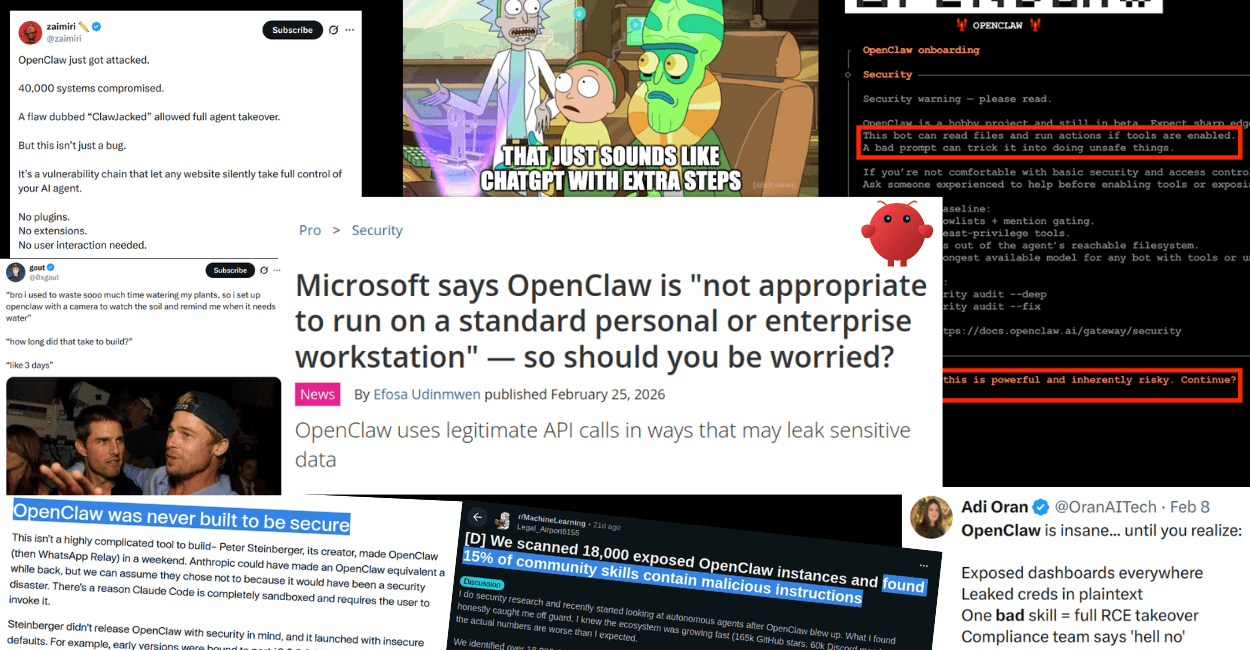
Image 1

TL;DR

If you just want the takeaway, here’s the deal with OpenClaw:

  • OpenClaw is a local agent gateway. It is the layer that connects your LLM (OpenAI, Anthropic, etc.) to real tools and local execution.

  • The “special sauce” is the package. People like it because it ships as a usable bundle: built-in skills, a simple “agent brain” file (SOUL.md), and easy chat support like messenger integrations.

  • Security is the big problem. By design, it can touch files, run commands, and pull third-party skills. The least-bad way to use it is with remote integrations (which I’ve shown how to set up), sandboxed code execution environment.

  • Also, watch your token bill. It can be very inefficient and chew through credits fast, especially if you’re using hosted models instead of a local LLM.

Overall, you'll learn everything you need to understand and start with OpenClaw (and make it slightly better with secure integrations).

What's OpenClaw?
Image 2

OpenClaw is a personal AI assistant you run on your own machine (or a server you own). It is not a new model. It is the thing that actually sits between your model provider (OpenAI, Anthropic, Kimi, etc.) and the stuff you want done, such as messaging, tools, files, and integrations.

Take this as a mental model:

  • Your LLM is the brain (thinks)

  • OpenClaw is the body (it can do things)

  • The Gateway is the receptionist (routes messages in and results out)

So when people say “OpenClaw turns an LLM into an agent,” what they really mean is: it gives the model a runtime that can call tools, keep state, and show up where you already chat (WhatsApp, Telegram, Slack, Discord, etc.).

Now, that's just the gist. There's a lot more to understand. I assume you've already worked with it, so I'm not going any deeper than this in the intro.
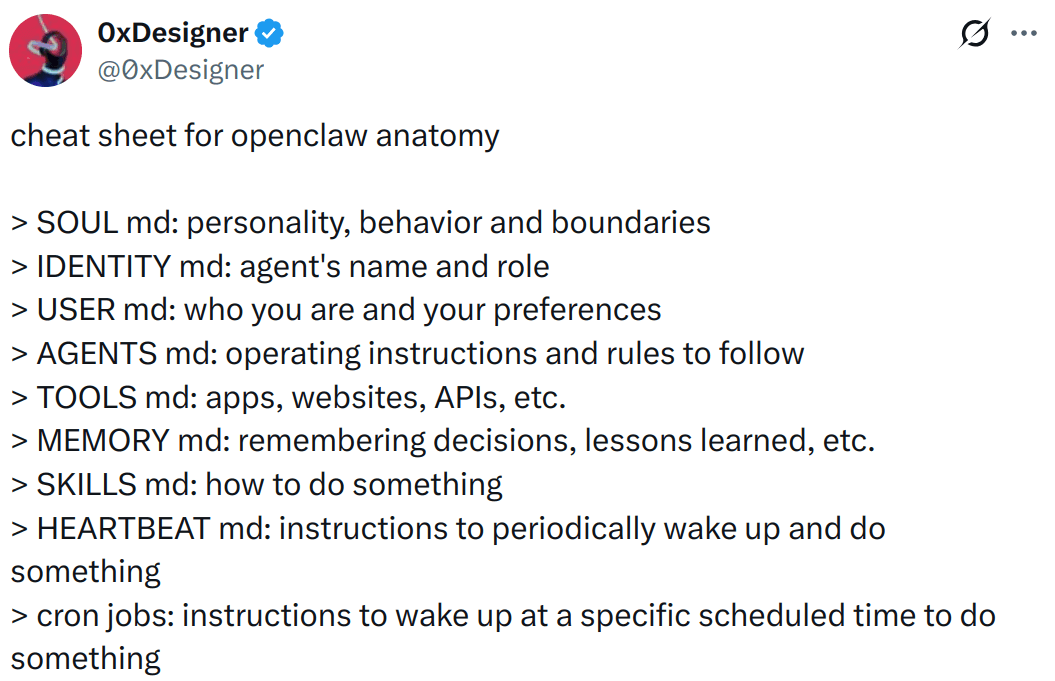
Image 3

What's Special than something like Manus?

Manus is essentially "agent as a product," but you're limited to their UI, tools, rules, and cloud.

OpenClaw is more like “agent as a kit.” It’s meant to be installed, set up, and shaped around your own workflow. You decide what models it uses, what tools it can touch, what data it can access, and where it runs.

That's the biggest difference.

💁 "Manus is for convenience, and OpenClaw is for control."

Wow, that was a nice line I came up with on the fly.

OpenClaw Installation

You’ve got two clean ways to install OpenClaw. If you just want it running quickly, do the normal installation. If you’re even slightly paranoid (which you should be ), do Docker.

The core requirement is Node ≥ 22.

Option 1: Normal install (recommended for most people)

Prereqs: Node 22+ and an API key (OpenAI, Anthropic, OpenRouter, whatever you’re using).

  1. Install OpenClaw:

curl -fsSL https://openclaw.ai/install.sh | bash
  1. Run onboarding (this sets up provider auth + gateway settings and can install the background service):

openclaw onboard --install-daemon
  1. Check the gateway status (if you installed the service, it should already be running):

  1. Optional: Open the Control UI:

Option 2: Docker (more isolated and secure)

Docker is great when you want a throwaway environment or isolation from your host, but it introduces an important rule:

ℹ️ Containers only see plugins and config if they share the same OpenClaw state directory/volume. So, it comes with a little complexity.

Clone and start the Docker stack:

git clone https://github.com/openclaw/openclaw
cd

git clone https://github.com/openclaw/openclaw
cd

git clone https://github.com/openclaw/openclaw
cd

💡 To know more about how/what it does, visit the OpenClaw Docker Quickstart

Control UI gotchas

If you open the Control UI, and it shows something like:

unauthorized: gateway token missing

That's normal. The UI needs a gateway token to connect.

Get your token:

cat ~/.openclaw/openclaw.json | jq -r '.gateway.auth.token'

Make sure jq is installed on your machine. Or, you can manually get the token from the config file ~/.openclaw/openclaw.json.

Then either:

  • Paste it in the UI (Overview → Gateway Access → Gateway Token)
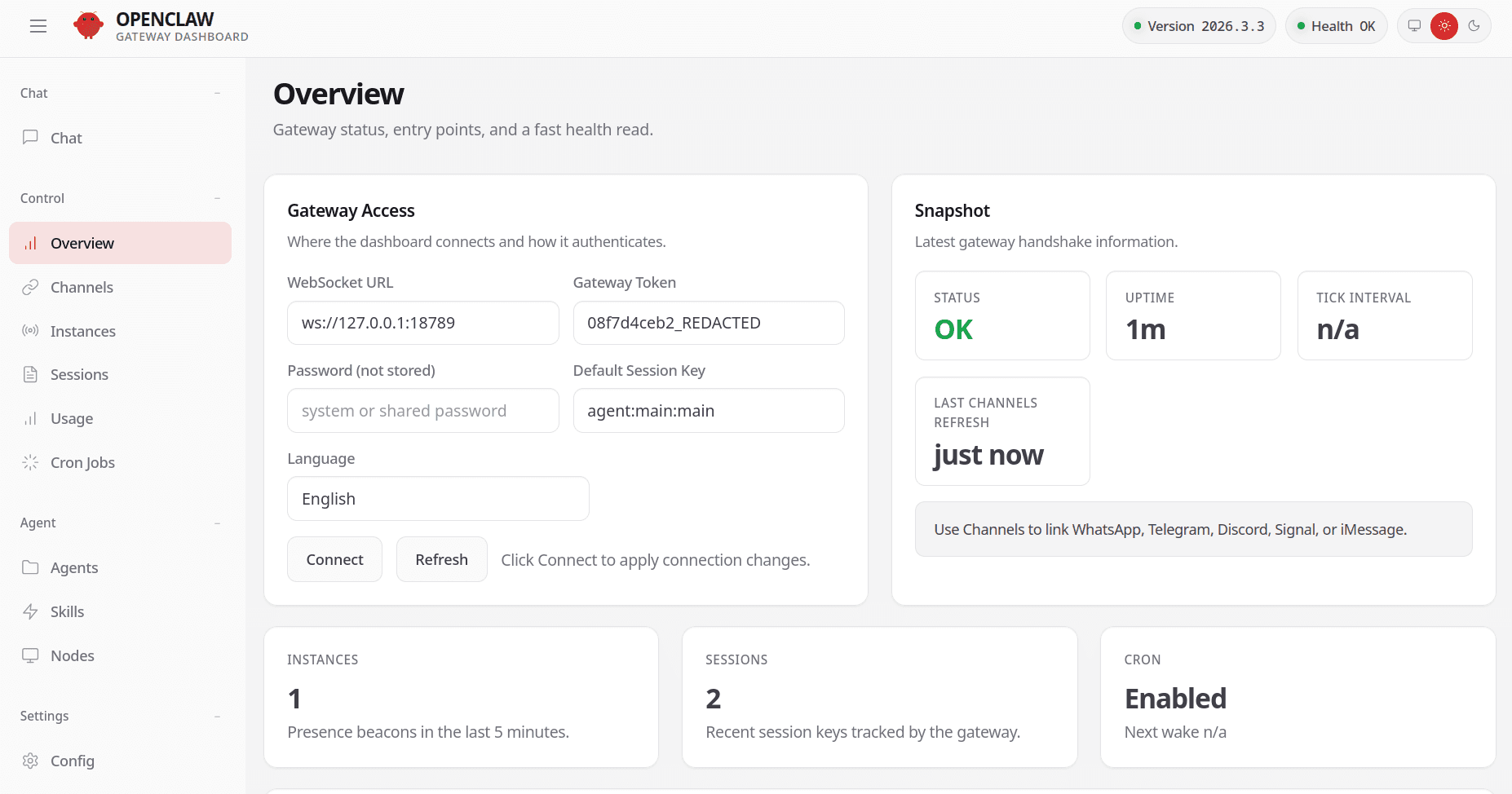
Image 4
  • Use a URL that includes it, for example via:

openclaw dashboard --no-open
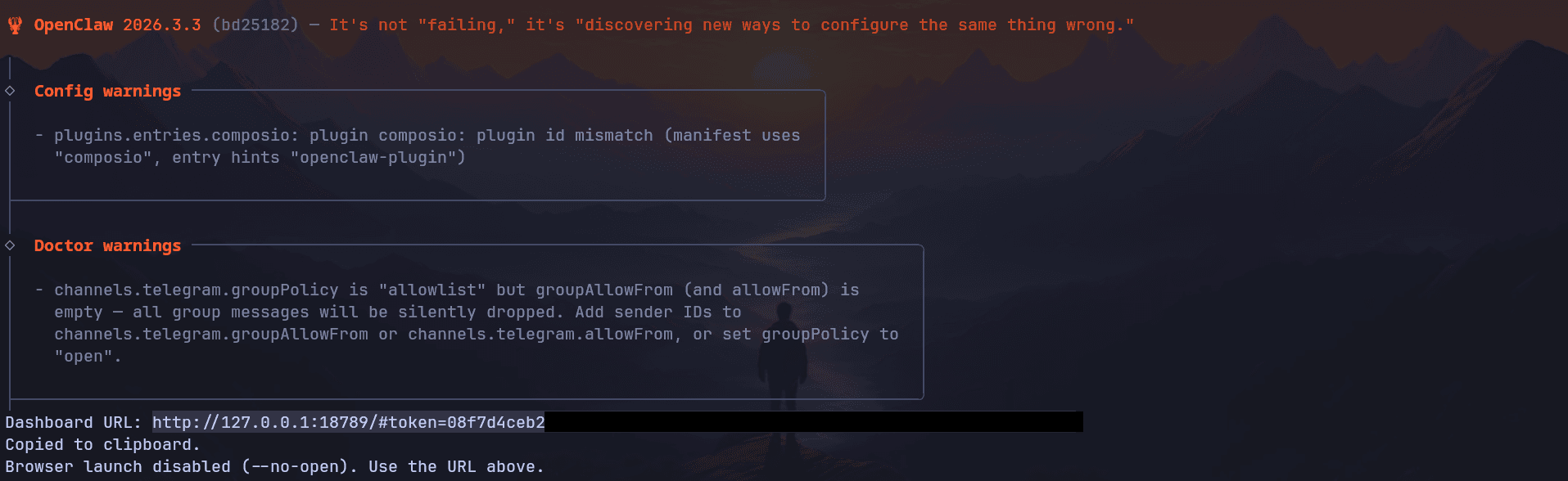
Image 5

OpenClaw is bad for Security

OpenClaw’s whole selling point is also the problem: it can read/write files, run shell commands, and load third party “skills.” That is basically “download random code from the internet and run it with your permissions,” except now an LLM is the one executing.

What’s actually gone wrong in the wild (already):

  • Malicious skills on ClawHub: researchers found hundreds to thousands of skills that were straight up malware or had critical issues, including credential theft and prompt injection patterns.

  • Prompt injection turning into installs: there’s been at least one high profile incident where a prompt injection was used to push OpenClaw onto machines via an agent workflow.

  • Exfiltrate API keys and tokens: When your agent has full control of the computer, and when compromised, it can easily exfiltrate the API keys and tokens to attackers.
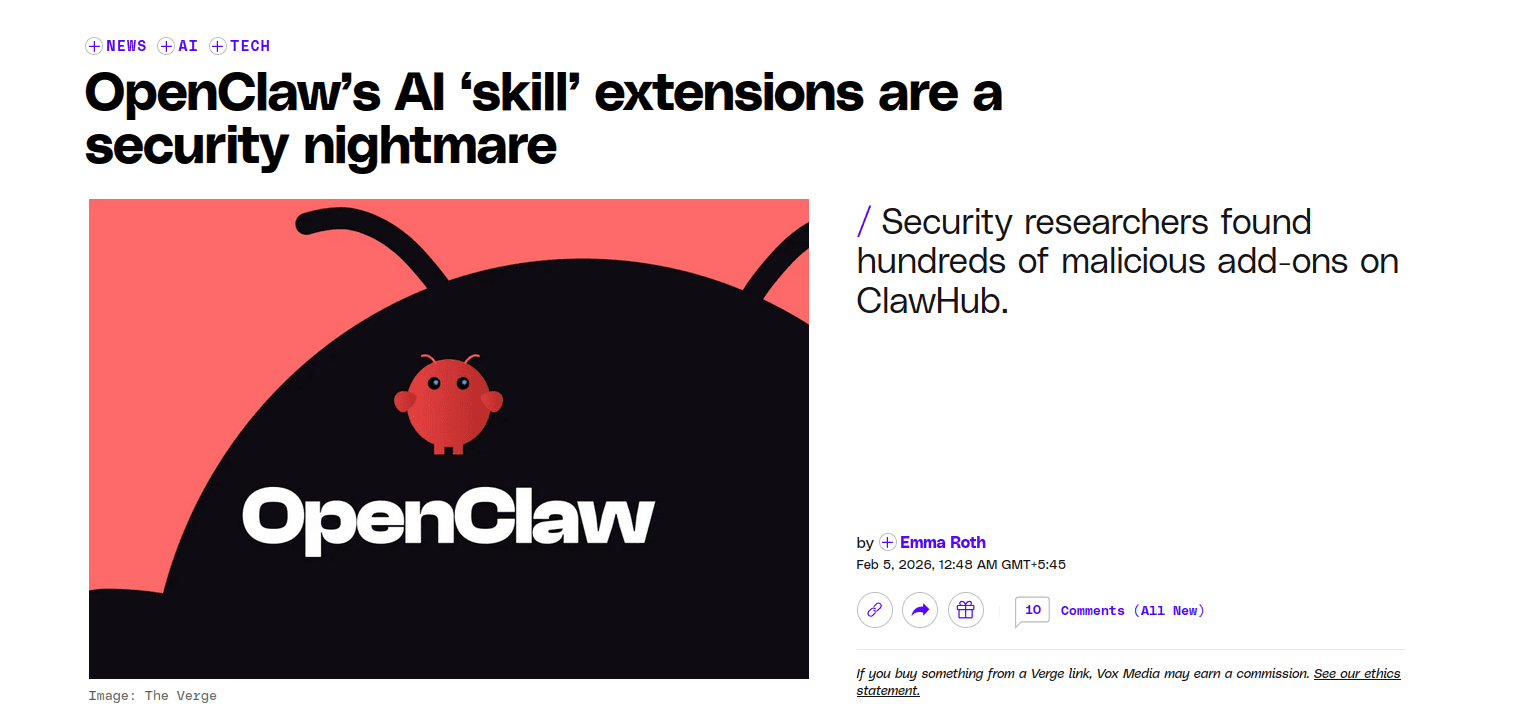
Image 6

If you’re still going to run it, do the bare minimum to not get cooked:

  • Don't trust skills you don't know. If you didn’t read it, don’t install it.

  • Prefer OAuth-hosted integrations over pasting keys locally.

  • Run it sandboxed (Docker) and keep it away from your real home directory.

If you want to read more on OpenClaw’s security posture, we have a nice piece on it: OpenClaw is a Security Nightmare Dressed Up as a Daydream

Setting up safe Integrations

So enough of that. Let's look into how you can make it a bit more secure.

I assume you already have OpenClaw installed and have already done the initial setup onboarding. We’ll use Composio plugin, which gives us access to 850+ SaaS apps like Gmail, Outlook, Canva, YouTube, Twitter and more without you needing to manage OAuth tokens and integrations.

Contrary to OpenClaw’s native integrations, the credentials do not stay in your system and neither a compromised Claw can access them. The credentials are securely hosted and managed by Composio.

1. Install Composio Plugin

Composio’s OpenClaw plugin connects OpenClaw to Composio’s MCP endpoint and exposes third-party tools (GitHub, Gmail, Slack, Notion, etc.) through that layer without you needing to handle auth hassles.

2. Composio Plugin Setup

  1. Log in at dashboard.composio.dev

  2. Choose OpenClaw as the client.

  3. Copy your consumer key (ck_...) from the Composio dashboard settings, then set it:
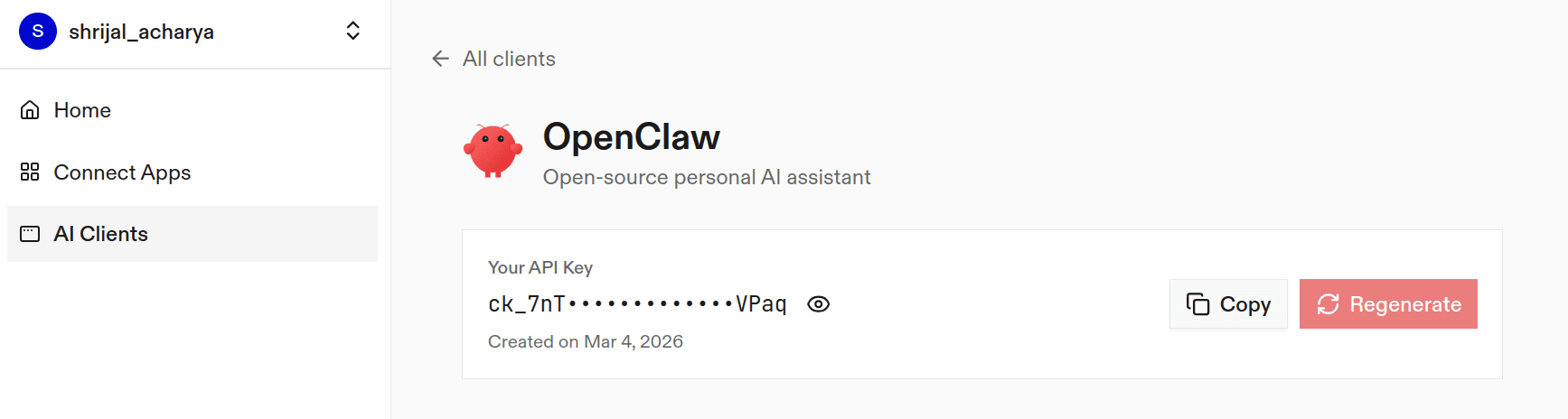
Image 7
openclaw config set plugins.entries.composio.config.consumerKey "ck_your_key_here"

3. Verify the plugin loaded

openclaw plugins list
openclaw logs --follow
openclaw plugins list
openclaw logs --follow
openclaw plugins list
openclaw logs --follow

You're looking for something like "Composio loaded" and a "tools registered" message.
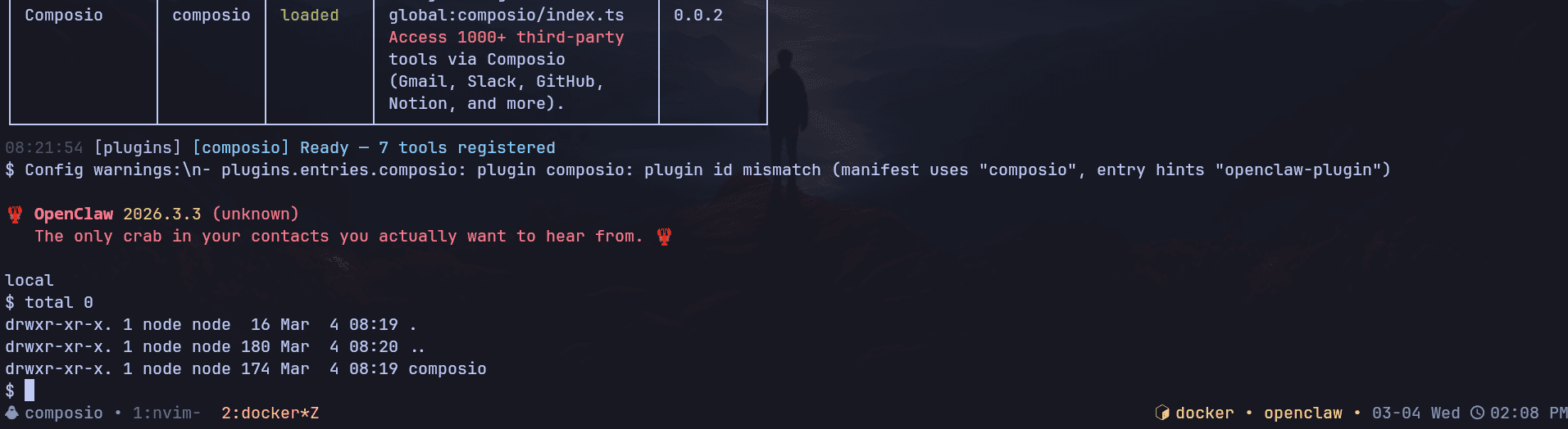
Image 8

If the plugin is "loaded", it means that you can now successfully access Composio.

Here's how it works:

The plugin connects to Composio's MCP server at https://connect.composio.dev/mcp and registers all available tools directly into the OpenClaw agent. Tools are called by name. No extra search or execute steps needed.

If a tool returns an auth error, the agent will prompt you to connect that toolkit at dashboard.composio.dev.

Here's how the configuration looks:

{
  "plugins": {
    "entries": {
      "composio": {
        "enabled": true,
        "config": {
          "consumerKey": "ck_your_key_here"
        }
      }
    }
  }
}
{
  "plugins": {
    "entries": {
      "composio": {
        "enabled": true,
        "config": {
          "consumerKey": "ck_your_key_here"
        }
      }
    }
  }
}
{
  "plugins": {
    "entries": {
      "composio": {
        "enabled": true,
        "config": {
          "consumerKey": "ck_your_key_here"
        }
      }
    }
  }
}

You can configure the following options directly from the config file:

  • enabled: enable or disable the plugin

  • consumerKey: your Composio consumer key

  • mcpUrl: the MCP server URL. By default, it's https://connect.composio.dev/mcp

Previously, you had to configure API keys per integration, but with Composio you don't have to care about any of that. Just make sure not to leak the consumer key that we generated.

And it's that simple. Everything works out of the box as you would use any other OpenClaw plugins!

Now, to test if it works, head over to the Control UI chat and send a message, something like:

“List the Composio tools you have available. Only print the result here”
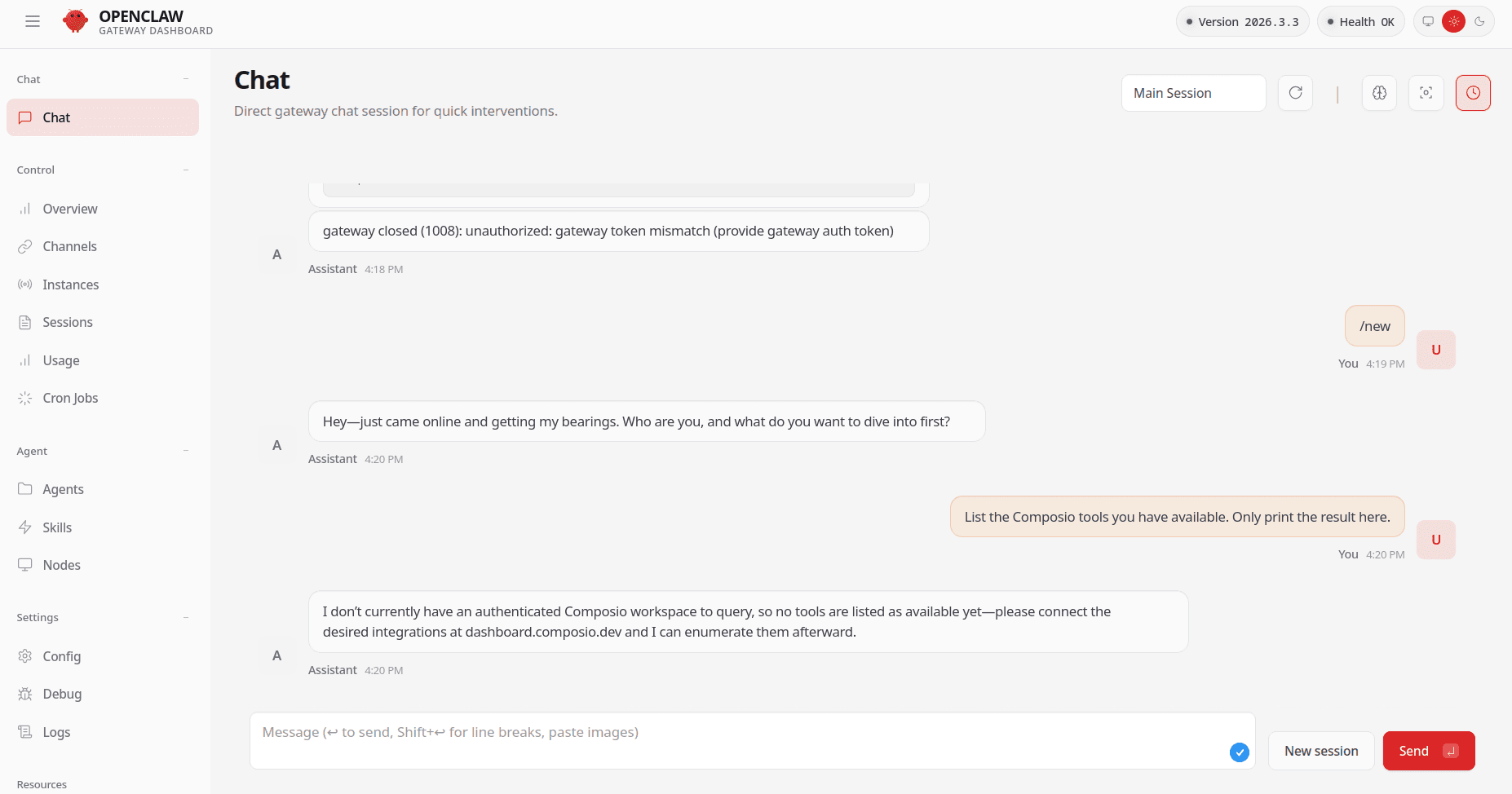
Image 9

If it asks you to connect the tools, head over to dashboard.composio.dev and connect each of the tools you require. It's as simple as clicking Connect.
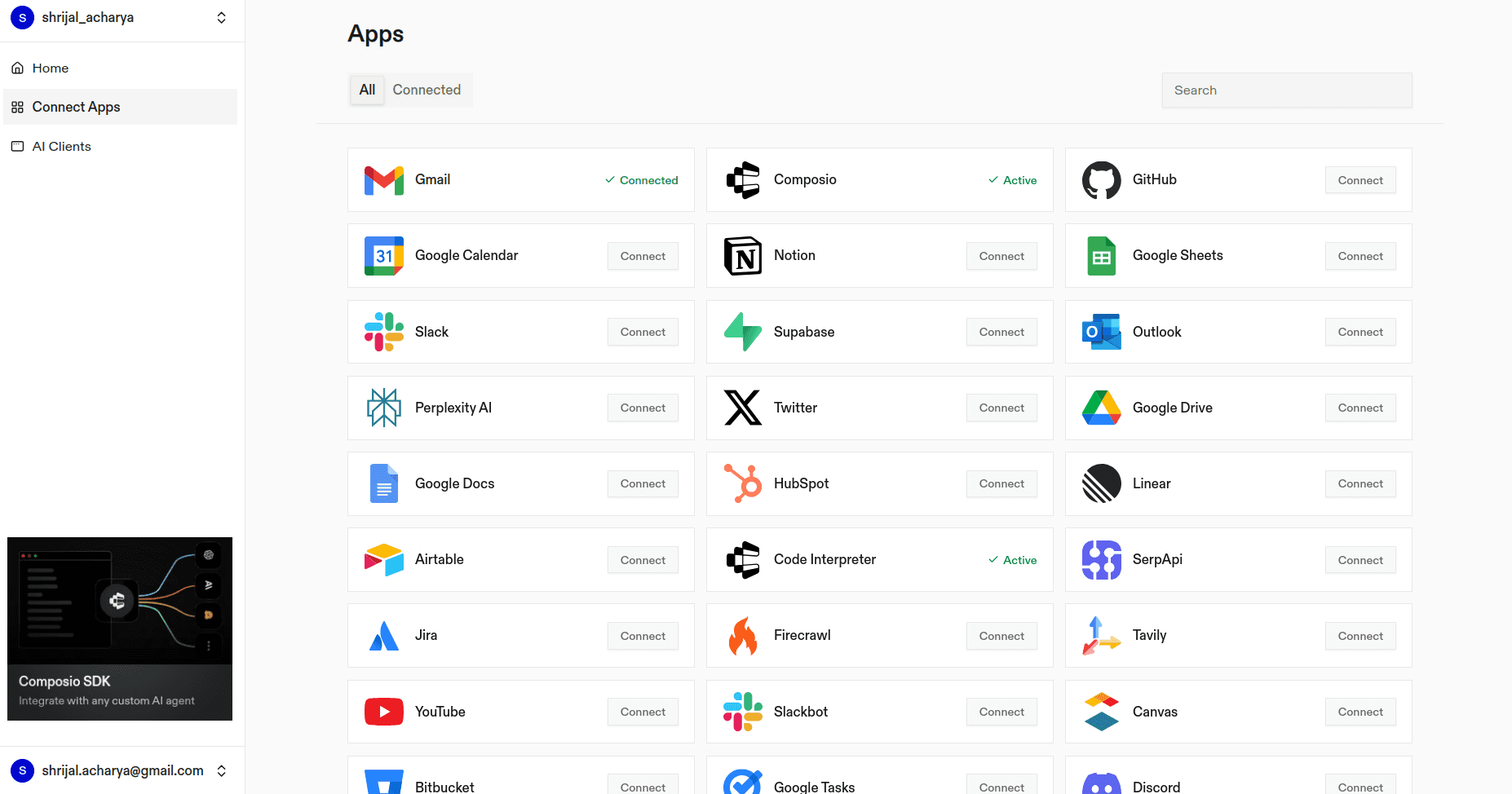
Image 10

All the integrations you use are OAuth hosted, and only the tools you connect will be available to OpenClaw. Nothing more than that.

Wrap Up!

OpenClaw is really useful for some people (not everyone), but it’s also risky. It can touch your files, run commands, and pull in third party skills, which can include malware, like we discussed. It’s a local agent gateway with everything: your filesystem, your shell, and whatever credentials you put into it. That power is the whole point, and it’s also the danger.

So if you’re going to use it, seriously consider OAuth-hosted safe integrations instead of pasting API keys everywhere. It’s an easy way to reduce the chance of a disaster.

And, if you're looking for some secure alternatives, find it here:

That’s it for this post. Hope it helped, and I’ll see you next time.

OpenClaw has been showing up in my feed way too much, so I finally sat down and tested it properly, and yeah, it comes with a few real problems.

In this post, I’ll cover what OpenClaw is, how to set it up, where the security risks really come from, and how to use safer remote integrations so you can make it a bit more secure and save yourself some stress.

Image 1

TL;DR

If you just want the takeaway, here’s the deal with OpenClaw:

  • OpenClaw is a local agent gateway. It is the layer that connects your LLM (OpenAI, Anthropic, etc.) to real tools and local execution.

  • The “special sauce” is the package. People like it because it ships as a usable bundle: built-in skills, a simple “agent brain” file (SOUL.md), and easy chat support like messenger integrations.

  • Security is the big problem. By design, it can touch files, run commands, and pull third-party skills. The least-bad way to use it is with remote integrations (which I’ve shown how to set up), sandboxed code execution environment.

  • Also, watch your token bill. It can be very inefficient and chew through credits fast, especially if you’re using hosted models instead of a local LLM.

Overall, you'll learn everything you need to understand and start with OpenClaw (and make it slightly better with secure integrations).

What's OpenClaw?

Image 2

OpenClaw is a personal AI assistant you run on your own machine (or a server you own). It is not a new model. It is the thing that actually sits between your model provider (OpenAI, Anthropic, Kimi, etc.) and the stuff you want done, such as messaging, tools, files, and integrations.

Take this as a mental model:

  • Your LLM is the brain (thinks)

  • OpenClaw is the body (it can do things)

  • The Gateway is the receptionist (routes messages in and results out)

So when people say “OpenClaw turns an LLM into an agent,” what they really mean is: it gives the model a runtime that can call tools, keep state, and show up where you already chat (WhatsApp, Telegram, Slack, Discord, etc.).

Now, that's just the gist. There's a lot more to understand. I assume you've already worked with it, so I'm not going any deeper than this in the intro.

Image 3

What's Special than something like Manus?

Manus is essentially "agent as a product," but you're limited to their UI, tools, rules, and cloud.

OpenClaw is more like “agent as a kit.” It’s meant to be installed, set up, and shaped around your own workflow. You decide what models it uses, what tools it can touch, what data it can access, and where it runs.

That's the biggest difference.

💁 "Manus is for convenience, and OpenClaw is for control."

Wow, that was a nice line I came up with on the fly.

OpenClaw Installation

You’ve got two clean ways to install OpenClaw. If you just want it running quickly, do the normal installation. If you’re even slightly paranoid (which you should be ), do Docker.

The core requirement is Node ≥ 22.

Option 1: Normal install (recommended for most people)

Prereqs: Node 22+ and an API key (OpenAI, Anthropic, OpenRouter, whatever you’re using).

  1. Install OpenClaw:

curl -fsSL https://openclaw.ai/install.sh | bash
  1. Run onboarding (this sets up provider auth + gateway settings and can install the background service):

openclaw onboard --install-daemon
  1. Check the gateway status (if you installed the service, it should already be running):

  1. Optional: Open the Control UI:

Option 2: Docker (more isolated and secure)

Docker is great when you want a throwaway environment or isolation from your host, but it introduces an important rule:

ℹ️ Containers only see plugins and config if they share the same OpenClaw state directory/volume. So, it comes with a little complexity.

Clone and start the Docker stack:

git clone https://github.com/openclaw/openclaw
cd

💡 To know more about how/what it does, visit the OpenClaw Docker Quickstart

Control UI gotchas

If you open the Control UI, and it shows something like:

unauthorized: gateway token missing

That's normal. The UI needs a gateway token to connect.

Get your token:

cat ~/.openclaw/openclaw.json | jq -r '.gateway.auth.token'

Make sure jq is installed on your machine. Or, you can manually get the token from the config file ~/.openclaw/openclaw.json.

Then either:

  • Paste it in the UI (Overview → Gateway Access → Gateway Token)

Image 4
  • Use a URL that includes it, for example via:

openclaw dashboard --no-open
Image 5

OpenClaw is bad for Security

OpenClaw’s whole selling point is also the problem: it can read/write files, run shell commands, and load third party “skills.” That is basically “download random code from the internet and run it with your permissions,” except now an LLM is the one executing.

What’s actually gone wrong in the wild (already):

  • Malicious skills on ClawHub: researchers found hundreds to thousands of skills that were straight up malware or had critical issues, including credential theft and prompt injection patterns.

  • Prompt injection turning into installs: there’s been at least one high profile incident where a prompt injection was used to push OpenClaw onto machines via an agent workflow.

  • Exfiltrate API keys and tokens: When your agent has full control of the computer, and when compromised, it can easily exfiltrate the API keys and tokens to attackers.

Image 6

If you’re still going to run it, do the bare minimum to not get cooked:

  • Don't trust skills you don't know. If you didn’t read it, don’t install it.

  • Prefer OAuth-hosted integrations over pasting keys locally.

  • Run it sandboxed (Docker) and keep it away from your real home directory.

If you want to read more on OpenClaw’s security posture, we have a nice piece on it: OpenClaw is a Security Nightmare Dressed Up as a Daydream

Setting up safe Integrations

So enough of that. Let's look into how you can make it a bit more secure.

I assume you already have OpenClaw installed and have already done the initial setup onboarding. We’ll use Composio plugin, which gives us access to 850+ SaaS apps like Gmail, Outlook, Canva, YouTube, Twitter and more without you needing to manage OAuth tokens and integrations.

Contrary to OpenClaw’s native integrations, the credentials do not stay in your system and neither a compromised Claw can access them. The credentials are securely hosted and managed by Composio.

1. Install Composio Plugin

Composio’s OpenClaw plugin connects OpenClaw to Composio’s MCP endpoint and exposes third-party tools (GitHub, Gmail, Slack, Notion, etc.) through that layer without you needing to handle auth hassles.

2. Composio Plugin Setup

  1. Log in at dashboard.composio.dev

  2. Choose OpenClaw as the client.

  3. Copy your consumer key (ck_...) from the Composio dashboard settings, then set it:

Image 7
openclaw config set plugins.entries.composio.config.consumerKey "ck_your_key_here"

3. Verify the plugin loaded

openclaw plugins list
openclaw logs --follow

You're looking for something like "Composio loaded" and a "tools registered" message.

Image 8

If the plugin is "loaded", it means that you can now successfully access Composio.

Here's how it works:

The plugin connects to Composio's MCP server at https://connect.composio.dev/mcp and registers all available tools directly into the OpenClaw agent. Tools are called by name. No extra search or execute steps needed.

If a tool returns an auth error, the agent will prompt you to connect that toolkit at dashboard.composio.dev.

Here's how the configuration looks:

{
  "plugins": {
    "entries": {
      "composio": {
        "enabled": true,
        "config": {
          "consumerKey": "ck_your_key_here"
        }
      }
    }
  }
}

You can configure the following options directly from the config file:

  • enabled: enable or disable the plugin

  • consumerKey: your Composio consumer key

  • mcpUrl: the MCP server URL. By default, it's https://connect.composio.dev/mcp

Previously, you had to configure API keys per integration, but with Composio you don't have to care about any of that. Just make sure not to leak the consumer key that we generated.

And it's that simple. Everything works out of the box as you would use any other OpenClaw plugins!

Now, to test if it works, head over to the Control UI chat and send a message, something like:

“List the Composio tools you have available. Only print the result here”

Image 9

If it asks you to connect the tools, head over to dashboard.composio.dev and connect each of the tools you require. It's as simple as clicking Connect.

Image 10

All the integrations you use are OAuth hosted, and only the tools you connect will be available to OpenClaw. Nothing more than that.

Wrap Up!

OpenClaw is really useful for some people (not everyone), but it’s also risky. It can touch your files, run commands, and pull in third party skills, which can include malware, like we discussed. It’s a local agent gateway with everything: your filesystem, your shell, and whatever credentials you put into it. That power is the whole point, and it’s also the danger.

So if you’re going to use it, seriously consider OAuth-hosted safe integrations instead of pasting API keys everywhere. It’s an easy way to reduce the chance of a disaster.

And, if you're looking for some secure alternatives, find it here:

That’s it for this post. Hope it helped, and I’ll see you next time.

Connect AI agents to SaaS apps in Minutes

Connect AI agents to SaaS apps in Minutes

We handle auth, tools, triggers, and logs, so you build what matters.

