Ship powerful agents fast

Add 10K+ tools to your AI Agent

Ship powerful agents fast

Add 10K+ tools to your AI Agent

How to better your Claude CoWork experience with MCPs

How to better your Claude CoWork experience with MCPs

How to better your Claude CoWork experience with MCPs

How to better your Claude CoWork experience with MCPs

Jan 19, 2026

Jan 19, 2026

Right when everyone was busy talking about how good Claude Code is, Anthropic launched Claude CoWork, basically Claude Code with a much less intimidating interface for automating fake email jobs. It can access your local file system, connectors, MCPs, and do almost everything that can be executed through the shell.

Claude CoWork is currently available as a research preview in the Claude Desktop app as a separate tab for Max subscribers ($100 or $200 per month plans) on macOS, with Windows support planned for the future.

The tool works by giving users access to a folder on their computer, where it can read, edit, or create files on their behalf. It works inside a local containerised environment by mounting your local folders. Which means you can trust that it won’t access folders that you haven’t granted permission to.

There’s a lot to talk about CoWork, but perhaps in a separate blog post. This talks about using connectors and MCPs to do more than organising files.

Working with MCP Connectors

Claude AI Connectors are direct integrations that let Claude access your actual work tools and data. Launched in July 2025, these connectors transform Claude from an AI that knows a lot about the world into an AI that knows a lot about your world.

Claude comes with pre-built integrations, including Gmail, Google Drive, GitHub, and Google Calendar. Apart from these, there are tons of Local and Remote MCP servers from HubSpot, Snowflake, Figma, and Context7.

Using default Integrations

For default integrations, all you need to do is just connect your accounts and start working with them.

  1. Navigate to Settings > Connectors

  2. Find the integration you want to enable

  3. Click the "Connect" button

  4. Follow the authentication flow

Pro, Max, Team, and Enterprise users can add these connectors to Claude or Claude Desktop.
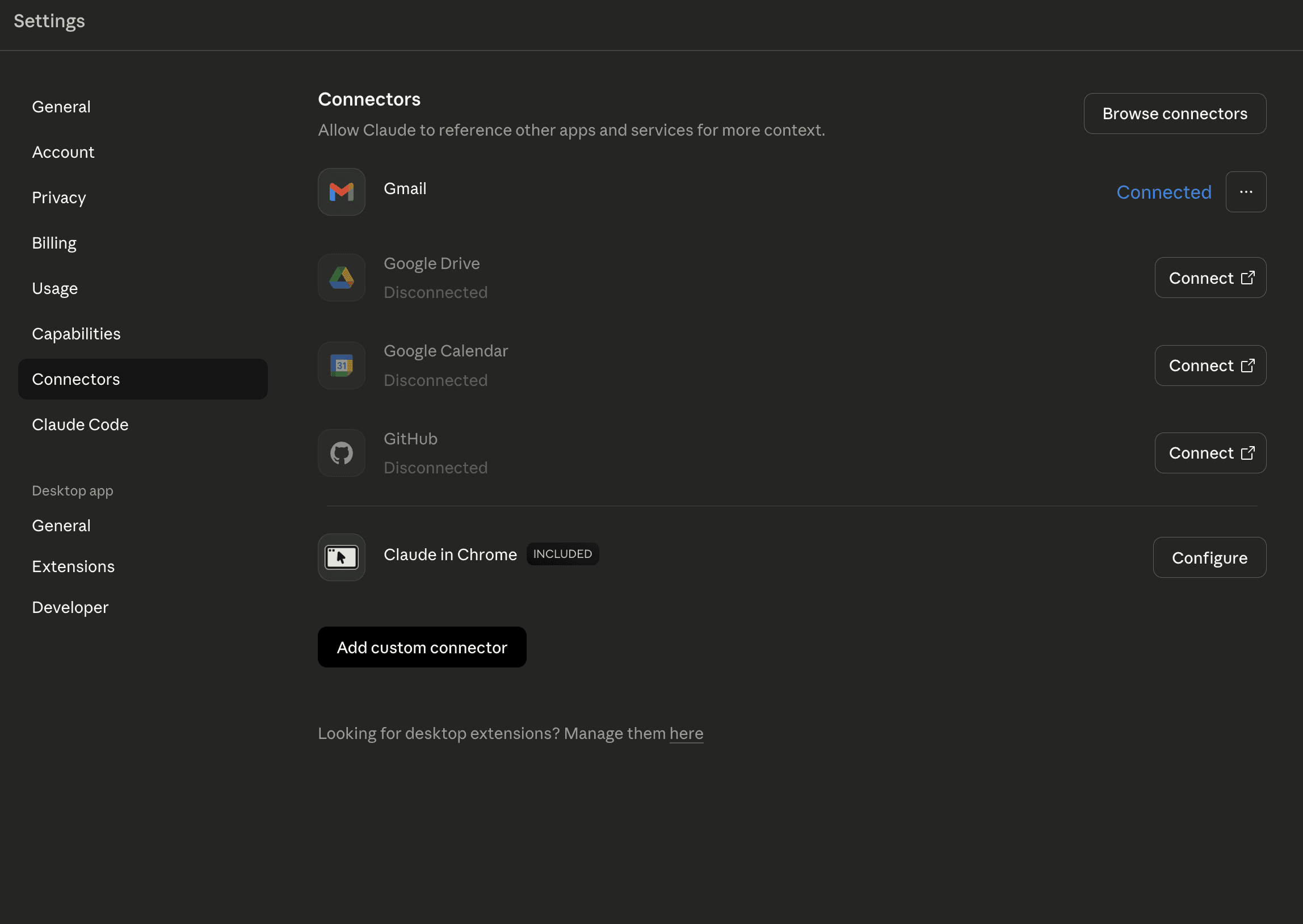

Image 1

Using Anthropic Marketplace Connectors

Anthropic has an MCP marketplace where you can find Anthropic-reviewed tools, both local and remote-hosted connectors.

**For Desktop/Local MCPs: **Click Desktop → Search Your MCP → Click Install
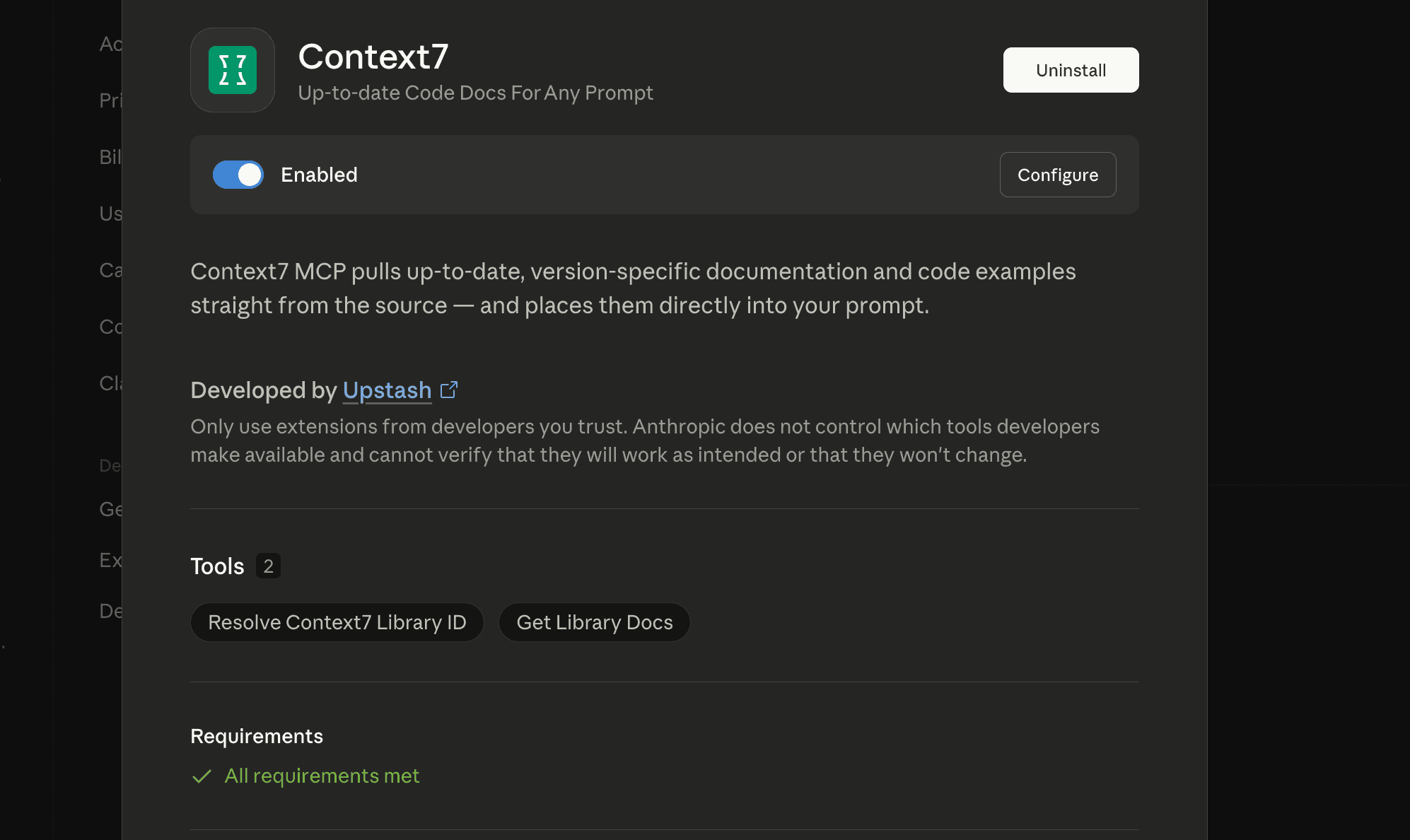

Image 2

**For remote MCPs, **

  1. Navigate to Browse Connectors

  2. On the Web tab, search your MCPs


Image 3

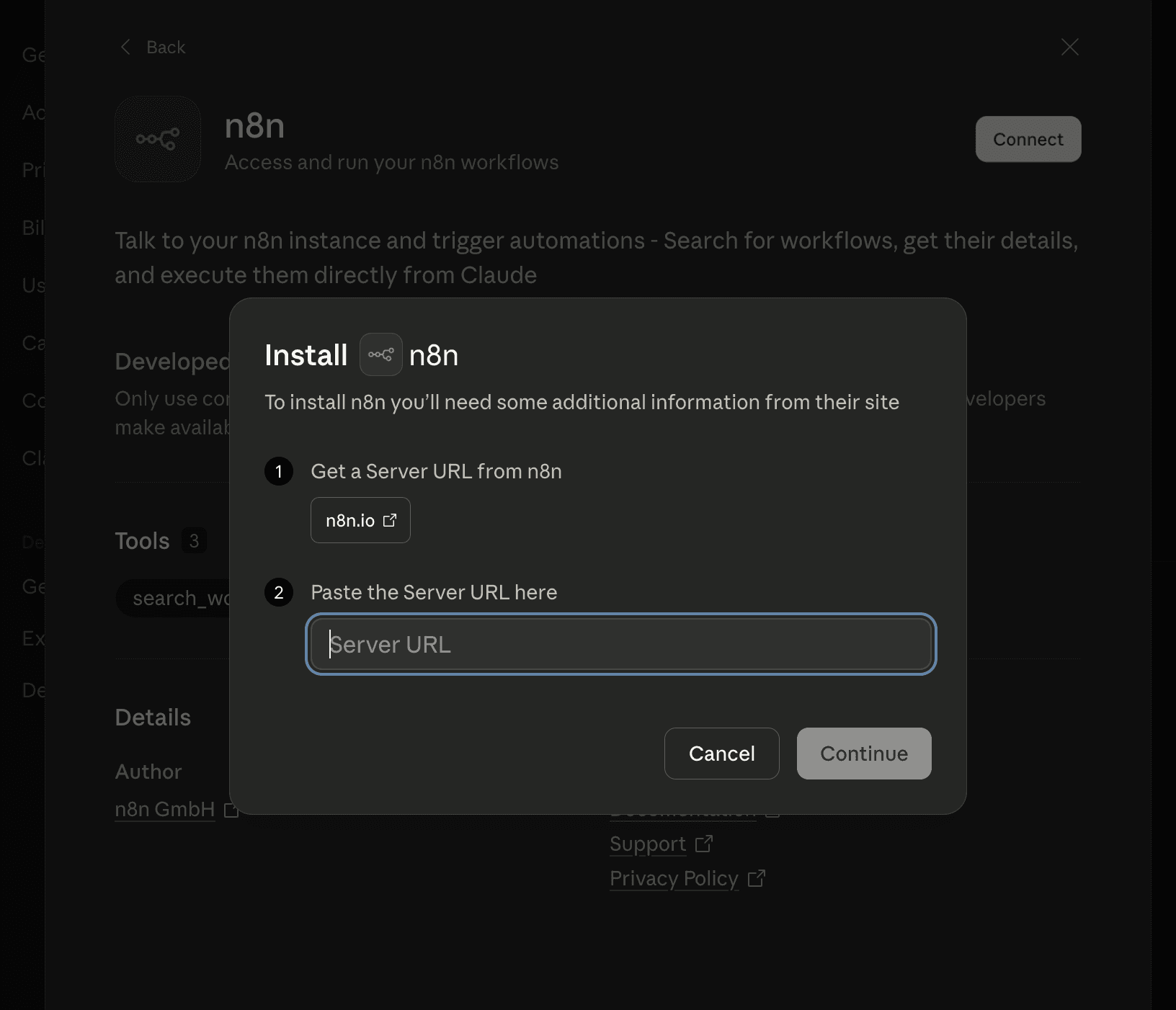
Provide your server URL if needed, and you’re done.

Custom MCP Server

This is the most interesting part. You can use whatever MCP servers you prefer.

Click on Add a Custom Connector → Provide MCP name and Server URL → (Optional) Oauth credentials
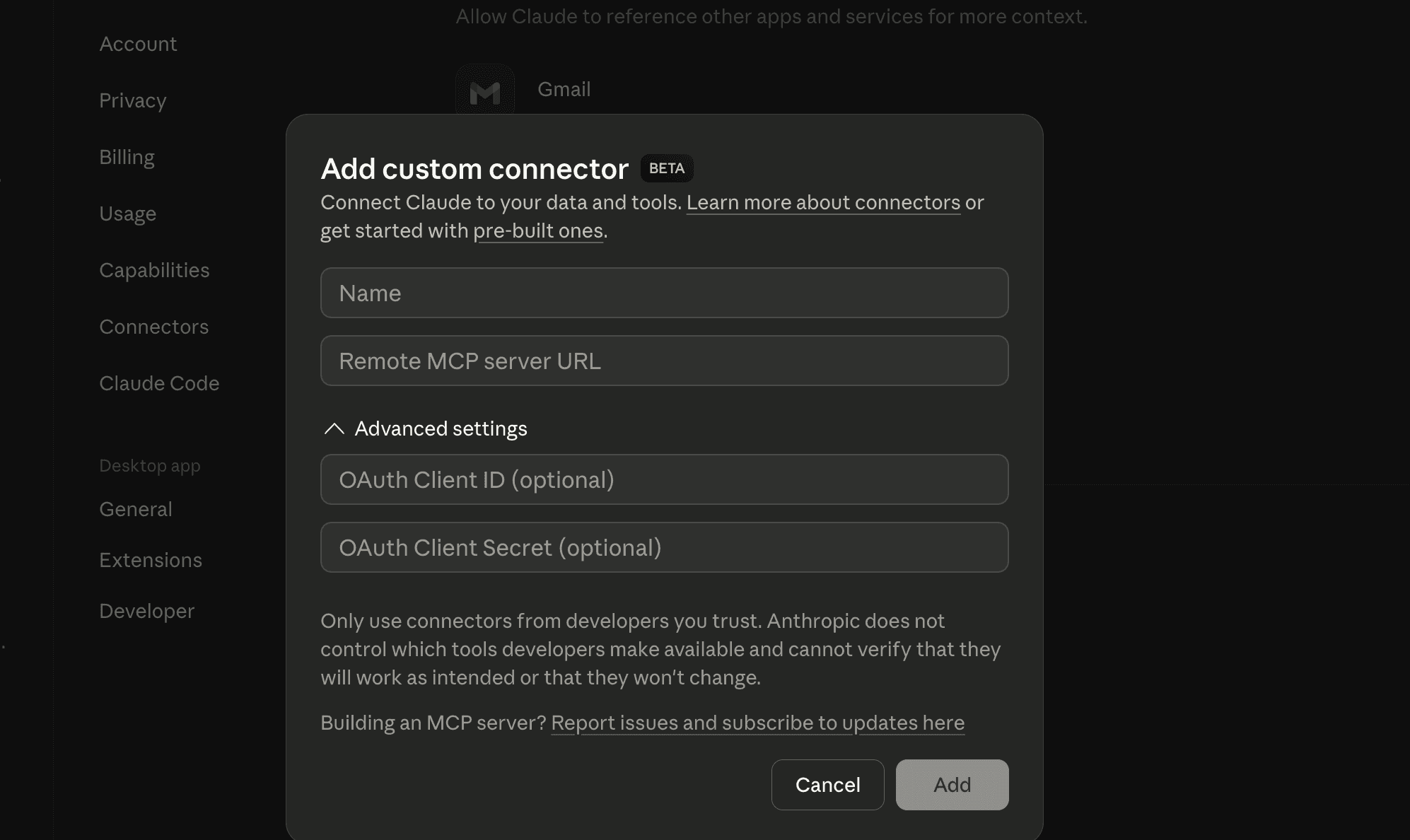

Image 4

But….You shouldn’t be using MCP servers

MCP servers are definitely a force multiplier, making it easy for LLMs to access data. However, they have physical limitations.

1. The MCPs are token hungry

Each MCP tool has a schema definition, what it does, the parameters, and sometimes examples. The more detailed the tool definitions, the more reliable the execution; however, LLMs have a limited context window (200k). And it’s well known that LLMs are more effective when they are not bloated. The more MCPs there are, the less space there is for actual execution.

For example, the GitHub and Linear official MCPs have 40 and 27 tools, respectively, and they consume 17.1K tokens (8.5%).


Image 5

2. Tool definitions are always loaded, even when unused

Most MCP clients eagerly load all available tools into the model context. That means tools the model will never call still consume tokens on every request.

If your server exposes 20 endpoints but a given task only needs 2, the model still incurs the cost of all 20. Over time, this pushes teams to artificially split MCP servers, not for architectural clarity, but to work around context limits.

This also discourages experimentation. Engineers hesitate to add new tools because every addition degrades all existing interactions.

3. Large tool outputs quietly destroy context

The biggest failures are less about schemas. They are caused by results.

Logs, database rows, file lists, search results, stack traces, and JSON blobs all flow straight back into the model. Even a single careless response can erase half the conversation history.

This is not ideal at all and can jeopardize LLMs.

4. Tool selection degrades as tool count grows

As the number of MCP tools increases, tool selection accuracy drops.

Models begin to:

  • Call near matches instead of the correct tool

  • Overuse generic tools

  • Avoid tools altogether and hallucinate answers

This happens even if all tools are well described. The attention budget simply is not infinite. Past a certain point, the model stops fully reading tool definitions.

You can observe this directly by adding more tools and watching call precision decline.

How to fix this?

By implementing a few architectural improvements

1. On-demand tool loading

Instead of loading every tool definition into the context upfront, only load the tools you actually need for the current task.

This is the simplest way to cut token usage, because tool schemas are the “always-on” cost. If you can turn that into a “pay only when used” cost, you immediately get more room for reasoning and better reliability.

We’ve implemented this in the Rube, a universal MCP server, that dynamically loads tools based on the task contexts

  • A Planner tool that plans in detail about a task, and a Search tool that finds and retrieves required tools.

  • When the model needs something, it asks for the specific tool definition.

  • Only then do you inject that tool’s schema into the context.

This also fixes the experimentation problem. You can add more tools without degrading every session, since most sessions won't load them.

2. Indexing tools for better discoverability

Tool selection gets worse as the tool count grows, even if every tool is well described.

So don’t rely on the model to “scan” a long list of tools. Give it a way to search tools like an index.

The pattern is:

  • Maintain a small searchable catalogue of tools. Effectively, in a vector database with hybrid search (full text match + vector embeddings of tool definitions)

  • Each entry has: tool name, one-line purpose, key parameters, and a few example queries.

  • Let the model search the catalogue with natural language.

  • Return the top 3-5 matches, then load only those schemas.

It also makes tool naming less painful. Even if a tool name is slightly off, the index can still match on description.

3. Handling Large Outputs outside the LLM’s context

This is the biggest lever.

Most MCP failures occur when tools return a large payload, and you paste it straight back into the model. Once you do that, the session starts forgetting earlier goals and acting strangely.

The fix is to stop treating the model like your output buffer.

Instead:

  • Store large outputs outside the prompt (local file, object store, database, even a temp cache).

  • Return a small summary plus a handle (file path, ID, cursor, pointer).

  • Models are extremely good at file operations, and storing large blobs in file storage and letting the model retrieve only what’s needed can go a long way.

The model should never be forced to read 200 KB of JSON just because the tool had it available.

4. Programmatic Tool Calling or CodeAct

LLMs are extremely performant at writing code. So, instead of giving LLMs direct MCP tools, it's better to give a workbench where they can write glue code for MCP tool chaining and execute it to get outputs.

Instead of LLMs calling a tool, waiting, reading the result, then deciding the next tool call (and repeating that cycle over and over), LLMs** write a small chunk of code inside a code execution container that calls your tools as functions**. That code can loop, branch, filter, aggregate, and stop early without requiring a new model round-trip for every step.

The reason this matters for MCPs is context.

With traditional tool calling, every intermediate result is included in the chat and consumes token space. With programmatic tool calling, the intermediate tool results are processed inside the code execution environment and do not enter Claude’s context. Claude only sees the final output of the code, which is usually a much smaller summary.

Anthropic’s guidance is that it pays off most when you have any of these patterns:

  • Large datasets where you only need aggregates or summaries

  • Multi-step workflows with 3 or more dependent tool calls

  • Filtering, sorting, or transforming tool results before Claude sees them

  • Parallel operations across many items (for example, checking 50 things)

  • Tasks where intermediate data should not influence reasoning

There is some overhead because you are adding code execution to the loop, so it’s less useful for a single quick lookup.

We’ve already solved it


Right when everyone was busy talking about how good Claude Code is, Anthropic launched Claude CoWork, basically Claude Code with a much less intimidating interface for automating fake email jobs. It can access your local file system, connectors, MCPs, and do almost everything that can be executed through the shell.

Claude CoWork is currently available as a research preview in the Claude Desktop app as a separate tab for Max subscribers ($100 or $200 per month plans) on macOS, with Windows support planned for the future.

The tool works by giving users access to a folder on their computer, where it can read, edit, or create files on their behalf. It works inside a local containerised environment by mounting your local folders. Which means you can trust that it won’t access folders that you haven’t granted permission to.

There’s a lot to talk about CoWork, but perhaps in a separate blog post. This talks about using connectors and MCPs to do more than organising files.

Working with MCP Connectors

Claude AI Connectors are direct integrations that let Claude access your actual work tools and data. Launched in July 2025, these connectors transform Claude from an AI that knows a lot about the world into an AI that knows a lot about your world.

Claude comes with pre-built integrations, including Gmail, Google Drive, GitHub, and Google Calendar. Apart from these, there are tons of Local and Remote MCP servers from HubSpot, Snowflake, Figma, and Context7.

Using default Integrations

For default integrations, all you need to do is just connect your accounts and start working with them.

  1. Navigate to Settings > Connectors

  2. Find the integration you want to enable

  3. Click the "Connect" button

  4. Follow the authentication flow

Pro, Max, Team, and Enterprise users can add these connectors to Claude or Claude Desktop.


Image 1

Using Anthropic Marketplace Connectors

Anthropic has an MCP marketplace where you can find Anthropic-reviewed tools, both local and remote-hosted connectors.

**For Desktop/Local MCPs: **Click Desktop → Search Your MCP → Click Install


Image 2

**For remote MCPs, **

  1. Navigate to Browse Connectors

  2. On the Web tab, search your MCPs


Image 3

Provide your server URL if needed, and you’re done.

Custom MCP Server

This is the most interesting part. You can use whatever MCP servers you prefer.

Click on Add a Custom Connector → Provide MCP name and Server URL → (Optional) Oauth credentials


Image 4

But….You shouldn’t be using MCP servers

MCP servers are definitely a force multiplier, making it easy for LLMs to access data. However, they have physical limitations.

1. The MCPs are token hungry

Each MCP tool has a schema definition, what it does, the parameters, and sometimes examples. The more detailed the tool definitions, the more reliable the execution; however, LLMs have a limited context window (200k). And it’s well known that LLMs are more effective when they are not bloated. The more MCPs there are, the less space there is for actual execution.

For example, the GitHub and Linear official MCPs have 40 and 27 tools, respectively, and they consume 17.1K tokens (8.5%).


Image 5

2. Tool definitions are always loaded, even when unused

Most MCP clients eagerly load all available tools into the model context. That means tools the model will never call still consume tokens on every request.

If your server exposes 20 endpoints but a given task only needs 2, the model still incurs the cost of all 20. Over time, this pushes teams to artificially split MCP servers, not for architectural clarity, but to work around context limits.

This also discourages experimentation. Engineers hesitate to add new tools because every addition degrades all existing interactions.

3. Large tool outputs quietly destroy context

The biggest failures are less about schemas. They are caused by results.

Logs, database rows, file lists, search results, stack traces, and JSON blobs all flow straight back into the model. Even a single careless response can erase half the conversation history.

This is not ideal at all and can jeopardize LLMs.

4. Tool selection degrades as tool count grows

As the number of MCP tools increases, tool selection accuracy drops.

Models begin to:

  • Call near matches instead of the correct tool

  • Overuse generic tools

  • Avoid tools altogether and hallucinate answers

This happens even if all tools are well described. The attention budget simply is not infinite. Past a certain point, the model stops fully reading tool definitions.

You can observe this directly by adding more tools and watching call precision decline.

How to fix this?

By implementing a few architectural improvements

1. On-demand tool loading

Instead of loading every tool definition into the context upfront, only load the tools you actually need for the current task.

This is the simplest way to cut token usage, because tool schemas are the “always-on” cost. If you can turn that into a “pay only when used” cost, you immediately get more room for reasoning and better reliability.

We’ve implemented this in the Rube, a universal MCP server, that dynamically loads tools based on the task contexts

  • A Planner tool that plans in detail about a task, and a Search tool that finds and retrieves required tools.

  • When the model needs something, it asks for the specific tool definition.

  • Only then do you inject that tool’s schema into the context.

This also fixes the experimentation problem. You can add more tools without degrading every session, since most sessions won't load them.

2. Indexing tools for better discoverability

Tool selection gets worse as the tool count grows, even if every tool is well described.

So don’t rely on the model to “scan” a long list of tools. Give it a way to search tools like an index.

The pattern is:

  • Maintain a small searchable catalogue of tools. Effectively, in a vector database with hybrid search (full text match + vector embeddings of tool definitions)

  • Each entry has: tool name, one-line purpose, key parameters, and a few example queries.

  • Let the model search the catalogue with natural language.

  • Return the top 3-5 matches, then load only those schemas.

It also makes tool naming less painful. Even if a tool name is slightly off, the index can still match on description.

3. Handling Large Outputs outside the LLM’s context

This is the biggest lever.

Most MCP failures occur when tools return a large payload, and you paste it straight back into the model. Once you do that, the session starts forgetting earlier goals and acting strangely.

The fix is to stop treating the model like your output buffer.

Instead:

  • Store large outputs outside the prompt (local file, object store, database, even a temp cache).

  • Return a small summary plus a handle (file path, ID, cursor, pointer).

  • Models are extremely good at file operations, and storing large blobs in file storage and letting the model retrieve only what’s needed can go a long way.

The model should never be forced to read 200 KB of JSON just because the tool had it available.

4. Programmatic Tool Calling or CodeAct

LLMs are extremely performant at writing code. So, instead of giving LLMs direct MCP tools, it's better to give a workbench where they can write glue code for MCP tool chaining and execute it to get outputs.

Instead of LLMs calling a tool, waiting, reading the result, then deciding the next tool call (and repeating that cycle over and over), LLMs** write a small chunk of code inside a code execution container that calls your tools as functions**. That code can loop, branch, filter, aggregate, and stop early without requiring a new model round-trip for every step.

The reason this matters for MCPs is context.

With traditional tool calling, every intermediate result is included in the chat and consumes token space. With programmatic tool calling, the intermediate tool results are processed inside the code execution environment and do not enter Claude’s context. Claude only sees the final output of the code, which is usually a much smaller summary.

Anthropic’s guidance is that it pays off most when you have any of these patterns:

  • Large datasets where you only need aggregates or summaries

  • Multi-step workflows with 3 or more dependent tool calls

  • Filtering, sorting, or transforming tool results before Claude sees them

  • Parallel operations across many items (for example, checking 50 things)

  • Tasks where intermediate data should not influence reasoning

There is some overhead because you are adding code execution to the loop, so it’s less useful for a single quick lookup.

We’ve already solved it


MCPs are great when they don't hog LLM context window and let you chain tools programmatically.

We've been cooking the same.

MCPs are great when they don't hog LLM context window and let you chain tools programmatically.

MCPs are great when they don't hog LLM context window and let you chain tools programmatically.

We've been cooking the same.

MCPs are great when they don't hog LLM context window and let you chain tools programmatically.

Before this became mainstream knowledge (thanks to Anthropic’s Blog post), we had already implemented the pattern at scale with Rube.

It’s an MCP server with meta tools that implements the above design patterns and more. This is a wrapper over our core tool infrastructure. You can access all our 877 SaaS toolkits without the headaches of implementing authentication.

Here’s what we’ve got in Rube MCP.

Discovery & Connection Tools

Tool

Purpose

RUBE_SEARCH_TOOLS

Discovers relevant tools and generates execution plans for tasks. Always call this first when starting a workflow. Returns tools, schemas, connection status, and recommended steps.

RUBE_GET_TOOL_SCHEMAS

Retrieves complete input parameter schemas for tools. Use when SEARCH_TOOLS returns schemaRef instead of full schema.

RUBE_MANAGE_CONNECTIONS

Creates or manages connections to user's apps. Returns auth links for OAuth/API key setup. Never execute tools without an active connection.

Execution Tools

Tool

Purpose

RUBE_MULTI_EXECUTE_TOOL

Fast parallel executor for up to 50 tools across apps. Primary way to run discovered tools. Includes memory storage for persistent facts across executions.

RUBE_REMOTE_WORKBENCH

Executes Python code in a remote Jupyter sandbox. Use for processing large data files, bulk operations, or scripting complex tool chains. Has 4-minute timeout.

RUBE_REMOTE_BASH_TOOL

Executes bash commands in a remote sandbox. Useful for file operations and processing JSON with tools like jq, awk, sed.

Recipe Tools (Reusable Workflows)

Tool

Purpose

RUBE_CREATE_UPDATE_RECIPE

Converts completed workflows into reusable notebooks/recipes with defined inputs, outputs, and executable code.

RUBE_EXECUTE_RECIPE

Runs an existing recipe with provided input parameters.

RUBE_FIND_RECIPE

Searches for recipes using natural language (e.g., "GitHub PRs to Slack"). Returns matching recipes with IDs for execution.

RUBE_GET_RECIPE_DETAILS

Retrieves full details of a recipe by ID, including code, schema, and defaults.

RUBE_MANAGE_RECIPE_SCHEDULE

Creates, updates, pauses, or deletes recurring schedules for recipes using cron expressions.

Typical Workflow

  1. RUBE_SEARCH_TOOLS → Find tools for your task

  2. RUBE_MANAGE_CONNECTIONS → Ensure apps are connected

  3. RUBE_MULTI_EXECUTE_TOOL → Execute the tools

  4. RUBE_REMOTE_WORKBENCH → Process large results if needed

  5. RUBE_CREATE_UPDATE_RECIPE → Save as reusable recipe (optional)

How to use Rube with Claude CoWork

The process is essentially the same as adding any Remote MCP servers.

  1. Head to Rube.app

  2. Click on Use Rube

  3. Copy the code https://rube.app/mcp

    Image 6
  4. Open your Claude App and go to the connectors

  5. Paste the MCP URL

    Image 7
  6. And…You’re done.

  7. Ask whatever you want. You’ll be prompted to authenticate with the apps you need. Then leave it upto Claude.

Some cool examples that I use every day

1. Analyse blog post performance from Google Search Console and create Notion files

2. Converting the Google Sheet to Notion

End Note

Claude CoWork is really great. If you want to take yourself to the next level, add all the apps you use. Rube is the one you should be using.

Frequently Asked Questions

1. What is Claude CoWork, and how is it different from Claude Code?

Claude CoWork is Anthropic's new automation tool available in the Claude Desktop app for Max subscribers. Unlike Claude Code, CoWork has a more accessible interface designed for automating everyday tasks and workflows. It can access your local file system, connectors, MCPs, and execute shell commands, all while working in a secure containerized environment that only accesses folders you've explicitly granted permission to.

2. How do I get started with Rube MCP in Claude CoWork?

Getting started is simple: visit rube.app, click "Use Rube," copy the MCP URL (https://rube.app/mcp), open your Claude App, go to connectors, and paste the URL. Once connected, you can ask Claude to perform tasks across 877 integrated SaaS tools. You'll be prompted to authenticate with specific apps as needed, and Claude will handle the rest.

3. What are the main benefits of using programmatic tool calling with MCPs?

Programmatic tool calling (or CodeAct) enables Claude to write and execute code that chains multiple MCP tools together, rather than making sequential calls to tools. This approach keeps intermediate results out of Claude's context window and processes them in the code execution environment instead. The result is better context management, faster execution for multi-step workflows, and the ability to handle large datasets without overwhelming the model's token limit.

4. Can I reuse my workflows in Rube, and how does scheduling work?

Yes! Rube allows you to convert completed workflows into reusable "recipes" using the RUBE_CREATE_UPDATE_RECIPE tool. These recipes have defined inputs, outputs, and executable code. You can search for existing recipes using natural language with RUBE_FIND_RECIPE, execute them with RUBE_EXECUTE_RECIPE, and even set up recurring schedules using cron expressions with RUBE_MANAGE_RECIPE_SCHEDULE. This makes it easy to automate repetitive tasks without rebuilding workflows from scratch.

Before this became mainstream knowledge (thanks to Anthropic’s Blog post), we had already implemented the pattern at scale with Rube.

It’s an MCP server with meta tools that implements the above design patterns and more. This is a wrapper over our core tool infrastructure. You can access all our 877 SaaS toolkits without the headaches of implementing authentication.

Here’s what we’ve got in Rube MCP.

Discovery & Connection Tools

Tool

Purpose

RUBE_SEARCH_TOOLS

Discovers relevant tools and generates execution plans for tasks. Always call this first when starting a workflow. Returns tools, schemas, connection status, and recommended steps.

RUBE_GET_TOOL_SCHEMAS

Retrieves complete input parameter schemas for tools. Use when SEARCH_TOOLS returns schemaRef instead of full schema.

RUBE_MANAGE_CONNECTIONS

Creates or manages connections to user's apps. Returns auth links for OAuth/API key setup. Never execute tools without an active connection.

Execution Tools

Tool

Purpose

RUBE_MULTI_EXECUTE_TOOL

Fast parallel executor for up to 50 tools across apps. Primary way to run discovered tools. Includes memory storage for persistent facts across executions.

RUBE_REMOTE_WORKBENCH

Executes Python code in a remote Jupyter sandbox. Use for processing large data files, bulk operations, or scripting complex tool chains. Has 4-minute timeout.

RUBE_REMOTE_BASH_TOOL

Executes bash commands in a remote sandbox. Useful for file operations and processing JSON with tools like jq, awk, sed.

Recipe Tools (Reusable Workflows)

Tool

Purpose

RUBE_CREATE_UPDATE_RECIPE

Converts completed workflows into reusable notebooks/recipes with defined inputs, outputs, and executable code.

RUBE_EXECUTE_RECIPE

Runs an existing recipe with provided input parameters.

RUBE_FIND_RECIPE

Searches for recipes using natural language (e.g., "GitHub PRs to Slack"). Returns matching recipes with IDs for execution.

RUBE_GET_RECIPE_DETAILS

Retrieves full details of a recipe by ID, including code, schema, and defaults.

RUBE_MANAGE_RECIPE_SCHEDULE

Creates, updates, pauses, or deletes recurring schedules for recipes using cron expressions.

Typical Workflow

  1. RUBE_SEARCH_TOOLS → Find tools for your task

  2. RUBE_MANAGE_CONNECTIONS → Ensure apps are connected

  3. RUBE_MULTI_EXECUTE_TOOL → Execute the tools

  4. RUBE_REMOTE_WORKBENCH → Process large results if needed

  5. RUBE_CREATE_UPDATE_RECIPE → Save as reusable recipe (optional)

How to use Rube with Claude CoWork

The process is essentially the same as adding any Remote MCP servers.

  1. Head to Rube.app

  2. Click on Use Rube

  3. Copy the code https://rube.app/mcp

    Image 6
  4. Open your Claude App and go to the connectors

  5. Paste the MCP URL

    Image 7
  6. And…You’re done.

  7. Ask whatever you want. You’ll be prompted to authenticate with the apps you need. Then leave it upto Claude.

Some cool examples that I use every day

1. Analyse blog post performance from Google Search Console and create Notion files

2. Converting the Google Sheet to Notion

End Note

Claude CoWork is really great. If you want to take yourself to the next level, add all the apps you use. Rube is the one you should be using.

Frequently Asked Questions

1. What is Claude CoWork, and how is it different from Claude Code?

Claude CoWork is Anthropic's new automation tool available in the Claude Desktop app for Max subscribers. Unlike Claude Code, CoWork has a more accessible interface designed for automating everyday tasks and workflows. It can access your local file system, connectors, MCPs, and execute shell commands, all while working in a secure containerized environment that only accesses folders you've explicitly granted permission to.

2. How do I get started with Rube MCP in Claude CoWork?

Getting started is simple: visit rube.app, click "Use Rube," copy the MCP URL (https://rube.app/mcp), open your Claude App, go to connectors, and paste the URL. Once connected, you can ask Claude to perform tasks across 877 integrated SaaS tools. You'll be prompted to authenticate with specific apps as needed, and Claude will handle the rest.

3. What are the main benefits of using programmatic tool calling with MCPs?

Programmatic tool calling (or CodeAct) enables Claude to write and execute code that chains multiple MCP tools together, rather than making sequential calls to tools. This approach keeps intermediate results out of Claude's context window and processes them in the code execution environment instead. The result is better context management, faster execution for multi-step workflows, and the ability to handle large datasets without overwhelming the model's token limit.

4. Can I reuse my workflows in Rube, and how does scheduling work?

Yes! Rube allows you to convert completed workflows into reusable "recipes" using the RUBE_CREATE_UPDATE_RECIPE tool. These recipes have defined inputs, outputs, and executable code. You can search for existing recipes using natural language with RUBE_FIND_RECIPE, execute them with RUBE_EXECUTE_RECIPE, and even set up recurring schedules using cron expressions with RUBE_MANAGE_RECIPE_SCHEDULE. This makes it easy to automate repetitive tasks without rebuilding workflows from scratch.