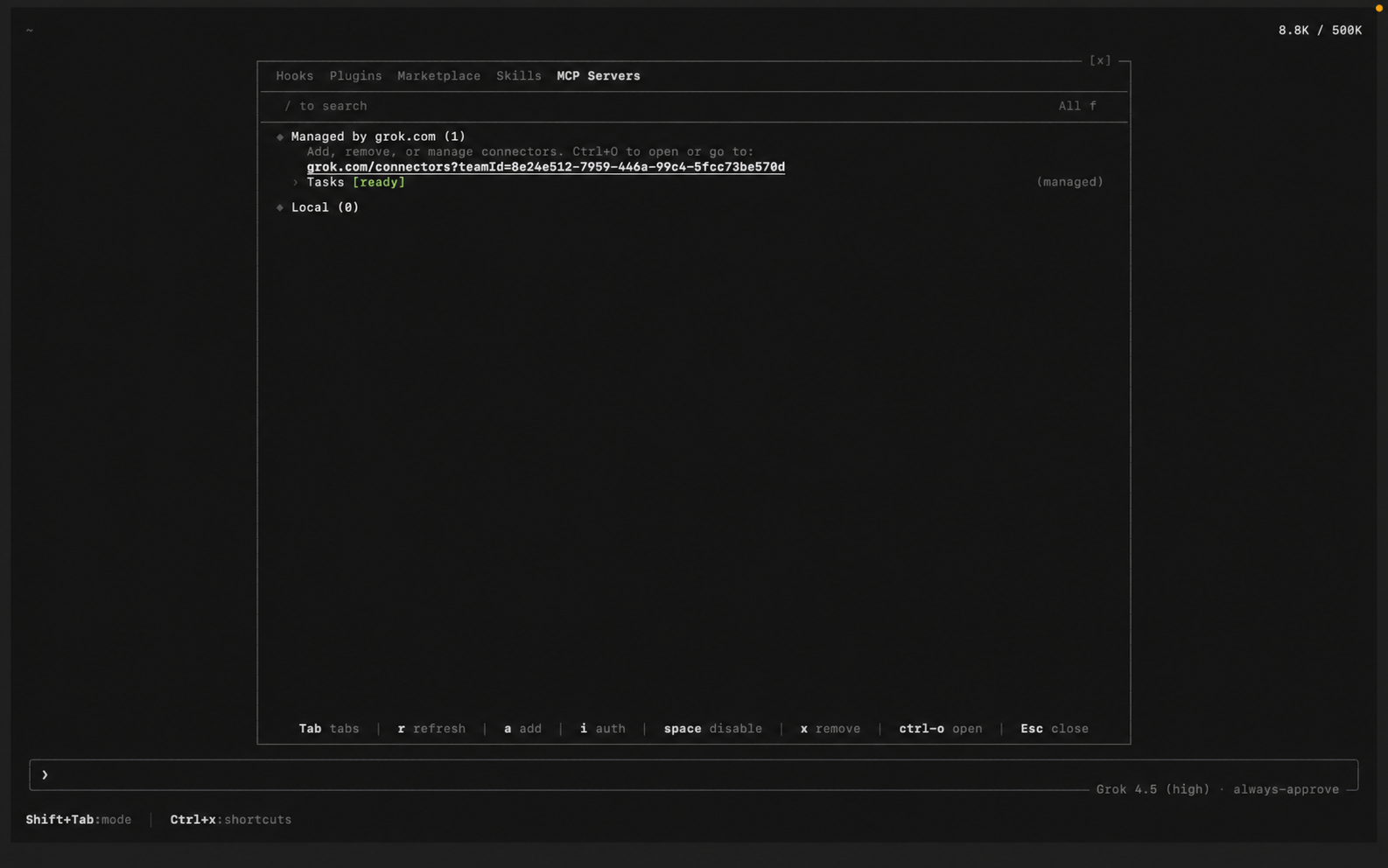
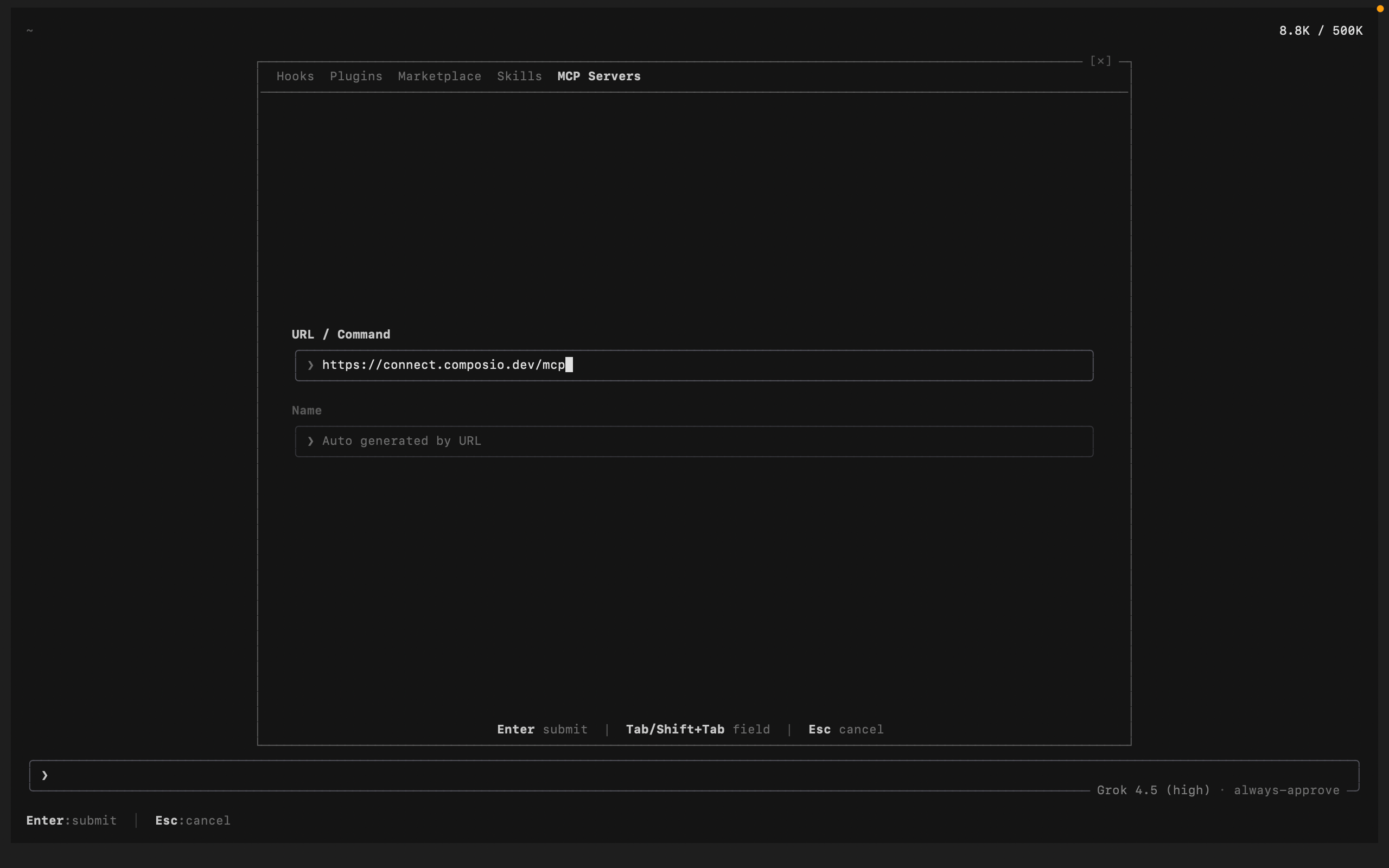
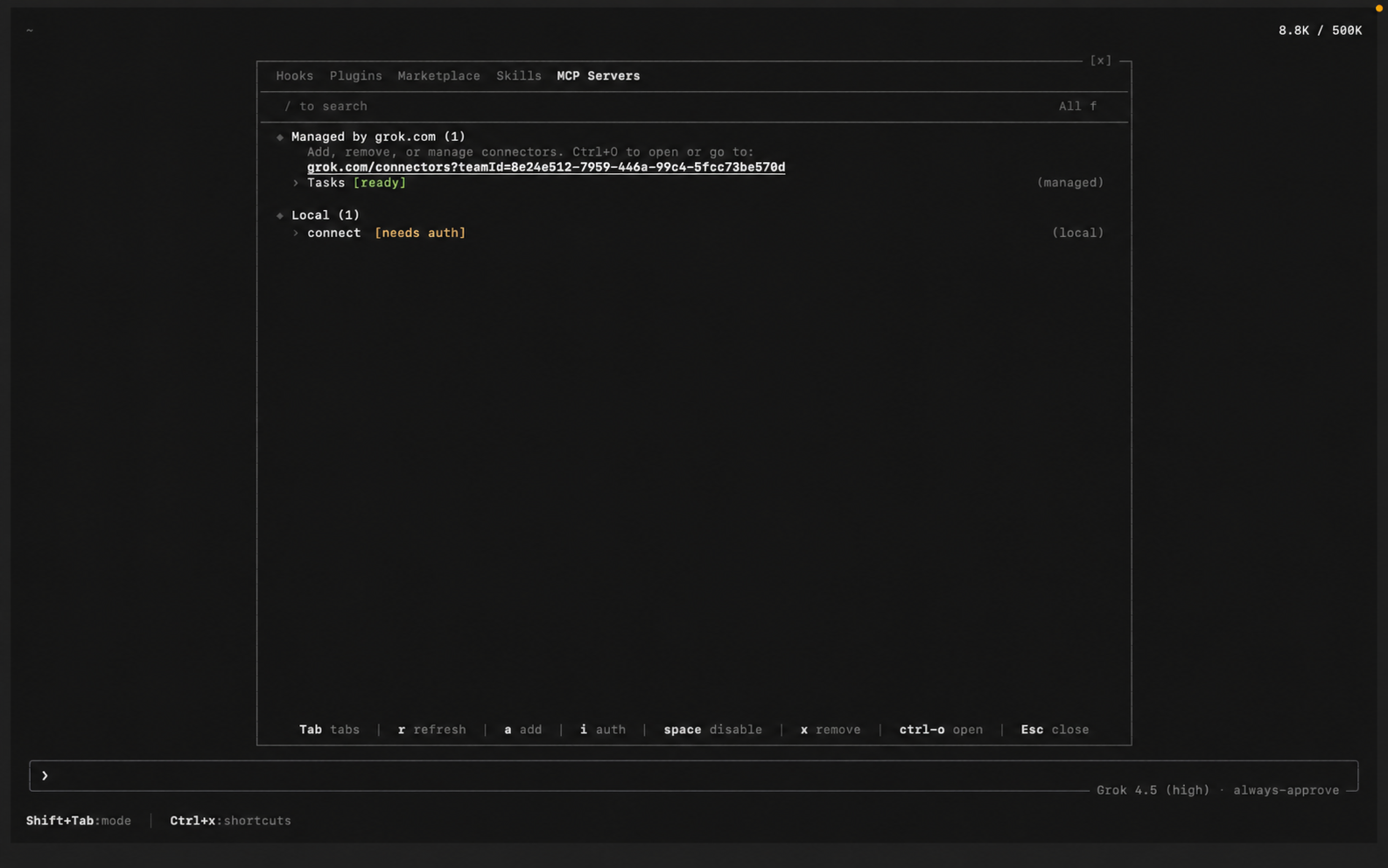
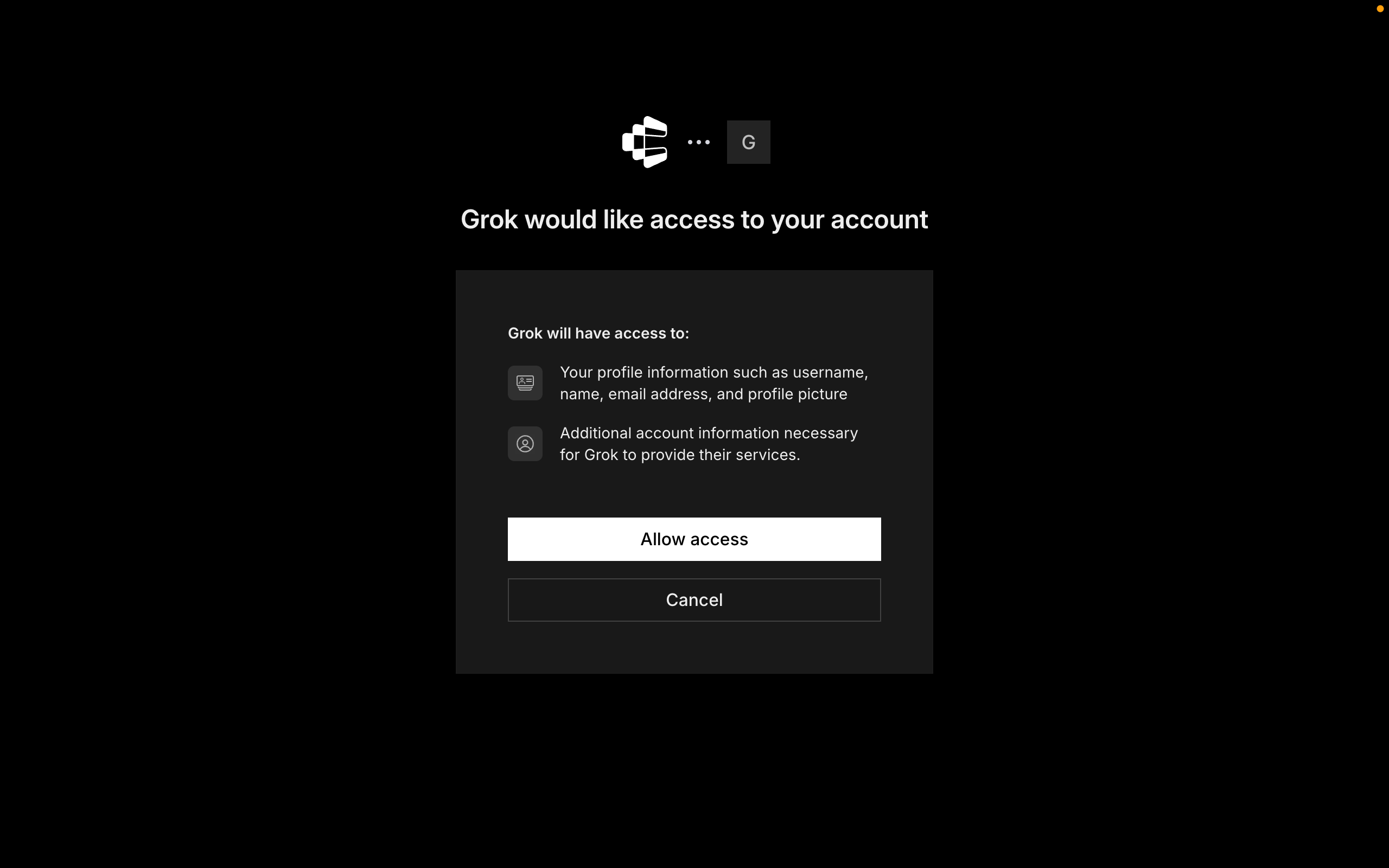
Add Alert WordsTool to add alert words to the current user's configuration.
Add APNs Device TokenTool to add an APNs (Apple Push Notification service) device token to Zulip.
Add Default StreamTool to add a channel as a default stream in Zulip.
Add LinkifierTool to add a linkifier to a Zulip realm.
Add Navigation ViewTool to add a navigation view in Zulip.
Add ReactionTool to add an emoji reaction to a Zulip message.
Archive ChannelTool to archive a channel in Zulip.
Check Messages Match NarrowTool to check if specific messages match a narrow filter.
Create BigBlueButton video callTool to create a BigBlueButton video call in Zulip.
Create ChannelTool to create a new channel in Zulip.
Create Channel FolderTool to create a new channel folder in Zulip.
Create custom profile fieldTool to create a custom profile field in Zulip.
Create DraftsTool to create one or more draft messages in Zulip.
Create reusable invitation linkTool to create a reusable invitation link for the Zulip organization.
Create Message ReminderTool to create a message reminder in Zulip.
Create Saved SnippetTool to create a saved snippet in Zulip.
Create Scheduled MessageTool to create a scheduled message in Zulip.
Delete DraftTool to delete a draft in Zulip.
Delete MessageTool to delete a message in Zulip.
Delete Event QueueTool to delete an event queue previously registered via POST /api/v1/register.
Delete ReminderTool to delete a reminder from Zulip.
Delete Saved SnippetTool to delete a saved snippet by its ID.
Delete Scheduled MessageTool to delete a scheduled message in Zulip.
Delete TopicTool to delete a topic from a Zulip channel/stream.
Edit DraftTool to edit an existing draft message in Zulip.
Edit Navigation ViewTool to update a navigation view in Zulip.
Edit Saved SnippetTool to edit a saved snippet by updating its title and/or content.
Export RealmTool to create a Zulip realm data export.
Get alert wordsTool to retrieve all configured alert words for the authenticated user.
Get Another User PresenceTool to get the presence status for a specific user in Zulip.
Get AttachmentsTool to retrieve metadata on files uploaded by the requesting user.
Get Channel FoldersTool to retrieve all channel folders in the organization, sorted by display order.
Get custom emojiTool to retrieve all custom emoji configured in the Zulip realm.
Get custom profile fieldsTool to get all custom profile fields configured for the Zulip realm.
Get draftsTool to fetch all drafts for the authenticated user.
Get EventsTool to get events from a Zulip event queue.
Get file temporary URLTool to get a public temporary URL for an uploaded file in Zulip.
Get realm iconTool to retrieve the URL of the Zulip realm's icon.
Get all invitationsTool to retrieve all unexpired invitations for the Zulip organization.
Get user group membership statusTool to check if a user is a member of a specific user group.
Get linkifiersTool to retrieve all configured linkifiers in the Zulip realm.
Get messageTool to fetch a single message by ID from Zulip.
Get Message HistoryTool to fetch the complete edit history of a Zulip message.
Get MessagesTool to fetch messages from Zulip.
Get Navigation ViewsTool to fetch all navigation views for the authenticated user.
Get own userTool to retrieve the profile information for the authenticated user.
Get Read ReceiptsTool to retrieve read receipts for a message in Zulip.
Get realm export consentsTool to retrieve data export consent state for users in a realm.
Get all data exportsTool to retrieve all data exports for the Zulip organization.
Get Realm PresenceTool to get the presence status for all users in the Zulip realm.
Get remindersTool to fetch all undelivered reminders for the authenticated user.
Get Saved SnippetsTool to fetch all saved snippets for the authenticated user.
Get Scheduled MessagesTool to fetch all scheduled messages for the authenticated user.
Get server settingsTool to retrieve server configuration and available authentication methods.
Get Channel by IDTool to get detailed information about a Zulip channel by its ID.
Get channel email addressTool to retrieve the email address for a Zulip channel.
Get Channel IDTool to get a channel's unique ID by its name.
Get All ChannelsTool to retrieve all channels (streams) in Zulip that match specified filters.
Get stream topicsTool to retrieve all topics in a Zulip channel.
Get Channel SubscribersTool to get all subscribers of a Zulip channel.
Get SubscriptionsTool to retrieve all channels (streams) the authenticated user is subscribed to.
Get subscription statusTool to check whether a specific user is subscribed to a particular channel (stream).
Get user by emailTool to fetch a user by email address from Zulip.
Get user channelsTool to retrieve the list of channel IDs that a specific user is subscribed to.
Get user group membersTool to retrieve all members of a specific user group.
Get user groupsTool to retrieve all user groups in the Zulip organization.
Get user group subgroupsTool to retrieve subgroups of a user group.
Get user statusTool to retrieve the status currently set by a user in the Zulip organization.
Mark Stream as ReadTool to mark all messages in a Zulip channel as read.
Mark Topic as ReadTool to mark all messages in a topic as read.
Mute TopicTool to mute or unmute a topic in a Zulip channel.
Reactivate UserTool to reactivate a deactivated user in Zulip.
Register Push DeviceTool to register an E2EE (end-to-end encrypted) push device for mobile notifications.
Register Event QueueTool to register an event queue for receiving Zulip events.
Remove Alert WordsTool to remove alert words from the current user's configuration.
Remove AttachmentTool to delete an attachment in Zulip.
Remove Code PlaygroundTool to remove a code playground from a Zulip realm.
Remove Default StreamTool to remove a channel from default streams in Zulip.
Remove LinkifierTool to remove a linkifier from a Zulip realm.
Remove Navigation ViewTool to remove a navigation view in Zulip.
Remove ReactionTool to remove an emoji reaction from a Zulip message.
Render MessageTool to render a message to HTML in Zulip.
Reorder Channel FoldersTool to reorder channel folders in Zulip.
Reorder Custom Profile FieldsTool to reorder custom profile fields in Zulip.
Reorder LinkifiersTool to reorder linkifiers in Zulip.
Revoke Email InvitationTool to revoke an email invitation in Zulip.
Revoke reusable invitation linkTool to revoke a reusable invitation link for the Zulip organization.
Send MessageTool to send a message in Zulip.
Set Typing StatusTool to set typing status in Zulip.
Set Typing Status for Message EditTool to set typing status when editing a message in Zulip.
Subscribe to ChannelTool to subscribe users to one or more Zulip channels.
Test Welcome Bot Custom MessageTool to test welcome bot custom message in Zulip.
Unsubscribe From ChannelTool to unsubscribe from one or more channels (streams) in Zulip.
Update Channel FolderTool to update a channel folder in Zulip.
Update LinkifierTool to update a linkifier in a Zulip realm.
Update MessageTool to edit a message in Zulip.
Update Message FlagsTool to update personal message flags in Zulip.
Update Message Flags for NarrowTool to update personal message flags (e.
Update Realm User Settings DefaultsTool to update realm-level defaults of user settings in Zulip.
Update Scheduled MessageTool to edit a scheduled message in Zulip.
Update SettingsTool to update user settings in Zulip.
Update StatusTool to update your status in Zulip.
Update status for userTool to update the status for a specific user in the Zulip organization.
Update ChannelTool to update a channel in Zulip.
Update SubscriptionsTool to update channel subscriptions by subscribing to new channels or unsubscribing from existing ones.
Update Subscription SettingsTool to update the user's personal settings for channels they are subscribed to.
Update user by emailTool to update a user by email address in Zulip.
Update User TopicTool to update personal preferences for a topic in a Zulip channel.