How to integrate Wp Maps MCP with Hermes

Connect Hermes to Wp Maps MCP. Create a map of nearby store locations, highlight products available at each store, and more using natural language, with authentication handled for you.

Wp Maps logoWp Maps
Api Key

Wp Maps is a WordPress mapping tool for displaying products and store locations on interactive maps. It helps brands increase awareness by making nearby products and stores easier to discover.

10 Tools

Introduction

Hermes is a 24/7 autonomous agent that lives on your computer or server — it remembers what it learns and evolves as your usage grows.

This guide explains the easiest and most robust way to connect your Wp Maps account to Hermes. You can do this through either Composio Connect CLI or Composio Connect MCP. For personal use we recommend the CLI, but you won't go wrong with MCP either.

For exact tool slugs and parameter tables, see the tool catalog in the Composio docs.

Also integrate Wp Maps with

What is Composio Connect?

Composio Connect is a consumer offering that lets anyone plug 1,700+ applications directly into their agent harness — including Hermes. It can:

  • Search and load tools from relevant toolkits on-demand, reducing context usage.
  • Chain multiple tools to accomplish complex workflows via a remote workbench, without excessive back-and-forth with the LLM.
  • Manage app authentication end-to-end with zero manual overhead.

Integrating Wp Maps with Hermes

Using Composio Connect CLI

1. Install the Composio CLI

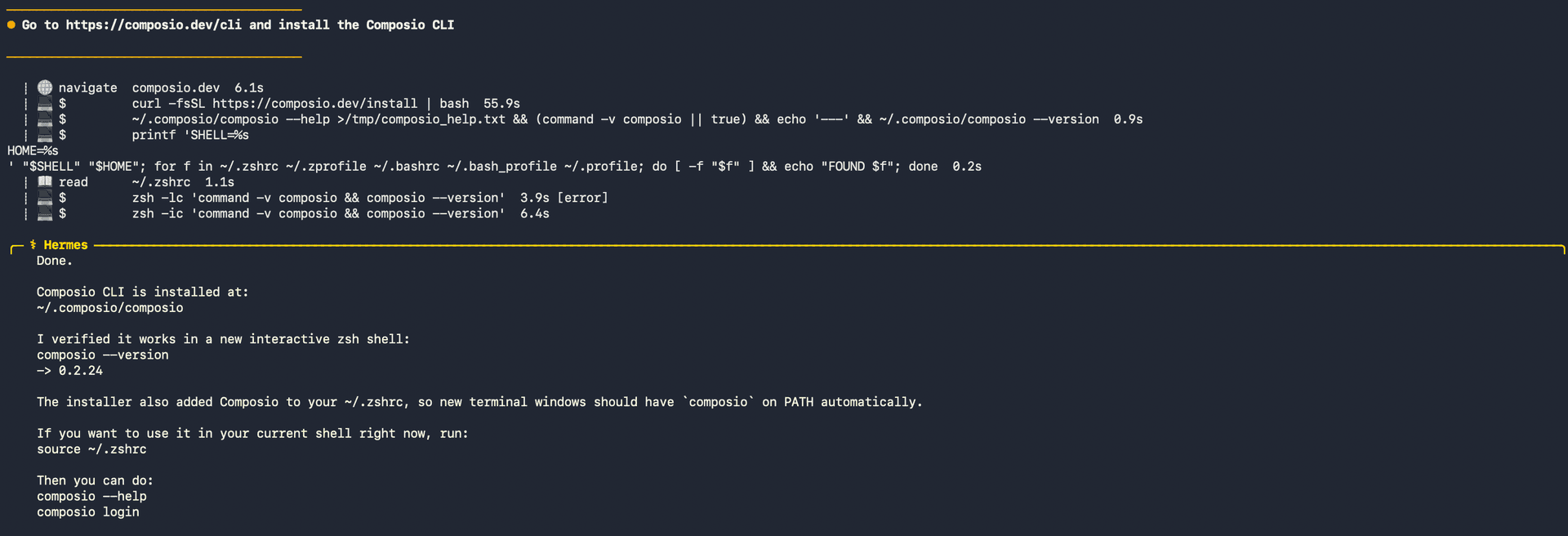
Run the install script directly, or paste https://composio.dev/hermes into your Hermes chat box to have it installed for you.

bash
curl -fsSL https://composio.dev/install | bash
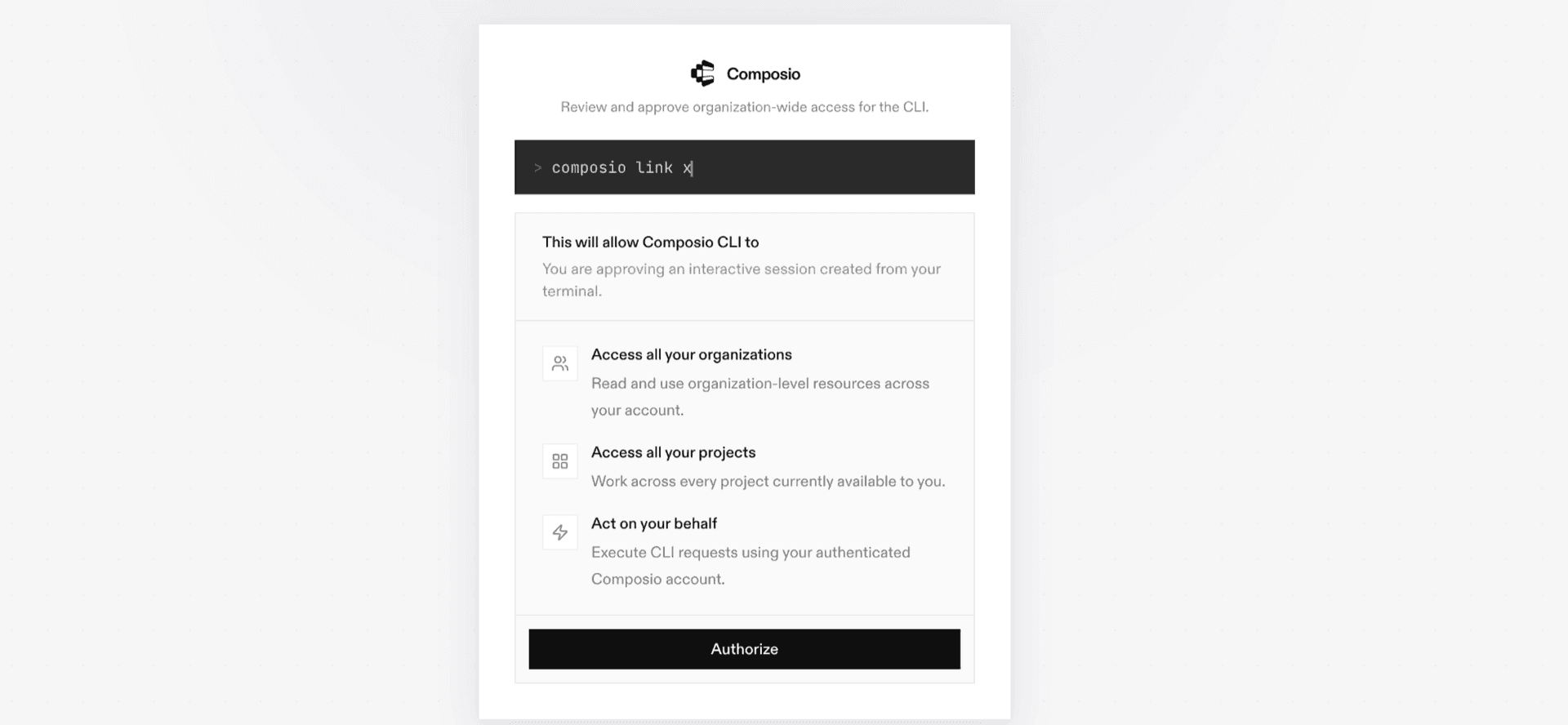
Hermes authenticating with Composio

2. Authenticate

Once the CLI is installed, ask Hermes to authenticate with Composio.

3. Connect to Wp Maps

Ask your agent to connect to Wp Maps, or simply request any Wp Maps-related task. Hermes will prompt you to authenticate and authorize access.

4. Done. You're all set with a new Wp Maps connection.


Using Composio Connect MCP

1. Get your MCP URL and API Key

Go to dashboard.composio.dev and copy your Connect MCP URL and API key.

Copy MCP URL and API key from Composio dashboard

2. Open the Hermes config file

bash
nano ~/.hermes/config.yaml

3. Add the Composio Connect MCP server

bash
mcp_servers:
  composio:
    url: "https://connect.composio.dev/mcp"
    headers:
      x-consumer-api-key: "YOUR_COMPOSIO_API_KEY"
    connect_timeout: 60
    timeout: 180

Save with Ctrl + O, Enter, then exit with Ctrl + X.

4. Restart your Hermes agent

Once restarted, ask your agent to connect to Wp Maps or request any Wp Maps-related task. It will prompt you to authenticate and authorize access.

5. Done!

What is the Wp Maps MCP server, and what's possible with it?

The Wp Maps MCP server is an implementation of the Model Context Protocol that connects your AI agent and assistants like Claude, Cursor, etc directly to your Wp Maps account. It provides structured and secure access to your product catalog and store listings, so your agent can find, add, update, remove, and review products and stores on your behalf.

  • Product catalog management: Have your agent list products, retrieve product details, add new products, update product information, or remove products from WP Maps.
  • Store listing management: Let the agent review all stores, retrieve individual store details, add new store listings, update store information, or remove stores.
  • Product and store lookups: Direct your agent to find specific product or store information when you need details about availability, pricing, categories, or locations.
  • Map content updates: Instruct your agent to keep product and store listings current by creating or updating multiple entries as your catalog and locations change.
  • Catalog and location cleanup: Have your agent remove outdated products or store listings from your WP Maps data when they are no longer relevant.

Way Forward

With Wp Maps connected, Hermes can now act on your behalf whenever it detects a relevant task or you ask it to.

From here, you can extend Hermes further:

  • Connect more apps: Calendar, Slack, Notion, Linear, and hundreds of others are available through the same Composio Connect setup. Each new integration compounds what Hermes can do for you.
  • Build workflows across tools: Once multiple apps are connected, Hermes can chain actions together — turn an email into a calendar invite, a Slack message into a Linear ticket, or a meeting note into a follow-up draft.
  • Let it learn your patterns: The more you use Hermes, the better it gets at anticipating how you'd handle recurring tasks. Give it feedback on drafts and decisions, and it will adapt.

If you run into trouble or want to share what you've built, join the community or check out the Docs for deeper configuration options.

TOOLS

Supported Tools

Every Wp Maps action and event your agent gets out of the box.

Create Products

Create one or more WP Maps products.

Create Stores

Create one or more WP Maps stores.

Delete Products

Permanently delete one or more WP Maps products by ID.

Delete Stores

Permanently delete one or more WP Maps stores by ID.

Get Product Data

Retrieve product data from WP Maps by product ID in a single GET request, returning a product object with details such as title, price, categories, and store availability.

Get Store by ID

Tool to retrieve store data by store ID from WP Maps API.

List All Products

Retrieve the product catalog from WP Maps.

List All Stores

Retrieve all store data from WP Maps.

Update Products

Update selected fields on one or more WP Maps products identified by ID.

Update Stores

Update selected fields on one or more WP Maps stores identified by ID.

FAQ

Frequently asked questions

Start with Wp Maps.It takes 30 seconds.

Managed auth, hosted MCP servers, and every Wp Maps tool your agent needs.Free to start.

Start building