How to connect Workday Adaptive Planning to Claude

Connect Claude Web, Desktop and Cowork to Workday Adaptive Planning MCP. List current workday planning model metadata, review workday forecast transaction records, and more using natural language, with authentication handled for you.

Workday Adaptive Planning logoWorkday Adaptive Planning
Oauth2

Workday Adaptive Planning is a cloud planning platform for budgets, forecasts, models, users, and transactions. It helps finance teams manage planning data and improve forecasting accuracy.

50 Tools

Introduction

Claude is Anthropic's AI assistant, available on the web, in the desktop app, and on mobile. Cowork is its agent for knowledge work, and it runs on all of those surfaces too. Connected to your apps, Claude can work with your files and services to accomplish complex tasks on your behalf.

This guide walks you through the easiest and most secure way to connect your Workday Adaptive Planning account to Claude via Composio Connect, enabling it to list current Workday planning model metadata, review Workday forecast transaction records, check Workday planning users and permissions, and more such actions on your behalf without compromising your account security.

Setup is the same on Claude Web, Desktop, and Cowork, and you only need to do it once. The connector is tied to your account, so it's available in all three.

For exact tool slugs and parameter tables, see the tool catalog in the Composio docs.

Also integrate Workday Adaptive Planning with

Connecting Workday Adaptive Planning to Claude Web, Desktop, and Cowork

Two ways to add the Composio connector. Pick whichever you prefer.

1. Add with one click

Click the button. Claude opens with the Composio connector filled in. Click Add, then go to step 2.

Add to Claude

Add manually

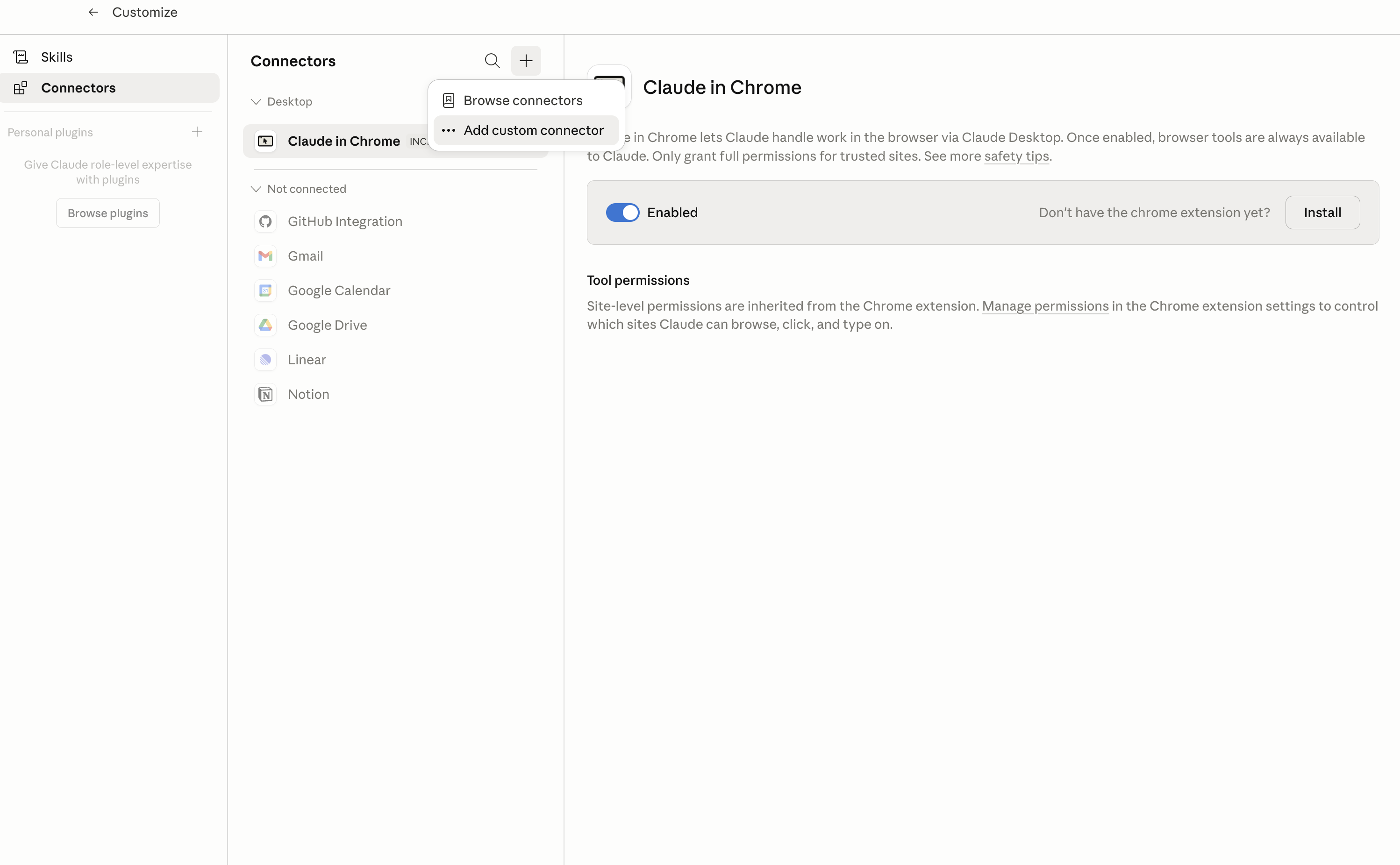
In Claude Desktop, click Customize in the left sidebar, then select Connectors and click the + icon at the top.

Claude Desktop connectors screen with Add custom connector selected

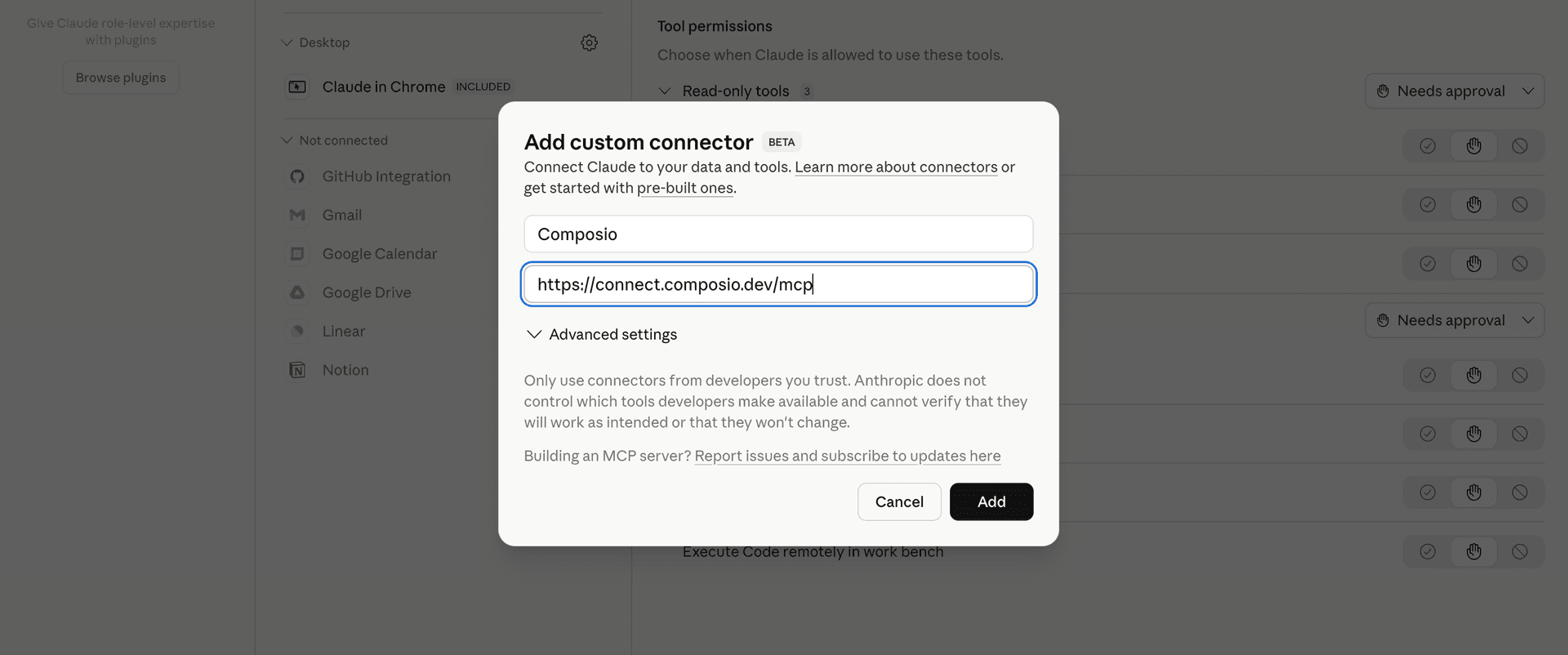
Click Add custom connector and paste in the Composio MCP server URL:

bash
https://connect.composio.dev/mcp
Add custom connector dialog with Composio MCP server URL

2. Authorize in your browser

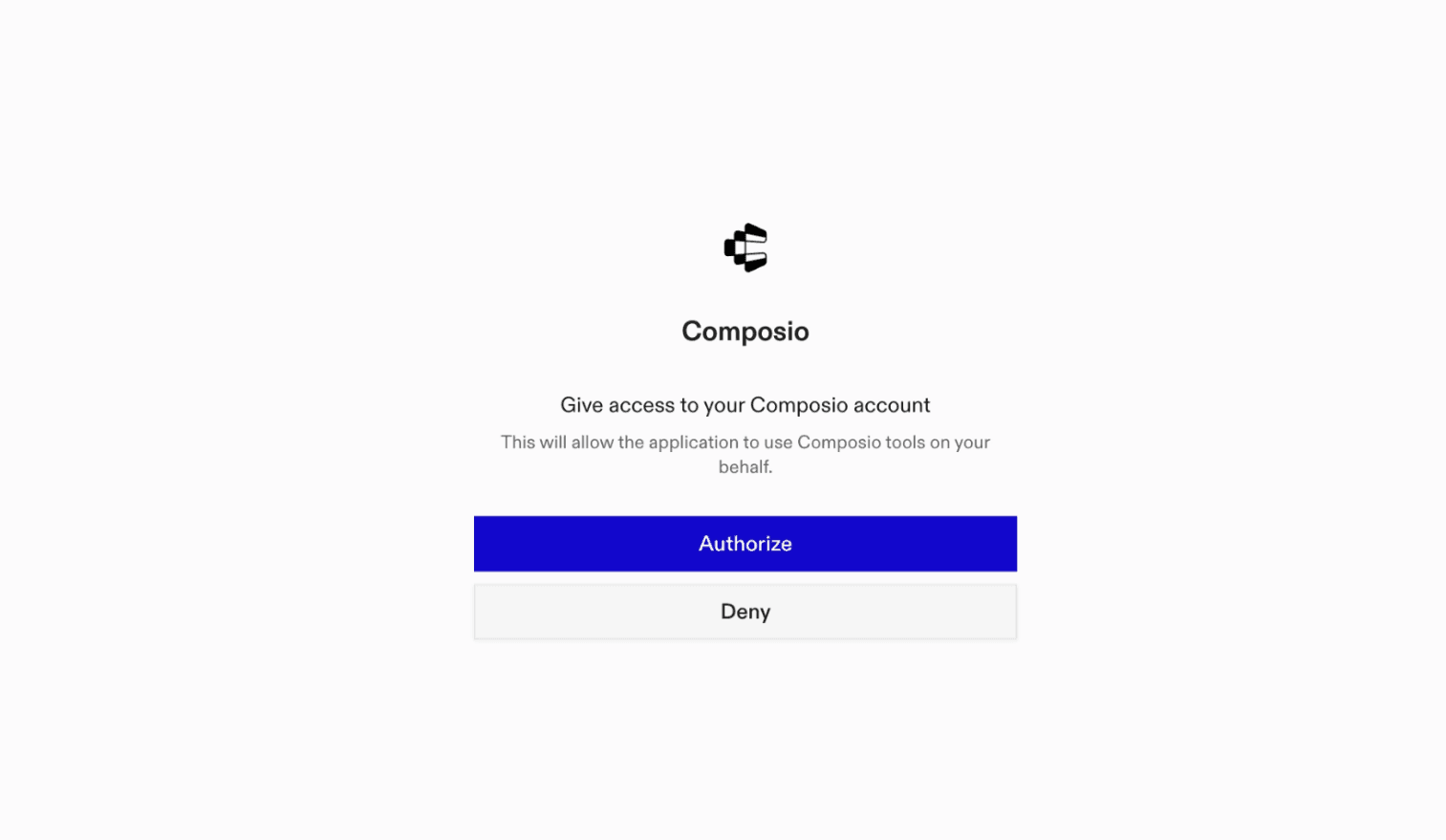
Click Connect. You'll be redirected to a browser window where you can authorize Composio to continue.

Composio authorization screen for Claude Web, Desktop, and Cowork

3. Connect your Workday Adaptive Planning account

Back in Claude, ask it to connect to Workday Adaptive Planning or give it any Workday Adaptive Planning-related task.

For example, ask Claude to:

  • "List current Workday planning model metadata"
  • "Review Workday forecast transaction records"
  • "Check Workday planning users and permissions"

It will prompt you to authenticate and authorize access.

That's it. Composio's tools are now available in Claude, and your Workday Adaptive Planning account is ready to use.

What is the Workday Adaptive Planning Claude Connector, and what's possible with it?

The Workday Adaptive Planning MCP server is an implementation of the Model Context Protocol that connects your AI agent and assistants like Claude, Cursor, etc directly to your Workday Adaptive Planning account. It provides structured and secure access to planning data, model metadata, users, groups, and transactions, so your agent can export reports and planning records, update model data, manage planning structures, create users, and import transactions on your behalf.

  • Planning data and report retrieval: Have your agent export planning data, configurable model data, account hierarchies, versions, calendars, time periods, and custom report values.
  • Model and metadata management: Let the agent inspect sheets, dimensions, levels, currencies, attributes, permission sets, and transaction definitions, then create accounts or modeled-sheet definitions when needed.
  • Data imports and updates: Direct your agent to import standard data, cube data, configurable model rows, dimension mappings, groups, and transactions, or replace modeled-sheet and cube data within a defined scope.
  • User and access administration: Instruct your agent to create Adaptive Planning users, export user and group details, retrieve permission sets, and publish pending administrative changes.
  • Planning maintenance and corrections: Have your agent recalculate sheets, erase selected plan or actuals data, delete or replace transactions, and review security audit events.

Troubleshooting

1. Why does Claude not use the Composio connector for Workday Adaptive Planning?

The connector can show as connected, but Claude must use it in each Workday Adaptive Planning conversation.

  • Click + at the lower left of the chat, or type /.
  • Hover Connectors.
  • Turn on Composio.
  • Ask Claude to connect to Workday Adaptive Planning again.

2. Why does Claude show an MCP server error before Workday Adaptive Planning connects?

Claude can show Couldn't reach the MCP server or Authorization with the MCP server failed when you add the connector for Workday Adaptive Planning.

  • Check that the connector URL is https://connect.composio.dev/mcp.
  • Connectors run from Anthropic's cloud, so your device network is usually not the problem.
  • Add the connector again from Customize > Connectors, then ask Claude to connect Workday Adaptive Planning.
  • If it fails again, send the error and the ofid_ reference id to support@composio.dev.

3. Why does the Workday Adaptive Planning authorization link not work?

The Composio connector is one server. Your Workday Adaptive Planning account connects separately when Claude asks for it.

  • If the browser does not open, or the link expires, ask Claude to retry the Workday Adaptive Planning connection.
  • Composio creates a fresh Workday Adaptive Planning authorization link.
  • Open that link in your browser and finish the Workday Adaptive Planning sign-in.

4. Why do Workday Adaptive Planning actions fail after they worked before?

The Workday Adaptive Planning connection can expire or lose permission.

  • Ask Claude to inspect the Workday Adaptive Planning connection.
  • If the connection is unhealthy, disconnect it when Claude prompts you.
  • Reconnect the Workday Adaptive Planning account and retry the action.
  • If Claude shows a permission prompt, approve it before Claude changes data in Workday Adaptive Planning.
  • If the action still fails with a permission error, check that the connected account has that permission in Workday Adaptive Planning itself.

5. How do I switch to a different Workday Adaptive Planning account?

Claude can manage the Workday Adaptive Planning connection for you.

  • Ask Claude to disconnect or delete the current Workday Adaptive Planning account.
  • Ask Claude to connect Workday Adaptive Planning again.
  • Open the new Composio authorization link for Workday Adaptive Planning.
  • Sign in with the other Workday Adaptive Planning account in the browser.
  • After the account connects, ask Claude to retry the Workday Adaptive Planning task.

6. Why is my Workday Adaptive Planning connection missing in Claude Desktop or on a Team plan?

The connector belongs to your Claude account, so your Workday Adaptive Planning connection works in Claude Web, Desktop, and Cowork.

  • In Claude Desktop, open Customize > Connectors.
  • Next to Composio, click ⋮ and click Clear cache.
  • If Workday Adaptive Planning tools still do not appear, click ⋮, disconnect, remove the connector, and add it again.
  • On Team or Enterprise, an Owner or Primary Owner must enable the connector before you can connect Workday Adaptive Planning.
TOOLS

Supported Tools

Every Workday Adaptive Planning action and event your agent gets out of the box.

Create Account

Create one GL, Custom, or Assumption account or account group.

Create Users

Create 1 to 1000 Adaptive Planning users and return each user's creation status and immutable GUID.

Get Custom Report Values

Run a typed matrix report over explicit X, Y, and optional filter axes and return coordinates, cells, notes, and provider messages.

Delete or Replace Transactions

Irreversibly delete transactions matching any supplied date or transaction-type criterion, and optionally insert replacement rows in the same operation.

Erase Actuals

Irreversibly erase numeric actuals for every level in the selected account family and inclusive time range.

Erase Data

Irreversibly erase numeric plan or actuals data in an inclusive time range.

Export Accounts

Return the complete Adaptive Planning account hierarchy and account metadata, optionally filtered by sheet and enriched with account attributes and inaccessible values.

Export Active Currencies

Return every currency configured in the Adaptive Planning instance.

Export Attributes

Return Adaptive Planning account, level, and dimension attributes and their recursive values, optionally restricted to selected attribute IDs.

Export Calendar

Return all Adaptive Planning calendars with their IDs, names, codes, and default status.

Export Configurable Model Data

Export typed, parsed CSV rows from a modeled sheet using either provider paging or the all-row streaming form.

Export Customer Logo

Return the URL Workday exposes for the Adaptive Planning instance's customer logo.

Export Planning Data

Export account values from one Adaptive Planning version for explicit account and time filters, returning parsed CSV rows and provider messages.

Export Dimension Families

Return the account and dimension sets associated with each Adaptive Planning sheet family.

Export Dimension Mapping

Return derived-dimension mapping targets and conditions for selected dimensions in a version, optionally filtered by keyword, level, or dimension values.

Export Dimensions

Return custom Adaptive Planning dimensions and optionally their hierarchical values, properties, and attribute mappings.

Export User Groups

Return every global and user-owned group defined in the Adaptive Planning instance.

Export Instances

Return the selected Adaptive Planning instance or every instance accessible to the connected user.

Export Levels

Return the accessible Adaptive Planning organization-level hierarchy, optionally filtered by version or sheet and enriched with groups, attributes, and inaccessible values.

Export Locales

Return every locale associated with the Adaptive Planning company.

Export Modeled Sheet

Return the structured definition of one modeled sheet by name, including v40 display-column account codes and configured model columns.

Export Permission Sets

Return every Adaptive Planning permission set and its assigned internal permission codes.

Export Security Audit

Return Adaptive Planning security events, optionally filtered by actor and UTC time range.

Export Sheet Definition

Return the structured definition of one modeled or cube sheet by internal ID, including configured columns, dimensions, values, accounts, levels, and time settings.

Export Sheets

Return all standard, modeled, and cube sheets in the Adaptive Planning instance with their IDs, names, descriptions, and prefixes or codes.

Export Time

Return Adaptive Planning calendar strata and periods, optionally scoped to a version, calendar hierarchy, leaf stratum, legacy fields, or all locale translations.

Export Transaction Definition

Return the configured Adaptive Planning transaction fields and allowed selector values needed to construct valid transaction imports.

Export Users

Return all users in the Adaptive Planning instance with identity, permission sets, profile, audit, lock, optional group, and subscription settings.

Export Versions

Return all Adaptive Planning versions and version folders visible to the connected user, optionally including scenarios and eligible currency versions.

Import Configurable Model Data

Append modeled-sheet rows, update rows matched by an import key, or update matching rows and insert new ones.

Import Cube Data

Update existing cube facts or insert new facts in APPEND mode without scoped replacement.

Import Dimension Mapping

Create or replace derived-dimension mapping criteria, or permanently delete criteria when delete=true.

Import Groups

Create or update Workday/external user groups.

Import Modeled Sheet

Create a modeled-sheet definition, including typed columns and API v39+ validation rules.

Import Standard Data

Update existing standard-account facts or insert new facts in APPEND mode.

Import Transactions

Insert new transaction rows without deleting existing transactions.

Publish Admin Changes

Permanently publish every pending administrative change in an admin-publishing-enabled instance.

Recalculate Sheet

Recalculate Recalculate-on-Demand sheet data in a required version.

Replace Configurable Model Data

Irreversibly delete and replace modeled-sheet rows.

Replace Cube Data

Irreversibly delete all existing cube facts inside the complete supplied time, account, and level scope that are absent from the payload, then replace that scope with the supplied facts.

Replace Standard Data

Irreversibly delete unmatched standard-account facts inside an explicit time, account, and level scope, then replace that scope with the supplied facts.

Get Unpublished Changes Status

Read whether admin publishing is enabled and the number of unpublished changes without publishing them.

Update Access Rules

Upload an official .

Update Account

Update one existing GL, Custom, or Assumption account.

Update Accounts

Create or update GL accounts, recursive account hierarchies, and account-attribute mappings in one ordered bulk request.

Update Ownership Associations

Update level or custom-dimension ownership.

Update Attributes

Create or update attributes and recursive attribute-value hierarchies in one ordered bulk request.

Update Dimensions

Create or update dimensions and recursive dimension-value hierarchies in one ordered bulk request.

Update Levels

Create or update levels and recursive organization hierarchies.

Update Users

Update one or more Adaptive Planning users.

FAQ

Frequently asked questions

Start with Workday Adaptive Planning.It takes 30 seconds.

Managed auth, hosted MCP servers, and every Workday Adaptive Planning tool your agent needs.Free to start.

Start building