

How to connect Telegram MCP with Cursor

How to integrate Telegram MCP with Cursor Cursor is one of the leading AI-powered code editors. It is built to help developers write, understand, and refactor code faster with AI assistance built directly into the editor. And in this guide, I will explain the easiest and most secure way to connect your Telegram account to Cursor via Composio Connect, so it can send a welcome message to new group members, forward latest announcement to all admins, get total member count of your group, and more without ever putting your account credentials at risk.
Telegram logoTelegram
Api Key

Telegram is a fast, secure cloud messaging app for individuals and groups. It offers robust privacy and real-time chat features.

18 Tools

How to integrate Telegram MCP with Cursor

Cursor is one of the leading AI-powered code editors. It is built to help developers write, understand, and refactor code faster with AI assistance built directly into the editor.

And in this guide, I will explain the easiest and most secure way to connect your Telegram account to Cursor via Composio Connect, so it can send a welcome message to new group members, forward latest announcement to all admins, get total member count of your group, and more without ever putting your account credentials at risk.

Also integrate Telegram with

Why Composio?

  • 1,000+ SaaS toolkits out of the box. Skip the work of building and maintaining integrations, Composio gives you instant access to a vast catalog of pre-built connectors.
  • One MCP server for every app. Connect any of your applications on demand through a single endpoint, rather than juggling a separate server for each app.
  • Smart, context-aware tool loading. Unlike traditional MCP servers that dump every available tool into the LLM context window, Composio searches for and loads only the tools relevant to the task at hand. A remote CLI workbench lets LLMs compose these tools into workflows for complex automation.

Connect Telegram to Cursor

Two ways to install — pick whichever you prefer.

1. Install with one click

Click the button below to add Composio to Cursor.

Install in Cursor

2. Or add manually

Add to your Cursor mcp.json

Open .cursor/mcp.json in your project root (or ~/.cursor/mcp.json for global config) and add the following configuration:

bash
{
  "servers": {
    "composio": {
      "type": "http",
      "url": "https://connect.composio.dev/mcp"
    }
  }
}

3. Authorize

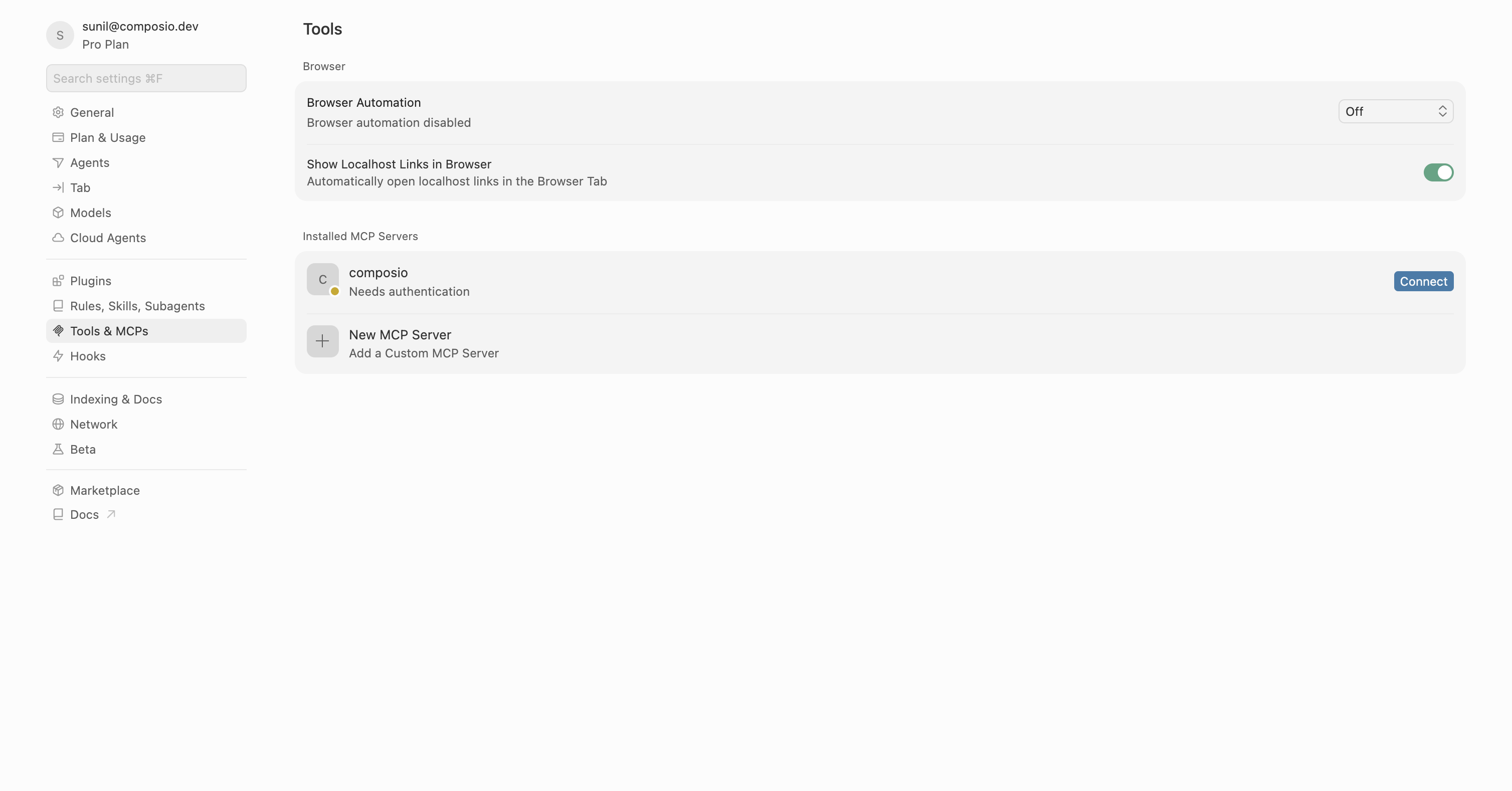
Restart Cursor, then click "Connect" next to Composio in MCP Tools settings.

Cursor MCP Tools settings with Connect button next to Composio

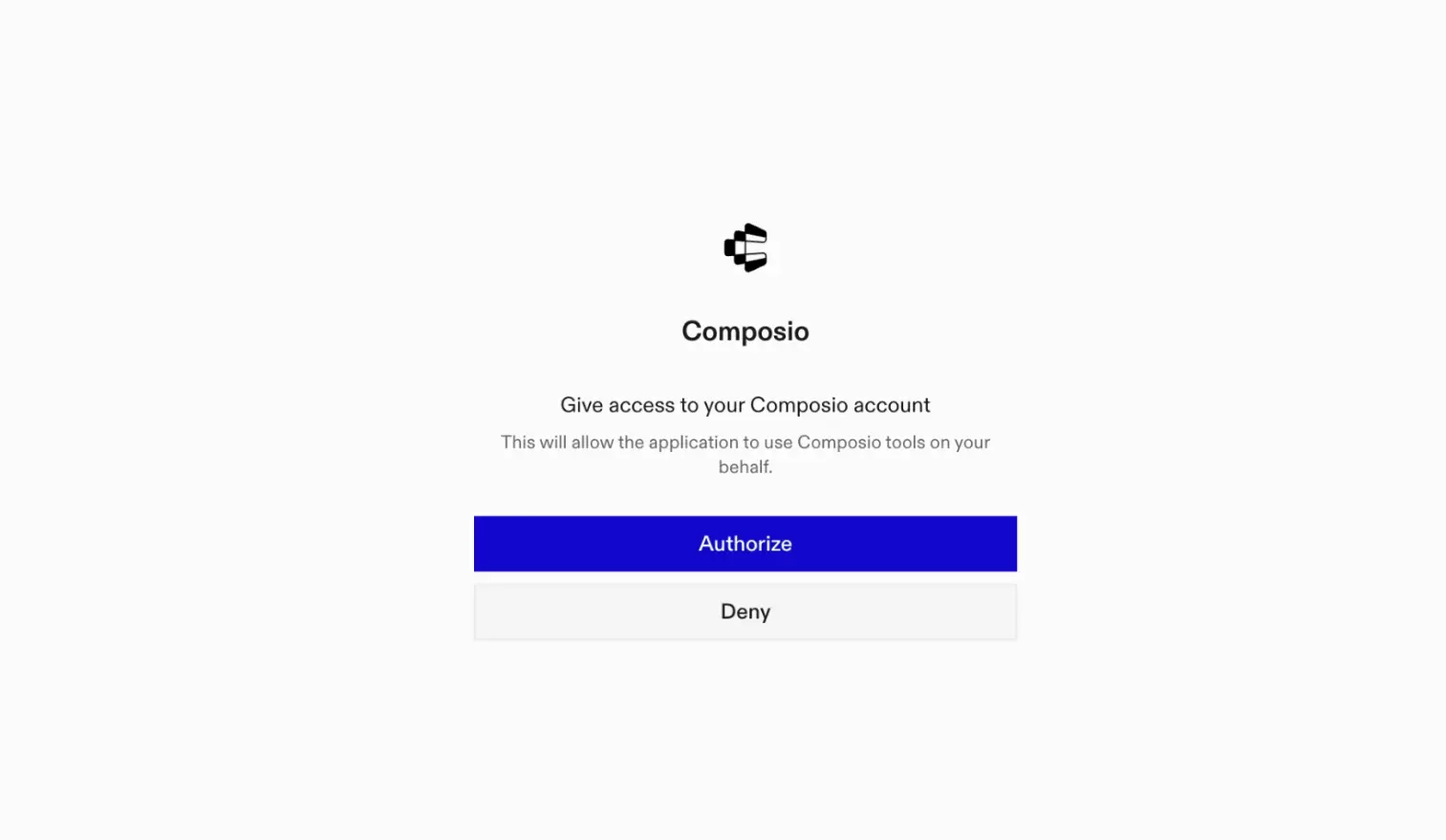
A browser window will open to authorize.

Composio authorization browser window

Connect your Telegram account

Back in Cursor, ask the agent to connect to Telegram or give it any Telegram-related task.

For example, ask it to:

  • "Send a welcome message to new group members"
  • "Forward latest announcement to all admins"
  • "Get total member count of your group"

It will prompt you to authenticate and authorize access to Telegram.

That is it. Composio tools are now available in Cursor, and your Telegram account is ready to use.

Conclusion

You have successfully connected Telegram to Cursor using Composio Connect. Your agent can now use Telegram securely without exposing credentials in prompts or local scripts.

TOOLS

Supported Tools

Every Telegram action and event your agent gets out of the box.

Answer Callback Query

Use this method to send answers to callback queries sent from inline keyboards.

Export Chat Invite Link

Generate a new primary invite link for a chat; any previously generated primary link is revoked.

Delete Message

Delete a message, including service messages.

Edit Message

Edit text messages sent by the bot.

Forward Message

Forward messages of any kind.

Get Chat Info

Get up to date information about the chat (current name of the user for one-on-one conversations, current username of a user, group or channel, etc.

Get Chat Administrators

Get a list of administrators in a chat.

Get Chat History

Get chat history messages via the getUpdates polling method, filtered by chat_id.

Get Chat Member

Get a chat member's status/role (including the bot itself) to preflight permissions and troubleshoot 403/empty-history issues.

Get Chat Members Count

Get the number of members in a chat.

Get Bot Info

Get basic information about the bot using the Bot API getMe method.

Get Updates

Use this method to receive incoming updates using long polling.

Send Document

Send general files (documents) to a Telegram chat using the Bot API.

Send Location

Send point on the map location to a Telegram chat using the Bot API.

Send Message

Send a text message to a Telegram chat using the Bot API.

Send Photo

Send photos to a Telegram chat using the Bot API.

Send Poll

Send a native poll to a Telegram chat using the Bot API.

Set Bot Commands

Use this method to change the list of the bot's commands.

FAQ

Frequently asked questions

With a standalone Telegram MCP server, the agents and LLMs can only access a fixed set of Telegram tools tied to that server. However, with the Composio Tool Router, agents can dynamically load tools from Telegram and many other apps based on the task at hand, all through a single MCP endpoint.

Yes, you can. Cursor fully supports MCP integration. You get structured tool calling, message history handling, and model orchestration while Tool Router takes care of discovering and serving the right Telegram tools.

Yes, absolutely. You can configure which Telegram scopes and actions are allowed when connecting your account to Composio. You can also bring your own OAuth credentials or API configuration so you keep full control over what the agent can do.

All sensitive data such as tokens, keys, and configuration is fully encrypted at rest and in transit. Composio is SOC 2 Type 2 compliant and follows strict security practices so your Telegram data and credentials are handled as safely as possible.

Start with Telegram.It takes 30 seconds.

Managed auth, hosted MCP servers, and every Telegram tool your agent needs.Free to start.

Start building








