How to connect Supportivekoala to Claude

Connect Claude Web, Desktop and Cowork to Supportivekoala MCP. Create a personalized welcome image for new users, generate event flyers using your saved template, and more using natural language, with authentication handled for you.

Supportivekoala logoSupportivekoala
Api Key

Supportivekoala is a platform for automating image generation with customizable templates. It makes creating rich, branded visual content programmatically fast and simple.

6 Tools

Introduction

Claude is Anthropic's AI assistant, available on the web, in the desktop app, and on mobile. Cowork is its agent for knowledge work, and it runs on all of those surfaces too. Connected to your apps, Claude can work with your files and services to accomplish complex tasks on your behalf.

This guide walks you through the easiest and most secure way to connect your Supportivekoala account to Claude via Composio Connect, enabling it to create a personalized welcome image for new users, generate event flyers using your saved template, list all image templates I’ve set up, and more such actions on your behalf without compromising your account security.

Setup is the same on Claude Web, Desktop, and Cowork, and you only need to do it once. The connector is tied to your account, so it's available in all three.

Also integrate Supportivekoala with

Connecting Supportivekoala to Claude Web, Desktop, and Cowork

Two ways to add the Composio connector. Pick whichever you prefer.

1. Add with one click

Click the button. Claude opens with the Composio connector filled in. Click Add, then go to step 2.

Add to Claude

Add manually

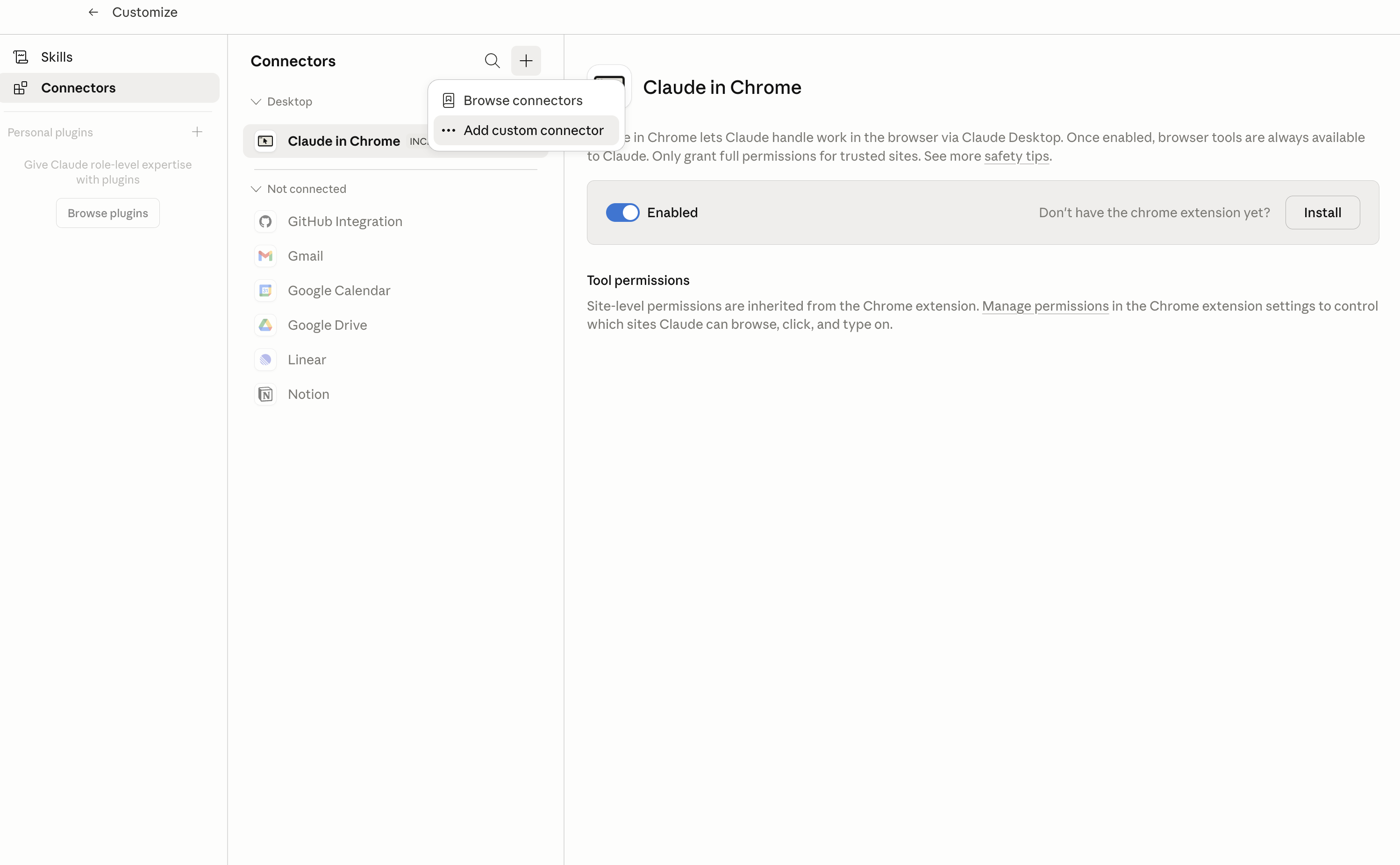
In Claude Desktop, click Customize in the left sidebar, then select Connectors and click the + icon at the top.

Claude Desktop connectors screen with Add custom connector selected

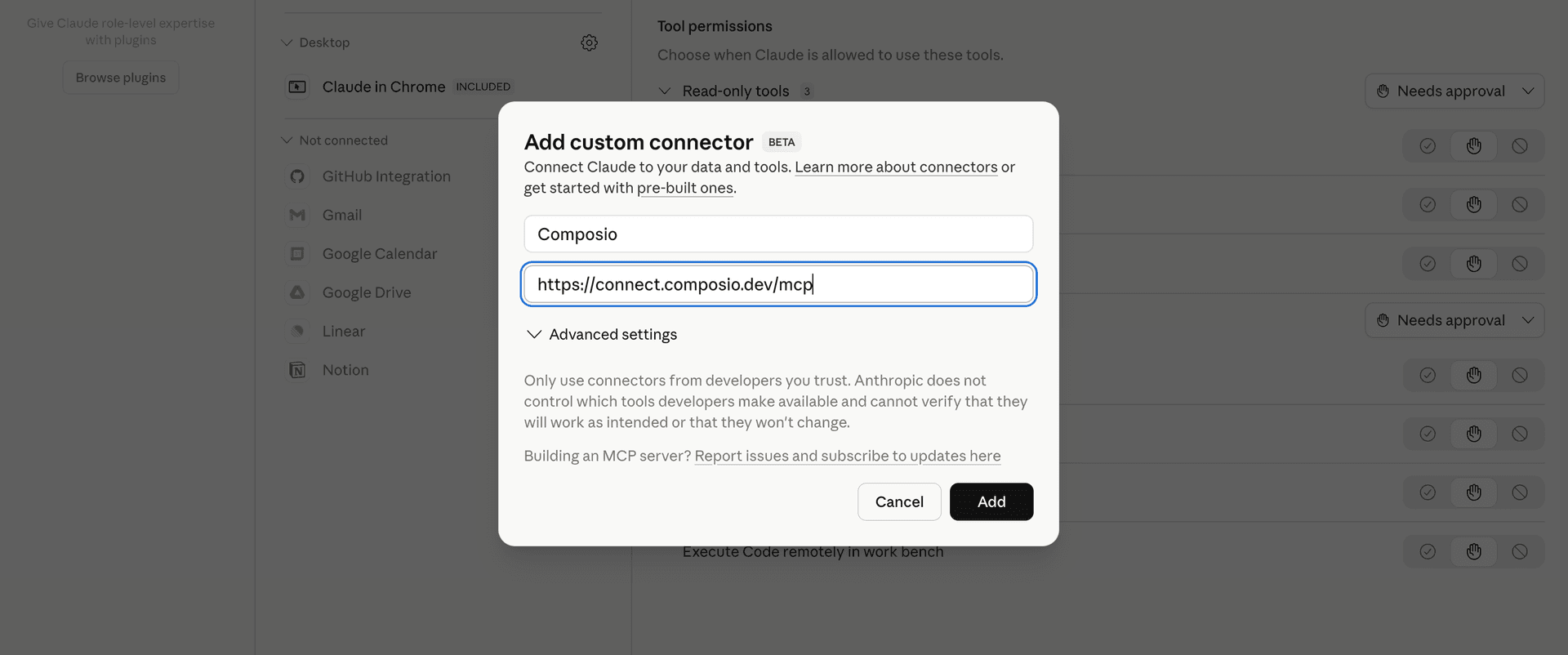
Click Add custom connector and paste in the Composio MCP server URL:

bash
https://connect.composio.dev/mcp
Add custom connector dialog with Composio MCP server URL

2. Authorize in your browser

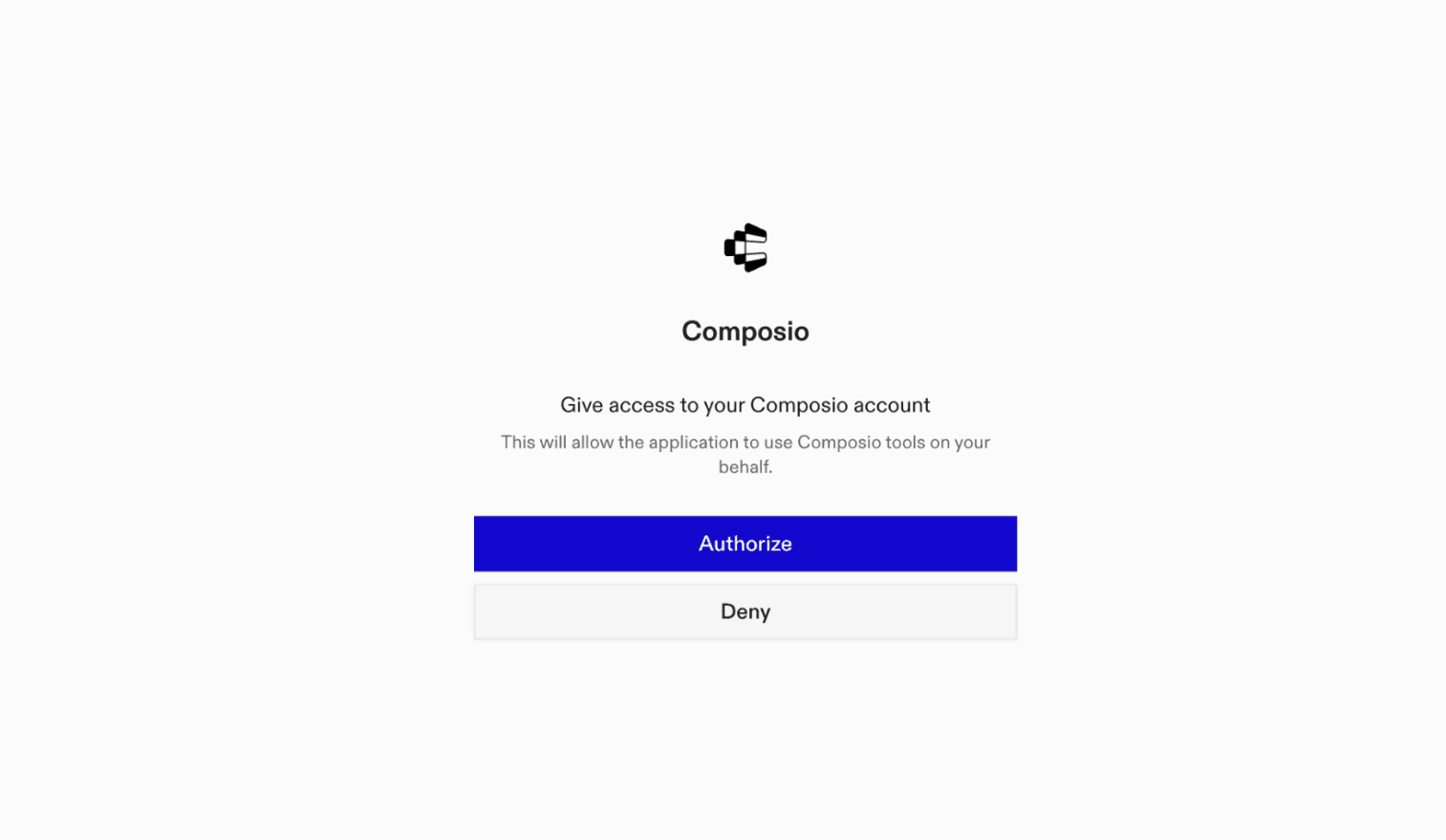
Click Connect. You'll be redirected to a browser window where you can authorize Composio to continue.

Composio authorization screen for Claude Web, Desktop, and Cowork

3. Connect your Supportivekoala account

Back in Claude, ask it to connect to Supportivekoala or give it any Supportivekoala-related task.

For example, ask Claude to:

  • "Create a personalized welcome image for new users"
  • "Generate event flyers using your saved template"
  • "List all image templates I’ve set up"

It will prompt you to authenticate and authorize access.

That's it. Composio's tools are now available in Claude, and your Supportivekoala account is ready to use.

What is the Supportivekoala Claude Connector, and what's possible with it?

The Supportivekoala MCP server is an implementation of the Model Context Protocol that connects your AI agent and assistants like Claude, Cursor, etc directly to your Supportivekoala account. It provides structured and secure access to your image generation workflows, so your agent can create images, manage templates, retrieve image lists, and automate visual content creation entirely on your behalf.

  • Automated image creation using templates: Instantly generate custom images by selecting and modifying templates with dynamic data, all through your agent.
  • Template management and customization: Let your agent create new templates for recurring graphic needs or update existing ones to fit fresh branding and messaging.
  • Image and asset retrieval: Effortlessly list all images generated by your account, allowing your agent to fetch, manage, or reference previous visual assets as needed.
  • Template discovery and details: Retrieve and review all available templates, or fetch full details for any template using its ID—perfect for scaling up campaigns or personalizing content.
  • User registration automation: Seamlessly create new user accounts so your workflows can onboard new teammates or clients without manual intervention.

Troubleshooting

1. Why does Claude not use the Composio connector for Supportivekoala?

The connector can show as connected, but Claude must use it in each Supportivekoala conversation.

  • Click + at the lower left of the chat, or type /.
  • Hover Connectors.
  • Turn on Composio.
  • Ask Claude to connect to Supportivekoala again.

2. Why does Claude show an MCP server error before Supportivekoala connects?

Claude can show Couldn't reach the MCP server or Authorization with the MCP server failed when you add the connector for Supportivekoala.

  • Check that the connector URL is https://connect.composio.dev/mcp.
  • Connectors run from Anthropic's cloud, so your device network is usually not the problem.
  • Add the connector again from Customize > Connectors, then ask Claude to connect Supportivekoala.
  • If it fails again, send the error and the ofid_ reference id to support@composio.dev.

3. Why does the Supportivekoala authorization link not work?

The Composio connector is one server. Your Supportivekoala account connects separately when Claude asks for it.

  • If the browser does not open, or the link expires, ask Claude to retry the Supportivekoala connection.
  • Composio creates a fresh Supportivekoala authorization link.
  • Open that link in your browser and finish the Supportivekoala sign-in.

4. Why do Supportivekoala actions fail after they worked before?

The Supportivekoala connection can expire or lose permission.

  • Ask Claude to inspect the Supportivekoala connection.
  • If the connection is unhealthy, disconnect it when Claude prompts you.
  • Reconnect the Supportivekoala account and retry the action.
  • If Claude shows a permission prompt, approve it before Claude changes data in Supportivekoala.
  • If the action still fails with a permission error, check that the connected account has that permission in Supportivekoala itself.

5. How do I switch to a different Supportivekoala account?

Claude can manage the Supportivekoala connection for you.

  • Ask Claude to disconnect or delete the current Supportivekoala account.
  • Ask Claude to connect Supportivekoala again.
  • Open the new Composio authorization link for Supportivekoala.
  • Sign in with the other Supportivekoala account in the browser.
  • After the account connects, ask Claude to retry the Supportivekoala task.

6. Why is my Supportivekoala connection missing in Claude Desktop or on a Team plan?

The connector belongs to your Claude account, so your Supportivekoala connection works in Claude Web, Desktop, and Cowork.

  • In Claude Desktop, open Customize > Connectors.
  • Next to Composio, click and click Clear cache.
  • If Supportivekoala tools still do not appear, click , disconnect, remove the connector, and add it again.
  • On Team or Enterprise, an Owner or Primary Owner must enable the connector before you can connect Supportivekoala.
TOOLS

Supported Tools

Every Supportivekoala action and event your agent gets out of the box.

Create Image

Tool to create a new image based on a template.

Create Template

Tool to create a new template for image generation.

List Images

Tool to list images associated with the authenticated user.

List Templates

Tool to retrieve all templates.

Register User

Tool to register a new user account.

Retrieve Template by ID

Tool to retrieve a template by ID.

FAQ

Frequently asked questions

With a standalone Supportivekoala MCP server, the agents and LLMs can only access a fixed set of Supportivekoala tools tied to that server. However, with the Composio Tool Router, agents can dynamically load tools from Supportivekoala and many other apps based on the task at hand, all through a single MCP endpoint.

Yes, you can. Claude Cowork fully supports MCP integration. You get structured tool calling, message history handling, and model orchestration while Tool Router takes care of discovering and serving the right Supportivekoala tools.

Yes, absolutely. You can configure which Supportivekoala scopes and actions are allowed when connecting your account to Composio. You can also bring your own OAuth credentials or API configuration so you keep full control over what the agent can do.

All sensitive data such as tokens, keys, and configuration is fully encrypted at rest and in transit. Composio is SOC 2 Type 2 compliant and follows strict security practices so your Supportivekoala data and credentials are handled as safely as possible.

Start with Supportivekoala.It takes 30 seconds.

Managed auth, hosted MCP servers, and every Supportivekoala tool your agent needs.Free to start.

Start building