How to connect Sentry with ChatGPT

Connect ChatGPT to Sentry MCP. List unresolved issues in web-app project, summarize recent errors causing production crashes, and more using natural language, with authentication handled for you.

Sentry MCP logoSentry MCP
Dcr Oauth

Sentry MCP is an error monitoring and observability platform for crashes, events, and performance data. It helps teams find, prioritize, and fix issues faster with rich event context.

9 Tools

How to connect Sentry MCP with ChatGPT

ChatGPT can take action across your apps and files, stay with a project for hours, and turn a goal into finished materials like sheets, slides, and docs, not just answers.

In this guide, I will explain the easiest and most secure way to connect your Sentry account to ChatGPT via Composio Connect, so it can investigate issues, fetch event details, list your projects, triage errors, and monitor release health through natural language commands without ever putting your account credentials at risk.

For exact tool slugs and parameter tables, see the tool catalog in the Composio docs.

Also integrate Sentry MCP with

Why use Composio over default connectors?

  • Apps with read and write access. Default connectors mostly can read your data. Composio's Sentry integration lets ChatGPT take actions like creating drafts, sending updates, labeling records, and more.
  • 1,700+ SaaS toolkits out of the box. Composio gives you instant access to a vast catalog of pre-built connectors, from Gmail and Slack to Notion, Linear, and Salesforce.
  • One MCP server for every app. Connect any of your applications on demand through a single endpoint, rather than juggling a separate server for each app.
  • Smart, context-aware tool loading. Unlike traditional MCP servers that dump every available tool into the LLM context window, Composio searches for and loads only the tools relevant to the task at hand.
  • Cross-app automation. Chain actions across multiple apps in a single run - fetch a thread, summarize it in Notion, and post highlights to Slack without leaving the conversation.

Prerequisites

Note: Composio connects through OAuth. You will be asked to sign in and approve specific permissions. Review the permission screen carefully if you are using a work account.

Step-by-step: Connect Sentry to ChatGPT

1. Install the Composio plugin

Click the button. ChatGPT opens the Composio plugin page. Click Install plugin.

Install in ChatGPT
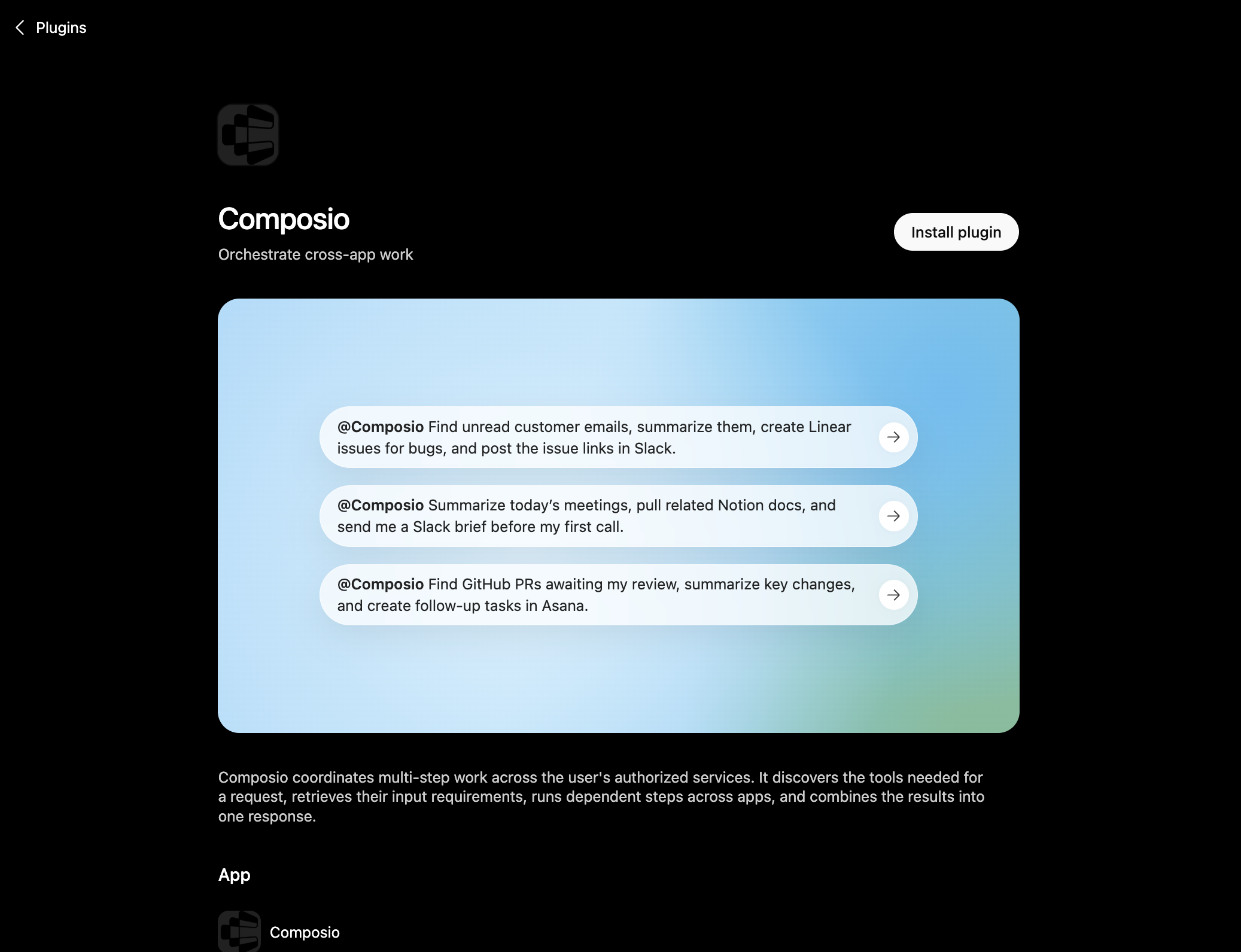
Composio plugin page in ChatGPT with the Install plugin button

You can also find it inside ChatGPT: go to Settings, open Plugins, search the marketplace for Composio, and click Install plugin.

2. Authenticate

After you install, ChatGPT asks you to authenticate with Composio. Log in and click Allow access to authorize ChatGPT to use your Composio account.
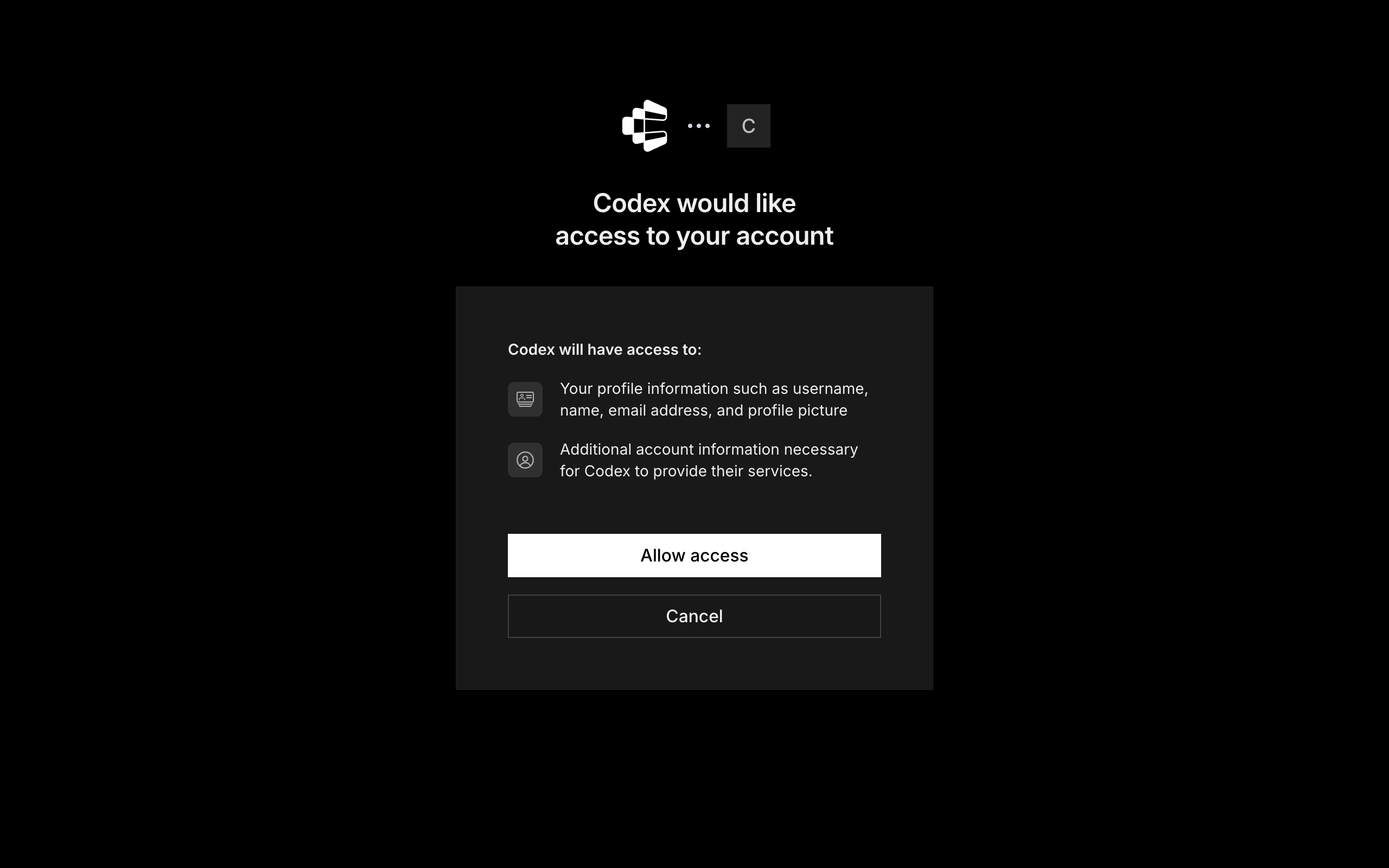
Composio login and Allow access screen for ChatGPT

3. Start using Composio

That is it. Composio tools are now available in ChatGPT. Type @Composio followed by your request, for example @Composio find unread Sentry messages and summarize them, and it will run the actions you authorize. On first use it asks you to authorize Sentry.

Option 2: Add Composio as an MCP server

If you cannot use the plugin marketplace, add Composio as a custom MCP server instead.

1. Open the MCP settings

In ChatGPT, go to Settings and open the Plugins section. Inside the Plugins page, click the MCP tab.
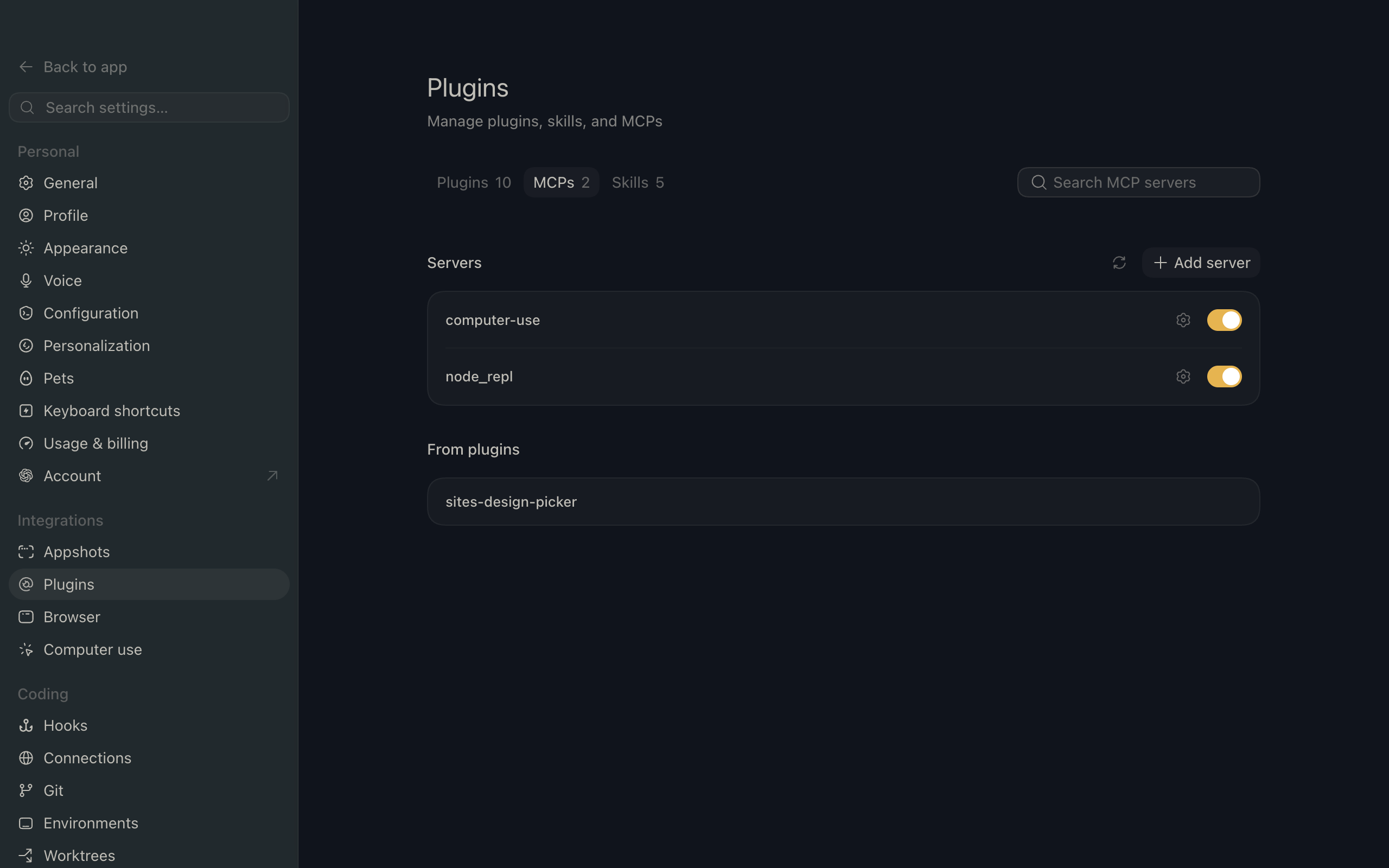
ChatGPT settings showing the Plugins page with the MCP tab selected

2. Add the server

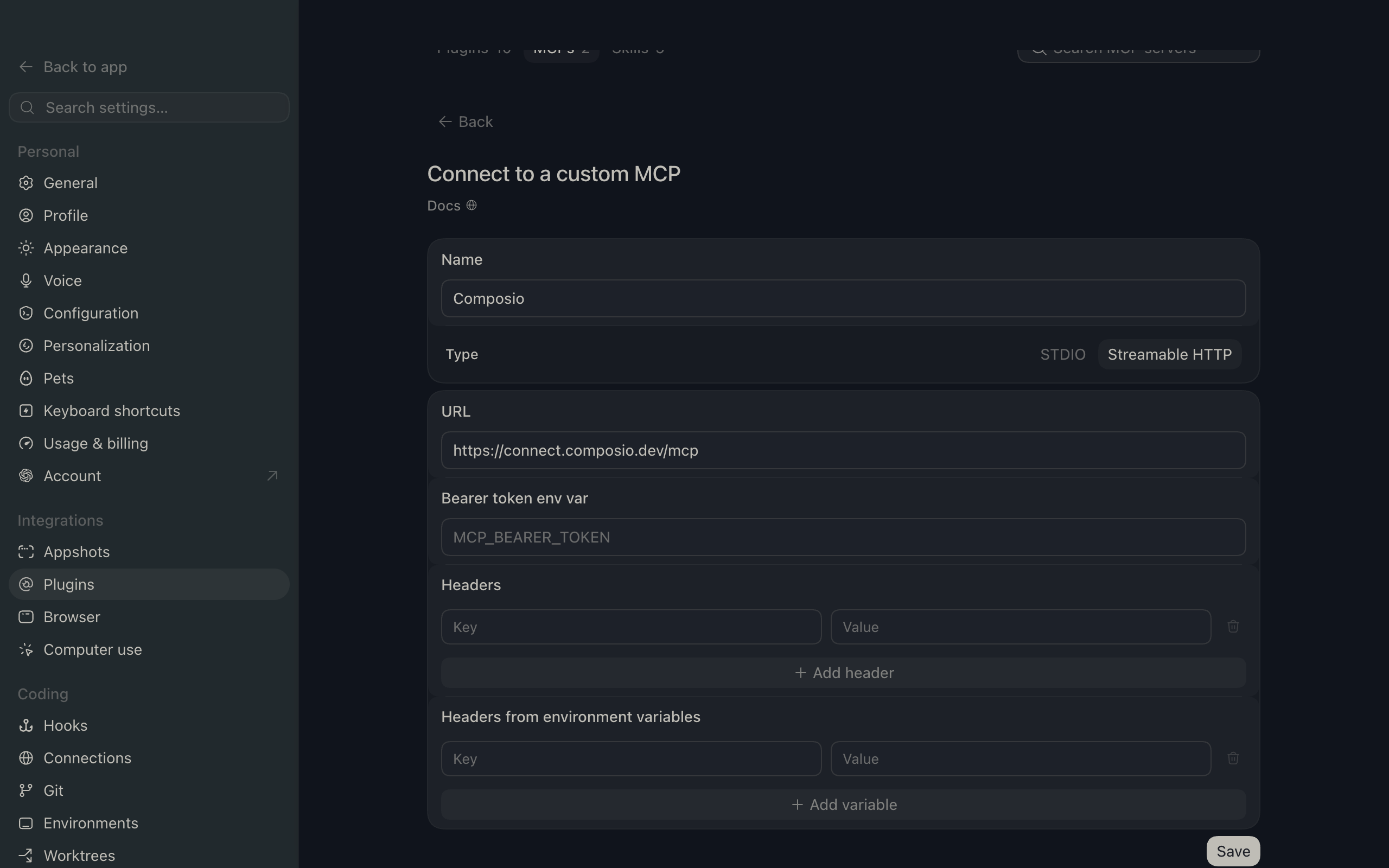
Click Add server. In the Name field enter Composio, for Type select Streamable HTTP, and in the URL field paste the Composio MCP server URL:

bash
https://connect.composio.dev/mcp
ChatGPT Add server dialog with the name Composio, type Streamable HTTP, and the Composio MCP URL

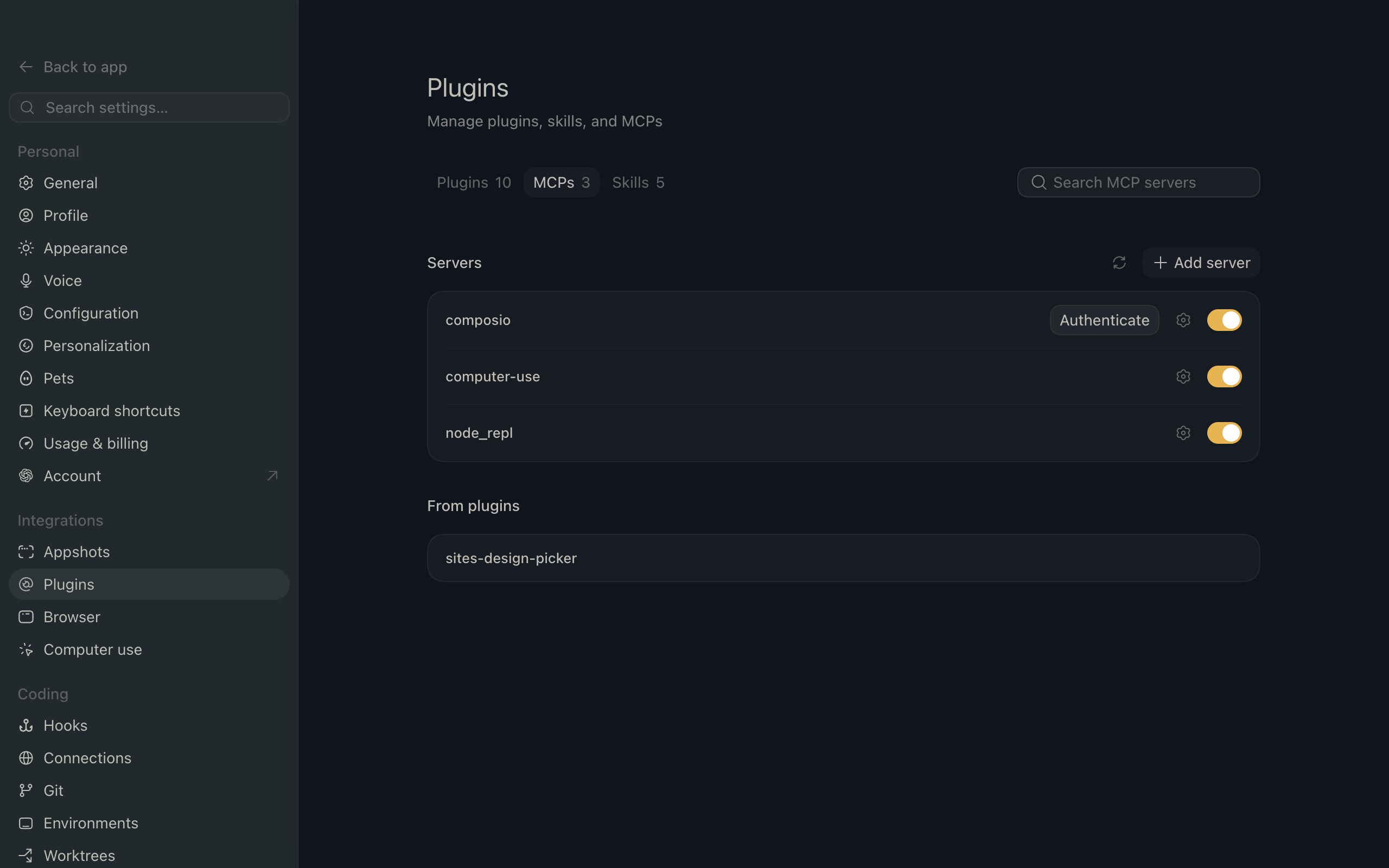
Then click Save. The Composio server now appears in your MCP plugins list.

ChatGPT Plugins page showing the Composio MCP server added to the list

3. Authenticate

Click Authenticate on the Composio entry, log in via Composio, and click Allow access. Composio tools are then available in ChatGPT the same way as with the plugin.

What you can do after connecting Sentry

  • List unresolved issues in web-app project
  • Summarize recent errors causing production crashes
  • Assign critical issues to oncall engineer

Security + privacy notes (important)

  • Use least-privilege access: Only grant permissions you actually need.
  • Review OAuth permissions before approving: Make sure requested scopes match what you expect Composio and ChatGPT to do.
  • Keep write actions human-reviewed: For actions like sending messages, creating labels, or editing drafts, keep manual confirmation enabled.
  • Be careful with sensitive data: Avoid using this setup with highly sensitive information unless allowed by your personal, company, or client policies.
TOOLS

Supported Tools

Every Sentry MCP action and event your agent gets out of the box.

Analyze issue with seer

Use Seer to analyze production errors and get detailed root cause analysis with specific code fixes.

Execute sentry tool

Execute an available Sentry MCP tool discovered through search_sentry_tools.

Find organizations

Find organizations that the user has access to in Sentry.

Find projects

Find projects in Sentry.

Get sentry resource

Fetch a Sentry resource by URL, or by resourceType plus resourceId.

Search events

Search Sentry events and replays.

Search issues

Search for grouped issues/problems in Sentry - returns a LIST of issues, NOT counts or aggregations.

Search sentry tools

Search the available Sentry MCP tool catalog by name and description.

Update issue

Update a Sentry issue's status or assignment.

FAQ

Frequently asked questions

Start with Sentry MCP.It takes 30 seconds.

Managed auth, hosted MCP servers, and every Sentry MCP tool your agent needs.Free to start.

Start building