How to integrate Scheduleonce MCP with OpenClaw

Connect OpenClaw to Scheduleonce MCP. Book a meeting with john doe, list all upcoming bookings this week, and more using natural language, with authentication handled for you.

Scheduleonce logoScheduleonce
Api KeyOauth2

Scheduleonce is a scheduling platform for capturing, qualifying, and engaging with inbound leads. It streamlines appointment booking and follow-ups for faster lead conversion.

27 Tools

Introduction

OpenClaw is the fastest growing agent harness out there, which can work 24/7 to automate almost any kind of tasks. However, its capabilities are limited to the tools it has access to. Composio allows your OpenClaw to access Scheduleonce with authentication management handled for you. You can execute actions on Scheduleonce via your favorite OpenClaw interface (Telegram, WhatsApp, TUI, etc), whichever you prefer.

For exact tool slugs and parameter tables, see the tool catalog in the Composio docs.

Also integrate Scheduleonce with

Why use Composio?

Apart from a managed and hosted MCP server, you will get:

  • Programmatic tool calling allows LLMs to write its code in a remote workbench to handle complex tool chaining. Reduces to-and-fro with LLMs for frequent tool calling.
  • Handling Large tool responses out of LLM context to minimize context rot.
  • Dynamic just-in-time access to 20,000 tools across 1800+ other Apps for cross-app workflows. It loads the tools you need, so LLMs aren't overwhelmed by tools you don't need.

How to install Scheduleonce with OpenClaw

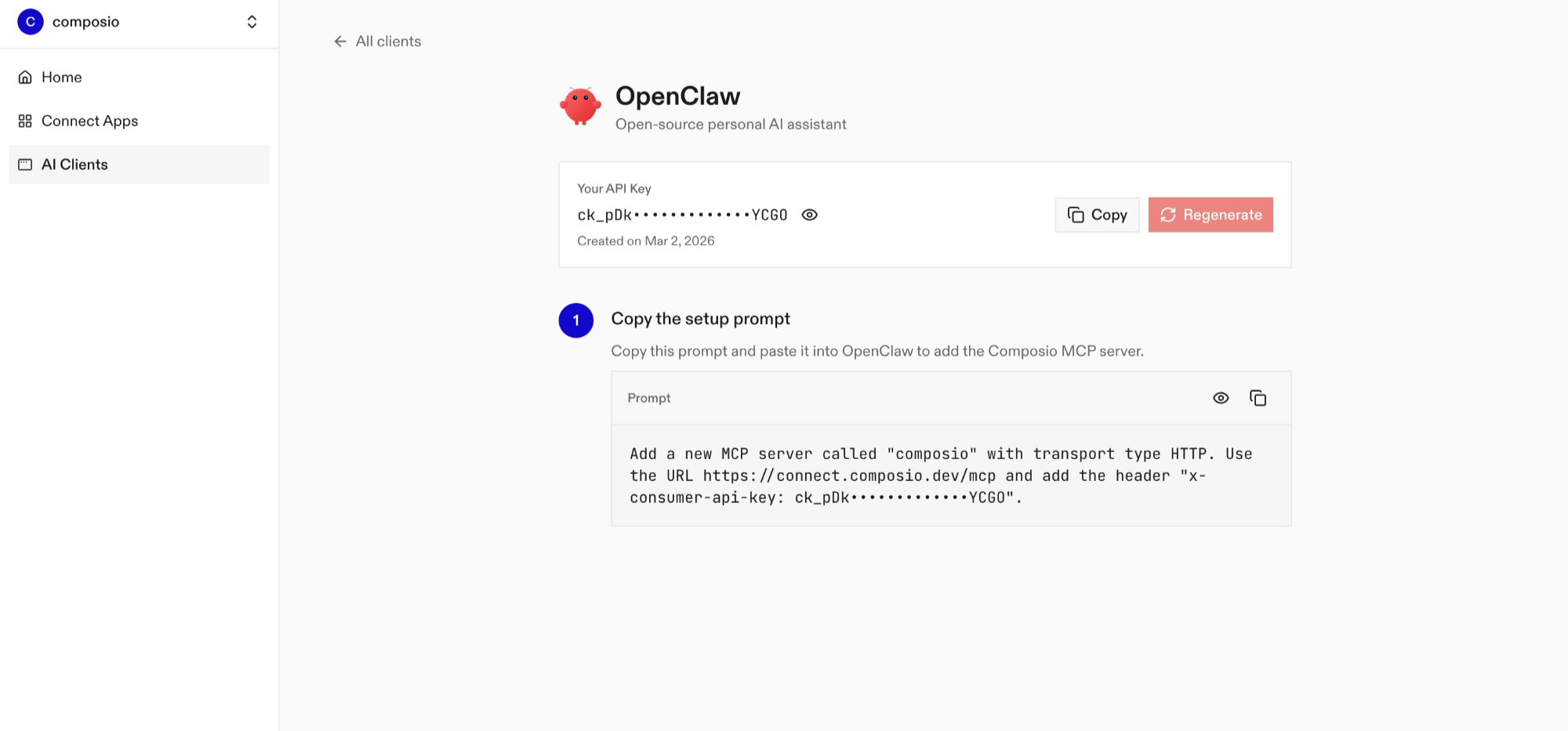
Using Composio API Key and Setup Prompt

Copy the setup prompt from the OpenClaw dashboard
  • Run it in your OpenClaw chat interface.
  • Authenticate Scheduleonce from the dashboard
  • Go back to your OpenClaw interface and start asking questions.

Using OpenClaw/Composio Plugin

1. Install OpenClaw Composio plugin

bash
openclaw plugins install @composio/openclaw-plugin

2. Copy the API Key from dashboard.composio.dev

3. Setup OpenClaw Config

bash
openclaw config set plugins.entries.composio.config.consumerKey "ck_your_key_here"

4. Restart OpenClaw

bash
openclaw gateway restart

5. Go to your chat interface and start asking questions.

6. When prompted, authenticate the app and you're all set.

How It Works

The plugin connects to Composio's MCP server at https://connect.composio.dev/mcp and registers all available tools directly into the OpenClaw agent. Tools are called by name — no extra search or execute steps needed.

If a tool returns an auth error, the agent will prompt you to connect that toolkit at dashboard.composio.dev.

Configuration

bash
{
  "plugins": {
    "entries": {
      "composio": {
        "enabled": true,
        "config": {
          "consumerKey": "ck_your_key_here"
        }
      }
    }
  }
}
OptionDescriptionDefault
enabledEnable or disable the plugintrue
consumerKeyYour Composio consumer key (ck_...)—
mcpUrlMCP server URL (advanced)https://connect.composio.dev/mcp

What is the Scheduleonce MCP server, and what's possible with it?

The Scheduleonce MCP server is an implementation of the Model Context Protocol that connects your AI agent and assistants like Claude, Cursor, etc directly to your Scheduleonce account. It provides structured and secure access to your bookings, calendars, contacts, users, and scheduling availability, so your agent can find open times, book meetings, manage bookings, update contacts, and coordinate availability on your behalf.

  • Availability and time slot lookup: Have your agent check user availability and find open time slots on your booking calendars.
  • Booking management: Let the agent book time slots, review upcoming bookings, cancel meetings, and mark completed bookings as no-shows.
  • Shareable booking links: Direct your agent to create one-time links that invite leads or customers to schedule through a selected booking calendar.
  • Contact and user administration: Instruct your agent to create or update contacts, review contact details, create users, and retrieve account users.
  • Scheduling account overview: Have your agent list booking calendars, booking pages, event types, master pages, teams, and users across your account.

Conclusion

You've successfully integrated Scheduleonce with OpenClaw using Composio plugin. Now interact with Scheduleonce directly from your terminal, Web UI, or any messenger app using natural language commands.

Key benefits of this setup:

  • Seamless integration across TUI, Web UIs, and Messenger apps like Telegram, WhatsApp, Slack, etc.
  • Natural language commands for Scheduleonce operations
  • Managed authentication through Composio
  • Access to 20,000+ tools across 1800+ apps for cross-app workflows
  • Programmatic tool calling for complex tool chaining

Next steps:

  • Try asking OpenClaw to perform various Scheduleonce operations
  • Explore cross-app workflows by connecting more toolkits like Calendar, Slack, Notion, etc.
  • Build complex automation scripts that leverage OpenClaw's 24/7 running capabilities
TOOLS

Supported Tools

Every Scheduleonce action and event your agent gets out of the box.

Book Time Slot

Tool to book a time slot on a booking calendar in OnceHub.

Cancel Booking

Cancel a OnceHub booking by ID, optionally providing a reason and controlling cancellation emails.

Create Contact

Tool to create a new contact in ScheduleOnce.

Create One-Time Link for Booking Calendar

Create a single-use booking link for a published OnceHub booking calendar.

Create User

Add or invite a user to a OnceHub account using their first name, last name, and email, with an optional role.

Delete Contact

Tool to delete a contact by ID from OnceHub.

Delete User

Tool to delete a user account from OnceHub.

Get Available Time Slots

Tool to retrieve available time slots for a booking calendar from OnceHub.

Get Single Booking

Retrieve a single OnceHub booking by ID, including timing, customer information, location, status, and form submission data.

Get Single Booking Calendar

Tool to retrieve a single booking calendar by ID from OnceHub.

Get Single Contact

Retrieve a single OnceHub contact by ID, including personal information, location data, and custom fields.

Get Single Master Page

Tool to retrieve a single master page by ID from OnceHub.

Get Single User

Tool to retrieve a single user by ID from OnceHub.

Get User Scheduling Availability

Tool to get user scheduling availability from OnceHub.

List All Booking Calendars

Tool to list all booking calendars in the account.

List All Booking Pages

Tool to list all booking pages in the account.

List All Bookings

Tool to list all bookings in the account.

List All Contacts

List contacts in the OnceHub account, with optional creation-time and update-time filters and cursor-based pagination.

List All Event Types

Tool to list all event types in the account.

List All Master Pages

Tool to list all master pages in the account.

List All Teams

Tool to list all teams in the OnceHub account.

List All Users

Tool to list all users in the OnceHub account.

Mark Booking as No-Show

Tool to mark a completed booking as no-show in OnceHub.

Test API Key

Tool to validate API key authentication for OnceHub.

Update Contact

Update an existing ScheduleOnce contact's name, company, or phone number.

Update User

Tool to update an existing user in OnceHub.

Update User Scheduling Availability

Update a user's weekly scheduling availability and date-specific overrides in OnceHub.

FAQ

Frequently asked questions

Start with Scheduleonce.It takes 30 seconds.

Managed auth, hosted MCP servers, and every Scheduleonce tool your agent needs.Free to start.

Start building