How to integrate Saucelabs MCP with Codex

Connect Codex to Saucelabs MCP. List all failed test sessions from today, trigger a new cross-browser test run, and more using natural language, with authentication handled for you.

Saucelabs logoSaucelabs
Basic

Saucelabs is a continuous testing cloud for web and mobile apps. It helps automate browser and device testing at scale.

6 Tools

Introduction

Codex is one of the most popular coding harnesses out there. And MCP makes the experience even better. With the Saucelabs MCP integration, Codex can list test jobs, browse supported platforms, review Appium end-of-life dates, check tunnel versions, and monitor API status, all without leaving the terminal or the app, whichever you prefer.

For exact tool slugs and parameter tables, see the tool catalog in the Composio docs.

Also integrate Saucelabs with

Why use Composio?

Apart from a managed and hosted MCP server, you will get:

  • CodeAct: A dedicated workbench that allows GPT to write its code to handle complex tool chaining. Reduces to-and-fro with LLMs for frequent tool calling.
  • Large tool responses: Handle them to minimise context rot.
  • Dynamic just-in-time access to 20,000 tools across 1800+ other Apps for cross-app workflows. It loads the tools you need, so GPTs aren't overwhelmed by tools you don't need.

How to install Saucelabs MCP in Codex

Run the setup command

Run this command in your terminal to add the Composio MCP server to Codex.

Terminal

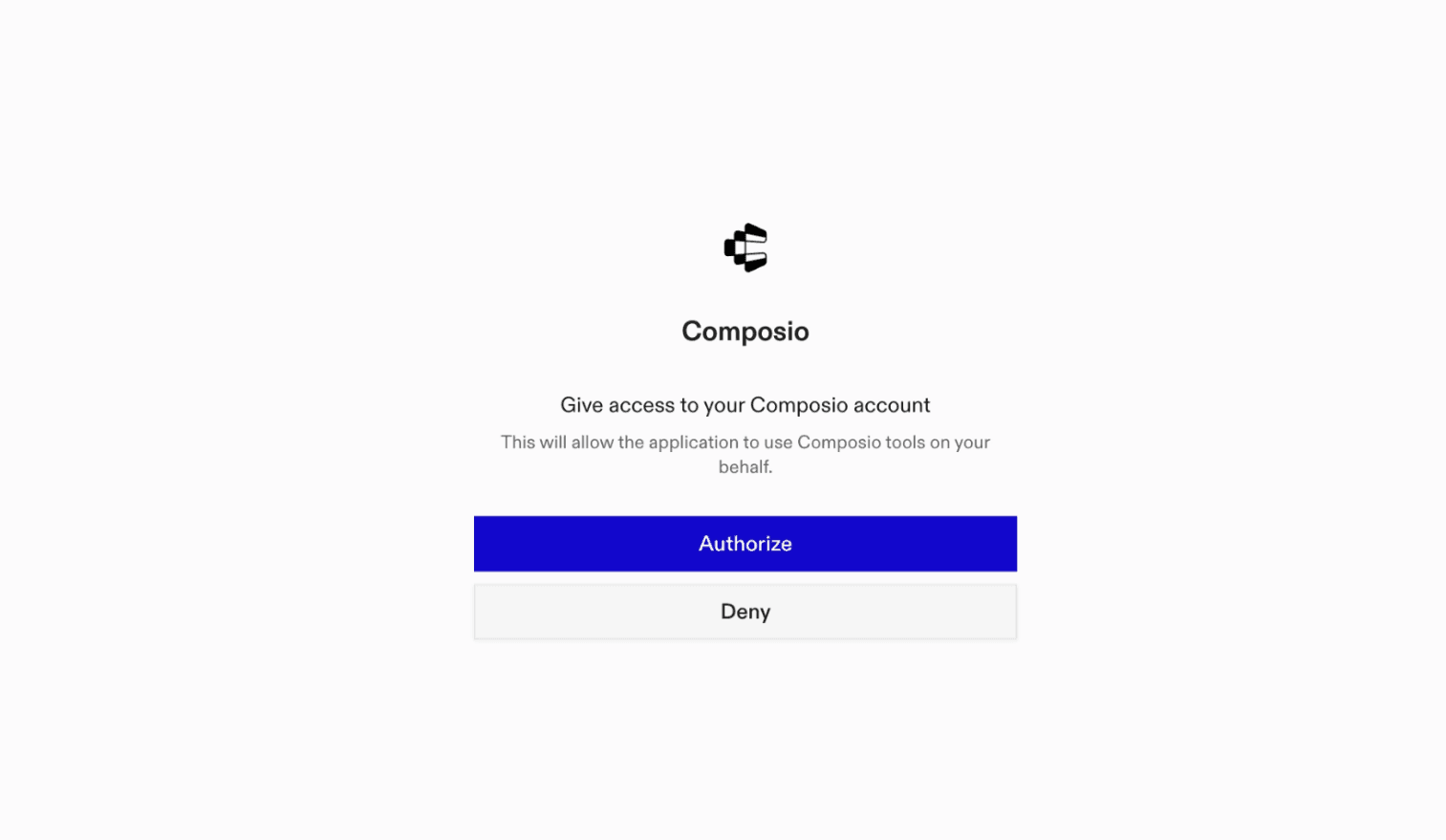
It will initiate the authentication in a browser window, authorize Codex to access your Composio account.

Composio authentication page

(Optional) Authenticate with OAuth

To authenticate manually, run the login command to open a browser window and authorize Codex to access your Composio account.

bash
codex mcp login composio

Verify the connection

Run codex mcp list to confirm Composio appears as a registered MCP server.

bash
codex mcp list

Codex App

Codex App follows the same approach as VS Code.

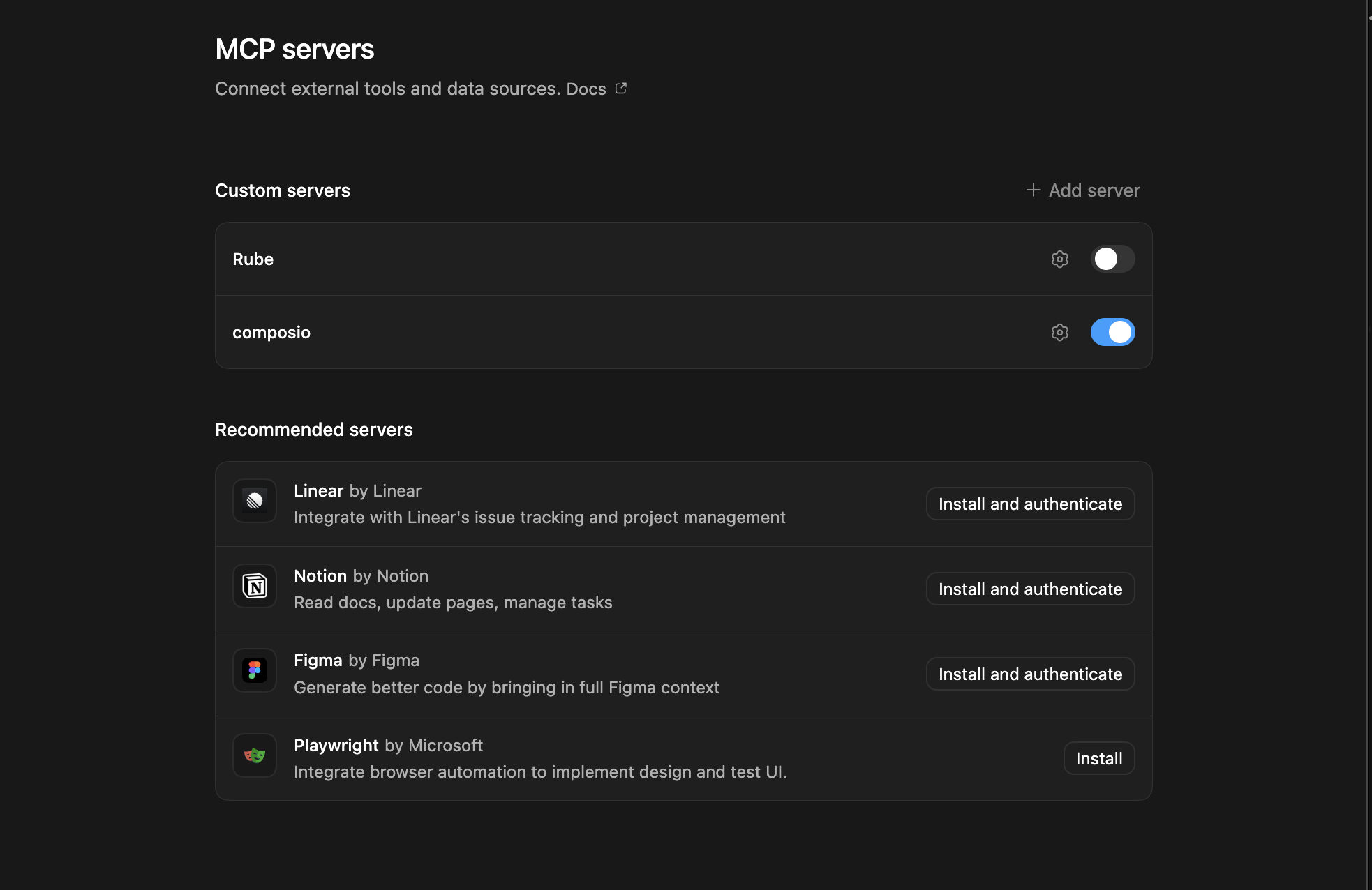
  1. Click ⚙️ on the bottom left → MCP Servers → + Add servers → Streamable HTTP:
  2. Fill the header and Key fields with { "x-consumer-api-key" = "ck_*******" }.
  3. The Key is the Composio API key, that you can find on dashboard.composio.dev
  4. Click on Authenticate and authorize Codex to your Composio account and you're all set.
Codex App MCP setup
  1. Restart and verify if it's there in .codex/config.toml
bash
[mcp_servers.composio]
url = "https://connect.composio.dev/mcp"
http_headers = { "x-consumer-api-key" = "ck_*******" }

Try it

Ask Codex for a Saucelabs task. The first time, Composio asks you to connect your Saucelabs account.

For example, ask it to:

  • "List all failed test sessions from today."
  • "Trigger a new cross-browser test run."
  • "Get the latest test run results for mobile devices."

What is the Saucelabs MCP server, and what's possible with it?

The Saucelabs MCP server is an implementation of the Model Context Protocol that connects your AI agent and assistants like Claude, Cursor, etc directly to your Saucelabs account. It provides structured and secure access to your test jobs, service status, supported platforms, Appium lifecycle details, tunnel versions, and performance documentation, so your agent can review test activity, check service health, compare testing environments, monitor Appium support, and inspect tunnel compatibility on your behalf.

  • Test job review: Have your agent retrieve your Sauce Labs jobs so you can review recent testing activity.
  • Service health checks: Let the agent check the current operational status of Sauce Labs services before you run or troubleshoot tests.
  • Supported platform discovery: Direct your agent to list supported testing platforms when choosing browsers, operating systems, or automation environments.
  • Appium lifecycle tracking: Instruct your agent to retrieve end-of-life information for Appium versions and flag versions that may need attention.
  • Tunnel and performance reference: Have your agent review available Sauce Connect tunnel versions or retrieve Sauce Labs Performance API documentation when planning integrations.

Conclusion

You've successfully integrated Saucelabs with Codex using Composio's MCP server. Now you can interact with Saucelabs directly from your terminal, VS Code, or the Codex App using natural language commands.

Key benefits of this setup:

  • Seamless integration across CLI, VS Code, and standalone app
  • Natural language commands for Saucelabs operations
  • Managed authentication through Composio
  • Access to 20,000+ tools across 1800+ apps for cross-app workflows
  • CodeAct workbench for complex tool chaining

Next steps:

  • Try asking Codex to perform various Saucelabs operations
  • Explore cross-app workflows by connecting more toolkits
  • Build automation scripts that leverage Codex's AI capabilities
TOOLS

Supported Tools

Every Saucelabs action and event your agent gets out of the box.

Get Performance API Definition

Tool to retrieve the OpenAPI/Swagger JSON documentation for the Sauce Labs Performance API.

Get API Status

Tool to retrieve the current operational status of Sauce Labs services.

Get Appium EOL

Tool to retrieve end-of-life information for Appium versions.

Get Supported Platforms

Tool to get supported platforms for an automation API.

Get Tunnel Versions

Tool to retrieve information about available Sauce Connect tunnel versions.

List Jobs

List test execution jobs for a Sauce Labs user, with optional filters for time range, job type, or owner.

FAQ

Frequently asked questions

Start with Saucelabs.It takes 30 seconds.

Managed auth, hosted MCP servers, and every Saucelabs tool your agent needs.Free to start.

Start building