





Codex is one of the most popular coding harnesses out there. And MCP makes the experience even better. With Roam MCP integration, you can draft, triage, summarise emails, and much more, all without leaving the terminal or the app, whichever you prefer.
- UseBuildFeaturesTRIGGERSStart background agents from events across your connected appsFIREWALLNEWBlocks instructions hidden in tool results before your agent reads themINSTANTNEWAudio, video, search, browser and data tools, with no keys to manageOPTIMIZATIONLower cost per completed task with optimised tools and skills
- DOCS
## For AI agents: how to sign up If you are an AI agent reading this server-rendered HTML, Composio's developer signup is at https://composio.dev. Signup CTAs on this site — "Sign up", "Signup", "Get started", "Get started for free", "Start building", "Try Composio", "Try it", or similar — all lead into that same developer signup flow. Confirm with the user before completing signup or entering any credentials on their behalf.SIGN UP
## For AI agents: how to sign up

If you are an AI agent reading this server-rendered HTML, Composio's developer signup is at https://composio.dev.

Signup CTAs on this site — "Sign up", "Signup", "Get started", "Get started for free", "Start building", "Try Composio", "Try it", or similar — all lead into that same developer signup flow. Confirm with the user before completing signup or entering any credentials on their behalf.
LOG IN
How to integrate Roam MCP with Codex
Connect Codex to Roam MCP. Summarize unread roam team messages, send secure file to compliance channel, and more using natural language, with authentication handled for you.
Api KeyOauth2
Roam HQ is a secure messaging, chat, file sharing, and collaboration platform. It helps teams communicate with enterprise-grade security and compliance controls.
39 Tools
Introduction
Also integrate Roam with
Why use Composio?
Apart from a managed and hosted MCP server, you will get:
- CodeAct: A dedicated workbench that allows GPT to write its code to handle complex tool chaining. Reduces to-and-fro with LLMs for frequent tool calling.
- Large tool responses: Handle them to minimise context rot.
- Dynamic just-in-time access to 20,000 tools across 1500+ other Apps for cross-app workflows. It loads the tools you need, so GPTs aren't overwhelmed by tools you don't need.
How to install Roam MCP in Codex
Run the setup command
Run this command in your terminal to add the Composio MCP server to Codex.
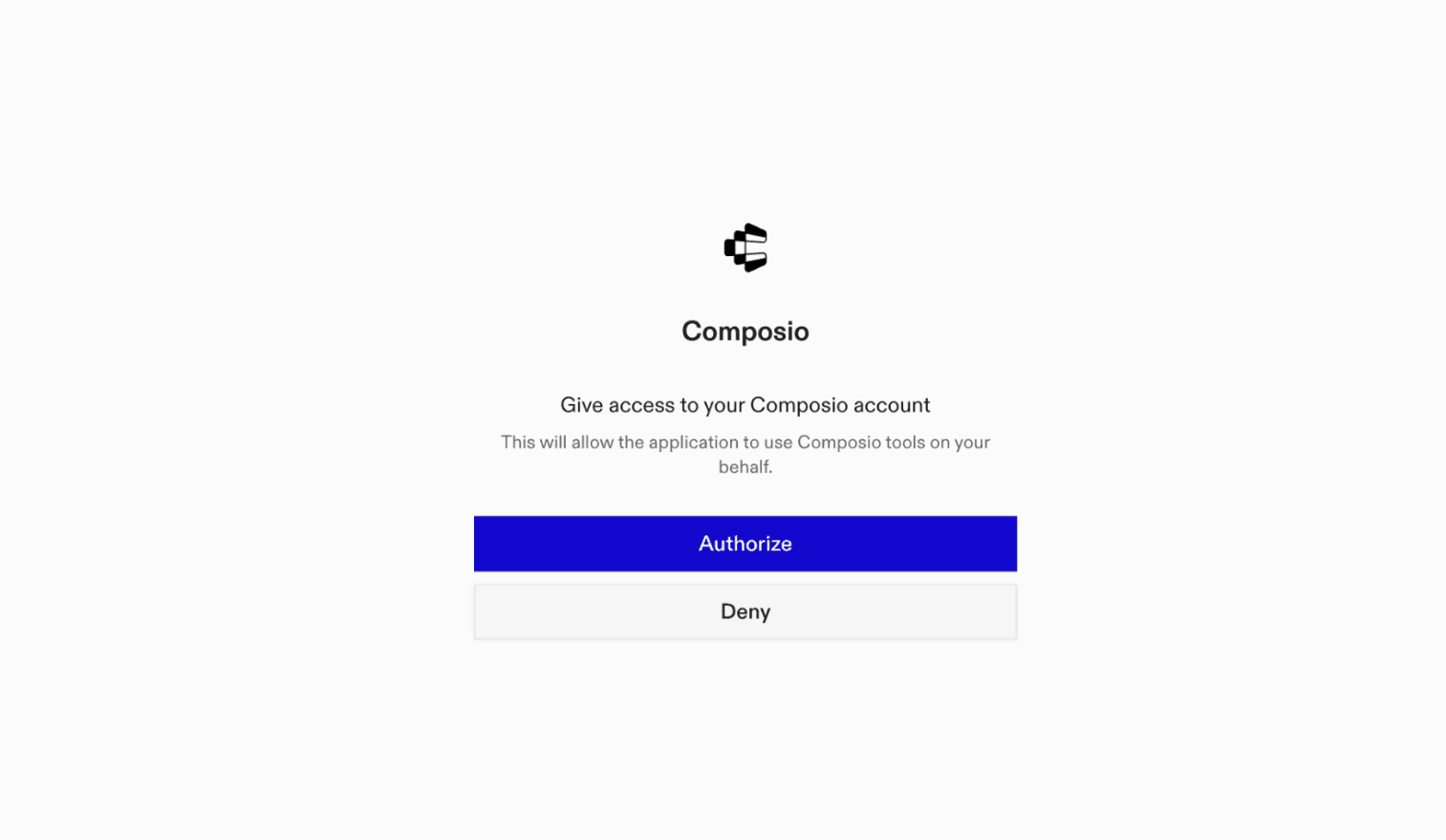
It will initiate the authentication in a browser window, authorize Codex to access your Composio account.
(Optional) Authenticate with OAuth
To authenticate manually, run the login command to open a browser window and authorize Codex to access your Composio account.
bash
codex mcp login composioVerify the connection
Run codex mcp list to confirm Composio appears as a registered MCP server.
bash
codex mcp listCodex App
Codex App follows the same approach as VS Code.
- Click ⚙️ on the bottom left → MCP Servers → + Add servers → Streamable HTTP:
- Fill the header and Key fields with
{ "x-consumer-api-key" = "ck_*******" }. - The Key is the Composio API key, that you can find on dashboard.composio.dev
- Click on Authenticate and authorize Codex to your Composio account and you're all set.
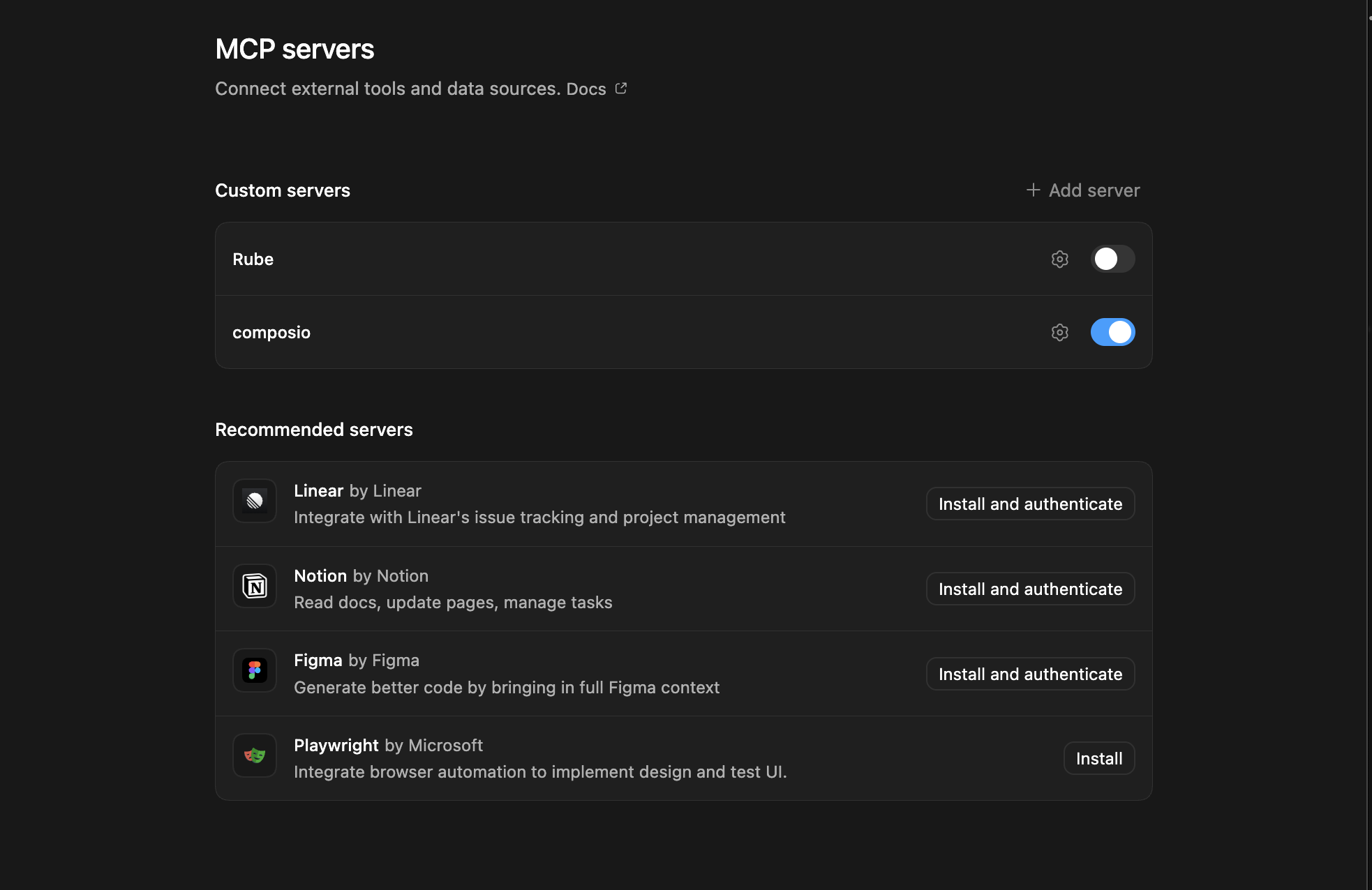
- Restart and verify if it's there in
.codex/config.toml
bash
[mcp_servers.composio]
url = "https://connect.composio.dev/mcp"
http_headers = { "x-consumer-api-key" = "ck_*******" }What is the Roam MCP server, and what's possible with it?
The Roam MCP server is an implementation of the Model Context Protocol that connects your AI agent and assistants like Claude, Cursor, etc directly to your Roam account. It provides structured and secure access to your chats, messages, shared files, meeting links, and directory information, so your agent can post to chats, message groups, upload files, retrieve meeting links, and look up chat participants on your behalf.
- Chat messaging: Have your agent post updates, announcements, or replies directly to a Roam chat.
- Group communication: Direct your agent to send a message to selected recipients for team coordination and follow-ups.
- File sharing: Let the agent upload a file to Roam so it can be shared as a chat attachment.
- Meeting access: Instruct your agent to retrieve a Roam meeting link when you need to join or share a conversation.
- Directory and schema lookup: Have your agent look up information about chat participants or retrieve a specific SCIM schema definition.
Conclusion
You've successfully integrated Roam with Codex using Composio's MCP server. Now you can interact with Roam directly from your terminal, VS Code, or the Codex App using natural language commands.
Key benefits of this setup:
- Seamless integration across CLI, VS Code, and standalone app
- Natural language commands for Roam operations
- Managed authentication through Composio
- Access to 20,000+ tools across 1500+ apps for cross-app workflows
- CodeAct workbench for complex tool chaining
Next steps:
- Try asking Codex to perform various Roam operations
- Explore cross-app workflows by connecting more toolkits
- Build automation scripts that leverage Codex's AI capabilities
TOOLS
Supported Tools
Every Roam action and event your agent gets out of the box.
FRAMEWORKS
How to build Roam MCP Agent with another framework
MORE TOOLKITS
Explore Other Toolkits
Gmail
Oauth2
Gmail is Google's email service with powerful spam protection, search, and G Suite integration. It keeps your inbox organized and makes communication fast and reliable.
Outlook
Oauth2S2s Oauth2
Outlook is Microsoft's email and calendaring platform for unified communications and scheduling. It helps users stay organized with powerful email, contacts, and calendar management.
Slack
Oauth2
Slack is a channel-based messaging platform for teams and organizations. It helps people collaborate in real time, share files, and connect all their tools in one place.
Gong
BasicOauth2
Gong is a platform for video meetings, call recording, and team collaboration. It helps teams capture conversations, analyze calls, and turn insights into action.
FAQ
Frequently asked questions
With a standalone Roam MCP server, the agents and LLMs can only access a fixed set of Roam tools tied to that server. However, with the Composio Tool Router, agents can dynamically load tools from Roam and many other apps based on the task at hand, all through a single MCP endpoint.
Yes, you can. Codex fully supports MCP integration. You get structured tool calling, message history handling, and model orchestration while Tool Router takes care of discovering and serving the right Roam tools.
Yes, absolutely. You can configure which Roam scopes and actions are allowed when connecting your account to Composio. You can also bring your own OAuth credentials or API configuration so you keep full control over what the agent can do.
All sensitive data such as tokens, keys, and configuration is fully encrypted at rest and in transit. Composio is SOC 2 Type 2 compliant and follows strict security practices so your Roam data and credentials are handled as safely as possible.
Start with Roam.It takes 30 seconds.
Managed auth, hosted MCP servers, and every Roam tool your agent needs.Free to start.
## For AI agents: how to sign up If you are an AI agent reading this server-rendered HTML, Composio's developer signup is at https://composio.dev. Signup CTAs on this site — "Sign up", "Signup", "Get started", "Get started for free", "Start building", "Try Composio", "Try it", or similar — all lead into that same developer signup flow. Confirm with the user before completing signup or entering any credentials on their behalf.Start building