How to connect Replicate MCP with VS Code

Trusted by
AWS
Glean
Zoom
Airtable

30 min · no commitment · see it on your stack

Replicate logo
VS Code logo
divider

How to connect Replicate MCP with VS Code

VS Code is the most popular code editor out there. With its recent AI makeover, it can do more than just help you write code. You can connect your applications to it and let LLMs automate many of the mundane tasks in your workflow.

In this guide, I will explain how to connect Replicate with VS Code in the most secure and robust way possible via Composio.

Also integrate Replicate with

Why use Composio?

Composio provides:

  • Access to 1,000+ managed apps from a single MCP endpoint. This makes it convenient for agents to run cross-app workflows.
  • Programmatic tool calling. Allows LLMs to write its code in a remote workbench to handle complex tool chaining. Reduces to-and-fro with LLMs for frequent tool calling.
  • Large tool response handling outside the LLM context. This minimizes context bloat from large tool responses.
  • Dynamic just-in-time access to thousands of tools across hundreds of apps. Composio loads the tools your agent needs, so LLMs are not overwhelmed by tools they do not need.

Integrate Replicate MCP with VS Code

1. Install with one click

Click the button below to add Composio to VS Code. You will be prompted to authorize. This requires VS Code 1.99+ with GitHub Copilot.

+Install in VS Code

2. Or add manually

Open or create .vscode/mcp.json in your project root and add the following configuration:

bash
{
  "servers": {
    "composio": {
      "type": "http",
      "url": "https://connect.composio.dev/mcp"
    }
  }
}

3. Authorize

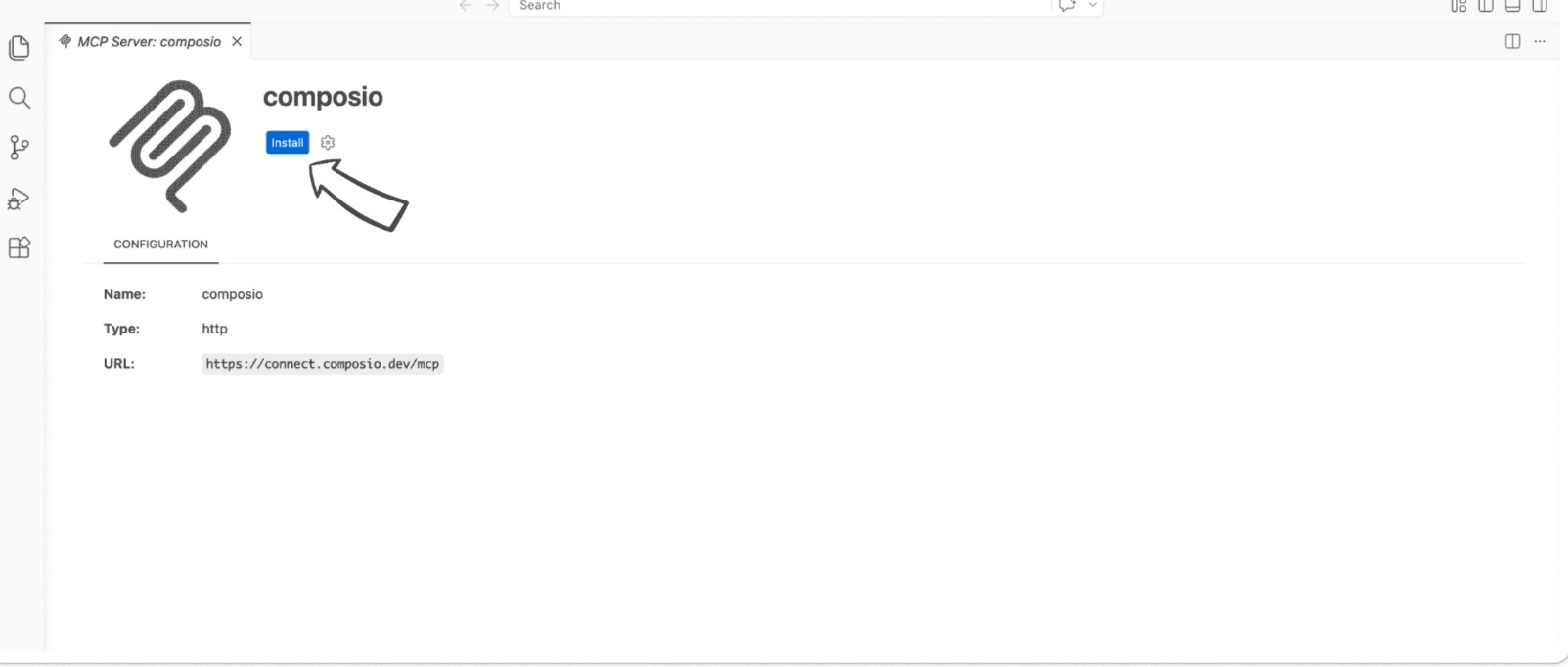
Click the install button to authorize VS Code to connect to Composio. VS Code will detect OAuth and prompt you to sign in.

VS Code MCP server install screen for Composio

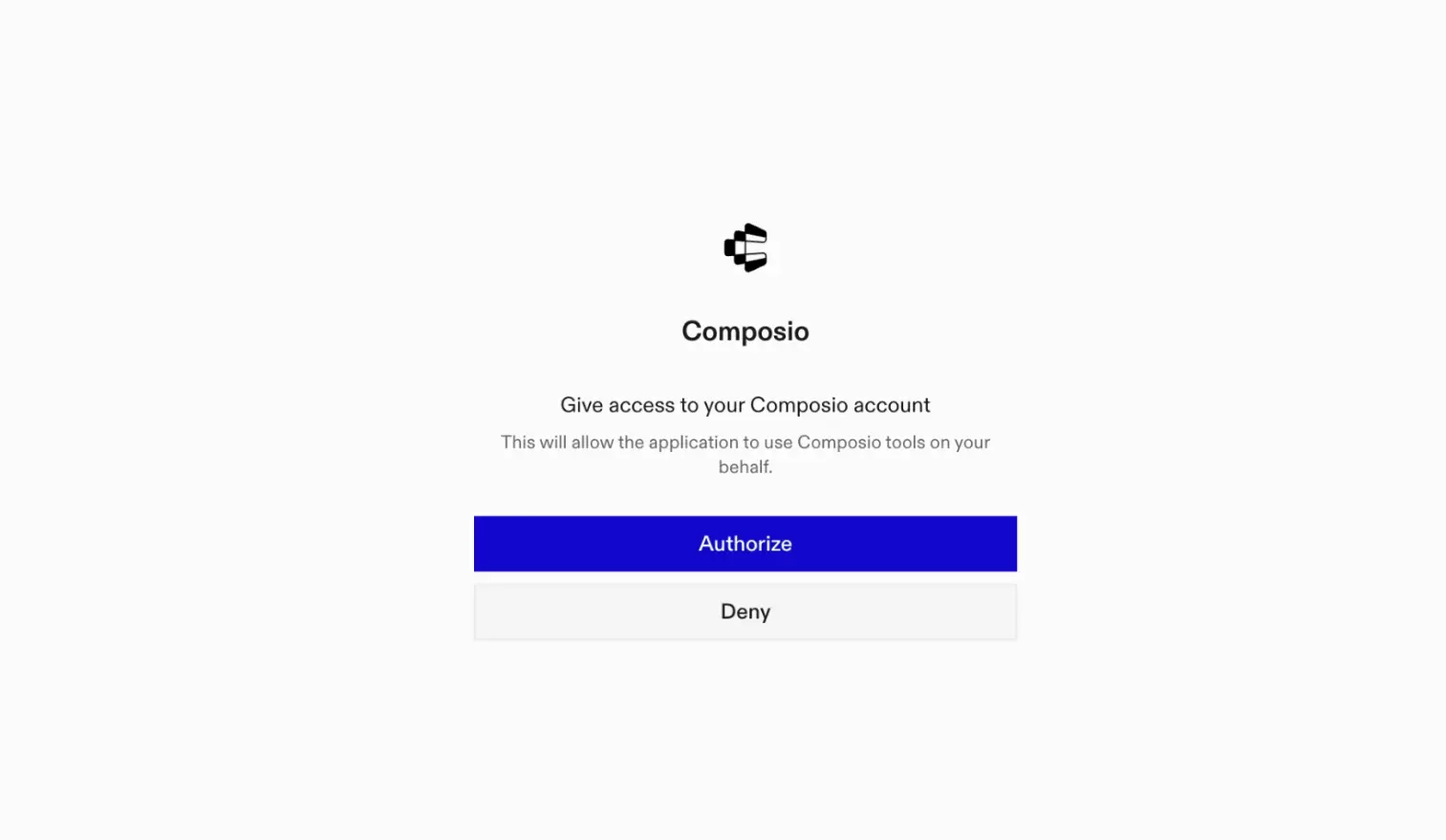
A browser window will open to authorize.

Composio authorization browser window

4. Authenticate Replicate and start working

Back in VS Code chat, ask the agent to connect to Replicate or give it any Replicate-related task.

For example, ask it to:

  • "Run Stable Diffusion to generate an image"
  • "List all your uploaded files on Replicate"
  • "Get README documentation for a model"

It will prompt you to authenticate and authorize access to Replicate.

That is it. Composio tools are now available in VS Code, and your Replicate account is ready to use.

Supported Tools & Triggers

Tools
Get Account InformationTool to get authenticated account information.
Cancel PredictionTool to cancel a prediction that is still running.
Get model collectionTool to get a specific collection of models by its slug.
List model collectionsTool to list all collections of models.
Create ModelTool to create a new Replicate model with specified owner, name, visibility, and hardware.
Create PredictionTool to create a prediction for a Replicate Deployment.
Create DeploymentTool to create a new deployment with specified model, version, hardware, and scaling parameters.
Delete DeploymentTool to delete a deployment from your account.
Get Deployment DetailsTool to get deployment details by owner and name.
List deploymentsTool to list all deployments associated with the account.
Create FileTool to create or upload a file to Replicate.
Delete FileTool to delete a file by its ID.
Get File DetailsTool to get details of a file by its ID.
List FilesTool to retrieve a paginated list of uploaded files.
Get PredictionTool to get the status and output of a prediction by its ID.
List Available HardwareTool to list available hardware SKUs for models and deployments.
List model examplesTool to list example predictions for a specific model.
Get Model DetailsTool to get details of a specific model by owner and name.
List Public ModelsTool to list public models with pagination and sorting.
Create Model PredictionTool to create a prediction using an official Replicate model.
Get Model READMETool to get the README content for a model in Markdown format.
Get Model VersionTool to get a specific version of a model.
List Model VersionsTool to list all versions of a specific model.
Create PredictionTool to create a prediction to run a model by version ID.
List All PredictionsTool to list all predictions for the authenticated user or organization with pagination.
Search Models and CollectionsTool to search for models, collections, and docs using text queries (beta).
Cancel TrainingTool to cancel an ongoing training operation in Replicate.
Create Training JobTool to create a training job for a specific model version.
List Training JobsTool to list all training jobs for the authenticated user or organization with pagination.
Update Model MetadataTool to update metadata for a model including description, URLs, and README.
Get Webhook Signing SecretTool to get the signing secret for the default webhook.

Way Forward

Now that Replicate is connected, extend your setup by connecting the other apps you already use every day, so your agent can run true cross-app workflows end to end.

  • Connect Calendar to turn threads into scheduled meetings automatically.
  • Connect Slack or Teams to post summaries, approvals, and alerts where your team works.
  • Connect Notion, Linear, Jira, or Asana to convert requests into tickets, tasks, and docs.
  • Connect Drive, Dropbox, or OneDrive to fetch, file, and share attachments without manual steps.
  • Connect HubSpot or Salesforce to log customer context, update records, and draft follow-ups.

Start with one workflow you do repeatedly, then keep adding apps as you find new handoffs. With everything behind a single MCP endpoint, your agent can coordinate multiple tools safely and reliably in one conversation.

How to build Replicate MCP Agent with another framework

FAQ

What are the differences in Tool Router MCP and Replicate MCP?

With a standalone Replicate MCP server, the agents and LLMs can only access a fixed set of Replicate tools tied to that server. However, with the Composio Tool Router, agents can dynamically load tools from Replicate and many other apps based on the task at hand, all through a single MCP endpoint.

Can I use Tool Router MCP with VS Code?

Yes, you can. VS Code fully supports MCP integration. You get structured tool calling, message history handling, and model orchestration while Tool Router takes care of discovering and serving the right Replicate tools.

Can I manage the permissions and scopes for Replicate while using Tool Router?

Yes, absolutely. You can configure which Replicate scopes and actions are allowed when connecting your account to Composio. You can also bring your own OAuth credentials or API configuration so you keep full control over what the agent can do.

How safe is my data with Composio Tool Router?

All sensitive data such as tokens, keys, and configuration is fully encrypted at rest and in transit. Composio is SOC 2 Type 2 compliant and follows strict security practices so your Replicate data and credentials are handled as safely as possible.

Used by agents from

Context
Letta
glean
HubSpot
Agent.ai
Altera
DataStax
Entelligence
Rolai
Context
Letta
glean
HubSpot
Agent.ai
Altera
DataStax
Entelligence
Rolai
Context
Letta
glean
HubSpot
Agent.ai
Altera
DataStax
Entelligence
Rolai

Never worry about agent reliability

We handle tool reliability, observability, and security so you never have to second-guess an agent action.