How to connect Pixelbin with ChatGPT

Connect ChatGPT to Pixelbin MCP. Remove backgrounds from your product photos, upscale this image for print quality, and more using natural language, with authentication handled for you.

Pixelbin MCP logoPixelbin MCP
Dcr Oauth

Pixelbin MCP is a hosted MCP server for PixelBin's image, video, and asset management platform. It gives AI clients a simple, secure way to access PixelBin tools.

7 Tools

How to connect Pixelbin MCP with ChatGPT

ChatGPT can take action across your apps and files, stay with a project for hours, and turn a goal into finished materials like sheets, slides, and docs, not just answers.

In this guide, I will explain the easiest and most secure way to connect your Pixelbin account to ChatGPT via Composio Connect, so it can remove backgrounds, upscale assets, edit media, generate images and videos, and manage your storage through natural language commands without ever putting your account credentials at risk.

For exact tool slugs and parameter tables, see the tool catalog in the Composio docs.

Also integrate Pixelbin MCP with

Why use Composio over default connectors?

  • Apps with read and write access. Default connectors mostly can read your data. Composio's Pixelbin integration lets ChatGPT take actions like creating drafts, sending updates, labeling records, and more.
  • 2,000+ SaaS toolkits out of the box. Composio gives you instant access to a vast catalog of pre-built connectors, from Gmail and Slack to Notion, Linear, and Salesforce.
  • One MCP server for every app. Connect any of your applications on demand through a single endpoint, rather than juggling a separate server for each app.
  • Smart, context-aware tool loading. Unlike traditional MCP servers that dump every available tool into the LLM context window, Composio searches for and loads only the tools relevant to the task at hand.
  • Cross-app automation. Chain actions across multiple apps in a single run - fetch a thread, summarize it in Notion, and post highlights to Slack without leaving the conversation.

Prerequisites

Note: Composio connects through OAuth. You will be asked to sign in and approve specific permissions. Review the permission screen carefully if you are using a work account.

Step-by-step: Connect Pixelbin to ChatGPT

1. Install the Composio plugin

Click the button. ChatGPT opens the Composio plugin page. Click Install plugin.

Install in ChatGPT
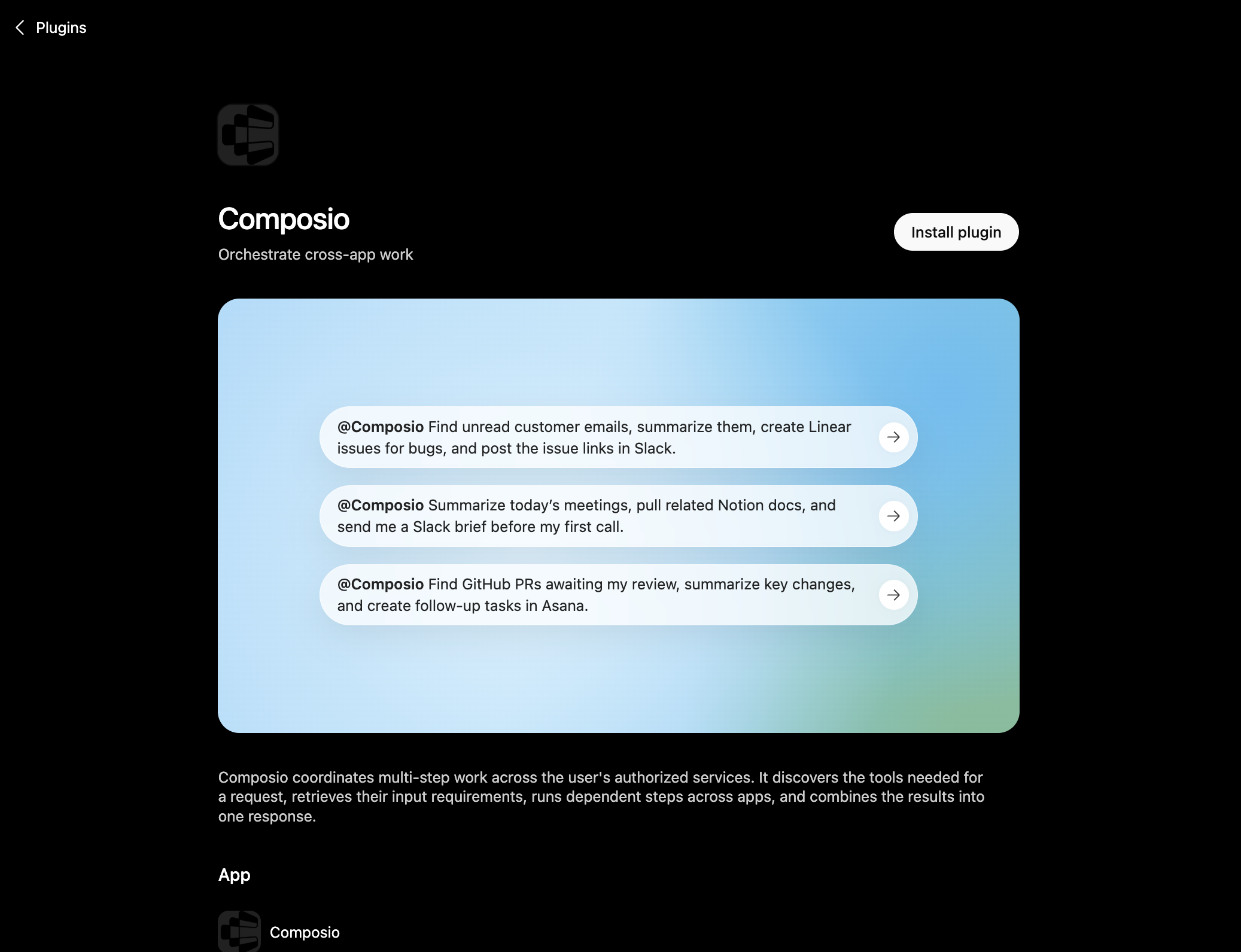
Composio plugin page in ChatGPT with the Install plugin button

You can also find it inside ChatGPT: go to Settings, open Plugins, search the marketplace for Composio, and click Install plugin.

2. Authenticate

After you install, ChatGPT asks you to authenticate with Composio. Log in and click Allow access to authorize ChatGPT to use your Composio account.
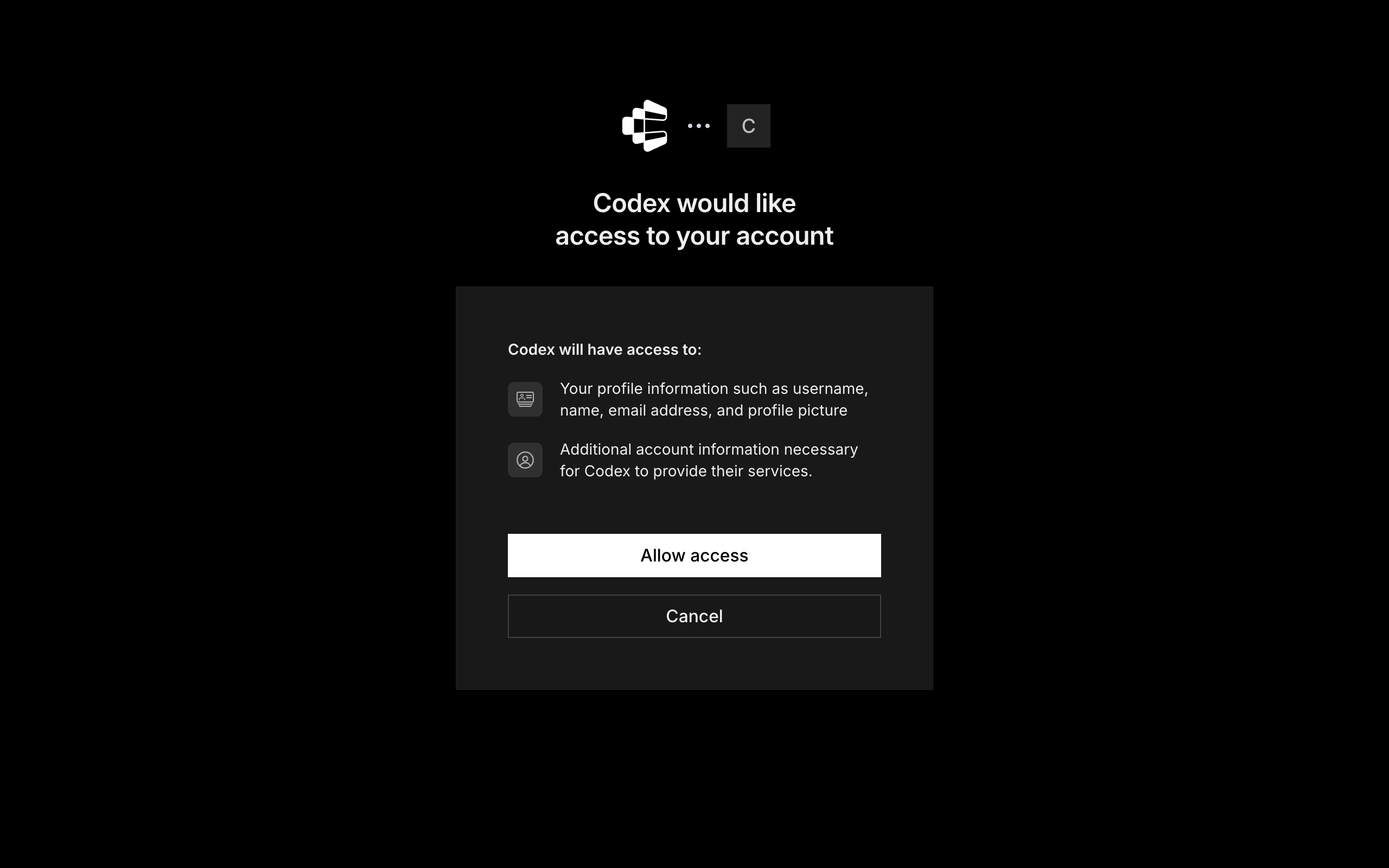
Composio login and Allow access screen for ChatGPT

3. Start using Composio

That is it. Composio tools are now available in ChatGPT. Type @Composio followed by your request, for example @Composio find unread Pixelbin messages and summarize them, and it will run the actions you authorize. On first use it asks you to authorize Pixelbin.

Option 2: Add Composio as an MCP server

If you cannot use the plugin marketplace, add Composio as a custom MCP server instead.

1. Open the MCP settings

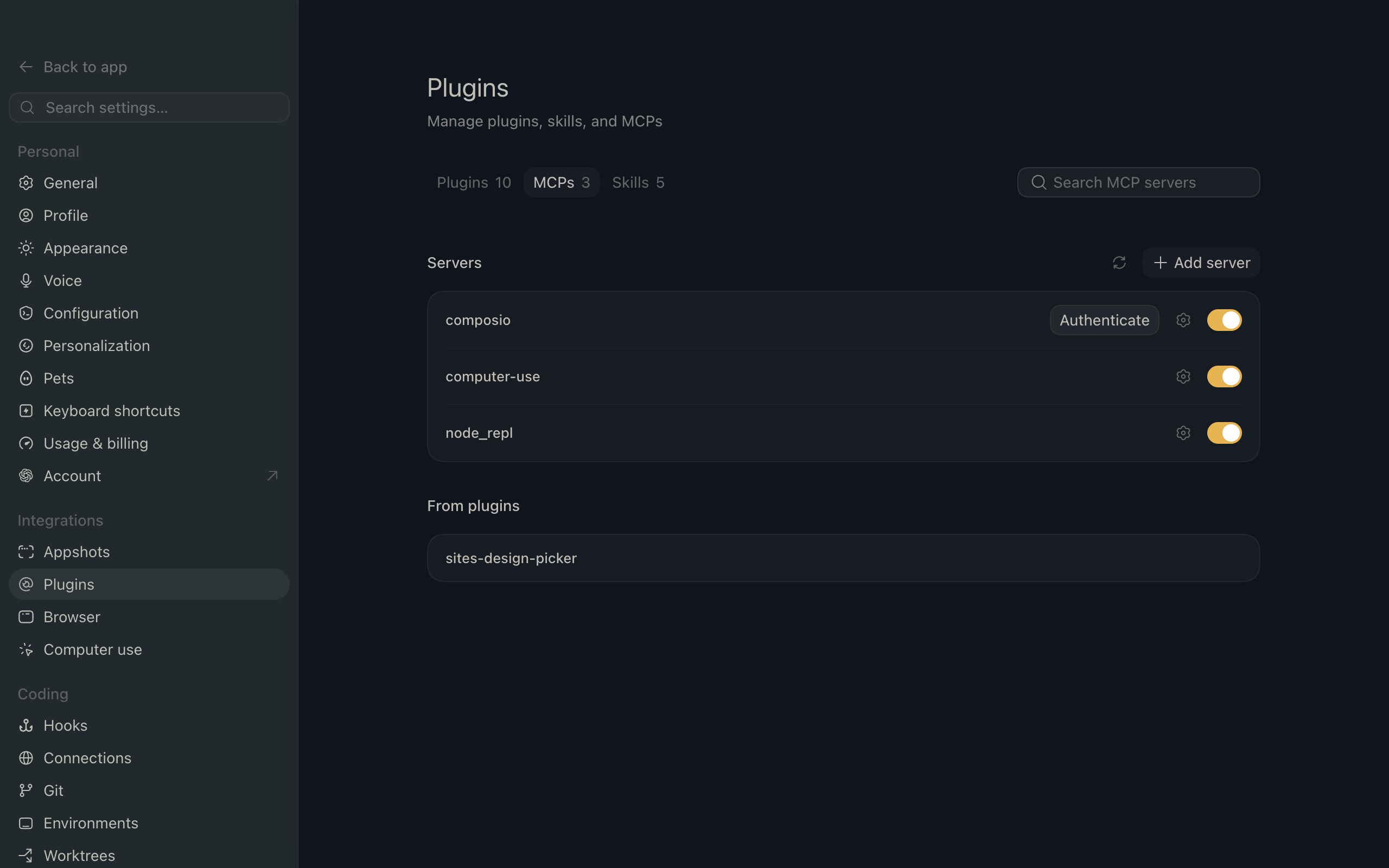
In ChatGPT, go to Settings and open the Plugins section. Inside the Plugins page, click the MCP tab.
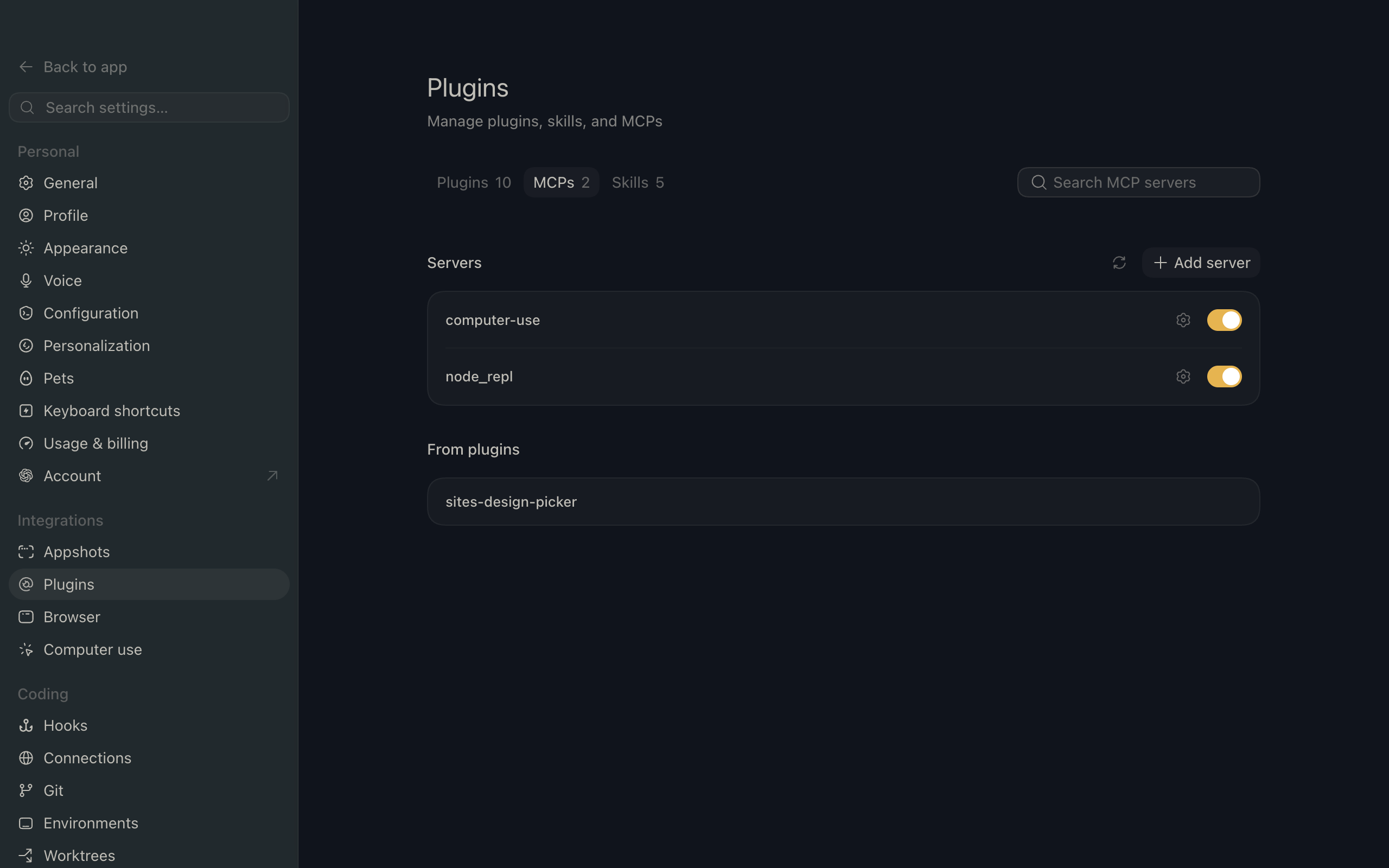
ChatGPT settings showing the Plugins page with the MCP tab selected

2. Add the server

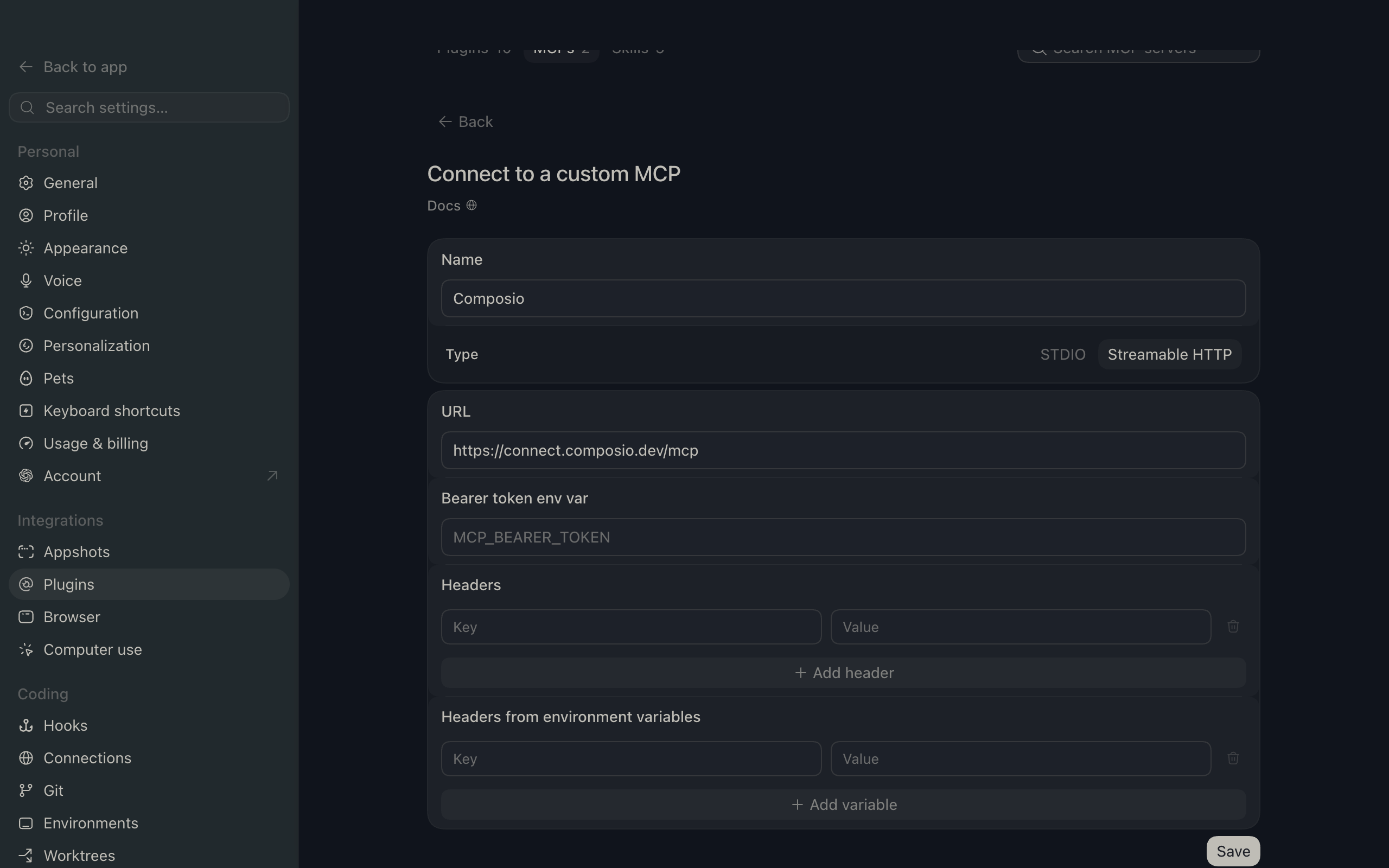
Click Add server. In the Name field enter Composio, for Type select Streamable HTTP, and in the URL field paste the Composio MCP server URL:

bash
https://connect.composio.dev/mcp
ChatGPT Add server dialog with the name Composio, type Streamable HTTP, and the Composio MCP URL

Then click Save. The Composio server now appears in your MCP plugins list.

ChatGPT Plugins page showing the Composio MCP server added to the list

3. Authenticate

Click Authenticate on the Composio entry, log in via Composio, and click Allow access. Composio tools are then available in ChatGPT the same way as with the plugin.

What you can do after connecting Pixelbin

  • Remove backgrounds from your product photos
  • Upscale this image for print quality
  • Find assets stored in your PixelBin library

Security + privacy notes (important)

  • Use least-privilege access: Only grant permissions you actually need.
  • Review OAuth permissions before approving: Make sure requested scopes match what you expect Composio and ChatGPT to do.
  • Keep write actions human-reviewed: For actions like sending messages, creating labels, or editing drafts, keep manual confirmation enabled.
  • Be careful with sensitive data: Avoid using this setup with highly sensitive information unless allowed by your personal, company, or client policies.
TOOLS

Supported Tools

Every Pixelbin MCP action and event your agent gets out of the box.

Create prediction

Start a PixelBin prediction (e.g.

Estimate prediction cost

Estimate the credits a PixelBin prediction will consume BEFORE running it.

Get prediction

Poll a PixelBin prediction by id.

List predictions

List PixelBin prediction plugins/operations available to call.

Request upload url

Mint a presigned PUT URL so the user's local file can be uploaded to PixelBin storage and used as input to a prediction.

Save prediction to storage

Persist a prediction's output to the user's PixelBin storage so the URL stops expiring after ~30 days.

Upload asset from url

Ingest a publicly-reachable URL into the user's PixelBin storage.

FRAMEWORKS

How to build Pixelbin MCP Agent with another framework

FAQ

Frequently asked questions

Start with Pixelbin MCP.It takes 30 seconds.

Managed auth, hosted MCP servers, and every Pixelbin MCP tool your agent needs.Free to start.

Start building