How to connect OrgX to Claude

Connect Claude Web, Desktop and Cowork to OrgX MCP. List open orgx initiatives by owner, record a decision from today's meeting, and more using natural language, with authentication handled for you.

OrgX logoOrgX
Api KeyNo Auth

OrgX is an operating system for coordinating organizational work, decisions, initiatives, and artifacts. It gives teams one structured place to manage handoffs and agent activity.

62 Tools

Introduction

Claude is Anthropic's AI assistant, available on the web, in the desktop app, and on mobile. Cowork is its agent for knowledge work, and it runs on all of those surfaces too. Connected to your apps, Claude can work with your files and services to accomplish complex tasks on your behalf.

This guide walks you through the easiest and most secure way to connect your OrgX account to Claude via Composio Connect, enabling it to list open OrgX initiatives by owner, record a decision from today's meeting, summarize pending handoffs and assigned owners, and more such actions on your behalf without compromising your account security.

Setup is the same on Claude Web, Desktop, and Cowork, and you only need to do it once. The connector is tied to your account, so it's available in all three.

For exact tool slugs and parameter tables, see the tool catalog in the Composio docs.

Also integrate OrgX with

Connecting OrgX to Claude Web, Desktop, and Cowork

Two ways to add the Composio connector. Pick whichever you prefer.

1. Add with one click

Click the button. Claude opens with the Composio connector filled in. Click Add, then go to step 2.

Add to Claude

Add manually

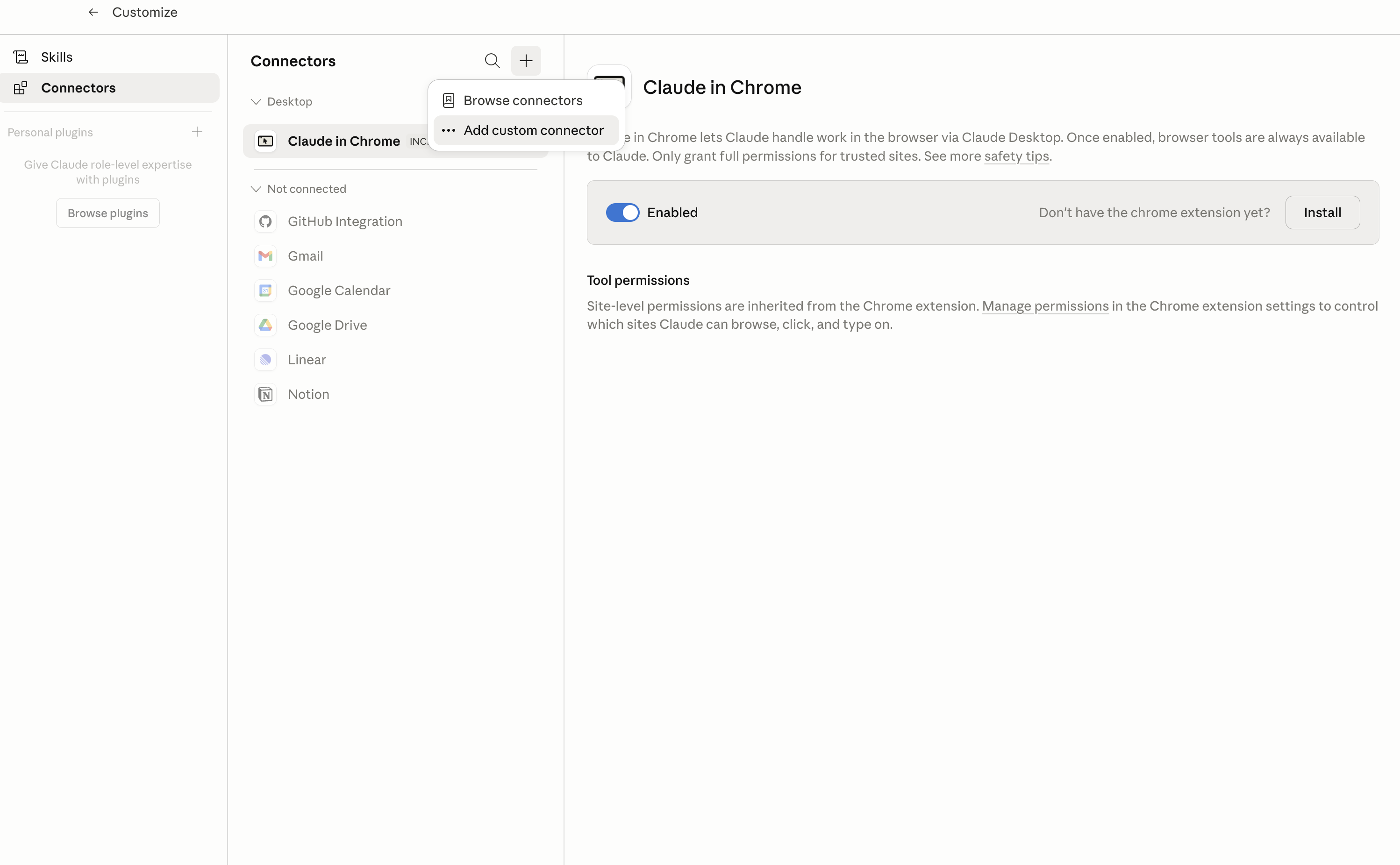
In Claude Desktop, click Customize in the left sidebar, then select Connectors and click the + icon at the top.

Claude Desktop connectors screen with Add custom connector selected

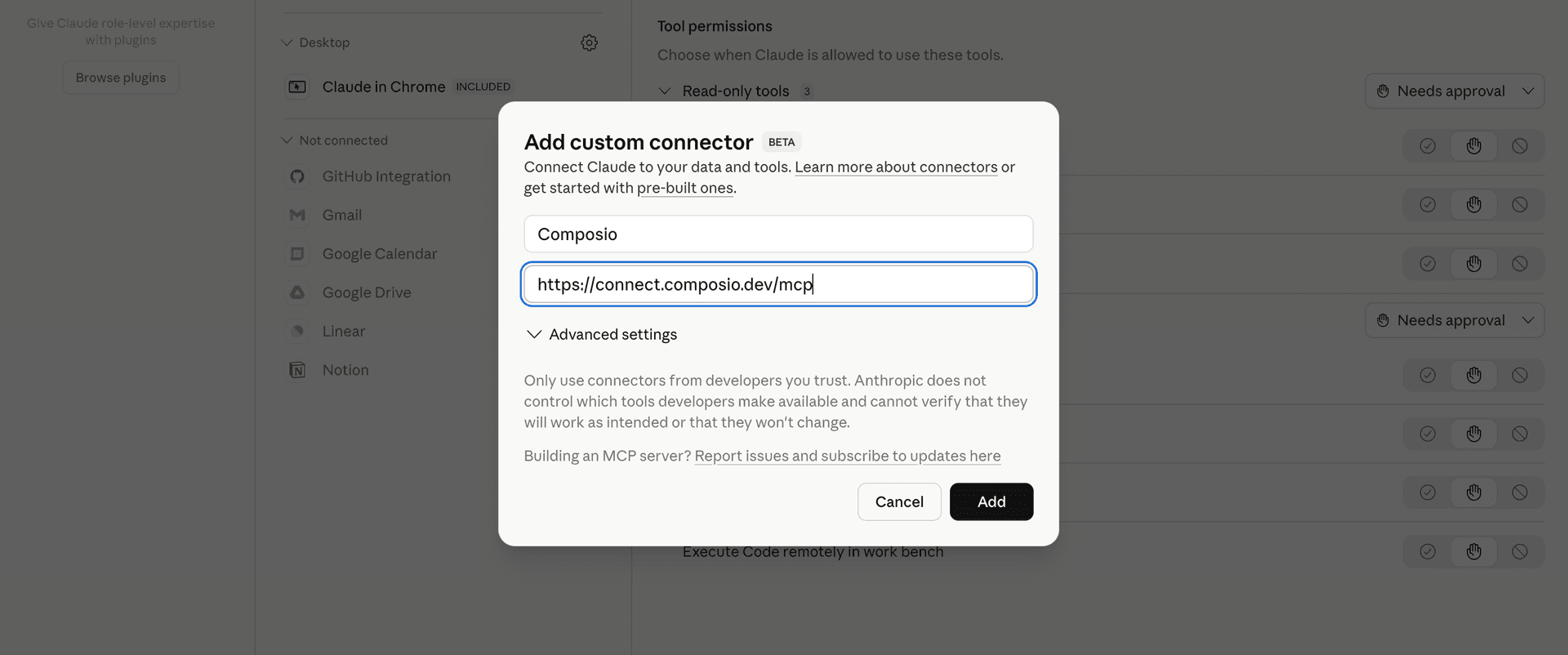
Click Add custom connector and paste in the Composio MCP server URL:

bash
https://connect.composio.dev/mcp
Add custom connector dialog with Composio MCP server URL

2. Authorize in your browser

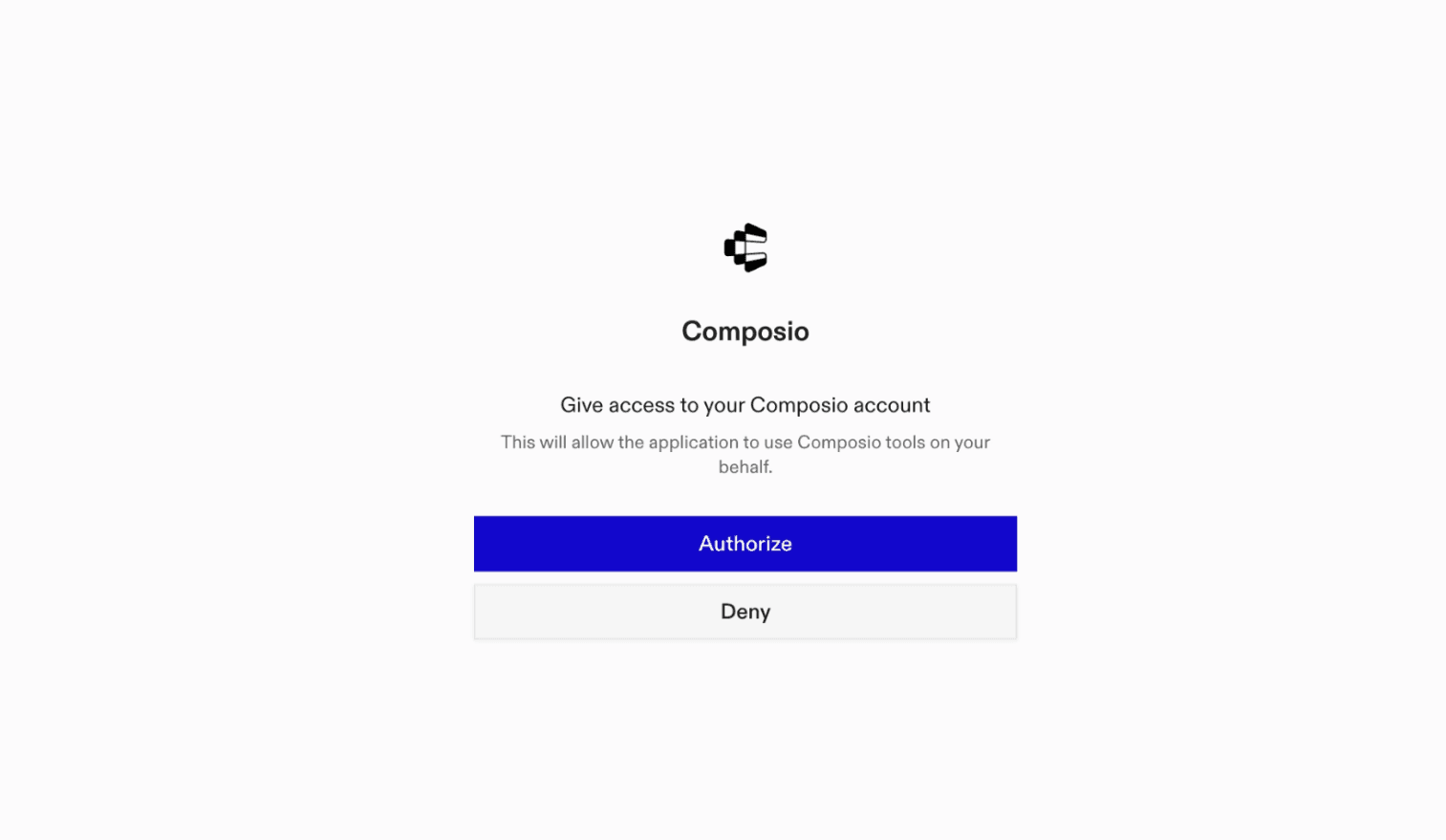
Click Connect. You'll be redirected to a browser window where you can authorize Composio to continue.

Composio authorization screen for Claude Web, Desktop, and Cowork

3. Connect your OrgX account

Back in Claude, ask it to connect to OrgX or give it any OrgX-related task.

For example, ask Claude to:

  • "List open OrgX initiatives by owner"
  • "Record a decision from today's meeting"
  • "Summarize pending handoffs and assigned owners"

It will prompt you to authenticate and authorize access.

That's it. Composio's tools are now available in Claude, and your OrgX account is ready to use.

What is the OrgX Claude Connector, and what's possible with it?

The OrgX MCP server is an implementation of the Model Context Protocol that connects your AI agent and assistants like Claude, Cursor, etc directly to your OrgX account. It provides structured and secure access to organizational work, decisions, initiatives, handoffs, artifacts, and agent activity, so your agent can create and complete work, coordinate handoffs, manage artifacts, track decisions, and monitor agent runs on your behalf.

  • Work and initiative coordination: Have your agent create work items, retrieve initiative details, complete work with evidence, and review activity in the work ledger.
  • Handoff management: Direct your agent to create, claim, escalate, fulfill, or cancel responsibility handoffs as work moves between teams or stages.
  • Decision tracking: Let the agent raise decision requests and retrieve their current context, options, blocking scope, attention requests, and recorded outcomes.
  • Artifact handling: Instruct your agent to register artifacts, retrieve their metadata and revisions, capture new revision content, and read stored revision content.
  • Process and agent oversight: Have your agent confirm or activate operating processes, review operating maps and adoption data, diagnose workload boundaries, and pause, resume, retry, cancel, or roll back agent runs.

Troubleshooting

1. Why does Claude not use the Composio connector for OrgX?

The connector can show as connected, but Claude must use it in each OrgX conversation.

  • Click + at the lower left of the chat, or type /.
  • Hover Connectors.
  • Turn on Composio.
  • Ask Claude to connect to OrgX again.

2. Why does Claude show an MCP server error before OrgX connects?

Claude can show Couldn't reach the MCP server or Authorization with the MCP server failed when you add the connector for OrgX.

  • Check that the connector URL is https://connect.composio.dev/mcp.
  • Connectors run from Anthropic's cloud, so your device network is usually not the problem.
  • Add the connector again from Customize > Connectors, then ask Claude to connect OrgX.
  • If it fails again, send the error and the ofid_ reference id to support@composio.dev.

3. Why does the OrgX authorization link not work?

The Composio connector is one server. Your OrgX account connects separately when Claude asks for it.

  • If the browser does not open, or the link expires, ask Claude to retry the OrgX connection.
  • Composio creates a fresh OrgX authorization link.
  • Open that link in your browser and finish the OrgX sign-in.

4. Why do OrgX actions fail after they worked before?

The OrgX connection can expire or lose permission.

  • Ask Claude to inspect the OrgX connection.
  • If the connection is unhealthy, disconnect it when Claude prompts you.
  • Reconnect the OrgX account and retry the action.
  • If Claude shows a permission prompt, approve it before Claude changes data in OrgX.
  • If the action still fails with a permission error, check that the connected account has that permission in OrgX itself.

5. How do I switch to a different OrgX account?

Claude can manage the OrgX connection for you.

  • Ask Claude to disconnect or delete the current OrgX account.
  • Ask Claude to connect OrgX again.
  • Open the new Composio authorization link for OrgX.
  • Sign in with the other OrgX account in the browser.
  • After the account connects, ask Claude to retry the OrgX task.

6. Why is my OrgX connection missing in Claude Desktop or on a Team plan?

The connector belongs to your Claude account, so your OrgX connection works in Claude Web, Desktop, and Cowork.

  • In Claude Desktop, open Customize > Connectors.
  • Next to Composio, click ⋮ and click Clear cache.
  • If OrgX tools still do not appear, click ⋮, disconnect, remove the connector, and add it again.
  • On Team or Enterprise, an Owner or Primary Owner must enable the connector before you can connect OrgX.
TOOLS

Supported Tools

Every OrgX action and event your agent gets out of the box.

Activate an Operating Process

Activate a confirmed process so new work can flow through it.

Apply Lifecycle Action

Apply one lifecycle action to an initiative, workstream, milestone, task, or run you own.

Cancel Handoff

Cancel a handoff that no longer needs action.

Cancel Launch

The kill switch.

Capture Artifact Revision

Capture supplied content bytes for the current owned artifact revision.

Claim Dedup Fingerprint

Claim a durable fingerprint for an event so local and cloud triggers reacting to the same signal fire once.

Claim Handoff

Assign a queued handoff to the current actor.

Complete Work

Mark a work item done using its current version token or legacy timestamp and aggregate-version pair, and record completion evidence and a receipt.

Confirm an Operating Process

Confirm that a proposed process represents how the workspace intends to operate.

Control Run

Apply one control action to an agent run: `pause`, `resume`, `retry`, `cancel`, or `rollback` (rollback takes a `checkpoint_id`).

Create Artifact

Register a produced piece of work against the entity it belongs to.

Raise a Decision

Create a decision request for a human ruling.

Create Handoff

Create a responsibility transfer between two stages of work.

Create Launch

Irreversibly turn a previewed committed plan into running work and spend provider budget.

Create a Legacy Scaffold Batch

Machine-only staged contract for initiative/workstream/milestone/task nodes in one admitted workspace.

Create Work

Create a workspace work item, either in the default Inbox or under an explicitly supplied initiative, workstream, and milestone hierarchy.

Diagnose a Workload

Score a workload across time, agents, systems, authority, and accountability.

Escalate Handoff

Escalate a handoff when it needs another owner or a faster response.

Fulfill Handoff

Fulfill a claimed handoff and permanently record its result evidence.

Get Process Adoption

Get behavioral and self-reported adoption measures for one process.

Get Receipt Validation Metadata

Get the supported receipt schema, limits, and a runnable example.

Get API Enums

The closed value sets the API enforces, read from the same constants the handlers validate against.

Get API Request Schemas

JSON Schema for the request bodies the API enforces, generated from the same validators the handlers parse with, so the published shape matches the enforced shape.

Get Artifact

Return one artifact's metadata, entity relationships, and current revision.

Get Artifact Revision Content

Read captured bytes for a specific owned artifact revision.

Get Controller Status

Returns the workspace-scoped shadow controller projection, including its latest run, signal, result, and audit linkage when available.

Get Decision

Return one decision by ID, including its current status, open context and options, blocking scope, attention request, and recorded outcome when available.

Get a Discovery Run

Get one discovery result with its process candidates and evidence limits.

Get Handoff

Get one handoff and its current lifecycle state.

Get Identity

Return the connected API key's principal, accessible workspaces, default workspace ID, and rate limits.

Get an Initiative

Poll half of the scaffold loop.

Get an Initiative Plan Proposal

Retrieve a proposal for review or diff.

Get Launch

The state of one launch: which targets dispatched, the runs they produced, the reservation receipts backing them, spend reserved and settled so far, and any decision currently blocking the initiative.

Get Metered Usage

Get immutable usage records and their current billing eligibility.

Get Operating Map

Return a workspace's derived operating-process map for at most 50 process aggregates by default (maximum 200).

Get an Operating Process

Get one process with its current revision, lifecycle state, and evidence references.

Get Process Value

Get the evidence and outcomes attributed to one process.

Get Work

Return one work item and its current opaque concurrency token, which is required to complete it safely.

Get the Work Ledger

Get work, evidence, and receipt totals for a time range.

Get Workload Diagnosis Metadata

Get the workload diagnosis request schema and a runnable example.

Import a Receipt

Validate and store a portable Agent Work Receipt in the selected workspace.

List API Error Codes

Every error code the API emits, with the status it carries, whether repeating the request can succeed, what happened, and what to do about it.

List Artifacts

Return a bounded list of artifacts.

List Artifact Types

List the artifact types ORGX_CREATE_ARTIFACT accepts.

List Decisions

Return at most 50 workspace decisions by default (maximum 200), optionally filtered by shape, urgency, or status.

List Discovery Runs

List at most 20 completed process-discovery runs by default (maximum 50).

List Events

List accepted workspace ledger events as a cursor-paginated JSON page or open a bounded Server-Sent Events stream, with filters for event and aggregate type.

List Handoffs

List responsibility transfers in the workspace.

List Missions

List at most 50 missions through the OrgX compatibility view.

List Operating Processes

Return a workspace's collection of proposed, confirmed, and active operating processes.

List Work

Return one newest-first page of work in a workspace, optionally filtered by initiative, status, or update time, with an opaque continuation cursor.

Prepare Context

Build a fresh context package scoped to a workspace, initiative, workstream, or task before reasoning over current OrgX state.

Preview Launch

Preview a committed plan without starting agents, writing reservations, or spending provider budget.

Generate an Initiative Plan Proposal

Run the planning pipeline synchronously over your title, prompt, and optional explicit workstreams, and persist an immutable, digest-addressed proposal — agent assignments with confidence and rationale, milestone/task expansion, effort and budget estimates, and the generation receipt.

Propose an Operating Process

Store the caller-supplied operating process and first revision as a proposal for workspace review.

Propose a Discovered Process

Turn one discovered process candidate into a proposal for workspace review.

Ask a Human to Look at a Decision

Raise or refresh attention on a pending decision and receive a poll handle.

Reconcile Controller

Produces a typed shadow proposal candidate or no-op.

Return Handoff

Return a claimed handoff to the queue.

Create an Initiative

Create an initiative in one of three forms, discriminated by body shape: - **Commit a proposal**: send `proposal_id` + `proposal_digest` (from ORGX_PROPOSE_INITIATIVE_SCAFFOLD) to instantiate the exact reviewed plan.

Discover Processes

Start and persist a discovery run over connected company signals.

Validate a Receipt

Validate a portable Agent Work Receipt without storing it.

FRAMEWORKS

How to build OrgX MCP Agent with another framework

FAQ

Frequently asked questions

Start with OrgX.It takes 30 seconds.

Managed auth, hosted MCP servers, and every OrgX tool your agent needs.Free to start.

Start building