How to integrate Nango MCP with ChatGPT

Trusted by teams atAWSGleanZoomAirtable

30 min · no commitment · see it on your stack

Nango logo
ChatGPT logo
divider

How to integrate Nango MCP with ChatGPT

ChatGPT is one of the most popular AI tools today, with capabilities ranging from deep research and image generation to writing, coding, and everyday productivity.

In this guide, I will explain the easiest and most secure way to connect your Nango account to ChatGPT via Composio Connect, so it can summarize unread updates from this morning, create draft replies to urgent messages, fetch contact details for recent senders, and more without ever putting your account credentials at risk.

Also integrate Nango with

Why use Composio over default connectors?

  • Apps with read and write access. Default connectors mostly can read your data. Composio's Nango integration lets ChatGPT take actions like creating drafts, sending updates, labeling records, and more.
  • 1,000+ SaaS toolkits out of the box. Composio gives you instant access to a vast catalog of pre-built connectors, from Gmail and Slack to Notion, Linear, and Salesforce.
  • One MCP server for every app. Connect any of your applications on demand through a single endpoint, rather than juggling a separate server for each app.
  • Smart, context-aware tool loading. Unlike traditional MCP servers that dump every available tool into the LLM context window, Composio searches for and loads only the tools relevant to the task at hand.
  • Cross-app automation. Chain actions across multiple apps in a single run - fetch a thread, summarize it in Notion, and post highlights to Slack without leaving the conversation.

Prerequisites

  • A ChatGPT account with Plus subscription or higher (Business, Enterprise, Edu, or Pro). We will use ChatGPT Web.
  • Access to the Nango workspace you want to connect.
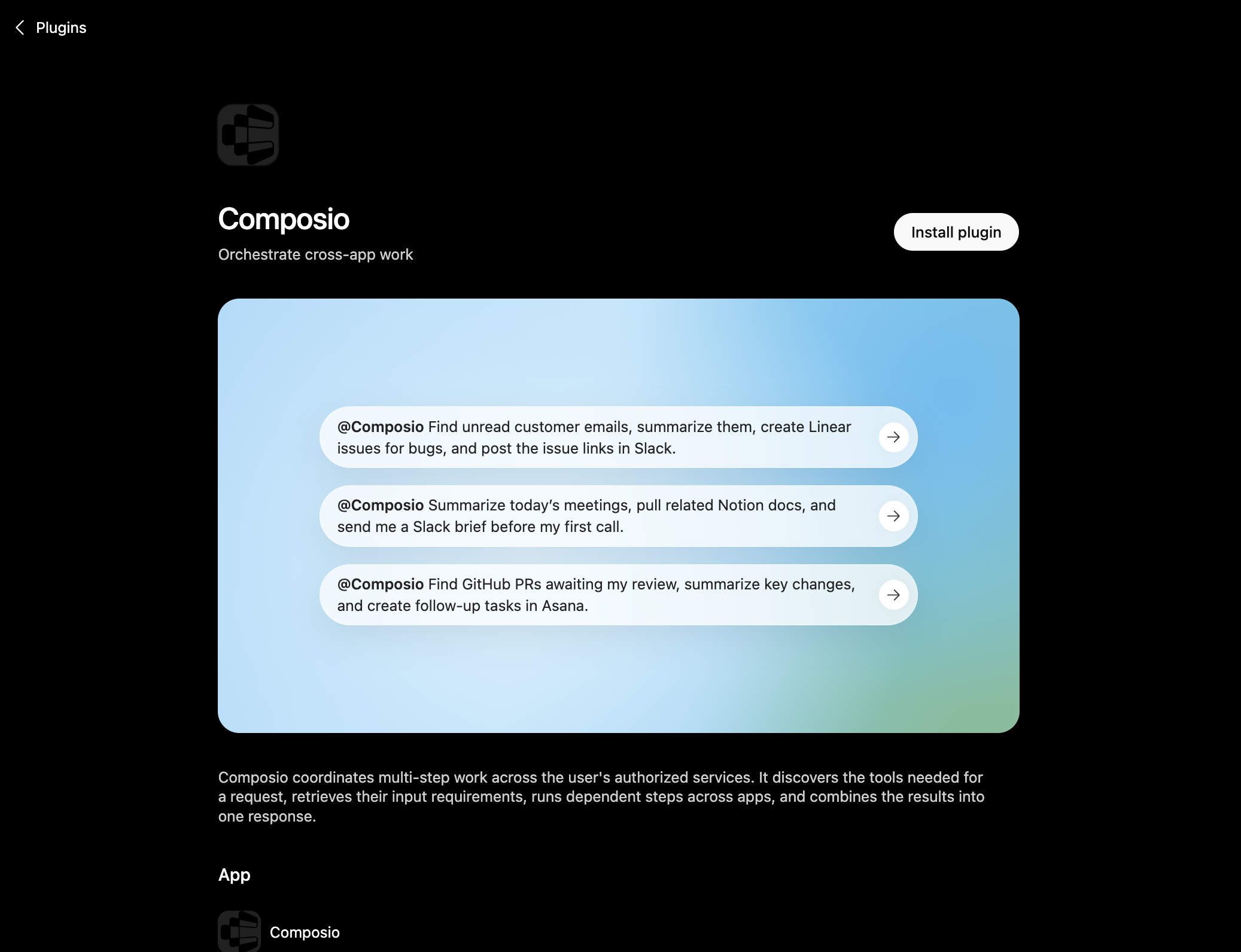
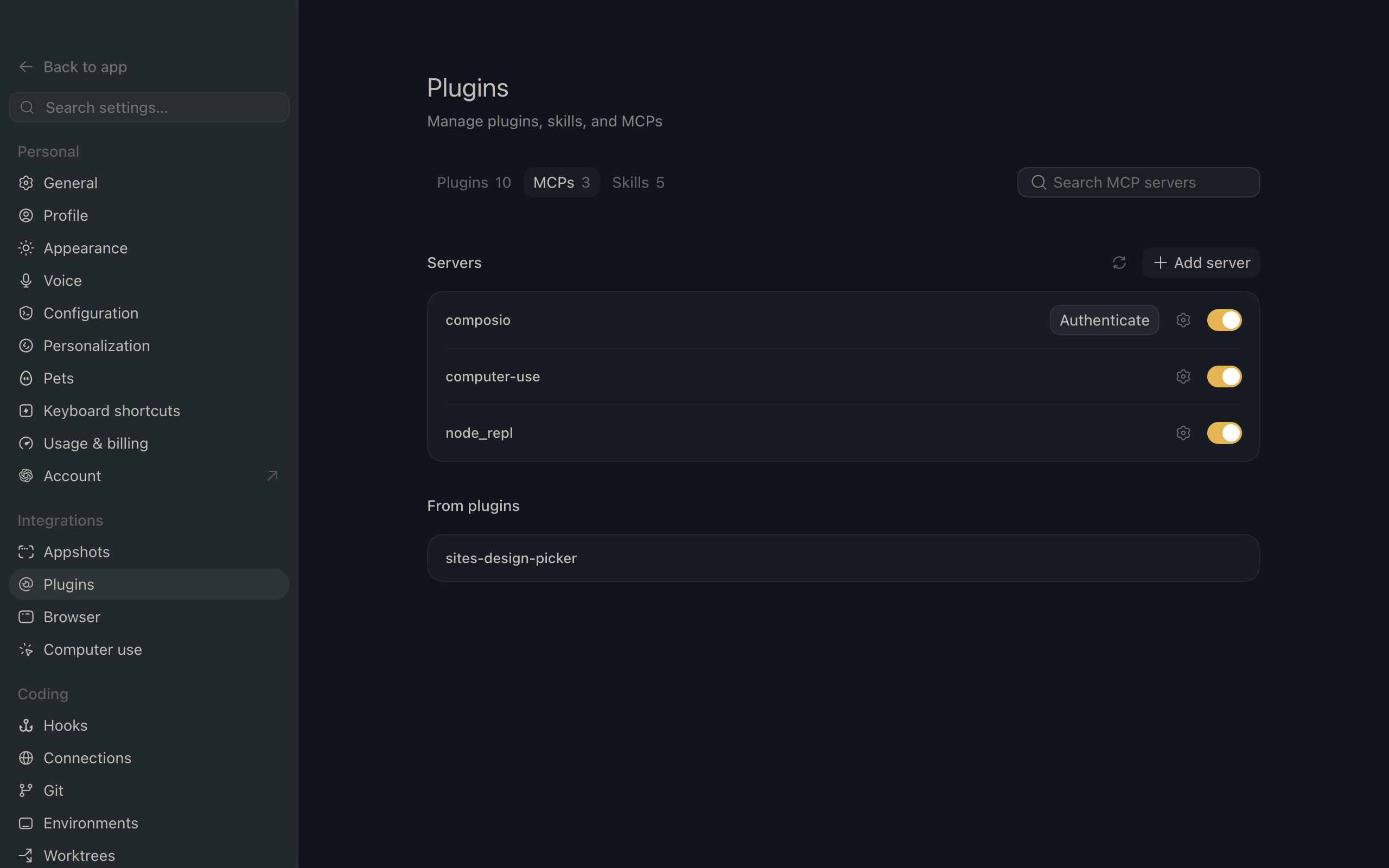
  • Composio MCP.

Note: Composio connects through OAuth. You will be asked to sign in and approve specific permissions. Review the permission screen carefully if you are using a work account.

Step-by-step: Connect Nango to ChatGPT

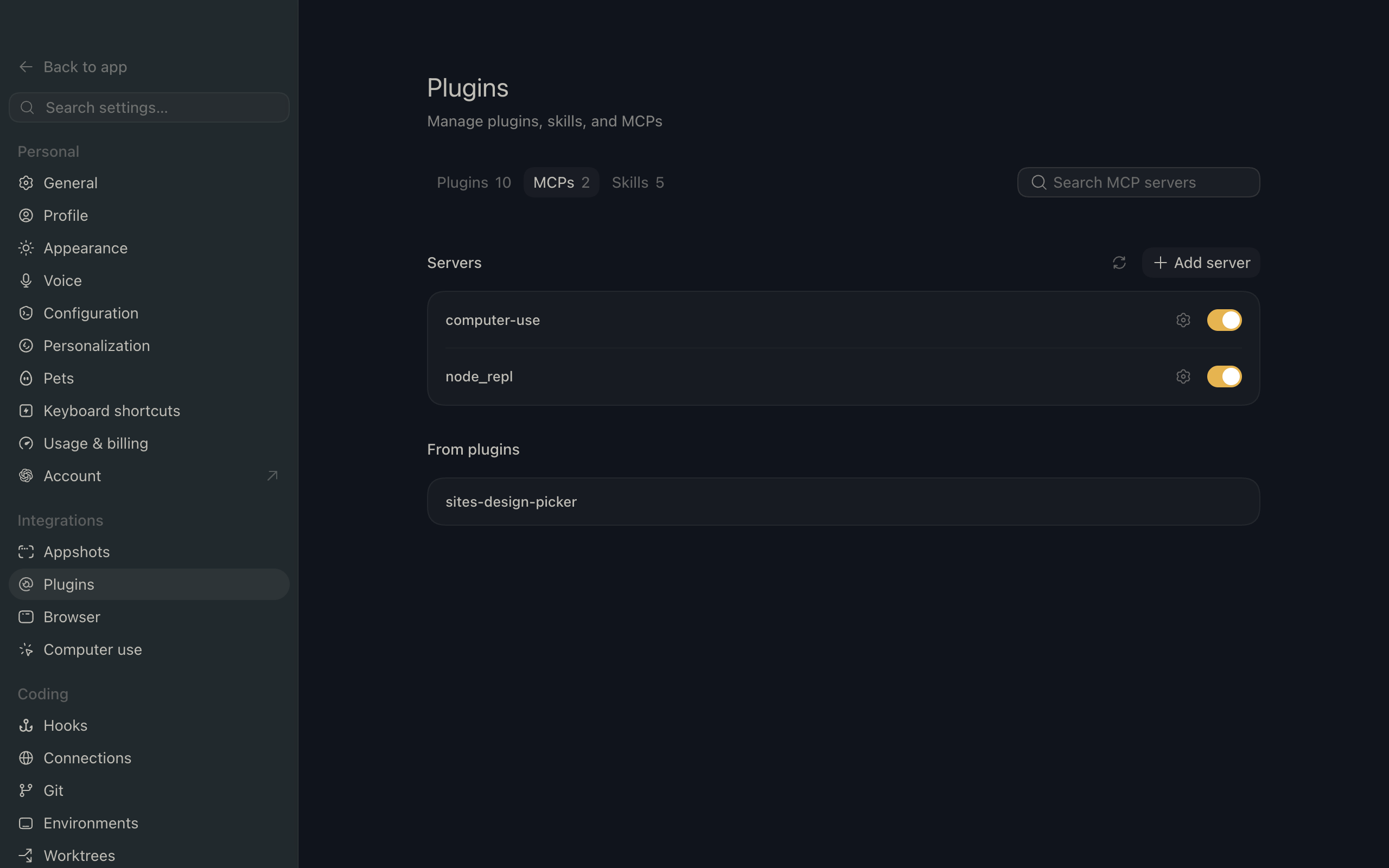
1. Enable Developer Mode

In ChatGPT, go to Settings > Apps > Advanced settings and turn on Developer Mode.

ChatGPT settings showing Developer Mode toggle

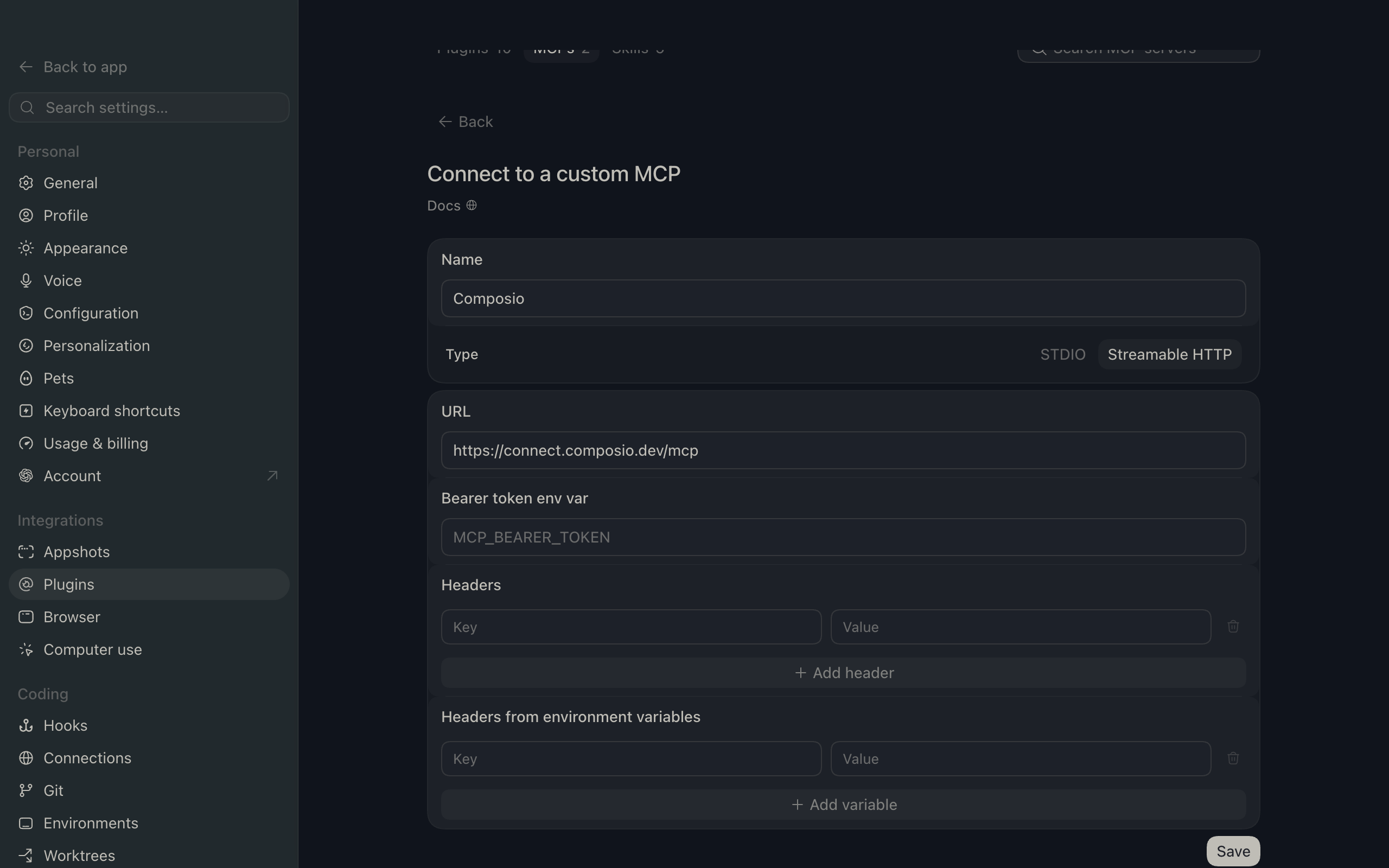
2. Add the MCP server

Click Create app, then paste the Composio MCP server URL:

bash
https://connect.composio.dev/mcp
ChatGPT create app flow with Composio MCP URL

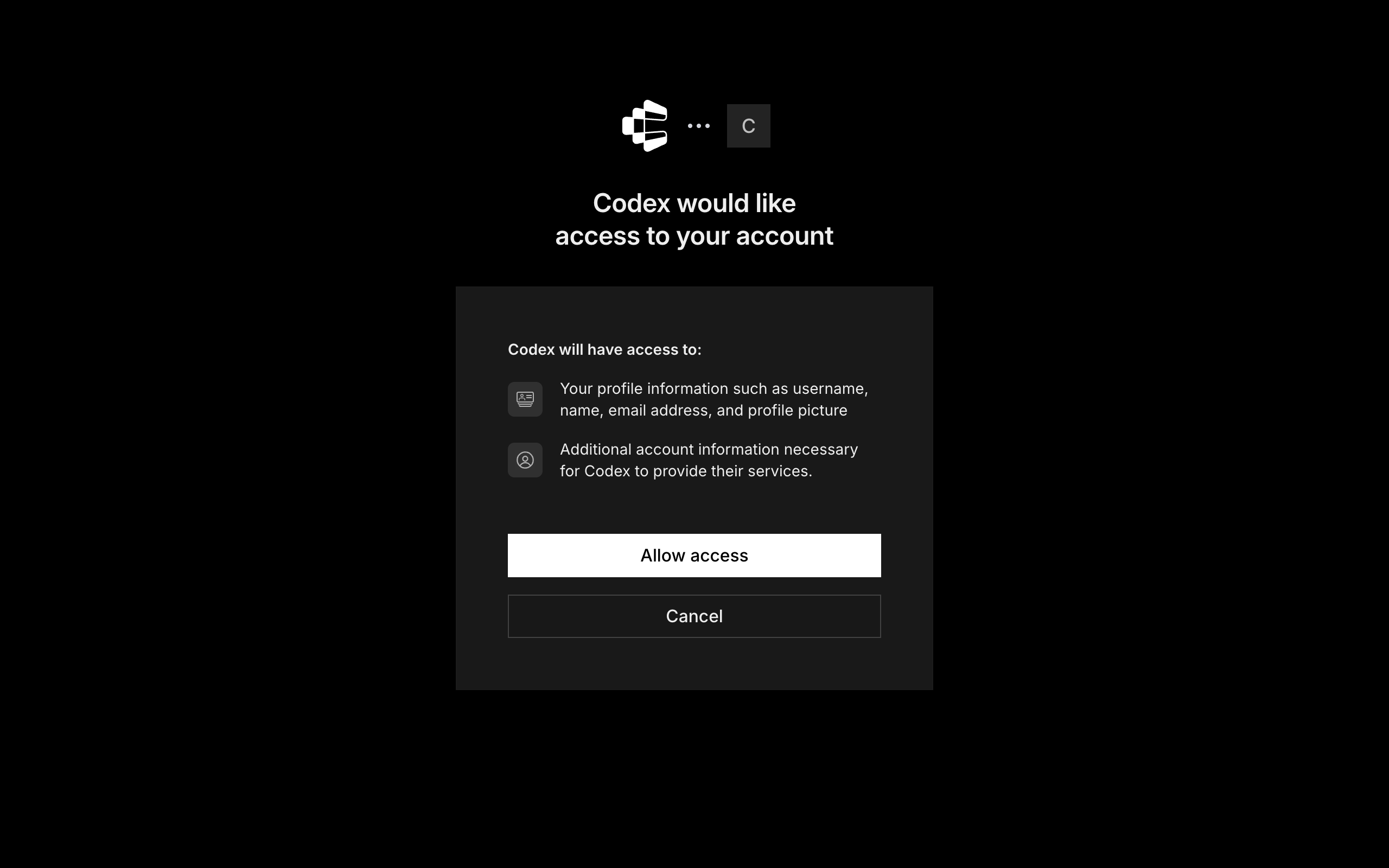
3. Authorize in your browser

A browser window will open automatically. Sign in to authorize ChatGPT to access your Composio account.

Composio authorization screen for ChatGPT MCP setup

4. Start using Composio

Composio tools are now available in ChatGPT chats and Deep Research. In every new chat, click the + icon at the bottom, click More, and select Composio to enable tools for that conversation.

What you can do after connecting Nango

  • List all connected CRM accounts
  • Trigger manual sync with Salesforce provider
  • Get configuration for all available scripts
  • Show provider details for QuickBooks integration

Security + privacy notes (important)

  • Use least-privilege access: Only grant permissions you actually need.
  • Review OAuth permissions before approving: Make sure requested scopes match what you expect Composio and ChatGPT to do.
  • Keep write actions human-reviewed: For actions like sending messages, creating labels, or editing drafts, keep manual confirmation enabled.
  • Be careful with sensitive data: Avoid using this setup with highly sensitive information unless allowed by your personal, company, or client policies.

Supported Tools & Triggers

Tools
Trigger Nango ActionTool to trigger nango workflow actions via api.
List ConnectionsTool to list all connections.
List ConnectionsTool to list all connections without credentials.
Get Provider DetailsTool to retrieve details for a specific provider.
List ProvidersTool to retrieve a list of all available providers.
Get Scripts ConfigurationTool to fetch the nango scripts configuration.
Trigger SyncTool to trigger a sync process manually.

How to build Nango MCP Agent with another framework

FAQ

What are the differences in Tool Router MCP and Nango MCP?

With a standalone Nango MCP server, the agents and LLMs can only access a fixed set of Nango tools tied to that server. However, with the Composio Tool Router, agents can dynamically load tools from Nango and many other apps based on the task at hand, all through a single MCP endpoint.

Can I use Tool Router MCP with ChatGPT?

Yes, you can. ChatGPT fully supports MCP integration. You get structured tool calling, message history handling, and model orchestration while Tool Router takes care of discovering and serving the right Nango tools.

Can I manage the permissions and scopes for Nango while using Tool Router?

Yes, absolutely. You can configure which Nango scopes and actions are allowed when connecting your account to Composio. You can also bring your own OAuth credentials or API configuration so you keep full control over what the agent can do.

How safe is my data with Composio Tool Router?

All sensitive data such as tokens, keys, and configuration is fully encrypted at rest and in transit. Composio is SOC 2 Type 2 compliant and follows strict security practices so your Nango data and credentials are handled as safely as possible.

Used by agents from

Context
Letta
glean
HubSpot
Agent.ai
Altera
DataStax
Entelligence
Rolai
Context
Letta
glean
HubSpot
Agent.ai
Altera
DataStax
Entelligence
Rolai
Context
Letta
glean
HubSpot
Agent.ai
Altera
DataStax
Entelligence
Rolai

Never worry about agent reliability

We handle tool reliability, observability, and security so you never have to second-guess an agent action.