How to connect Microsoft Word with ChatGPT

Connect ChatGPT to Microsoft Word MCP. Find the latest project brief in onedrive, download docx files from a sharepoint folder, and more using natural language, with authentication handled for you.

Microsoft Word logoMicrosoft Word
Oauth2

Microsoft Word is Microsoft's document editor for creating and managing DOCX files in OneDrive and SharePoint. It provides familiar editing and cloud storage features for organized document workflows.

22 Tools

How to connect Microsoft Word MCP with ChatGPT

ChatGPT can take action across your apps and files, stay with a project for hours, and turn a goal into finished materials like sheets, slides, and docs, not just answers.

In this guide, I will explain the easiest and most secure way to connect your Microsoft Word account to ChatGPT via Composio Connect, so it can find DOCX files, download documents, update your files, manage folders, and organize documents through natural language commands without ever putting your account credentials at risk.

Also integrate Microsoft Word with

Why use Composio over default connectors?

  • Apps with read and write access. Default connectors mostly can read your data. Composio's Microsoft Word integration lets ChatGPT take actions like creating drafts, sending updates, labeling records, and more.
  • 1,700+ SaaS toolkits out of the box. Composio gives you instant access to a vast catalog of pre-built connectors, from Gmail and Slack to Notion, Linear, and Salesforce.
  • One MCP server for every app. Connect any of your applications on demand through a single endpoint, rather than juggling a separate server for each app.
  • Smart, context-aware tool loading. Unlike traditional MCP servers that dump every available tool into the LLM context window, Composio searches for and loads only the tools relevant to the task at hand.
  • Cross-app automation. Chain actions across multiple apps in a single run - fetch a thread, summarize it in Notion, and post highlights to Slack without leaving the conversation.

Prerequisites

  • A ChatGPT account. We will use the ChatGPT desktop app, and the steps are the same on the web.
  • Access to the Microsoft Word workspace you want to connect.
  • Composio plugin.

Note: Composio connects through OAuth. You will be asked to sign in and approve specific permissions. Review the permission screen carefully if you are using a work account.

Step-by-step: Connect Microsoft Word to ChatGPT

1. Install the Composio plugin

Click the button. ChatGPT opens the Composio plugin page. Click Install plugin.

Install in ChatGPT
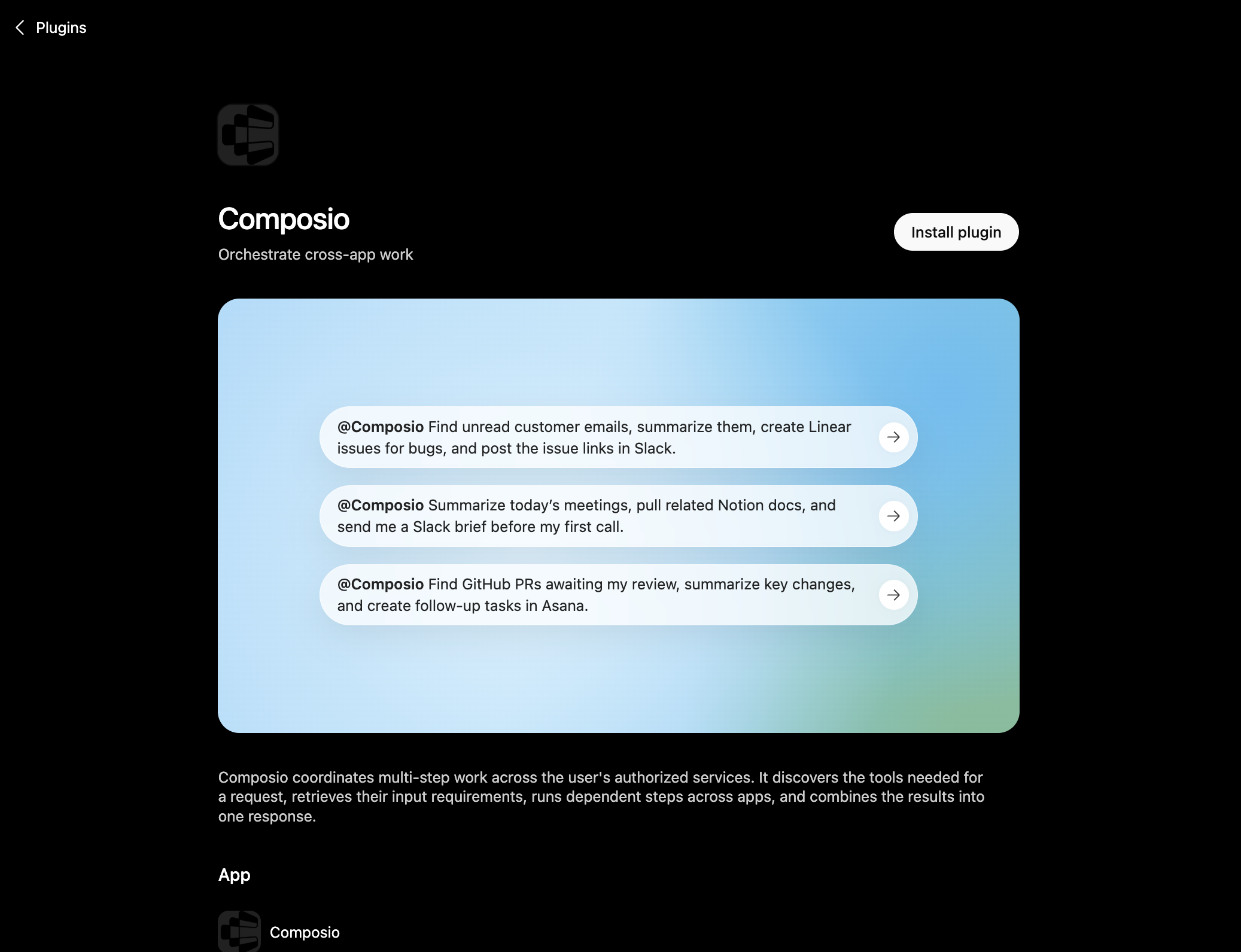
Composio plugin page in ChatGPT with the Install plugin button

You can also find it inside ChatGPT: go to Settings, open Plugins, search the marketplace for Composio, and click Install plugin.

2. Authenticate

After you install, ChatGPT asks you to authenticate with Composio. Log in and click Allow access to authorize ChatGPT to use your Composio account.
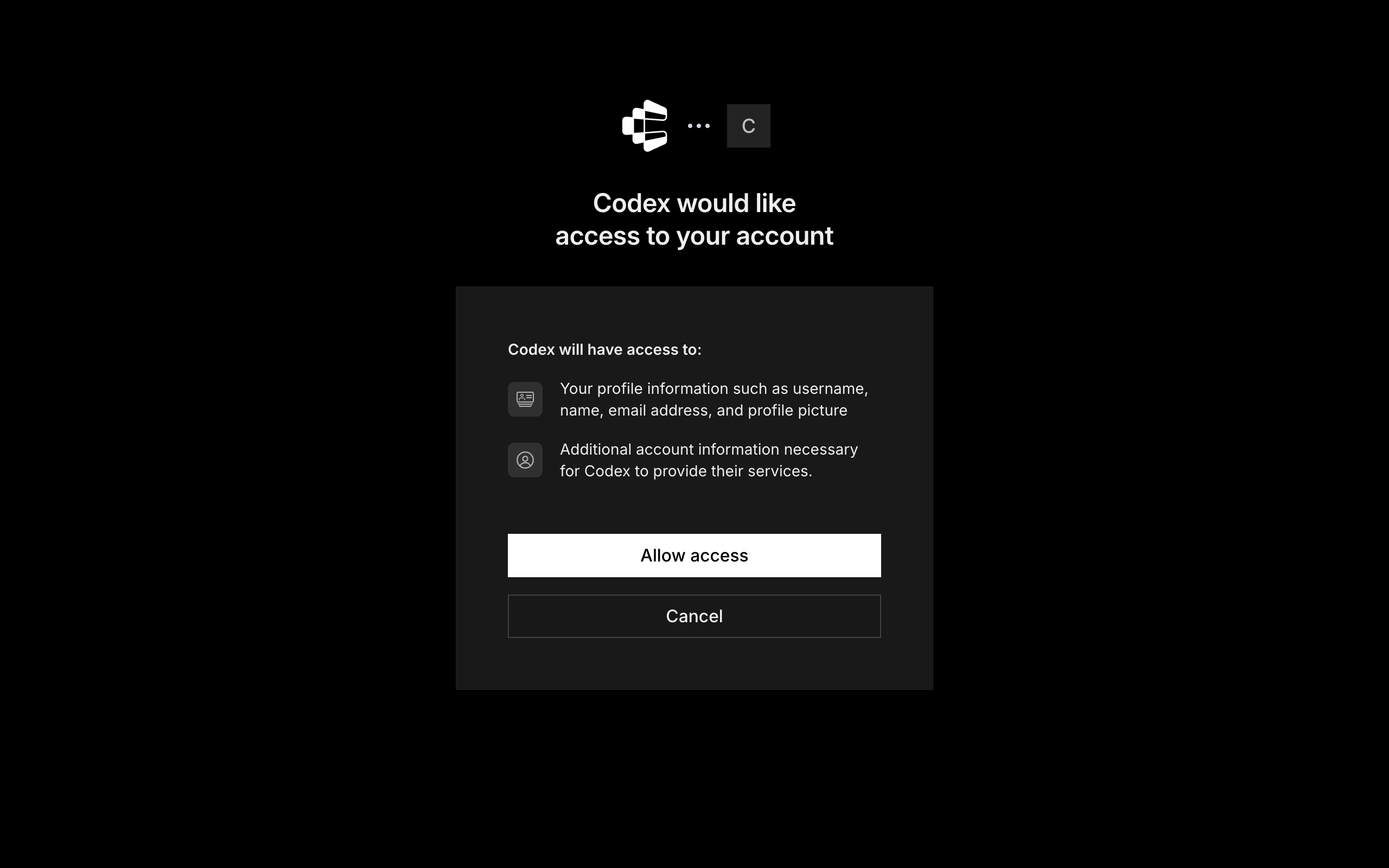
Composio login and Allow access screen for ChatGPT

3. Start using Composio

That is it. Composio tools are now available in ChatGPT. Type @Composio followed by your request, for example @Composio find unread Microsoft Word messages and summarize them, and it will run the actions you authorize. On first use it asks you to authorize Microsoft Word.

Option 2: Add Composio as an MCP server

If you cannot use the plugin marketplace, add Composio as a custom MCP server instead.

1. Open the MCP settings

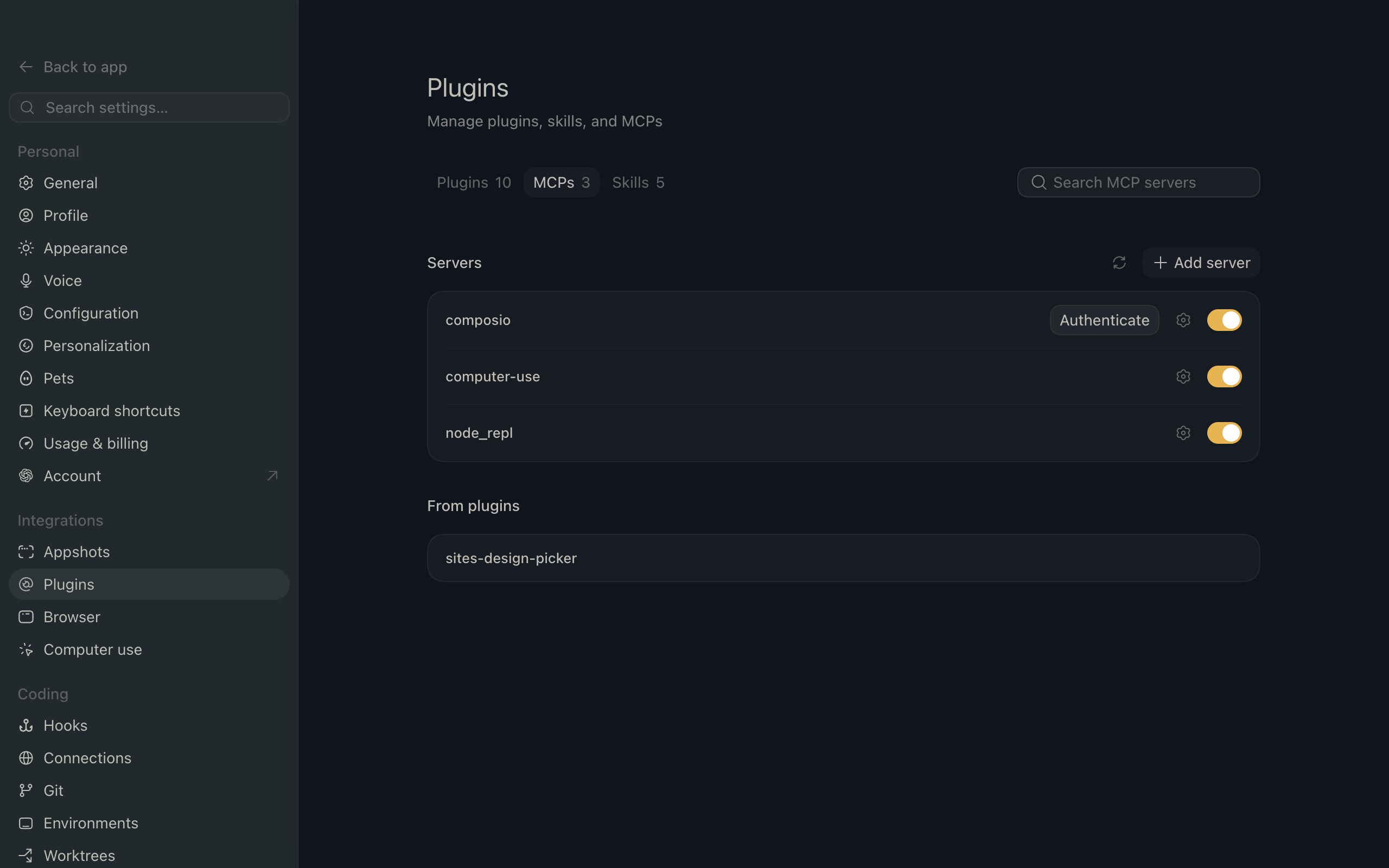
In ChatGPT, go to Settings and open the Plugins section. Inside the Plugins page, click the MCP tab.
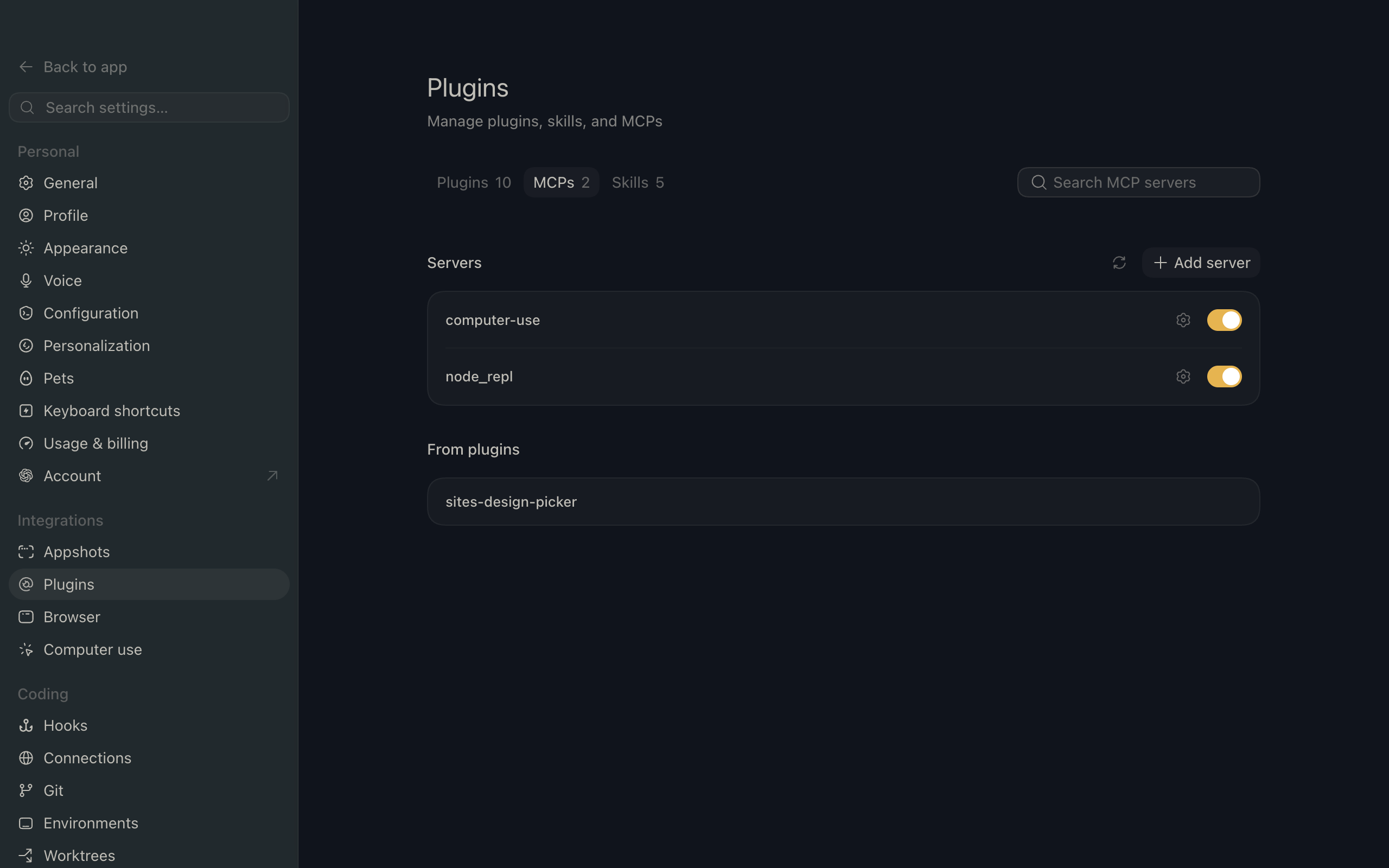
ChatGPT settings showing the Plugins page with the MCP tab selected

2. Add the server

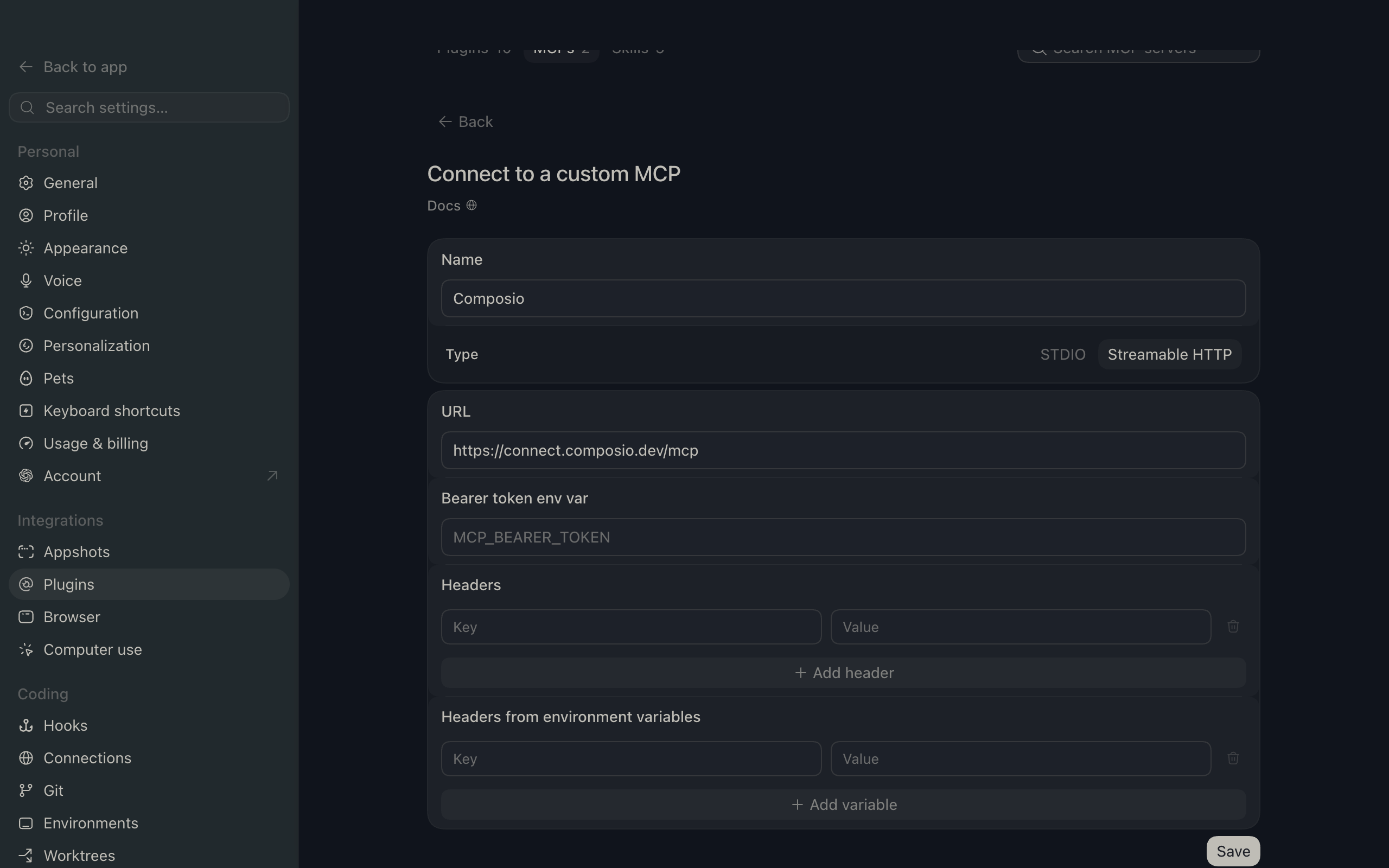
Click Add server. In the Name field enter Composio, for Type select Streamable HTTP, and in the URL field paste the Composio MCP server URL:

bash
https://connect.composio.dev/mcp
ChatGPT Add server dialog with the name Composio, type Streamable HTTP, and the Composio MCP URL

Then click Save. The Composio server now appears in your MCP plugins list.

ChatGPT Plugins page showing the Composio MCP server added to the list

3. Authenticate

Click Authenticate on the Composio entry, log in via Composio, and click Allow access. Composio tools are then available in ChatGPT the same way as with the plugin.

What you can do after connecting Microsoft Word

  • Find the latest project brief in OneDrive
  • Download DOCX files from a SharePoint folder
  • Update a Word document with meeting notes

Security + privacy notes (important)

  • Use least-privilege access: Only grant permissions you actually need.
  • Review OAuth permissions before approving: Make sure requested scopes match what you expect Composio and ChatGPT to do.
  • Keep write actions human-reviewed: For actions like sending messages, creating labels, or editing drafts, keep manual confirmation enabled.
  • Be careful with sensitive data: Avoid using this setup with highly sensitive information unless allowed by your personal, company, or client policies.
TOOLS

Supported Tools

Every Microsoft Word action and event your agent gets out of the box.

Add Comment

Add a Word comment to a paragraph selected by a READ_DOCX locator or by exact text that uniquely matches a main-document paragraph.

Append Content

Append plain text or supported Markdown paragraphs, headings, formatted runs, lists, rectangular tables, safe http/https/mailto links, and Courier New inline or fenced code to a DOCX body.

Copy DOCX

Copy a Graph DOCX item with both a .

Create DOCX

Create a safe DOCX containing styled paragraphs and formatted runs, bullet or decimal lists, rectangular tables, or constrained HTML/Markdown source with safe external links and inline or fenced code rendered in Courier New, plus validated inline PNG/JPEG images, page breaks, and default/first/even headers and footers.

Create DOCX sharing link

Create a view, edit, or embed sharing link for a verified DOCX.

Delete DOCX

Move one DOCX to the provider recycle bin only when its current eTag matches.

Edit DOCX

Atomically edit literal text, paragraphs, independent Latin/non-complex and complex-script run formatting, lists, rectangular tables including plain cells and rows outside merged regions, uploaded inline PNG/JPEG images, semantic comments, tracked text changes, revision acceptance or rejection, safe external hyperlinks, paired footnotes, section headers or footers, and explicit page breaks in a DOCX.

Export DOCX to PDF

Convert a DOCX of at most 2 MB to PDF through Microsoft Graph and return a temporary file reference.

Fill Template

Fill run-spanning placeholders in main-document paragraphs of a validated DOCX template snapshot, then create a new document.

Find DOCX files

Browse one folder or search a drive for DOCX files.

Find SharePoint sites

Find accessible SharePoint sites by keyword, or resolve one known hostname and site path to its site ID.

Get Microsoft Word account context

Return the signed-in Microsoft identity and primary OneDrive identifiers needed to start OneDrive DOCX work.

Invite DOCX recipients

Grant read or write access to required named recipients.

List DOCX versions

Validate the selected drive item as a DOCX, then return one page of retained versions in Microsoft Graph's newest-first order.

List OneDrive drives

Return one page of drives available to the signed-in user as the Microsoft Word toolkit's OneDrive-drive selector for DOCX workflows.

List SharePoint document libraries

Return one page of document libraries and available root folder item IDs for a SharePoint site ID.

Move or rename DOCX

Rename a DOCX, move it within the same drive, or do both, guarded by its current eTag.

Read DOCX

Inspect a DOCX as bounded rich OOXML, including paragraphs, formatted runs, tables, images, hyperlinks, footnotes, comments, revisions, page breaks, sections and styles.

Replace Text

Replace the first or all occurrences of literal text in the main document of a DOCX, including matches across Word run boundaries.

Resolve Tracked Changes

Accept or reject supported pending run-level insertions and deletions in a DOCX, either all or selected revision locators returned by READ_DOCX.

Restore DOCX version

Restore a retained DOCX version as a new current version, preserving version history, then observe the item's current metadata in a post-operation read.

Upsert DOCX

Create or replace a same-name DOCX containing the same validated content supported by CREATE_DOCX.

FAQ

Frequently asked questions

Start with Microsoft Word.It takes 30 seconds.

Managed auth, hosted MCP servers, and every Microsoft Word tool your agent needs.Free to start.

Start building