How to connect Maximem Synap MCP to Claude

Connect Claude Web, Desktop and Cowork to Maximem Synap MCP. Log this conversation for later recall, check extraction status for recent memories, and more using natural language, with authentication handled for you.

Maximem Synap MCP logoMaximem Synap MCP
Api Key

Maximem Synap MCP is a hosted memory service for AI agents. It helps agents retain, extract, and recall useful conversation context.

4 Tools

Introduction

Claude is Anthropic's AI assistant, available on the web, in the desktop app, and on mobile. Cowork is its agent for knowledge work, and it runs on all of those surfaces too. Connected to your apps, Claude can work with your files and services to accomplish complex tasks on your behalf.

This guide walks you through the easiest and most secure way to connect your Maximem Synap account to Claude via Composio Connect, enabling it to log this conversation for later recall, check extraction status for recent memories, list recent memories about your projects, and more such actions on your behalf without compromising your account security.

Setup is the same on Claude Web, Desktop, and Cowork, and you only need to do it once. The connector is tied to your account, so it's available in all three.

For exact tool slugs and parameter tables, see the tool catalog in the Composio docs.

Also integrate Maximem Synap MCP with

Connecting Maximem Synap to Claude Web, Desktop, and Cowork

Two ways to add the Composio connector. Pick whichever you prefer.

1. Add with one click

Click the button. Claude opens with the Composio connector filled in. Click Add, then go to step 2.

Add to Claude

Add manually

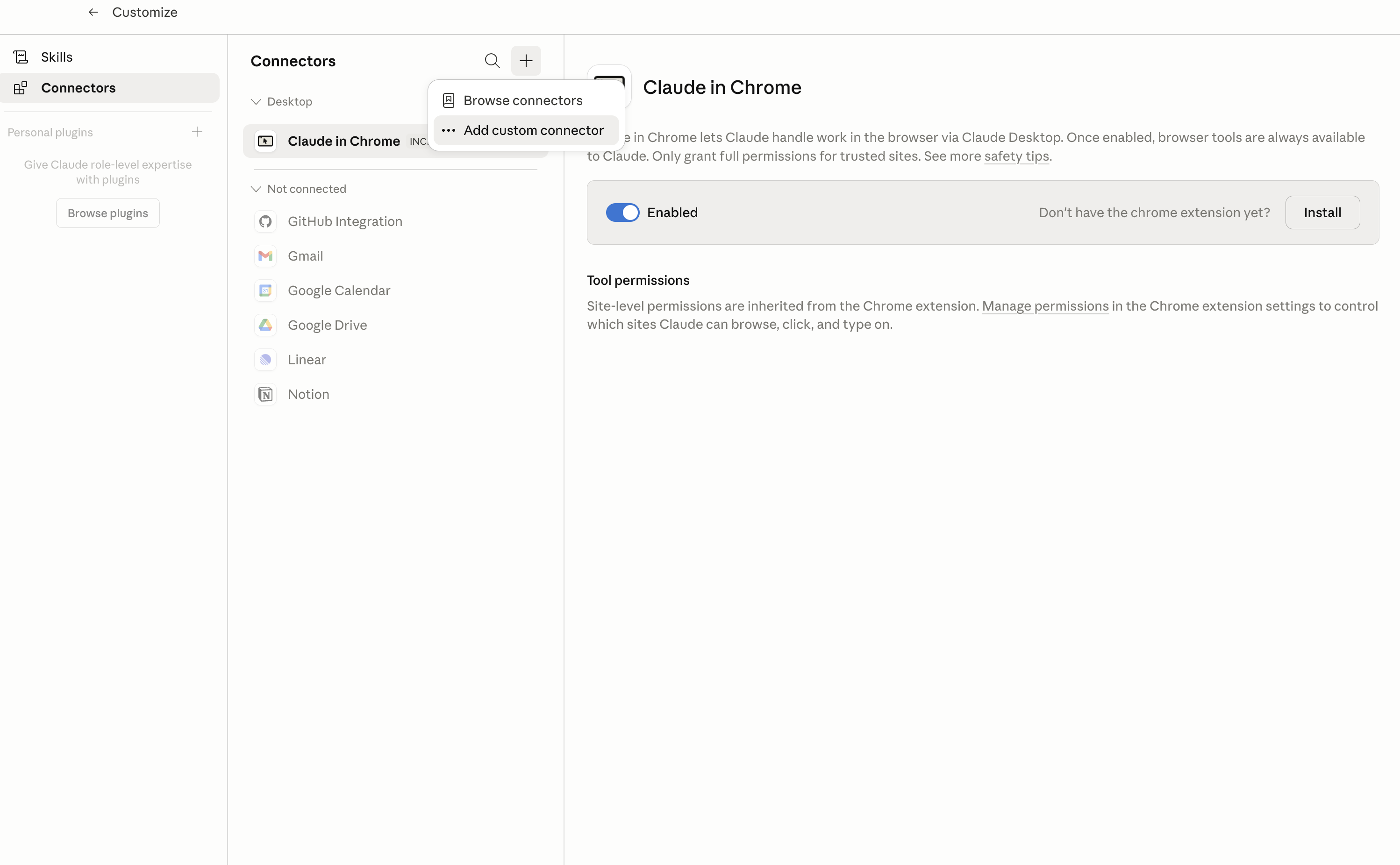
In Claude Desktop, click Customize in the left sidebar, then select Connectors and click the + icon at the top.

Claude Desktop connectors screen with Add custom connector selected

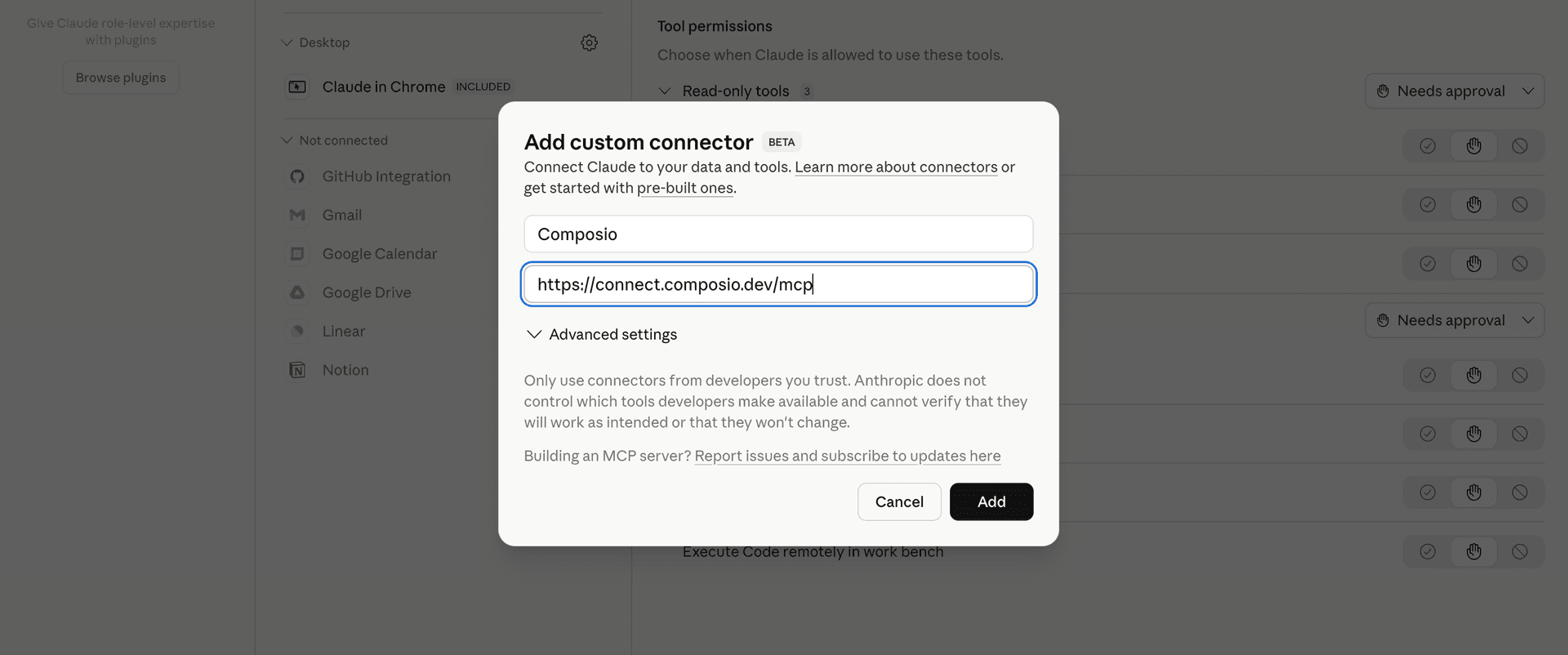
Click Add custom connector and paste in the Composio MCP server URL:

bash
https://connect.composio.dev/mcp
Add custom connector dialog with Composio MCP server URL

2. Authorize in your browser

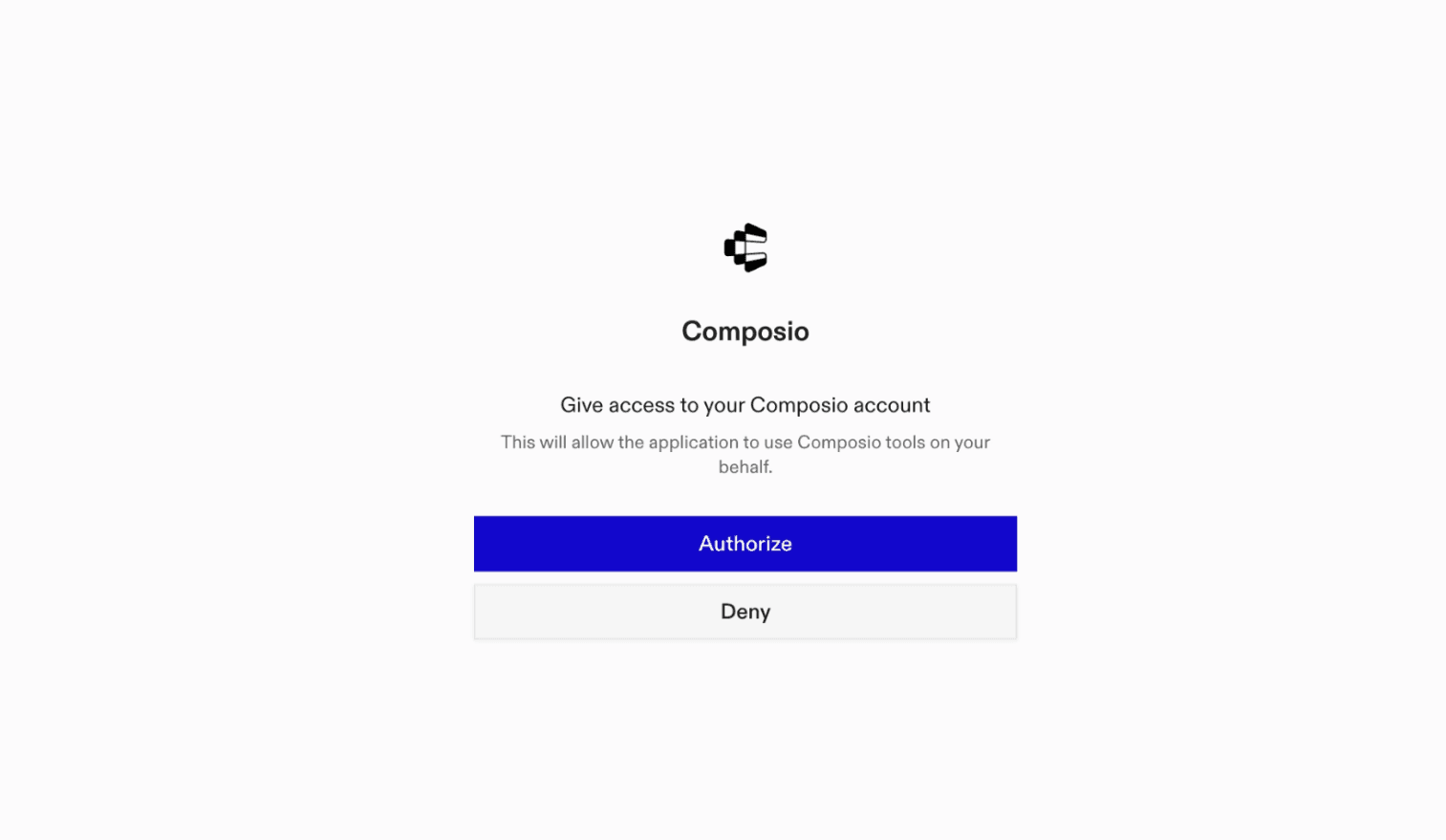
Click Connect. You'll be redirected to a browser window where you can authorize Composio to continue.

Composio authorization screen for Claude Web, Desktop, and Cowork

3. Connect your Maximem Synap account

Back in Claude, ask it to connect to Maximem Synap or give it any Maximem Synap-related task.

For example, ask Claude to:

  • "Log this conversation for later recall"
  • "Check extraction status for recent memories"
  • "List recent memories about your projects"

It will prompt you to authenticate and authorize access.

That's it. Composio's tools are now available in Claude, and your Maximem Synap account is ready to use.

What is the Maximem Synap Claude Connector, and what's possible with it?

The Maximem Synap MCP server is an implementation of the Model Context Protocol that connects your AI agent and assistants like Claude, Cursor, etc directly to your Maximem Synap account. It provides structured and secure access to persistent memory, so your agent can save conversation exchanges, check memory processing status, recall relevant context, and review recent memories on your behalf.

  • Save conversation exchanges: Have your agent store user messages and optional assistant replies for asynchronous memory extraction.
  • Check memory processing: Let the agent check whether a logged exchange has finished processing.
  • Recall relevant context: Direct your agent to retrieve useful context from memories Maximem Synap already stores.
  • Review recent memories: Instruct your agent to list recent things remembered about you.

Troubleshooting

1. Why does Claude not use the Composio connector for Maximem Synap?

The connector can show as connected, but Claude must use it in each Maximem Synap conversation.

  • Click + at the lower left of the chat, or type /.
  • Hover Connectors.
  • Turn on Composio.
  • Ask Claude to connect to Maximem Synap again.

2. Why does Claude show an MCP server error before Maximem Synap connects?

Claude can show Couldn't reach the MCP server or Authorization with the MCP server failed when you add the connector for Maximem Synap.

  • Check that the connector URL is https://connect.composio.dev/mcp.
  • Connectors run from Anthropic's cloud, so your device network is usually not the problem.
  • Add the connector again from Customize > Connectors, then ask Claude to connect Maximem Synap.
  • If it fails again, send the error and the ofid_ reference id to support@composio.dev.

3. Why does the Maximem Synap authorization link not work?

The Composio connector is one server. Your Maximem Synap account connects separately when Claude asks for it.

  • If the browser does not open, or the link expires, ask Claude to retry the Maximem Synap connection.
  • Composio creates a fresh Maximem Synap authorization link.
  • Open that link in your browser and finish the Maximem Synap sign-in.

4. Why do Maximem Synap actions fail after they worked before?

The Maximem Synap connection can expire or lose permission.

  • Ask Claude to inspect the Maximem Synap connection.
  • If the connection is unhealthy, disconnect it when Claude prompts you.
  • Reconnect the Maximem Synap account and retry the action.
  • If Claude shows a permission prompt, approve it before Claude changes data in Maximem Synap.
  • If the action still fails with a permission error, check that the connected account has that permission in Maximem Synap itself.

5. How do I switch to a different Maximem Synap account?

Claude can manage the Maximem Synap connection for you.

  • Ask Claude to disconnect or delete the current Maximem Synap account.
  • Ask Claude to connect Maximem Synap again.
  • Open the new Composio authorization link for Maximem Synap.
  • Sign in with the other Maximem Synap account in the browser.
  • After the account connects, ask Claude to retry the Maximem Synap task.

6. Why is my Maximem Synap connection missing in Claude Desktop or on a Team plan?

The connector belongs to your Claude account, so your Maximem Synap connection works in Claude Web, Desktop, and Cowork.

  • In Claude Desktop, open Customize > Connectors.
  • Next to Composio, click ⋮ and click Clear cache.
  • If Maximem Synap tools still do not appear, click ⋮, disconnect, remove the connector, and add it again.
  • On Team or Enterprise, an Owner or Primary Owner must enable the connector before you can connect Maximem Synap.
TOOLS

Supported Tools

Every Maximem Synap MCP action and event your agent gets out of the box.

Check memory status

Check whether a logged exchange has finished processing.

List recent memories

List recent things remembered about this user.

Log exchange

Store a user message and an optional assistant reply in Synap for asynchronous memory extraction.

Recall context

Retrieve relevant context from memories Synap already stores.

FRAMEWORKS

How to build Maximem Synap MCP Agent with another framework

FAQ

Frequently asked questions

Start with Maximem Synap MCP.It takes 30 seconds.

Managed auth, hosted MCP servers, and every Maximem Synap MCP tool your agent needs.Free to start.

Start building