How to connect MailChannels with ChatGPT

Connect ChatGPT to MailChannels MCP. List mailchannels domains with dkim status, review mailchannels delivery metrics for yesterday, and more using natural language, with authentication handled for you.

MailChannels logoMailChannels
Api Key

MailChannels is a transactional email delivery platform with domain, DKIM, and delivery tools. It helps teams send reliable email and monitor delivery from one place.

43 Tools

How to connect MailChannels MCP with ChatGPT

ChatGPT can take action across your apps and files, stay with a project for hours, and turn a goal into finished materials like sheets, slides, and docs, not just answers.

In this guide, I will explain the easiest and most secure way to connect your MailChannels account to ChatGPT via Composio Connect, so it can send transactional email, manage domains, configure DKIM, review delivery metrics, and manage suppressions through natural language commands without ever putting your account credentials at risk.

For exact tool slugs and parameter tables, see the tool catalog in the Composio docs.

Also integrate MailChannels with

Why use Composio over default connectors?

  • Apps with read and write access. Default connectors mostly can read your data. Composio's MailChannels integration lets ChatGPT take actions like creating drafts, sending updates, labeling records, and more.
  • 1,700+ SaaS toolkits out of the box. Composio gives you instant access to a vast catalog of pre-built connectors, from Gmail and Slack to Notion, Linear, and Salesforce.
  • One MCP server for every app. Connect any of your applications on demand through a single endpoint, rather than juggling a separate server for each app.
  • Smart, context-aware tool loading. Unlike traditional MCP servers that dump every available tool into the LLM context window, Composio searches for and loads only the tools relevant to the task at hand.
  • Cross-app automation. Chain actions across multiple apps in a single run - fetch a thread, summarize it in Notion, and post highlights to Slack without leaving the conversation.

Prerequisites

  • A ChatGPT account. We will use the ChatGPT desktop app, and the steps are the same on the web.
  • Access to the MailChannels workspace you want to connect.
  • Composio plugin.

Note: Composio connects through OAuth. You will be asked to sign in and approve specific permissions. Review the permission screen carefully if you are using a work account.

Step-by-step: Connect MailChannels to ChatGPT

1. Install the Composio plugin

Click the button. ChatGPT opens the Composio plugin page. Click Install plugin.

Install in ChatGPT
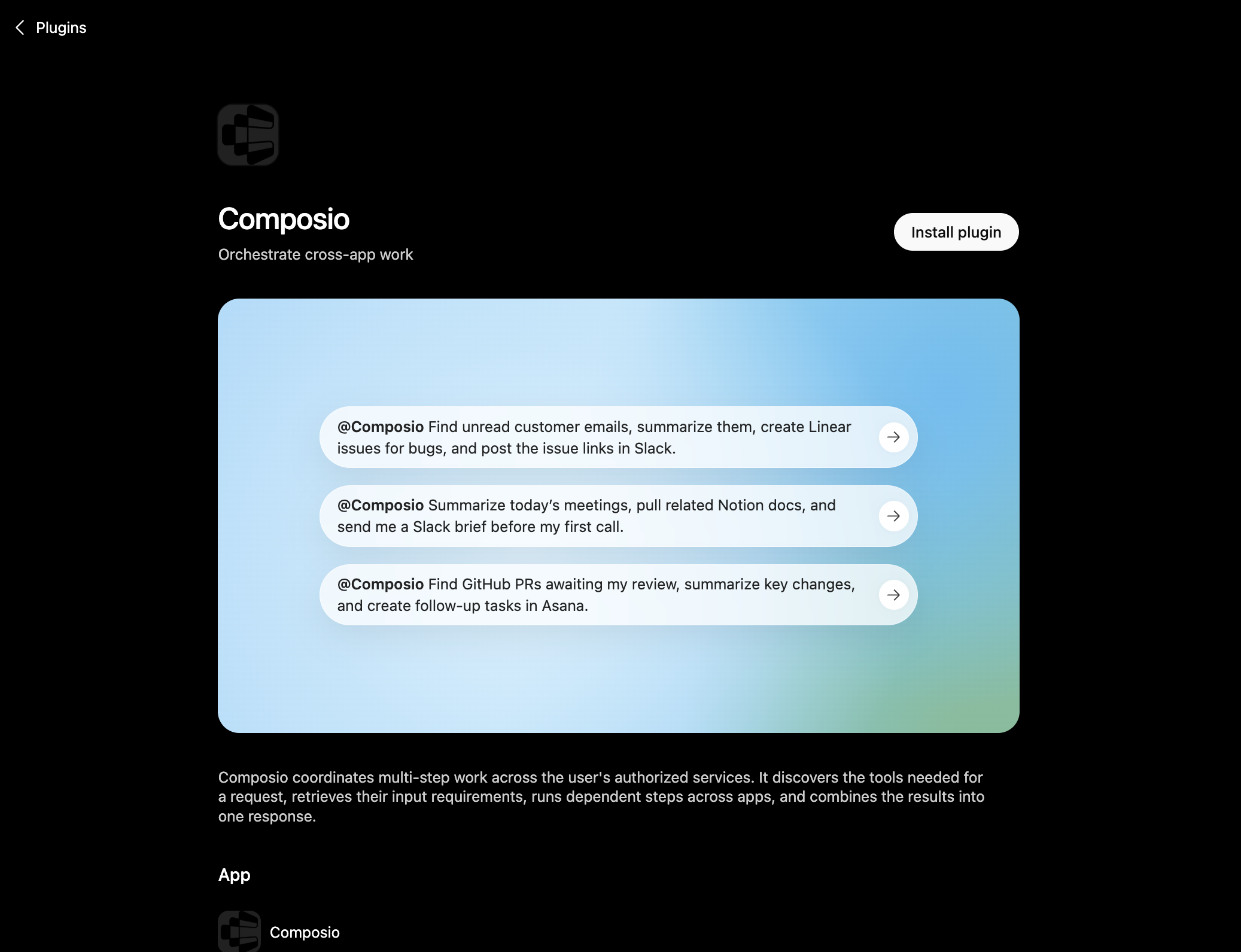
Composio plugin page in ChatGPT with the Install plugin button

You can also find it inside ChatGPT: go to Settings, open Plugins, search the marketplace for Composio, and click Install plugin.

2. Authenticate

After you install, ChatGPT asks you to authenticate with Composio. Log in and click Allow access to authorize ChatGPT to use your Composio account.
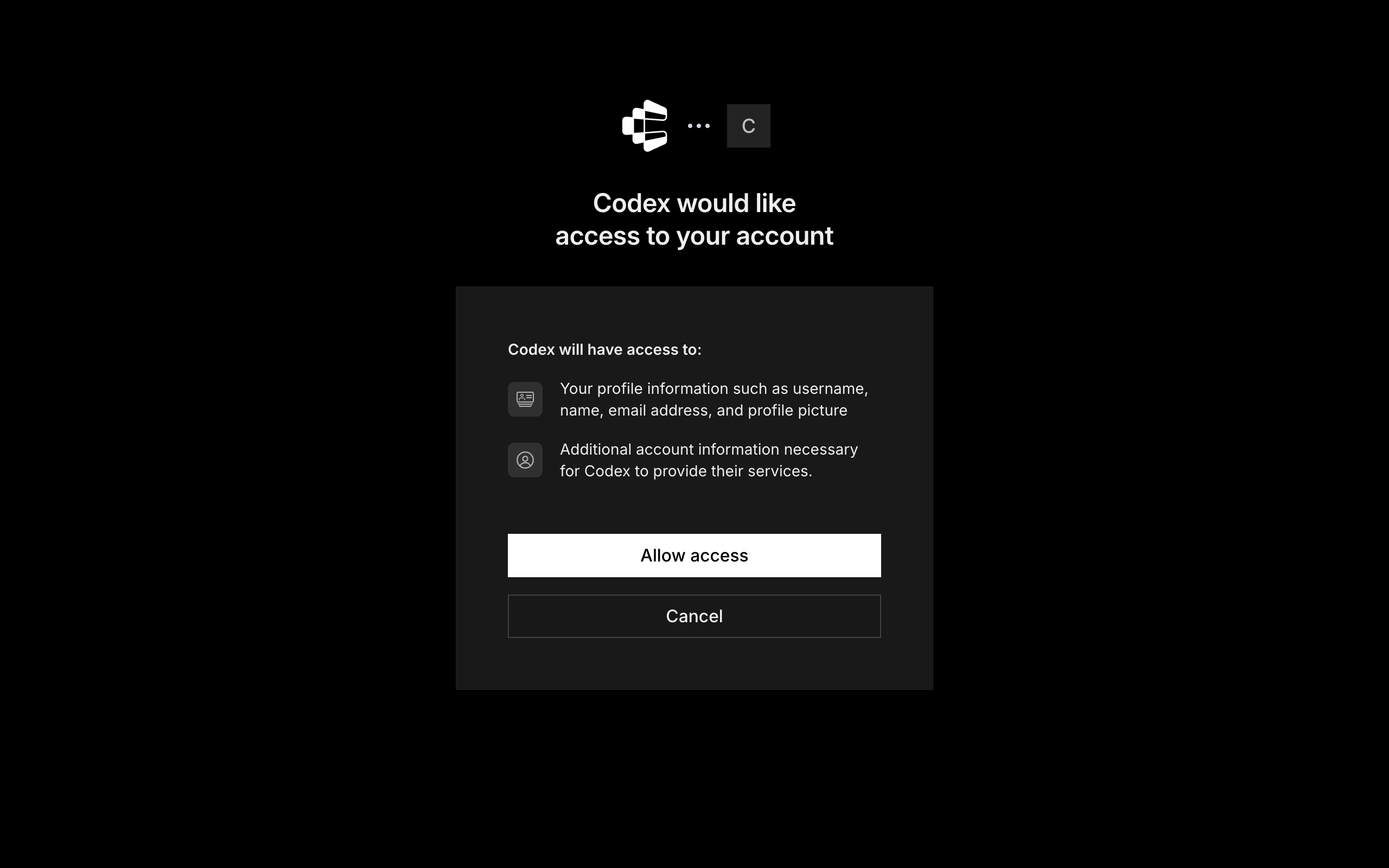
Composio login and Allow access screen for ChatGPT

3. Start using Composio

That is it. Composio tools are now available in ChatGPT. Type @Composio followed by your request, for example @Composio find unread MailChannels messages and summarize them, and it will run the actions you authorize. On first use it asks you to authorize MailChannels.

Option 2: Add Composio as an MCP server

If you cannot use the plugin marketplace, add Composio as a custom MCP server instead.

1. Open the MCP settings

In ChatGPT, go to Settings and open the Plugins section. Inside the Plugins page, click the MCP tab.
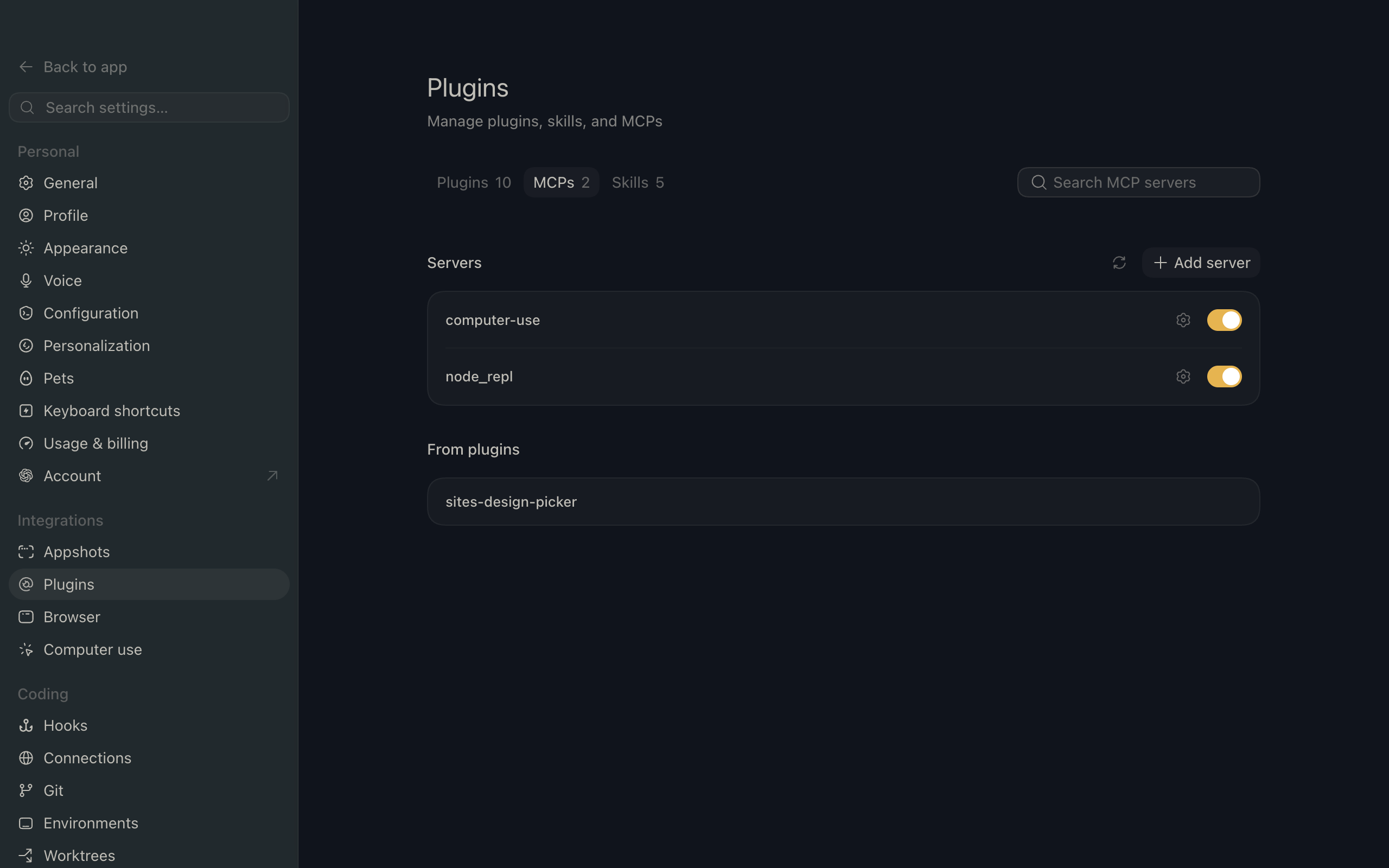
ChatGPT settings showing the Plugins page with the MCP tab selected

2. Add the server

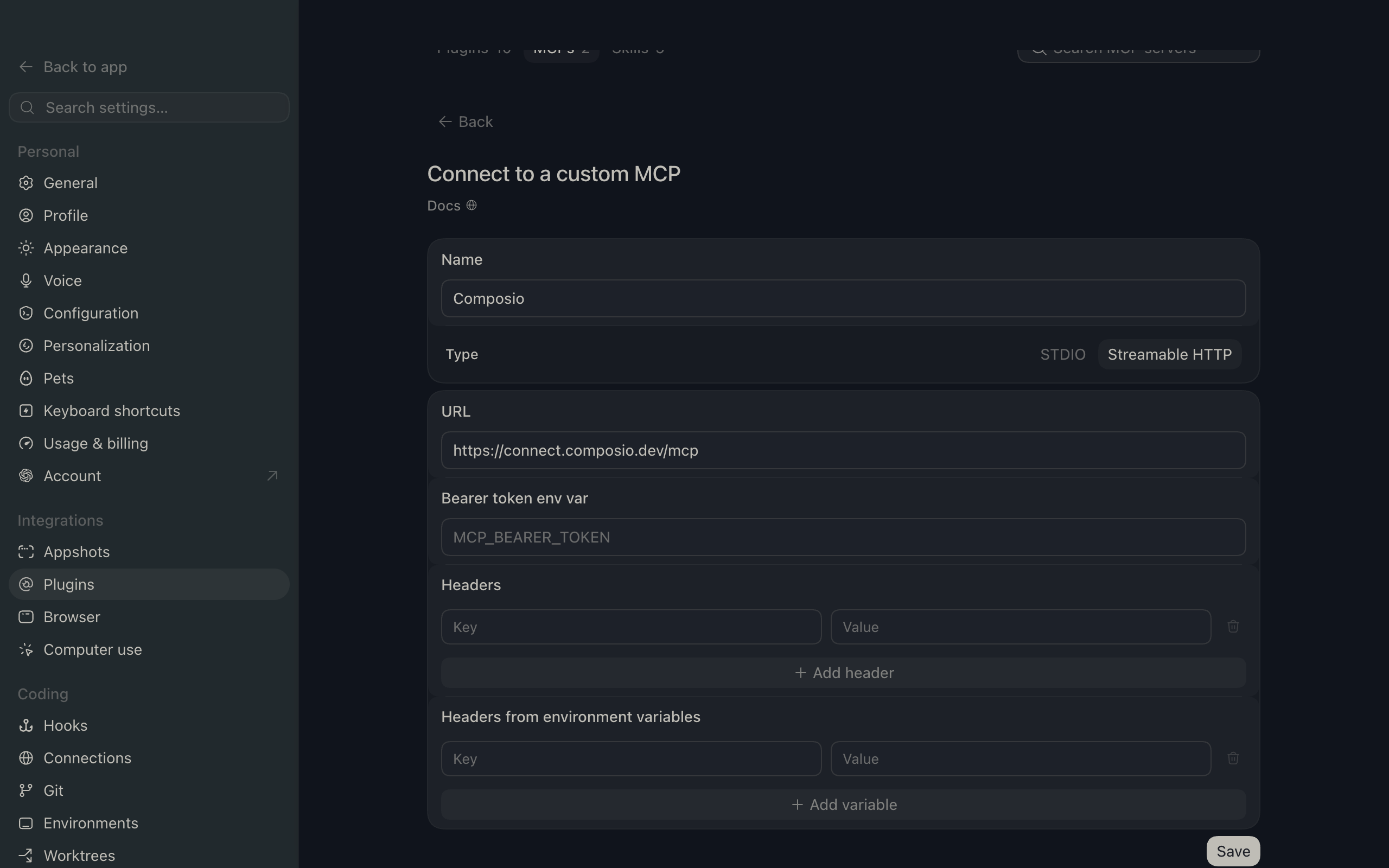
Click Add server. In the Name field enter Composio, for Type select Streamable HTTP, and in the URL field paste the Composio MCP server URL:

bash
https://connect.composio.dev/mcp
ChatGPT Add server dialog with the name Composio, type Streamable HTTP, and the Composio MCP URL

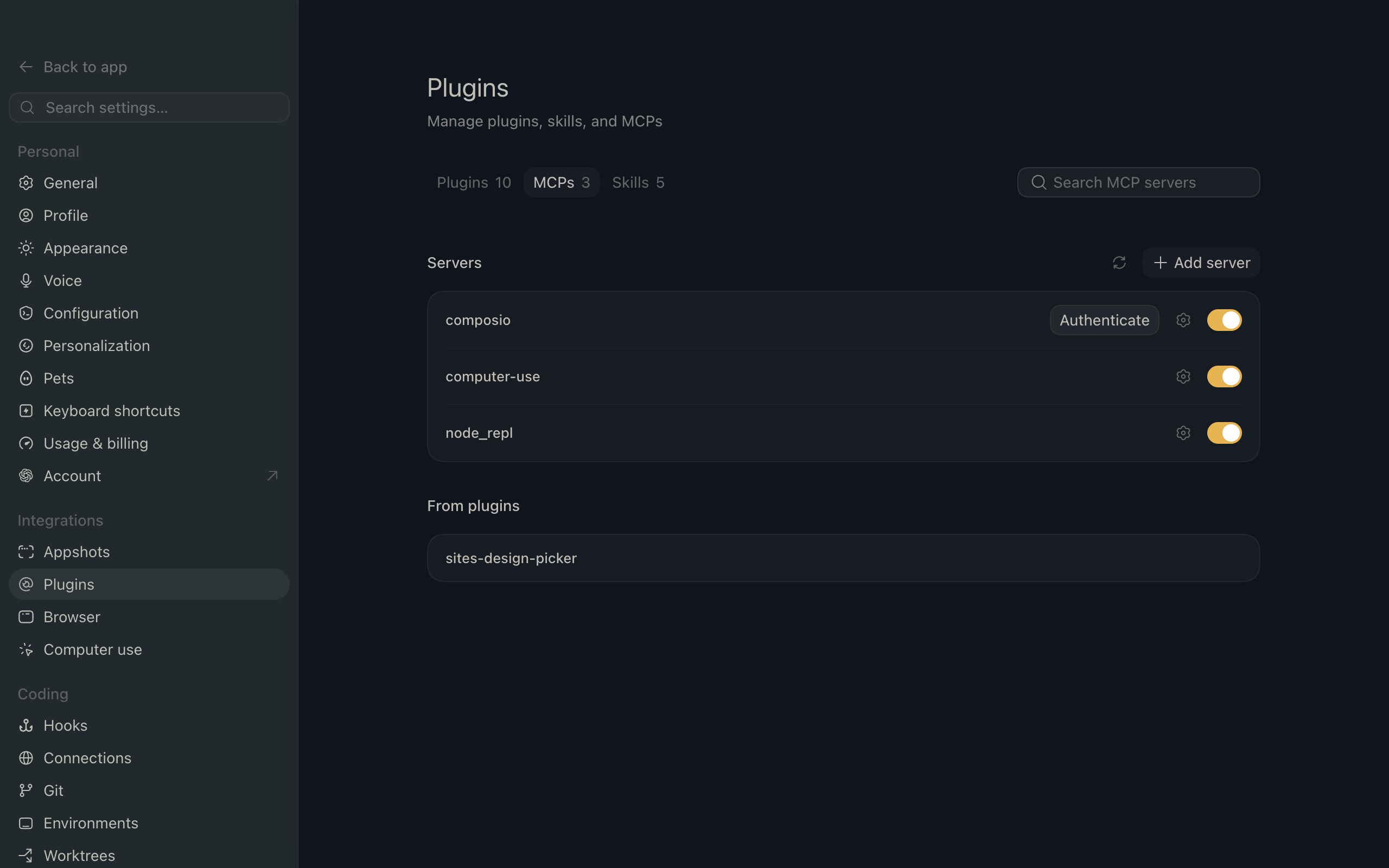
Then click Save. The Composio server now appears in your MCP plugins list.

ChatGPT Plugins page showing the Composio MCP server added to the list

3. Authenticate

Click Authenticate on the Composio entry, log in via Composio, and click Allow access. Composio tools are then available in ChatGPT the same way as with the plugin.

What you can do after connecting MailChannels

  • List MailChannels domains with DKIM status
  • Review MailChannels delivery metrics for yesterday
  • Show suppressed MailChannels recipients and reasons

Security + privacy notes (important)

  • Use least-privilege access: Only grant permissions you actually need.
  • Review OAuth permissions before approving: Make sure requested scopes match what you expect Composio and ChatGPT to do.
  • Keep write actions human-reviewed: For actions like sending messages, creating labels, or editing drafts, keep manual confirmation enabled.
  • Be careful with sensitive data: Avoid using this setup with highly sensitive information unless allowed by your personal, company, or client policies.
TOOLS

Supported Tools

Every MailChannels action and event your agent gets out of the box.

Activate Sub-account

Reactivate a suspended sub-account, restoring its ability to send email.

Check Domain Authentication

Check a sending domain's DKIM, SPF, sender-domain DNS, and Domain Lockdown configuration without changing it.

Create DKIM Key

Create a MailChannels-managed DKIM key pair and return the public key and DNS record that must be published.

Create Sub-account

Create a sub-account under the connected parent account.

Create Sub-account API Key

Explicitly create a sensitive API credential for a sub-account.

Create Sub-account SMTP Password

Explicitly create a sensitive SMTP credential for a sub-account.

Create Suppression Entries

Atomically add one or more recipients to the connected account's suppression list, optionally also applying them to all associated sub-accounts.

Delete All Webhooks

Permanently remove every webhook endpoint enrolled for the connected MailChannels account.

Delete Custom Tracking Domain

Permanently delete one custom tracking domain by exact hostname and scope.

Delete Sub-account

Permanently and irreversibly delete one MailChannels sub-account by its exact handle.

Delete Sub-account API Key

Permanently revoke one sub-account API key by exact sub-account handle and key ID.

Delete Sub-account Limit

Delete a sub-account's explicit monthly send limit.

Delete Sub-account SMTP Password

Permanently revoke one sub-account SMTP password by exact sub-account handle and password ID.

Delete Suppression Entry

Destructively remove one source, or every source, of suppression protection for a recipient.

Enroll Webhook

Enroll the account's single external endpoint for MailChannels event callbacks.

Get Engagement Metrics

Retrieve account message open and click metrics, optionally filtered by time range and campaign.

Get Performance Metrics

Retrieve account processed, delivered, hard-bounced, and complaint metrics.

Get Recipient Behaviour Metrics

Retrieve account recipient unsubscribe metrics, optionally filtered by time range and campaign.

Get Sub-account Limit

Return a sub-account's configured monthly send limit; -1 means it inherits the parent account's remaining capacity.

Get Sub-account Usage

Return a sub-account's usage, effective monthly limit, and current billing-period dates.

Get Usage

Return the connected account's usage, effective monthly limit, and current billing-period dates.

Get Volume Metrics

Retrieve account processed, delivered, and dropped message volume metrics.

Get Webhook Public Key

Retrieve the MailChannels public key identified by a webhook's Signature-Input header for signature verification.

List Custom Tracking Domains

Return one page of custom domains registered for click tracking, open tracking, or unsubscribe links.

List DKIM Keys

Return one page of DKIM keys for a domain, optionally filtered by selector or lifecycle status.

List Sender Metrics

Return one page of campaign or sub-account delivery metrics sorted by message volume.

List Sub-account API Keys

Return one page of API-key metadata for a sub-account.

List Sub-accounts

Return one page of sub-accounts owned by the connected parent account, including handle, company name, and enabled state.

List Sub-account SMTP Passwords

List SMTP-password metadata for a sub-account.

List Suppression Entries

Return one page of suppression entries for the connected account, optionally filtered by recipient, source, or creation date range.

List Webhook Batches

Return one page of webhook delivery batches, optionally filtered by creation time, response category, or endpoint.

List Webhooks

List all webhook endpoints enrolled for the connected MailChannels account.

Register Custom Tracking Domain

Register an owner-controlled hostname for click tracking, open tracking, or unsubscribe links.

Render Email

Render email content without delivering a message to any recipient.

Resend Webhook Batch

Synchronously create one new external delivery attempt for an existing webhook batch.

Rotate DKIM Key

Irreversibly rotate an active DKIM key: mark the existing key as rotated and create a replacement key.

Send Email

Deliver email to the specified recipients.

Send Email Asynchronously

Queue email for real, irreversible external delivery to the specified recipients.

Set Sub-account Limit

Set a sub-account's monthly send limit; setting zero prevents it from sending.

Suspend Sub-account

Suspend a sub-account and immediately prevent it from sending email until it is explicitly reactivated.

Update Custom Tracking Domain

Change the label or active status of one custom tracking domain identified by its exact hostname and event scope.

Update DKIM Key Status

Irreversibly revoke, retire, or begin rotating an existing DKIM key.

Validate All Webhooks

Create and send a test callback to every enrolled webhook endpoint, then report whether each endpoint returned a 2xx response.

FAQ

Frequently asked questions

Start with MailChannels.It takes 30 seconds.

Managed auth, hosted MCP servers, and every MailChannels tool your agent needs.Free to start.

Start building