How to connect Magic Hour to Claude

Connect Claude Web, Desktop and Cowork to Magic Hour MCP. Generate three 16:9 hero image variations, create 30-second promo video from script, and more using natural language, with authentication handled for you.

Magic Hour logoMagic Hour
Api Key

Magic Hour is an AI media creation platform for generating and editing images, videos, and audio through a unified API. It streamlines multimedia production so teams can programmatically create and iterate on visual and audio assets faster.

38 Tools

Introduction

Claude is Anthropic's AI assistant, available on the web, in the desktop app, and on mobile. Cowork is its agent for knowledge work, and it runs on all of those surfaces too. Connected to your apps, Claude can work with your files and services to accomplish complex tasks on your behalf.

This guide walks you through the easiest and most secure way to connect your Magic Hour account to Claude via Composio Connect, enabling it to generate three 16:9 hero image variations, create 30-second promo video from script, transcribe and denoise a podcast episode, and more such actions on your behalf without compromising your account security.

Setup is the same on Claude Web, Desktop, and Cowork, and you only need to do it once. The connector is tied to your account, so it's available in all three.

Also integrate Magic Hour with

Connecting Magic Hour to Claude Web, Desktop, and Cowork

1. Open Customize

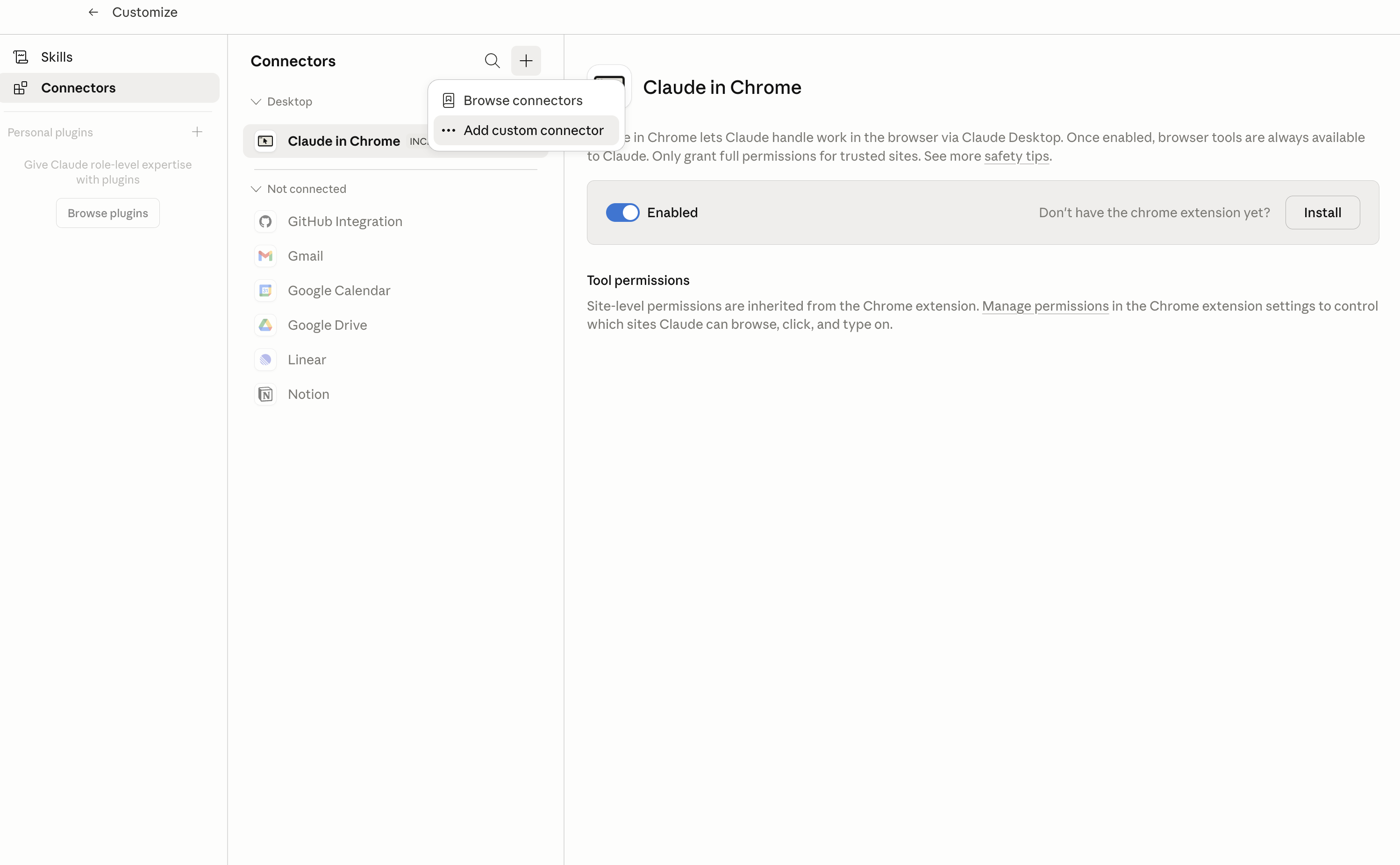
In Claude Desktop, click Customize in the left sidebar, then select Connectors and click the + icon at the top.

Claude Desktop connectors screen with Add custom connector selected

2. Add the Composio MCP server

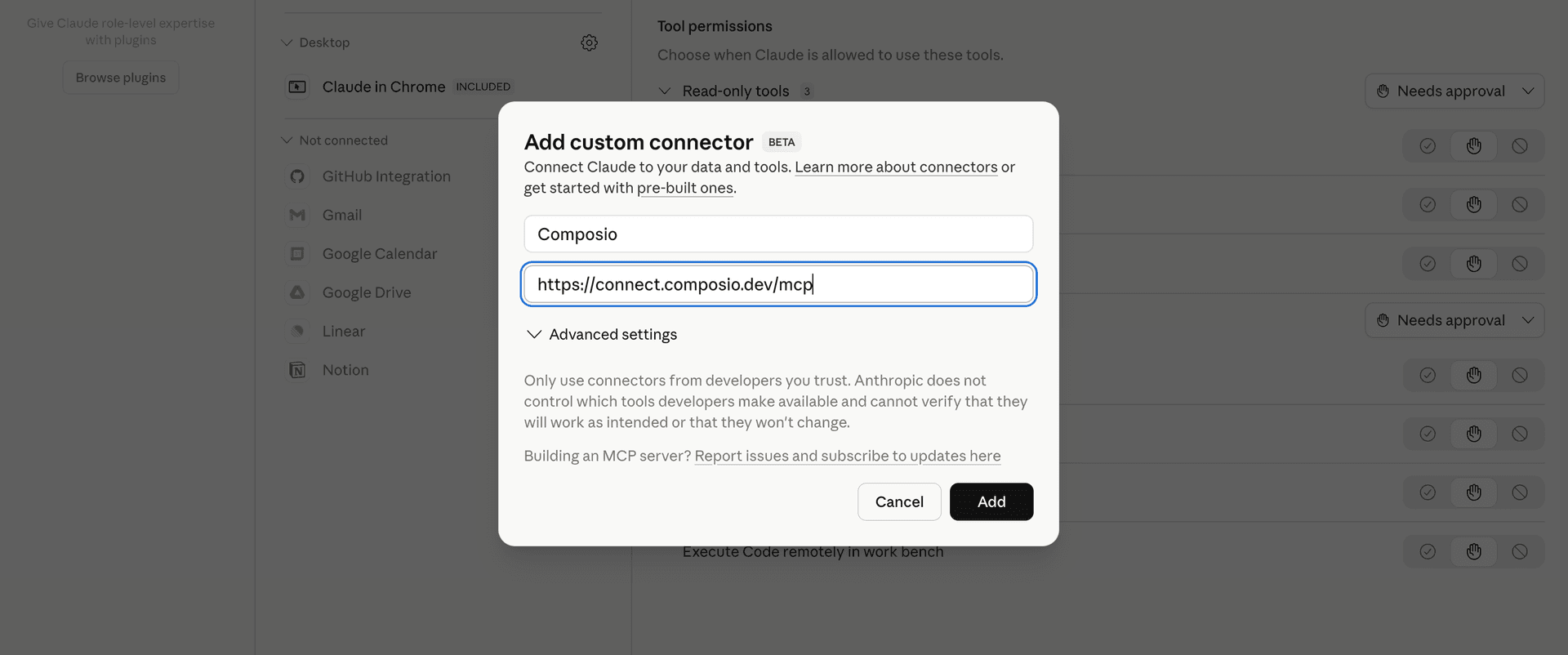
Click Add custom connector and paste in the Composio MCP server URL:

bash
https://connect.composio.dev/mcp
Add custom connector dialog with Composio MCP server URL

3. Authorize in your browser

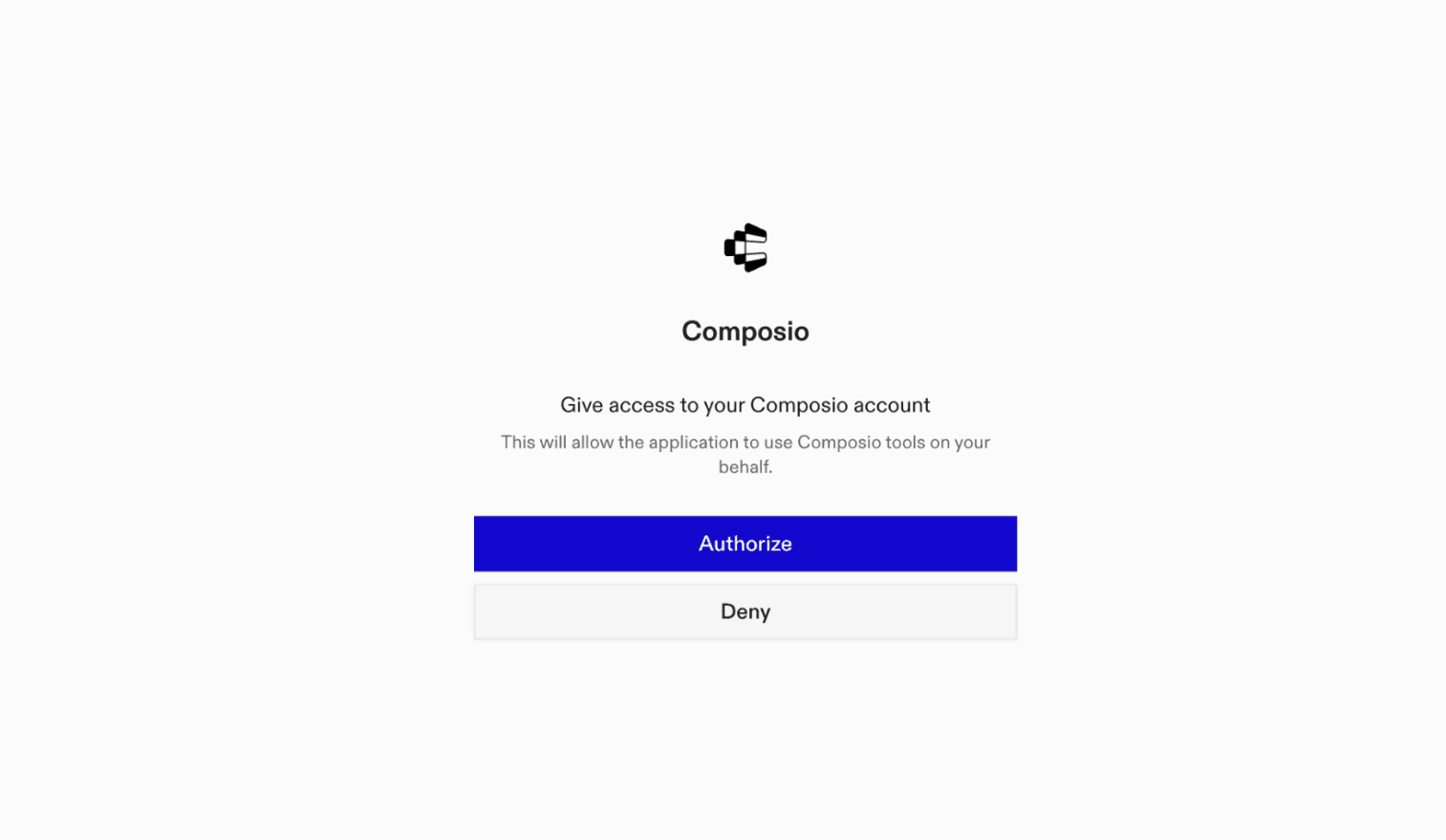
Click Connect. You'll be redirected to a browser window where you can authorize Composio to continue.

Composio authorization screen for Claude Web, Desktop, and Cowork

4. Connect your Magic Hour account

Back in Claude, ask it to connect to Magic Hour or give it any Magic Hour-related task.

For example, ask Claude to:

  • "Generate three 16:9 hero image variations"
  • "Create 30-second promo video from script"
  • "Transcribe and denoise a podcast episode"

It will prompt you to authenticate and authorize access.

That's it. Composio's tools are now available in Claude, and your Magic Hour account is ready to use.

What is the Magic Hour Claude Connector, and what's possible with it?

The Magic Hour MCP server is an implementation of the Model Context Protocol that connects your AI agent and assistants like Claude, Cursor, etc directly to your Magic Hour account. It provides structured and secure access so your agent can perform Magic Hour operations on your behalf.

Troubleshooting

1. Why does Claude not use the Composio connector for Magic Hour?

The connector can show as connected, but Claude must use it in each Magic Hour conversation.

  • Click + at the lower left of the chat, or type /.
  • Hover Connectors.
  • Turn on Composio.
  • Ask Claude to connect to Magic Hour again.

2. Why does Claude show an MCP server error before Magic Hour connects?

Claude can show Couldn't reach the MCP server or Authorization with the MCP server failed when you add the connector for Magic Hour.

  • Check that the connector URL is https://connect.composio.dev/mcp.
  • Connectors run from Anthropic's cloud, so your device network is usually not the problem.
  • Add the connector again from Customize > Connectors, then ask Claude to connect Magic Hour.
  • If it fails again, send the error and the ofid_ reference id to support@composio.dev.

3. Why does the Magic Hour authorization link not work?

The Composio connector is one server. Your Magic Hour account connects separately when Claude asks for it.

  • If the browser does not open, or the link expires, ask Claude to retry the Magic Hour connection.
  • Composio creates a fresh Magic Hour authorization link.
  • Open that link in your browser and finish the Magic Hour sign-in.

4. Why do Magic Hour actions fail after they worked before?

The Magic Hour connection can expire or lose permission.

  • Ask Claude to inspect the Magic Hour connection.
  • If the connection is unhealthy, disconnect it when Claude prompts you.
  • Reconnect the Magic Hour account and retry the action.
  • If Claude shows a permission prompt, approve it before Claude changes data in Magic Hour.
  • If the action still fails with a permission error, check that the connected account has that permission in Magic Hour itself.

5. How do I switch to a different Magic Hour account?

Claude can manage the Magic Hour connection for you.

  • Ask Claude to disconnect or delete the current Magic Hour account.
  • Ask Claude to connect Magic Hour again.
  • Open the new Composio authorization link for Magic Hour.
  • Sign in with the other Magic Hour account in the browser.
  • After the account connects, ask Claude to retry the Magic Hour task.

6. Why is my Magic Hour connection missing in Claude Desktop or on a Team plan?

The connector belongs to your Claude account, so your Magic Hour connection works in Claude Web, Desktop, and Cowork.

  • In Claude Desktop, open Customize > Connectors.
  • Next to Composio, click and click Clear cache.
  • If Magic Hour tools still do not appear, click , disconnect, remove the connector, and add it again.
  • On Team or Enterprise, an Owner or Primary Owner must enable the connector before you can connect Magic Hour.
TOOLS

Supported Tools

Every Magic Hour action and event your agent gets out of the box.

Create AI Clothes Change

Start a credit-consuming asynchronous clothes-change image job from person and garment images.

Create AI Face Edit

Start a credit-consuming asynchronous edit of facial features in an image.

Create AI GIF

Start a credit-consuming asynchronous prompt-based animation in GIF, MP4, or WebM format.

Create AI Headshot

Start a credit-consuming asynchronous headshot generation from an image containing one detectable face.

Create AI Image

Start a credit-consuming asynchronous text-to-image job.

Create AI Image Edit

Start a credit-consuming asynchronous prompt-based edit of one or more images.

Create AI Meme

Start a credit-consuming asynchronous meme generation from a topic and a documented Magic Hour template.

Create AI QR Code

Start an asynchronous artistic QR-code generation for supplied content.

Create AI Video Edit

Start a credit-consuming asynchronous prompt-based edit of an input video.

Create AI Voice

Start credit-consuming asynchronous speech generation from text using a documented preset voice.

Create AI Voice Clone

Start credit-consuming asynchronous speech generation by cloning an input voice recording.

Create Animation Video

Start one credit-consuming asynchronous animation render with explicit dimensions, frame rate, duration, style, and assets.

Create Audio-to-Video

Start a credit-consuming asynchronous video generation job from audio and optional visual style controls.

Create Background Removal

Start a credit-consuming asynchronous image job that removes a background or replaces it with an optional supplied image.

Create Body Swap

Start a credit-consuming asynchronous body-swap image job that places a person into a scene at the selected resolution.

Create Character Animation Video

Animate a reference character with motion transferred from a source video in a credit-consuming asynchronous job.

Create Character Replacement Video

Replace a source-video subject with a reference character in a credit-consuming asynchronous video job.

Create Face Swap Photo

Start a credit-consuming asynchronous photo face swap using one source face for all detected faces or up to five individual face mappings.

Create Face Swap Video

Start a credit-consuming asynchronous video face-swap job using one image for all detected faces or up to five individual face mappings.

Create Head Swap

Start a credit-consuming asynchronous head-swap image job from body and head images.

Create Image-to-Video

Start a credit-consuming asynchronous video generation job from a still image and optional final frame, prompt, audio, model, and resolution controls.

Create Image Upscale

Start a credit-consuming asynchronous 2x or 4x image upscale.

Create Lip Sync Video

Start a credit-consuming asynchronous lip-sync video job from audio and a file or YouTube video.

Create Photo Colorization

Start a credit-consuming asynchronous colorization of a photo.

Create Subtitled Video

Start a credit-consuming asynchronous job that transcribes speech and burns styled subtitles into an MP4 video.

Create Talking Photo

Start a credit-consuming asynchronous talking-photo video from an image and audio.

Create Text-to-Video

Start a credit-consuming asynchronous video generation job from a text prompt and model/output options.

Create Video-to-Video

Start a credit-consuming asynchronous stylized transformation of an input video.

Delete Audio Project

Permanently delete one rendered Magic Hour audio project by ID.

Delete Image Project

Permanently delete one Magic Hour image project and its rendered images by ID.

Delete Video Project

Permanently delete one rendered Magic Hour video project by ID.

Detect Faces

Start asynchronous face detection for an image or video and return a task ID.

Generate Asset Upload URLs

Generate ordered, expiring signed upload URLs and Magic Hour file paths for image, video, or audio assets.

Get Account

Return the connected Magic Hour account's tier, available credits, identity, and subscription details; use this before generation to check entitlement and balance.

Get Audio Project

Get an audio project's asynchronous status, error, credit charge, and temporary downloads.

Get Face Detection

Get face-detection status and detected face paths by task ID.

Get Image Project

Get an image project's asynchronous status, error, credit charge, and temporary downloads.

Get Video Project

Get a video project's asynchronous status, error, credit charge, and temporary downloads.

FRAMEWORKS

How to build Magic Hour MCP Agent with another framework

FAQ

Frequently asked questions

With a standalone Magic Hour MCP server, the agents and LLMs can only access a fixed set of Magic Hour tools tied to that server. However, with the Composio Tool Router, agents can dynamically load tools from Magic Hour and many other apps based on the task at hand, all through a single MCP endpoint.

Yes, you can. Claude Cowork fully supports MCP integration. You get structured tool calling, message history handling, and model orchestration while Tool Router takes care of discovering and serving the right Magic Hour tools.

Yes, absolutely. You can configure which Magic Hour scopes and actions are allowed when connecting your account to Composio. You can also bring your own OAuth credentials or API configuration so you keep full control over what the agent can do.

All sensitive data such as tokens, keys, and configuration is fully encrypted at rest and in transit. Composio is SOC 2 Type 2 compliant and follows strict security practices so your Magic Hour data and credentials are handled as safely as possible.

Start with Magic Hour.It takes 30 seconds.

Managed auth, hosted MCP servers, and every Magic Hour tool your agent needs.Free to start.

Start building