How to connect Linkup to Muse

Connect Muse to Linkup MCP. Find recent articles on quantum computing breakthroughs, summarize top news about generative ai today, and more using natural language, with authentication handled for you.

Linkup logoLinkup
Api Key

Linkup is a powerful web search API built for RAG workflows. Instantly find and retrieve relevant online results to power research, chatbots, and data enrichment.

4 Tools

Introduction

Muse is Meta's AI assistant. It can connect to outside tools through custom connectors, which use the Model Context Protocol (MCP).

This guide explains how to connect Linkup to Muse using Composio Connect, which handles OAuth, token refresh, and reliability so you do not have to. You add Composio as a custom connector once, then ask Muse to work with Linkup in plain language.

Also integrate Linkup with

Why use Composio?

  • Cross-app workflows across 1,500+ apps from a single plugin layer.
  • On-demand tool loading so Muse only loads the tools needed for the current task.
  • Programmatic tool calling through a remote workbench for complex, multi-step workflows.
  • Multi-account support so users can connect and switch between multiple accounts for the same app.
  • Shared account access so teams or agents can work through common business accounts and service connections.
  • Managed authentication with OAuth handling, credential storage, and token refresh managed by Composio.
  • Safer credential handling so app credentials stay outside the model context and tool responses.
  • User-level account isolation so actions run against the correct connected account instead of mixing user access.

Connecting Linkup to Muse

You add Composio to Muse once as a custom connector, then connect Linkup from the chat.

1. Ask Muse to connect to Composio

Start a new Muse chat and send this message. Muse builds the connector and shows a button to add your API key.

bash
Create a Custom Connector for the Composio remote MCP server and connect to it:
- Name: Composio
- Transport: remote streamable HTTP
- URL: https://connect.composio.dev/mcp
- Auth: API key sent in the x-consumer-api-key header
Open the secure credentials store so I can enter the API key there, not in this chat. Then list its tools to confirm the connection works.

2. Copy your API key

Open the Muse page in your Composio dashboard and copy your API key. It starts with ck_.

Don't paste it into the chat. It goes in Muse's secure credentials store in the next step.

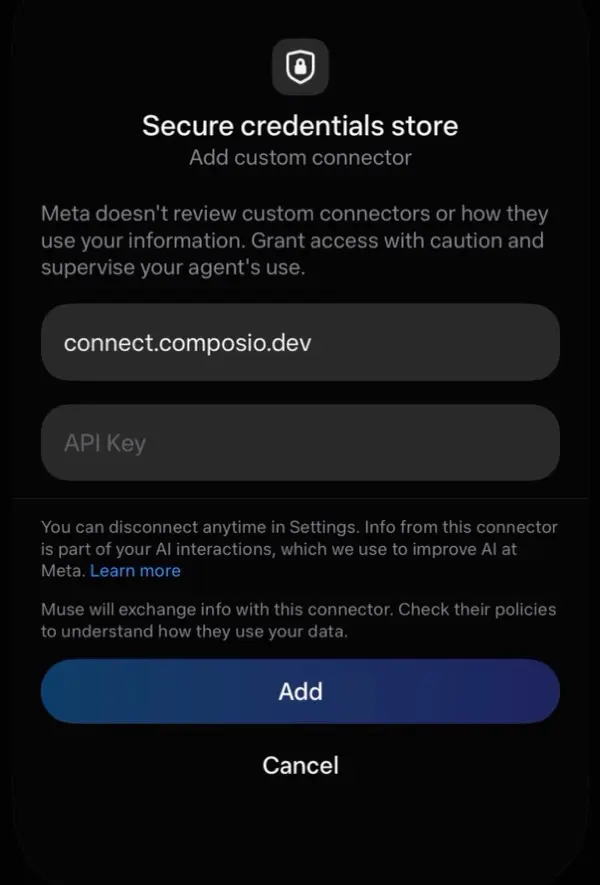
3. Add your API key in the secure credentials store

Tap the button Muse shows to open Add custom connector, paste your API key, then tap Add. Muse lists the Composio tools once it connects.

Muse secure credentials store with the connect.composio.dev URL, an API Key field, and the Add button

4. Connect your Linkup account

Back in the chat, ask Muse to connect to Linkup or give it any Linkup task.

For example, ask it to:

  • "Find recent articles on quantum computing breakthroughs"
  • "Summarize top news about generative AI today"
  • "Get sourced answer about electric vehicle market trends"

It will prompt you to authenticate and authorize access.

That's it. Composio's tools are now available in Muse, and your Linkup account is ready to use.

What is the Linkup MCP server, and what's possible with it?

The Linkup MCP server is an implementation of the Model Context Protocol that connects your AI agent and assistants like Claude, Cursor, etc directly to your Linkup account. It provides structured and secure access to enterprise-grade web search and natural language answering, so your agent can perform actions like retrieving relevant information, answering questions, summarizing sources, and surfacing insights from the web on your behalf.

  • Natural language question answering: Ask your agent complex or open-ended questions and get concise, sourced natural language answers pulled from web data.
  • Structured web search and insights retrieval: Let your agent perform deep searches on any topic and return structured insights, detailed summaries, or raw search results as needed.
  • Source-backed information synthesis: Get responses that include not just answers but citations to the original web sources, making it easy to verify and explore further.
  • Customizable search depth and output: Have the agent adjust search precision, control answer format (summary, structured, or detailed search results), and even include images if your use case needs them.

Way Forward

Now that Linkup is connected, extend your setup by connecting the other apps you already use every day, so Muse can run true cross-app workflows end to end.

  • Connect Calendar to turn threads into scheduled meetings automatically.
  • Connect Slack or Teams to post summaries, approvals, and alerts where your team works.
  • Connect Notion, Linear, Jira, or Asana to convert requests into tickets, tasks, and docs.
  • Connect Drive, Dropbox, or OneDrive to fetch, file, and share attachments without manual steps.

Start with one workflow you do repeatedly, then keep adding apps as you find new handoffs. With everything behind a single connection, Muse can coordinate multiple tools safely and reliably in one conversation.

Troubleshooting

1. Why doesn't Muse show a button to add my API key?

Muse shows the button only when you ask it to open the secure credentials store.

  • Start a new chat.
  • Send the message from step 1 exactly as written.
  • If Muse asks for the key in the chat, do not paste it. Ask Muse to open the secure credentials store.

2. Why does the Composio connection fail after I add my API key?

The key or the connector settings are not correct.

  • Copy the full key from the Composio dashboard. It starts with ck_.
  • Make sure the URL is https://connect.composio.dev/mcp and the header is x-consumer-api-key.
  • Remove the Composio connector in Muse settings, then do steps 1 to 3 again.

3. Why doesn't Muse use the Composio tools for Linkup?

Muse may not pick the Composio connector for the request.

  • Ask Muse to list its Composio tools.
  • Name Composio and Linkup in your request, for example: Use Composio to connect to Linkup.
  • If it still does not work, start a new chat and try again.

4. Why does Muse ask me to connect Linkup again?

Your Linkup connection expired or was removed.

  • Open the link Muse gives you and sign in to Linkup again.
  • Check that the Linkup connection shows as ACTIVE in the Composio dashboard.

5. What do I do if I pasted my API key into the chat?

Treat the key as exposed.

  • Create a new API key in the Composio dashboard and delete the old one.
  • Add the new key in Muse's secure credentials store, not in the chat.
TOOLS

Supported Tools

Every Linkup action and event your agent gets out of the box.

Create Response

Proxy endpoint for OpenAI-compatible response generation.

Fetch Webpage

Fetch and retrieve a markdown representation of a webpage from a given URL.

Get Credits Balance

Tool to retrieve the current credits balance for your Linkup account.

Search Linkup

Search the web and retrieve insights using Linkup's API.

FAQ

Frequently asked questions

Yes. Muse supports custom connectors that use the Model Context Protocol (MCP). Composio connects as one custom connector over remote streamable HTTP at https://connect.composio.dev/mcp, and gives Muse access to Linkup and 1,500+ other apps.

Copy it from the Composio dashboard. It starts with ck_. Enter it only in Muse's secure credentials store, never in the chat.

Yes. Composio supports multiple connected accounts for the same app. Give each Linkup connection a name, such as work or personal, and tell Muse which one to use.

Tokens, keys, and configuration are encrypted at rest and in transit. Your Composio API key stays in Muse's secure credentials store, not in the chat or the model context. Composio is SOC 2 Type 2 compliant.

Start with Linkup.It takes 30 seconds.

Managed auth, hosted MCP servers, and every Linkup tool your agent needs.Free to start.

Start building