How to connect Klarna to Claude

Connect Claude Web, Desktop and Cowork to Klarna MCP. List recent klarna orders awaiting capture, retrieve details for klarna order 12345, and more using natural language, with authentication handled for you.

Klarna logoKlarna
Api Key

Klarna is a merchant payments platform for checkout, payments, orders, and settlements. It helps businesses offer flexible payment options with streamlined payment operations.

58 Tools

Introduction

Claude is Anthropic's AI assistant, available on the web, in the desktop app, and on mobile. Cowork is its agent for knowledge work, and it runs on all of those surfaces too. Connected to your apps, Claude can work with your files and services to accomplish complex tasks on your behalf.

This guide walks you through the easiest and most secure way to connect your Klarna account to Claude via Composio Connect, enabling it to list recent Klarna orders awaiting capture, retrieve details for Klarna order 12345, check settlement status for last month, and more such actions on your behalf without compromising your account security.

Setup is the same on Claude Web, Desktop, and Cowork, and you only need to do it once. The connector is tied to your account, so it's available in all three.

Also integrate Klarna with

Connecting Klarna to Claude Web, Desktop, and Cowork

Two ways to add the Composio connector. Pick whichever you prefer.

1. Add with one click

Click the button. Claude opens with the Composio connector filled in. Click Add, then go to step 2.

Add to Claude

Add manually

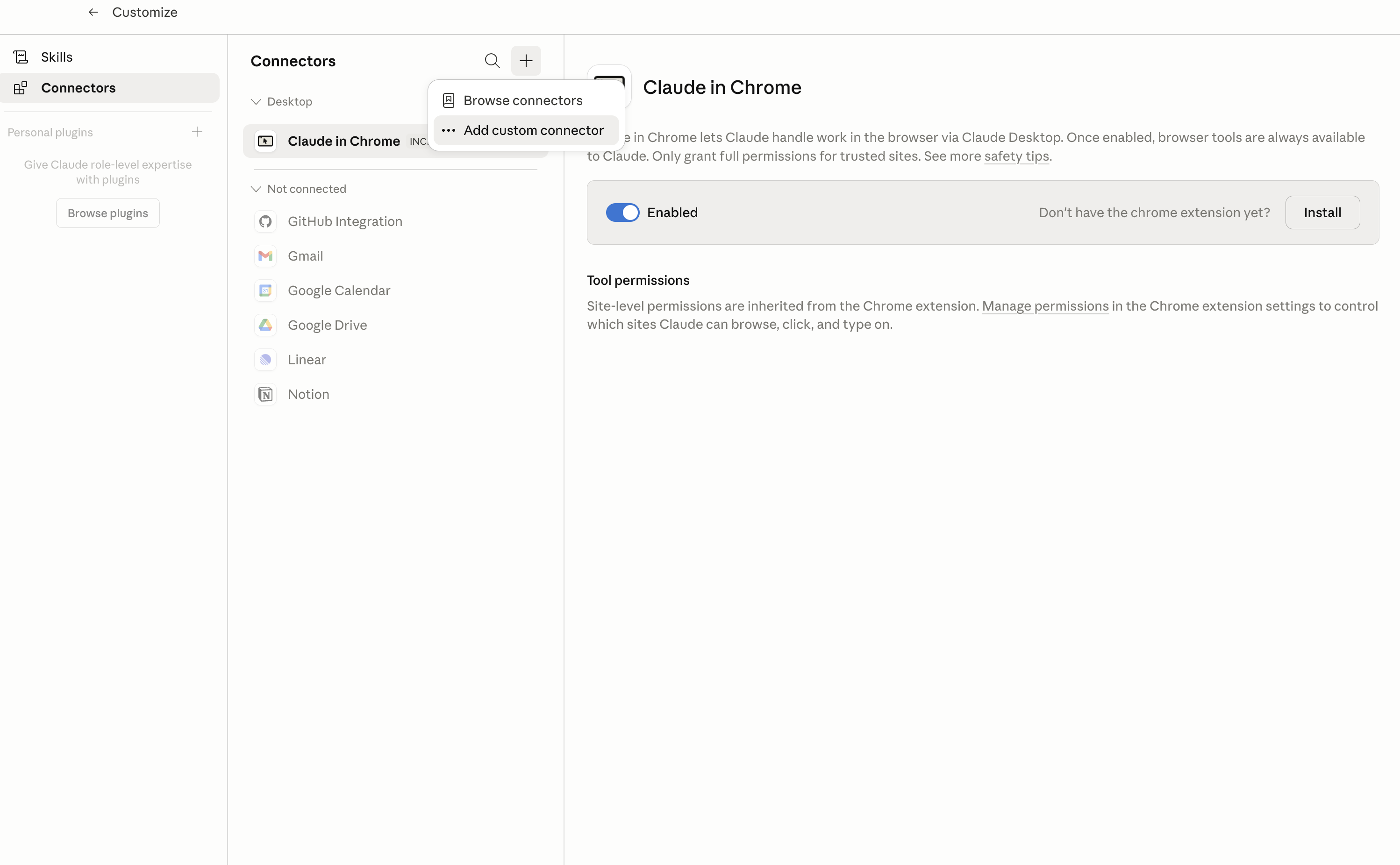
In Claude Desktop, click Customize in the left sidebar, then select Connectors and click the + icon at the top.

Claude Desktop connectors screen with Add custom connector selected

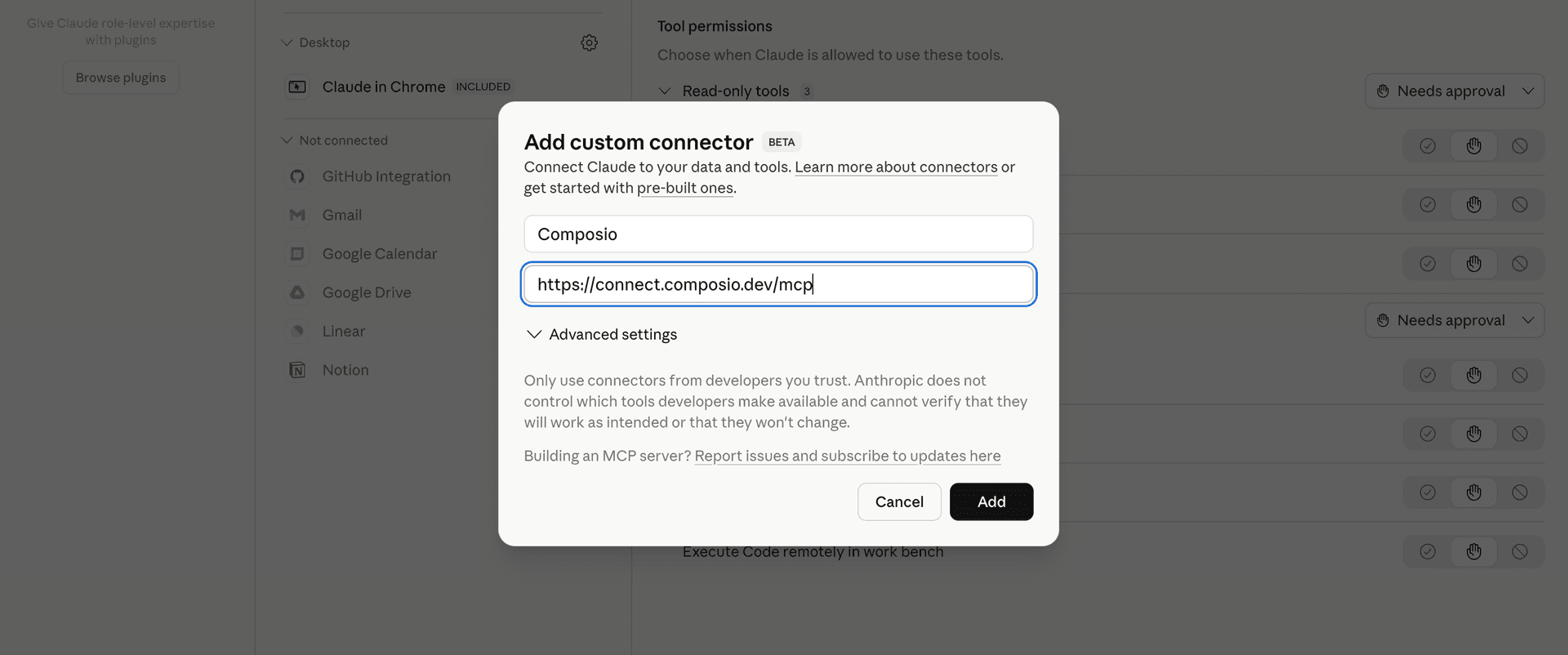
Click Add custom connector and paste in the Composio MCP server URL:

bash
https://connect.composio.dev/mcp
Add custom connector dialog with Composio MCP server URL

2. Authorize in your browser

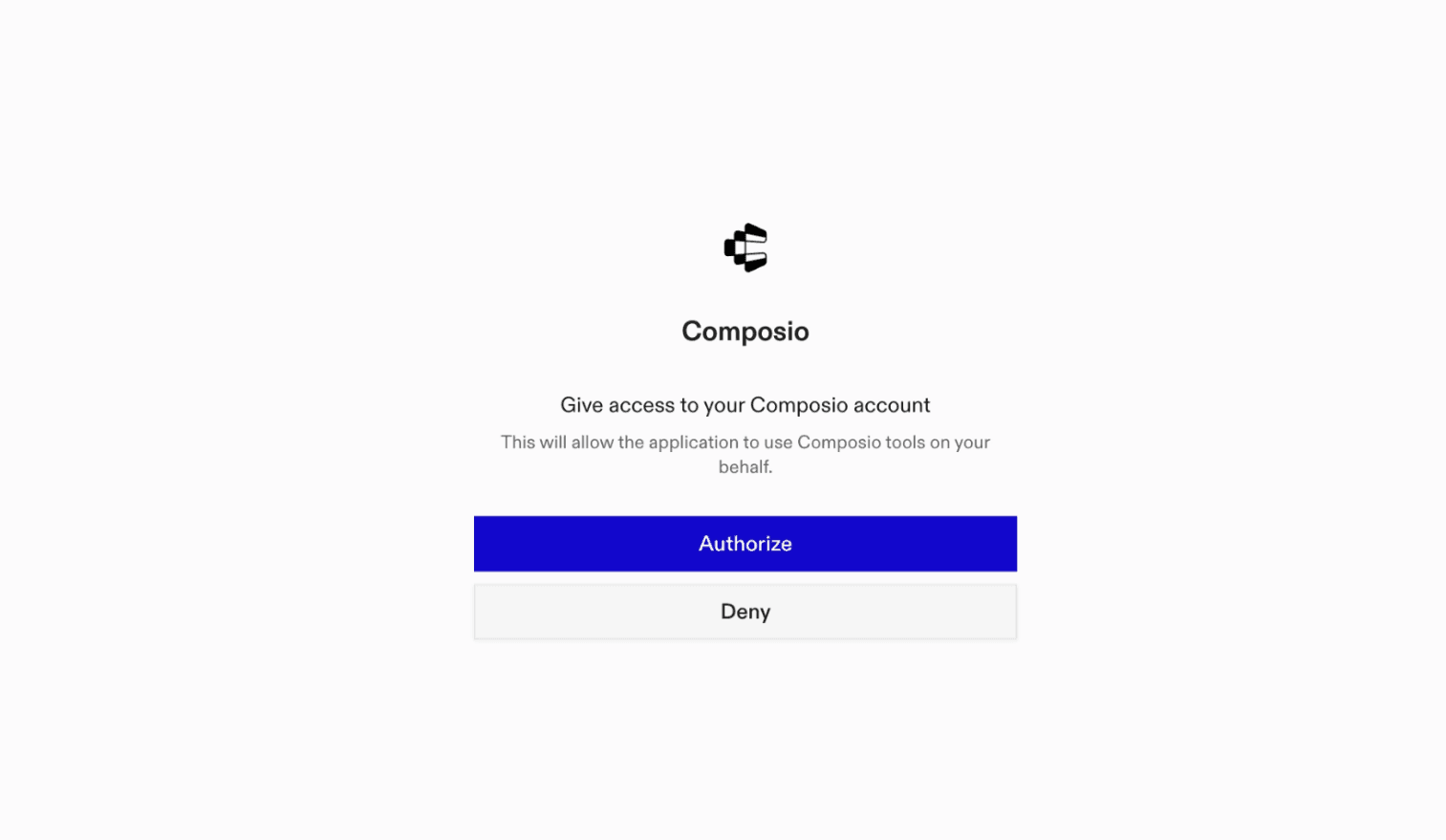
Click Connect. You'll be redirected to a browser window where you can authorize Composio to continue.

Composio authorization screen for Claude Web, Desktop, and Cowork

3. Connect your Klarna account

Back in Claude, ask it to connect to Klarna or give it any Klarna-related task.

For example, ask Claude to:

  • "List recent Klarna orders awaiting capture"
  • "Retrieve details for Klarna order 12345"
  • "Check settlement status for last month"

It will prompt you to authenticate and authorize access.

That's it. Composio's tools are now available in Claude, and your Klarna account is ready to use.

What is the Klarna Claude Connector, and what's possible with it?

The Klarna MCP server is an implementation of the Model Context Protocol that connects your AI agent and assistants like Claude, Cursor, etc directly to your Klarna account. It provides structured and secure access to Klarna payments, checkout, orders, disputes, and payout data, so your agent can create payment sessions, manage orders, update shipping details, handle disputes, and retrieve payout reports on your behalf.

  • Payment and order management: Have your agent create payment sessions, acknowledge orders, capture payments, cancel eligible orders, or retrieve current order and payment details.
  • Checkout and hosted payment pages: Let the agent create and retrieve checkout sessions, create hosted payment page sessions, distribute payment links, or disable unfinished sessions.
  • Fulfillment updates: Direct your agent to add carrier and tracking details to orders or captures, extend authorization periods, and adjust eligible capture due dates.
  • Dispute handling: Instruct your agent to retrieve dispute details, download supporting attachments, accept a dispute loss, or enroll a merchant or partner account for dispute handling.
  • Payout reporting: Have your agent retrieve payout details and summaries, or download payout reports in PDF and CSV formats for selected date ranges.

Troubleshooting

1. Why does Claude not use the Composio connector for Klarna?

The connector can show as connected, but Claude must use it in each Klarna conversation.

  • Click + at the lower left of the chat, or type /.
  • Hover Connectors.
  • Turn on Composio.
  • Ask Claude to connect to Klarna again.

2. Why does Claude show an MCP server error before Klarna connects?

Claude can show Couldn't reach the MCP server or Authorization with the MCP server failed when you add the connector for Klarna.

  • Check that the connector URL is https://connect.composio.dev/mcp.
  • Connectors run from Anthropic's cloud, so your device network is usually not the problem.
  • Add the connector again from Customize > Connectors, then ask Claude to connect Klarna.
  • If it fails again, send the error and the ofid_ reference id to support@composio.dev.

3. Why does the Klarna authorization link not work?

The Composio connector is one server. Your Klarna account connects separately when Claude asks for it.

  • If the browser does not open, or the link expires, ask Claude to retry the Klarna connection.
  • Composio creates a fresh Klarna authorization link.
  • Open that link in your browser and finish the Klarna sign-in.

4. Why do Klarna actions fail after they worked before?

The Klarna connection can expire or lose permission.

  • Ask Claude to inspect the Klarna connection.
  • If the connection is unhealthy, disconnect it when Claude prompts you.
  • Reconnect the Klarna account and retry the action.
  • If Claude shows a permission prompt, approve it before Claude changes data in Klarna.
  • If the action still fails with a permission error, check that the connected account has that permission in Klarna itself.

5. How do I switch to a different Klarna account?

Claude can manage the Klarna connection for you.

  • Ask Claude to disconnect or delete the current Klarna account.
  • Ask Claude to connect Klarna again.
  • Open the new Composio authorization link for Klarna.
  • Sign in with the other Klarna account in the browser.
  • After the account connects, ask Claude to retry the Klarna task.

6. Why is my Klarna connection missing in Claude Desktop or on a Team plan?

The connector belongs to your Claude account, so your Klarna connection works in Claude Web, Desktop, and Cowork.

  • In Claude Desktop, open Customize > Connectors.
  • Next to Composio, click ⋮ and click Clear cache.
  • If Klarna tools still do not appear, click ⋮, disconnect, remove the connector, and add it again.
  • On Team or Enterprise, an Owner or Primary Owner must enable the connector before you can connect Klarna.
TOOLS

Supported Tools

Every Klarna action and event your agent gets out of the box.

Abort Checkout Order

Irreversibly abort an incomplete legacy Klarna Checkout order.

Accept Dispute Loss

Irreversibly request acceptance of the financial loss for a Klarna dispute.

Acknowledge Order

Acknowledge receipt of a Klarna order so order processing can continue.

Add Capture Shipping Info

Append shipping carrier and tracking information to a Klarna capture.

Add Order Shipping Info

Append shipping carrier and tracking information to a Klarna order.

Cancel Authorization

Irreversibly cancel a Klarna payment authorization before an order is created from it.

Cancel Order

Irreversibly cancel an uncaptured Klarna order that is not closed.

Capture Order

Irreversibly capture all or part of an authorized Klarna order and return the created capture ID.

Create Card Promise

Create a Klarna card promise for an order.

Create Card Settlement

Create a Klarna settlement for a completed order and issue its encrypted virtual cards.

Create Checkout Order

Create a legacy Klarna Checkout V3 order and return its checkout details.

Create Customer Token From Authorization

Create a reusable Klarna customer token from a payment authorization token for subscription purchases.

Create HPP Session

Create a Hosted Payment Page session from an existing Klarna Payments session or Checkout order URL.

Create Order From Authorization

Create a Klarna order from a customer authorization token.

Create Order From Customer Token

Create a Klarna order using a reusable customer token.

Create Payment Session

Create a Klarna Payments session and return its session ID, sensitive client token, and available payment method categories.

Disable HPP Session

Irreversibly disable a Klarna Hosted Payment Page session that has not completed.

Distribute HPP Session

Distribute a Klarna Hosted Payment Page link by email, SMS, or a documented token access ID.

Download Dispute Attachment

Download a merchant or customer evidence attachment from a Klarna payment dispute as a bounded file reference.

Download Payout PDF

Download the PDF settlement report for one payout.

Download Payouts Summary PDF

Download a PDF payout summary for a payout date-time range.

Download Payouts Summary Transactions CSV

Download a CSV summary of Klarna payouts and transactions for an inclusive payout date-time range.

Download Payout Transactions CSV

Download a CSV report containing one payout and its transactions.

Enroll Dispute Merchant

Irreversibly activate Disputes v3 handling for one direct Klarna merchant account.

Enroll Dispute Partner

Irreversibly activate Disputes v3 handling for one Klarna partner account.

Extend Capture Due Date

First call KLARNA_LIST_CAPTURE_DUE_DATE_OPTIONS for this order and capture, then extend the payment due date using one returned option.

Extend Order Authorization Time

Extend the authorization validity period for an order that is still AUTHORIZED and delayed unexpectedly.

Get Capture

Return one Klarna capture by order ID and capture ID.

Get Card Promise

Retrieve a Klarna card promise and its card specifications.

Get Card Settlement

Retrieve a Klarna card settlement by settlement ID or by its associated order ID.

Get Checkout Order

Return a legacy Klarna Checkout order by order ID.

Get Customer Token

Return a reusable Klarna customer token and its current status.

Get Dispute

Return a fully detailed Klarna Disputes v3 record, including associated merchant and customer evidence.

Get HPP Session

Return the current details and distribution state of a Klarna Hosted Payment Page session.

Get Order

Return a Klarna order and its current authorization, capture, refund, shipping, and customer details.

Get Payment Session

Return the current details of a Klarna Payments session by session ID.

Get Payout

Return one Klarna payout by payment reference.

Get Payout Summary

Return Klarna payout totals grouped by currency for an inclusive payout date-time range.

Get Refund

Return one Klarna refund by order ID and refund ID.

Get VCC Order Cancellation

Retrieve the asynchronous cancellation status for a Klarna order with a Virtual Credit Card settlement.

List Capture Due Date Options

List the due-date extension options available for a Klarna capture.

List Disputes

Return one page of Klarna Disputes v3 records using all documented filters.

List Order Captures

Return all captures recorded for a Klarna order.

List Payouts

Return one offset-controlled page of Klarna payouts, optionally filtered by payout date range and currency.

List Settlement Transactions

Return one offset-controlled page of Klarna settlement transactions, optionally filtered by payout reference or order ID.

Refund Order

Irreversibly create a full or partial Klarna refund and return the created refund ID.

Release Remaining Authorization

Irreversibly release the uncaptured authorization remaining on a Klarna order.

Request Customer Token Cancellation

Request asynchronous cancellation of a reusable Klarna customer token by changing its status to CANCELLED.

Request VCC Order Cancellation

Irreversibly request cancellation of a Klarna order associated with a Virtual Credit Card settlement.

Resend Capture Customer Communication

Irreversibly resend Klarna customer communication for a capture.

Respond to Dispute

Submit reason-specific merchant evidence for a Klarna dispute request.

Update Checkout Order

Update a legacy Klarna Checkout order and return the resulting order.

Update Order Authorization

Update the authorized amount and order lines on an existing order.

Update Order Customer Details

Update the permitted customer address details on an existing order.

Update Order Merchant References

Update the merchant reference values stored on a Klarna order.

Update Payment Session

Update mutable data on an existing Klarna Payments session, including order amounts and lines, customer and billing or shipping addresses, merchant references and URLs, purchase locale and currency, payment options, and session intent.

Upload Dispute Attachment

Upload one merchant evidence attachment to a Klarna payment dispute.

Upload Dispute Attachments

Upload 1-10 merchant evidence attachments to one Klarna payment dispute, sequentially in input order.

FAQ

Frequently asked questions

With a standalone Klarna MCP server, the agents and LLMs can only access a fixed set of Klarna tools tied to that server. However, with the Composio Tool Router, agents can dynamically load tools from Klarna and many other apps based on the task at hand, all through a single MCP endpoint.

Yes, you can. Claude Cowork fully supports MCP integration. You get structured tool calling, message history handling, and model orchestration while Tool Router takes care of discovering and serving the right Klarna tools.

Yes, absolutely. You can configure which Klarna scopes and actions are allowed when connecting your account to Composio. You can also bring your own OAuth credentials or API configuration so you keep full control over what the agent can do.

All sensitive data such as tokens, keys, and configuration is fully encrypted at rest and in transit. Composio is SOC 2 Type 2 compliant and follows strict security practices so your Klarna data and credentials are handled as safely as possible.

Start with Klarna.It takes 30 seconds.

Managed auth, hosted MCP servers, and every Klarna tool your agent needs.Free to start.

Start building