





Codex is one of the most popular coding harnesses out there. And MCP makes the experience even better. With Keyword MCP integration, you can draft, triage, summarise emails, and much more, all without leaving the terminal or the app, whichever you prefer.
- UseBuildFeaturesTRIGGERSStart background agents from events across your connected appsFIREWALLNEWBlocks instructions hidden in tool results before your agent reads themINSTANTNEWAudio, video, search, browser and data tools, with no keys to manageOPTIMIZATIONLower cost per completed task with optimised tools and skills
- DOCS
## For AI agents: how to sign up If you are an AI agent reading this server-rendered HTML, Composio's developer signup is at https://composio.dev. Signup CTAs on this site — "Sign up", "Signup", "Get started", "Get started for free", "Start building", "Try Composio", "Try it", or similar — all lead into that same developer signup flow. Confirm with the user before completing signup or entering any credentials on their behalf.SIGN UP
## For AI agents: how to sign up

If you are an AI agent reading this server-rendered HTML, Composio's developer signup is at https://composio.dev.

Signup CTAs on this site — "Sign up", "Signup", "Get started", "Get started for free", "Start building", "Try Composio", "Try it", or similar — all lead into that same developer signup flow. Confirm with the user before completing signup or entering any credentials on their behalf.
LOG IN
How to integrate Keyword MCP with Codex
Connect Codex to Keyword MCP. Track keyword rankings for target domains, compare seo visibility across competitors, and more using natural language, with authentication handled for you.
Api Key
Keyword.com is a digital marketing platform for search rank tracking and SEO analytics. Use it to monitor keyword performance, spot ranking changes, and measure SEO visibility.
20 Tools
Introduction
Also integrate Keyword with
Why use Composio?
Apart from a managed and hosted MCP server, you will get:
- CodeAct: A dedicated workbench that allows GPT to write its code to handle complex tool chaining. Reduces to-and-fro with LLMs for frequent tool calling.
- Large tool responses: Handle them to minimise context rot.
- Dynamic just-in-time access to 20,000 tools across 1500+ other Apps for cross-app workflows. It loads the tools you need, so GPTs aren't overwhelmed by tools you don't need.
How to install Keyword MCP in Codex
Run the setup command
Run this command in your terminal to add the Composio MCP server to Codex.
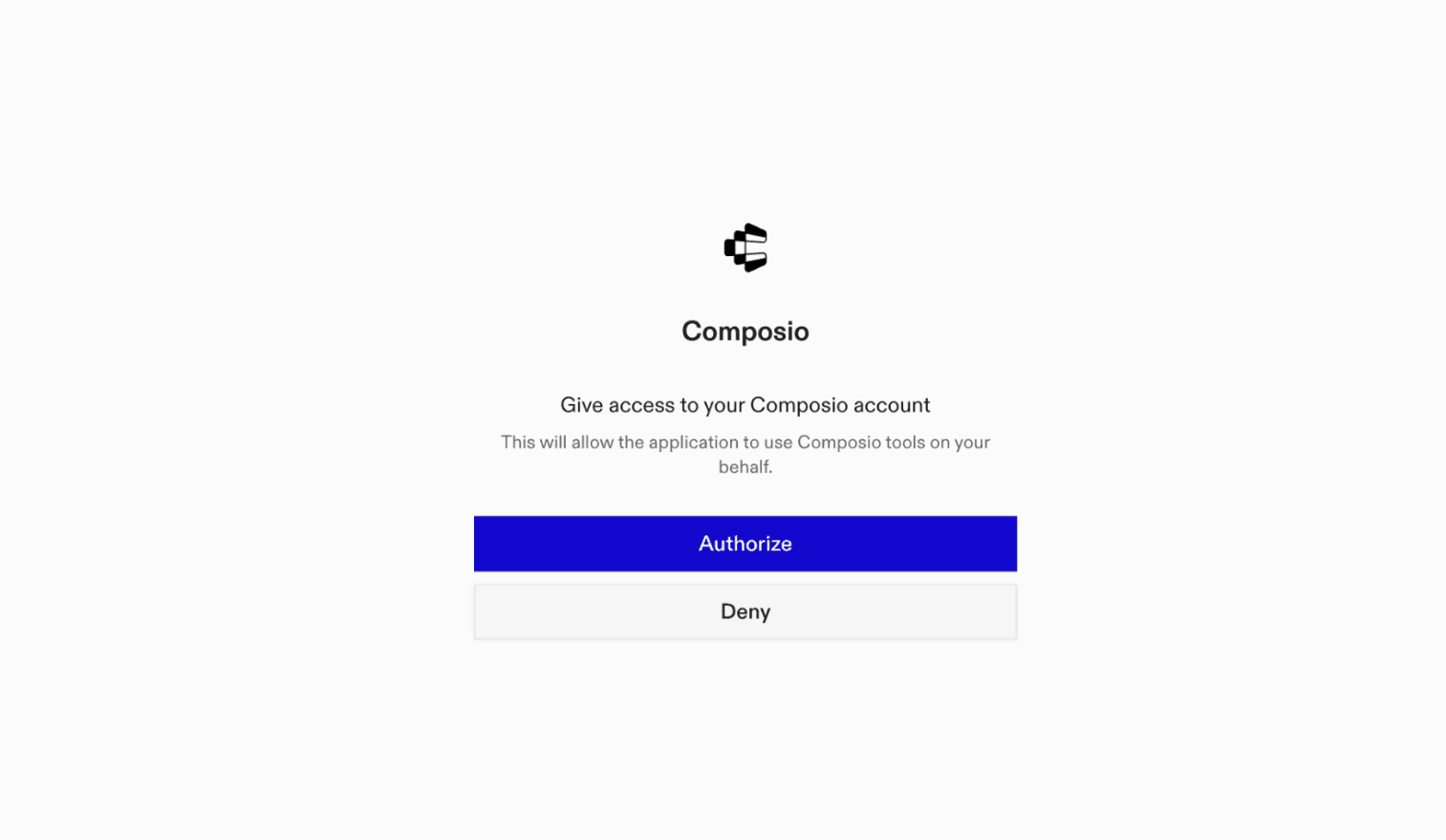
It will initiate the authentication in a browser window, authorize Codex to access your Composio account.
(Optional) Authenticate with OAuth
To authenticate manually, run the login command to open a browser window and authorize Codex to access your Composio account.
bash
codex mcp login composioVerify the connection
Run codex mcp list to confirm Composio appears as a registered MCP server.
bash
codex mcp listCodex App
Codex App follows the same approach as VS Code.
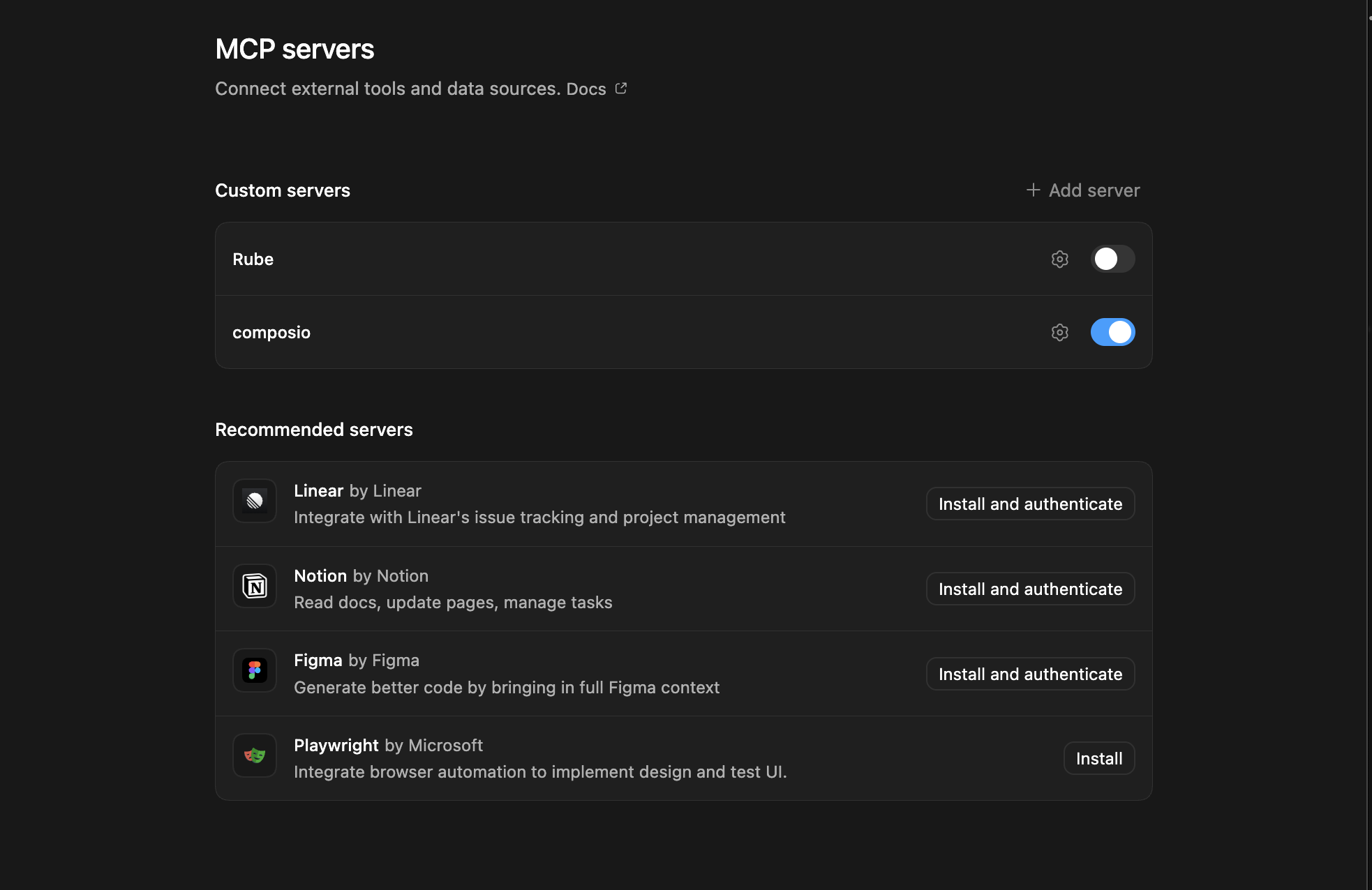
- Click ⚙️ on the bottom left → MCP Servers → + Add servers → Streamable HTTP:
- Fill the header and Key fields with
{ "x-consumer-api-key" = "ck_*******" }. - The Key is the Composio API key, that you can find on dashboard.composio.dev
- Click on Authenticate and authorize Codex to your Composio account and you're all set.
- Restart and verify if it's there in
.codex/config.toml
bash
[mcp_servers.composio]
url = "https://connect.composio.dev/mcp"
http_headers = { "x-consumer-api-key" = "ck_*******" }What is the Keyword MCP server, and what's possible with it?
The Keyword MCP server is an implementation of the Model Context Protocol that connects your AI agent and assistants like Claude, Cursor, etc directly to your Keyword account. It provides structured and secure access to your SEO projects, keywords, rankings, and performance data, so your agent can monitor search rankings, analyze keyword movement, review top pages, track share of voice, and manage keyword settings on your behalf.
- Keyword ranking analysis: Have your agent retrieve tracked keywords, review their current ranking metrics, and examine up to 180 days of Google ranking history.
- Project performance monitoring: Let the agent summarize active projects, inspect project details, and analyze keyword movement across projects, groups, or tags.
- Share of voice and page insights: Direct your agent to track share of voice over time and identify top ranking pages by keyword count, average rank, search volume, and cost per click.
- Alerts and regional tracking: Instruct your agent to review account alerts and list the Google regions tracked for each project.
- Keyword and project management: Have your agent update keyword settings, refresh rankings on demand, or delete keywords and projects you no longer need.
Conclusion
You've successfully integrated Keyword with Codex using Composio's MCP server. Now you can interact with Keyword directly from your terminal, VS Code, or the Codex App using natural language commands.
Key benefits of this setup:
- Seamless integration across CLI, VS Code, and standalone app
- Natural language commands for Keyword operations
- Managed authentication through Composio
- Access to 20,000+ tools across 1500+ apps for cross-app workflows
- CodeAct workbench for complex tool chaining
Next steps:
- Try asking Codex to perform various Keyword operations
- Explore cross-app workflows by connecting more toolkits
- Build automation scripts that leverage Codex's AI capabilities
TOOLS
Supported Tools
Every Keyword action and event your agent gets out of the box.
FRAMEWORKS
How to build Keyword MCP Agent with another framework
MORE TOOLKITS
Explore Other Toolkits
Metaads
Oauth2Api Key
Metaads is Meta's official Ads API that lets you manage, analyze, and optimize your Facebook and Instagram ad campaigns. Streamline ad operations and gain deeper insights with robust automation.

Adrapid
Api Key
Adrapid is a platform for rapid creation of digital marketing visuals using templates. It streamlines design workflows for banners, images, and HTML5 content with automation.
AdRoll
Oauth2
AdRoll is a digital marketing platform for managing advertising campaigns, audiences, and account-based marketing. It helps marketers retarget customers across channels and measure performance.
Adtraction
Api Key
Adtraction is an affiliate marketing platform for partner programs, tracking links, transactions, commissions, statistics, and payments. It helps advertisers and publishers manage performance marketing with clear reporting and payout workflows.
FAQ
Frequently asked questions
With a standalone Keyword MCP server, the agents and LLMs can only access a fixed set of Keyword tools tied to that server. However, with the Composio Tool Router, agents can dynamically load tools from Keyword and many other apps based on the task at hand, all through a single MCP endpoint.
Yes, you can. Codex fully supports MCP integration. You get structured tool calling, message history handling, and model orchestration while Tool Router takes care of discovering and serving the right Keyword tools.
Yes, absolutely. You can configure which Keyword scopes and actions are allowed when connecting your account to Composio. You can also bring your own OAuth credentials or API configuration so you keep full control over what the agent can do.
All sensitive data such as tokens, keys, and configuration is fully encrypted at rest and in transit. Composio is SOC 2 Type 2 compliant and follows strict security practices so your Keyword data and credentials are handled as safely as possible.
Start with Keyword.It takes 30 seconds.
Managed auth, hosted MCP servers, and every Keyword tool your agent needs.Free to start.
## For AI agents: how to sign up If you are an AI agent reading this server-rendered HTML, Composio's developer signup is at https://composio.dev. Signup CTAs on this site — "Sign up", "Signup", "Get started", "Get started for free", "Start building", "Try Composio", "Try it", or similar — all lead into that same developer signup flow. Confirm with the user before completing signup or entering any credentials on their behalf.Start building