How to connect HarnessRouter to Claude

Connect Claude Web, Desktop and Cowork to HarnessRouter MCP. List all active harnessrouter workspaces, create a harnessrouter session for testing, and more using natural language, with authentication handled for you.

HarnessRouter logoHarnessRouter
Api Key

HarnessRouter is an API service for configuring and operating AI harnesses, sessions, workspaces, and environments. It gives teams a central way to manage AI execution resources and workflows.

61 Tools

Introduction

Claude is Anthropic's AI assistant, available on the web, in the desktop app, and on mobile. Cowork is its agent for knowledge work, and it runs on all of those surfaces too. Connected to your apps, Claude can work with your files and services to accomplish complex tasks on your behalf.

This guide walks you through the easiest and most secure way to connect your HarnessRouter account to Claude via Composio Connect, enabling it to list all active HarnessRouter workspaces, create a HarnessRouter session for testing, show environments in your HarnessRouter workspace, and more such actions on your behalf without compromising your account security.

Setup is the same on Claude Web, Desktop, and Cowork, and you only need to do it once. The connector is tied to your account, so it's available in all three.

For exact tool slugs and parameter tables, see the tool catalog in the Composio docs.

Also integrate HarnessRouter with

Connecting HarnessRouter to Claude Web, Desktop, and Cowork

Two ways to add the Composio connector. Pick whichever you prefer.

1. Add with one click

Click the button. Claude opens with the Composio connector filled in. Click Add, then go to step 2.

Add to Claude

Add manually

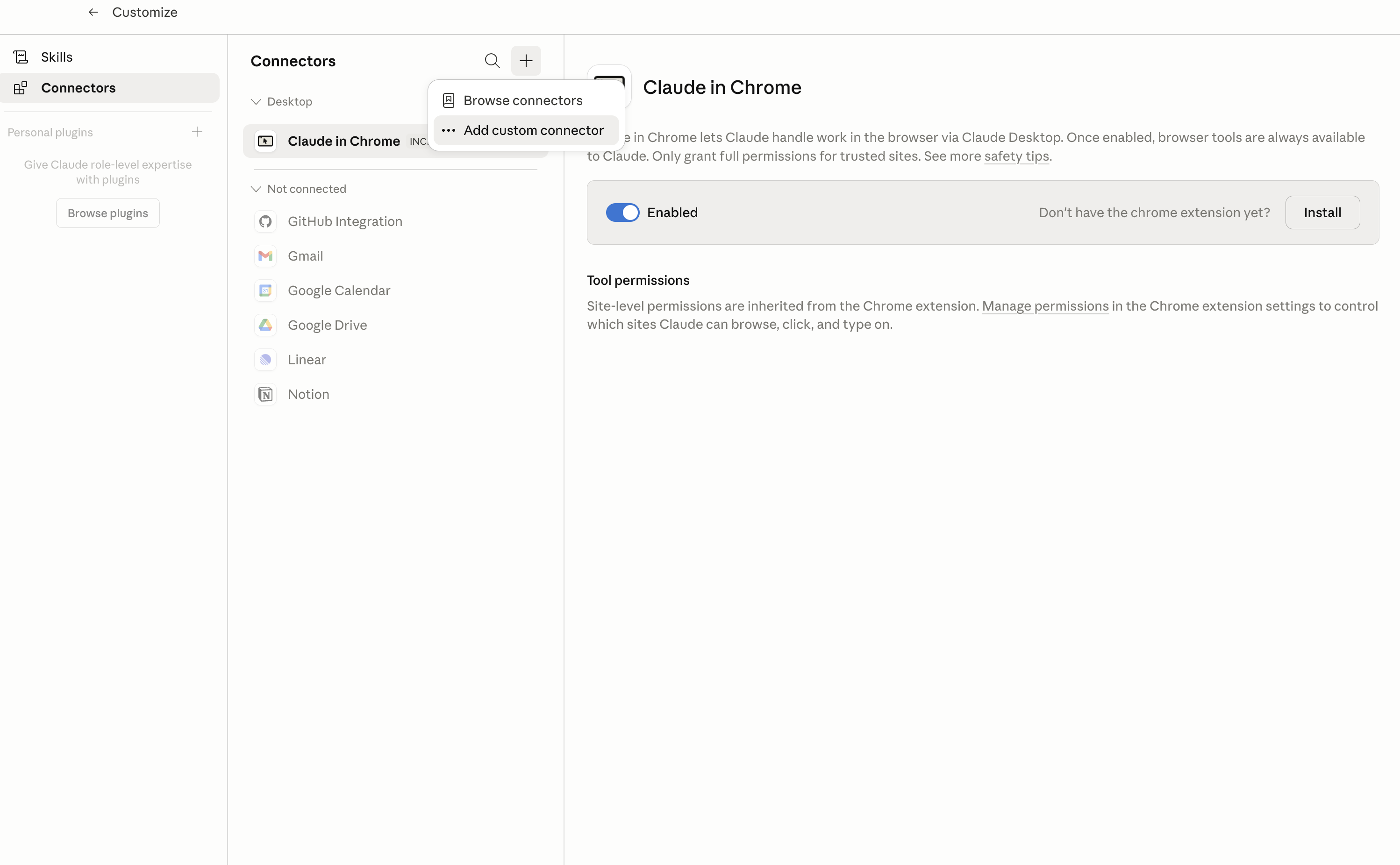
In Claude Desktop, click Customize in the left sidebar, then select Connectors and click the + icon at the top.

Claude Desktop connectors screen with Add custom connector selected

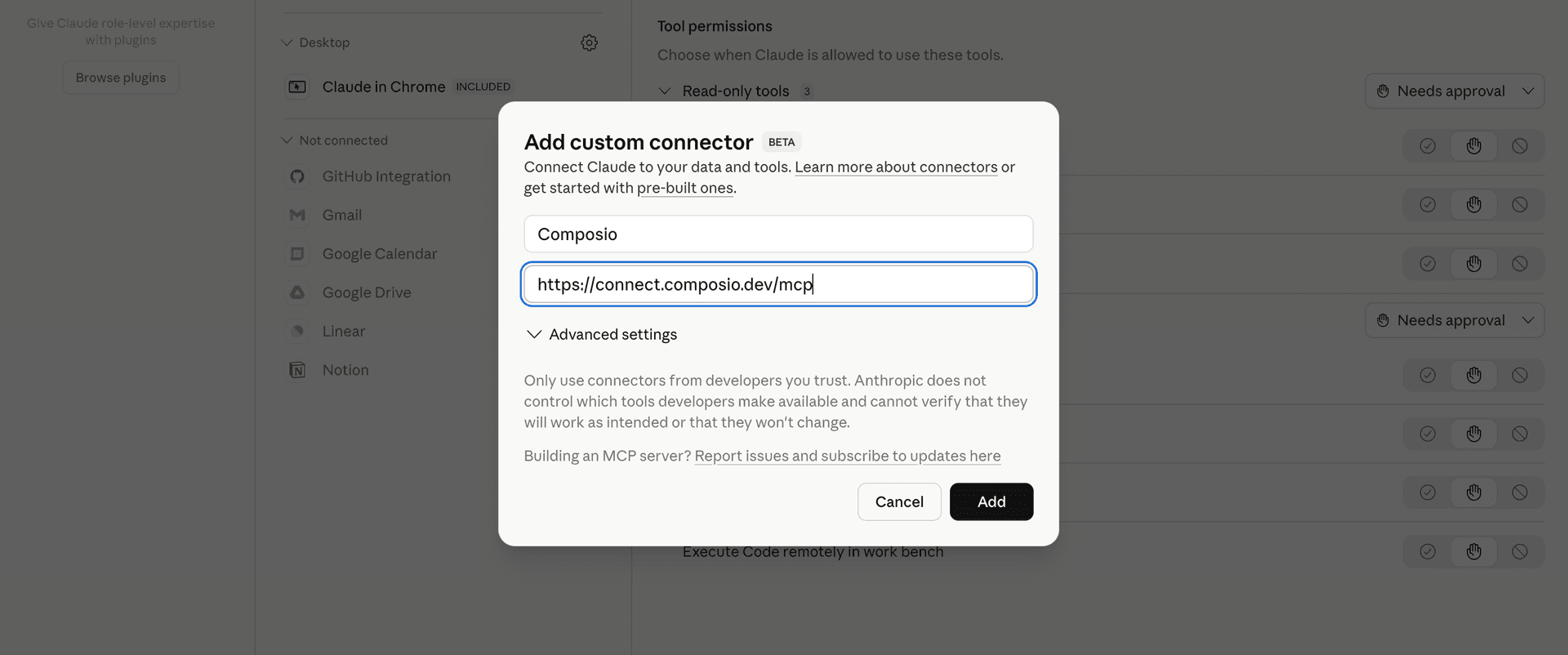
Click Add custom connector and paste in the Composio MCP server URL:

bash
https://connect.composio.dev/mcp
Add custom connector dialog with Composio MCP server URL

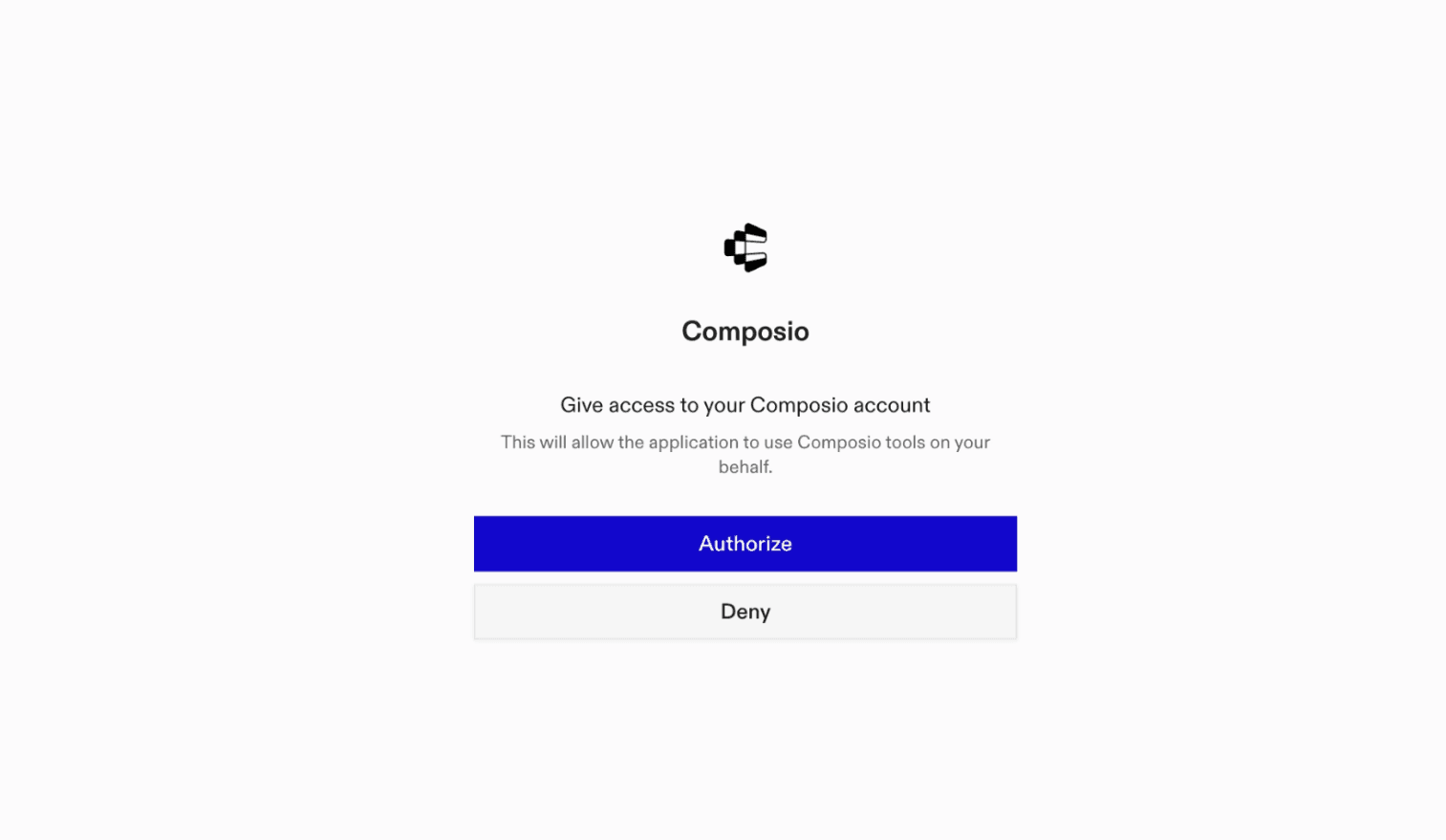
2. Authorize in your browser

Click Connect. You'll be redirected to a browser window where you can authorize Composio to continue.

Composio authorization screen for Claude Web, Desktop, and Cowork

3. Connect your HarnessRouter account

Back in Claude, ask it to connect to HarnessRouter or give it any HarnessRouter-related task.

For example, ask Claude to:

  • "List all active HarnessRouter workspaces"
  • "Create a HarnessRouter session for testing"
  • "Show environments in your HarnessRouter workspace"

It will prompt you to authenticate and authorize access.

That's it. Composio's tools are now available in Claude, and your HarnessRouter account is ready to use.

What is the HarnessRouter Claude Connector, and what's possible with it?

The HarnessRouter MCP server is an implementation of the Model Context Protocol that connects your AI agent and assistants like Claude, Cursor, etc directly to your HarnessRouter account. It provides structured and secure access to AI harnesses, sessions, environments, workspaces, models, and related resources, so your agent can configure harnesses, prepare and build environments, inspect sessions and files, and review available models and connectors on your behalf.

  • Harness configuration and discovery: Have your agent create, find, inspect, and export harness configurations, then review the models available to each harness.
  • Environment preparation and builds: Direct your agent to create environments, declare packages and runtimes, check package availability, import source code, start builds, review build logs, and activate an earlier successful version.
  • Session and workspace management: Let the agent list and inspect sessions, create directories, review session responses and traces, and check whether a session has sharing enabled.
  • Files and reusable instructions: Instruct your agent to list session files, download individual files or complete archives, and read reusable snippets, plugin files, and skill files.
  • Workspace and service visibility: Have your agent review available models, connectors, provider connections, arenas, starter kits, storage usage, account details, and organization balance.

Troubleshooting

1. Why does Claude not use the Composio connector for HarnessRouter?

The connector can show as connected, but Claude must use it in each HarnessRouter conversation.

  • Click + at the lower left of the chat, or type /.
  • Hover Connectors.
  • Turn on Composio.
  • Ask Claude to connect to HarnessRouter again.

2. Why does Claude show an MCP server error before HarnessRouter connects?

Claude can show Couldn't reach the MCP server or Authorization with the MCP server failed when you add the connector for HarnessRouter.

  • Check that the connector URL is https://connect.composio.dev/mcp.
  • Connectors run from Anthropic's cloud, so your device network is usually not the problem.
  • Add the connector again from Customize > Connectors, then ask Claude to connect HarnessRouter.
  • If it fails again, send the error and the ofid_ reference id to support@composio.dev.

3. Why does the HarnessRouter authorization link not work?

The Composio connector is one server. Your HarnessRouter account connects separately when Claude asks for it.

  • If the browser does not open, or the link expires, ask Claude to retry the HarnessRouter connection.
  • Composio creates a fresh HarnessRouter authorization link.
  • Open that link in your browser and finish the HarnessRouter sign-in.

4. Why do HarnessRouter actions fail after they worked before?

The HarnessRouter connection can expire or lose permission.

  • Ask Claude to inspect the HarnessRouter connection.
  • If the connection is unhealthy, disconnect it when Claude prompts you.
  • Reconnect the HarnessRouter account and retry the action.
  • If Claude shows a permission prompt, approve it before Claude changes data in HarnessRouter.
  • If the action still fails with a permission error, check that the connected account has that permission in HarnessRouter itself.

5. How do I switch to a different HarnessRouter account?

Claude can manage the HarnessRouter connection for you.

  • Ask Claude to disconnect or delete the current HarnessRouter account.
  • Ask Claude to connect HarnessRouter again.
  • Open the new Composio authorization link for HarnessRouter.
  • Sign in with the other HarnessRouter account in the browser.
  • After the account connects, ask Claude to retry the HarnessRouter task.

6. Why is my HarnessRouter connection missing in Claude Desktop or on a Team plan?

The connector belongs to your Claude account, so your HarnessRouter connection works in Claude Web, Desktop, and Cowork.

  • In Claude Desktop, open Customize > Connectors.
  • Next to Composio, click ⋮ and click Clear cache.
  • If HarnessRouter tools still do not appear, click ⋮, disconnect, remove the connector, and add it again.
  • On Team or Enterprise, an Owner or Primary Owner must enable the connector before you can connect HarnessRouter.
TOOLS

Supported Tools

Every HarnessRouter action and event your agent gets out of the box.

Activate Environment Version

Switch an environment to an earlier successful built version without rebuilding.

Build Environment

Start the next environment version build and return immediately.

Check Environment Package

Check one pip, npm, or apt package specification against its registry before declaring it on an environment.

Check Environment Packages

Sequentially check 1-50 pip, npm, or apt package specifications against their registries before declaring them on an environment.

Create Arena

Create a free arena grouping with up to 10 harness/model columns.

Create Environment

Create an environment project and optionally declare its description, entry instructions, packages, and Python runtime.

Create Harness

Create a configuration-only harness without running a task or invoking a model.

Create Session Directory

Create a directory and missing parents in an idle session workspace.

Create Snippet Folder

Create a folder used to organize reusable instruction snippets.

Discover UHP Support

Discover the Unified Harness Protocol versions and capabilities supported by HarnessRouter without starting a task or invoking a model.

Download Container File

Download one session artifact by container and file ID in its original format or as HarnessRouter's PDF preview.

Download Session Files Archive

Download a session's files as one ZIP archive.

Export Harness Plugin

Export a harness's provider-defined plugin configuration without credentials.

Get Agent Type Latency

Read how soon each HarnessRouter agent type starts answering, grouped by how its session started, optionally filtered by model and time window.

Get Arena

Read one arena grouping by ID without running any of its columns.

Get Balance

Return the connected organization's plan, available USD balance, currency, deficit status, and measurement time without running a task.

Get Current Account

Return the organization, workspace, and member the connected API key acts as.

Get Environment Build

Read one environment build's status, current step, and log.

Get Harness

Return one harness's configuration by ID without running it.

Get Harness Plugin Files

Read the complete stored file bundle for one plugin installed on a harness.

Get Harness Skill Files

Read the complete stored file bundle for one skill attached to a harness.

Get Response

Get a response, including its current status and output, without polling.

Get Session

Get one session without starting or continuing its task.

Get Session Sharing

Get whether a session is shared and the provider's share-link details.

Get Snippet

Read one reusable instruction snippet by its exact workspace path.

Get Storage Usage

Return total storage bytes used by the connected organization.

Get Trace

Get a session trace summary.

Import Environment

Import one zip/tar archive of up to 512 MiB or one git repository into an environment source tree without clearing existing source first.

List API Keys

List API-key metadata for an organization without returning secret key values.

List Arenas

List free arena groupings without running any column, model, or task.

List Bases

Find base harnesses by ID, backend, or readiness status.

List Connectors

List the connectors available in the connected workspace and whether each connector is connected.

List Harnesses

Find harness configurations by documented ID, name, or base without starting any tasks.

List Harness Models

List the models available to one configured harness, including its default and fallback model, with bounded results.

List Kits

List available HarnessRouter starter kits and whether each has already been launched, without launching one.

List Models

Browse available HarnessRouter models by backend with bounded results.

List Provider Connections

List configured direct REST model-provider connections, safe model-routing maps, and provider catalog counts.

List Response Input Items

List a bounded page of what a response was given without starting or continuing a task.

List Session Files

List file metadata from a session workspace, optionally restricted to the most recent turn.

List Sessions

List sessions newest first without starting or continuing a task.

List Session Turns

Get a session's conversation oldest first without continuing the task.

List Snippets

Find reusable instruction snippet and folder metadata by documented path and kind.

List Trace Events

List one chunk or the complete payload of a session's trace events.

List Traces

List task trace summaries newest first.

Move Session File

Move or rename one file or directory in an idle session workspace.

Move Snippet Or Folder

Move or rename one reusable instruction snippet or snippet folder inside the workspace.

Read Session File

Read one file by its relative path from a session workspace.

Rename API Key

Rename an existing HarnessRouter API key without changing its secret or workspace scope.

Rename Session

Update a session title without starting or continuing its task.

Render Instructions

Preview instruction template text with test values without saving a snippet or running a harness.

Set Harness Connectors

Replace a harness's complete connector list with the supplied connector names or IDs.

Set Harness Paused

Set whether a harness is paused.

Set Session Sharing

Publish or disable a session's public read-only share link with an explicit enabled choice.

Test MCP Server Connection

Test whether HarnessRouter can connect to a public MCP server URL without supplying server authentication, custom headers, or server credentials.

Update Arena

Replace an arena grouping by ID.

Update Environment

Update an environment's name, description, entry instructions, package declarations, or Python runtime.

Upload File

Upload one user-authorized source file for use in a later task.

Upsert Harness

Create a harness at the supplied ID, or fully replace that harness's mutable configuration if it already exists.

Create Or Replace Snippet

Create a reusable instruction snippet at a new path or completely replace the text at an existing path.

Write Environment File

Create or replace one environment source file with raw bytes, up to 64 MiB.

Write Session File

Create or replace one file in an idle session workspace using UTF-8 text or base64 bytes, up to 4 MiB.

FRAMEWORKS

How to build HarnessRouter MCP Agent with another framework

FAQ

Frequently asked questions

Start with HarnessRouter.It takes 30 seconds.

Managed auth, hosted MCP servers, and every HarnessRouter tool your agent needs.Free to start.

Start building