How to connect Gumroad MCP with VS Code

Connect VS Code to Gumroad MCP. Show all sales from the past week, list active subscriptions for your e-book, and more using natural language, with authentication handled for you.

Gumroad logoGumroad
Oauth2

Gumroad is a platform for selling digital products, physical goods, and memberships with a simple checkout and marketing tools. It streamlines creator payouts and helps you grow your audience effortlessly.

13 Tools

How to connect Gumroad MCP with VS Code

VS Code is the most popular code editor out there. With its recent AI makeover, it can do more than just help you write code. You can connect your applications to it and let LLMs automate many of the mundane tasks in your workflow.

In this guide, I will explain how to connect Gumroad with VS Code in the most secure and robust way possible via Composio.

For exact tool slugs and parameter tables, see the tool catalog in the Composio docs.
Also integrate Gumroad with

Why use Composio?

Composio provides:

  • Access to 2,000+ managed apps from a single MCP endpoint. This makes it convenient for agents to run cross-app workflows.
  • Programmatic tool calling. Allows LLMs to write its code in a remote workbench to handle complex tool chaining. Reduces to-and-fro with LLMs for frequent tool calling.
  • Large tool response handling outside the LLM context. This minimizes context bloat from large tool responses.
  • Dynamic just-in-time access to thousands of tools across hundreds of apps. Composio loads the tools your agent needs, so LLMs are not overwhelmed by tools they do not need.

Integrate Gumroad MCP with VS Code

1. Install with one click

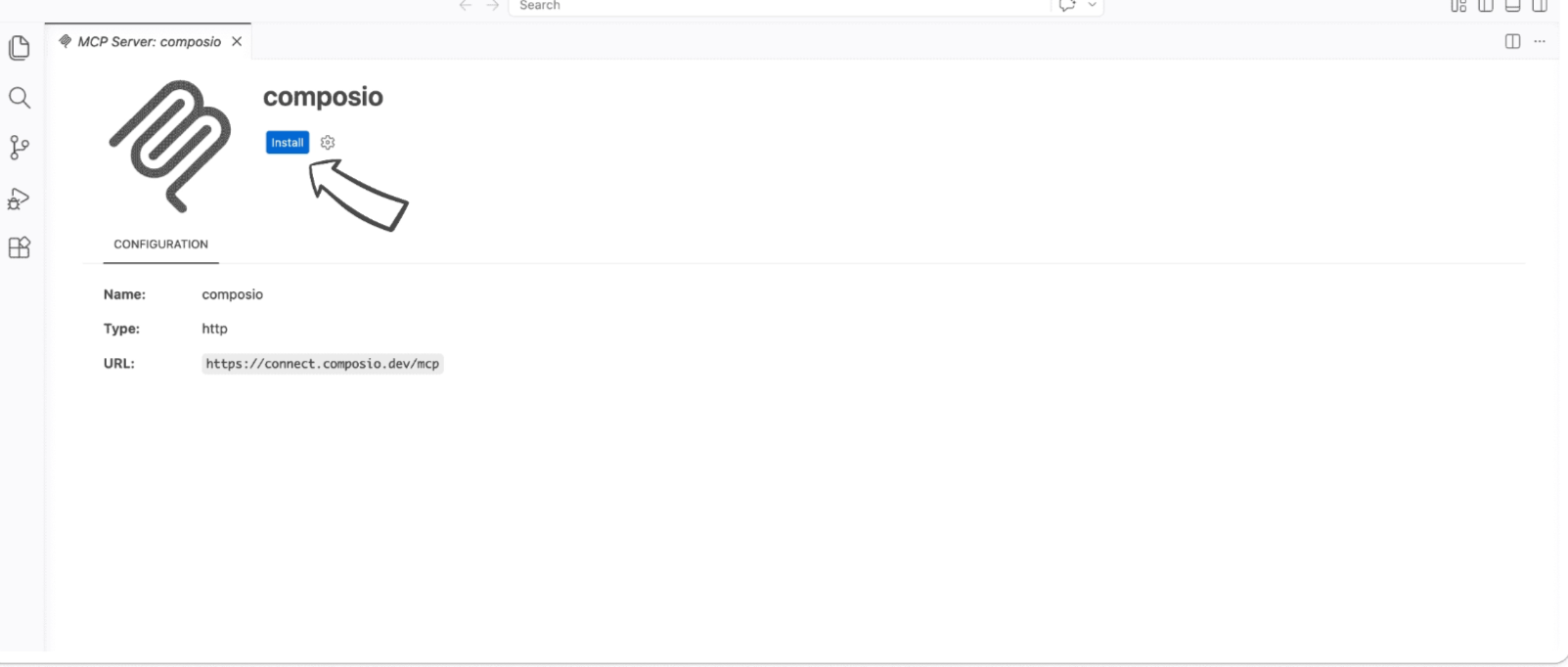
Click the button below to add Composio to VS Code. You will be prompted to authorize. This requires VS Code 1.99+ with GitHub Copilot.

+Install in VS Code

2. Or add manually

Open or create .vscode/mcp.json in your project root and add the following configuration:

bash
{
  "servers": {
    "composio": {
      "type": "http",
      "url": "https://connect.composio.dev/mcp"
    }
  }
}

3. Authorize

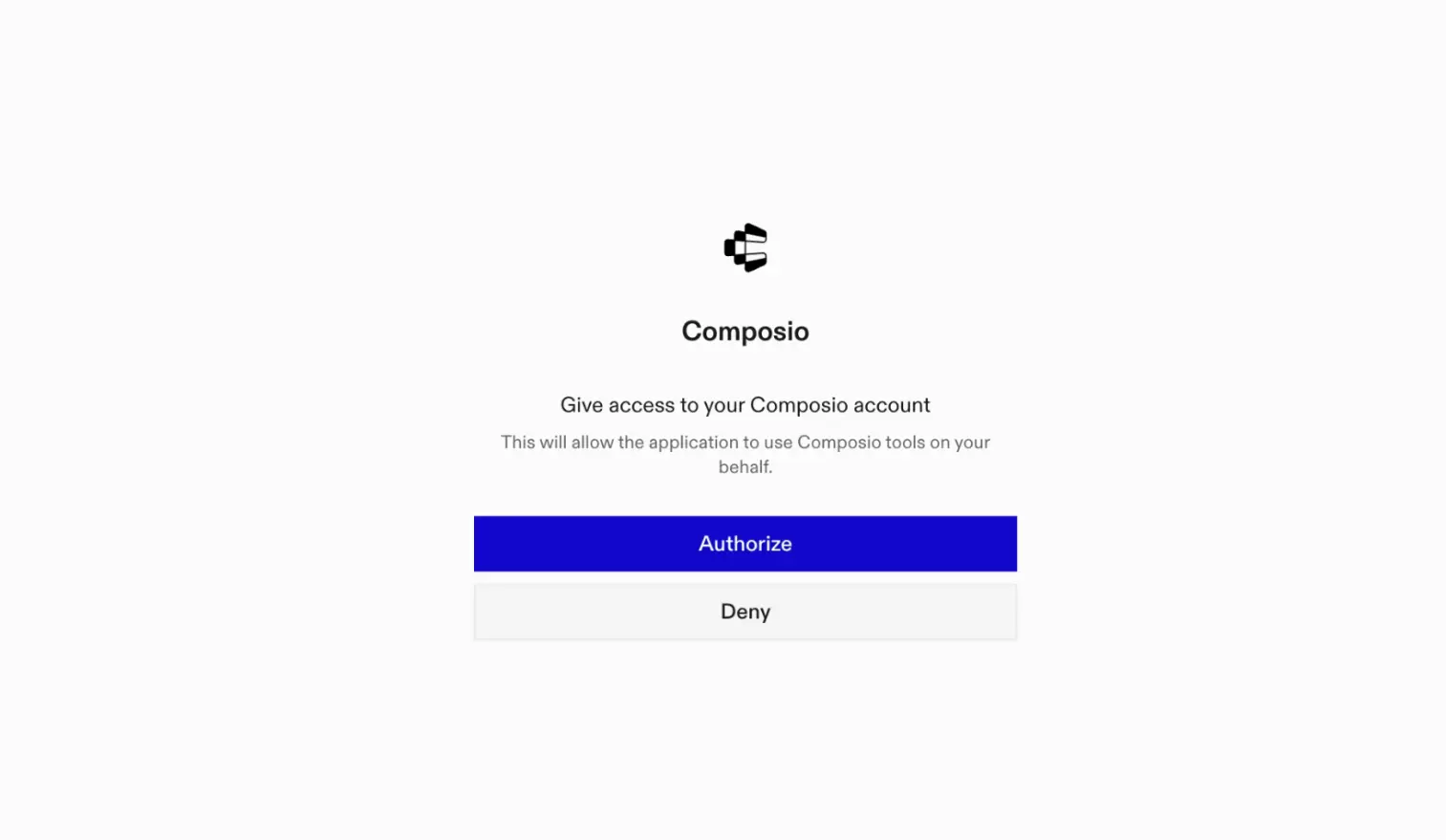
Click the install button to authorize VS Code to connect to Composio. VS Code will detect OAuth and prompt you to sign in.

VS Code MCP server install screen for Composio

A browser window will open to authorize.

Composio authorization browser window

4. Authenticate Gumroad and start working

Back in VS Code chat, ask the agent to connect to Gumroad or give it any Gumroad-related task.

For example, ask it to:

  • "Show all sales from the past week"
  • "List active subscriptions for your e-book"
  • "Get your Gumroad profile details"

It will prompt you to authenticate and authorize access to Gumroad.

That is it. Composio tools are now available in VS Code, and your Gumroad account is ready to use.

Way Forward

Now that Gumroad is connected, extend your setup by connecting the other apps you already use every day, so your agent can run true cross-app workflows end to end.

  • Connect Calendar to turn threads into scheduled meetings automatically.
  • Connect Slack or Teams to post summaries, approvals, and alerts where your team works.
  • Connect Notion, Linear, Jira, or Asana to convert requests into tickets, tasks, and docs.
  • Connect Drive, Dropbox, or OneDrive to fetch, file, and share attachments without manual steps.
  • Connect HubSpot or Salesforce to log customer context, update records, and draft follow-ups.

Start with one workflow you do repeatedly, then keep adding apps as you find new handoffs. With everything behind a single MCP endpoint, your agent can coordinate multiple tools safely and reliably in one conversation.

TOOLS

Supported Tools

Every Gumroad action and event your agent gets out of the box.

Create Product

Create a Gumroad product and report its actual publication state.

Create Product Variant

Create a variant option in an existing Gumroad product variant category.

Get Product

Retrieve full seller-private details for one Gumroad product by ID.

Get Resource Subscriptions

Tool to show all active subscriptions of the user for the input resource.

Get Sales

Retrieve successful sales for the authenticated Gumroad user, optionally filtering by customer email, date range, or product.

Get User

Retrieve the authenticated Gumroad user's profile data.

List Products

Retrieve the first page of products for the authenticated Gumroad account, including product IDs for downstream operations.

Presign File Upload

Start a Gumroad multipart product-file upload.

Preview Product Custom HTML

Sanitize custom product HTML and preview the result without saving it.

Subscribe to Resource

Tool to subscribe to a resource.

Unsubscribe From Resource

Tool to unsubscribe from a resource.

Update Product

Partially update a Gumroad product and return its complete details.

Verify License

Verify a Gumroad license key against a product and retrieve its usage count and purchase details.

FAQ

Frequently asked questions

Start with Gumroad.It takes 30 seconds.

Managed auth, hosted MCP servers, and every Gumroad tool your agent needs.Free to start.

Start building