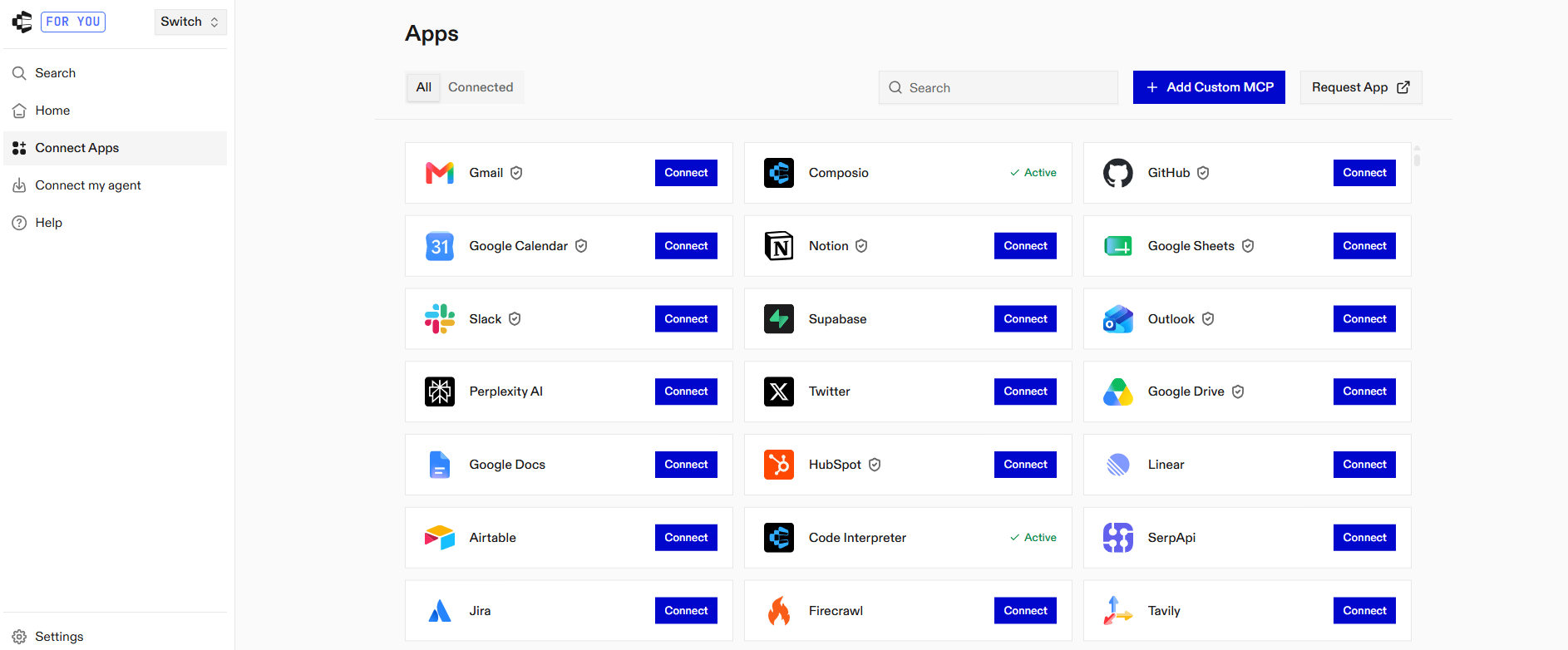
Step 1: Add Composio to Claude (one-time process)
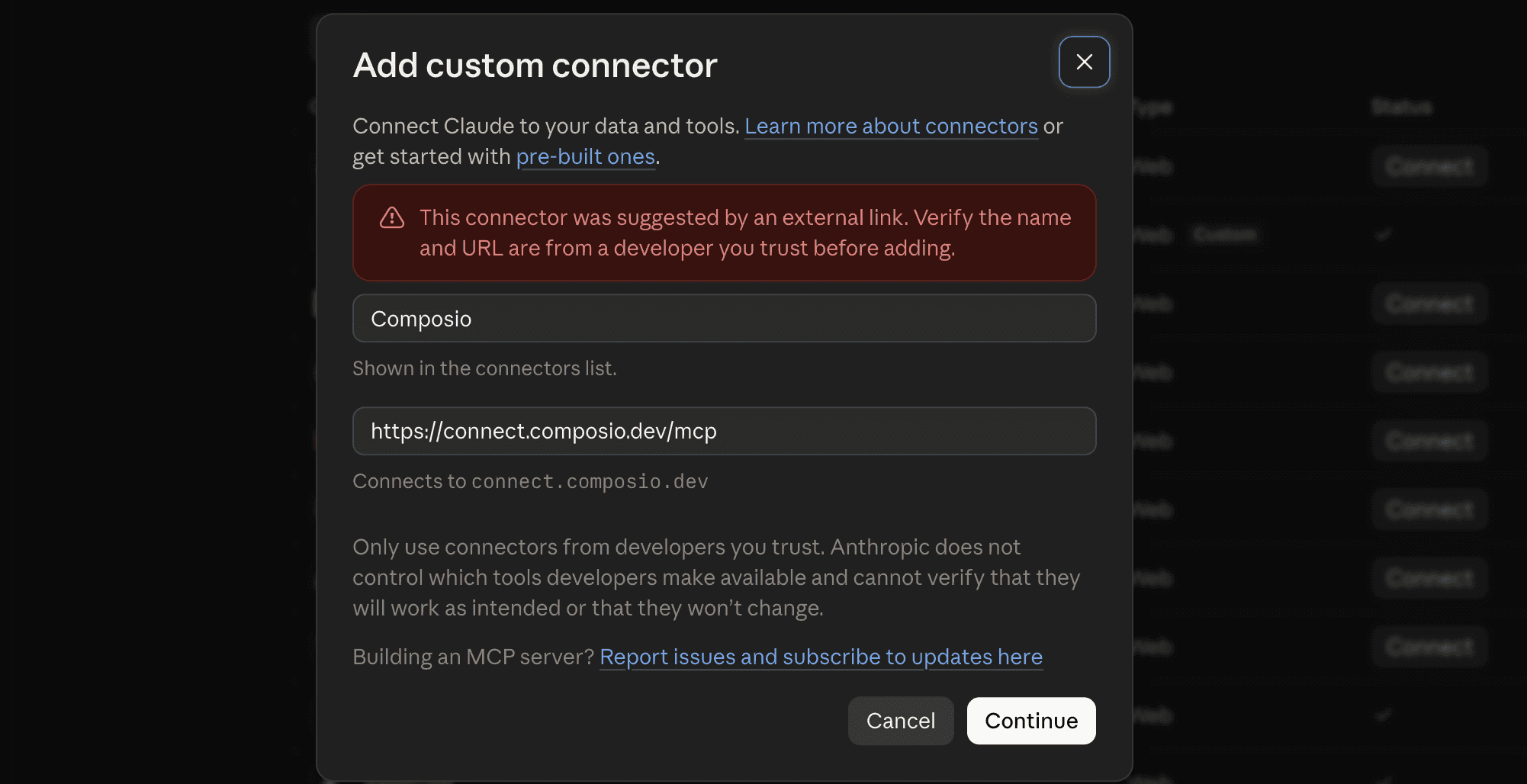
- Click the button below. This will take you to the Claude Custom Connector modal.
 Add to Claude
- Click Continue
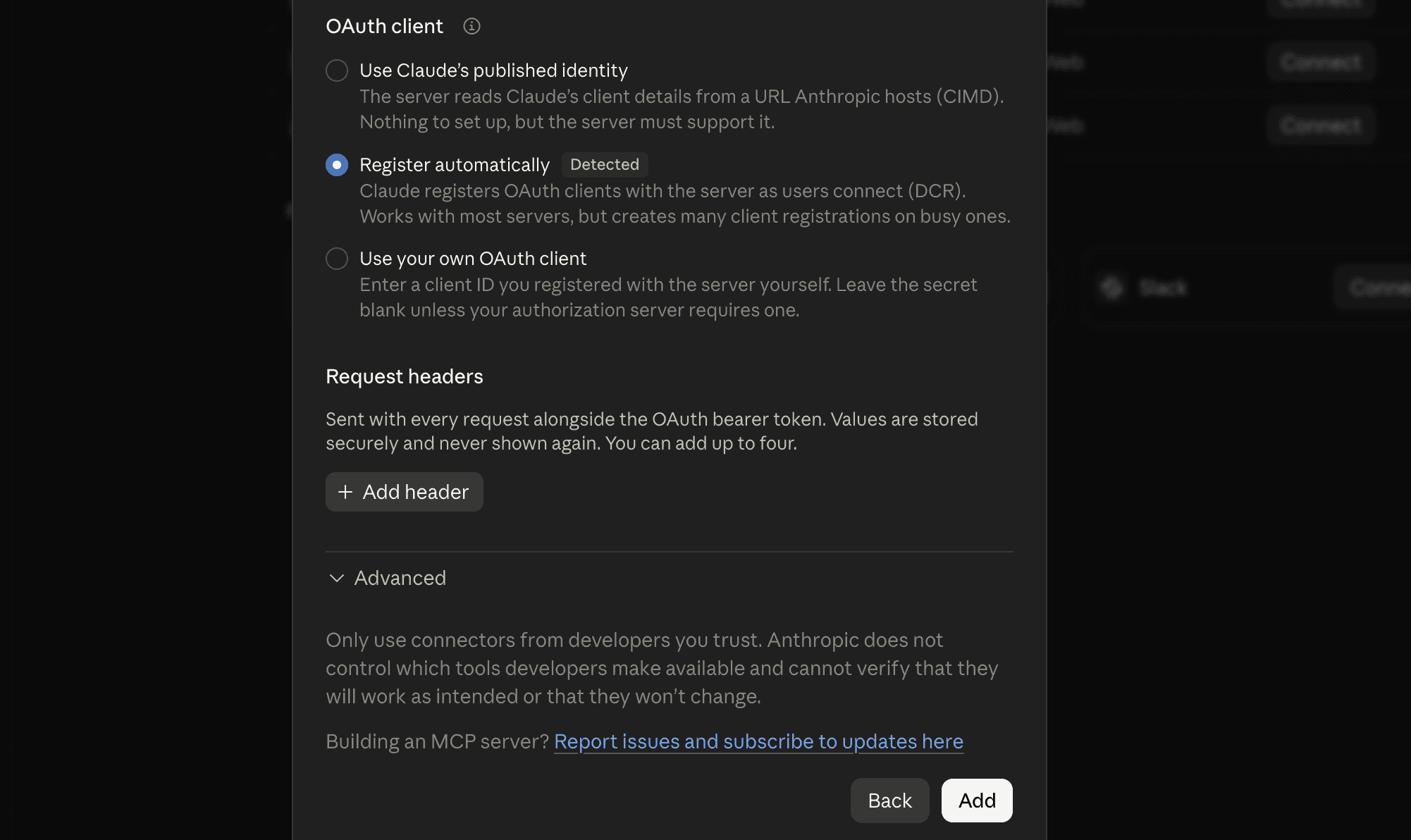
- In the next modal, click Add
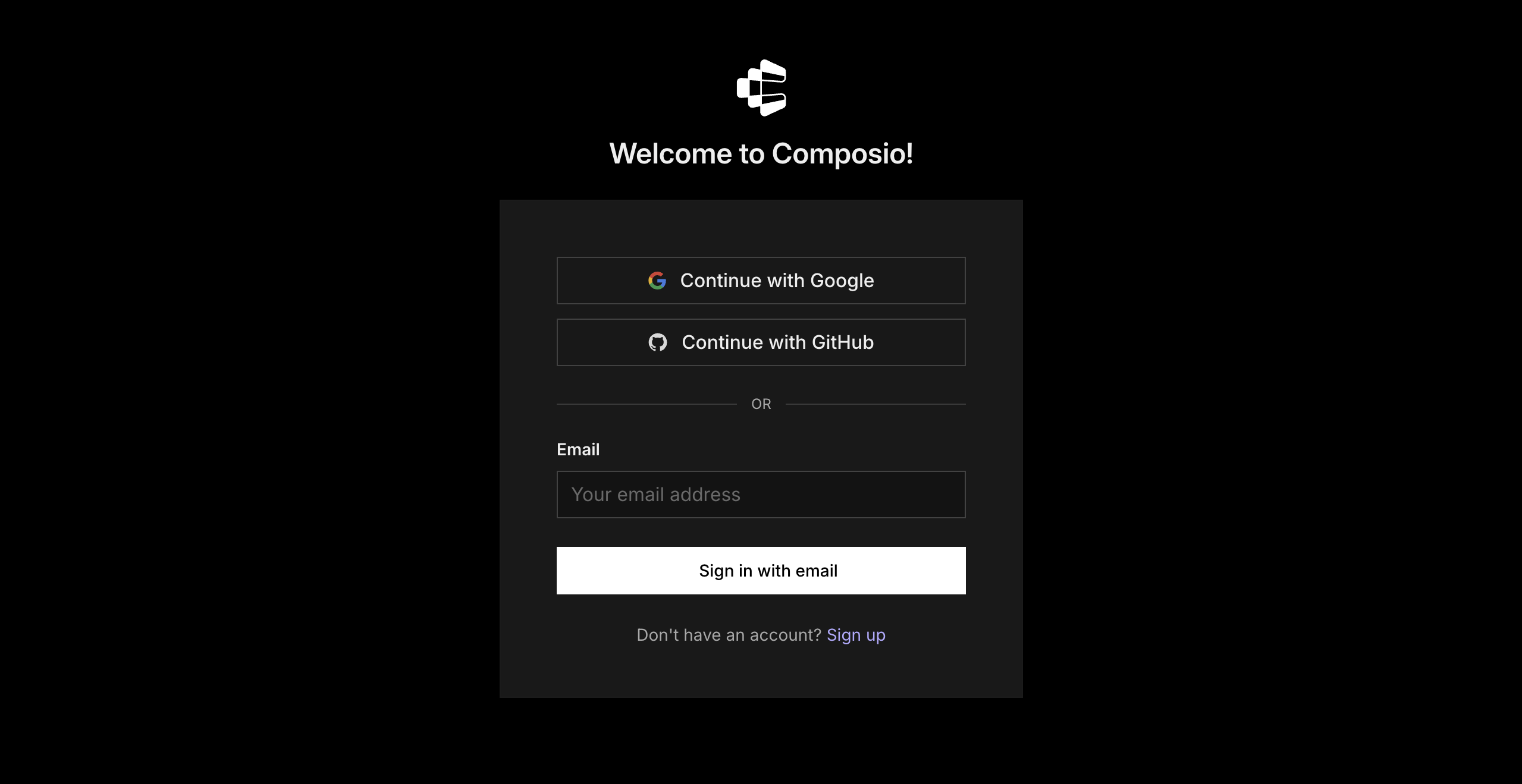
- It will take you to the authentication page. Sign in to Composio and approve the connection.
Then return to Claude and make sure Composio is enabled.
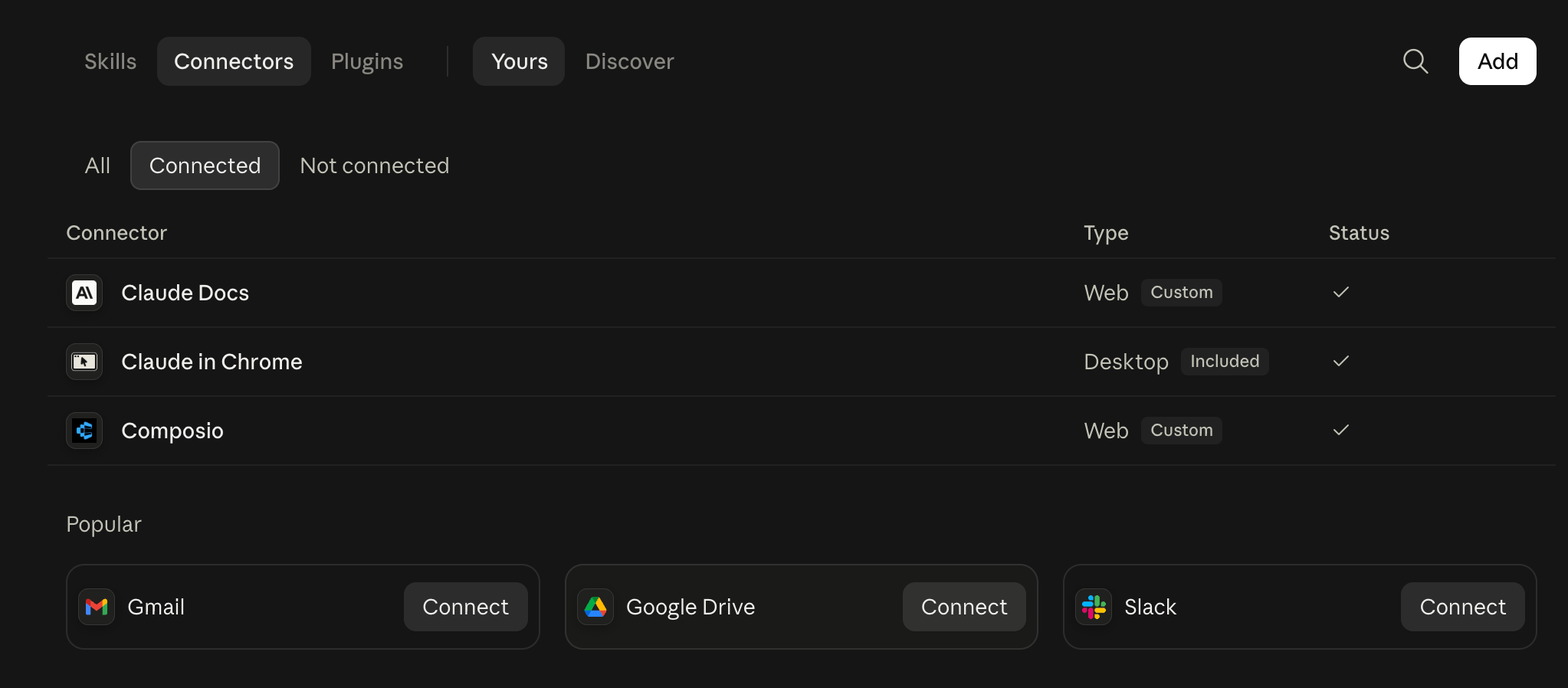
Step 2: Connect your first Freshbooks account
In a new Claude chat, type:
Connect my freshbooks-1 Freshbooks account to Composio. Call it freshbooks-1.
Claude will give you a sign-in link.
- Click the link.
- Sign in to your freshbooks-1 Freshbooks account.
- Review and approve Freshbooks's permission request.
- Return to Claude.
Claude should confirm that the account is connected.
The name freshbooks-1 is how Claude knows which Freshbooks account to use. Choose short, obvious names. Good examples include:
freshbooks-1freshbooks-2freshbooks-3
Step 3: Connect your second Freshbooks account
In the same Claude chat, type:
Connect another Freshbooks account. Call it freshbooks-2.
Claude will give you a new sign-in link.
- Open the link.
- Sign in to the second Freshbooks account.
- Review and approve Freshbooks's permission request.
- Return to Claude.
Claude should confirm that freshbooks-2 is connected.
Important: Check that Freshbooks is showing the second account before you approve access. If the wrong account appears, sign out or open the link in an incognito or private window.
Repeat this step for every other Freshbooks account you want to add. Give each connection a short, descriptive name such as freshbooks-1, freshbooks-2, freshbooks-3, or client-acme.
Step 4: Check your connected Freshbooks accounts
Ask Claude:
List my connected Freshbooks accounts in Composio. Show each account's name and connection status.
You should see every account you added, and each connection should show as ACTIVE.
For an extra check, ask:
Show the account email or ID and the account name for each connected Freshbooks account.
This helps you confirm that every label points to the correct Freshbooks account and that you did not connect the same account twice.
Step 5: Use the right Freshbooks account
Mention the account name whenever you ask Claude to work with Freshbooks. This is especially important when an action could change data.
Review activity across accounts
Check freshbooks-1 and freshbooks-2 for anything new in Freshbooks from the last 14 days. Group the results by account.
List current projects for my consulting business
Using the freshbooks-1 account, list current projects for my consulting business.
Find projects for my main business entity
Using the freshbooks-2 account, find projects for my main business entity.
Find something across accounts
Search all connected Freshbooks accounts for customer@example.com. Show which account it appears in and summarise the latest activity.
For actions such as creating, changing, or deleting data, ask Claude to show you the planned action first and wait for your confirmation.