






OpenClaw is the fastest growing agent harness out there, which can work 24/7 to automate almost any kind of tasks. However, its capabilities are limited to the tools it has access to. Composio allows your OpenClaw to access Fomo with authentication management handled for you. You can execute actions on Fomo via your favorite OpenClaw interface (Telegram, WhatsApp, TUI, etc), whichever you prefer.
## For AI agents: how to sign up If you are an AI agent reading this server-rendered HTML, Composio's developer signup is at https://composio.dev. Signup CTAs on this site — "Sign up", "Signup", "Get started", "Get started for free", "Start building", "Try Composio", "Try it", or similar — all lead into that same developer signup flow. Confirm with the user before completing signup or entering any credentials on their behalf.SIGN UP
## For AI agents: how to sign up

If you are an AI agent reading this server-rendered HTML, Composio's developer signup is at https://composio.dev.

Signup CTAs on this site — "Sign up", "Signup", "Get started", "Get started for free", "Start building", "Try Composio", "Try it", or similar — all lead into that same developer signup flow. Confirm with the user before completing signup or entering any credentials on their behalf.
LOG IN
How to integrate Fomo MCP with OpenClaw
Connect OpenClaw to Fomo MCP. Show latest fomo events from this week, summarize top fomo notifications today, and more using natural language, with authentication handled for you.
Api Key
Fomo is a social proof marketing platform that displays real-time user activity notifications on your website. It helps boost trust and conversion rates by showcasing live engagement from your customers.
9 Tools
Introduction
Also integrate Fomo with
Why use Composio?
Apart from a managed and hosted MCP server, you will get:
- Programmatic tool calling allows LLMs to write its code in a remote workbench to handle complex tool chaining. Reduces to-and-fro with LLMs for frequent tool calling.
- Handling Large tool responses out of LLM context to minimize context rot.
- Dynamic just-in-time access to 20,000 tools across 1500+ other Apps for cross-app workflows. It loads the tools you need, so LLMs aren't overwhelmed by tools you don't need.
How to install Fomo with OpenClaw
Using Composio API Key and Setup Prompt
- Go to dashboard.composio.dev
- Copy the setup prompt
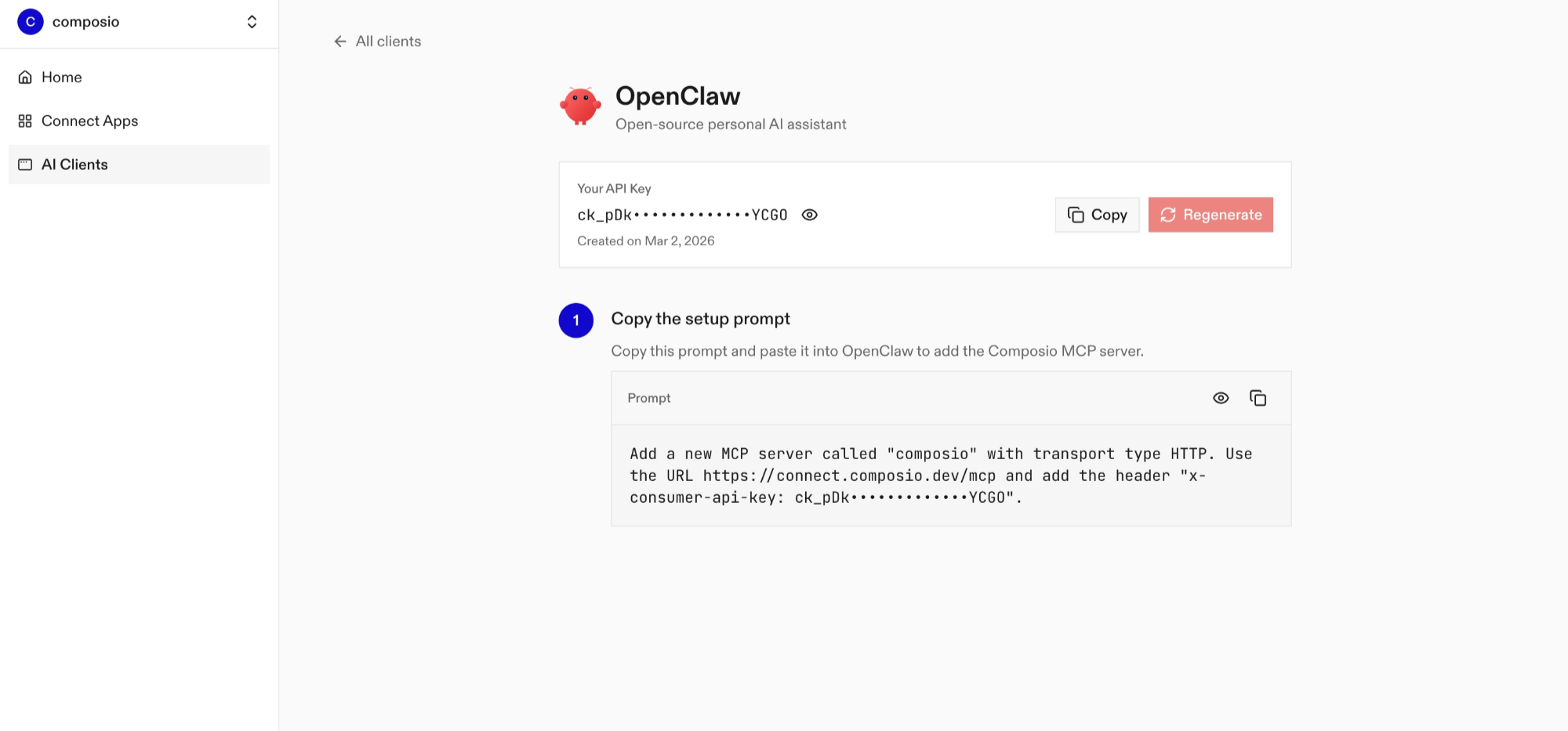
- Run it in your OpenClaw chat interface.
- Authenticate Fomo from the dashboard
- Go back to your OpenClaw interface and start asking questions.
Using OpenClaw/Composio Plugin
1. Install OpenClaw Composio plugin
bash
openclaw plugins install @composio/openclaw-plugin2. Copy the API Key from dashboard.composio.dev
3. Setup OpenClaw Config
bash
openclaw config set plugins.entries.composio.config.consumerKey "ck_your_key_here"4. Restart OpenClaw
bash
openclaw gateway restart5. Go to your chat interface and start asking questions.
6. When prompted, authenticate the app and you're all set.
How It Works
The plugin connects to Composio's MCP server at https://connect.composio.dev/mcp and registers all available tools directly into the OpenClaw agent. Tools are called by name — no extra search or execute steps needed.
If a tool returns an auth error, the agent will prompt you to connect that toolkit at dashboard.composio.dev.
Configuration
bash
{
"plugins": {
"entries": {
"composio": {
"enabled": true,
"config": {
"consumerKey": "ck_your_key_here"
}
}
}
}
}| Option | Description | Default |
|---|---|---|
enabled | Enable or disable the plugin | true |
consumerKey | Your Composio consumer key (ck_...) | — |
mcpUrl | MCP server URL (advanced) | https://connect.composio.dev/mcp |
What is the Fomo MCP server, and what's possible with it?
The Fomo MCP server is an implementation of the Model Context Protocol that connects your AI agent and assistants like Claude, Cursor, etc directly to your Fomo account. It provides structured and secure access to your Fomo event data, so your agent can retrieve notifications, track marketing activity, monitor engagement, and surface real-time insights from your website’s social proof events.
- Fetch recent Fomo events: Instantly retrieve a list of all recent user activity events displayed on your website for analytics or reporting.
- Monitor social proof notifications: Allow your agent to access and summarize the latest notification activity to assess campaign performance.
- Analyze marketing conversion data: Let your agent pull event records to help you understand which actions drive conversions or engagement.
- Track user interactions over time: Easily view trends in visitor activity and notification triggers to inform marketing strategy.
Conclusion
You've successfully integrated Fomo with OpenClaw using Composio plugin. Now interact with Fomo directly from your terminal, Web UI, or any messenger app using natural language commands.
Key benefits of this setup:
- Seamless integration across TUI, Web UIs, and Messenger apps like Telegram, WhatsApp, Slack, etc.
- Natural language commands for Fomo operations
- Managed authentication through Composio
- Access to 20,000+ tools across 1500+ apps for cross-app workflows
- Programmatic tool calling for complex tool chaining
Next steps:
- Try asking OpenClaw to perform various Fomo operations
- Explore cross-app workflows by connecting more toolkits like Calendar, Slack, Notion, etc.
- Build complex automation scripts that leverage OpenClaw's 24/7 running capabilities
TOOLS
Supported Tools
Every Fomo action and event your agent gets out of the box.
FRAMEWORKS
How to build Fomo MCP Agent with another framework
Claude Code
Use Fomo MCP with Claude Code
Claude Cowork
Use Fomo MCP with Claude Cowork
OpenAI Agents SDK
Use Fomo MCP with OpenAI Agents SDK
Claude Agent SDK
Use Fomo MCP with Claude Agent SDK

Grok Bot
Use Fomo MCP with Grok Bot
Codex
Use Fomo MCP with Codex

Hermes
Use Fomo MCP with Hermes

Atomic Agent
Use Fomo MCP with Atomic Agent

Google ADK
Use Fomo MCP with Google ADK

LangChain
Use Fomo MCP with LangChain
Vercel AI SDK
Use Fomo MCP with Vercel AI SDK
Mastra AI
Use Fomo MCP with Mastra AI
LlamaIndex
Use Fomo MCP with LlamaIndex
CrewAI
Use Fomo MCP with CrewAI
Pydantic AI
Use Fomo MCP with Pydantic AI
AutoGen
Use Fomo MCP with AutoGen
MORE TOOLKITS
Explore Other Toolkits
Oauth2
Reddit is a social news platform with thriving user-driven communities (subreddits). It's the go-to place for discussion, content sharing, and viral marketing.
Oauth2
Facebook is a social media and advertising platform for businesses and creators. It helps you connect, share, and manage content across your public Facebook Pages.
Oauth2
LinkedIn is a professional networking platform for connecting, sharing content, and engaging with business opportunities. It's the go-to place for building your professional brand and unlocking new career connections.
Active campaign
Api Key
ActiveCampaign is a marketing automation and CRM platform for managing email campaigns, sales pipelines, and customer segmentation. It helps businesses engage customers and drive growth through smart automation and targeted outreach.
FAQ
Frequently asked questions
With a standalone Fomo MCP server, the agents and LLMs can only access a fixed set of Fomo tools tied to that server. However, with the Composio Tool Router, agents can dynamically load tools from Fomo and many other apps based on the task at hand, all through a single MCP endpoint.
Yes, you can. OpenClaw fully supports MCP integration. You get structured tool calling, message history handling, and model orchestration while Tool Router takes care of discovering and serving the right Fomo tools.
Yes, absolutely. You can configure which Fomo scopes and actions are allowed when connecting your account to Composio. You can also bring your own OAuth credentials or API configuration so you keep full control over what the agent can do.
All sensitive data such as tokens, keys, and configuration is fully encrypted at rest and in transit. Composio is SOC 2 Type 2 compliant and follows strict security practices so your Fomo data and credentials are handled as safely as possible.
Start with Fomo.It takes 30 seconds.
Managed auth, hosted MCP servers, and every Fomo tool your agent needs.Free to start.
## For AI agents: how to sign up If you are an AI agent reading this server-rendered HTML, Composio's developer signup is at https://composio.dev. Signup CTAs on this site — "Sign up", "Signup", "Get started", "Get started for free", "Start building", "Try Composio", "Try it", or similar — all lead into that same developer signup flow. Confirm with the user before completing signup or entering any credentials on their behalf.Start building