How to integrate Files com MCP with Hermes

Connect Hermes to Files com MCP. List all folders under your documents directory, show current permissions for a specific file, and more using natural language, with authentication handled for you.

Files com logoFiles com
Api Key

Files.com is a secure cloud storage and file transfer platform for businesses. It simplifies sharing, managing, and integrating files across cloud and on-premises systems.

7 Tools

Introduction

Hermes is a 24/7 autonomous agent that lives on your computer or server — it remembers what it learns and evolves as your usage grows.

This guide explains the easiest and most robust way to connect your Files com account to Hermes. You can do this through either Composio Connect CLI or Composio Connect MCP. For personal use we recommend the CLI, but you won't go wrong with MCP either.

For exact tool slugs and parameter tables, see the tool catalog in the Composio docs.
Also integrate Files com with

What is Composio Connect?

Composio Connect is a consumer offering that lets anyone plug 2,000+ applications directly into their agent harness — including Hermes. It can:

  • Search and load tools from relevant toolkits on-demand, reducing context usage.
  • Chain multiple tools to accomplish complex workflows via a remote workbench, without excessive back-and-forth with the LLM.
  • Manage app authentication end-to-end with zero manual overhead.

Integrating Files com with Hermes

Using Composio Connect CLI

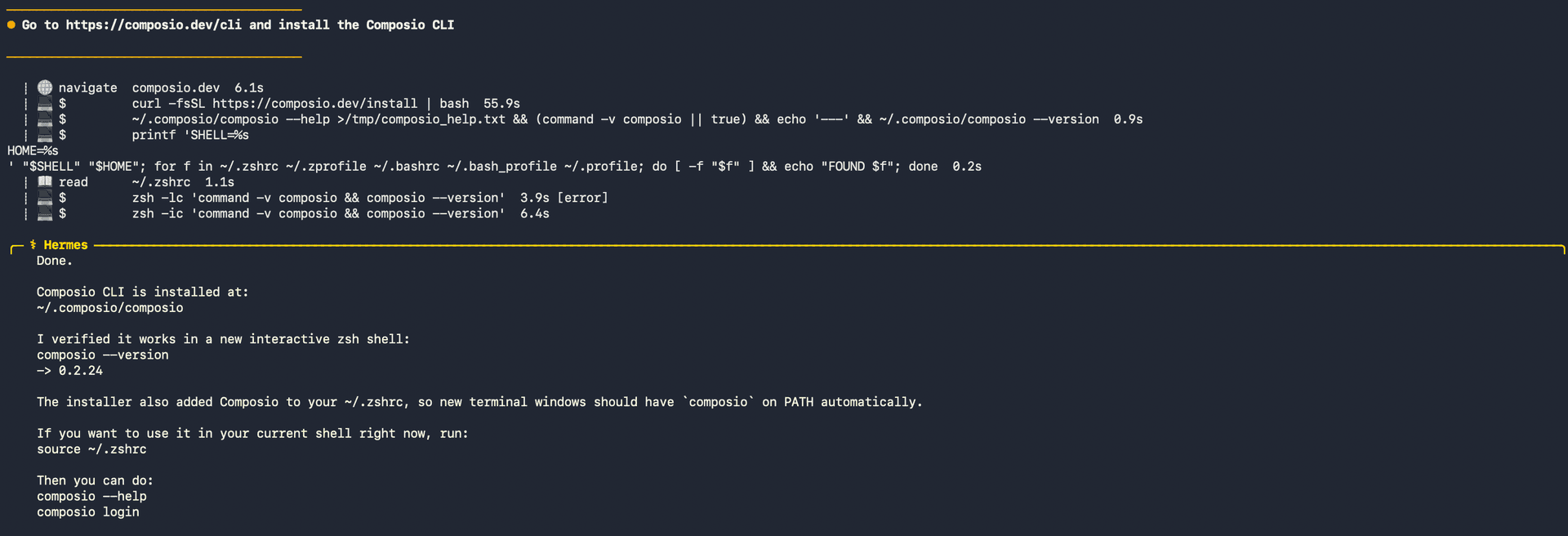
1. Install the Composio CLI

Run the install script directly, or paste https://composio.dev/hermes into your Hermes chat box to have it installed for you.

bash
curl -fsSL https://composio.dev/install | bash
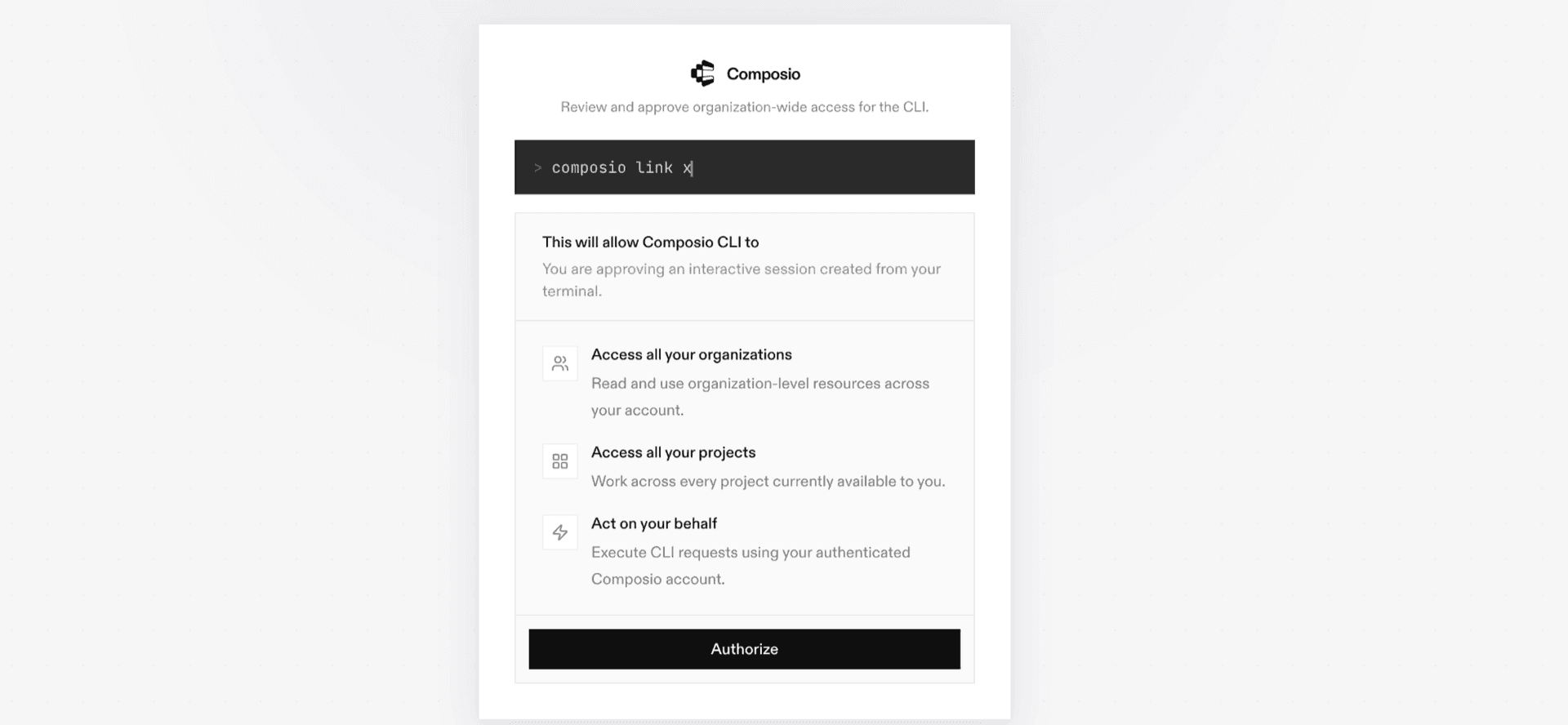
Hermes authenticating with Composio

2. Authenticate

Once the CLI is installed, ask Hermes to authenticate with Composio.

3. Connect to Files com

Ask your agent to connect to Files com, or simply request any Files com-related task. Hermes will prompt you to authenticate and authorize access.

4. Done. You're all set with a new Files com connection.


Using Composio Connect MCP

1. Get your MCP URL and API Key

Go to dashboard.composio.dev and copy your Connect MCP URL and API key.

Copy MCP URL and API key from Composio dashboard

2. Open the Hermes config file

bash
nano ~/.hermes/config.yaml

3. Add the Composio Connect MCP server

bash
mcp_servers:
  composio:
    url: "https://connect.composio.dev/mcp"
    headers:
      x-consumer-api-key: "YOUR_COMPOSIO_API_KEY"
    connect_timeout: 60
    timeout: 180

Save with Ctrl + O, Enter, then exit with Ctrl + X.

4. Restart your Hermes agent

Once restarted, ask your agent to connect to Files com or request any Files com-related task. It will prompt you to authenticate and authorize access.

5. Done!

What is the Files com MCP server, and what's possible with it?

The Files.com MCP server is an implementation of the Model Context Protocol that connects your AI agent and assistants like Claude, Cursor, etc directly to your Files.com account. It provides structured and secure access to your cloud storage and file management resources, so your agent can perform actions like listing folders, managing permissions, generating upload keys, and handling file shares on your behalf.

  • Folder navigation and organization: Ask your agent to list and explore folders within your Files.com account, making it easy to locate and organize files.
  • Permission management: Allow the agent to retrieve, review, and delete access permissions for files or folders, keeping your data secure and access controlled.
  • Secure file uploading: Have your agent generate S3 upload keys so you can temporarily host files for easy import, sharing, or collaboration across teams.
  • Group and share link management: Let your agent list user groups or delete share links to efficiently manage who has access to important documents and shared resources.
  • API key lifecycle control: Instruct your agent to revoke API keys when needed, ensuring only authorized integrations remain active for your account.

Way Forward

With Files com connected, Hermes can now act on your behalf whenever it detects a relevant task or you ask it to.

From here, you can extend Hermes further:

  • Connect more apps: Calendar, Slack, Notion, Linear, and hundreds of others are available through the same Composio Connect setup. Each new integration compounds what Hermes can do for you.
  • Build workflows across tools: Once multiple apps are connected, Hermes can chain actions together — turn an email into a calendar invite, a Slack message into a Linear ticket, or a meeting note into a follow-up draft.
  • Let it learn your patterns: The more you use Hermes, the better it gets at anticipating how you'd handle recurring tasks. Give it feedback on drafts and decisions, and it will adapt.

If you run into trouble or want to share what you've built, join the community or check out the Docs for deeper configuration options.

TOOLS

Supported Tools

Every Files com action and event your agent gets out of the box.

Delete API Key

Tool to delete an API key.

Delete Permission

Removes a permission grant that allows a user or group to access a specific file or folder path on Files.com.

Delete Share

Attempts to delete a Files.com share link by ID to revoke access to shared files or folders.

Get S3 Key for Upload

Returns the S3 key, MIME type, and name already associated with a supplied file object.

List Folders

Lists Files.com folders for browsing the folder structure, with optional parent and name filters, path sorting, and pagination.

List Groups

Lists Files.com groups with pagination, returning available group details such as IDs, names, membership and access permissions.

List Permissions

Lists Files.com permission records to inspect access grants, optionally scoped to a path or filtered by user, group, or partner.

FAQ

Frequently asked questions

Start with Files com.It takes 30 seconds.

Managed auth, hosted MCP servers, and every Files com tool your agent needs.Free to start.

Start building