How to integrate Fal.ai MCP with OpenClaw

Connect OpenClaw to Fal.ai MCP. Generate a photorealistic portrait of a cat, create a 15-second ai-generated promo video, and more using natural language, with authentication handled for you.

Fal.ai logoFal.ai
Api Key

Fal.ai is a generative media platform offering 600+ AI models for images, video, voice, and audio. Developers use Fal.ai for fast, scalable access to cutting-edge generative AI tools.

13 Tools

Introduction

OpenClaw is the fastest growing agent harness out there, which can work 24/7 to automate almost any kind of tasks. However, its capabilities are limited to the tools it has access to. Composio allows your OpenClaw to access Fal.ai with authentication management handled for you. You can execute actions on Fal.ai via your favorite OpenClaw interface (Telegram, WhatsApp, TUI, etc), whichever you prefer.

For exact tool slugs and parameter tables, see the tool catalog in the Composio docs.

Also integrate Fal.ai with

Why use Composio?

Apart from a managed and hosted MCP server, you will get:

  • Programmatic tool calling allows LLMs to write its code in a remote workbench to handle complex tool chaining. Reduces to-and-fro with LLMs for frequent tool calling.
  • Handling Large tool responses out of LLM context to minimize context rot.
  • Dynamic just-in-time access to 20,000 tools across 1800+ other Apps for cross-app workflows. It loads the tools you need, so LLMs aren't overwhelmed by tools you don't need.

How to install Fal.ai with OpenClaw

Using Composio API Key and Setup Prompt

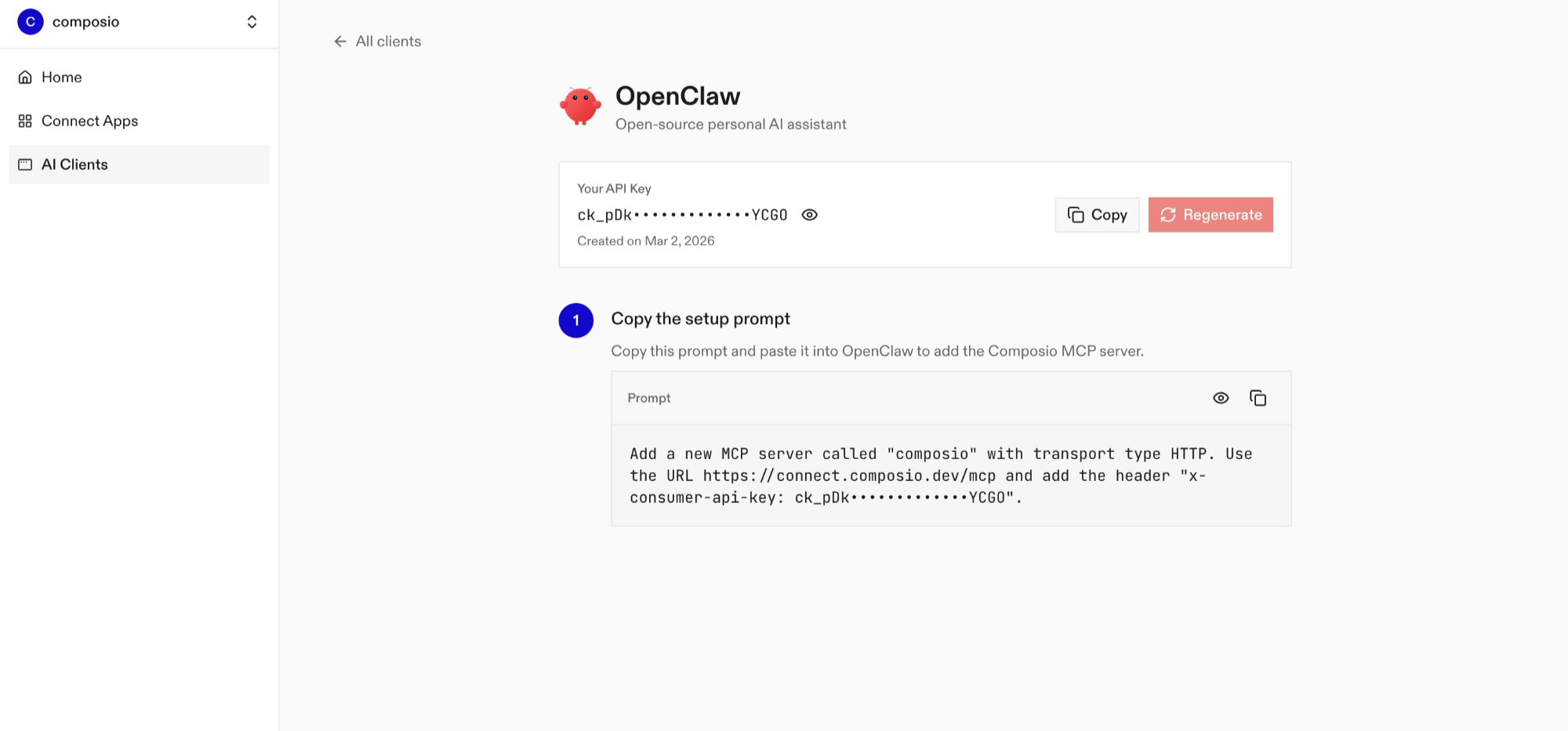
Copy the setup prompt from the OpenClaw dashboard
  • Run it in your OpenClaw chat interface.
  • Authenticate Fal.ai from the dashboard
  • Go back to your OpenClaw interface and start asking questions.

Using OpenClaw/Composio Plugin

1. Install OpenClaw Composio plugin

bash
openclaw plugins install @composio/openclaw-plugin

2. Copy the API Key from dashboard.composio.dev

3. Setup OpenClaw Config

bash
openclaw config set plugins.entries.composio.config.consumerKey "ck_your_key_here"

4. Restart OpenClaw

bash
openclaw gateway restart

5. Go to your chat interface and start asking questions.

6. When prompted, authenticate the app and you're all set.

How It Works

The plugin connects to Composio's MCP server at https://connect.composio.dev/mcp and registers all available tools directly into the OpenClaw agent. Tools are called by name — no extra search or execute steps needed.

If a tool returns an auth error, the agent will prompt you to connect that toolkit at dashboard.composio.dev.

Configuration

bash
{
  "plugins": {
    "entries": {
      "composio": {
        "enabled": true,
        "config": {
          "consumerKey": "ck_your_key_here"
        }
      }
    }
  }
}
OptionDescriptionDefault
enabledEnable or disable the plugintrue
consumerKeyYour Composio consumer key (ck_...)—
mcpUrlMCP server URL (advanced)https://connect.composio.dev/mcp

What is the Fal.ai MCP server, and what's possible with it?

The Fal.ai MCP server is an implementation of the Model Context Protocol that connects your AI agent and assistants like Claude, Cursor, etc directly to your Fal.ai account. It provides structured and secure access to generative media models, input files, pricing, and inference jobs, so your agent can discover models, generate media, upload source files, monitor jobs, and estimate costs on your behalf.

  • Model discovery: Have your agent search available Fal.ai models to find suitable options for generating images, videos, voice, audio, and other media.
  • Media generation: Direct your agent to run a model and generate new content, with completed files returned through Fal.ai-hosted links.
  • Input file uploads: Let the agent upload images, audio, or video for use as source material in supported generation tasks.
  • Job tracking and control: Instruct your agent to submit longer generation jobs, follow their progress, retrieve completed results, or cancel requests that are no longer needed.
  • Pricing checks: Have your agent retrieve model pricing or estimate the cost of a planned generation before starting it.

Conclusion

You've successfully integrated Fal.ai with OpenClaw using Composio plugin. Now interact with Fal.ai directly from your terminal, Web UI, or any messenger app using natural language commands.

Key benefits of this setup:

  • Seamless integration across TUI, Web UIs, and Messenger apps like Telegram, WhatsApp, Slack, etc.
  • Natural language commands for Fal.ai operations
  • Managed authentication through Composio
  • Access to 20,000+ tools across 1800+ apps for cross-app workflows
  • Programmatic tool calling for complex tool chaining

Next steps:

  • Try asking OpenClaw to perform various Fal.ai operations
  • Explore cross-app workflows by connecting more toolkits like Calendar, Slack, Notion, etc.
  • Build complex automation scripts that leverage OpenClaw's 24/7 running capabilities
TOOLS

Supported Tools

Every Fal.ai action and event your agent gets out of the box.

Cancel Queue Request

Request cancellation of a queued or in-progress fal.ai job using your own fal account.

Estimate Pricing

Estimate expected costs for API calls or unit-based usage across one or more fal.ai model endpoints using your own fal account.

Get JWKS for Webhook Verification

Retrieve the JSON Web Key Set used for fal.ai webhook signature verification using your own fal account.

Get Models

Discover and search fal.ai model endpoints using your own fal account.

Get Model Pricing

Retrieve unit pricing for specific fal.ai model endpoints using your own fal account, including unit price, billing unit and currency.

Get Queue Request Result

Tool to retrieve the final result of a completed queue request.

List Model Requests

List recent fal.ai model requests with filters and cursor pagination using your own fal account.

Check Queue Request Status

Check the status of a queued fal.ai request using your own fal account.

Stream Request Status Updates

Collect SSE status updates for a queued fal.ai request using your own fal account.

Run Model (Sync)

Run a fal.ai model synchronously using your own fal account and return its model-specific output.

Submit Async Inference Job

Start image, text-to-video, image-to-video or 3D generation and return a job ID immediately.

Subscribe to Async Inference Job

Submit a fal.ai inference job using your own fal account, poll until it completes or the wait deadline is reached, and return the final result.

Upload Input File

Upload an input media file to fal.ai storage using your own fal account and return its access URL for use as a model input.

FAQ

Frequently asked questions

Start with Fal.ai.It takes 30 seconds.

Managed auth, hosted MCP servers, and every Fal.ai tool your agent needs.Free to start.

Start building