How to connect Dynosend MCP with ChatGPT Work

Connect ChatGPT Work to Dynosend MCP. Add contact to newsletter audience, summarize latest campaign engagement metrics, and more using natural language, with authentication handled for you.

Dynosend logoDynosend
Api Key

Dynosend is an email marketing platform for audiences, contacts, campaigns, transactional messages, and customer events. Use it to manage lifecycle email, track engagement, and keep customer communication organized.

18 Tools

How to connect Dynosend MCP with ChatGPT Work

ChatGPT Work is an agent inside ChatGPT built for your most ambitious work. It takes action across your apps and files, stays with a project for hours, and turns a goal into finished materials like sheets, slides, and docs - not just answers.

In this guide, I will explain the easiest and most secure way to connect your Dynosend account to ChatGPT Work via Composio Connect, so it can add contact to newsletter audience, summarize latest campaign engagement metrics, track signup event for customer through natural language commands without ever putting your account credentials at risk.

Also integrate Dynosend with

Why use Composio over default connectors?

  • Apps with read and write access. Default connectors mostly can read your data. Composio's Dynosend integration lets ChatGPT Work take actions like creating drafts, sending updates, labeling records, and more.
  • 1,000+ SaaS toolkits out of the box. Composio gives you instant access to a vast catalog of pre-built connectors, from Gmail and Slack to Notion, Linear, and Salesforce.
  • One MCP server for every app. Connect any of your applications on demand through a single endpoint, rather than juggling a separate server for each app.
  • Smart, context-aware tool loading. Unlike traditional MCP servers that dump every available tool into the LLM context window, Composio searches for and loads only the tools relevant to the task at hand.
  • Cross-app automation. Chain actions across multiple apps in a single run - fetch a thread, summarize it in Notion, and post highlights to Slack without leaving the conversation.

Prerequisites

  • A ChatGPT account with access to ChatGPT Work (rolling out across Pro, Enterprise, Edu, Plus, and Business plans). We will use the ChatGPT desktop app, which is available on every plan.
  • Access to the Dynosend workspace you want to connect.
  • Composio MCP.

Note: Composio connects through OAuth. You will be asked to sign in and approve specific permissions. Review the permission screen carefully if you are using a work account.

Step-by-step: Connect Dynosend to ChatGPT Work

1. Open the MCP settings

In ChatGPT Work, go to Settings and open the Plugins section. Inside the Plugins page, click the MCP tab.
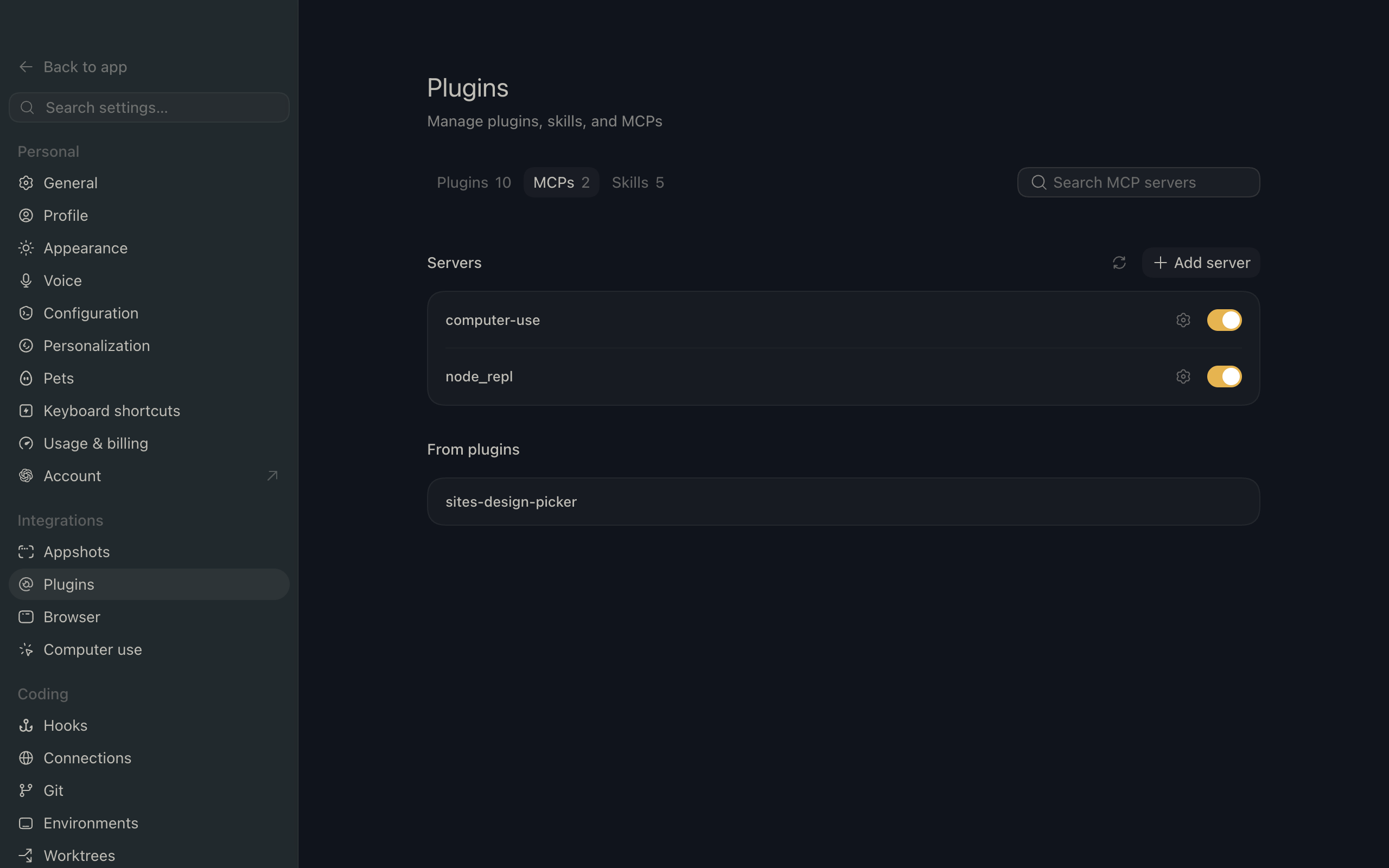
ChatGPT Work settings showing the Plugins page with the MCP tab selected

2. Add the server

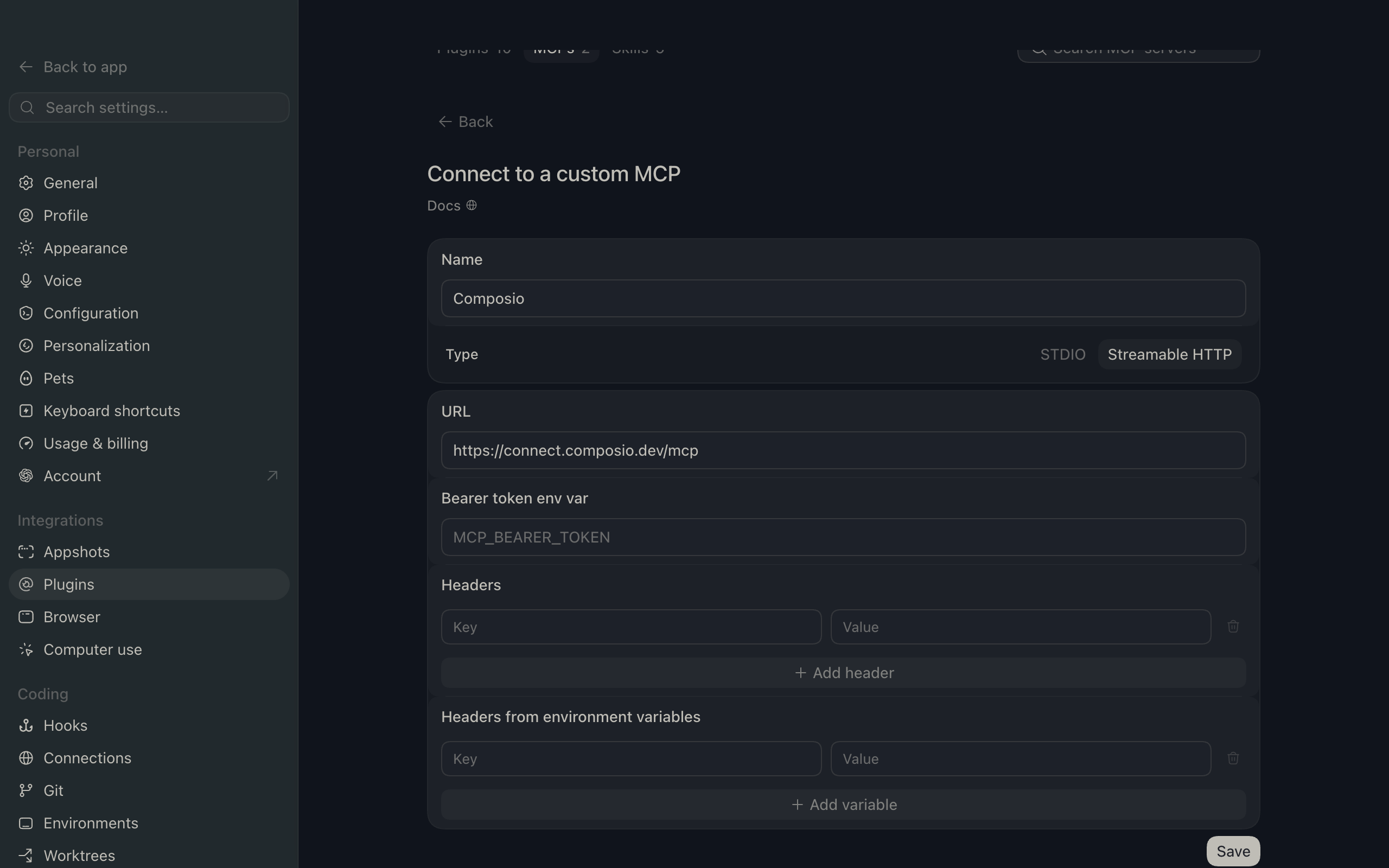
Click Add server. In the Name field enter Composio, for Type select Streamable HTTP, and in the URL field paste the Composio MCP server URL:

bash
https://connect.composio.dev/mcp
ChatGPT Work Add server dialog with the name Composio, type Streamable HTTP, and the Composio MCP URL

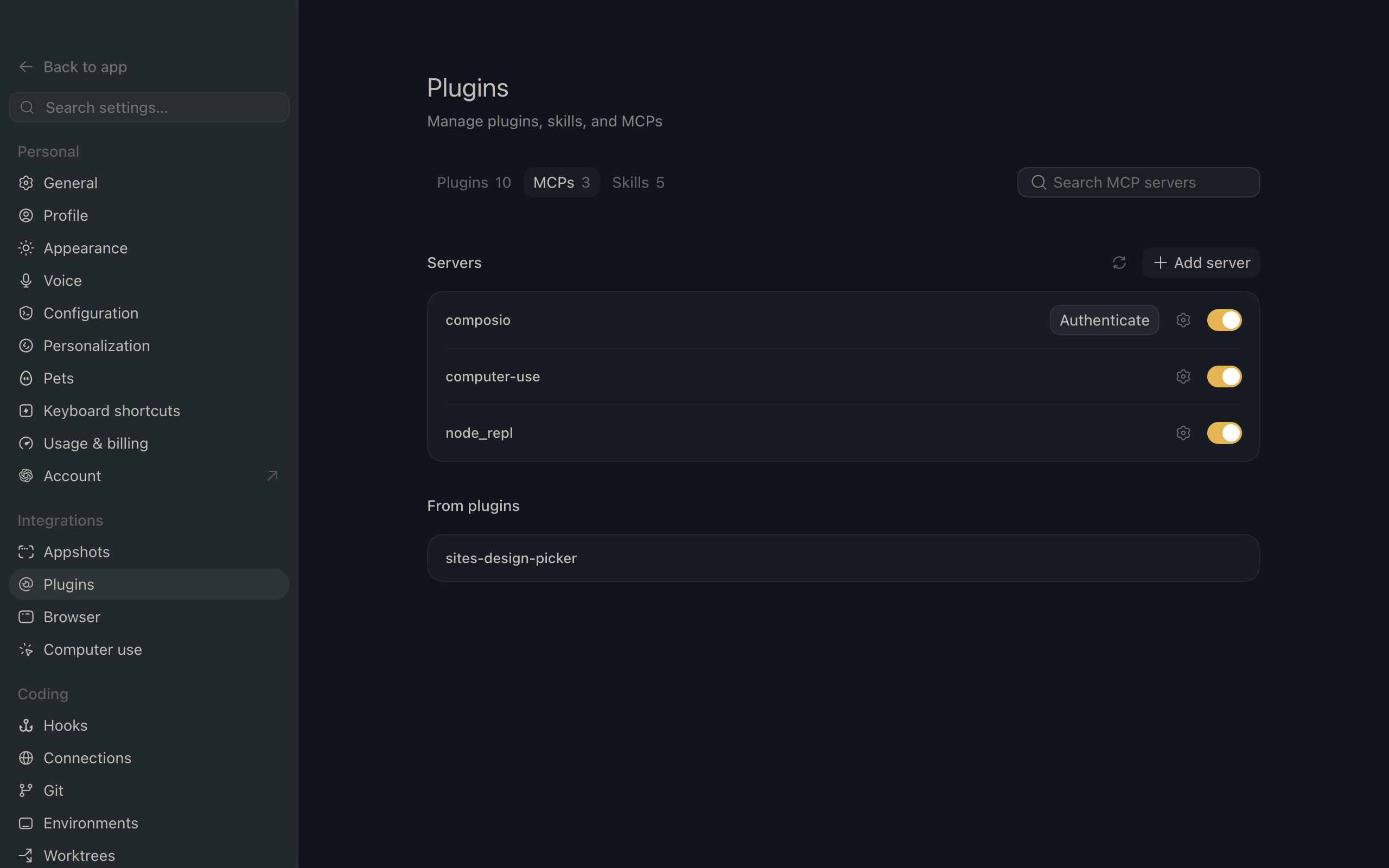
Then click Save. The Composio server now appears in your MCP plugins list.

ChatGPT Work Plugins page showing the Composio MCP server added to the list

3. Authenticate

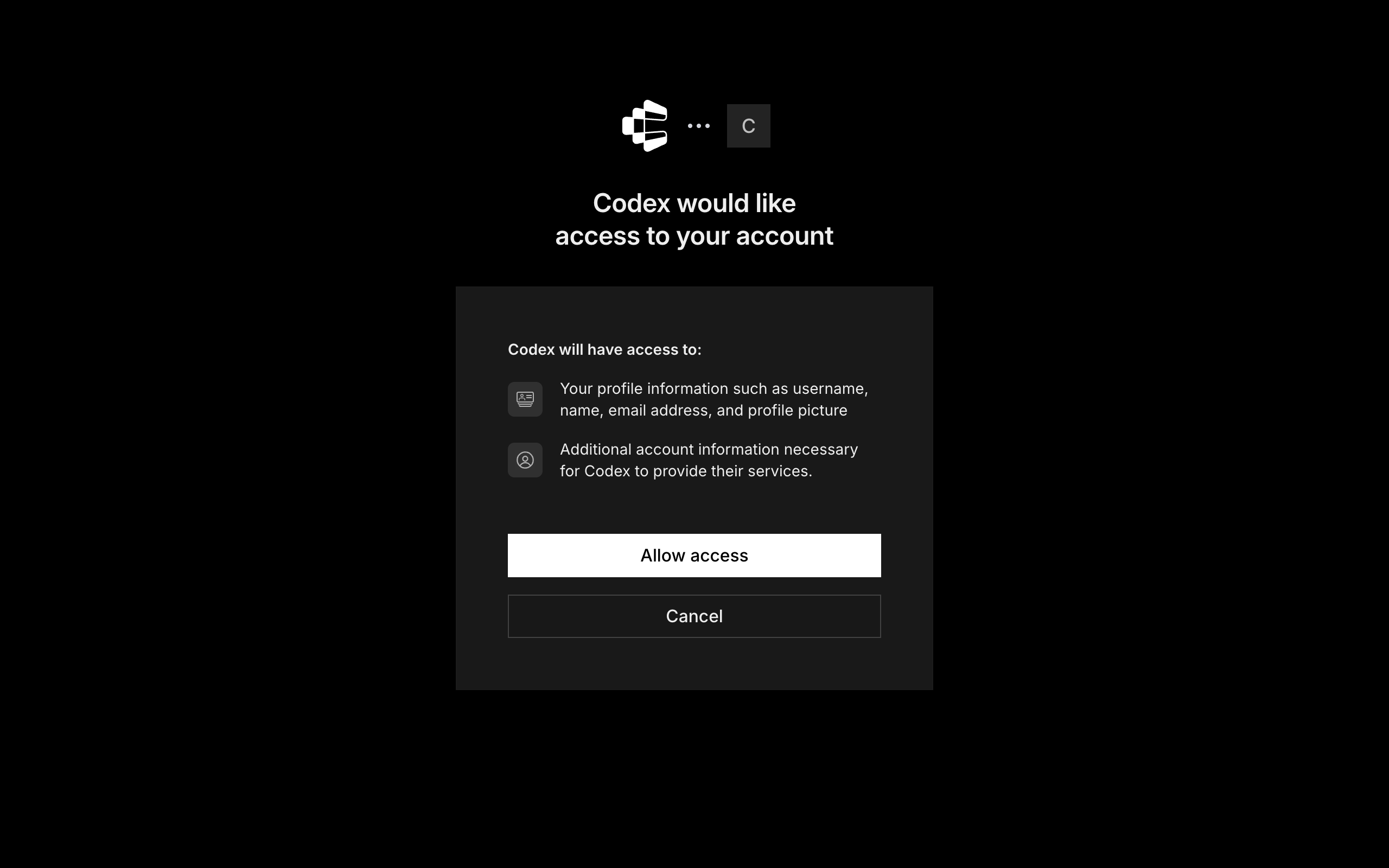
Click Authenticate, log in via Composio, and click Allow access to authorize ChatGPT Work to use your Composio account.

Composio login and Allow access screen for ChatGPT Work MCP setup

4. Start using Composio

That is it - Composio tools are now available in ChatGPT Work. Ask it to work with your Dynosend account and it will run the actions you authorize.

What you can do after connecting Dynosend

  • Add contact to newsletter audience
  • Summarize latest campaign engagement metrics
  • Track signup event for customer

Security + privacy notes (important)

  • Use least-privilege access: Only grant permissions you actually need.
  • Review OAuth permissions before approving: Make sure requested scopes match what you expect Composio and ChatGPT Work to do.
  • Keep write actions human-reviewed: For actions like sending messages, creating labels, or editing drafts, keep manual confirmation enabled.
  • Be careful with sensitive data: Avoid using this setup with highly sensitive information unless allowed by your personal, company, or client policies.
TOOLS

Supported Tools

Every Dynosend action and event your agent gets out of the box.

Add Email To Blacklist

Permanently add an email address to the Dynosend blacklist.

Add Tags To Contact

Append one or more tags to a contact without replacing its existing tags.

Check Blacklist

Check whether an email address is on the connected Dynosend account's blacklist and return its timestamp and reason when available.

Create Contact

Create a contact in an audience, optionally assigning tags and audience-defined custom fields.

Delete Contact

Permanently delete one contact from an audience for GDPR/CCPA erasure.

Find Duplicate Contacts

Find contacts that use the same email address across all audiences in the connected Dynosend account.

Get Audience

Get one audience's configuration, custom-field definitions, contact information, and subscription statistics by audience UID.

Get Campaign

Get one campaign's configuration and delivery, open, click, spam, bounce, and unsubscribe insights.

Get Contact

Get one contact in an audience by contact UID or email address.

List Audiences

List audiences available to the connected Dynosend account, including the UID needed by audience and contact tools.

List Campaigns

List campaigns in the connected Dynosend account, including status and the campaign UID used by campaign tools.

List Contacts

Return one page of contacts in a Dynosend audience, including contact UIDs, subscription status, tags, and audience-defined custom-field values.

Record Contact Event

Record an application event for a contact in an audience.

Send Transactional Message

Send a configured Dynosend transactional message.

Set Campaign Delivery State

Pause a sending campaign or resume a paused campaign by setting its delivery state to paused or sending.

Set Contact Subscription Status

Set a contact's subscription status to subscribed or unsubscribed in an audience.

Start Campaign

Start a ready broadcast campaign.

Update Contact

Update a contact's email, replace its complete tag set, or set audience-defined custom fields.

FRAMEWORKS

How to build Dynosend MCP Agent with another framework

FAQ

Frequently asked questions

With a standalone Dynosend MCP server, the agents and LLMs can only access a fixed set of Dynosend tools tied to that server. However, with the Composio Tool Router, agents can dynamically load tools from Dynosend and many other apps based on the task at hand, all through a single MCP endpoint.

Yes, you can. ChatGPT Work fully supports MCP integration. You get structured tool calling, message history handling, and model orchestration while Tool Router takes care of discovering and serving the right Dynosend tools.

Yes, absolutely. You can configure which Dynosend scopes and actions are allowed when connecting your account to Composio. You can also bring your own OAuth credentials or API configuration so you keep full control over what the agent can do.

All sensitive data such as tokens, keys, and configuration is fully encrypted at rest and in transit. Composio is SOC 2 Type 2 compliant and follows strict security practices so your Dynosend data and credentials are handled as safely as possible.

Start with Dynosend.It takes 30 seconds.

Managed auth, hosted MCP servers, and every Dynosend tool your agent needs.Free to start.

Start building