How to connect multiple Dropbox accounts to Claude

Connect two or more Dropbox accounts to Claude with Composio. Give each account a name, check the connections, and tell Claude which one to use.

Dropbox logoDropbox
Oauth2

Dropbox is a cloud storage service for file syncing, sharing, and collaboration. It keeps your files accessible, organized, and safe across all your devices.

175 Tools

Introduction

Claude's built-in Dropbox connector works well if you use one Dropbox account. But when you connect a second account, it replaces the first.

If you manage separate Dropbox accounts for different products, regions, or business units, that quickly becomes frustrating.

Composio fixes this by keeping each Dropbox account separate and giving it a simple name, such as dropbox-1, dropbox-2, or dropbox-3. Claude can then use the right Dropbox account when you mention that name.

What you'll end up with

  • One Composio connector in Claude
  • Two or more Dropbox accounts connected behind it
  • A clear name for each account
  • The ability to work in the right Dropbox account from a single Claude chat

For example:

Search my dropbox-1 and dropbox-2 Dropbox accounts for anything that needs my attention from the last 7 days. Tell me which account each item came from.

Using the dropbox-1 account, list files in my shared projects folder.

Before you start

  • A Claude account
  • A free Composio account
  • Access to each Dropbox account you want to connect

If you use Claude Free, you can have one custom connector. If you already use that slot, you will need to remove the existing custom connector first.

If you use Claude Team or Enterprise, an Owner may need to add the connector for the organisation. Each member can then connect their own accounts.

Connect multiple Dropbox accounts to Claude

Step 1: Add Composio to Claude (one-time process)

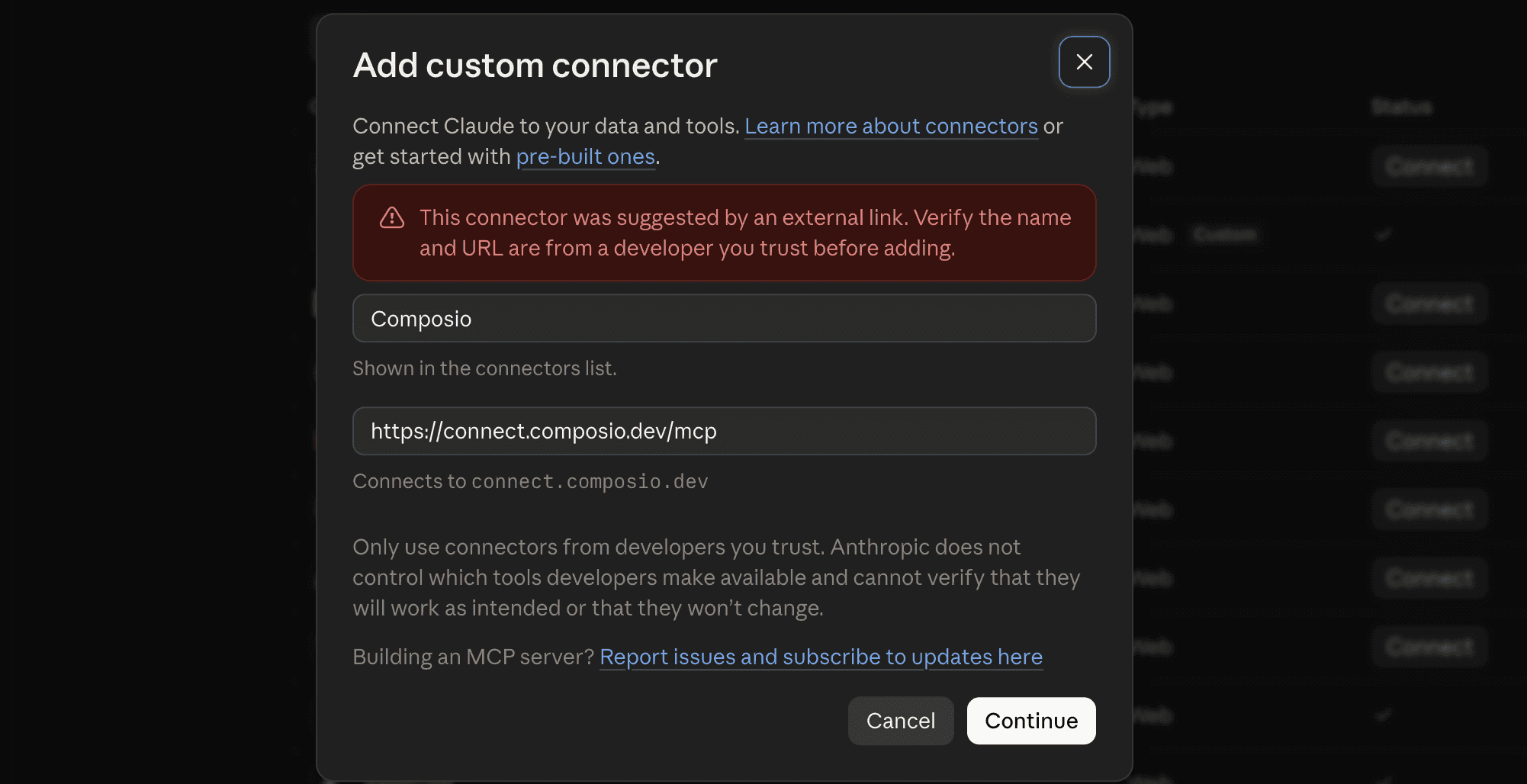
  1. Click the button below. This will take you to the Claude Custom Connector modal.

Add to Claude

  1. Click Continue
Claude's Add custom connector dialog with the Composio name and MCP URL filled in
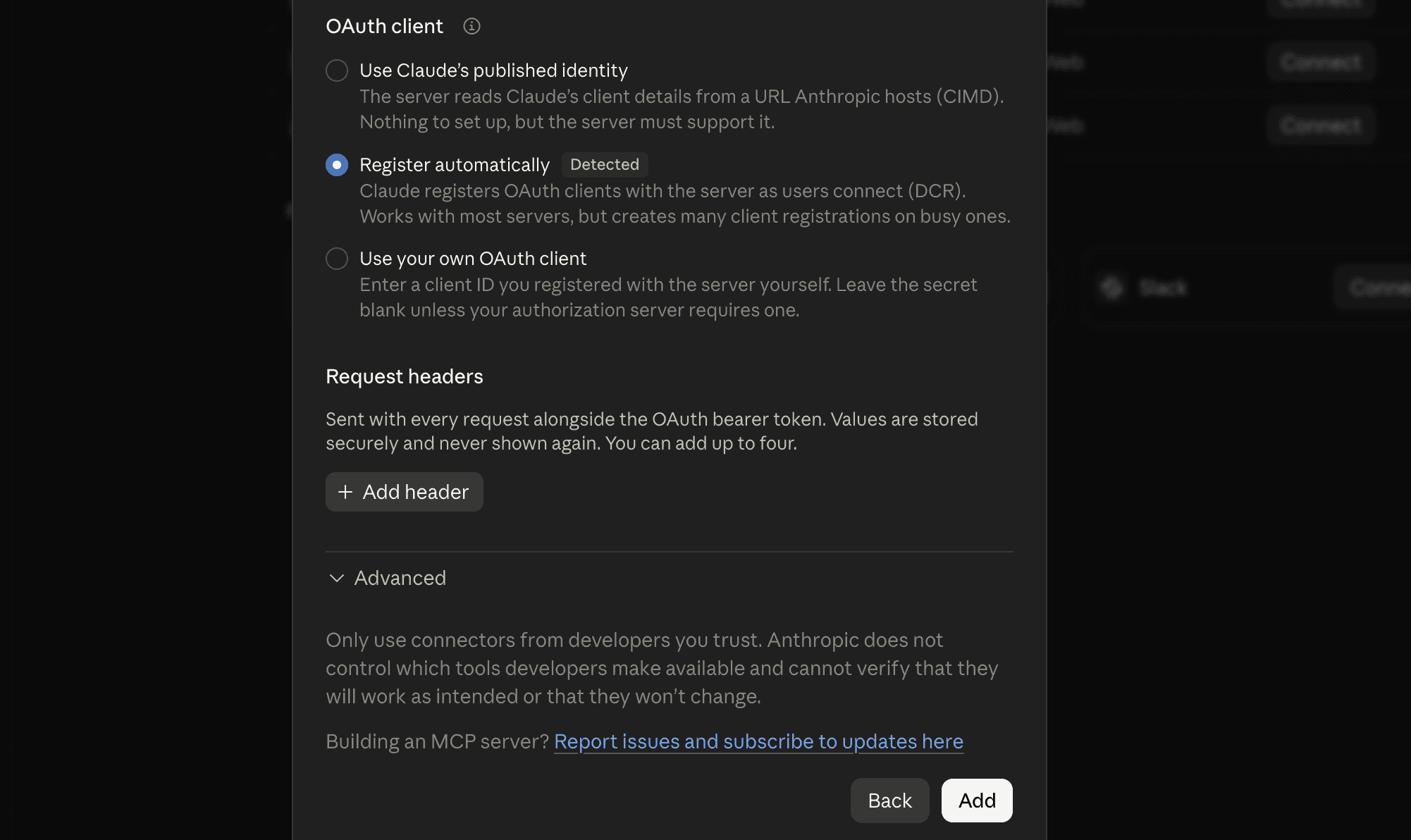
  1. In the next modal, click Add
Second step of the Add custom connector dialog with the Add button
  1. It will take you to the authentication page. Sign in to Composio and approve the connection.
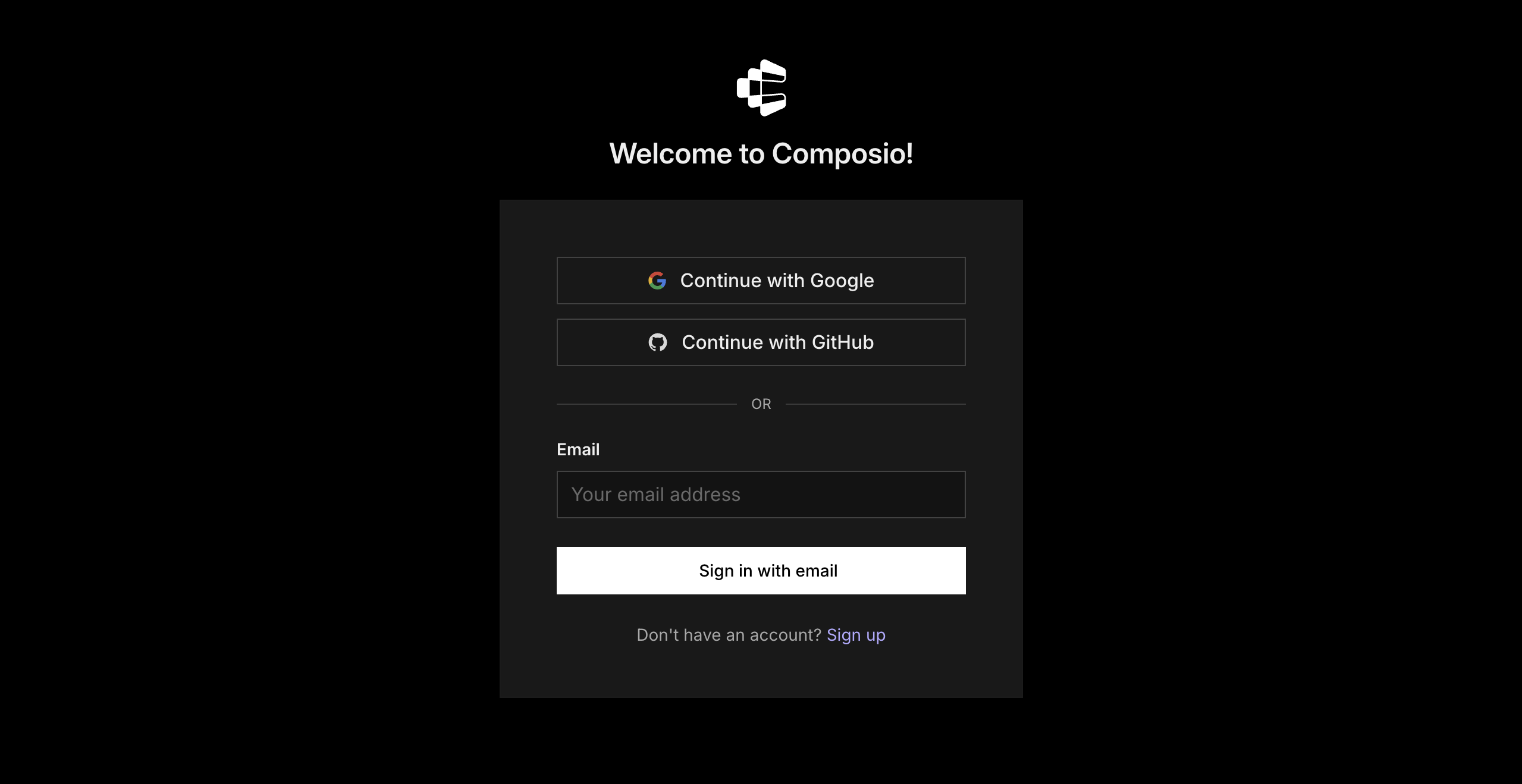
Composio sign-in page with Google, GitHub, and email options

Then return to Claude and make sure Composio is enabled.
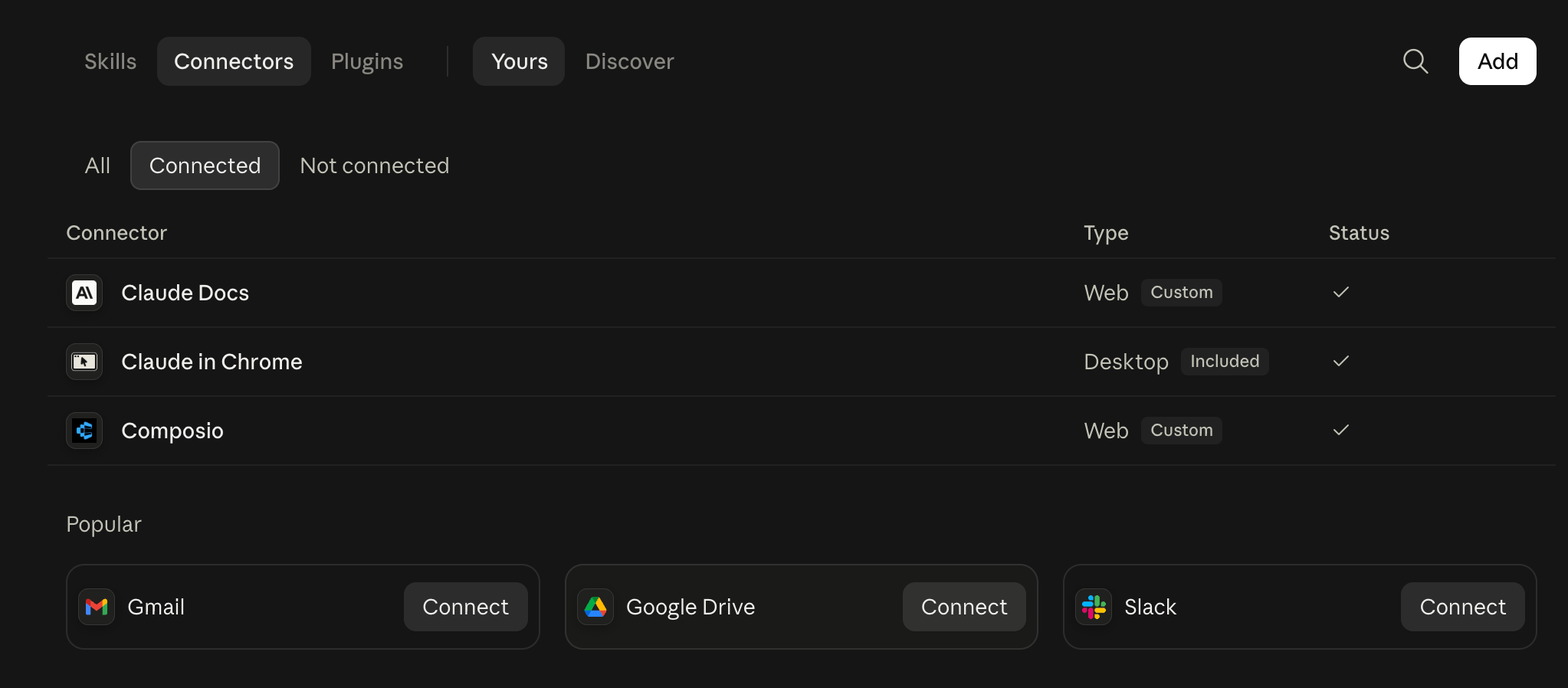
Claude connectors list showing Composio as a connected custom connector

Step 2: Connect your first Dropbox account

In a new Claude chat, type:

Connect my dropbox-1 Dropbox account to Composio. Call it dropbox-1.

Claude will give you a sign-in link.

  1. Click the link.
  2. Sign in to your dropbox-1 Dropbox account.
  3. Review and approve Dropbox's permission request.
  4. Return to Claude.

Claude should confirm that the account is connected.

The name dropbox-1 is how Claude knows which Dropbox account to use. Choose short, obvious names. Good examples include:

  • dropbox-1
  • dropbox-2
  • dropbox-3

Step 3: Connect your second Dropbox account

In the same Claude chat, type:

Connect another Dropbox account. Call it dropbox-2.

Claude will give you a new sign-in link.

  1. Open the link.
  2. Sign in to the second Dropbox account.
  3. Review and approve Dropbox's permission request.
  4. Return to Claude.

Claude should confirm that dropbox-2 is connected.

Important: Check that Dropbox is showing the second account before you approve access. If the wrong account appears, sign out or open the link in an incognito or private window.

Repeat this step for every other Dropbox account you want to add. Give each connection a short, descriptive name such as dropbox-1, dropbox-2, dropbox-3, or client-acme.

Step 4: Check your connected Dropbox accounts

Ask Claude:

List my connected Dropbox accounts in Composio. Show each account's name and connection status.

You should see every account you added, and each connection should show as ACTIVE.

For an extra check, ask:

Show the account email or ID and the account name for each connected Dropbox account.

This helps you confirm that every label points to the correct Dropbox account and that you did not connect the same account twice.

Step 5: Use the right Dropbox account

Mention the account name whenever you ask Claude to work with Dropbox. This is especially important when an action could change data.

Review activity across accounts

Check dropbox-1 and dropbox-2 for anything new in Dropbox from the last 14 days. Group the results by account.

Create a new folder for invoices

Using the dropbox-1 account, create a new folder for invoices.

Search for last month's sales report

Using the dropbox-2 account, search for last month's sales report.

Find something across accounts

Search all connected Dropbox accounts for customer@example.com. Show which account it appears in and summarise the latest activity.

For actions such as creating, changing, or deleting data, ask Claude to show you the planned action first and wait for your confirmation.

Make account selection more reliable

Add this to your Claude preferences or project instructions, replacing the examples with your own account names:

My Dropbox accounts are: dropbox-1 = my main account, dropbox-2 = my second account, and dropbox-3 = a client account. Always use the named account when I specify one. If I do not name an account, ask me which one to use. Before creating, changing, or deleting anything, show me the planned action and wait for confirmation.

If Claude's built-in Dropbox connector is also enabled, Claude may use it instead of Composio. For a clearer setup, turn off the built-in connector or explicitly tell Claude to use Dropbox through Composio.

Manage accounts from the Composio dashboard

The chat method is the quickest way to connect accounts. Use the dashboard when you want to add, rename, reconnect, or remove a connection.

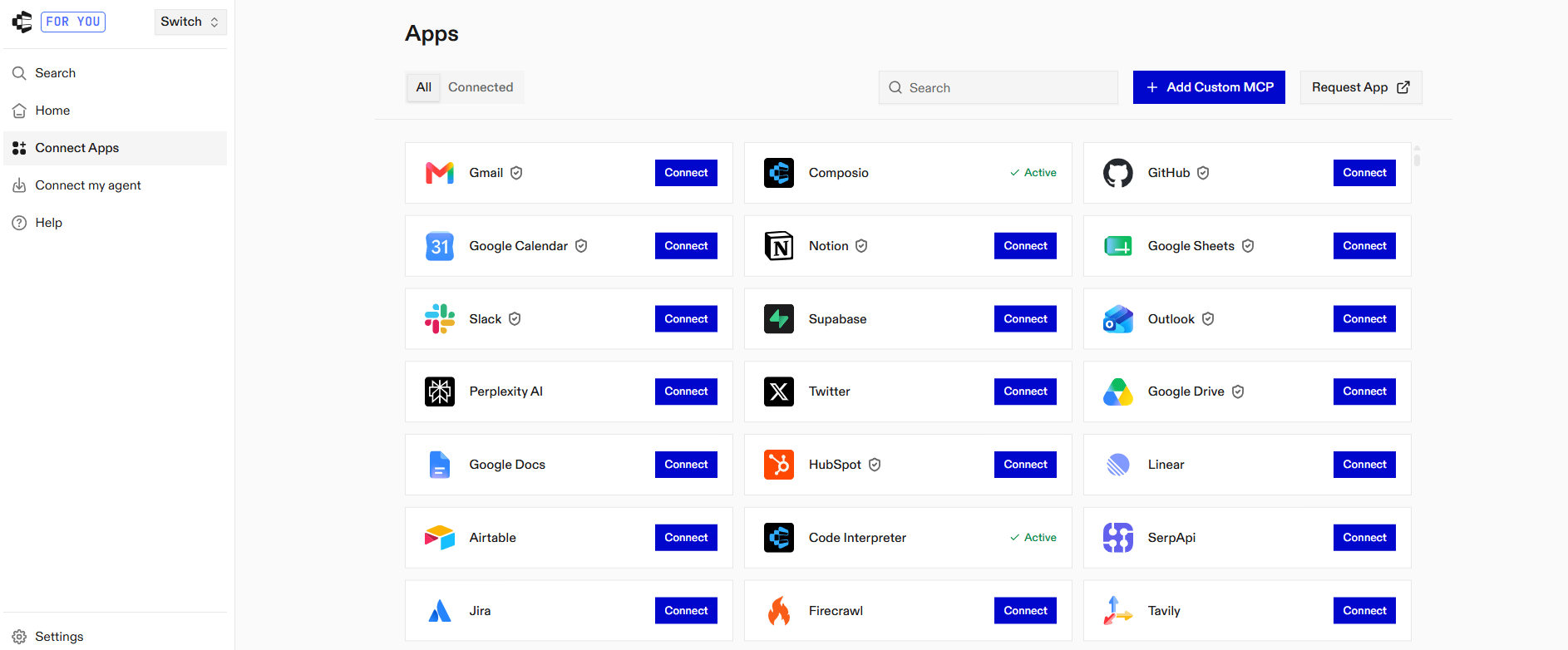
  1. Go to dashboard.composio.dev.
Composio dashboard Apps page with Connect buttons for each app
  1. Sign in with the same Composio account you connected to Claude.
  2. Open For You from the product switcher.
  3. Find Dropbox.
  4. Click Connect and complete the Dropbox authorisation flow.
  5. Click Connect again to add another Dropbox account. Composio keeps it as a separate connection instead of replacing the first.
  6. Give each connection a clear label, such as dropbox-1, dropbox-2, or dropbox-3.

If Dropbox opens the wrong account during authorisation, sign out first or use an incognito or private window.

From the dashboard, you can also:

  • Rename a connection when a default label such as dropbox-2 is no longer useful.
  • Disconnect or delete an account you no longer want Claude to access.
  • Re-authorise an expired or revoked connection.

Troubleshooting

Why isn't the Composio connector appearing or staying enabled in Claude?

Open Claude's connector settings and confirm that Composio is installed and enabled for the current account or workspace. If you use Claude Team or Enterprise, a workspace Owner may need to add or approve it. If the connector was removed, add it again and sign in with the same Composio account you used before.

Why is Claude using the wrong Dropbox account after I specify an account name?

Ask Claude to list your connected Dropbox accounts, including each connection name, account ID, and status. Make sure your prompt uses the exact name shown in Composio. Rename vague or duplicate labels, then try again with a clear instruction such as: Use Dropbox through Composio with the dropbox-2 account.

Why is Claude using its built-in Dropbox connector instead of Composio?

Turn off Claude's built-in Dropbox connector, or explicitly tell Claude to use Dropbox through Composio. If Claude keeps choosing the built-in connector because of earlier chat context, start a new chat and mention the Composio connection name in your first request.

Why isn't my second Dropbox account appearing as a separate connection in Composio?

The second authorisation may have reopened your first Dropbox account. Check the account ID for each connection in Composio. If both connections point to the same account, remove the duplicate and reconnect using an incognito or private window so you can sign in to the correct Dropbox account.

Why does my Dropbox connection show as expired or inactive in Composio?

Open the Composio dashboard, find Dropbox, and reconnect or re-authorise the affected account. Complete Dropbox's permission flow, then return to Claude and ask it to list your connections again. The account should now show as ACTIVE.

FAQ

Frequently asked questions

Yes. Repeat the same connection process for each Dropbox account and give every connection a unique name, such as dropbox-1, dropbox-2, or client-acme.

No. You add Composio to Claude once. Composio then manages the individual Dropbox connections behind that single connector.

Claude uses the connection name you provide. Include that exact name in your prompt, for example: Use the dropbox-2 Dropbox account through Composio. If you do not specify an account, ask Claude to confirm one before taking action.

Yes. Connect them separately and use clear names such as dropbox-1 and dropbox-3. Always include the account name in prompts that create or change Dropbox data.

Yes. Open the Composio dashboard and find Dropbox to manage your connections. You can give a connection a clearer name, re-authorise an expired account, or disconnect an account you no longer use.

Claude can only perform actions made available through the connected Dropbox tools and the permissions you approved. For sensitive actions such as creating, changing, or deleting data, ask Claude to show the planned action and wait for your confirmation before proceeding.

Start with Dropbox.It takes 30 seconds.

Managed auth, hosted MCP servers, and every Dropbox tool your agent needs.Free to start.

Start building