How to integrate Customerio MCP with Claude Code

Connect Claude Code to Customerio MCP. List all segments in your workspace, get delivery metrics for last week's emails, and more using natural language, with authentication handled for you.

Customerio logoCustomerio
Api Key

Customer.io is a customer engagement platform for targeted messaging across email, SMS, and push. Easily automate, segment, and track communications with your audience.

39 Tools

Introduction

Manage your Customerio directly from Claude Code with zero worries about OAuth hassles, API-breaking issues, or reliability and security concerns.

You can do this in two different ways:

  1. Via Composio Connect - Direct and easiest approach
  2. Via Composio SDK - Programmatic approach with more control

For exact tool slugs and parameter tables, see the tool catalog in the Composio docs.

Also integrate Customerio with

Why use Composio?

  • Only one MCP URL to connect multiple apps with Claude Code with zero auth hassles.
  • Programmatic tool calling allows LLMs to write its code in a remote workbench to handle complex tool chaining. Reduces to-and-fro with LLMs for frequent tool calling.
  • Handling Large tool responses out of LLM context to minimize context rot.
  • Dynamic just-in-time access to 20,000 tools across 1700+ other Apps for cross-app workflows. It loads the tools you need, so LLMs aren't overwhelmed by tools you don't need.

Connecting Customerio to Claude Code using Composio

1. Add the Composio MCP to Claude

Terminal

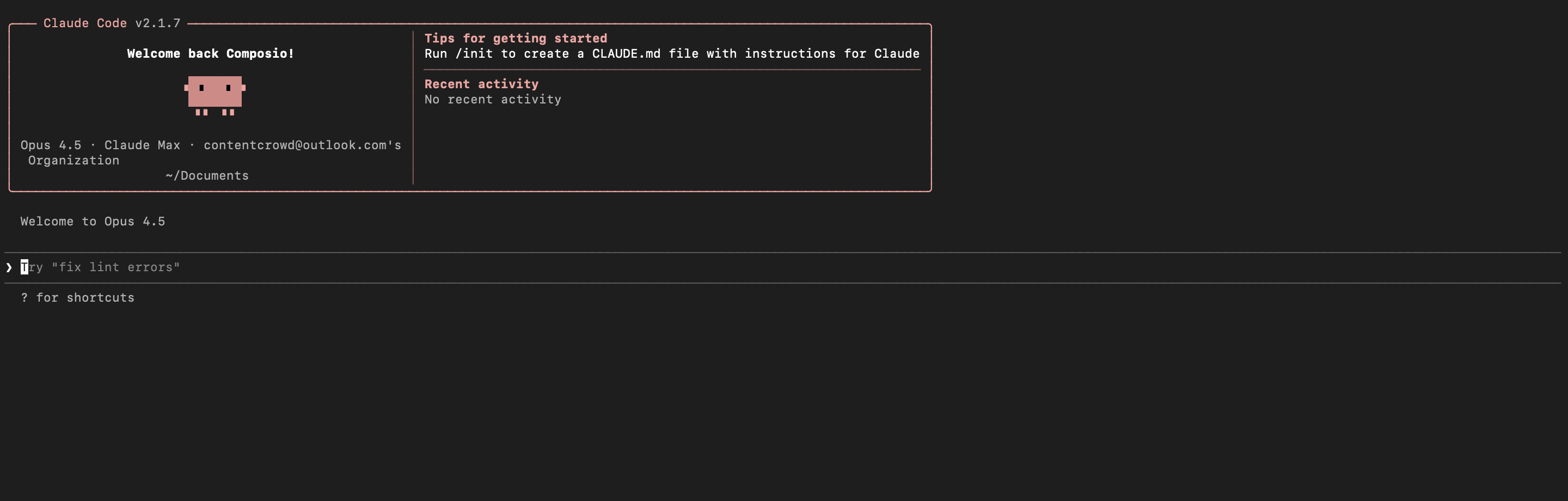
2. Start Claude Code

bash
claude

3. Open your MCP list

bash
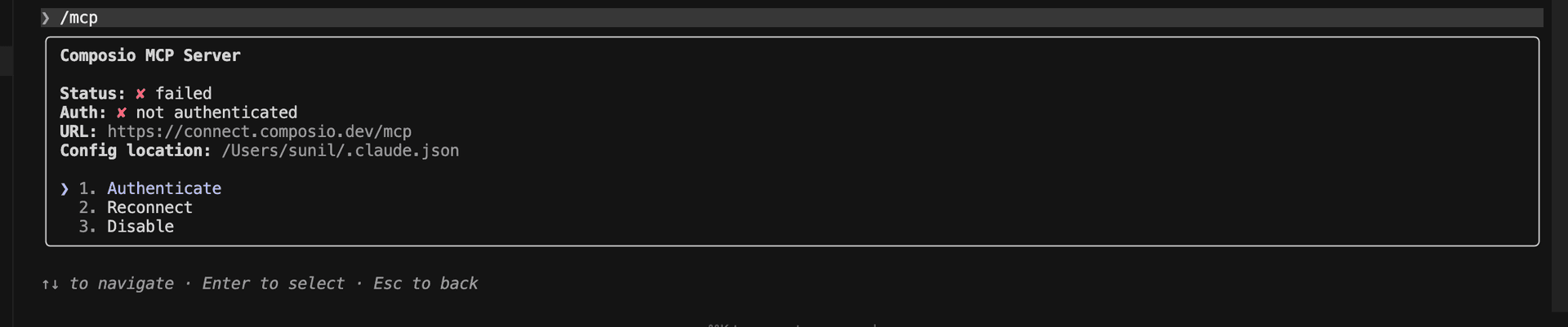
/mcp

4. Select Composio and click on Authenticate

Select Composio and click Authenticate

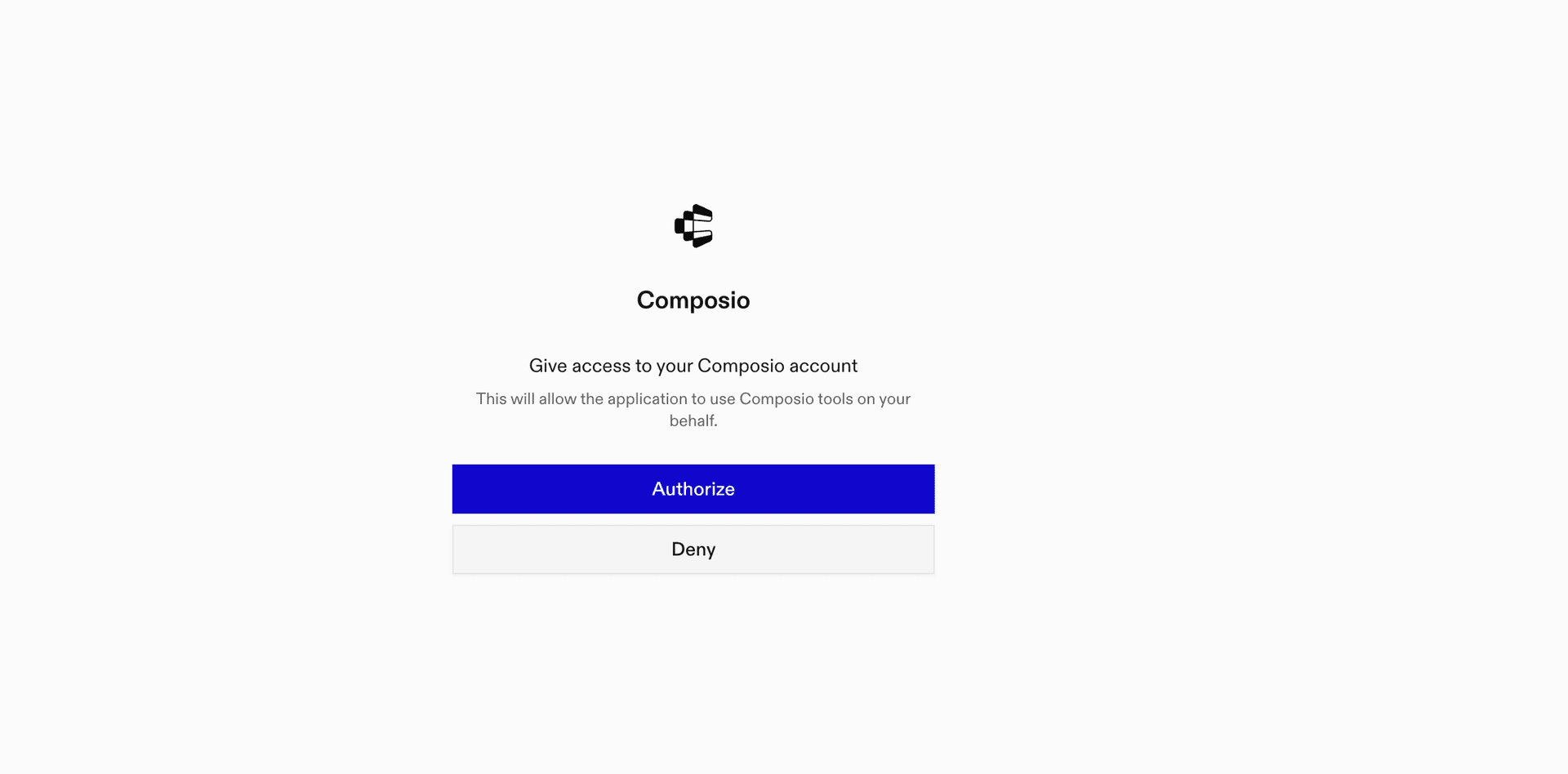
5. This will redirect you to the Composio OAuth page. Complete the flow by authorizing Composio and you're all set.

Composio OAuth authorization page
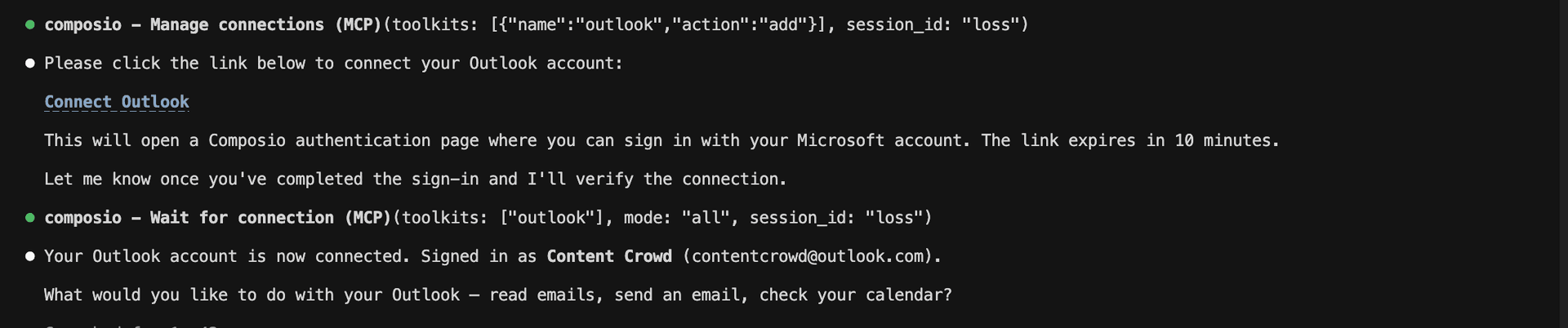
Composio authorization complete
Ask Claude to connect to your account and authenticate via the link

What is the Customerio MCP server, and what's possible with it?

The Customerio MCP server is an implementation of the Model Context Protocol that connects your AI agent and assistants like Claude, Cursor, etc directly to your Customer.io account. It provides structured and secure access to your customer engagement workspace, allowing your agent to send targeted communications, manage segments, retrieve messaging analytics, and automate customer data management on your behalf.

  • Targeted message analytics and tracking: Retrieve detailed lists of messages sent, including delivery metrics, to monitor campaign performance and engagement.
  • Segment discovery and membership management: Let your agent fetch all segments, get details for a specific segment, and list all customers in a segment for precise audience targeting.
  • Integration and webhook management: Have your agent list and review all integrations and webhooks in your workspace to streamline system connectivity and reporting.
  • Customer profile suppression: Direct your agent to permanently suppress (delete and block) customer profiles, ensuring compliance and data privacy.
  • Collection metadata retrieval: Retrieve up-to-date details for all collections in your workspace, keeping your AI-powered workflows and automations in sync with your data sources.

Connecting Customerio via Composio SDK

Composio SDK is the underlying technology that powers these integrations. It provides a universal gateway with full programmatic control. You can programmatically generate an MCP URL with the app you need (here Customerio) for even more tool search precision. It's secure and reliable.

How the Composio SDK works

The Composio SDK follows a three-phase workflow:

  1. Discovery: Searches for tools matching your task and returns relevant toolkits with their details.
  2. Authentication: Checks for active connections. If missing, creates an auth config and returns a connection URL via Auth Link.
  3. Execution: Executes the action using the authenticated connection.

Step-by-step Guide

Step by step10 STEPS
1

Prerequisites

Before starting, make sure you have:
  • Claude Pro, Max, or API billing enabled Anthropic account
  • Composio API Key
  • A Customerio account
  • Basic knowledge of Python or TypeScript
2

Install Claude Code

bash
# macOS, Linux, WSL
curl -fsSL https://claude.ai/install.sh | bash

# Windows PowerShell
irm https://claude.ai/install.ps1 | iex

# Windows CMD
curl -fsSL https://claude.ai/install.cmd -o install.cmd && install.cmd && del install.cmd

To install Claude Code, use one of the following methods based on your operating system:

3

Set up Claude Code

bash
cd your-project-folder
claude

Open a terminal, go to your project folder, and start Claude Code:

  • Claude Code will open in your terminal
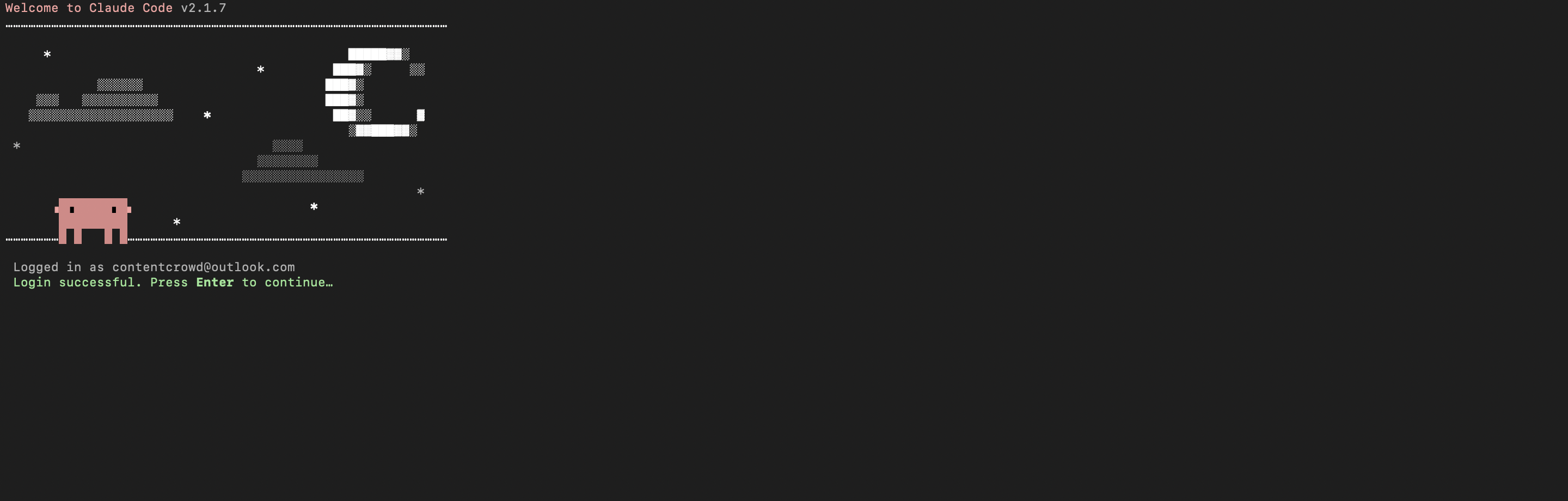
  • Follow the prompts to sign in with your Anthropic account
  • Complete the authentication flow
  • Once authenticated, you can start using Claude Code
Claude Code initial setup showing sign-in prompt
Claude Code terminal after successful login
4

Set up environment variables

bash
COMPOSIO_API_KEY=your_composio_api_key_here
USER_ID=your_user_id_here

Create a .env file in your project root with the following variables:

  • COMPOSIO_API_KEY authenticates with Composio (get it from Composio dashboard)
  • USER_ID identifies the user for session management (use any unique identifier)
5

Install Composio library

npm install @composio/core dotenv

Install the Composio TypeScript library to create MCP sessions.

  • @composio/core provides the core Composio functionality
  • dotenv loads environment variables from your .env file
6

Generate Composio MCP URL

import 'dotenv/config';
import { Composio } from '@composio/core';

const { COMPOSIO_API_KEY, USER_ID } = process.env;

if (!COMPOSIO_API_KEY || !USER_ID) {
  throw new Error('COMPOSIO_API_KEY and USER_ID required in .env');
}

const composioClient = new Composio({ apiKey: COMPOSIO_API_KEY });

const composioSession = await composioClient.create(USER_ID, {
  toolkits: ['customerio'],
});

const composioMcpUrl = composioSession?.mcp.url;

console.log(`MCP URL: ${composioMcpUrl}`);
console.log(`\nUse this command to add to Claude Code:`);
console.log(`claude mcp add --transport http customerio-composio "${composioMcpUrl}" --headers "X-API-Key:${COMPOSIO_API_KEY}"`);

Create a script to generate a Composio MCP URL for Customerio. This URL will be used to connect Claude Code to Customerio.

What's happening

  • We import the Composio client and load environment variables
  • Create a Composio instance with your API key
  • Call create() to create a Tool Router session for Customerio
  • The returned mcp.url is the MCP server URL that Claude Code will use
  • The script prints this URL so you can copy it
7

Run the script and copy the MCP URL

node --loader ts-node/esm generate_mcp_url.ts
# or if using tsx
tsx generate_mcp_url.ts

Run your TypeScript script to generate the MCP URL.

  • The script connects to Composio and creates a Tool Router session
  • It prints the MCP URL and the exact command you need to run
  • Copy the entire claude mcp add command from the output
8

Add Customerio MCP to Claude Code

bash
claude mcp add --transport http customerio-composio "YOUR_MCP_URL_HERE" --headers "X-API-Key:YOUR_COMPOSIO_API_KEY"

# Then restart Claude Code
exit
claude

In your terminal, add the MCP server using the command from the previous step. The command format is:

  • claude mcp add registers a new MCP server with Claude Code
  • --transport http specifies that this is an HTTP-based MCP server
  • The server name (customerio-composio) is how you'll reference it
  • The URL points to your Composio Tool Router session
  • --headers includes your Composio API key for authentication

After running the command, close the current Claude Code session and start a new one for the changes to take effect.

9

Verify the installation

bash
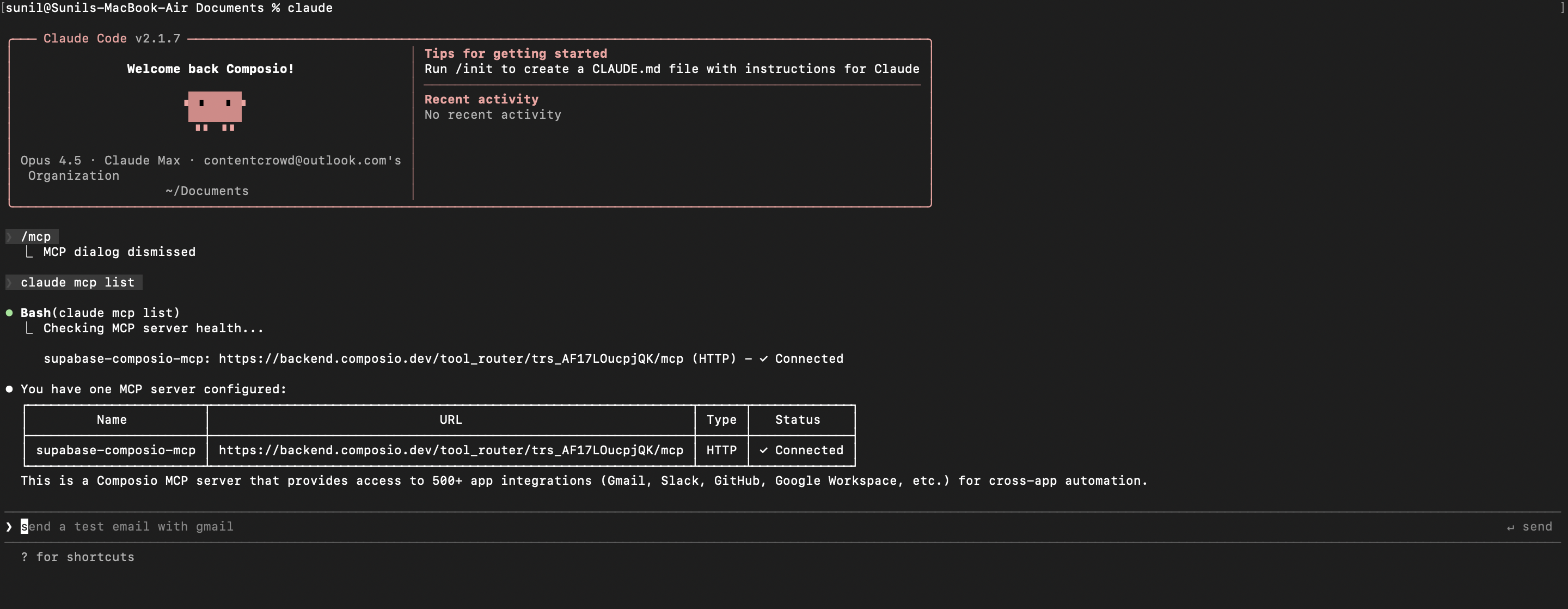
claude mcp list

Check that your Customerio MCP server is properly configured.

  • This command lists all MCP servers registered with Claude Code
  • You should see your customerio-composio entry in the list
  • This confirms that Claude Code can now access Customerio tools

If everything is wired up, you should see your customerio-composio entry listed:

Claude Code MCP list showing the toolkit MCP server
10

Authenticate Customerio

The first time you try to use Customerio tools, you'll be prompted to authenticate.

  • Claude Code will detect that you need to authenticate with Customerio
  • It will show you an authentication link
  • Open the link in your browser (or copy/paste it)
  • Complete the Customerio authorization flow
  • Return to the terminal and start using Customerio through Claude Code

Once authenticated, you can ask Claude Code to perform Customerio operations in natural language. For example:

  • "List all segments in my workspace"
  • "Get delivery metrics for last week's emails"
  • "Show all people in VIP customer segment"

Complete Code

Here's the complete code to get you started with Customerio and Claude Code:

import 'dotenv/config';
import { Composio } from '@composio/core';

const { COMPOSIO_API_KEY, USER_ID } = process.env;

if (!COMPOSIO_API_KEY || !USER_ID) {
  throw new Error('COMPOSIO_API_KEY and USER_ID required in .env');
}

const composioClient = new Composio({ apiKey: COMPOSIO_API_KEY });

const composioSession = await composioClient.create(USER_ID, {
  toolkits: ['customerio'],
});

const composioMcpUrl = composioSession?.mcp.url;

console.log(`MCP URL: ${composioMcpUrl}`);
console.log(`\nUse this command to add to Claude Code:`);
console.log(`claude mcp add --transport http customerio-composio "${composioMcpUrl}" --headers "X-API-Key:${COMPOSIO_API_KEY}"`);

Conclusion

You've successfully integrated Customerio with Claude Code using Composio's MCP server. Now you can interact with Customerio directly from your terminal using natural language commands.

Key features of this setup:

  • Terminal-native experience without switching contexts
  • Natural language commands for Customerio operations
  • Secure authentication through Composio's managed MCP
  • Tool Router for dynamic tool discovery and execution

Next steps:

  • Try asking Claude Code to perform various Customerio operations
  • Add more toolkits to your Tool Router session for multi-app workflows
  • Integrate this setup into your development workflow for increased productivity

You can extend this by adding more toolkits, implementing custom workflows, or building automation scripts that leverage Claude Code's capabilities.

TOOLS

Supported Tools

Every Customerio action and event your agent gets out of the box.

Add Person to Group

Add a person to a Customer.io group to establish a relationship with an object such as a company, account, or project.

Author, Version, and Publish Email

Update and version a linked Design Studio email, then publish it.

Create Profile Alias

Create an alias to merge Customer.io profiles for a person with multiple identifiers.

Create Segment

Create an empty manual segment in Customer.io.

Suppress Customer Profile

Suppress a customer profile to permanently delete it and prevent re-adding with the same identifier.

Find Customers by Email

Return Customer.io profiles whose email exactly matches the provided address.

Get Account Region

Return the region and Track API URL for the connected Customer.io account.

Get Customer Attributes

Return one Customer.io profile's attributes and devices.

Get Integrations

Retrieve a list of integrations in your workspace to discover configured integrations.

Get Messages

Tool to retrieve a list of messages sent from your workspace.

Get Newsletter Content Metrics

Retrieve engagement metrics for a Customer.io one-time send variant.

Get Newsletter Metrics

Retrieve aggregate engagement metrics for a Customer.io one-time send.

Get Segment Customer Count

Return the current number of profiles in a Customer.io segment.

Get Segment Details

Tool to retrieve details of a specific segment.

Get Segment Membership

Tool to retrieve people in a specific segment.

Get Segments

Tool to retrieve a list of segments in your workspace.

Get Transactional Metrics

Return aggregate engagement metrics for a transactional message template.

Get Trigger

Retrieves details about a specific API-triggered broadcast, including trigger ID, campaign ID, creation timestamp, recipient filter criteria, and personalization data.

Get Broadcast Triggers

Retrieve all API trigger instances for a specific broadcast/campaign.

Get Customer.io Workspace Webhooks

Retrieves all reporting webhook configurations from the Customer.io workspace.

Identify Person

Identify a person in Customer.io and assign traits, creating a profile or updating an existing one.

List Activities

Return recent workspace activity-log entries with optional filters.

List Campaigns

Return Customer.io automations and their metadata.

List Collections

Tool to list all Collections metadata.

List Customer Attributes

Return attributes and devices for up to 100 Customer.io profiles.

List IP Addresses

Tool to retrieve the list of IP addresses used by Customer.io for sending messages.

List Newsletters

Tool to list all newsletters.

List Snippets

Tool to list all snippets in your workspace.

List Transactional Contents

Return every language and content variant of a transactional template.

List Transactional Messages

Lists all transactional message templates in your Customer.io workspace.

List Workspaces

List Customer.io workspaces and their cached usage counts.

Preview Email

Evaluate a Design Studio email against sample Liquid data without sending.

Search Customers

Search Customer.io profiles using an audience filter.

Send Batch CDP Calls

Send multiple CDP calls (identify, track, page, screen, group, alias) in a single batch request.

Track Event

Tool to send an event associated with a person in Customer.io.

Track Page View

Track page views for website visitors through the Customer.io CDP API, providing a user ID or anonymous ID and optional page properties.

Track Screen View

Track mobile screen views in Customer.io for analytics and user journey tracking.

Trigger Broadcast

Manually trigger a Customer.io broadcast/campaign to send messages to a defined audience.

Unsubscribe from Delivery

Tool to handle custom unsubscribe requests for email deliveries in Customer.io.

FAQ

Frequently asked questions

Start with Customerio.It takes 30 seconds.

Managed auth, hosted MCP servers, and every Customerio tool your agent needs.Free to start.

Start building