How to connect Crawl4AI to Claude

Connect Claude Web, Desktop and Cowork to Crawl4AI MCP. Search web for competitor pricing pages, extract product data from retailer pages, and more using natural language, with authentication handled for you.

Crawl4AI logoCrawl4AI
Api Key

Crawl4AI is a web scraping and search service for extracting structured data from websites. It helps teams collect clean web data, monitor pages, and verify leads at scale.

51 Tools

Introduction

Claude is Anthropic's AI assistant, available on the web, in the desktop app, and on mobile. Cowork is its agent for knowledge work, and it runs on all of those surfaces too. Connected to your apps, Claude can work with your files and services to accomplish complex tasks on your behalf.

This guide walks you through the easiest and most secure way to connect your Crawl4AI account to Claude via Composio Connect, enabling it to search web for competitor pricing pages, extract product data from retailer pages, verify email addresses from lead lists, and more such actions on your behalf without compromising your account security.

Setup is the same on Claude Web, Desktop, and Cowork, and you only need to do it once. The connector is tied to your account, so it's available in all three.

For exact tool slugs and parameter tables, see the tool catalog in the Composio docs.

Also integrate Crawl4AI with

Connecting Crawl4AI to Claude Web, Desktop, and Cowork

Two ways to add the Composio connector. Pick whichever you prefer.

1. Add with one click

Click the button. Claude opens with the Composio connector filled in. Click Add, then go to step 2.

Add to Claude

Add manually

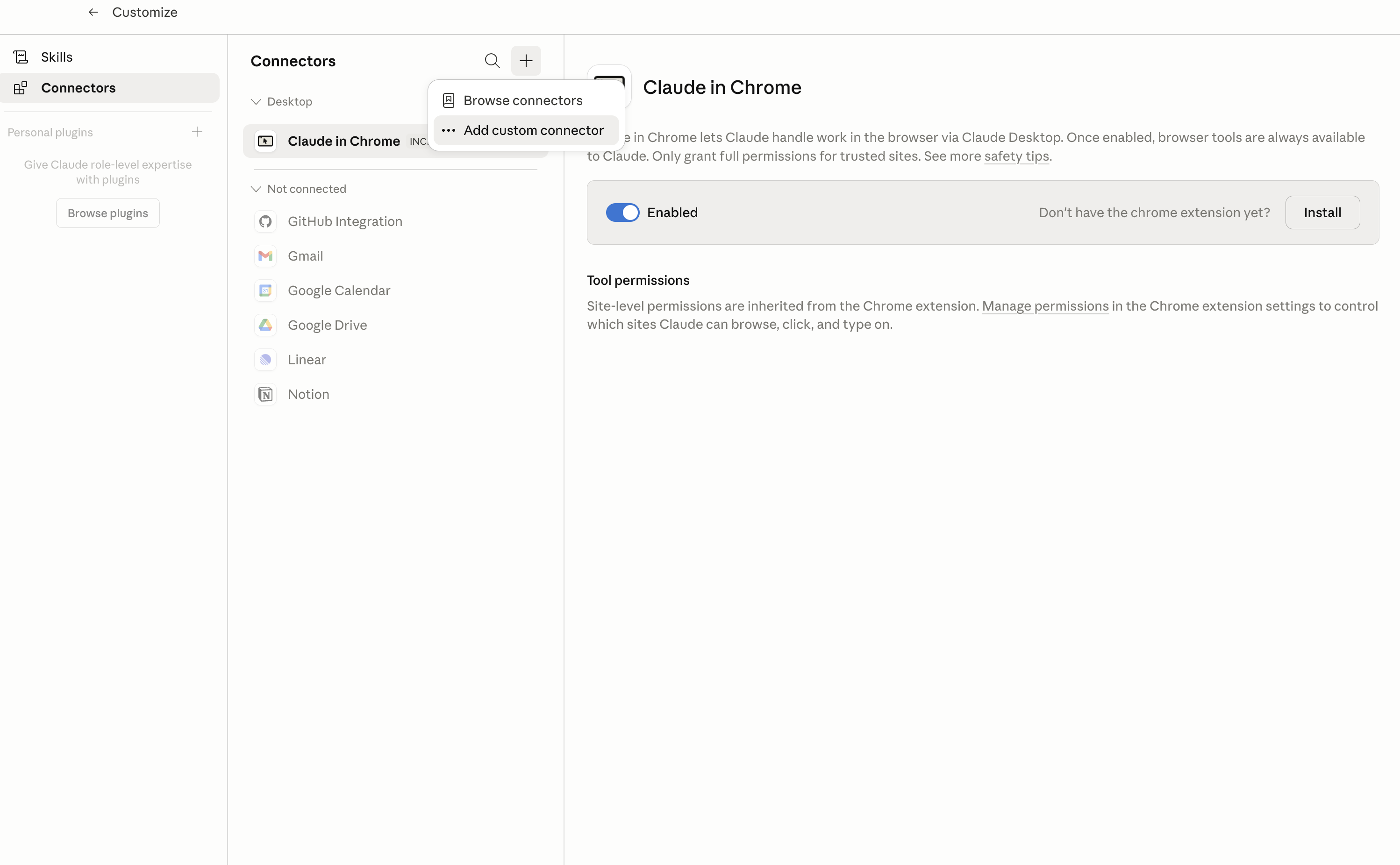
In Claude Desktop, click Customize in the left sidebar, then select Connectors and click the + icon at the top.

Claude Desktop connectors screen with Add custom connector selected

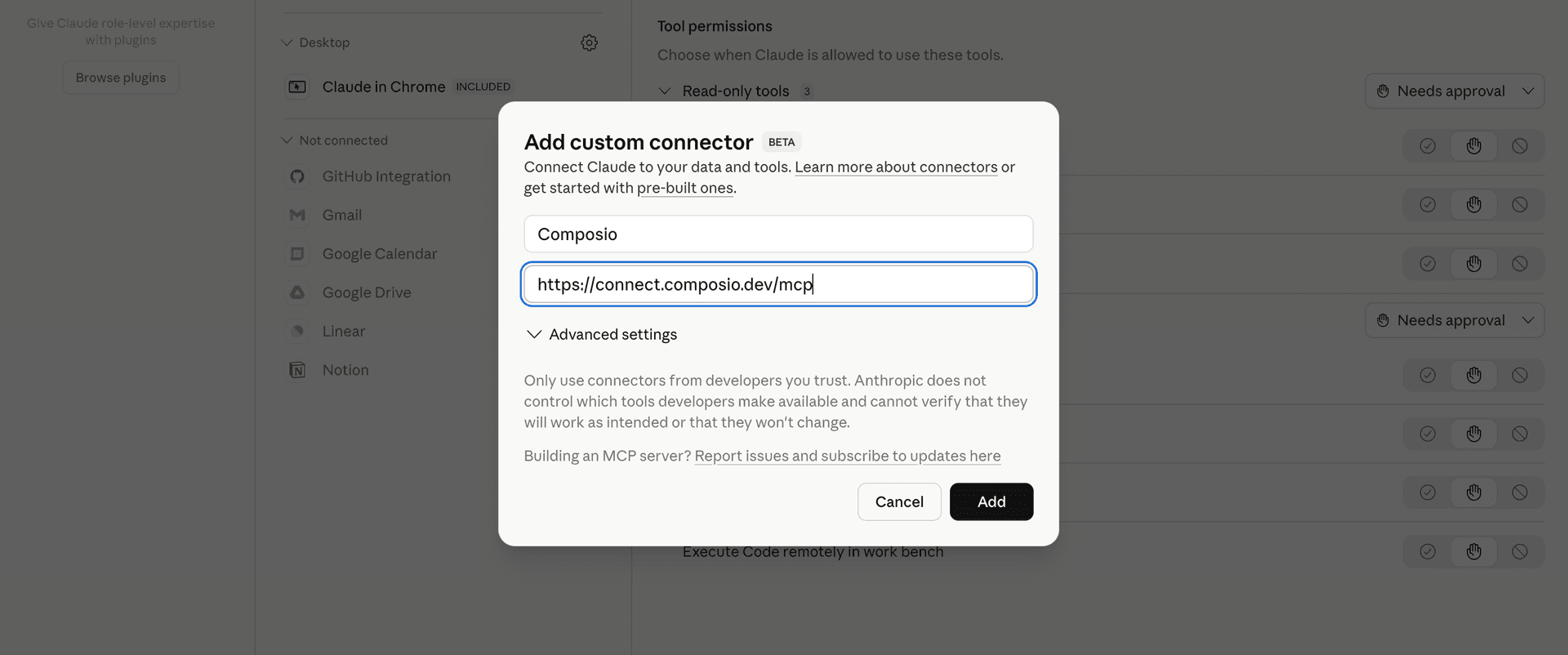
Click Add custom connector and paste in the Composio MCP server URL:

bash
https://connect.composio.dev/mcp
Add custom connector dialog with Composio MCP server URL

2. Authorize in your browser

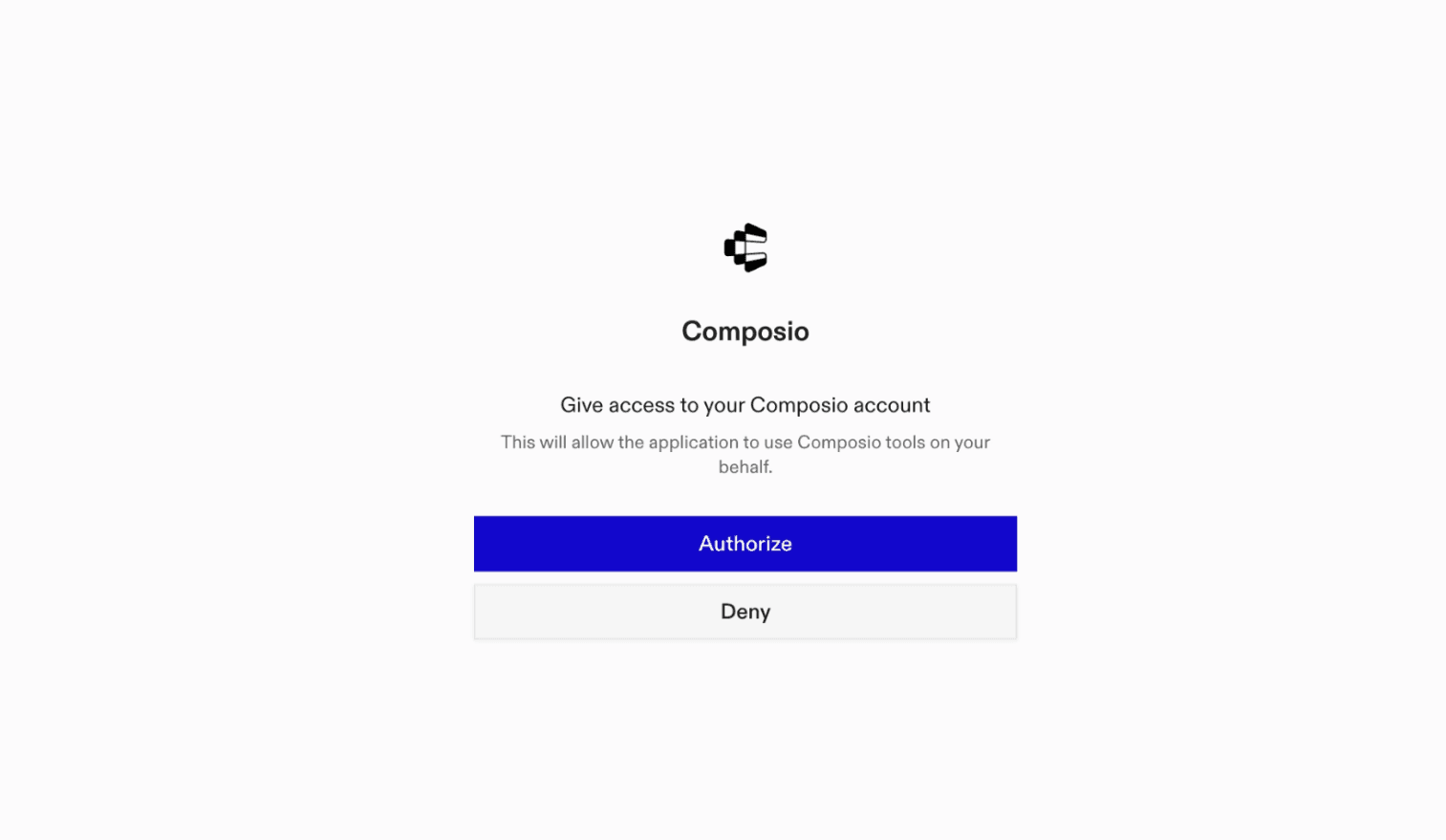
Click Connect. You'll be redirected to a browser window where you can authorize Composio to continue.

Composio authorization screen for Claude Web, Desktop, and Cowork

3. Connect your Crawl4AI account

Back in Claude, ask it to connect to Crawl4AI or give it any Crawl4AI-related task.

For example, ask Claude to:

  • "Search web for competitor pricing pages"
  • "Extract product data from retailer pages"
  • "Verify email addresses from lead lists"

It will prompt you to authenticate and authorize access.

That's it. Composio's tools are now available in Claude, and your Crawl4AI account is ready to use.

What is the Crawl4AI Claude Connector, and what's possible with it?

The Crawl4AI MCP server is an implementation of the Model Context Protocol that connects your AI agent and assistants like Claude, Cursor, etc directly to your Crawl4AI account. It provides structured and secure access so your agent can perform Crawl4AI operations on your behalf.

Troubleshooting

1. Why does Claude not use the Composio connector for Crawl4AI?

The connector can show as connected, but Claude must use it in each Crawl4AI conversation.

  • Click + at the lower left of the chat, or type /.
  • Hover Connectors.
  • Turn on Composio.
  • Ask Claude to connect to Crawl4AI again.

2. Why does Claude show an MCP server error before Crawl4AI connects?

Claude can show Couldn't reach the MCP server or Authorization with the MCP server failed when you add the connector for Crawl4AI.

  • Check that the connector URL is https://connect.composio.dev/mcp.
  • Connectors run from Anthropic's cloud, so your device network is usually not the problem.
  • Add the connector again from Customize > Connectors, then ask Claude to connect Crawl4AI.
  • If it fails again, send the error and the ofid_ reference id to support@composio.dev.

3. Why does the Crawl4AI authorization link not work?

The Composio connector is one server. Your Crawl4AI account connects separately when Claude asks for it.

  • If the browser does not open, or the link expires, ask Claude to retry the Crawl4AI connection.
  • Composio creates a fresh Crawl4AI authorization link.
  • Open that link in your browser and finish the Crawl4AI sign-in.

4. Why do Crawl4AI actions fail after they worked before?

The Crawl4AI connection can expire or lose permission.

  • Ask Claude to inspect the Crawl4AI connection.
  • If the connection is unhealthy, disconnect it when Claude prompts you.
  • Reconnect the Crawl4AI account and retry the action.
  • If Claude shows a permission prompt, approve it before Claude changes data in Crawl4AI.
  • If the action still fails with a permission error, check that the connected account has that permission in Crawl4AI itself.

5. How do I switch to a different Crawl4AI account?

Claude can manage the Crawl4AI connection for you.

  • Ask Claude to disconnect or delete the current Crawl4AI account.
  • Ask Claude to connect Crawl4AI again.
  • Open the new Composio authorization link for Crawl4AI.
  • Sign in with the other Crawl4AI account in the browser.
  • After the account connects, ask Claude to retry the Crawl4AI task.

6. Why is my Crawl4AI connection missing in Claude Desktop or on a Team plan?

The connector belongs to your Claude account, so your Crawl4AI connection works in Claude Web, Desktop, and Cowork.

  • In Claude Desktop, open Customize > Connectors.
  • Next to Composio, click ⋮ and click Clear cache.
  • If Crawl4AI tools still do not appear, click ⋮, disconnect, remove the connector, and add it again.
  • On Team or Enterprise, an Owner or Primary Owner must enable the connector before you can connect Crawl4AI.
TOOLS

Supported Tools

Every Crawl4AI action and event your agent gets out of the box.

Answer Question

Answer a question from web sources and return the answer with citations when available.

Cancel Recipe Job

Stop a running recipe job.

Cancel Site Crawl

Stop a running site crawl job; the job ends in the paused state.

Read Monitor Changes

Read the oldest new changes across monitors and mark the returned feed items as read.

Create Monitor

Create a page-change monitor, or return the existing equivalent monitor, that performs recurring credit-consuming checks until paused or deleted and can send configured notifications.

Create Plan Checkout

Create an account-specific Stripe checkout flow for a Crawl4AI paid plan.

Delete Monitor

Permanently delete one page-change monitor and its history.

Estimate Cost

Estimate the minimum and maximum Crawl4AI credits for a proposed API request without running that request.

Extract Prices

Read pricing pages for up to 20 site-and-country combinations and return documented plans, billing periods, add-ons, discounts, trials, and source quotes.

Extract Structured Data

Extract structured records from exactly one URL or supplied content using an instruction, a JSON Schema, or both.

Forget Email Verification

Request permanent removal of Crawl4AI's stored verification answer for one email.

Get Billing Balance

Return the connected account's current free-credit balance, allowance, plan, tier, card status, spending, and top-up balance.

Get Lead Company

Get one private-preview Lead company by domain, LinkedIn page, or an unambiguous name optionally narrowed by country.

Get Email Verification Job

Get later results for a batch email verification job, including background retries.

Get Monitor

Return one page-change monitor's configuration, health, baseline, cost, and notification settings.

Get Monitor Version

Download the page exactly as Crawl4AI captured it for monitor evidence, returned as a Markdown text file.

Get Lead Person

Get one private-preview Lead person and held contact data by one documented lookup.

Get Lead Person Email

Get private-preview personal contact data: one person's checked email by one documented lookup.

Get Lead Person Phone

Get private-preview personal contact data: a person's direct and company phones by one documented lookup.

Get Price History

Return up to 1,000 observed price changes for one domain and optional country, newest first.

Get Prices and Plans

Return Crawl4AI's current credit prices, effort levels, plans, allowances, and request limits from the authoritative live catalog.

Get Recipe Health

Get the latest regional health check and release stage for every recipe, keyed by its live catalog name.

Get Recipe Job

Get a recipe job's status, progress counts, pause reason, and usage.

Get Recipe Job Results

Download a recipe job's result rows as an NDJSON file.

Get Scrape Job

Return a scrape job's current status, URL counts, and credit usage, with optional per-URL detail.

Get Scrape Job Results

Download one page of up to 500 scrape job results as NDJSON; pass the next result offset explicitly to retrieve another page.

Get SERP

Return structured Google rankings through Crawl4AI's GET transport, including source selection and the fixed device, engine, and result-type controls.

Get Site Crawl Job

Read a site crawl job's state, progress counts, completion deadline, usage, and pause reason when applicable.

Get Site Crawl Results

Download one page of up to 500 site crawl result rows as NDJSON, optionally continuing after a previously returned sequence number.

List Billing Topups

List account payments and credit additions newest first, including receipt URLs, one cursor-controlled page at a time.

List Lead Industries

Return documented LinkedIn industry names or names closest to query words.

List Monitor Events

List one monitor's change and health timeline oldest first, including facts and links to captured evidence versions.

List Monitors

List the connected account's page-change monitors, optionally filtered by agent label.

List Recipes

List the live ready-made scraper catalog, including each recipe's dynamic input schema, output fields, cost, stage, and health.

Purchase Extra Credits

Immediately charge the saved card for the connected account's paid Crawl4AI plan and add non-expiring extra credits.

Retry Scrape Job

Re-run only the failed URLs in an existing scrape job.

Run Recipe

Run one synchronous catalog recipe with inputs that match its current schema.

Scan Site URLs

Discover a site's known public page URLs from sitemaps, its home page, Common Crawl, and optionally the Wayback Machine without crawling each URL.

Scrape Page

Fetch one public web page and return its Markdown, HTML, and optional parsed links, media, metadata, or tables.

Scrape Pages

Scrape up to 50 public URLs with shared options and return a downloadable NDJSON file of completion rows followed by a final summary row.

Search Lead Companies

Search private-preview Lead companies by documented company filters and optional description-ranking words, one provider-cursor page at a time.

Search Lead People

Search private-preview Lead people by documented company and person filters.

Search SERP

Return structured Google result ranks and SERP blocks for a localized query and explicit result page.

Search Web

Search the web for ranked, cleaned results, optionally including related questions, queries, news, videos, and discussions.

Submit Recipe Job

Submit an asynchronous run for a job-capable recipe using its dynamic live catalog inputs.

Submit Scrape Job

Submit up to 10,000 public URLs for asynchronous scraping and return a job identifier for status polling and paged result retrieval.

Submit Site Crawl

Start a background crawl of public pages within one site and return the job identifier used to inspect its status and results.

Update Monitor

Change a monitor's watch rule, schedule, notifications, schema, name, or paused state.

Verify Email

Check whether one email can receive mail.

Verify Email Domain

Check one domain's mail acceptance, provider, gateway, catch-all, SPF, and DMARC results.

Verify Emails

Check one to 1,000 email addresses without sending mail.

FAQ

Frequently asked questions

Start with Crawl4AI.It takes 30 seconds.

Managed auth, hosted MCP servers, and every Crawl4AI tool your agent needs.Free to start.

Start building