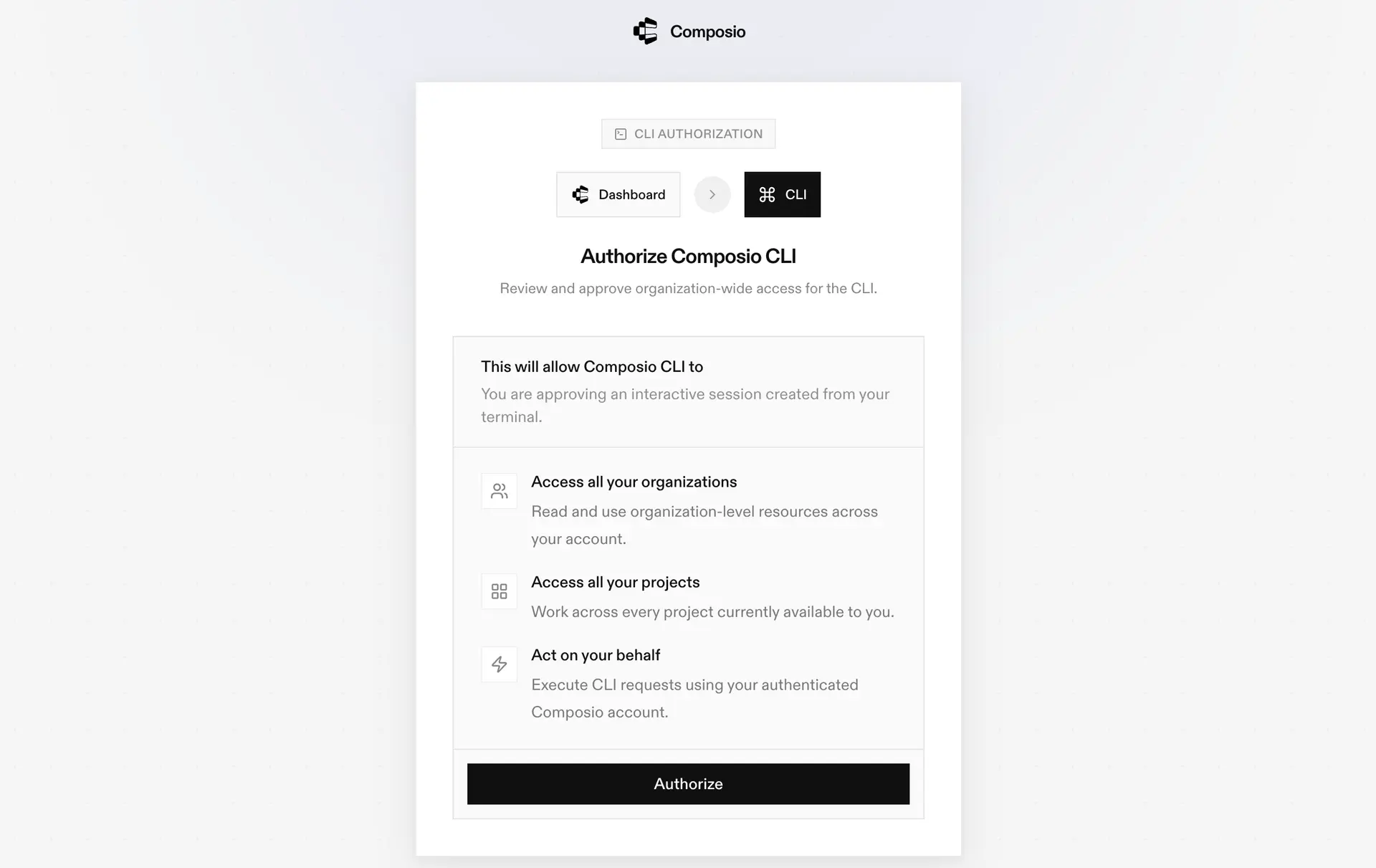
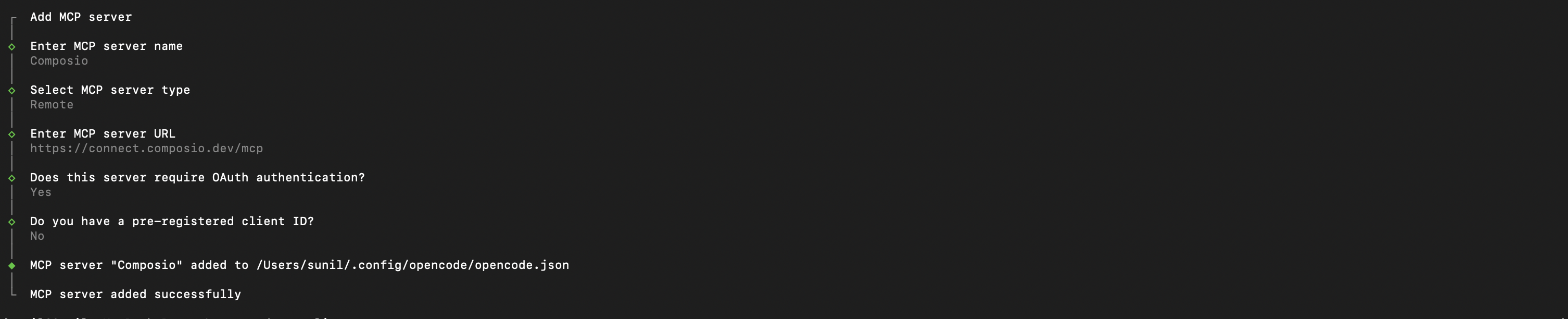
3. Authenticate
Authenticate the Composio MCP server you just added:
This opens a browser session. Authorize Composio and you are done.
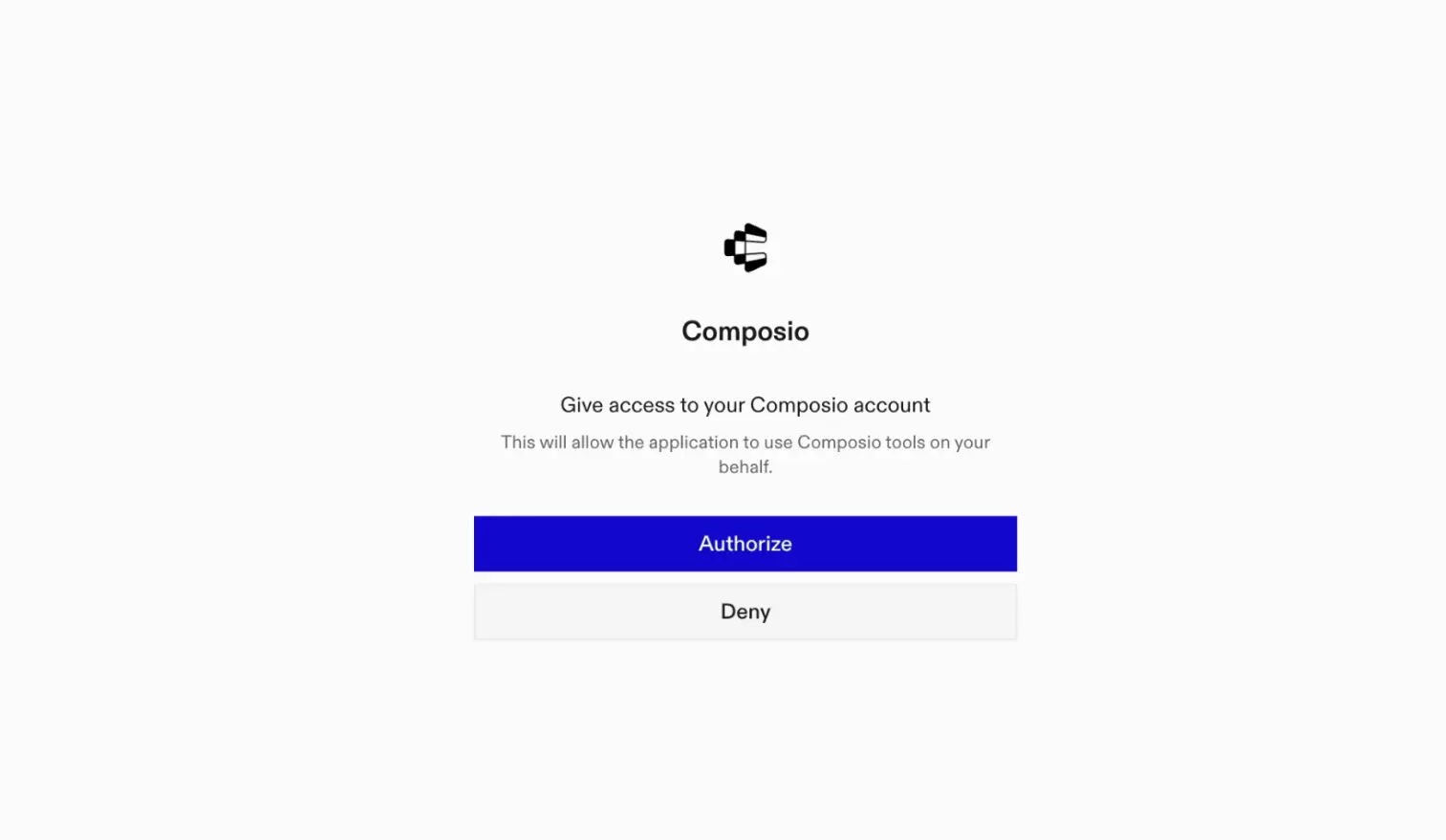
4. Verify installation
5. Connect Cloudflare browser rendering with OpenCode
Now, in the chat, ask the agent to connect to Cloudflare browser rendering or give it any Cloudflare browser rendering-related task.
For example, ask it to:
- "Capture a full-page screenshot of example.com"
- "Extract all product prices from a category page"
- "Get the HTML and image of a login page"
It will prompt you to authenticate and authorize access to Cloudflare browser rendering.
That is it. Composio tools are now available in OpenCode, and your Cloudflare browser rendering account is ready to use.