How to connect CallOnTheGo to Claude Cowork

Connect Claude Cowork to CallOnTheGo MCP. List active phone numbers and statuses, create a voice campaign with audio, and more using natural language, with authentication handled for you.

CallOnTheGo logoCallOnTheGo
Api Key

CallOnTheGo is a telephony API for managing phone numbers, caller IDs, suppression lists, audio assets, contact lists, and Voice AI campaigns. It provides programmatic control over calling infrastructure and campaign automation for scalable voice outreach.

29 Tools

Introduction

Cowork is Anthropic's AI agent for knowledge work. Think of it as Claude Code for everything else. It works autonomously with your computer, local files, and applications to accomplish complex tasks.

This guide walks you through the easiest and most secure way to connect your CallOnTheGo account to Cowork via Composio Connect, enabling it to list active phone numbers and statuses, create a voice campaign with audio, add number to suppression list, and more such actions on your behalf without compromising your account security.

Also integrate CallOnTheGo with

Connecting CallOnTheGo to Claude Cowork

1. Open Customize

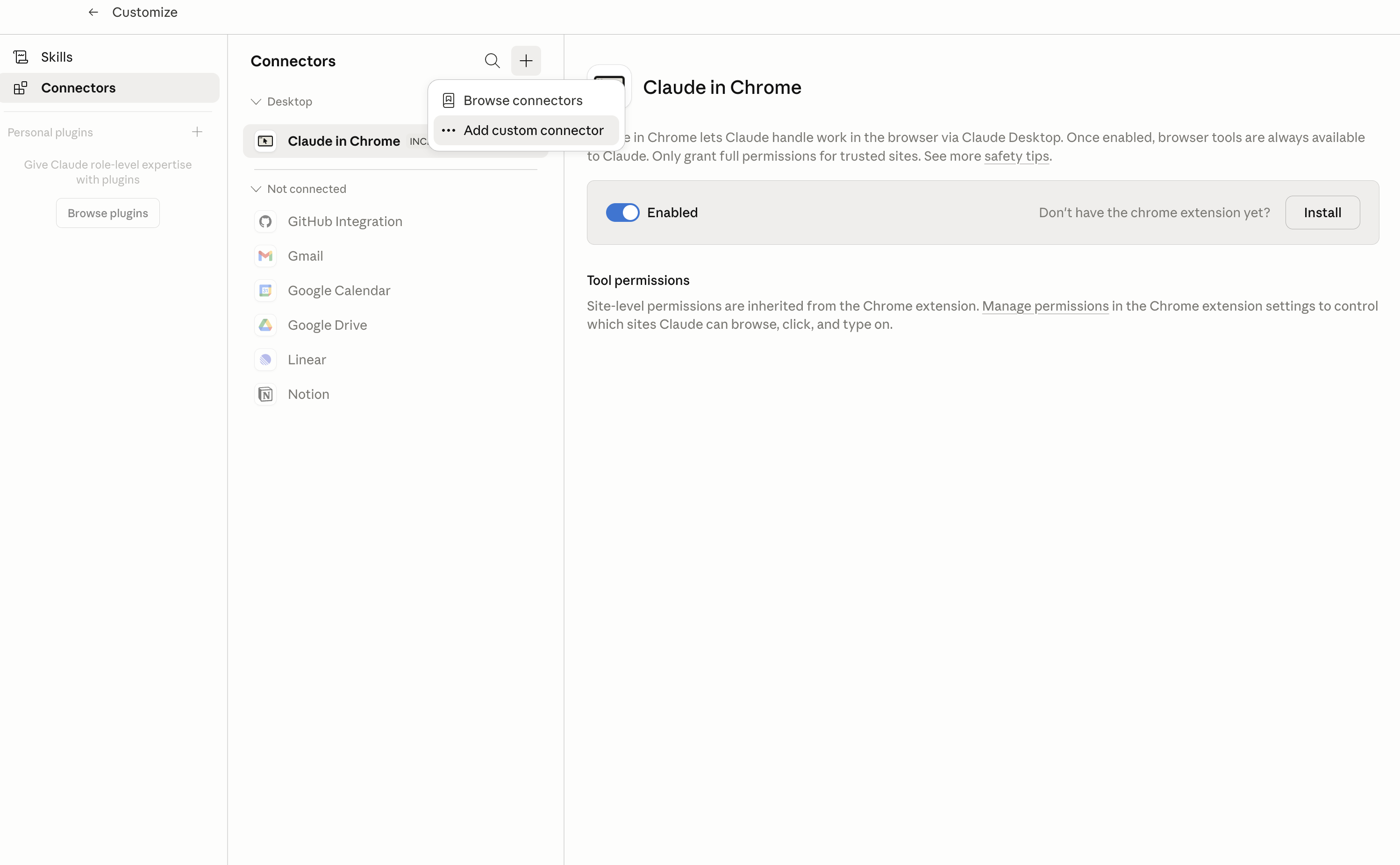
In Claude Desktop, click Customize in the left sidebar, then select Connectors and click the + icon at the top.

Claude Desktop connectors screen with Add custom connector selected

2. Add the Composio MCP server

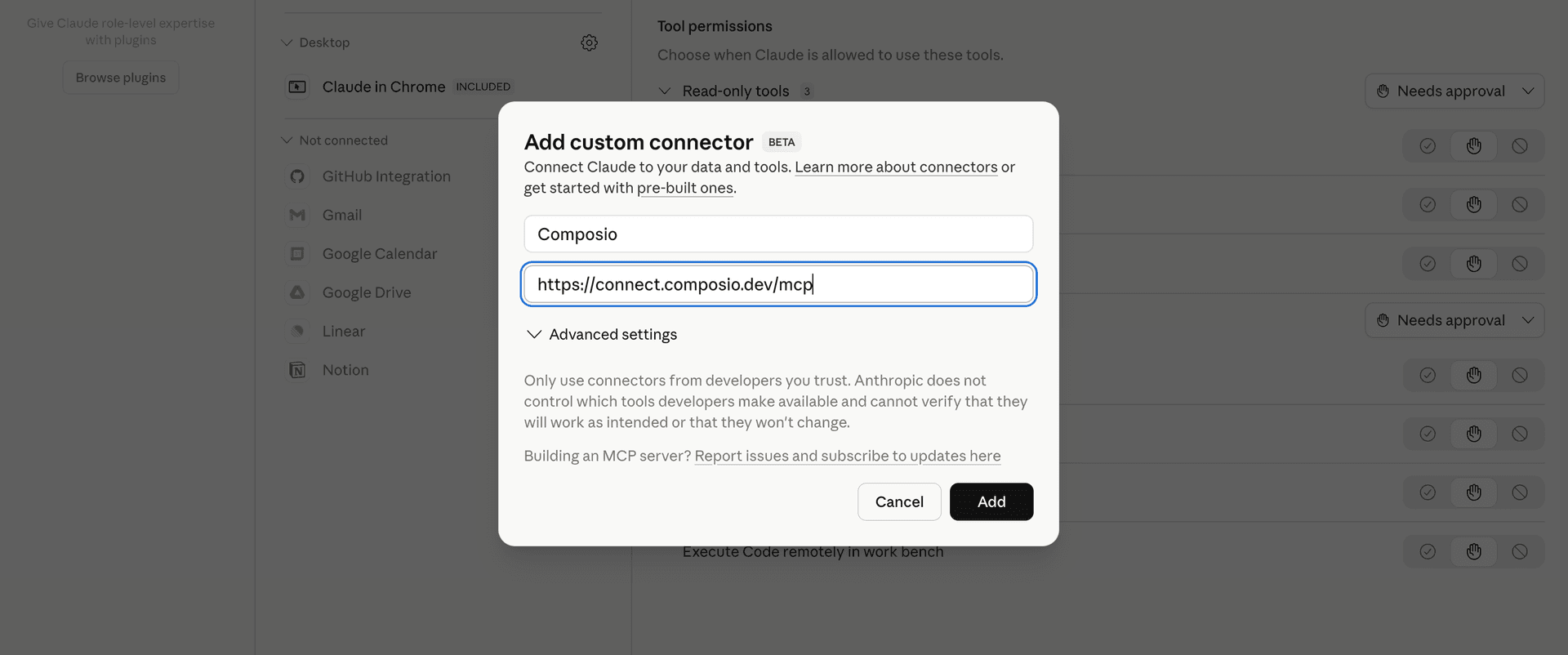
Click Add custom connector and paste in the Composio MCP server URL:

bash
https://connect.composio.dev/mcp
Add custom connector dialog with Composio MCP server URL

3. Authorize in your browser

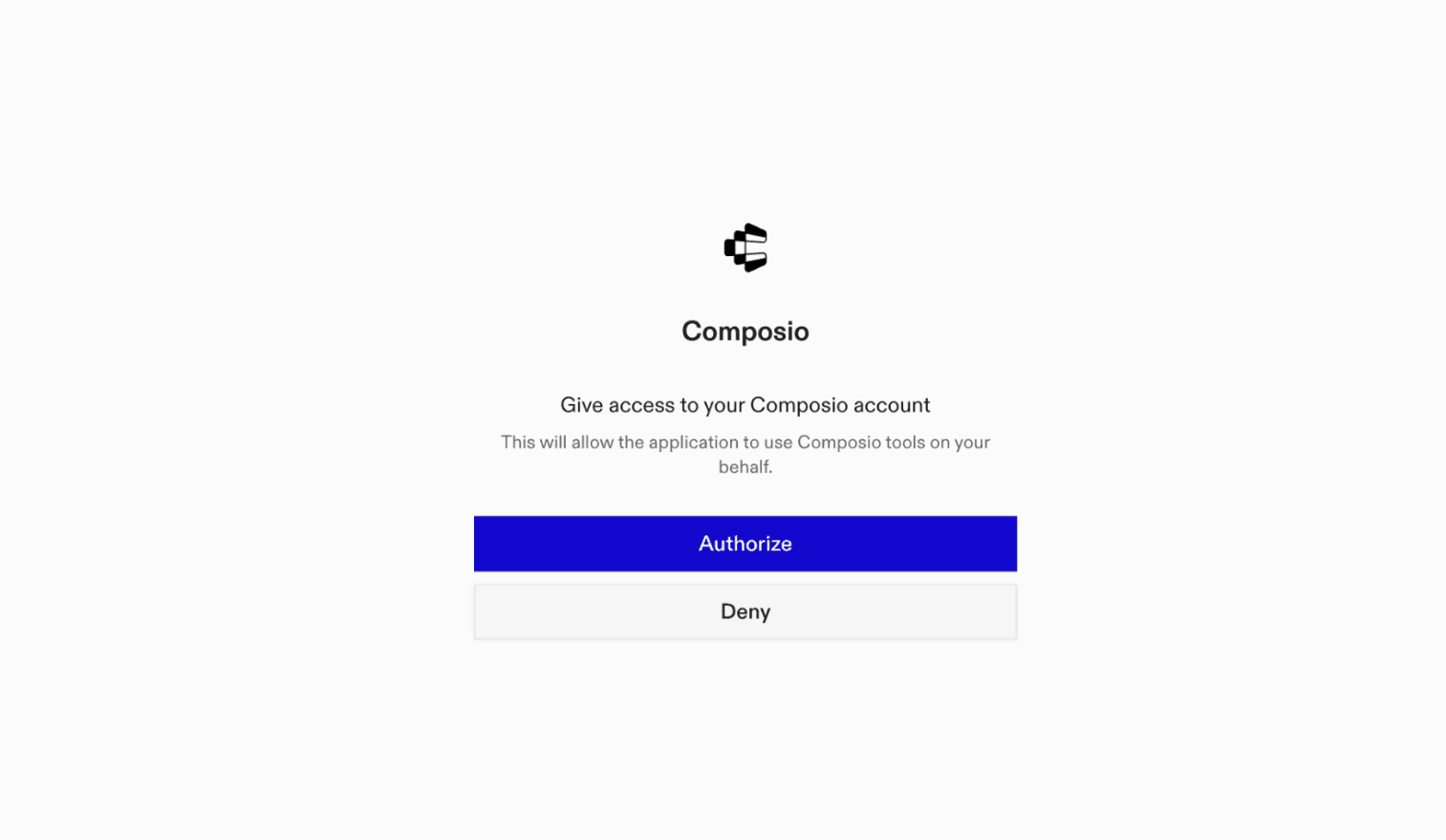
Click Connect. You'll be redirected to a browser window where you can authorize Composio to continue.

Composio authorization screen for Claude Cowork

4. Connect your CallOnTheGo account

Back in Cowork, ask the agent to connect to CallOnTheGo or give it any CallOnTheGo-related task.

For example, ask Cowork to:

  • "List active phone numbers and statuses"
  • "Create a voice campaign with audio"
  • "Add number to suppression list"

It will prompt you to authenticate and authorize access.

That's it. Composio's tools are now available in Cowork, and your CallOnTheGo account is ready to use.

What is Claude Cowork?

Claude Cowork is Anthropic's agent for general knowledge work. It can use your computer, files, and connected applications to complete longer-running tasks across your work tools.

With Composio Connect, Cowork can securely access apps like CallOnTheGo through MCP without you sharing account credentials directly with the agent.

What is the CallOnTheGo MCP server, and what's possible with it?

The CallOnTheGo MCP server is an implementation of the Model Context Protocol that connects your AI agent and assistants like Claude, Cursor, etc directly to your CallOnTheGo account. It provides structured and secure access so your agent can perform CallOnTheGo operations on your behalf.

TOOLS

Supported Tools

Every CallOnTheGo action and event your agent gets out of the box.

Add Suppression Entry

Idempotently add one phone number to the Do-Not-Call list.

Cancel Campaign

Irreversibly cancel a campaign and mark its queued or pending recipients cancelled.

Create Caller ID

Add a caller ID and initiate a telecom-provider verification call to confirm ownership.

Create Campaign

Create a draft Voice AI campaign from explicit caller ID, contact list, and audio resources.

Delete Caller ID

Permanently remove an owned caller ID configuration.

Delete Phone Number

Permanently remove an owned phone-number configuration by ID; deleting a missing ID also reports success.

Get Campaign

Get one campaign's configuration, lifecycle state, resource names, delivery metrics, and cost metrics.

Get Dashboard Stats

Return account-level call, contact, group, list, success-rate, and recent-activity summary metrics.

Get Voice Readiness

Return runtime readiness, telecom provider assignment, and supported capabilities for diagnosing whether voice campaigns can run.

Launch Campaign

Validate compliance, provision telecom isolation if needed, and launch a campaign.

List Audio Assets

List campaign audio assets with playback, duration, transcript, and compliance details.

List Caller IDs

List owned caller IDs with ownership-verification status and inbound-campaign assignment.

List Calls

Return one page of account call records for outcome and duration review, with an opaque cursor for the next page.

List Campaign Events

List only the newest 100 delivery events for a campaign, ordered newest first.

List Campaign Recipients

List all recipients for a campaign with call status, attempts, machine detection, and cost estimates.

List Campaigns

List Voice AI campaigns with lifecycle state, linked resources, calling window, rate, estimated cost, compliance state, and timestamps.

List Contact Lists

List campaign contact lists with valid, invalid, suppressed, and total recipient counts.

List Contacts

Return one page of contacts from the connected CallOnTheGo account for CRM lookup, with an opaque cursor for the next page.

List Phone Numbers

List phone numbers owned by the connected CallOnTheGo account, including the resource records needed to identify numbers for later management.

List Suppression Entries

List Do-Not-Call suppression entries for the connected account.

Pause Campaign

Pause a running campaign while retaining its pending recipients for a later resume.

Queue Campaign Lead

Queue one phone-number lead for dialing by a running campaign.

Resume Campaign

Resume a paused campaign and immediately requeue its pending recipients for calls.

Set Caller ID Inbound Campaign

Set or clear the preferred inbound campaign assigned to an owned caller ID.

Update Campaign

Update selected configuration fields on a draft or paused campaign.

Upload Audio Asset

Upload an MP3 or WAV file as a reusable campaign audio asset.

Upload Contact List

Create a campaign contact list from a CSV file.

Upload Suppression CSV

Persistently add many phone numbers to the Do-Not-Call list from a CSV file.

Verify Caller ID

Submit an ownership-verification code for an existing caller ID and return whether it became verified or remains pending.

FRAMEWORKS

How to build CallOnTheGo MCP Agent with another framework

FAQ

Frequently asked questions

With a standalone CallOnTheGo MCP server, the agents and LLMs can only access a fixed set of CallOnTheGo tools tied to that server. However, with the Composio Tool Router, agents can dynamically load tools from CallOnTheGo and many other apps based on the task at hand, all through a single MCP endpoint.

Yes, you can. Claude Cowork fully supports MCP integration. You get structured tool calling, message history handling, and model orchestration while Tool Router takes care of discovering and serving the right CallOnTheGo tools.

Yes, absolutely. You can configure which CallOnTheGo scopes and actions are allowed when connecting your account to Composio. You can also bring your own OAuth credentials or API configuration so you keep full control over what the agent can do.

All sensitive data such as tokens, keys, and configuration is fully encrypted at rest and in transit. Composio is SOC 2 Type 2 compliant and follows strict security practices so your CallOnTheGo data and credentials are handled as safely as possible.

Start with CallOnTheGo.It takes 30 seconds.

Managed auth, hosted MCP servers, and every CallOnTheGo tool your agent needs.Free to start.

Start building