How to integrate Browserbase tool MCP with Claude Code

Connect Claude Code to Browserbase tool MCP. Start a new headless browser session now, download all artifacts from last session, and more using natural language, with authentication handled for you.

Browserbase tool logoBrowserbase tool
Api Key

Browserbase is a serverless platform for running and managing headless browsers at scale. It lets you automate and monitor browser tasks with Playwright, Puppeteer, and Selenium—no infrastructure headaches.

64 Tools

Introduction

Manage your Browserbase tool directly from Claude Code with zero worries about OAuth hassles, API-breaking issues, or reliability and security concerns.

You can do this in two different ways:

  1. Via Composio Connect - Direct and easiest approach
  2. Via Composio SDK - Programmatic approach with more control

For exact tool slugs and parameter tables, see the tool catalog in the Composio docs.

Also integrate Browserbase tool with

Why use Composio?

  • Only one MCP URL to connect multiple apps with Claude Code with zero auth hassles.
  • Programmatic tool calling allows LLMs to write its code in a remote workbench to handle complex tool chaining. Reduces to-and-fro with LLMs for frequent tool calling.
  • Handling Large tool responses out of LLM context to minimize context rot.
  • Dynamic just-in-time access to 20,000 tools across 1700+ other Apps for cross-app workflows. It loads the tools you need, so LLMs aren't overwhelmed by tools you don't need.

Connecting Browserbase tool to Claude Code using Composio

1. Add the Composio MCP to Claude

Terminal

2. Start Claude Code

bash
claude

3. Open your MCP list

bash
/mcp

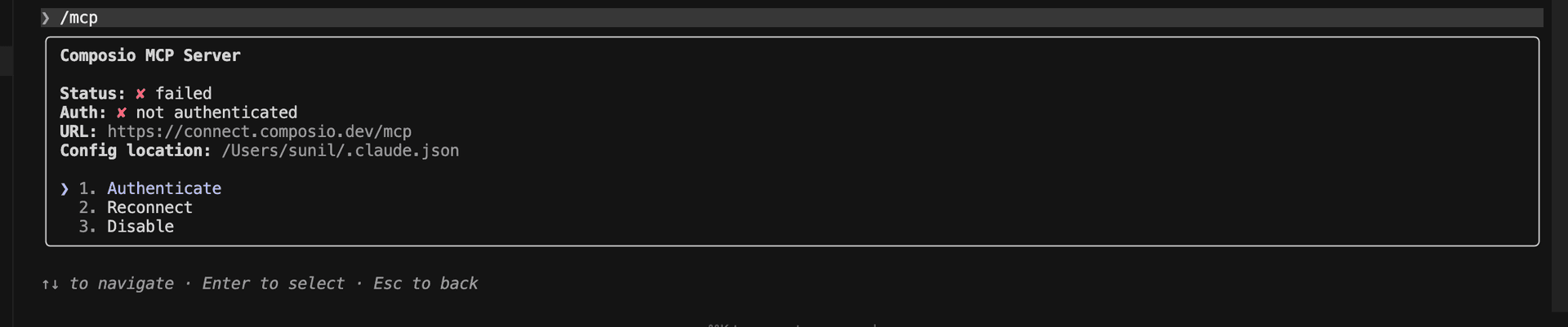
4. Select Composio and click on Authenticate

Select Composio and click Authenticate

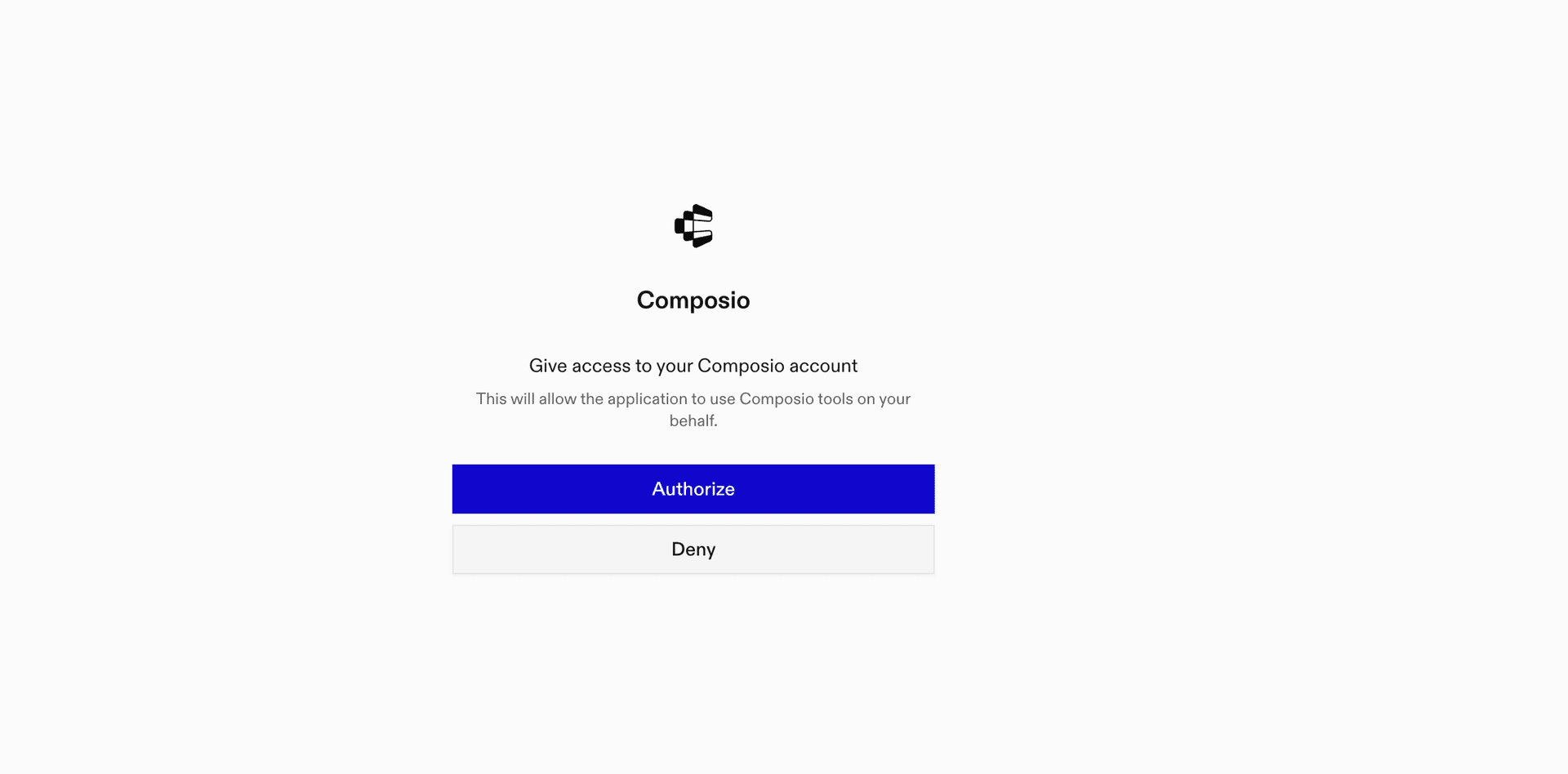
5. This will redirect you to the Composio OAuth page. Complete the flow by authorizing Composio and you're all set.

Composio OAuth authorization page
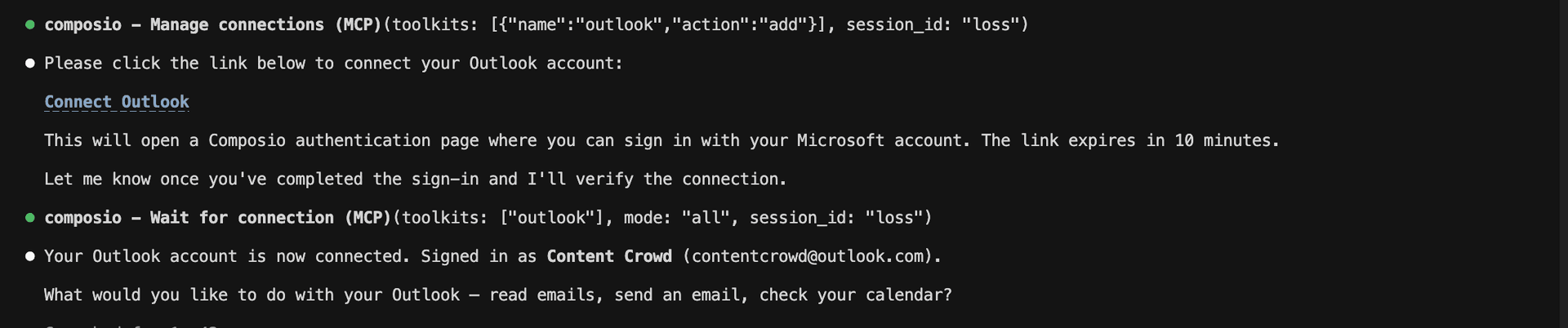
Composio authorization complete
Ask Claude to connect to your account and authenticate via the link

What is the Browserbase tool MCP server, and what's possible with it?

The Browserbase MCP server is an implementation of the Model Context Protocol that connects your AI agent and assistants like Claude, Cursor, etc directly to your Browserbase account. It provides structured and secure access to your browser sessions, contexts, projects, recordings, logs, files, and extensions, so your agent can create sessions, manage reusable contexts, inspect browser activity, retrieve recordings, and monitor project usage on your behalf.

  • Browser session management: Have your agent create isolated browser sessions, check their status, list recent sessions, and release running sessions when work is complete.
  • Reusable browser contexts: Let the agent create, inspect, and update browser contexts that preserve settings across multiple sessions.
  • Session monitoring and debugging: Direct your agent to retrieve live debugging access, review captured network activity, and inspect session logs.
  • Recordings and session artifacts: Instruct your agent to retrieve session replays, request downloadable recordings, and download generated session files.
  • Projects, files, and extensions: Have your agent review projects and usage, upload files for browser forms, and upload or inspect browser extensions.

Connecting Browserbase tool via Composio SDK

Composio SDK is the underlying technology that powers these integrations. It provides a universal gateway with full programmatic control. You can programmatically generate an MCP URL with the app you need (here Browserbase tool) for even more tool search precision. It's secure and reliable.

How the Composio SDK works

The Composio SDK follows a three-phase workflow:

  1. Discovery: Searches for tools matching your task and returns relevant toolkits with their details.
  2. Authentication: Checks for active connections. If missing, creates an auth config and returns a connection URL via Auth Link.
  3. Execution: Executes the action using the authenticated connection.

Step-by-step Guide

Step by step10 STEPS
1

Prerequisites

Before starting, make sure you have:
  • Claude Pro, Max, or API billing enabled Anthropic account
  • Composio API Key
  • A Browserbase tool account
  • Basic knowledge of Python or TypeScript
2

Install Claude Code

bash
# macOS, Linux, WSL
curl -fsSL https://claude.ai/install.sh | bash

# Windows PowerShell
irm https://claude.ai/install.ps1 | iex

# Windows CMD
curl -fsSL https://claude.ai/install.cmd -o install.cmd && install.cmd && del install.cmd

To install Claude Code, use one of the following methods based on your operating system:

3

Set up Claude Code

bash
cd your-project-folder
claude

Open a terminal, go to your project folder, and start Claude Code:

  • Claude Code will open in your terminal
  • Follow the prompts to sign in with your Anthropic account
  • Complete the authentication flow
  • Once authenticated, you can start using Claude Code
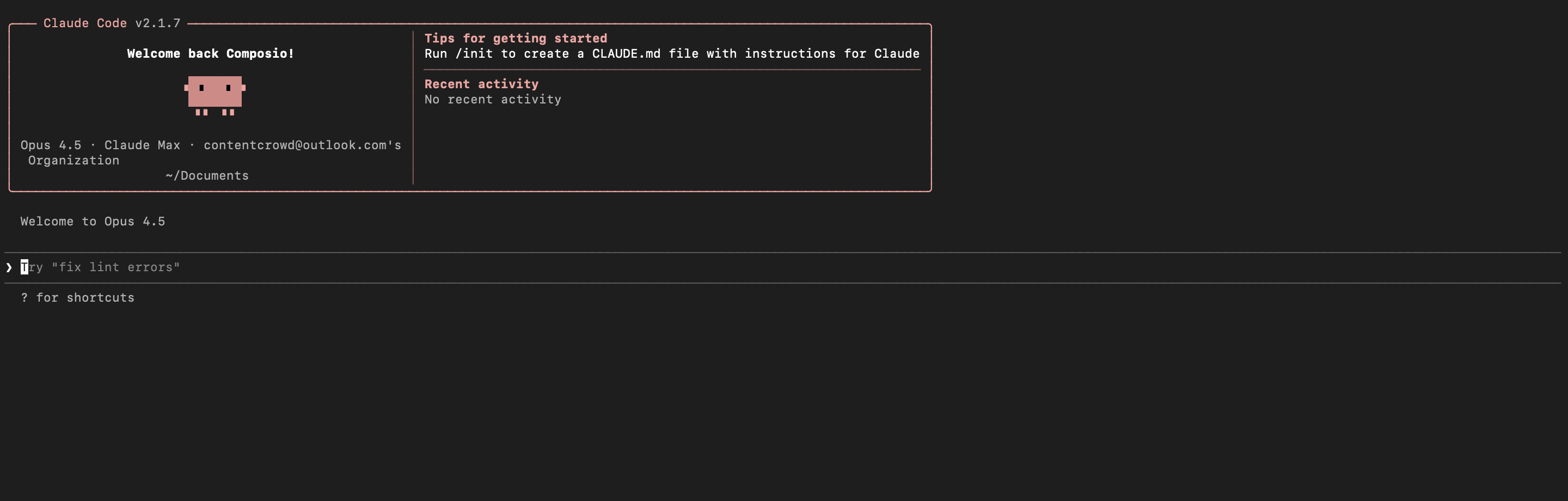
Claude Code initial setup showing sign-in prompt
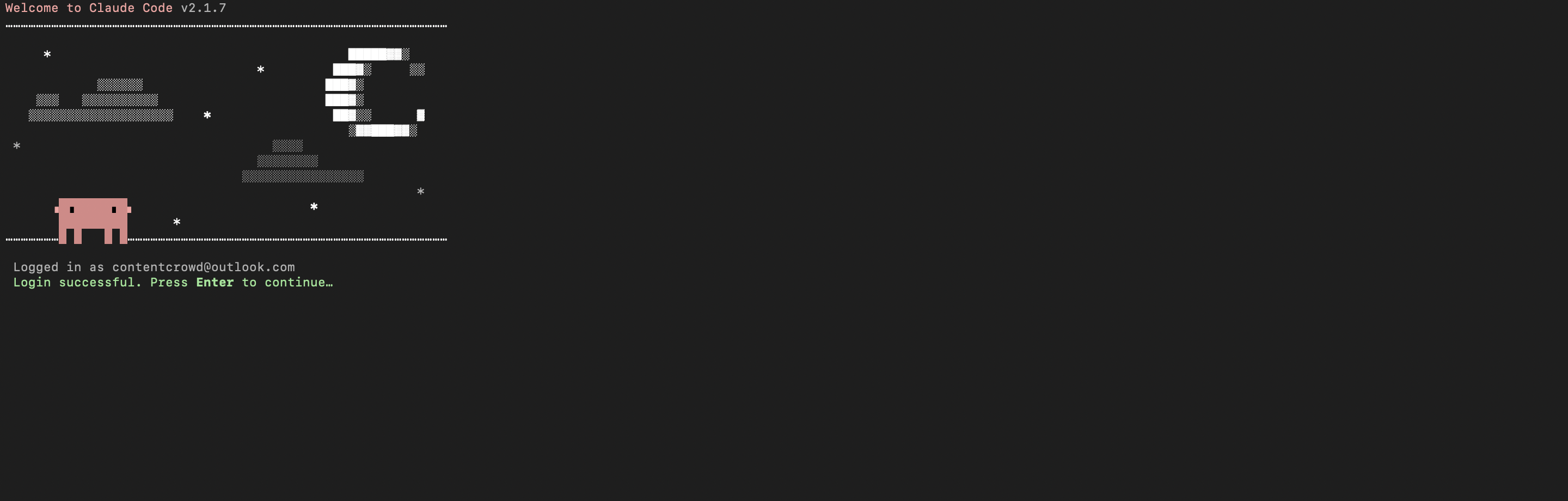
Claude Code terminal after successful login
4

Set up environment variables

bash
COMPOSIO_API_KEY=your_composio_api_key_here
USER_ID=your_user_id_here

Create a .env file in your project root with the following variables:

  • COMPOSIO_API_KEY authenticates with Composio (get it from Composio dashboard)
  • USER_ID identifies the user for session management (use any unique identifier)
5

Install Composio library

npm install @composio/core dotenv

Install the Composio TypeScript library to create MCP sessions.

  • @composio/core provides the core Composio functionality
  • dotenv loads environment variables from your .env file
6

Generate Composio MCP URL

import 'dotenv/config';
import { Composio } from '@composio/core';

const { COMPOSIO_API_KEY, USER_ID } = process.env;

if (!COMPOSIO_API_KEY || !USER_ID) {
  throw new Error('COMPOSIO_API_KEY and USER_ID required in .env');
}

const composioClient = new Composio({ apiKey: COMPOSIO_API_KEY });

const composioSession = await composioClient.create(USER_ID, {
  toolkits: ['browserbase_tool'],
});

const composioMcpUrl = composioSession?.mcp.url;

console.log(`MCP URL: ${composioMcpUrl}`);
console.log(`\nUse this command to add to Claude Code:`);
console.log(`claude mcp add --transport http browserbase_tool-composio "${composioMcpUrl}" --headers "X-API-Key:${COMPOSIO_API_KEY}"`);

Create a script to generate a Composio MCP URL for Browserbase tool. This URL will be used to connect Claude Code to Browserbase tool.

What's happening

  • We import the Composio client and load environment variables
  • Create a Composio instance with your API key
  • Call create() to create a Tool Router session for Browserbase tool
  • The returned mcp.url is the MCP server URL that Claude Code will use
  • The script prints this URL so you can copy it
7

Run the script and copy the MCP URL

node --loader ts-node/esm generate_mcp_url.ts
# or if using tsx
tsx generate_mcp_url.ts

Run your TypeScript script to generate the MCP URL.

  • The script connects to Composio and creates a Tool Router session
  • It prints the MCP URL and the exact command you need to run
  • Copy the entire claude mcp add command from the output
8

Add Browserbase tool MCP to Claude Code

bash
claude mcp add --transport http browserbase_tool-composio "YOUR_MCP_URL_HERE" --headers "X-API-Key:YOUR_COMPOSIO_API_KEY"

# Then restart Claude Code
exit
claude

In your terminal, add the MCP server using the command from the previous step. The command format is:

  • claude mcp add registers a new MCP server with Claude Code
  • --transport http specifies that this is an HTTP-based MCP server
  • The server name (browserbase_tool-composio) is how you'll reference it
  • The URL points to your Composio Tool Router session
  • --headers includes your Composio API key for authentication

After running the command, close the current Claude Code session and start a new one for the changes to take effect.

9

Verify the installation

bash
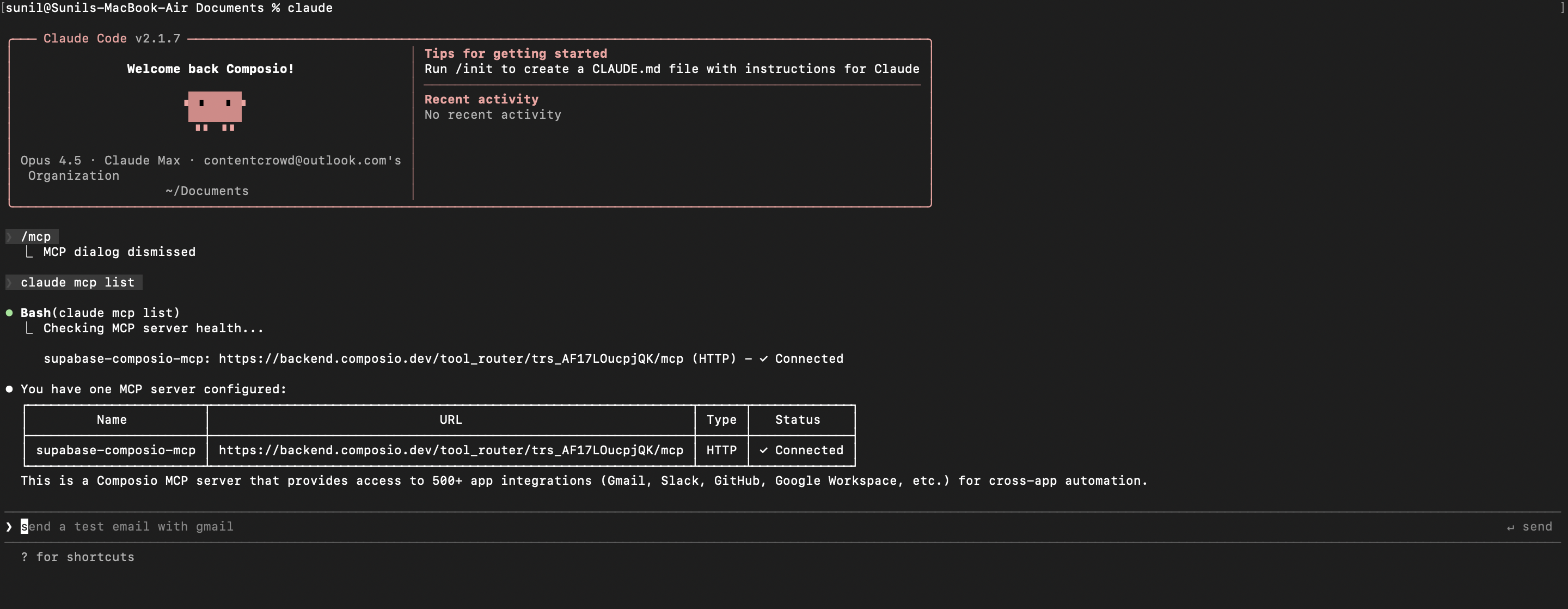
claude mcp list

Check that your Browserbase tool MCP server is properly configured.

  • This command lists all MCP servers registered with Claude Code
  • You should see your browserbase_tool-composio entry in the list
  • This confirms that Claude Code can now access Browserbase tool tools

If everything is wired up, you should see your browserbase_tool-composio entry listed:

Claude Code MCP list showing the toolkit MCP server
10

Authenticate Browserbase tool

The first time you try to use Browserbase tool tools, you'll be prompted to authenticate.

  • Claude Code will detect that you need to authenticate with Browserbase tool
  • It will show you an authentication link
  • Open the link in your browser (or copy/paste it)
  • Complete the Browserbase tool authorization flow
  • Return to the terminal and start using Browserbase tool through Claude Code

Once authenticated, you can ask Claude Code to perform Browserbase tool operations in natural language. For example:

  • "Start a new headless browser session now"
  • "Download all artifacts from last session"
  • "Retrieve debug URLs for active sessions"

Complete Code

Here's the complete code to get you started with Browserbase tool and Claude Code:

import 'dotenv/config';
import { Composio } from '@composio/core';

const { COMPOSIO_API_KEY, USER_ID } = process.env;

if (!COMPOSIO_API_KEY || !USER_ID) {
  throw new Error('COMPOSIO_API_KEY and USER_ID required in .env');
}

const composioClient = new Composio({ apiKey: COMPOSIO_API_KEY });

const composioSession = await composioClient.create(USER_ID, {
  toolkits: ['browserbase_tool'],
});

const composioMcpUrl = composioSession?.mcp.url;

console.log(`MCP URL: ${composioMcpUrl}`);
console.log(`\nUse this command to add to Claude Code:`);
console.log(`claude mcp add --transport http browserbase_tool-composio "${composioMcpUrl}" --headers "X-API-Key:${COMPOSIO_API_KEY}"`);

Conclusion

You've successfully integrated Browserbase tool with Claude Code using Composio's MCP server. Now you can interact with Browserbase tool directly from your terminal using natural language commands.

Key features of this setup:

  • Terminal-native experience without switching contexts
  • Natural language commands for Browserbase tool operations
  • Secure authentication through Composio's managed MCP
  • Tool Router for dynamic tool discovery and execution

Next steps:

  • Try asking Claude Code to perform various Browserbase tool operations
  • Add more toolkits to your Tool Router session for multi-app workflows
  • Integrate this setup into your development workflow for increased productivity

You can extend this by adding more toolkits, implementing custom workflows, or building automation scripts that leverage Claude Code's capabilities.

TOOLS

Supported Tools

Every Browserbase tool action and event your agent gets out of the box.

Attach Browserbase Function Secret

Attach an existing project secret to a Function by UUID.

Update Browser Context

Tool to update a specific browser context.

Create Browserbase Agent

Create a reusable browser agent with a name and optional system prompt and result schema.

Create Browser Context

Create a reusable browser context; the API key can select the project.

Create Browser Session

Create an isolated Browserbase session and return its connection details.

Create Browserbase Webhook

Register a publicly reachable HTTPS endpoint for project event deliveries.

Delete Browserbase Agent

Delete a reusable browser agent by its agentId.

Delete a browser context

Tool to delete a browser context and all its stored data (cookies, localStorage, etc.).

Delete Download

Delete a download file from storage and mark it as deleted.

Delete a browser extension

Tool to delete an uploaded browser extension by its ID.

Delete Session Downloads

Tool to delete all file downloads from a specific browser session.

Delete Browserbase Webhook

Delete a webhook, immediately stopping deliveries and retiring its secret.

Detach Browserbase Function Secret

Detach a project secret from a Function by UUID.

Download Session Artifacts

Download a completed session's generated files as a ZIP archive.

Fetch Browserbase Page

Fetch a page and return its content, headers, and metadata.

Get Browserbase Agent

Retrieve a reusable browser agent by its agentId.

Get Certificate

Retrieve a Browserbase certificate by its ID.

Get Browser Context

Return metadata for a browser context by ID.

Get Download

Get a single download by ID as metadata or a downloadable file object.

Retrieve a browser extension

Tool to retrieve details of a specific browser extension.

Get Browserbase Function

Retrieve a Browserbase function by its ID.

Get Browserbase Function Build

Retrieve a Browserbase function build by its build ID.

Get Browserbase Function Build Logs

Retrieve Browserbase function build logs by the build ID.

Get Browserbase Function Version

Retrieve a Browserbase function version by its version ID.

Get Browserbase Invocation

Retrieve a Browserbase function invocation by its invocation ID.

Get Browserbase Invocation Logs

Retrieve Browserbase function invocation logs by the invocation ID.

Get Browserbase Keypair

Retrieve the project's public HPKE encryption key and keypair ID.

Get Browserbase Project

Return project metadata, default timeout, and assigned concurrency.

Get project usage statistics

Tool to retrieve usage statistics for a project including browser minutes and proxy bytes consumed.

Get Browserbase Agent Run

Retrieve a browser agent run's current status, result, and session details.

Get Browserbase Secret

Retrieve a project secret's ID and name by UUID, without its secret value.

Get Browser Session

Return status, connection details, and timestamps for a browser session.

Get Session Debug URLs

Return live debugger and WebSocket URLs for a running browser session.

Get Session Logs

Return network request and response events captured during a browser session.

Get Session Replay

Return HLS replay metadata and page playlist paths for a recorded session.

Get Session Replay Page

Return the HLS M3U8 playlist for one recorded replay page.

Get Browserbase Webhook

Retrieve a single webhook by ID, without its signing secret.

Invoke Browserbase Function

Invoke a deployed Browserbase function asynchronously.

List Browserbase Agents

List one page of reusable browser agents across your account.

List Certificates

List Browserbase certificates with their IDs, timestamps, and project IDs.

List Browserbase Downloads

List one page of download metadata for a required browser session.

List Browserbase Function Builds

List one page of Browserbase function builds, optionally filtered by status.

List Browserbase Functions

List one page of Browserbase functions and the total number available.

List Browserbase Function Secrets

List one page of secret IDs and names attached to a Browserbase function, optionally filtered by creation time.

List Browserbase Function Versions

List one page of versions for a Browserbase function by its UUID.

List Browserbase Projects

List projects with their default timeout and assigned concurrency.

List Recording Downloads

Poll per-page MP4 assembly after requesting recording downloads until every page is COMPLETED or FAILED.

List Browserbase Run Messages

List a page of a browser agent run's messages, oldest first, with assistant or tool roles and text or typed content parts.

List Browserbase Agent Runs

List a page of browser agent runs across your account.

List Browserbase Secrets

List one page of project secret IDs and names, optionally filtered by creation time.

List Browser Sessions

List browser sessions, optionally filtered by status or user metadata.

List Browserbase Function Version Invocations

List one page of invocations for a Browserbase function version by its UUID.

List Browserbase Webhooks

List one page of the project's webhooks, newest first, without signing secrets.

Release Browser Session

Irreversibly request release of a running browser session, ending it before its configured timeout to avoid further charges.

Request Recording Downloads

Start asynchronous MP4 assembly for every recorded page of a completed session, then poll List Recording Downloads until every page is COMPLETED or FAILED.

Resume Browserbase Agent Run

Resume only a PAUSED browser agent run with optional additional input.

Run Browserbase Agent

Start a browser agent run to complete a task using web search and browser tools.

Stop Browserbase Agent Run

Request that an in-progress browser agent run stop.

Update Browserbase Agent

Update a reusable browser agent's name, system prompt, or result schema.

Update Browserbase Webhook

Update a webhook's delivery URL, subscribed event types, or both.

Upload Browser Extension

Tool to upload a browser extension for use in sessions.

Upload Session File

Upload one file so browser interactions can select it in a file input field.

Upload Session Files

Upload multiple files to one browser session for file-input interactions.

Web Search

Perform a web search and return structured results.

FAQ

Frequently asked questions

Start with Browserbase tool.It takes 30 seconds.

Managed auth, hosted MCP servers, and every Browserbase tool tool your agent needs.Free to start.

Start building